09 Player Movement
We'll now add user input so we can fly our ship around. For this we're going to need to know some stuff about Vectors!

When making a 3D game, we work with a type of vector called Vector3. This us just a variable that holds 3 float values for X, Y, and Z. A Vector3 can be used for different things. It can be a position, a movement direction and amount, a scale.
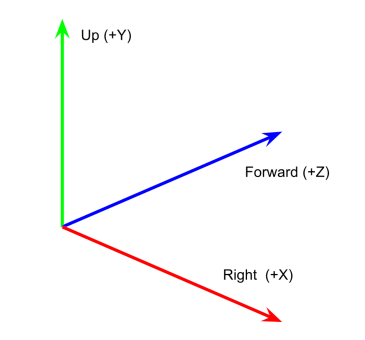
Rotations can also be stored in a Vector3. Working with 3D rotations as Quaternions solves problems with Vector3 rotations, but we won't worry about that for now.
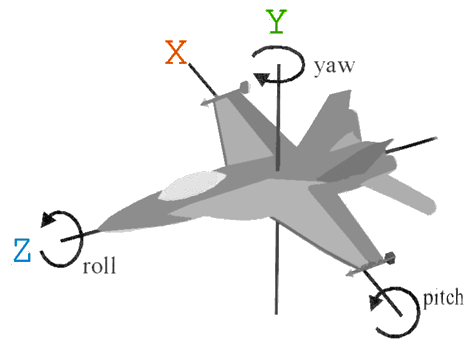
The combination of all of these types of Vectors is called a Transform. This transform represents where the object is in relation to its parent object: which way it's rotated, and if it's squished or stretched in any way. This is called Local Space

Game Object Transforms are combined with the parent object's transform all the way up the Hierarchy to the world's root transform. All of these transforms mixed together determine where the object is in the world: which way it's rotated, and if it's squished or stretched in any way. This combined transform is called World Space
One thing to note is that a Transform does contain those 9 values, but it also gives you some very useful computed values. The ones we're interested in are the Right, Up, and Forward vectors. These are the Right, Up, and Forward directions in local space relative to how the object is rotated.
We'll use the Right, Up, and Forward Vectors of our Transform to calculate how to move our ship, and which direction it's pointing in.
Our flight movement is only going to consist of a constant movement in the Forward direction, and Yaw and Pitch rotations which combine to determine what Forward means. We'll create a script with variables to adjust our 3 types of movement.
-
Open your Player prefab in the prefab editor. In the Inspector add a new script component called PlayerMove
-
Add 3 public float variables that we can edit in the inspector.
public float ForwardSpeed = 30;
public float PitchSpeed = -2;
public float YawSpeed = 2;
I chose a negative number for pitch because I want the plane to pitch down when I press the up arrow. Similar to real airplane controls. If you prefer, you can Invert the Y control by choosing a positive number instead.
-
Make a function that gets the player's input and returns this as a Vector2. A Vector2 only has X and Y values. We want to use the smallest variable types that make sense.
private Vector2 GetInput()
{
    Vector2 input;
    input.x = Input.GetAxis("Horizontal");
    input.y = Input.GetAxis("Vertical");
    return input;
}
We'll have to come back to this later when we make it a multi-player game to adjust it for the 2nd player's inputs.
-
In our Update() function, we need to get the input and store this in our own local Vector2.
Vector2 input = GetInput();
Next we create a local variable that calculates how much forward movement we want to do in this update. So this is the transform's Forward vector (the direction our ship is facing) multiplied by the forward speed, and then multiplied by the amount of time that has passed since the last update. Still inside the Update() function add this
    // Calculate how much forward to move this frame
    Vector3 forward = this.transform.forward * ForwardSpeed * Time.deltaTime;
Now use the input values to adjust how much Up and Right the player wants to move.
    // Calulate how much up and to the right to move this frame
    Vector3 pitch = this.transform.up * input.y * PitchSpeed * Time.deltaTime;
    Vector3 yaw = this.transform.right * input.x * YawSpeed * Time.deltaTime;

    // The total movement is just adding these vectors
    Vector3 direction = forward + pitch + yaw;

    // Convert this to a rotation and rotate our ship
    this.transform.rotation = Quaternion.LookRotation(direction);

    // Move the ship forward in it's new direction
    this.transform.Translate(Vector3.forward * ForwardSpeed * Time.deltaTime);
If we play it now, the ship will move forward, pitch up and down, and yaw around. It's playable, but the movement doesn't seem realistic from how you might imagine an airplane flying. The thing missing is Roll.
If we apply roll to our player object, it's going to look strange because the camera is also going to roll. We just want the ship model to roll a bit. This is one reason we have the model as a child of the player object, so we can adjust the model's visible transform independently from the player's logical transform.
-
In the Player prefab's shipA_OBJ child item add a new script called PlayerRoll
-
This will need a value for how much to roll. Make this a public float called RollAmount
public float RollAmount = 30;
-
In the Update() function use the horizontal input to calculate how much the model should roll. Use this to generate a new rotation vector for the model.
    float roll = Input.GetAxis("Horizontal") * RollAmount;
    transform.localEulerAngles = new Vector3(0, 180, roll);