08 Player Prefab
In this step we'll create a player prefab. We will be making this a multi-player game, so having a prefab means we can add other copies later. But even if we weren't going to need another, we should still get in the habit of making a prefab for everything.
The other pattern that keeps coming up is that we need an empty game object that contains the model. We can't apply the movements directly on the model without running into problems later.
-
In the Hierarchy create a new Empty and reset its Transform. Rename this to Player.
-
Drag your ship model in in the Hierarchy to be inside the Player game object.
-
Drag the Main Camera game object inside the Player game object. This will tie the camera to the player movements.
-
Drag your Player object from the Hierarchy into your Assets/Prefabs folder to convert it into a Prefab.
The prefab contains all of the elements we need for now: a ship model, and a camera. Now we need to position these correctly.
-
Double-click on the ship prefab in the Assets/Prefab folder --OR-- In the Hierarchy click the arrow on the right side of the player game object. Either of these will take you to the prefab editor.
-
In the prefab editor's Scene view make sure you are looking from the Top view.
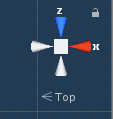
-
Reset the Transform on the shipA_OBJ model. This is important since this will be the point that the ship rotates from. If your ship is no longer in view, press F (find) to move the view.
-
We want the ship pointing in the positive Z direction. The direction of the blue arrow. Select your shipA_OBJ model and set it's rotation to X=0, y=180, z=0
-
Select the Main Camera object in your prefab and reset it's transform. This will move it to where the ship is.
-
Position the camera so that it's behind and a bit higher than the ship. It should end up looking like below. With the ship at the bottom of the screen, and not taking up too much space.
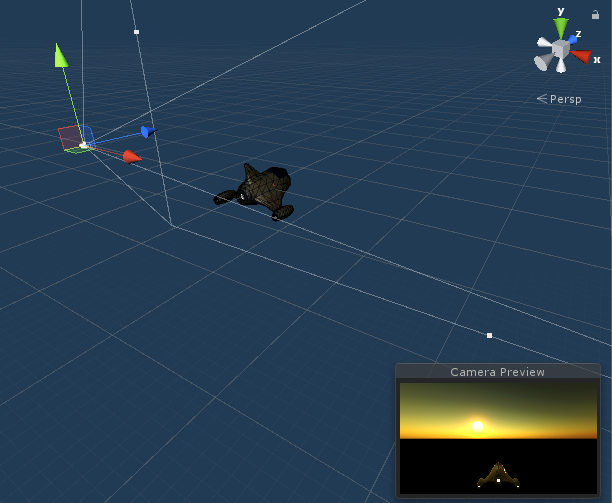
-
Exit the prefab editor and in your Hierarchy change the Player game object's position to be in the center of your world. This should be: X=500, Y=150, Z=500