Using the StorageObjectService Bean Data Control
For declarative access to the MCS storage API, you first need to create the StorageObjectService bean data control:
- In JDeveloper, go to File -> New gallery.
- In the New Gallery dialog, click on Data Controls under Business Tier.
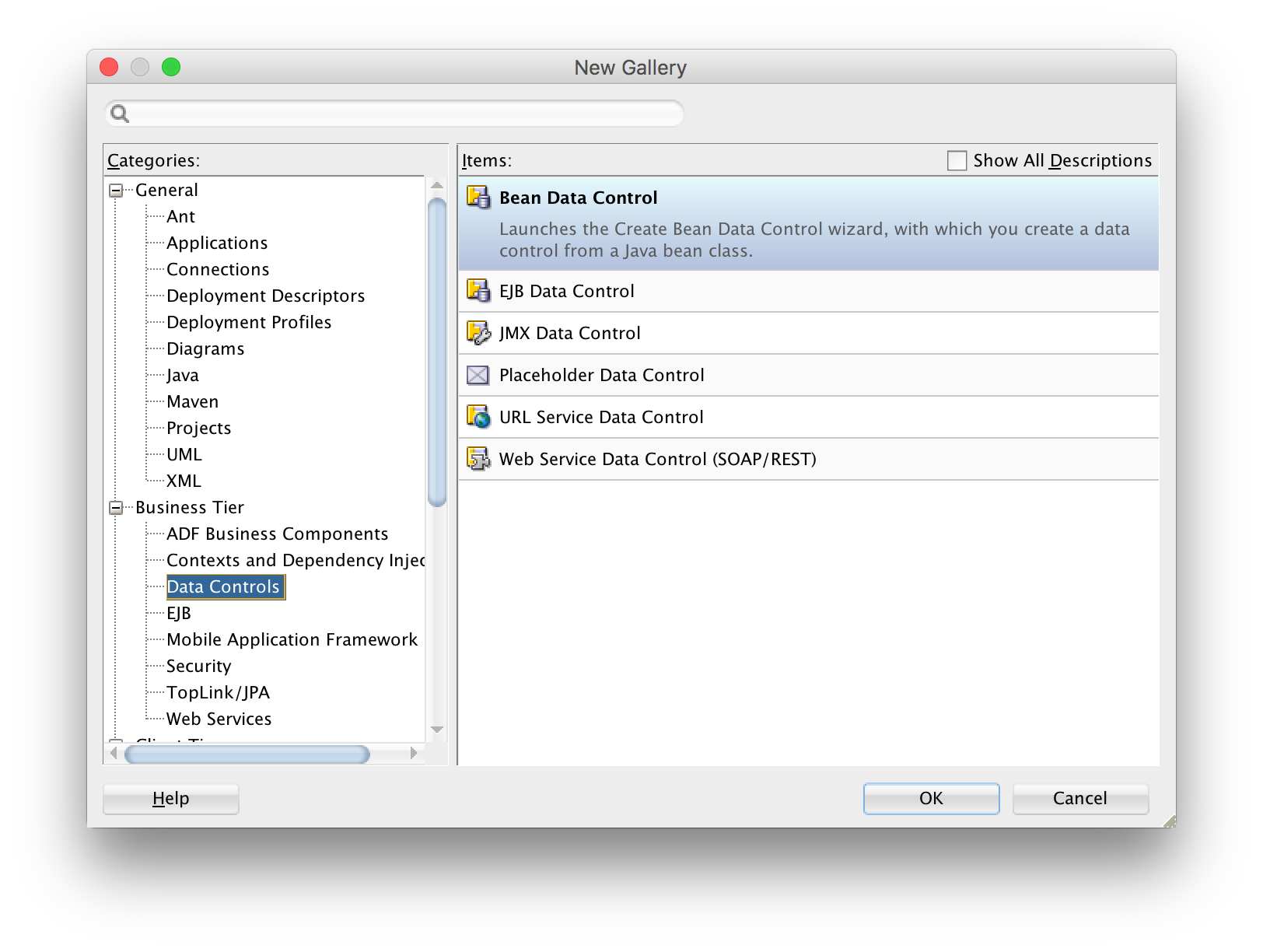
- The Bean Data Control is already selected, just click OK.
- In step 1 of the Create Bean Data Control wizard, click on the LOV icon at the right to open the Class browser dialog. you should select the AMPA StorageObjectService class as shown below. Enter
StorageOSin the Match Class Name field, this should auto-select the matching AMPA StorageObjectService class.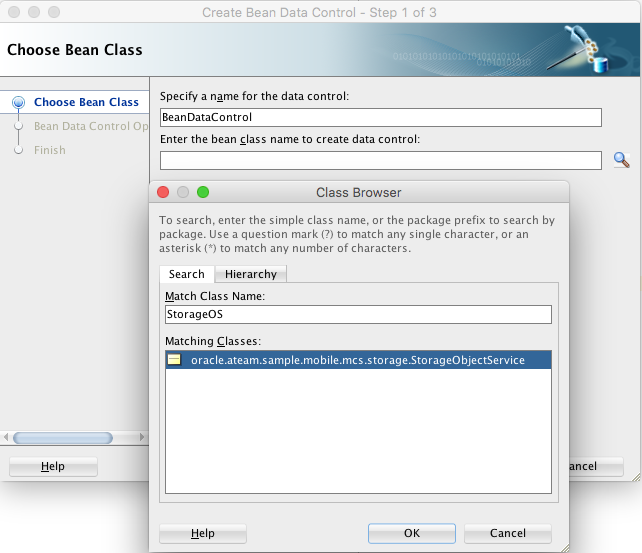
- Click OK, the name of the data control will change automatically when you select this class.
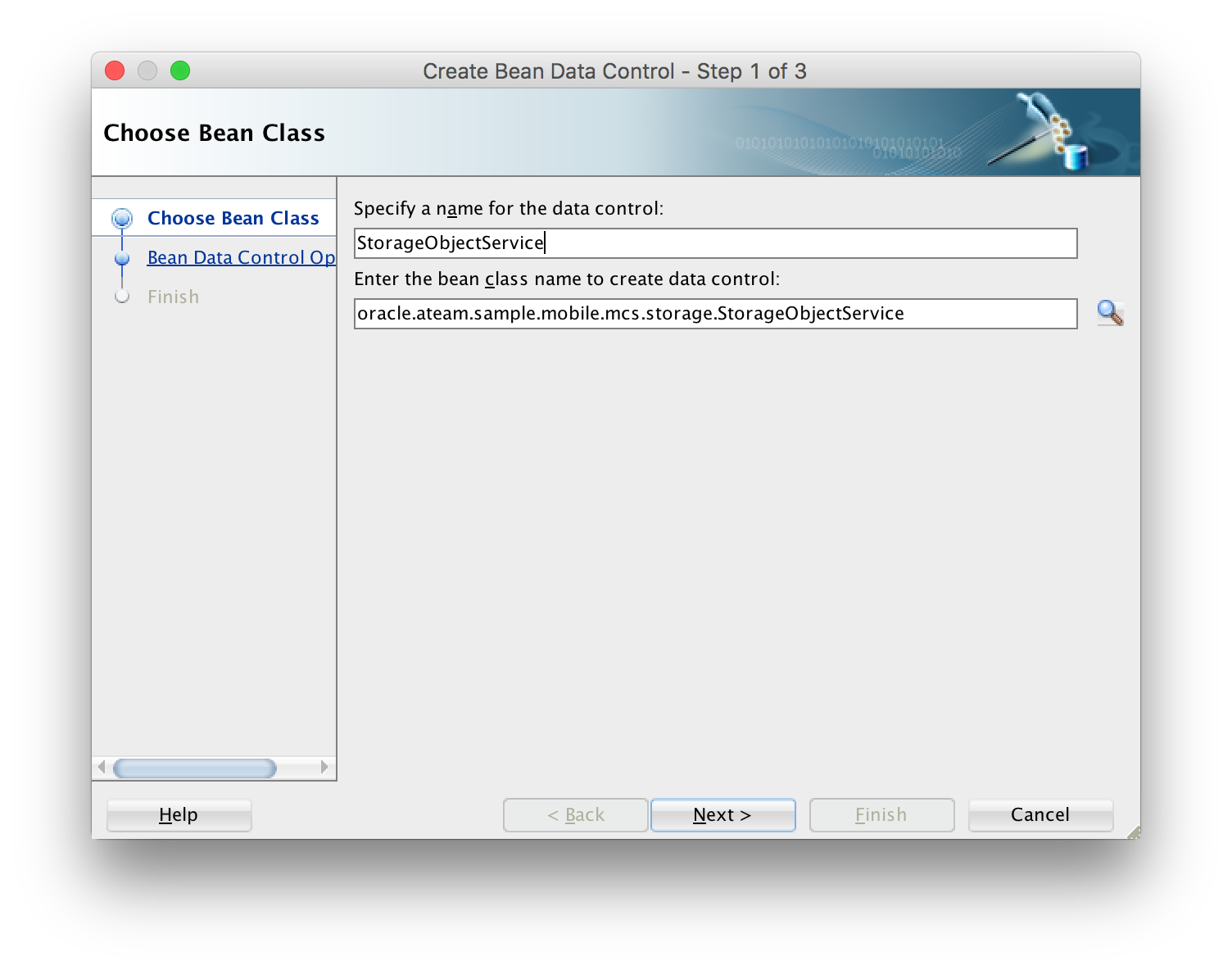
- Click Next and then Finish
The StorageObjectService data control now appears in your data control palette. You will typically use the methods in the data control palette to download and display all files in a collection, or just a single file.
The REST calls to MCS to retrieve storage object are made in the background when the remoteReadInBackground property of the StorageObject mapping descriptor in persistence-mapping.xml is set to true.
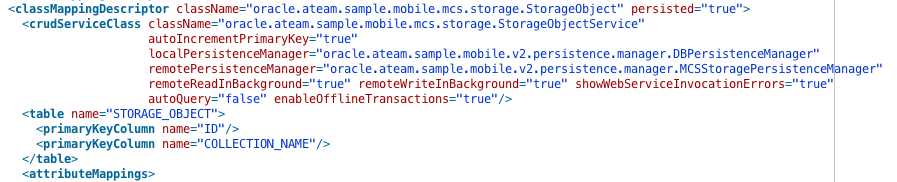
The REST calls to MCS to create or update storage object are made in the background when the remoteWriteInBackground property of the StorageObject mapping descriptor in persistence-mapping.xml is set to true.
Note that unlike your own entities, you cannot use the Edit Persistence Mapping wizard for StorageObject, you should directly edit the persistence-mapping.xml file.
##Retrieving All Files in an MCS Storage Collection To retrieve all files, you use the findAllStorageObjectsInCollection method. This method takes just one parameter: the name of the collection in MCS. To execute the method you can drag and drop it as a MAF parameter Form. This will create an input field for the collection name, and a button to execute the method. After this method is executed, the storageObjects collection in the data control is populated with the contents of the collection, that is, the metadata of each storage object in the collection. You can then drag and drop this collection onto your AMX page, for example as a list view:
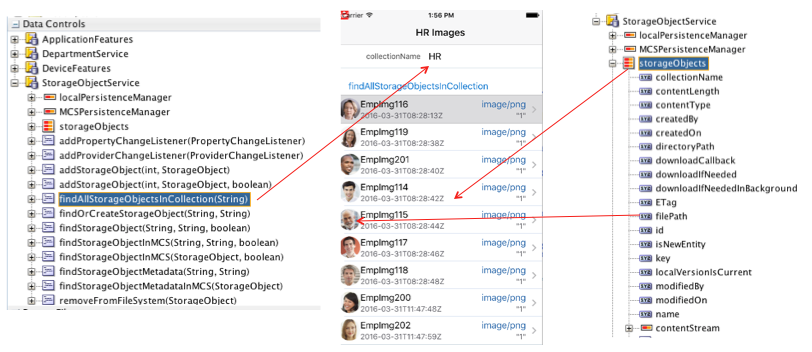
Alternatively, you can drag and drop the findAllStorageObjectsInCollection method as a method activity on your task flow and then add a control flow rule from this activity to your AMX page that shows the content of the collection. When you perform this drag and drop, you need to provide a value for the collectionName parameter, this can be a hardcoded value or some EL expression.
Note that just like the entity lists of your own entities, the storageObjects collection will be initially populated with the local storage objects from the SQLite database, the call to MCS will be made in the background, and the UI will refresh once the MCS results are returned.
###Downloading the File Content In the above example, you can see how the storage file is used to display the image in each list item. To accomplish this, you need to set the source attribute of the amx:image element to the value of the filePath attribute of the storage object. The filePath holds the reference to the downloaded file on the mobile device:
<amx:image source="#{row.filePath}" inlineStyle="width:40px;height:40px;" id="i1"/>
Now, you might wonder how the image files are downloaded, because the findAllStorageObjectsInCollection method only returns the metadata of each storage object. Well, the trick is to drag and drop the downloadIfNeededInBackground attribute as an outputText element. At runtime, MAF will call the getDownloadIfNeedInBackground method on the StorageObject class, this method returns an empty string and will trigger the download of the file.
Note that if the file has been downloaded before, AMPA will first make a so-called HEAD call to check wether the ETag of the storage object in MCS has the same value as the local ETag value stored in the SQLite database. If it has changed, the file will be downloaded.
Here is the complete code for the listView element shown above:
<amx:listView var="row" value="#{bindings.storageObjects.collectionModel}"
              fetchSize="#{bindings.storageObjects.rangeSize}"
              selectedRowKeys="#{bindings.storageObjects.collectionModel.selectedRow}"
              initialScrollRowKeys="#{bindings.storageObjects.collectionModel.selectedRow}"
              selectionListener="#{bindings.storageObjects.collectionModel.makeCurrent}"
              showMoreStrategy="autoScroll" bufferStrategy="viewport" id="lv1">
  <amx:listItem id="li1" rendered="#{row.contentType=='image/jpeg'}">
    <amx:tableLayout width="100%" id="tl1">
      <amx:rowLayout id="rl2">
        <amx:cellFormat width="40px" halign="center" rowSpan="2" id="cf6">
          <amx:image source="#{row.filePath}" inlineStyle="width:40px;height:40px;" id="i1"/>
          <amx:outputText value="#{row.downloadIfNeededInBackground}" id="ot6"/>
        </amx:cellFormat>
        <amx:cellFormat width="60%" height="#{deviceScope.device.os=='Android'?'36':'32'}px" id="cf4">
          <amx:outputText value="#{row.name}" id="ot4"/>
        </amx:cellFormat>
        <amx:cellFormat width="10px" rowSpan="2" id="cf3"/>
        <amx:cellFormat width="40%" halign="end" id="cf5">
          <amx:outputText value="#{row.contentType}" styleClass="adfmf-listItem-highlightText" id="ot5"/>
        </amx:cellFormat>
      </amx:rowLayout>
      <amx:rowLayout id="rl1">
        <amx:cellFormat width="60%" height="#{deviceScope.device.os=='Android'?'22':'19'}px" id="cf1">
          <amx:outputText value="#{row.createdOn}" styleClass="adfmf-listItem-captionText" id="ot2"/>
        </amx:cellFormat>
        <amx:cellFormat width="40%" halign="end" id="cf2">
          <amx:outputText value="#{row.ETag}" styleClass="adfmf-listItem-captionText" id="ot3"/>
        </amx:cellFormat>
      </amx:rowLayout>
    </amx:tableLayout>
  </amx:listItem>
</amx:listView>
If you do not want the page to load before all images are downloaded, you can drag and drop the downloadIfNeeded attribute instead.
###Filtering the Data Control StorageObjects List
The MCS Storage API only supports retrieving all files from a collection, or just one. However, you can easily filter the results on the device by leverage the SQLite database that stores all the storage object metadata. To do this, you need to create your own subclass of the AMPA StorageObjectService class, and then create a data control using your subclass.
In your subclass you can then add code to filter the storage objects just like you can in the service classes of your own entities. See section Using Filtered Entity Lists for more info.
##Retrieving A Single File from an MCS Storage Collection To retrieve a single file, you use the findStorageObject method, this method retrieves the storage object metadata and downloads the file as well. This method takes two parameters:
- the name of the collection in MCS
- the ID of the storage object
To execute the method you can drag and drop it as a MAF parameter Form. This will create an input field for the three parameters, and a button to execute the method. You can drag and drop the result StorageObject element of this method onto your AMX page, for example as a Read-Only form:
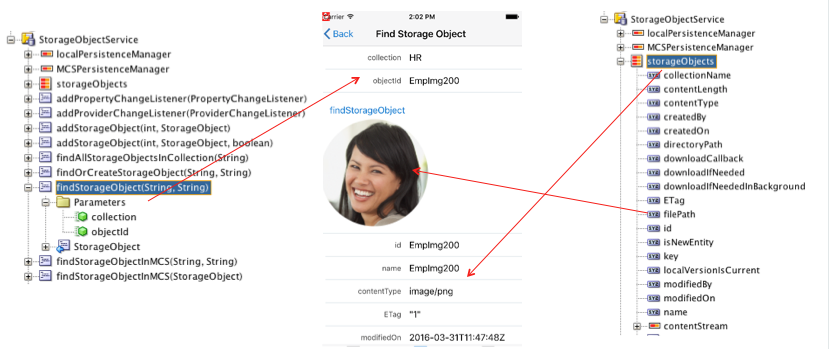
And if the file is an image, you can first drag and drop the filePath attribute as an outputText and then change it into an image:
<amx:image id="i1" source="#{bindings.filePath.inputValue}" inlineStyle="height:200px;"/>