Using the MAF User Interface Generator
The AMPA MAF User Interface Generator auto-generates a complete MAF feature including taskflow, AMPX pages and data bindings (page definitions). This is convenient for quick testing of your model layer and for user prototyping. It also might help you to more quickly understand all of the functionality provided by AMA to build the user interface layer as the generator uses a lot of the features explained in this developer's guide.
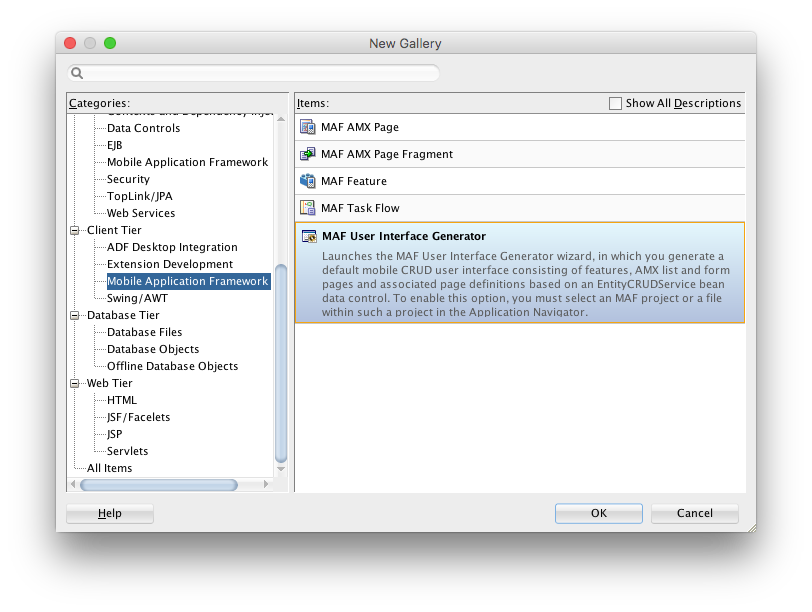
To start the wizard, choose File -> New... from the JDeveloper menu, and then select the **Mobile Application Framework **category under Client Tier. The fourth and last item of this category, which only shows up after you installed the AMPA extension in JDeveloper, launches the MAF User Interface Generator.
##Running the Wizard
After the wizard welcome page, you get a page where you can select a data control.
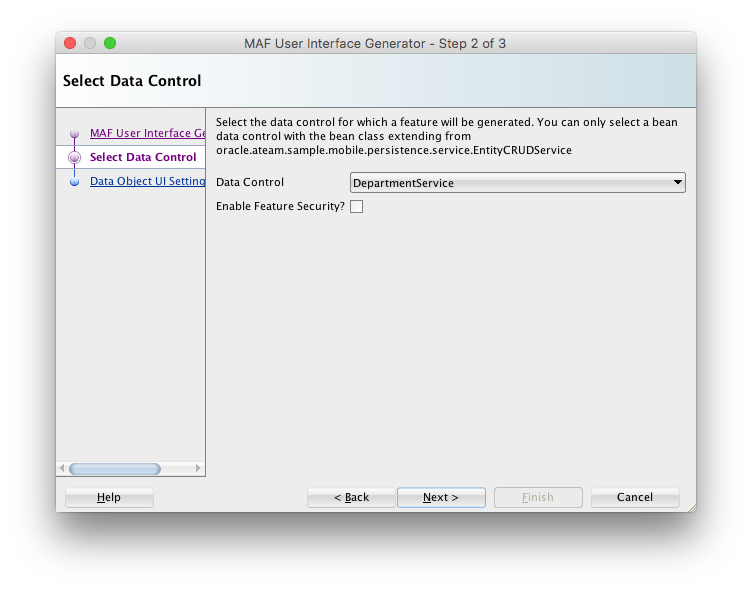
If the data control drop down list is empty, you might need to cancel the wizard first and click on the refresh icon of the data control palette to load all data controls in your application. If that still doesn't help, you probably forgot to create a data control from your entity service class. You can do this by right-mouse-clicking on the entity service class and choose Create Data Control from the popup menu.
If you already configured MAF security, you can check the Enable Feature Security checkbox. However, you can also do this later after the feature is generated by checking the Enable Security checkbox in the maf-feature.xml overview which can be found in the META-INF folder of your ViewController project.
After clicking Next, you will see the last wizard page where you can set some basic user interface options.
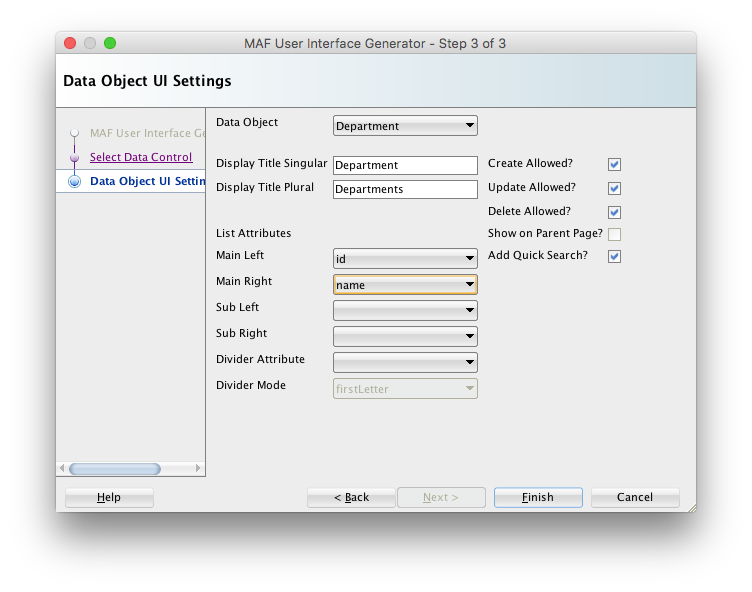
For every data object, a list page and a form page will be generated. Under the List Attributes heading you can specify which attributes should be used in the list view and you specify whether you want to use a list divider. The form page will show all the attributes of the entity object. If you have set-up a parent-child relationship, you can also select a child data object in the Data Object drop-down list. For child data objects, you can use the Show on Parent Page checkbox to either include the list view inside the form page of the parent data object, or in a separate page.
You should check the Create Allowed, Update Allowed and Delete Allowed checkboxes depending on whether you have set up the corresponding REST resources on the CRUD REST Resources wizard page.
##Understanding the Generator Output When clicking Finish, the following artefacts are generated:
- a new feature is added to the maf-feature.xml file in the META-INF folder
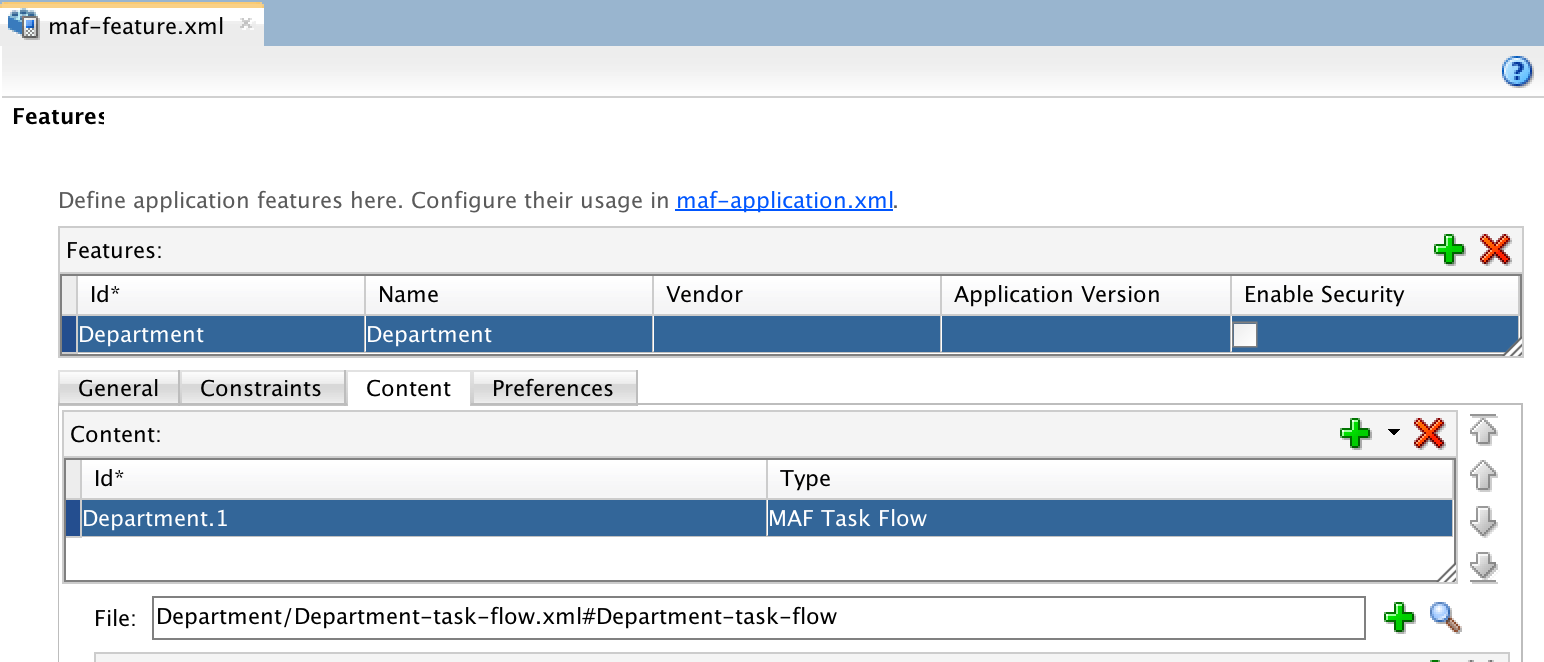
- a task flow is generated in a sub-folder named after the data object under the Web Content folder
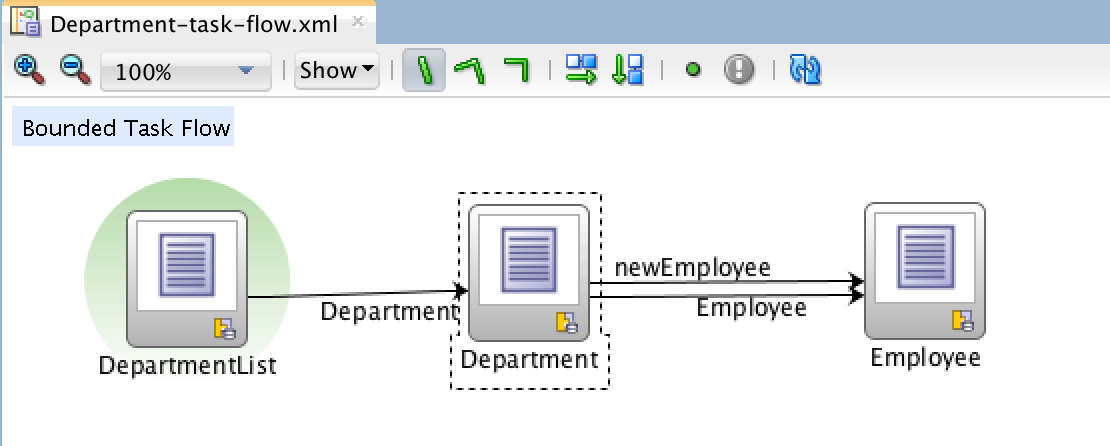
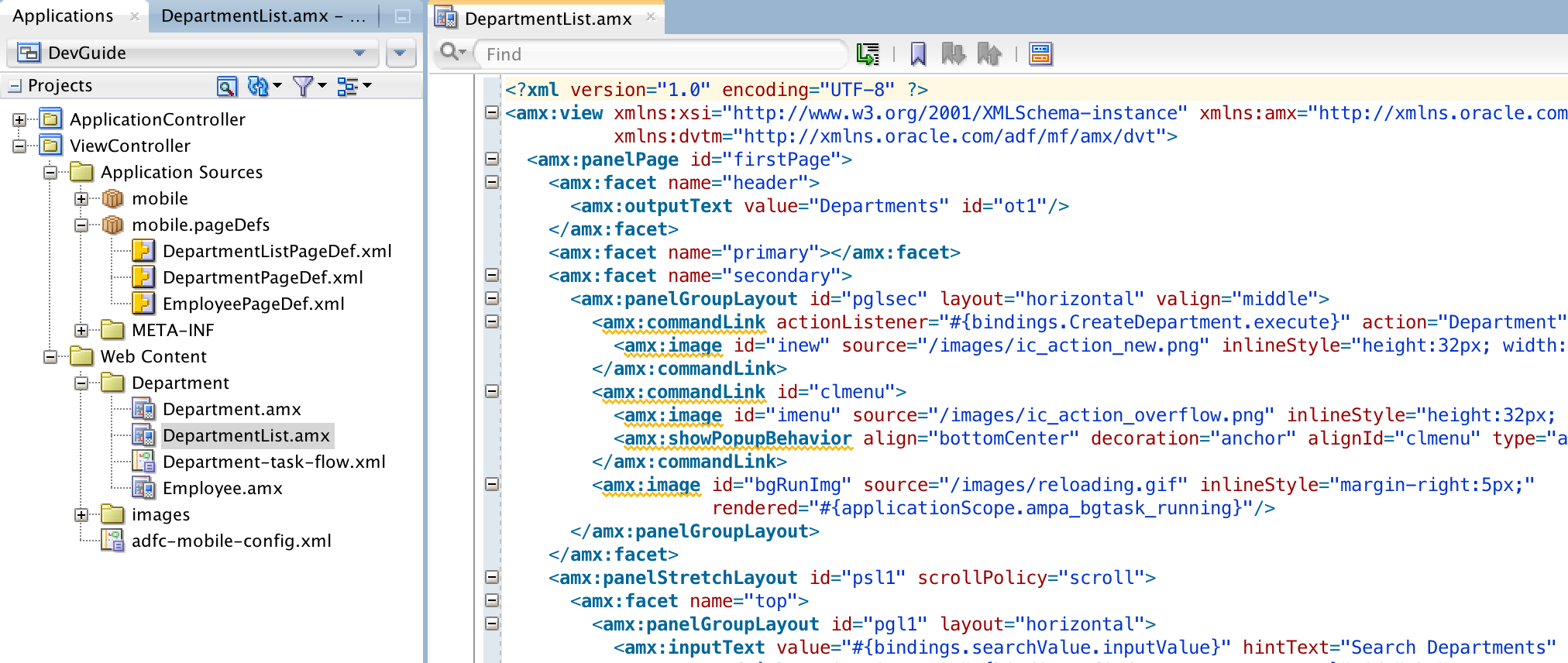
- AMX pages are generated for every view activity in the generated taskflow
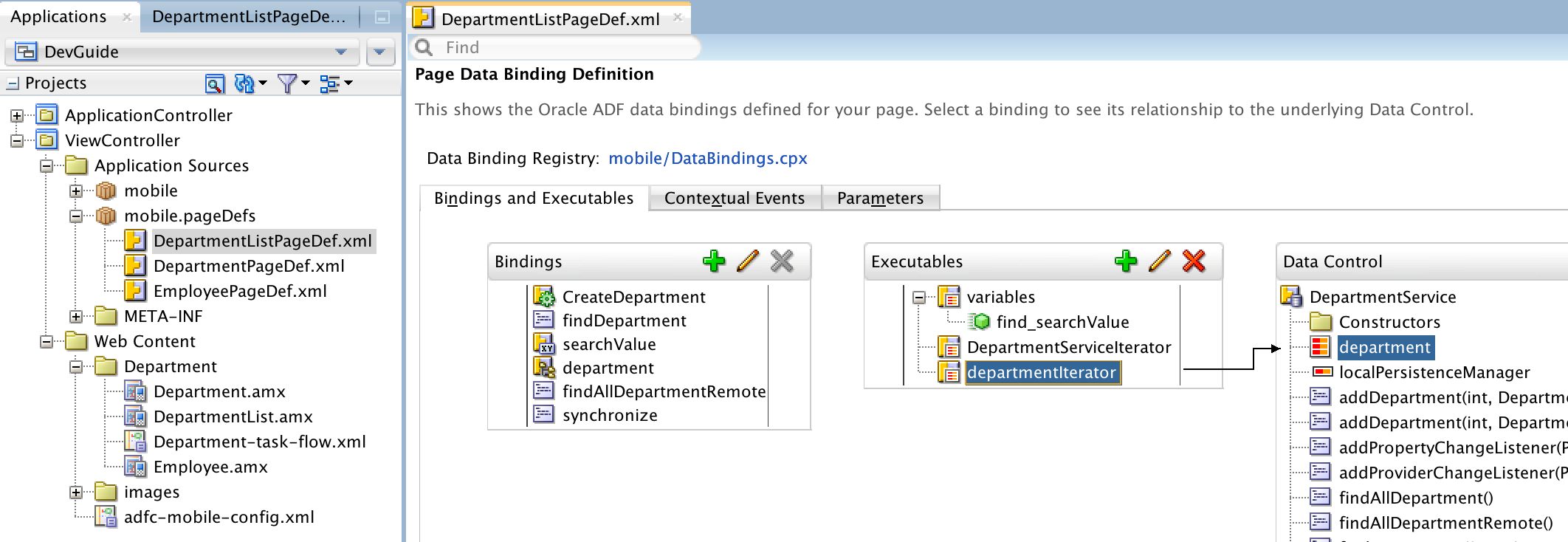
- AMX page definitions are generated for every generated AMX page
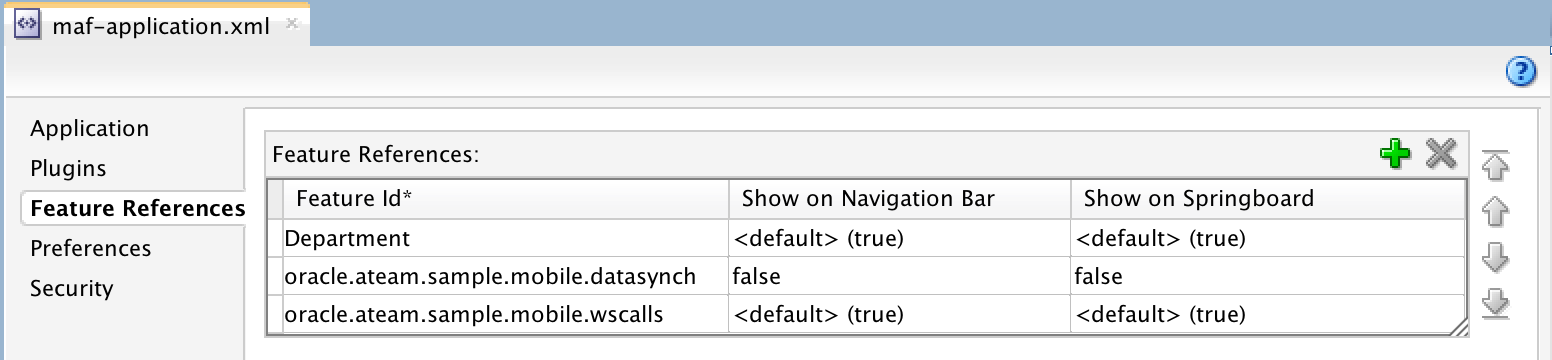
- In
maf-application.xmla reference is added to the new feature, as well as references to two reusable AMPA features, the data synch feature and the web service calls feature.
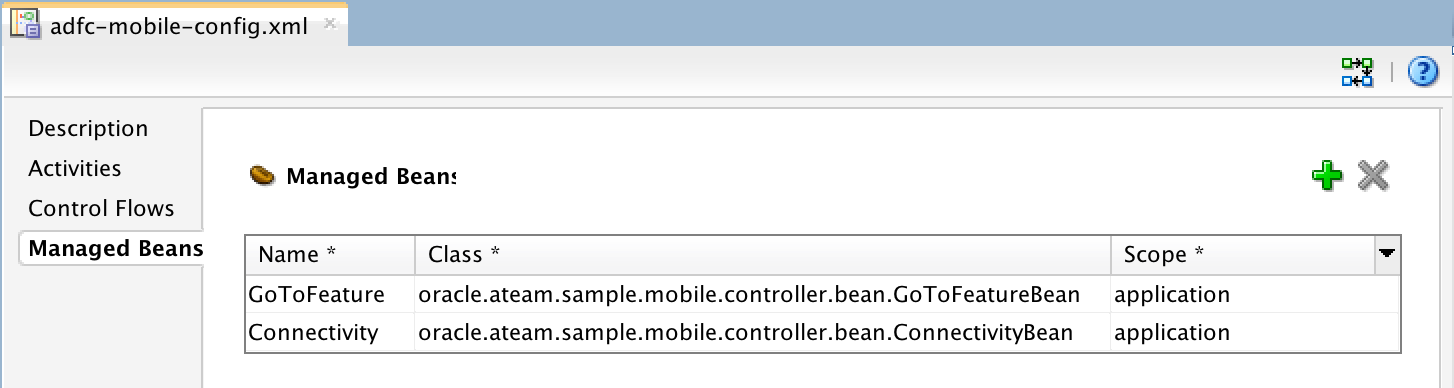
- In
adfc-mobile-config.xml, two managed beans are added that are used in the generated AMX pages