tutorial.basic.5
Welcome back to the fifth tutorial already! You should have a decent understanding of how to position your objects. From here on we’ll focus on some more complicated stuff. The application for these features might be somewhat unclear at first. But just try to understand all of it, and later on when working with uiz, you will end up using them a ton.
Anyways, today we’ll talk about canvases and a little about containment. Let’s get the canvases out the way first.
Canvases are like an empty frames: something to put objects in. They can provide a layer for you to use in your programming. Frames are important if you want to add structure to your ui, without actually placing objects.
Think about the example from tutorial 2 about parenting:
"Another example might be is that you have some sort of square, in which you want to put some health bars, stamina bars, etc…. That square with the different bars could be snapped to the right side of your screen. When we change the size of our window, the square should move with it, but we also want our bars to move with it." –Tutorial 2, a while ago.
We could put our health and stamina bar inside a square, but what if we don’t want it inside a visible square? We can use a canvas instead, creating an invisible "square". This way, we can move the bars around just by moving the frame around, without it being visible to the end user.
How do I make a canvas? Easy, canvases are just objects. Just use:
canvas = uiz_c(obj_uiZ_canvas)A canvas is just an object like a square, it just doesn’t really do or draw anything. This doesn’t mean it’s useless though, they are very important to structure in your ui!
EXAMPLE 16:
//create event of a newly created object.
//initialize uiz
uiz_init()
//create our gradientsquare object
canvas=uiz_c(obj_uiZ_canvas)
//our parent is the uiz controller object.
//setup some variables
uiz_position(canvas, 50,px, 50,px);
uiz_size(canvas, 200,px, 200,px);
//fix our canvas object.
uiz_fix(canvas)

//create our square object
square=uiz_c(obj_uiZ_square)
//set the parent
uiz_setParent(square,canvas)
//setup some variables
uiz_position(square, 25,px, 25,px);
uiz_size(square, 40,px, 50,px);
//fix our square object.
uiz_fix(square)
Which looks like:
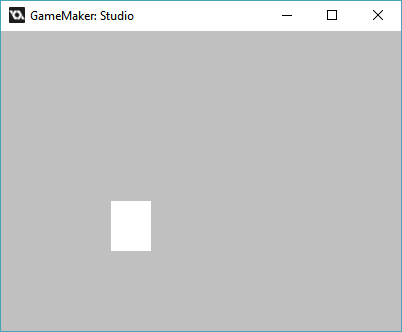 IMAGE 19
Or with given lengths:
 IMAGE 20
Using a gradientsquare:
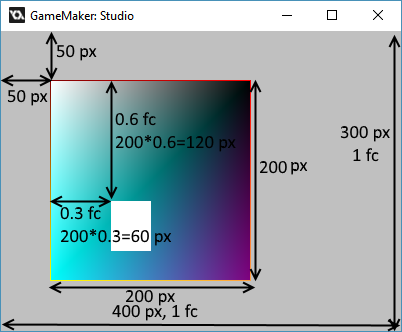 IMAGE 12
Note that the square object in the frame is in the exact same position as the one in the gradientsquare.
What is this? This is some stuff can be your greatest friend and your worst enemy at the same time. It is a feature built into every uiz object and makes sure that that object is never drawn at places where it isn’t supposed to be drawn.
Let’s say we have a window, with some buttons in it. Now the user resizes the window and makes it very small, due to a combination of space restrictions, the use of px or dp values and/or some bad programming practices, the buttons might get stuck outside the window for some reason. This obviously cannot happen, and there would be a few ways to prevent this from happening like setting a minimum size for the window. But there is no way you can prevent this in every single case. So the “containment” mechanics in uiZ make sure that the button is never drawn outside the window. And example of this can be shown here:
An image where the window is big enough for the button:
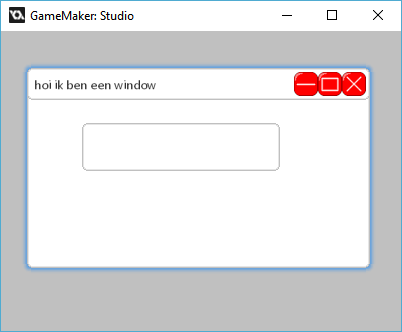 IMAGE 21
And, an image where the window is not big enough for the window:
 IMAGE 22
In the bottom picture you can see that the button isn’t being drawn outside the window. It is cut off.
No example code will be given for this here, since there hasn’t been any explanation on windows. If you want to see it anyway, look for example 17 in the obj_uiz_basictutorial object.
Technical details: There are 2 ways in which uiz “contains” stuff, the default is using a shader, and the secondary option for when shaders aren’t compatible is using surfaces. Because of uiz’s implementation, you’ll need to make some workarounds when you are making your own uiZ objects. But you don’t need to worry about that now, you can read all about it in the tutorials showing you how to make your own objects.
This is it for this tutorial, until next time. You learned:
- How canvases work
- That trough containment, object cannot draw outside of their parent.