Added a new doc and updated existing docs#963
Conversation


📝 WalkthroughWalkthroughThis PR updates documentation across 16 files by replacing embedded screenshot images, renumbering and rewording instruction steps, and adding a new comprehensive Kubernetes deployment guide for Testsigma Tunnel. All changes are documentation-only with no code logic modifications. Changes
Estimated code review effort🎯 2 (Simple) | ⏱️ ~13 minutes Possibly related PRs
Suggested reviewers
🚥 Pre-merge checks | ✅ 2 | ❌ 1❌ Failed checks (1 inconclusive)
✅ Passed checks (2 passed)
✏️ Tip: You can configure your own custom pre-merge checks in the settings. ✨ Finishing Touches🧪 Generate unit tests (beta)
Warning Review ran into problems🔥 ProblemsGit: Failed to clone repository. Please run the Thanks for using CodeRabbit! It's free for OSS, and your support helps us grow. If you like it, consider giving us a shout-out. Comment |

![coderabbitai[bot]](https://avatars.githubusercontent.com/in/347564?s=60&v=4)

There was a problem hiding this comment.
Actionable comments posted: 9
🧹 Nitpick comments (4)
src/pages/docs/windows-automation/import-tsrx-files.md (2)
50-50: Disambiguate which “Import” button is clicked on Line 50.Because “Import” is used earlier (Line 39), consider: “Click Import in the Import dialog” to avoid UI ambiguity.
🤖 Prompt for AI Agents
Verify each finding against the current code and only fix it if needed.

In `@src/pages/docs/windows-automation/import-tsrx-files.md` at line 50, Replace
the ambiguous sentence "Click **Import**." (the standalone step that follows the
earlier use of "Import") with a clearer instruction such as "Click **Import** in
the **Import** dialog" so readers know which Import button to press; update the
step text referring to the exact string "Click **Import**." in the document to
this disambiguated phrasing.
40-51: Use more descriptive image alt text for docs accessibility.Current alt text (e.g., “import”, “Import”, “duplicates”) is generic. Please make each alt text action-specific (e.g., “Import button on Elements page”, “Duplicate handling options in Import dialog”).
🤖 Prompt for AI Agents
Verify each finding against the current code and only fix it if needed.

In `@src/pages/docs/windows-automation/import-tsrx-files.md` around lines 40 - 51,
Update the generic image alt texts in this markdown snippet to be action- and
context-specific: replace alt="import" with something like "Import dialog Browse
file button on Elements page", alt="Tsrx file" with "TSRx file selected in
Import dialog", alt="duplicates" with "Duplicate handling options (Overwrite or
Ignore) in Import dialog", and alt="Import" with "Import button in Import
dialog"; edit the four image tags in
src/pages/docs/windows-automation/import-tsrx-files.md so each <img> alt
attribute clearly describes the UI element and action shown.
src/pages/docs/test-cases/create-steps-restapi/verifications-request.md (2)
93-94: Use consistent UI labels and action terminology in verification steps.In Lines 93–100, button labels vary in casing and Line 94 says “save your API” within a verification flow. Recommend consistent label casing and “add/save verification” phrasing to match user actions.
Also applies to: 99-100
🤖 Prompt for AI Agents
Verify each finding against the current code and only fix it if needed.

In `@src/pages/docs/test-cases/create-steps-restapi/verifications-request.md`
around lines 93 - 94, Update the verification steps to use consistent UI label
casing and action terminology: change occurrences of "Create" to "Add
Verification" (or "Save Verification" if the button saves rather than creates),
normalize "Verify Response Body" casing across steps, and replace "save your
API" with "add/save verification" (e.g., "click Add Verification to save the
verification") in the Verify Response Body flow and the repeated text around the
Response Body overlay and Verify Response screenshots so all labels and actions
consistently reflect the verification action.
80-84: Clarify “Copy Response” instruction wording.Lines 80–84 are hard to follow (“paste the JSON or XPATH path field”). Tightening this sentence will reduce user confusion during verification setup.
✏️ Suggested rewrite
-Click **copy response**.
+Click **Copy Response**.
...
-It will copy to the **clipboard**, paste the **JSON** or **XPATH** path field, and select the **verification type** from the drop-down list. Enter an **expected value** by using plain text or **test data types**. Click **Create** to add verification.
+This copies the value to the **clipboard**. Paste it into the **JSONPath** or **XPath** field, select the **verification type** from the drop-down, and enter an **expected value** (plain text or **test data type**). Click **Create** to add the verification.
🤖 Prompt for AI Agents
Verify each finding against the current code and only fix it if needed.

In `@src/pages/docs/test-cases/create-steps-restapi/verifications-request.md`
around lines 80 - 84, Rewrite the confusing sentence in the "Click **copy
response**." paragraph to clearly explain the steps: after clicking Copy
Response, the response is placed on the clipboard; paste it into the JSON or
XPATH "path" field, choose the verification type from the dropdown, then enter
the expected value (plain text or a test data type) and click Create to add the
verification. Update the sentence that currently reads “paste the **JSON** or
**XPATH** path field” to the clearer phrasing above in the document around the
existing "Click **copy response**" block.
🤖 Prompt for all review comments with AI agents
Verify each finding against the current code and only fix it if needed.

Inline comments:
In `@src/pages/docs/agent/trigger-tests-locally.md`:
- Around line 45-52: Reword the two awkward sentences in the docs to be clearer:
change "On the **Add Test Suites & Link Machine Profiles** sections, click on
**Link Test Machine**." (from the Add Test Suites & Link Machine Profiles step)
to something like "In the Add Test Suites & Link Machine Profiles section, click
Link Test Machine." and change "On **Add test machine/device profile** overlay,
add **Name**, select **Local Devices**, active agent on **Connected Machine**
dropdown, and **Browser**." (from the Add test machine/device profile step) to a
clearer sequence such as "In the Add Test Machine/Device Profile overlay, enter
a Name, choose Local Devices, select the active agent from the Connected Machine
dropdown, and pick a Browser, then click Create Profile." Ensure the revised
sentences replace the originals in
src/pages/docs/agent/trigger-tests-locally.md.

In `@src/pages/docs/continuous-integration/codeship-ci.md`:
- Line 70: The code block is mislabeled "Perl" but begins with the bash shebang
"#!/bin/bash"; update the markdown fence label from "Perl" to "bash" (or "sh")
for the block that contains the "#!/bin/bash" shebang so syntax highlighting
matches the script, e.g., replace the "Perl" identifier with "bash" or use a
triple-backtick fence labeled bash.

In `@src/pages/docs/elements/android-apps/record-multiple-elements.md`:
- Line 72: Step 10 contains double spaces around the ordinal and before the bold
text; update the line that currently reads "10.  Once you have captured the
elements, click  **Stop Recording**." to use single spaces: "10. Once you have
captured the elements, click **Stop Recording**." — locate the markdown line
containing "Once you have captured the elements" and "Stop Recording" and
normalize the spacing accordingly.

In `@src/pages/docs/elements/mobile-web-application/create-manually.md`:
- Line 43: Normalize the extra spacing in the step text: replace "Click
**Create Element**." with a single-space version "Click **Create Element**." so
the step string (the line containing Click **Create Element**) uses consistent
single spacing before the bolded text.

In `@src/pages/docs/test-cases/create-steps-restapi/api-request.md`:
- Line 39: The sample parameterized URL is malformed: replace the invalid host
"https://@reqes.in/api/users?page=@page" with a correct parameterized example
such as "https://reqres.in/api/users?page=@page", remove the stray "@" from the
host, and update the explanatory text to state that
"https://reqres.in/api/users?page=@page" is the base URL with "?page=page" as
the parameter and "@reqres" (host token) and "@page" (test data type) as
inserted test data types so the example is valid and consistent.

In `@src/pages/docs/test-cases/create-steps-restapi/verifications-request.md`:
- Line 75: The image alt text contains a typo ("Verificatications"); update the
Markdown image alt text in the document (the line with the image tag starting
with ![Verificatications]) to the correct spelling "Verifications" to improve
accessibility and professionalism.

In
`@src/pages/docs/test-data/data-generators/mailboxaliasfunctions-function-type.md`:
- Line 74: Update the wording of the Type selection step in the document
fragment that currently reads “select the **Type** to **Default**”: replace it
with clearer phrasing such as “set **Type** to **Default**” or “select
**Default** for **Type**” so the instruction is unambiguous; locate the sentence
containing “select the **Type** to **Default**” and substitute the chosen
clearer variant.

In `@src/pages/docs/testsigma-tunnel/setup-installation-kubernetes.md`:
- Around line 139-141: The StatefulSet template unconditionally sets serviceName
(serviceName: {{ (index $.Values.Application $name).name }}-{{
$.Values.Environment.name }}-headless }) which creates a hard dependency on a
headless Service while the docs/value defaults treat that Service as optional;
update the template so it honors enabledStatefulSet and the Service enable flag:
either make serviceName conditional (only set when the headless Service is
enabled) or add an alternate StatefulSet path that omits serviceName when
enabledStatefulSet (or the headless Service flag) is false, and update the
documentation to reflect the chosen behavior; ensure you modify the StatefulSet
template block that references serviceName and the values/defaults for
enabledStatefulSet and the Service enable flag to stay consistent.

In
`@src/pages/docs/troubleshooting/web-apps/test-execution-queued-for-a-long-time.md`:
- Line 31: Update the metric sentence that currently reads "2 test is running"
to correct subject-verb and number agreement: change it to "2 tests are running"
so the full sentence becomes "In the above example, we have **Parallel Tests
2/2**, which means 2 tests are running in parallel, and 2 is the number of
parallel runs allowed at a moment." Locate the sentence in the docs content for
the "Parallel Tests 2/2" explanation and replace the singular/plural and verb to
match.

---

Nitpick comments:
In `@src/pages/docs/test-cases/create-steps-restapi/verifications-request.md`:
- Around line 93-94: Update the verification steps to use consistent UI label
casing and action terminology: change occurrences of "Create" to "Add
Verification" (or "Save Verification" if the button saves rather than creates),
normalize "Verify Response Body" casing across steps, and replace "save your
API" with "add/save verification" (e.g., "click Add Verification to save the
verification") in the Verify Response Body flow and the repeated text around the
Response Body overlay and Verify Response screenshots so all labels and actions
consistently reflect the verification action.
- Around line 80-84: Rewrite the confusing sentence in the "Click **copy
response**." paragraph to clearly explain the steps: after clicking Copy
Response, the response is placed on the clipboard; paste it into the JSON or
XPATH "path" field, choose the verification type from the dropdown, then enter
the expected value (plain text or a test data type) and click Create to add the
verification. Update the sentence that currently reads “paste the **JSON** or
**XPATH** path field” to the clearer phrasing above in the document around the
existing "Click **copy response**" block.

In `@src/pages/docs/windows-automation/import-tsrx-files.md`:
- Line 50: Replace the ambiguous sentence "Click **Import**." (the standalone
step that follows the earlier use of "Import") with a clearer instruction such
as "Click **Import** in the **Import** dialog" so readers know which Import
button to press; update the step text referring to the exact string "Click
**Import**." in the document to this disambiguated phrasing.
- Around line 40-51: Update the generic image alt texts in this markdown snippet
to be action- and context-specific: replace alt="import" with something like
"Import dialog Browse file button on Elements page", alt="Tsrx file" with "TSRx
file selected in Import dialog", alt="duplicates" with "Duplicate handling
options (Overwrite or Ignore) in Import dialog", and alt="Import" with "Import
button in Import dialog"; edit the four image tags in
src/pages/docs/windows-automation/import-tsrx-files.md so each <img> alt
attribute clearly describes the UI element and action shown.
🪄 Autofix (Beta)
Fix all unresolved CodeRabbit comments on this PR:
- Push a commit to this branch (recommended)
- Create a new PR with the fixes
ℹ️ Review info
⚙️ Run configuration
Configuration used: defaults
Review profile: CHILL
Plan: Pro
Run ID: 54d0db33-e189-44f6-af7a-1ec40bdebade
📒 Files selected for processing (18)
src/pages/docs/FAQs/web-apps/how-to-turnoff-onboarding-tutorial.mdsrc/pages/docs/agent/connect-android-local-devices.mdsrc/pages/docs/agent/trigger-tests-locally.mdsrc/pages/docs/collaboration/manage-execution-stops.mdsrc/pages/docs/configuration/manage-access.mdsrc/pages/docs/continuous-integration/codeship-ci.mdsrc/pages/docs/elements/android-apps/record-multiple-elements.mdsrc/pages/docs/elements/mobile-web-application/create-manually.mdsrc/pages/docs/elements/mobile-web-application/record-elements.mdsrc/pages/docs/reports/runs/filter-custom-reports.mdsrc/pages/docs/test-cases/create-steps-restapi/api-request.mdsrc/pages/docs/test-cases/create-steps-restapi/authorization-request.mdsrc/pages/docs/test-cases/create-steps-restapi/verifications-request.mdsrc/pages/docs/test-data/data-generators/mailboxaliasfunctions-function-type.mdsrc/pages/docs/testsigma-tunnel/setup-installation-kubernetes.mdsrc/pages/docs/testsigma-tunnel/using-tunnel.mdsrc/pages/docs/troubleshooting/web-apps/test-execution-queued-for-a-long-time.mdsrc/pages/docs/windows-automation/import-tsrx-files.md
| 4. On the **Add Test Suites & Link Machine Profiles** sections, click on **Link Test Machine**. | ||
| 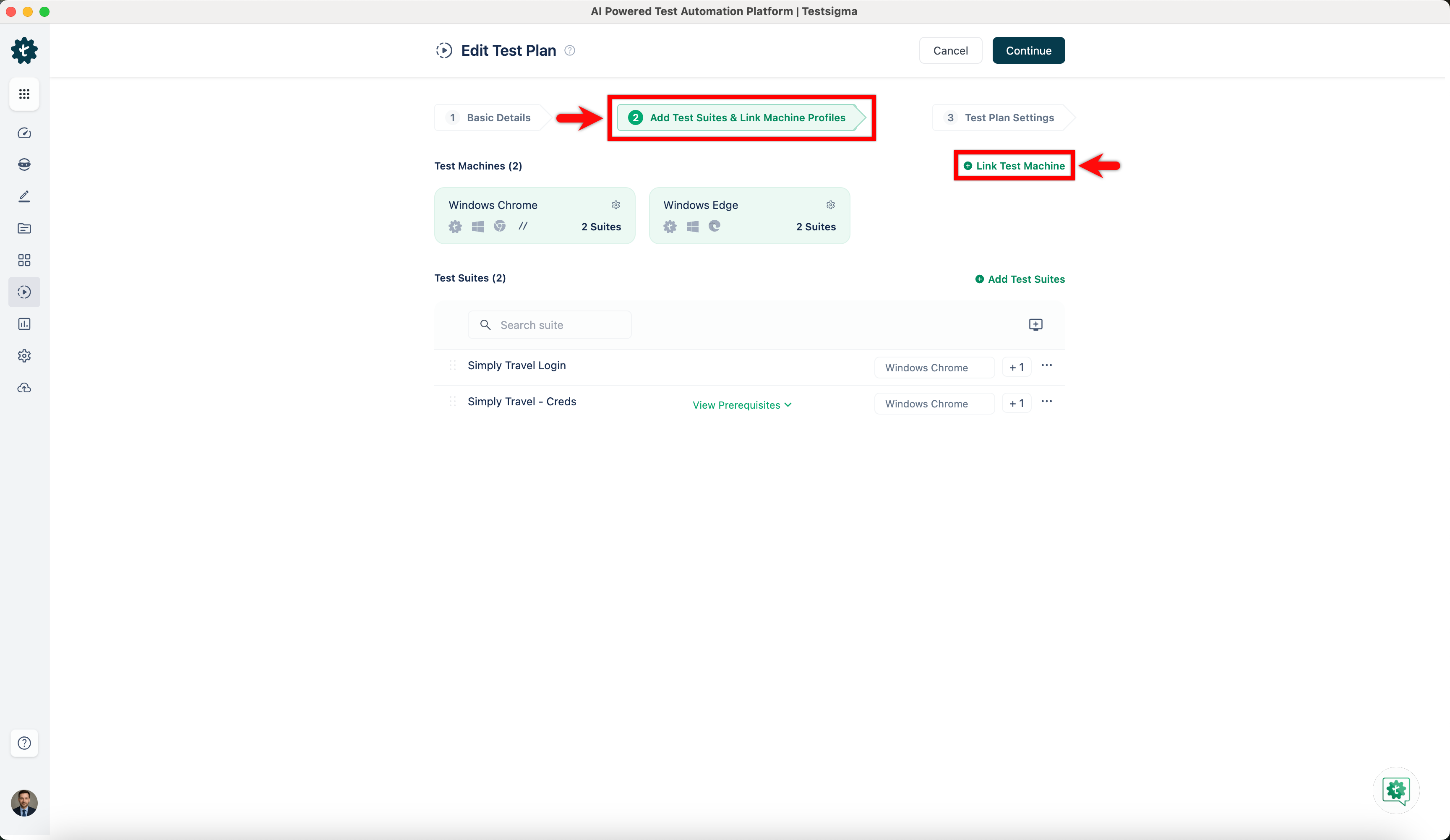 | ||
|
|
||
| 1. On **Select test machine profiles** overlay, click on **Add Machine**. | ||
| 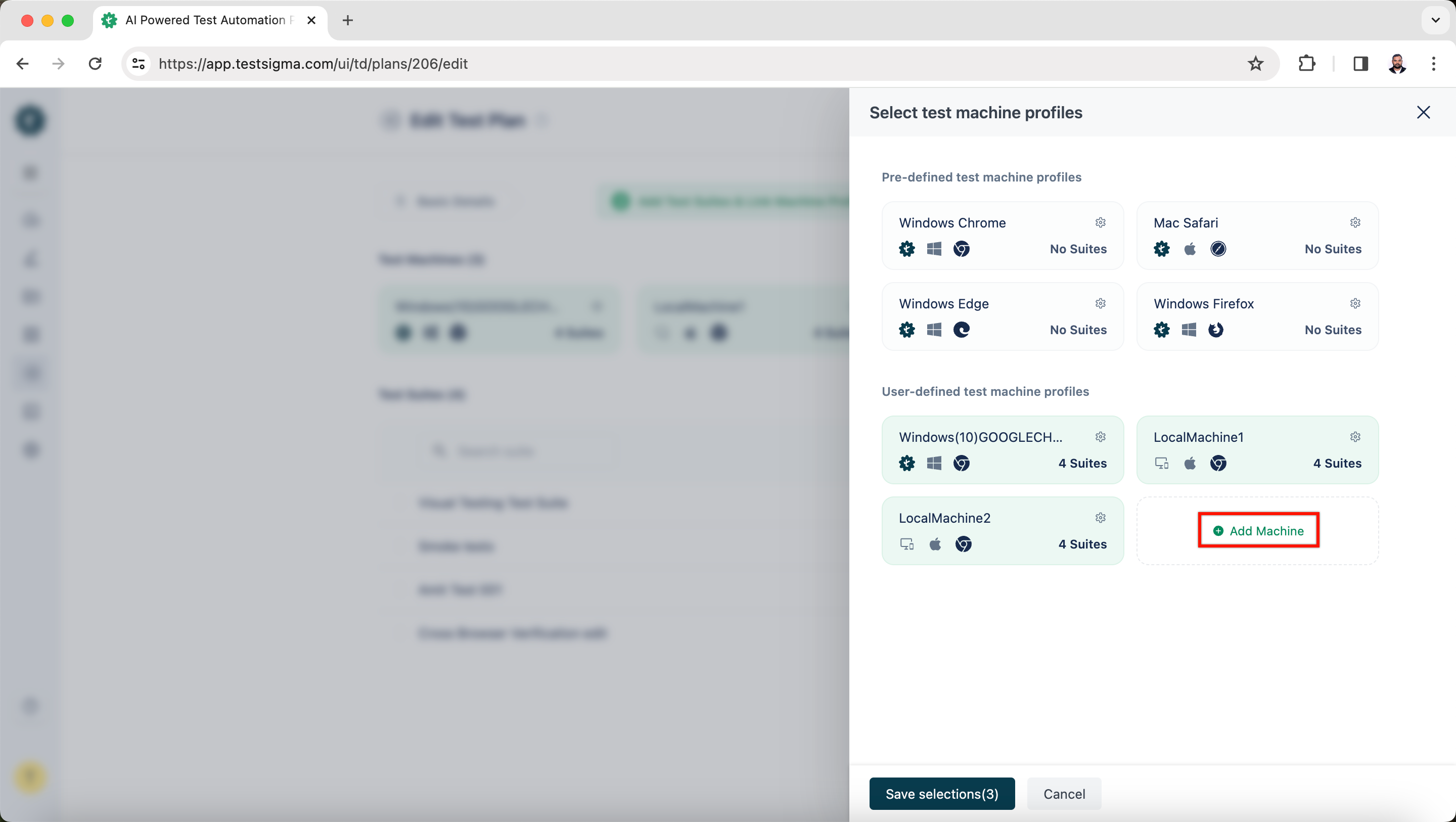 | ||
| 5. On **Select test machine profiles** overlay, click on **Add Machine**. | ||
| 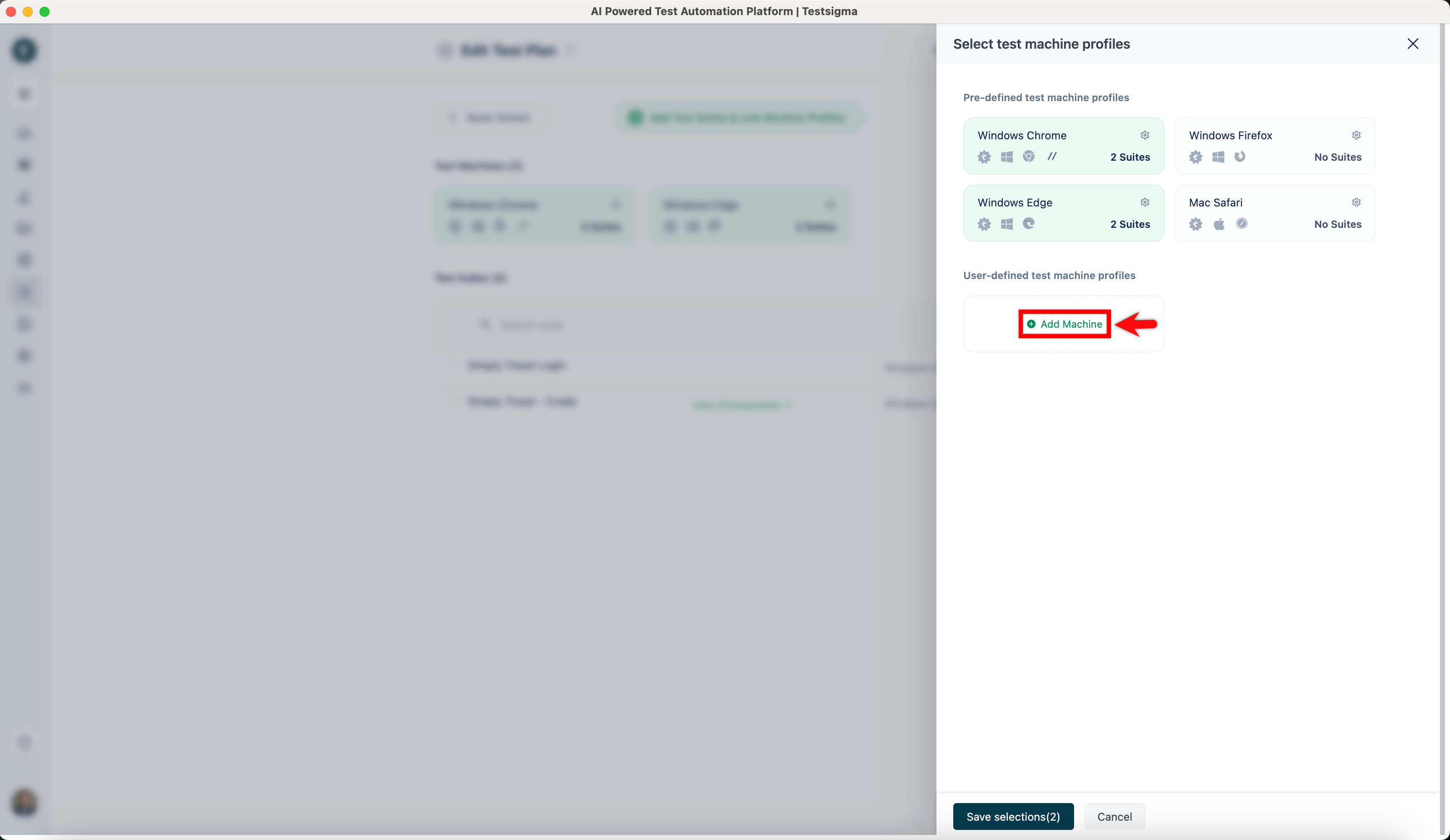 | ||
|
|
||
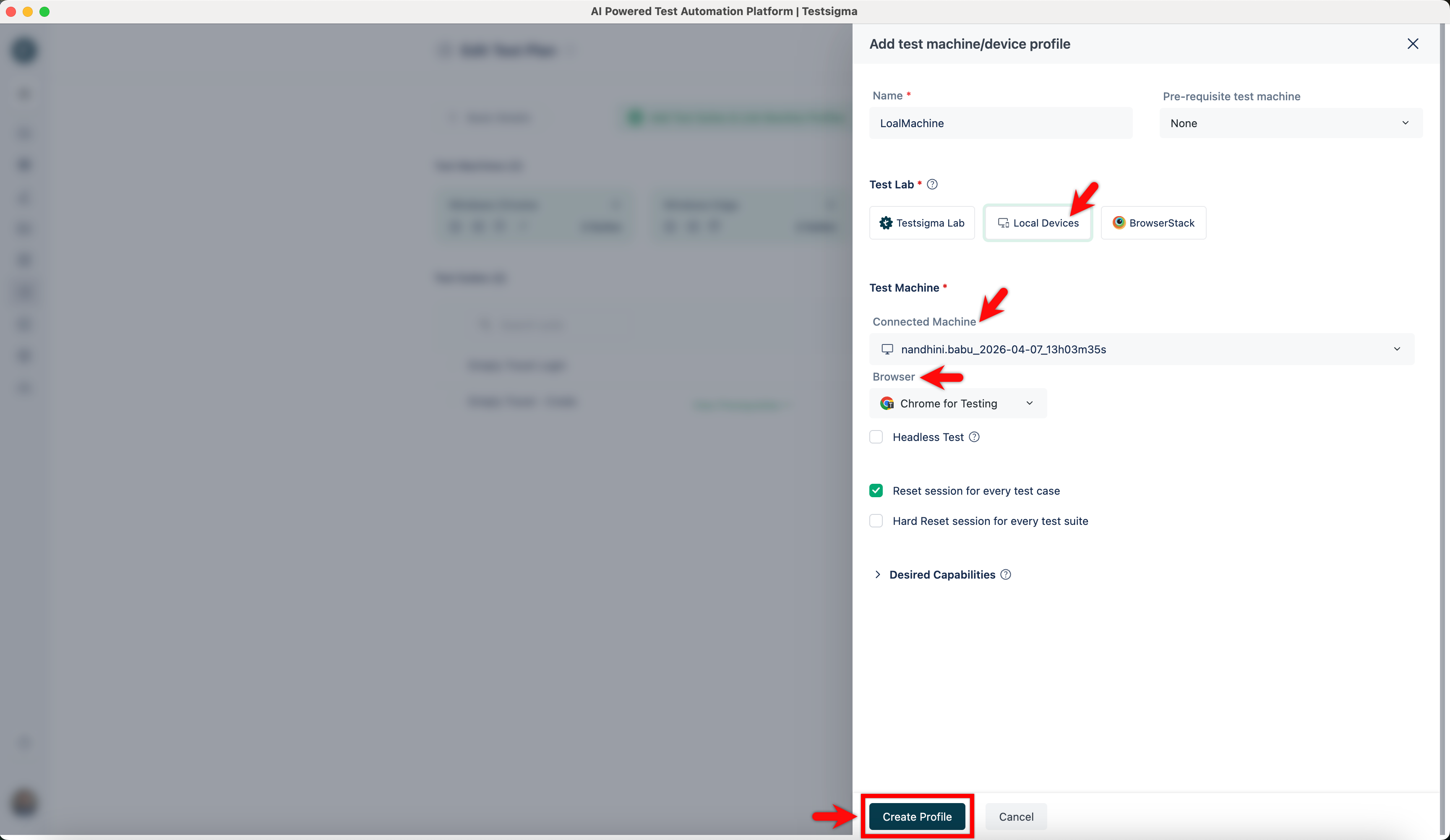
| 1. On **Add test machine/device profile** overlay, add **Name**, select **Local Devices**, active agent on **Connected Machine** dropdown, and **Browser**. Click on **Create Profile**. | ||
| 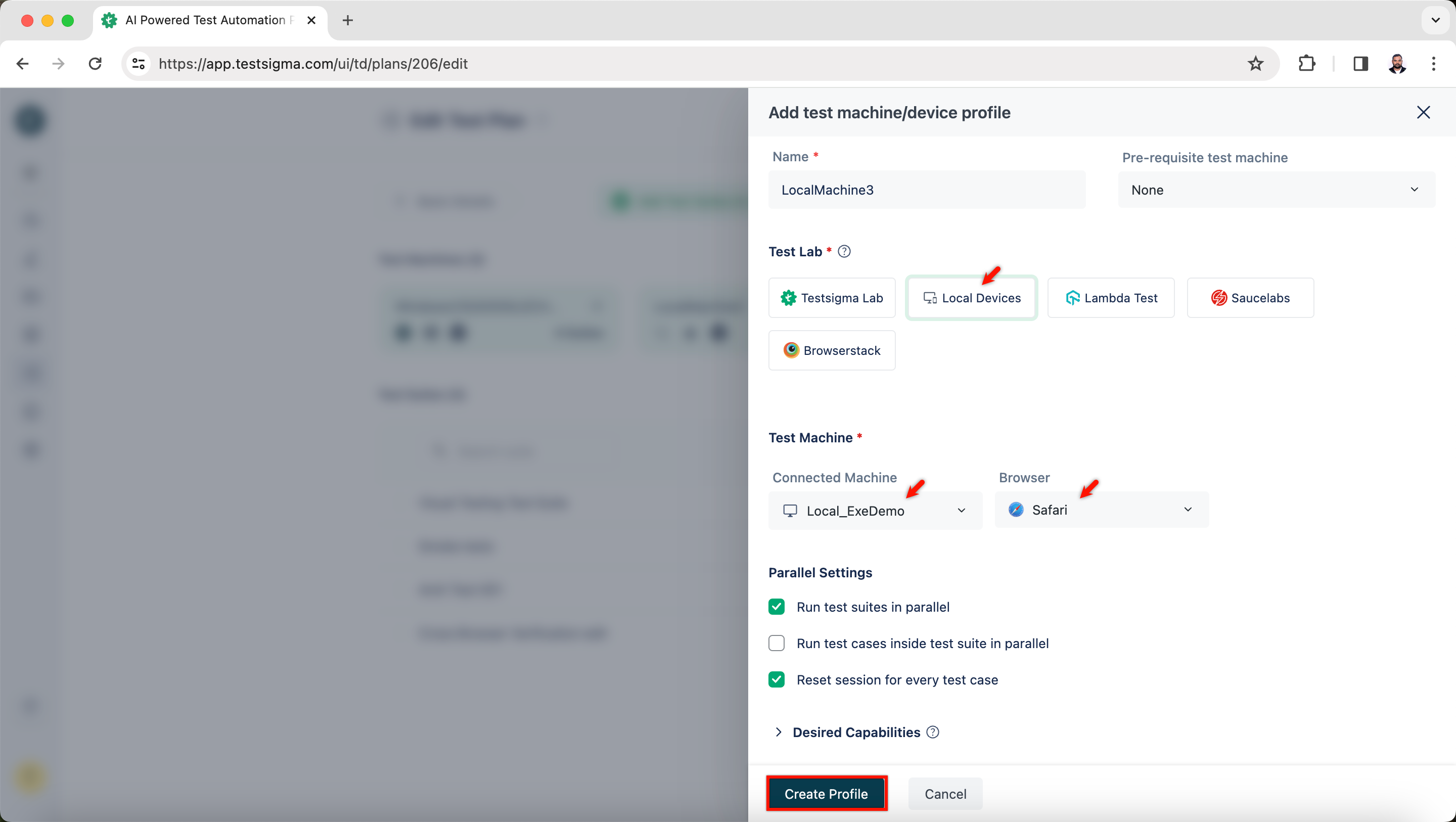 | ||
| 6. On **Add test machine/device profile** overlay, add **Name**, select **Local Devices**, active agent on **Connected Machine** dropdown, and **Browser**. Click on **Create Profile**. | ||
|  |
There was a problem hiding this comment.
Tighten wording for clarity in setup instructions.
Line 45 and Line 51 read awkwardly and may confuse users during profile configuration. Recommend a grammar cleanup.
✏️ Proposed doc wording fix
-4. On the **Add Test Suites & Link Machine Profiles** sections, click on **Link Test Machine**.
+4. In the **Add Test Suites & Link Machine Profiles** section, click **Link Test Machine**.

-6. On **Add test machine/device profile** overlay, add **Name**, select **Local Devices**, active agent on **Connected Machine** dropdown, and **Browser**. Click on **Create Profile**.
+6. In the **Add test machine/device profile** overlay, enter a **Name**, select **Local Devices**, choose an active agent from the **Connected Machine** dropdown, and select a **Browser**. Then click **Create Profile**.
📝 Committable suggestion
‼️ IMPORTANT
Carefully review the code before committing. Ensure that it accurately replaces the highlighted code, contains no missing lines, and has no issues with indentation. Thoroughly test & benchmark the code to ensure it meets the requirements.
| 4. On the **Add Test Suites & Link Machine Profiles** sections, click on **Link Test Machine**. | |
|  | |
| 1. On **Select test machine profiles** overlay, click on **Add Machine**. | |
|  | |
| 5. On **Select test machine profiles** overlay, click on **Add Machine**. | |
|  | |
| 1. On **Add test machine/device profile** overlay, add **Name**, select **Local Devices**, active agent on **Connected Machine** dropdown, and **Browser**. Click on **Create Profile**. | |
|  | |
| 6. On **Add test machine/device profile** overlay, add **Name**, select **Local Devices**, active agent on **Connected Machine** dropdown, and **Browser**. Click on **Create Profile**. | |
|  | |
| 4. In the **Add Test Suites & Link Machine Profiles** section, click **Link Test Machine**. | |
|  | |
| 5. On **Select test machine profiles** overlay, click on **Add Machine**. | |
|  | |
| 6. In the **Add test machine/device profile** overlay, enter a **Name**, select **Local Devices**, choose an active agent from the **Connected Machine** dropdown, and select a **Browser**. Then click **Create Profile**. | |
|  |
🤖 Prompt for AI Agents
Verify each finding against the current code and only fix it if needed.

In `@src/pages/docs/agent/trigger-tests-locally.md` around lines 45 - 52, Reword
the two awkward sentences in the docs to be clearer: change "On the **Add Test
Suites & Link Machine Profiles** sections, click on **Link Test Machine**."
(from the Add Test Suites & Link Machine Profiles step) to something like "In
the Add Test Suites & Link Machine Profiles section, click Link Test Machine."
and change "On **Add test machine/device profile** overlay, add **Name**, select
**Local Devices**, active agent on **Connected Machine** dropdown, and
**Browser**." (from the Add test machine/device profile step) to a clearer
sequence such as "In the Add Test Machine/Device Profile overlay, enter a Name,
choose Local Devices, select the active agent from the Connected Machine
dropdown, and pick a Browser, then click Create Profile." Ensure the revised
sentences replace the originals in
src/pages/docs/agent/trigger-tests-locally.md.
| 1. Replace the **<execution-ID>**, **<Username>** and **<Password>** in the following script: | ||
| 7. Replace the **<execution-ID>**, **<Username>** and **<Password>** in the following script: | ||
|
|
||
| Perl |
There was a problem hiding this comment.
Fix the incorrect language label.
The code block is labeled as "Perl" but contains a bash script (indicated by the #!/bin/bash shebang and bash syntax). This mismatch could confuse users.
📝 Proposed fix
-Perl
+Bash
Or use the standard markdown code fence identifier:
-Perl
+```bash
📝 Committable suggestion
‼️ IMPORTANT
Carefully review the code before committing. Ensure that it accurately replaces the highlighted code, contains no missing lines, and has no issues with indentation. Thoroughly test & benchmark the code to ensure it meets the requirements.
| Perl | |
| Bash |
🤖 Prompt for AI Agents
Verify each finding against the current code and only fix it if needed.

In `@src/pages/docs/continuous-integration/codeship-ci.md` at line 70, The code
block is mislabeled "Perl" but begins with the bash shebang "#!/bin/bash";
update the markdown fence label from "Perl" to "bash" (or "sh") for the block
that contains the "#!/bin/bash" shebang so syntax highlighting matches the
script, e.g., replace the "Perl" identifier with "bash" or use a triple-backtick
fence labeled bash.
| 9. Repeat steps 5 to 7 for every element you want to capture. | ||
|
|
||
| 10. Once you have captured the elements, click on **Stop Recording**. | ||
| 10. Once you have captured the elements, click **Stop Recording**. |
There was a problem hiding this comment.
Fix spacing in Step 10 for cleaner rendering.
Line 72 has extra spaces (10. Once... and click **Stop Recording**). Please normalize to single spaces.
🤖 Prompt for AI Agents
Verify each finding against the current code and only fix it if needed.

In `@src/pages/docs/elements/android-apps/record-multiple-elements.md` at line 72,
Step 10 contains double spaces around the ordinal and before the bold text;
update the line that currently reads "10.  Once you have captured the elements,
click  **Stop Recording**." to use single spaces: "10. Once you have captured
the elements, click **Stop Recording**." — locate the markdown line containing
"Once you have captured the elements" and "Stop Recording" and normalize the
spacing accordingly.
|
|
||
| 2. Click on **Create**. | ||
|  | ||
| 2. Click **Create Element**. |
There was a problem hiding this comment.
Normalize spacing in Step 2.
Line 43 has an extra space before **Create Element**; use a single space for consistency.
🤖 Prompt for AI Agents
Verify each finding against the current code and only fix it if needed.

In `@src/pages/docs/elements/mobile-web-application/create-manually.md` at line
43, Normalize the extra spacing in the step text: replace "Click  **Create
Element**." with a single-space version "Click **Create Element**." so the step
string (the line containing Click **Create Element**) uses consistent single
spacing before the bolded text.
| 1. The URL will typically be the base location plus the path. For example, if you take the base **URL** https://jsonplaceholder.typicode.com/, if you add **/get** to it, it will be the **endpoint path**. 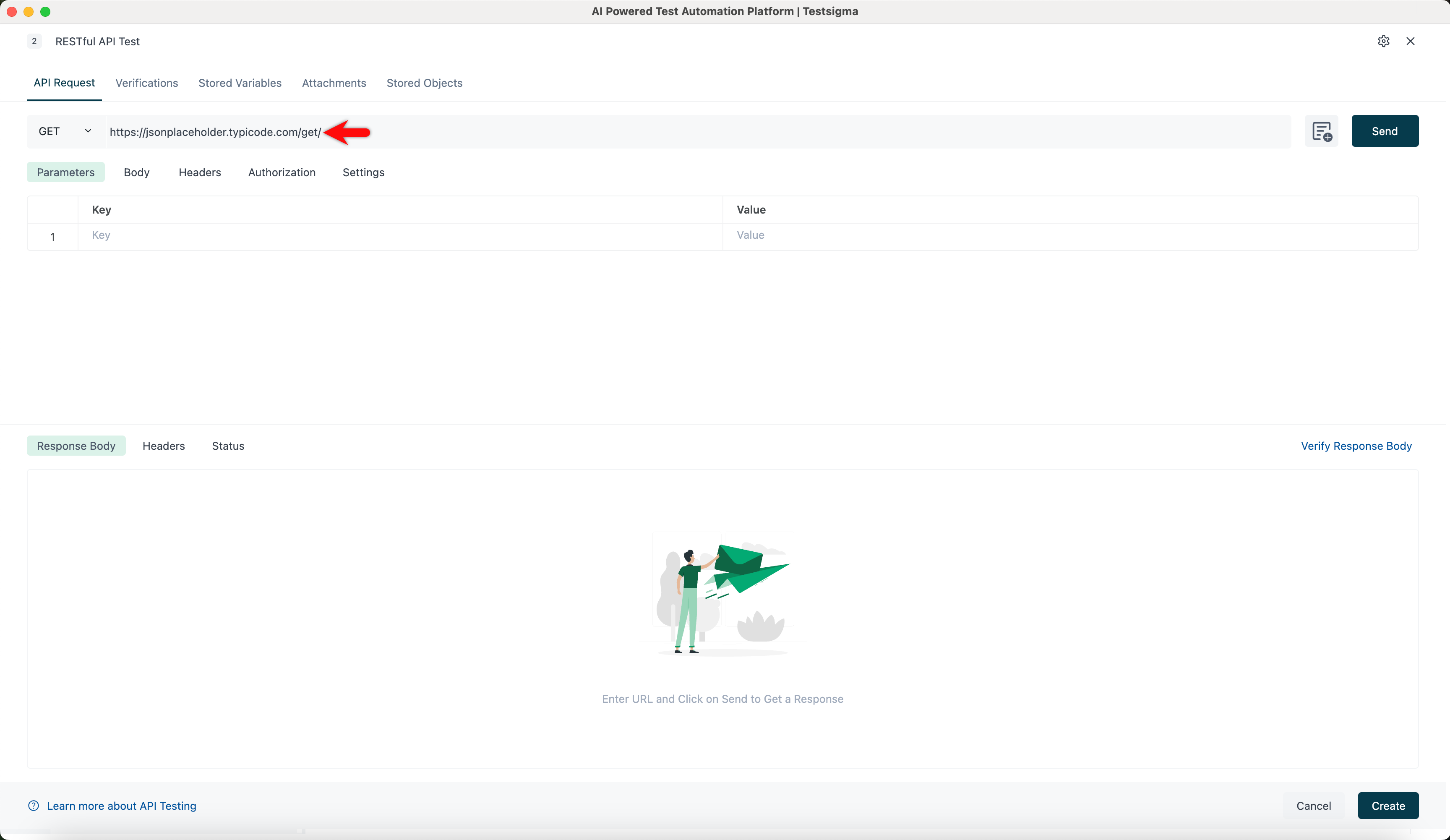 | ||
|
|
||
| 2. In a **parameterized URL**, you can **insert test data** by double-clicking on the URL and selecting the **test data type**. For example, https://@reqes.in/api/users?page=@page is the base URL,**?page=page** is a parameter, and **@reqes** and **@page** are **test data types** inserted in the URL. Select the method; by default, it will be **GET**. Click **Send**.  | ||
| 2. In a **parameterized URL**, you can **insert test data** by double-clicking on the URL and selecting the **test data type**. For example, https://@reqes.in/api/users?page=@page is the base URL,**?page=page** is a parameter, and **@reqes** and **@page** are **test data types** inserted in the URL. Select the method; by default, it will be **GET**. Click **Send**. 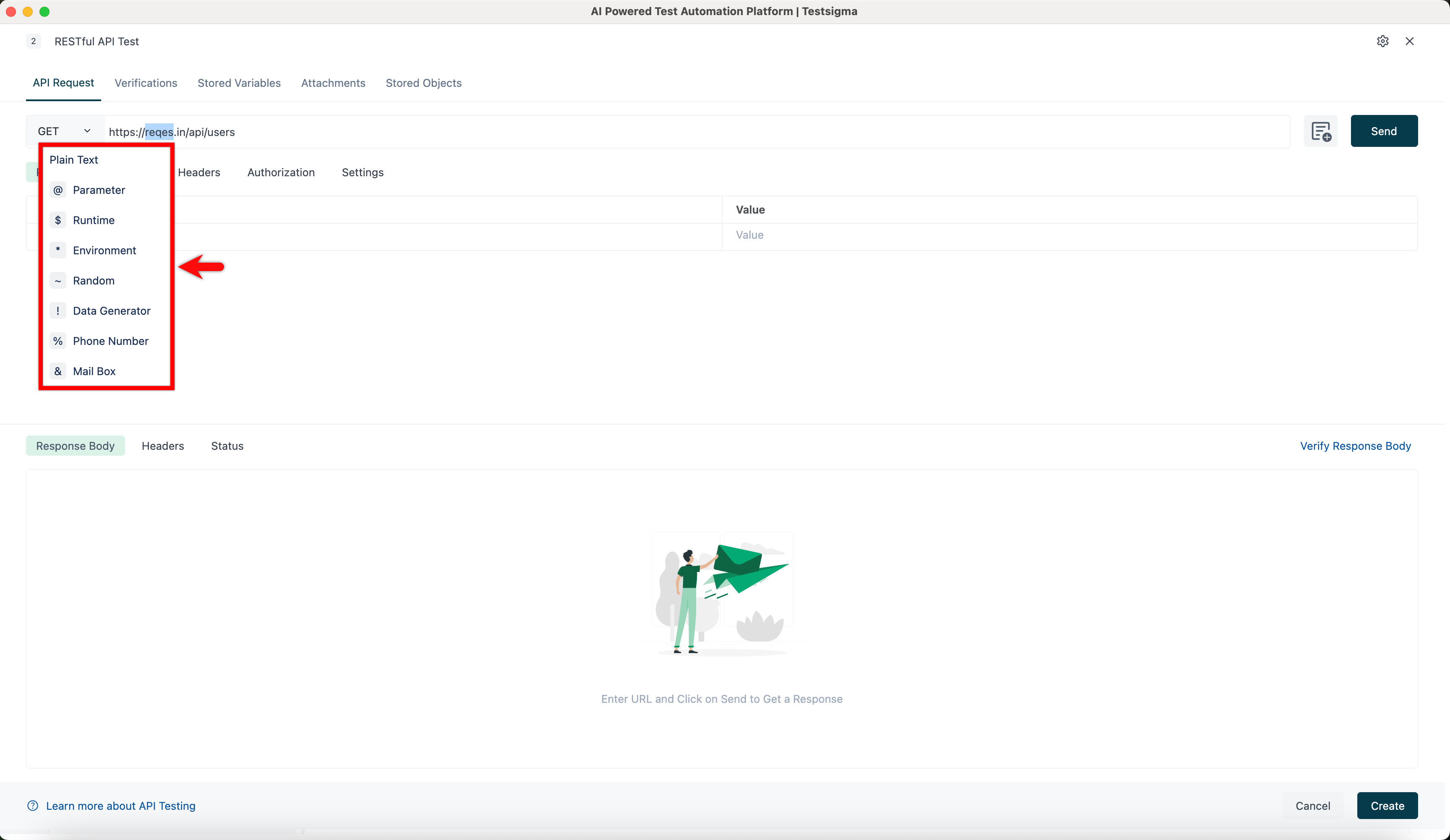 |
There was a problem hiding this comment.
Fix malformed sample URL in parameterized example.
Line 39 uses https://@reqes.in/api/users?page=@page, which appears invalid (domain typo and stray @ in host). This can break the example for users following the guide.
✏️ Proposed doc fix
-2. In a **parameterized URL**, you can **insert test data** by double-clicking on the URL and selecting the **test data type**. For example, https://@reqes.in/api/users?page=@page is the base URL,**?page=page** is a parameter, and **@reqes** and **@page** are **test data types** inserted in the URL. Select the method; by default, it will be **GET**. Click **Send**. 
+2. In a **parameterized URL**, you can **insert test data** by double-clicking on the URL and selecting the **test data type**. For example, `https://reqres.in/api/users?page=@page` is the base URL, `?page=@page` is a parameter, and `@page` is a **test data type** inserted in the URL. Select the method; by default, it will be **GET**. Click **Send**. 📝 Committable suggestion
‼️ IMPORTANT
Carefully review the code before committing. Ensure that it accurately replaces the highlighted code, contains no missing lines, and has no issues with indentation. Thoroughly test & benchmark the code to ensure it meets the requirements.
| 2. In a **parameterized URL**, you can **insert test data** by double-clicking on the URL and selecting the **test data type**. For example, https://@reqes.in/api/users?page=@page is the base URL,**?page=page** is a parameter, and **@reqes** and **@page** are **test data types** inserted in the URL. Select the method; by default, it will be **GET**. Click **Send**.  | |
| 2. In a **parameterized URL**, you can **insert test data** by double-clicking on the URL and selecting the **test data type**. For example, `https://reqres.in/api/users?page=@page` is the base URL, `?page=@page` is a parameter, and `@page` is a **test data type** inserted in the URL. Select the method; by default, it will be **GET**. Click **Send**.  |
🤖 Prompt for AI Agents
Verify each finding against the current code and only fix it if needed.

In `@src/pages/docs/test-cases/create-steps-restapi/api-request.md` at line 39,
The sample parameterized URL is malformed: replace the invalid host
"https://@reqes.in/api/users?page=@page" with a correct parameterized example
such as "https://reqres.in/api/users?page=@page", remove the stray "@" from the
host, and update the explanatory text to state that
"https://reqres.in/api/users?page=@page" is the base URL with "?page=page" as
the parameter and "@reqres" (host token) and "@page" (test data type) as
inserted test data types so the example is valid and consistent.
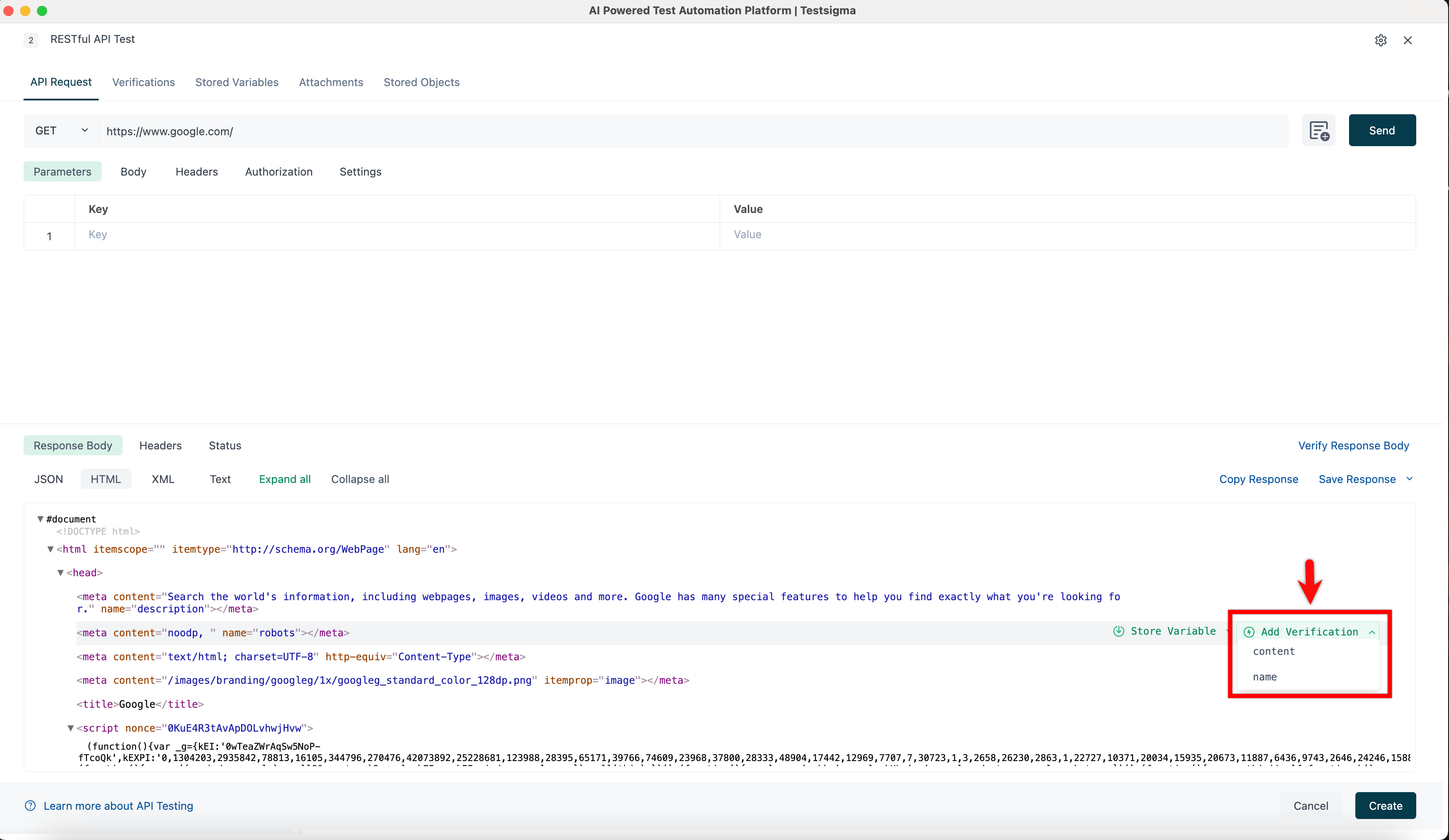
| 2. Hover over the HTML lines in the **Response Body** and select the attribute to add for verification. This action automatically adds the attribute and its value to the **Verifications** tab. | ||
|
|
||
|  | ||
|  |
There was a problem hiding this comment.
Fix typo in image alt text.
Line 75 uses “Verificatications”, which should be corrected for professionalism and search/accessibility quality.
✏️ Proposed text fix
- 
+ 📝 Committable suggestion
‼️ IMPORTANT
Carefully review the code before committing. Ensure that it accurately replaces the highlighted code, contains no missing lines, and has no issues with indentation. Thoroughly test & benchmark the code to ensure it meets the requirements.
|  | |
|  |
🤖 Prompt for AI Agents
Verify each finding against the current code and only fix it if needed.

In `@src/pages/docs/test-cases/create-steps-restapi/verifications-request.md` at
line 75, The image alt text contains a typo ("Verificatications"); update the
Markdown image alt text in the document (the line with the image tag starting
with ![Verificatications]) to the correct spelling "Verifications" to improve
accessibility and professionalism.
| 3. Click on the **test data** placeholder. From the **Test Data Types** dropdown menu, select the **! Data Generator** option. | ||
| 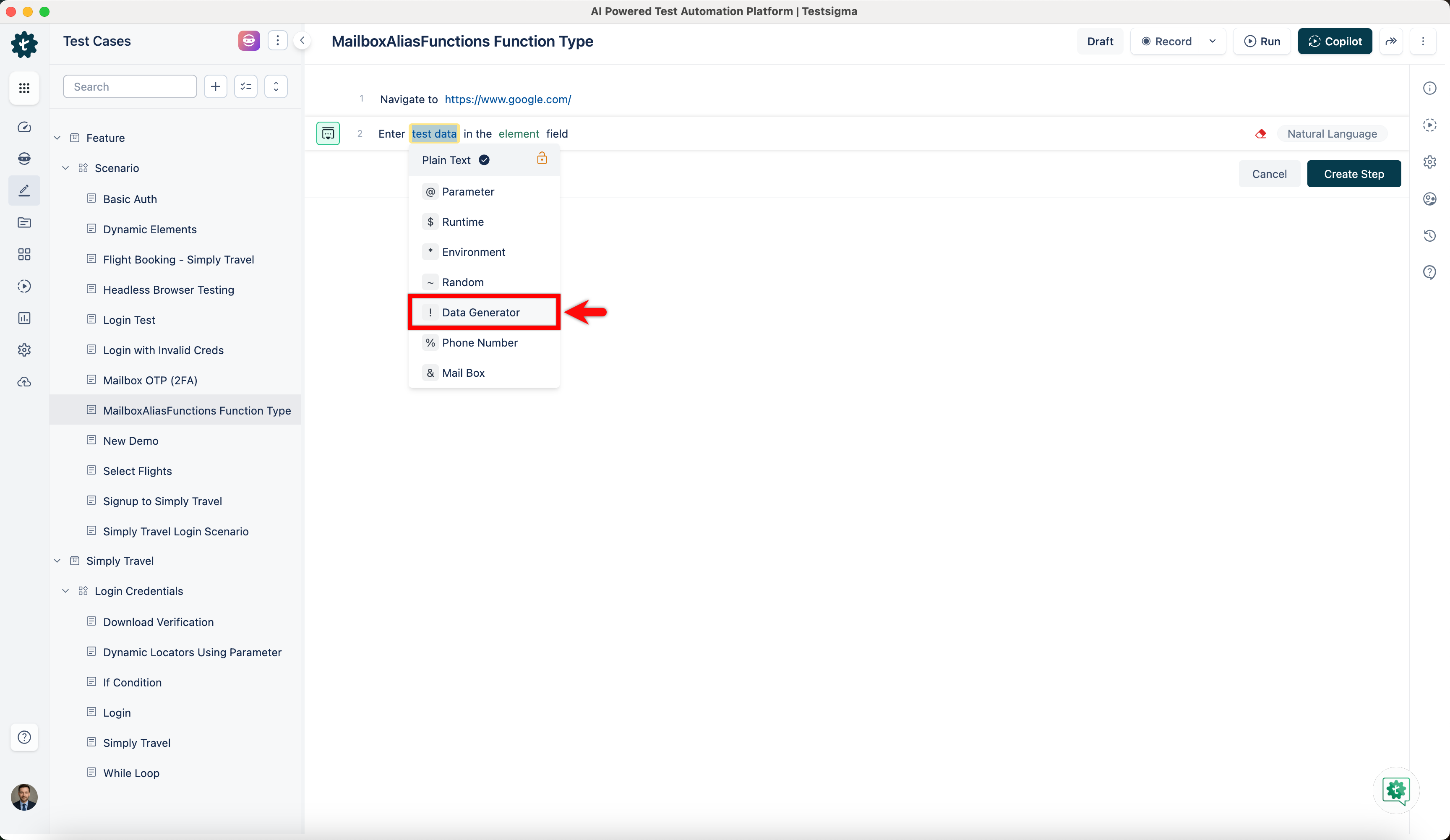 | ||
|
|
||
| 4. On the **! Data Generators** overlay screen, select the **Type** to **Default**. This will enable you to use a collection of built-in test data generators. |
There was a problem hiding this comment.
Tighten wording for the Type selection step
Line 74 reads awkwardly (“select the Type to Default”). Suggest: “set Type to Default” (or “select Default for Type”) to avoid ambiguity.
🤖 Prompt for AI Agents
Verify each finding against the current code and only fix it if needed.

In
`@src/pages/docs/test-data/data-generators/mailboxaliasfunctions-function-type.md`
at line 74, Update the wording of the Type selection step in the document
fragment that currently reads “select the **Type** to **Default**”: replace it
with clearer phrasing such as “set **Type** to **Default**” or “select
**Default** for **Type**” so the instruction is unambiguous; locate the sentence
containing “select the **Type** to **Default**” and substitute the chosen
clearer variant.
| serviceName: {{ (index $.Values.Application $name).name }}-{{ $.Values.Environment.name }}-headless | ||
| replicas: {{ $deployment.replicas }} | ||
| podManagementPolicy: OrderedReady |
There was a problem hiding this comment.
Headless Service cannot be optional with the current StatefulSet template.
Line 139 sets serviceName unconditionally, so this StatefulSet depends on that Service identity. But Lines 203-206 describe the Service as optional, and Line 331 defaults enabledStatefulSet to false. This mismatch can break installs when users follow the documented defaults.
Suggested doc/template alignment
-If you need DNS resolution for StatefulSet pods, create **templates/service.yaml**. This file is required when you set **enabledStatefulSet: true** in your values file.
+Create **templates/service.yaml**. This Service is required by the StatefulSet `serviceName` and should be enabled whenever the tunnel StatefulSet is enabled.-| **enabledStatefulSet** | boolean | No | false | When **true**, creates a headless Service for StatefulSet DNS resolution. |
+| **enabledStatefulSet** | boolean | No | true | Creates the headless Service required by the StatefulSet `serviceName`. Disable only if you provide an equivalent pre-existing Service. |Or, if you want the Service truly optional, the StatefulSet template/docs need a matching alternate path that does not require this service contract.
Also applies to: 203-206, 210-227, 331-331
🤖 Prompt for AI Agents
Verify each finding against the current code and only fix it if needed.

In `@src/pages/docs/testsigma-tunnel/setup-installation-kubernetes.md` around
lines 139 - 141, The StatefulSet template unconditionally sets serviceName
(serviceName: {{ (index $.Values.Application $name).name }}-{{
$.Values.Environment.name }}-headless }) which creates a hard dependency on a
headless Service while the docs/value defaults treat that Service as optional;
update the template so it honors enabledStatefulSet and the Service enable flag:
either make serviceName conditional (only set when the headless Service is
enabled) or add an alternate StatefulSet path that omits serviceName when
enabledStatefulSet (or the headless Service flag) is false, and update the
documentation to reflect the chosen behavior; ensure you modify the StatefulSet
template block that references serviceName and the values/defaults for
enabledStatefulSet and the Service enable flag to stay consistent.
| Here, we have a license for 2 parallel executions & 3 allowed queues. We can set up a maximum of 2 test runs to run in parallel, which means executing up to 2 tests simultaneously. In addition to the 2 tests running in parallel, you can have up to 3 tests in the queue. The queued tests will execute once the ongoing parallel executions are complete.<br> | ||
|
|
||
| In the above example, we have **Parallel Tests 1/3**, which means 1 test is running in parallel, and 3 is the number of parallel runs allowed at a moment.<br> | ||
| In the above example, we have **Parallel Tests 2/2**, which means 2 test is running in parallel, and 2 is the number of parallel runs allowed at a moment.<br> |
There was a problem hiding this comment.
Fix grammar in the metric explanation.
Line 31 has subject-verb mismatch and singular/plural inconsistency (“2 test is running”). Please update it to “2 tests are running”.
✍️ Suggested edit
-In the above example, we have **Parallel Tests 2/2**, which means 2 test is running in parallel, and 2 is the number of parallel runs allowed at a moment.<br>
+In the above example, we have **Parallel Tests 2/2**, which means 2 tests are running in parallel, and 2 is the number of parallel runs allowed at a time.<br>
📝 Committable suggestion
‼️ IMPORTANT
Carefully review the code before committing. Ensure that it accurately replaces the highlighted code, contains no missing lines, and has no issues with indentation. Thoroughly test & benchmark the code to ensure it meets the requirements.
| In the above example, we have **Parallel Tests 2/2**, which means 2 test is running in parallel, and 2 is the number of parallel runs allowed at a moment.<br> | |
| In the above example, we have **Parallel Tests 2/2**, which means 2 tests are running in parallel, and 2 is the number of parallel runs allowed at a time.<br> |
🤖 Prompt for AI Agents
Verify each finding against the current code and only fix it if needed.

In
`@src/pages/docs/troubleshooting/web-apps/test-execution-queued-for-a-long-time.md`
at line 31, Update the metric sentence that currently reads "2 test is running"
to correct subject-verb and number agreement: change it to "2 tests are running"
so the full sentence becomes "In the above example, we have **Parallel Tests
2/2**, which means 2 tests are running in parallel, and 2 is the number of
parallel runs allowed at a moment." Locate the sentence in the docs content for
the "Parallel Tests 2/2" explanation and replace the singular/plural and verb to
match.


2 participants


Added a new doc and updated existing docs
Summary by CodeRabbit