A4 : Create an AB Test
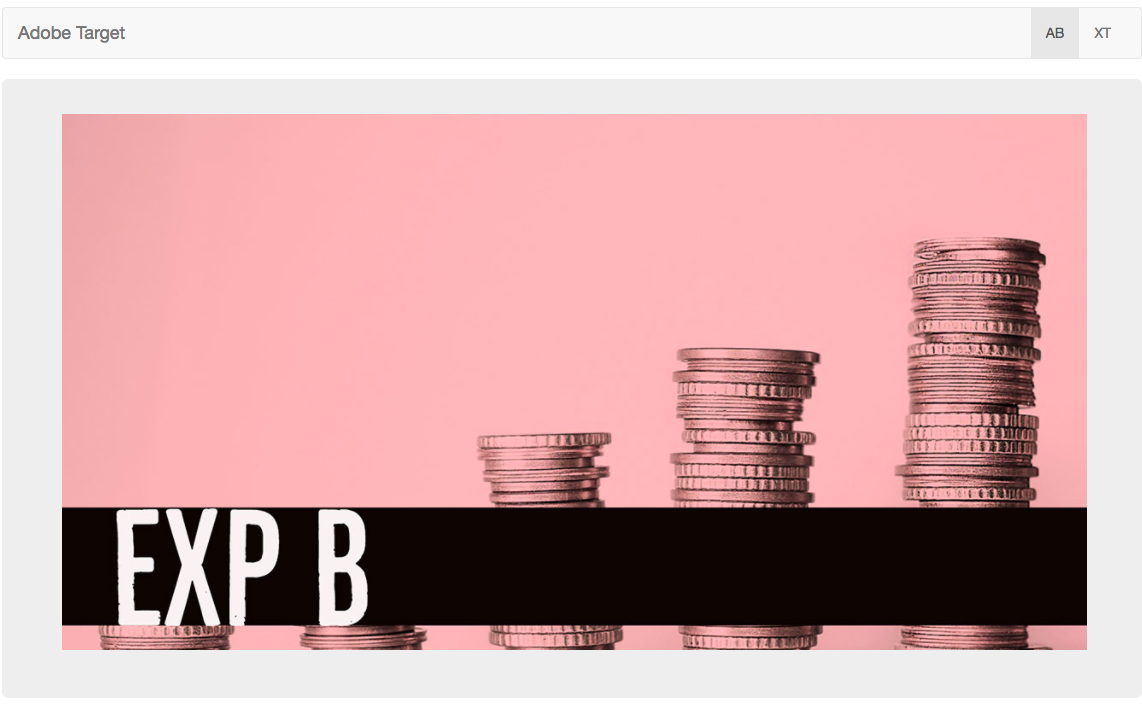
We are going to create a A/B test where we will show 3 different banners on the homepage.

Make sure you know your unique user number. Your unique user number is on the paper on your work station. If you don't have one, please inform the instructor or one of the teaching assistants.
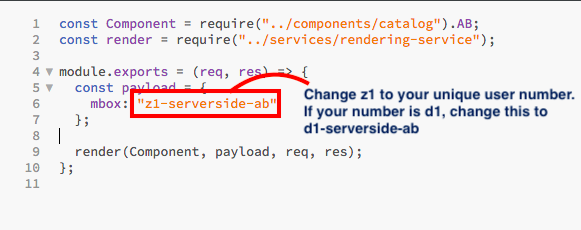
2a. Open Brackets and navigate to src > routes > ab.js
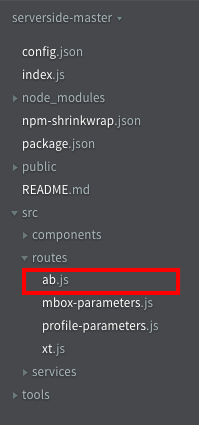
2b. In the ab.js file, z1-serverside-ab is the name of the target location. Replace z1 with your unique user number.
2c. Hit Cmd + S to save the file.
3a. Go to the Target UI.
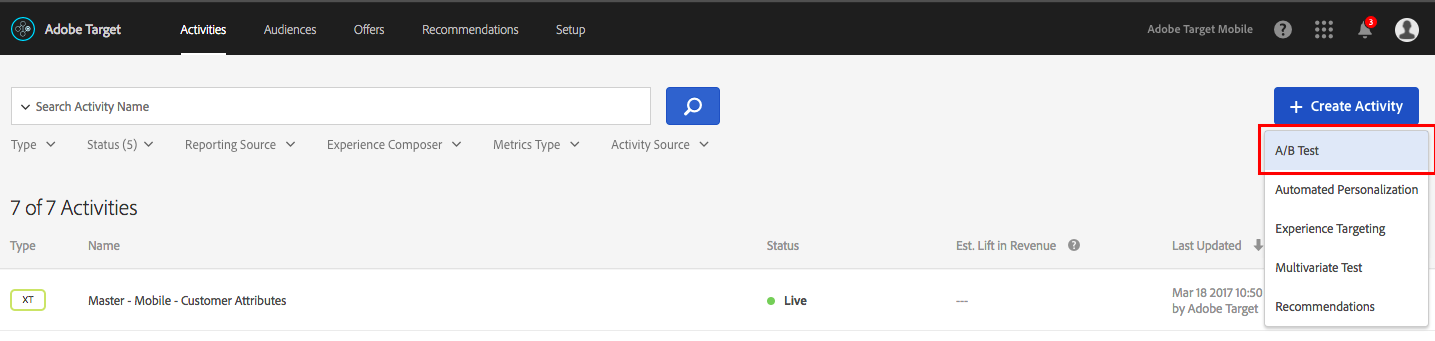
3b. Click the blue 'Create Activity' button and then select A/B Test
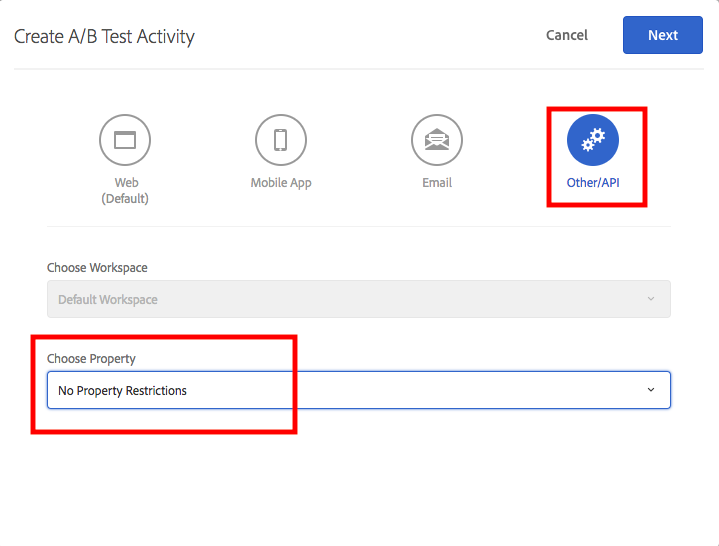
3c. Select the 'Other/API' option and then select 'No property restrictions'. Click Next
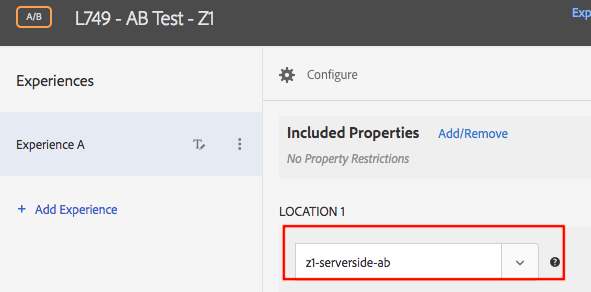
3d. Rename your activity. Prefix your activity with your user number followed by L4242. (Eg: K7-L479 AB Test).
 Since all the participants are sharing the same account, it is very important to add the prefix (Eg: K7-L479) to all your activities.

3e. Select or type your location in the box. If your location isn't showing up in the dropdown, that is alright.
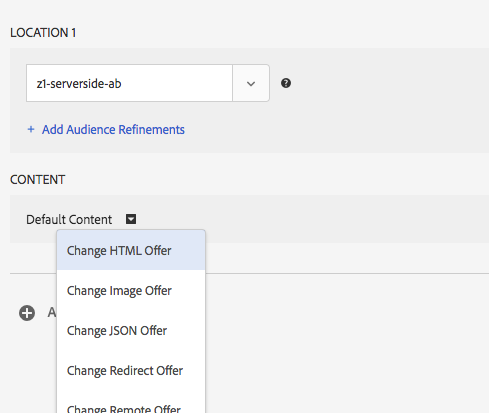
3f. Click on the small arrow after 'Default Content' and select 'Change HTML Offer'. This will open a dialog.
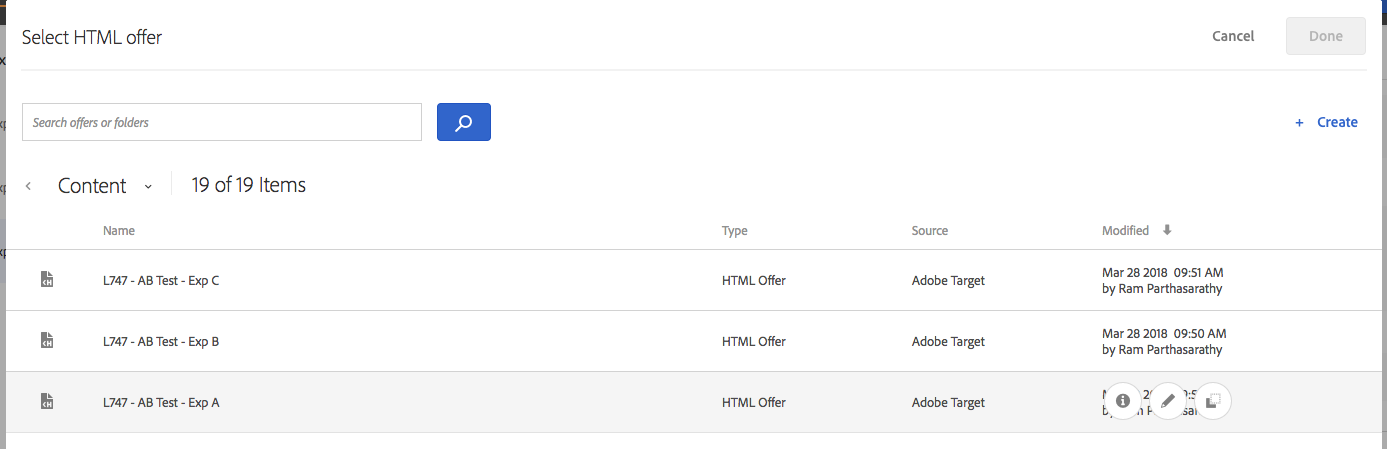
3g. Select the offer titled 'L479-AB Test -ExpA' and click Save
3h. Click on 'Add Experience' and repeat steps 3f and 3g to add your 'L479-AB Test- Exp B' and 'L479-AB Test- Exp C' experiences. After you complete this step, your screen should look like this
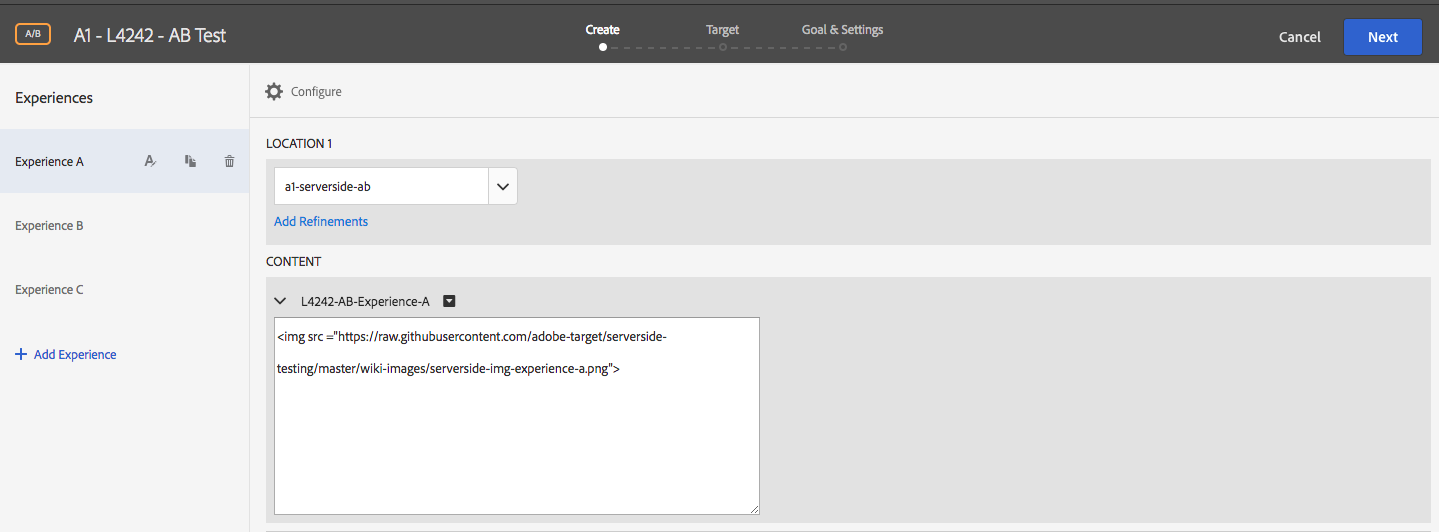
3i. Click 'Next' and review your test setup.
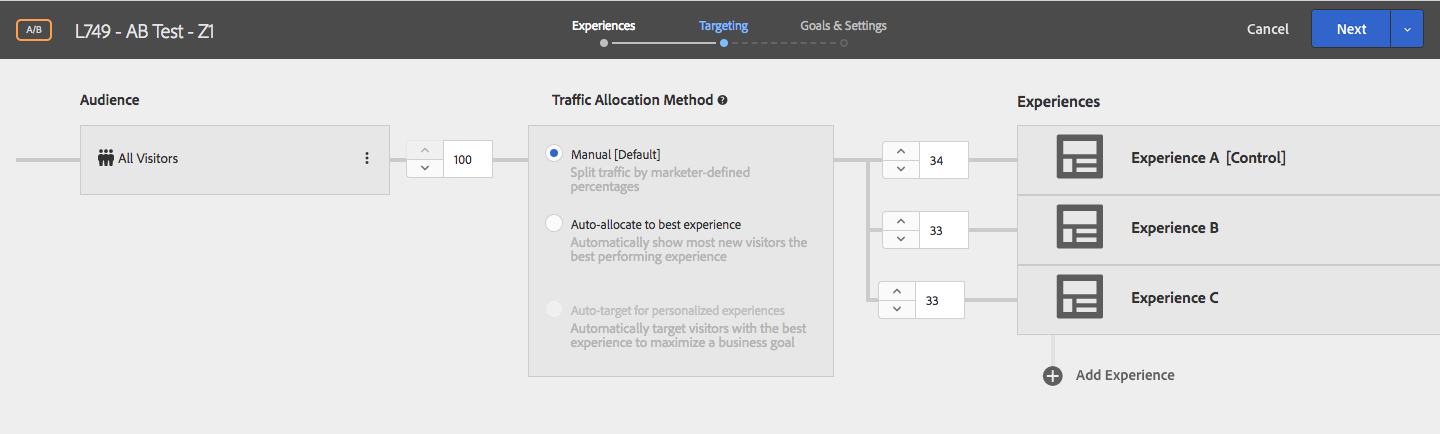
3j. Click 'Next' to go to the Goal & Settings screen. On this screen, select 'Adobe Target' as your reporting source.
Select Viewed an mbox > conversion > order-complete
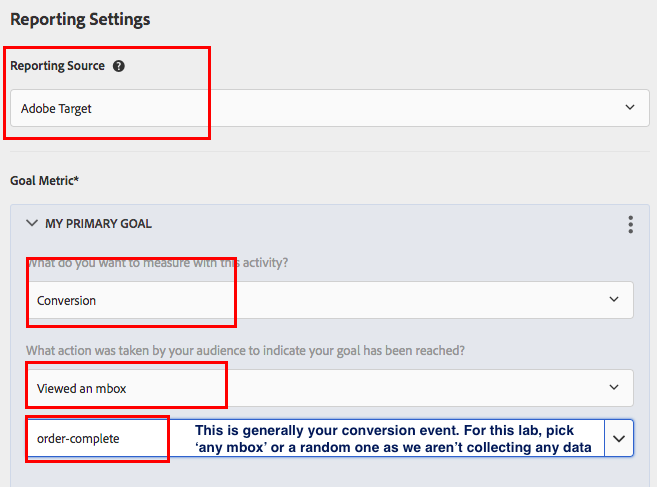
In this lab exercise, we are using Target as a reporting source. You also have the option to use Analytics as a reporting source and choose one of your analytics metrics as your goal. While we won't be doing that in this lab, we will review the set up process and the results in Analytics in one of the subsequent exercises.
3k. Click 'Save' and wait a few seconds for the activity to sync. Once it syncs, click on Activate

4a. Open your terminal and press Control + C. The control key is on the bottom left right corner. This will terminate your current app.
4b. Run the app
 4b. Go to http://localhost:5000/ab in your browser or refresh the page if you already have it open.
4c. You should now be seeing one of the three experiences.