Flow Control
The "Flow Control" feature expands the capabilities of a test scenario to include a GUI based scripting mechanism and complex flow control, providing the user with the ability to monitor the test flow within a scenario.
There are three kinds of flow control types the test operator can implement into a scenario, "for", "if", and "switch".
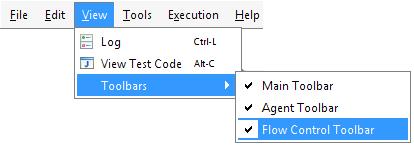
In order to activate the flow control check the "Flow Control Toolbar" item in the "View Menu""Toolbars">"Flow Control Toolbar" as it appears in the illustration.
The "for" flow control - creates a test loop above the test layer, according to a list of user defined values. When pressing on the "for" button, a "For" branch is added to the scenario tree, into it the user can add tests, scenarios, and other flow control objects.
The example shows a basic scenario with a "for" loop, and a test inside it.

- The Flow Control Toolbar positioned at the top of the scenario panel.
- The "For" branch inside the scenario, contained within the tests.
- In the right side - the "list" and the "loop value" parameters that appear in the "Test Info" tab,"General" sub-tab.
When a scenario with a "for" object is executed, all of the tests in the loop are executed "N" times, according to the number of values in the "list" parameter, a semi-column-separated list of values. The current value from the list is set into the "loop value" at every iteration, which can be used as a parameter inside the loop. In the example above, the test is executed 4 times, each time setting the value into ${myVar}.
Note: In order to use the loop variable in tests inside the loop, set one of the test's parameter to be the loop variable. In the example, the value of a parameter in the loop is set to ${myVar}.
The "if" flow control - creates a conditional statement that changes the execution flow of the scenario. By pressing on the "if" button, a branch is added to the scenario tree, with an additional "else" branch inside it. An additional "else if" branches can be added into an "if" branch, in order to create a more complex execution flow.
- Each "if" branch must have an "else" branch inside it, it can be empty, but cannot be deleted.
- The "if" condition becomes useful when combined with a new "return parameters" mechanism (as described above).
For example, a scenario containing an "if" branch, one "else if", and the "else" branch appears a follows.

Important Considerations - The place of the comment is used to show the condition of each of the "if" objects.
- Each test has a list of "Return parameters" at the top of the "Test Info" tab.
- The ability of a test to refer to a "return parameter" is performed by using ${<parameter name>}.
Note: Known limitation – The parameter name must use a capital Letter at the beginning of the word (Even when the actual parameter name uses a lower case character).
The "switch" flow control - similar to an "if", the "switch" object can change the execution flow. By pressing on the "switch" button, a branch is added to the scenario tree, with an additional "default" branch inside it.
Additional "case" branches can be added to a "switch" branch. Each "switch" branch must have a "default" branch inside it, which can be empty, but cannot be deleted.
The example illustrates the adding of a "switch" control to a scenario.
