WhatsApp API dengan dukungan multi-session menggunakan Hono framework dan Baileys library untuk mengirim pesan WhatsApp melalui HTTP endpoint.
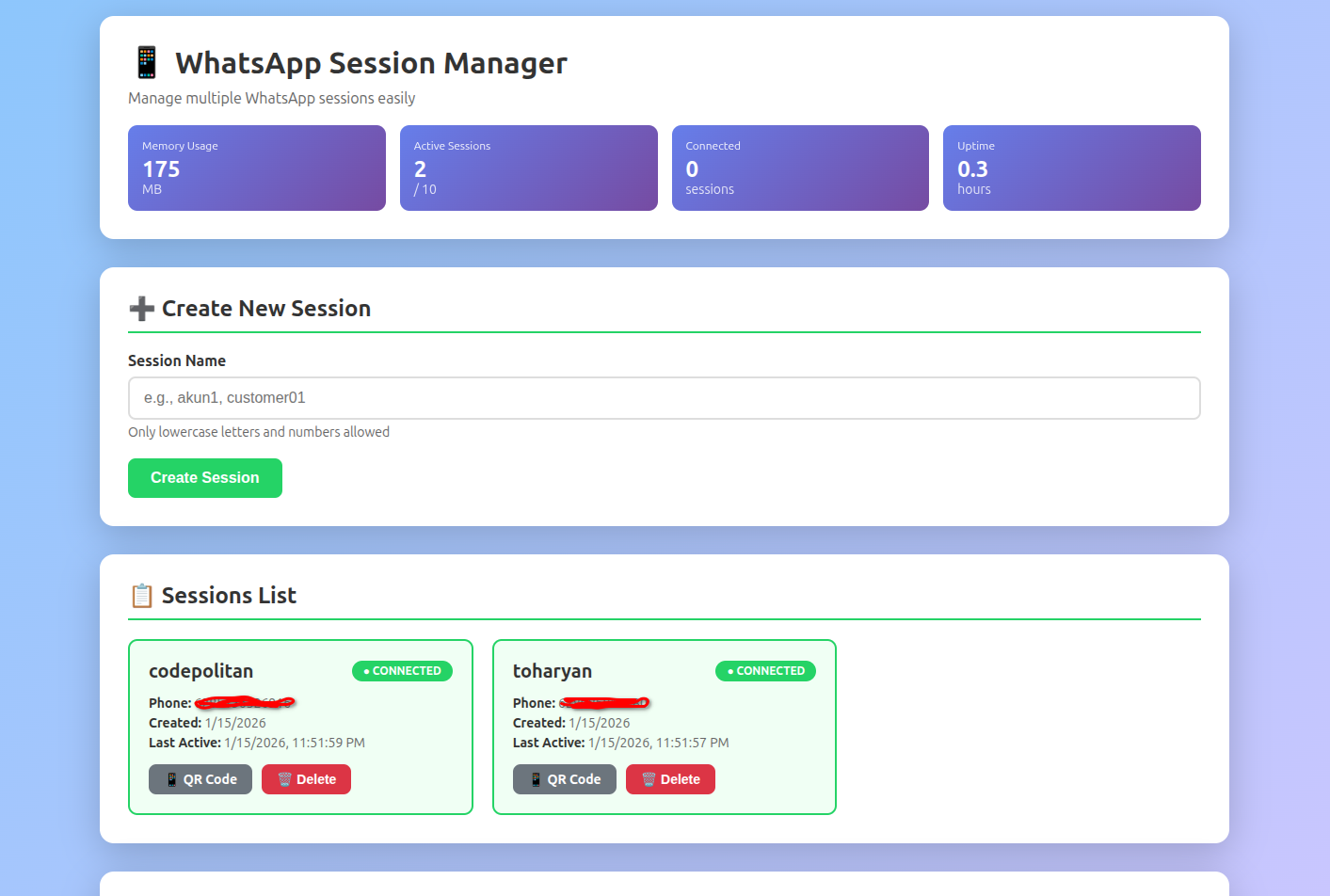
- ✅ Multi-session support - Kelola banyak akun WhatsApp dalam satu aplikasi
- ✅ Web Management Interface - Dashboard untuk create, view, dan delete sessions
- ✅ Koneksi WhatsApp via QR Code dengan tampilan web
- ✅ Kirim pesan WhatsApp via API
- ✅ Auto-reconnect jika koneksi terputus
- ✅ Session persistence (tidak perlu scan QR berulang)
- ✅ API Key authentication
- ✅ HTTP Basic Auth untuk management endpoints
- ✅ Auto-format nomor telepon Indonesia
- ✅ Health monitoring (memory, uptime, sessions)
- ✅ Session limits untuk resource management
- Bun runtime
- WhatsApp account untuk di-link
-
Clone atau download project ini
-
Install dependencies:
bun install- Buat file
.env:
PORT=8990

# App Key untuk autentikasi API
APP_KEY=your-secret-app-key-here

# HTTP Basic Auth untuk akses management endpoints
HTTP_AUTH_USERNAME=admin
HTTP_AUTH_PASSWORD=your-secure-password

# Session Limits (sesuaikan dengan RAM server)
MAX_SESSIONS=15
Rekomendasi MAX_SESSIONS berdasarkan RAM:
- 1 GB RAM: 10-15 sessions
- 2 GB RAM: 30-40 sessions
- 4 GB RAM: 80-100 sessions
bun run src/index.tsServer akan berjalan di http://localhost:8990 (atau port yang Anda set di .env)
Buka browser dan akses: http://localhost:8990
Interface ini memungkinkan Anda untuk:
- ✅ Melihat semua sessions yang aktif
- ✅ Monitor status koneksi setiap session
- ✅ Create session baru
- ✅ Hapus session yang tidak digunakan
- ✅ Akses QR code untuk setiap session
- ✅ Monitor health status (memory, uptime, sessions)
- ✅ Lihat dokumentasi API dengan contoh kode
Authentication: Masukkan username dan password dari .env saat diminta.
- Buka
http://localhost:8990 - Login dengan credentials dari
.env - Buat session baru (misal:
akun1,customer01) - Klik tombol "📱 QR Code" pada session yang dibuat
- Scan QR code dengan WhatsApp di ponsel Anda
- Tunggu hingga status berubah menjadi "Connected"
- Buat session terlebih dahulu (lihat API Endpoints)
- Akses:
http://localhost:8990/{session_name}/qr - Scan QR code yang muncul dengan WhatsApp:
- Buka WhatsApp → Settings → Linked Devices → Link a Device
- Tunggu hingga status berubah menjadi "WhatsApp Connected"
Note: Session akan tersimpan di folder auth_info_baileys/sessions/{session_name}, jadi Anda tidak perlu scan QR code setiap kali restart aplikasi.
Session name harus memenuhi kriteria:
- ✅ Hanya lowercase letters (a-z)
- ✅ Hanya angka (0-9)
- ❌ Tidak boleh ada spasi, underscore, atau karakter spesial
- ✅ Contoh valid:
akun1,customer01,tokoofficial - ❌ Contoh invalid:
Akun1,toko_official,akun-1
curl http://localhost:8990/generate-appkeyResponse:
{
  "success": true,
  "message": "App key generated successfully. Save it to .env file.",
  "app_key": "b5a4e372a4ec0c15683ff08e132e7042ebd5b363d338cfd864ba6f826d95dd90"
}
Simpan App Key tersebut ke file .env:
APP_KEY=b5a4e372a4ec0c15683ff08e132e7042ebd5b363d338cfd864ba6f826d95dd90Jika lupa app key, Anda bisa cek dengan HTTP Basic Auth:
curl http://localhost:8990/appkey \
  -u admin:your-secure-password
Response:
{
  "success": true,
  "message": "Your current app key:",
  "app_key": "b5a4e372a4ec0c15683ff08e132e7042ebd5b363d338cfd864ba6f826d95dd90"
}Web Management Interface untuk kelola sessions.
Authentication: HTTP Basic Auth
Response: HTML dashboard
Health check dan monitoring aplikasi.
Request:
curl http://localhost:8990/healthResponse:
{
  "success": true,
  "status": "running",
  "uptime": 3600.5,
  "memory": {
    "rss_mb": 145,
    "heap_used_mb": 78,
    "heap_total_mb": 120,
    "external_mb": 5
  },
  "sessions": {
    "total": 3,
    "connected": 2,
    "disconnected": 1,
    "reconnecting": 0,
    "max_sessions": 15,
    "available_slots": 12
  }
}List semua sessions yang terdaftar.
Authentication: HTTP Basic Auth
Request:
curl http://localhost:8990/sessions \
  -u admin:password
Response:
{
  "success": true,
  "count": 2,
  "sessions": [
    {
      "name": "akun1",
      "isConnected": true,
      "phoneNumber": "628123456789",
      "createdAt": "2026-01-15T10:00:00.000Z",
      "lastActivity": "2026-01-15T11:30:00.000Z"
    },
    {
      "name": "customer01",
      "isConnected": false,
      "phoneNumber": "Not connected yet",
      "createdAt": "2026-01-15T11:00:00.000Z",
      "lastActivity": "2026-01-15T11:00:00.000Z"
    }
  ]
}Membuat session baru.
Authentication: HTTP Basic Auth
Request:
curl -X POST http://localhost:8990/sessions/akun1 \
  -u admin:password
Response:
{
  "success": true,
  "message": "Session created successfully",
  "session": {
    "name": "akun1",
    "qr_url": "/akun1/qr"
  }
}
Error Response (Session Limit Reached):
{
  "success": false,
  "message": "Maximum sessions limit (15) reached. Please delete unused sessions first.",
  "current_sessions": 15,
  "max_sessions": 15
}Menghapus session.
Authentication: HTTP Basic Auth
Request:
curl -X DELETE http://localhost:8990/akun1 \
  -u admin:password
Response:
{
  "success": true,
  "message": "Session \"akun1\" deleted successfully"
}Menampilkan QR code untuk menghubungkan WhatsApp pada session tertentu.
Response: HTML page dengan QR code
Akses via browser: http://localhost:8990/akun1/qr
Mengirim pesan WhatsApp melalui session tertentu.
Authentication: App Key (via header atau query parameter)
Body Parameters:
number(string, required): Nomor WhatsApp tujuanmessage(string, required): Pesan yang akan dikirim
Headers:
Content-Type: application/jsonX-App-Key: your-app-key(atau gunakan query parameter)
Request Example:
curl -X POST "http://localhost:8990/akun1/send?app_key=YOUR_APP_KEY" \
  -H "Content-Type: application/json" \
  -d '{
    "number": "628986818780",
    "message": "Hello from WhatsApp API!"
  }'
Response Success:
{
  "success": true,
  "message": "Message sent successfully",
  "session": "akun1",
  "to": "628986818780"
}
Response Error:
{
  "success": false,
  "message": "Session \"akun1\" is not connected. Please scan QR code first at /akun1/qr or wait for reconnection."
}Generate app key baru.
Request:
curl http://localhost:8990/generate-appkeyResponse:
{
  "success": true,
  "message": "App key generated successfully. Save it to .env file.",
  "app_key": "b5a4e372a4ec0c15683ff08e132e7042ebd5b363d338cfd864ba6f826d95dd90"
}Cek app key yang terdaftar.
Authentication: HTTP Basic Auth
Request:
curl http://localhost:8990/appkey \
  -u admin:password
Response:
{
  "success": true,
  "message": "Your current app key:",
  "app_key": "b5a4e372a4ec0c15683ff08e132e7042ebd5b363d338cfd864ba6f826d95dd90"
}API otomatis memformat nomor telepon Indonesia:
081234567890→628123456890628123456890→628123456890(sudah benar)8123456890→628123456890
Untuk nomor internasional, gunakan format lengkap dengan kode negara.
<?php
$url = 'http://localhost:8990/akun1/send?app_key=YOUR_APP_KEY';

$data = [
    'number' => '628986818780',
    'message' => 'Hello from WhatsApp API!'
];

$options = [
    'http' => [
        'header'  => "Content-Type: application/json\r\n",
        'method'  => 'POST',
        'content' => json_encode($data)
    ]
];

$context  = stream_context_create($options);
$result = file_get_contents($url, false, $context);

if ($result === FALSE) {
    die('Error sending message');
}

$response = json_decode($result, true);
print_r($response);
?>async function sendWhatsAppMessage(sessionName, phoneNumber, message) {
const url = `http://localhost:8990/${sessionName}/send?app_key=YOUR_APP_KEY`;
try {
const response = await fetch(url, {
method: 'POST',
headers: {
'Content-Type': 'application/json'
},
body: JSON.stringify({
number: phoneNumber,
message: message
})
});
const data = await response.json();
if (data.success) {
console.log('Message sent successfully!');
return data;
} else {
console.error('Error:', data.message);
throw new Error(data.message);
}
} catch (error) {
console.error('Failed to send message:', error);
throw error;
}
}
// Usage example
sendWhatsAppMessage('akun1', '628986818780', 'Hello from WhatsApp API!')
.then(result => console.log('Success:', result))
.catch(error => console.error('Error:', error));import requests
import json
url = 'http://localhost:8990/akun1/send'
params = {'app_key': 'YOUR_APP_KEY'}
headers = {'Content-Type': 'application/json'}
data = {
'number': '628986818780',
'message': 'Hello from WhatsApp API!'
}
response = requests.post(url, params=params, headers=headers, json=data)
result = response.json()
if result['success']:
print('Message sent successfully!')
print(f"Sent to: {result['to']}")
else:
print(f"Error: {result['message']}")Note: Ganti YOUR_APP_KEY dengan app key dari .env dan akun1 dengan nama session Anda.
- Jangan commit file
.envke repository (sudah ada di.gitignore) - Backup folder
auth_info_baileys- berisi kredensial WhatsApp sessions - Jangan share App Key kepada orang lain
- Gunakan password yang kuat untuk HTTP Basic Auth
- Gunakan HTTPS jika deploy ke production
- Jangan expose
.envfile ke publik - Monitor health endpoint untuk resource usage
- Set MAX_SESSIONS sesuai kapasitas server
- Pastikan session sudah dibuat via web interface atau API
- Pastikan aplikasi sudah running
- Refresh halaman browser
- Cek log di terminal untuk error
- Cek apakah sudah mencapai MAX_SESSIONS limit
- Pastikan nama session valid (lowercase + numbers only)
- Cek memory availability di
/healthendpoint
- Pastikan session sudah connected (cek di web interface)
- Pastikan App Key valid
- Cek apakah nomor tujuan valid (gunakan format internasional)
- Pastikan koneksi internet stabil
- Cek status session di
/sessionsendpoint
- Session otomatis akan reconnect jika folder
auth_info_baileys/sessions/{name}masih ada - Jika tidak bisa reconnect, hapus session dan buat ulang
- Cek log untuk melihat error reconnection
- Pastikan username dan password sesuai dengan
.env - Restart aplikasi setelah edit
.env
- Hapus session yang tidak digunakan via web interface
- Tingkatkan MAX_SESSIONS di
.env(sesuaikan dengan RAM) - Restart aplikasi setelah edit
.env
- Monitor via
/healthendpoint - Kurangi jumlah active sessions
- Hapus session yang tidak connected
- Restart aplikasi untuk clear memory
MIT
Contributions, issues, and feature requests are welcome!
Gunakan API ini dengan bijak dan sesuai dengan Terms of Service WhatsApp. Penggunaan yang berlebihan atau spam dapat menyebabkan nomor WhatsApp Anda diblokir.