This plugin is supported on Sakai 12. For earlier versions, please see our other projects, which support Sakai 10 and Sakai 11. All future versions of Sakai will be supported by this GitHub project.
-
Extract contents of
plugin/folder into the root folder of the Sakai installation location. This will put the plugin files in the appropriate locations. -
Modify
<sakai-installation-location>/webapps/library/editor/ckextraplugins/warpwirecontentitem/plugin.jsto change the variablestudentContributionUrito contain the domain of your instance. (Note: be sure to include the https:// prefix for the domain) -
Locate the
<sakai-installation-location>/sakai/sakai.propertiesand find the following comment block:# Allows for adding additional code into the header of both the standard and pda portals, # for example for adding in kaltura or other javascript code # DEFAULT: Empty, no valueadd this line:
portal.include.extrahead=<script type="text/javascript" language="JavaScript" src="/portal/scripts/warpwirecontentitem.js"></script> -
In
<sakai-installation-location>/webapps/library/editor/ckeditor.launch.jsbefore the line that saysCKEDITOR.plugins.addExternal('contentitem',basePath+'contentitem/', 'plugin.js');
add this line:
CKEDITOR.plugins.addExternal('warpwirecontentitem',basePath+'warpwirecontentitem/', 'plugin.js');
-
In the same file, find the
toolbar_Fullvariable and add'WarpwireContentItem'in the list of resource plugins. The section should look like this:toolbar_Full: [ ['About'], ['Source','-','Templates'], // Uncomment the next line and comment the following to enable the default spell checker. // Note that it uses spellchecker.net, displays ads and sends content to remote servers without additional setup. //['Cut','Copy','Paste','PasteText','PasteFromWord','-','Print', 'SpellChecker', 'Scayt'], ['Cut','Copy','Paste','PasteText','PasteFromWord','-','Print', 'SakaiPreview'], ['Undo','Redo','-','Find','Replace','-','SelectAll','RemoveFormat'], ['NumberedList','BulletedList','-','Outdent','Indent','Blockquote','CreateDiv'], '/', ['Bold','Italic','Underline','Strike','-','Subscript','Superscript'], ['atd-ckeditor'], ['JustifyLeft','JustifyCenter','JustifyRight','JustifyBlock'], ['BidiLtr', 'BidiRtl' ], ['Link','Unlink','Anchor'], (sakai.editor.enableResourceSearch ? ( sakai.editor.contentItem ? ['WarpwireContentItem', 'ContentItem', 'AudioRecorder','ResourceSearch', 'Image','Movie','Table','HorizontalRule','Smiley','SpecialChar'] : ['AudioRecorder','ResourceSearch', 'Image','Movie','Table','HorizontalRule','Smiley','SpecialChar'] ) : ( sakai.editor.contentItemUrl ? ['WarpwireContentItem', 'ContentItem', 'AudioRecorder', 'Image','Movie','Table','HorizontalRule','Smiley','SpecialChar'] : ['AudioRecorder', 'Image','Movie','Table','HorizontalRule','Smiley','SpecialChar'] ) ), ['Styles','Format','Font','FontSize'], ['TextColor','BGColor'], ['Maximize', 'ShowBlocks'] ,['A11ychecker'] ],
-
In the same file, add the plugin to the
extraPluginsvariable by changing this line:ckconfig.extraPlugins+="sakaipreview,image2,audiorecorder,contentitem,movieplayer,wordcount,notification,autosave";
to this line:
ckconfig.extraPlugins+="warpwirecontentitem,sakaipreview,image2,audiorecorder,contentitem,movieplayer,wordcount,notification,autosave";
-
NOTE: if you are building Sakai from source, add the
ckconfig.extraPluginsin the javascript file to thesakai/library/pom.xmlconfiguration file. There will be a section called<ckeditor-extra-plugins>, simply put the value in this location and it will be compiled when Sakai is built from source. -
Restart Sakai.
-
Login to Sakai as the admin user.
-
Navigate to the 'Administrative Workspace'

-
Click 'External Tools' in the left column navigation menu.

-
Click the 'Install LTI 1.1 Tool' text link on the far right of the page.
-
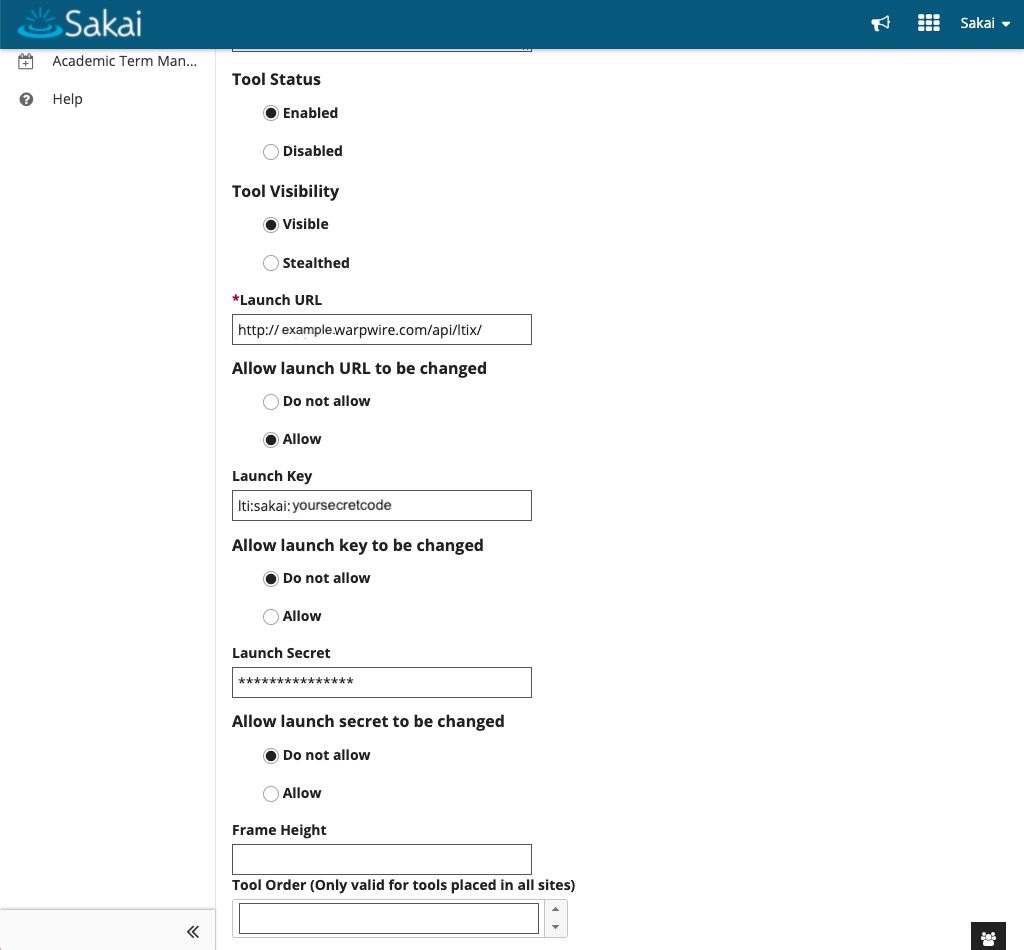
Fill out the External Tool fields as follows:
- Site Id (Leave blank to make tool available in all sites) = Leave Blank
- Tool Title (Above the tool) = Warpwire
- Allow tool title to be changed = Allow
- Choose a custom icon (leave empty to use the default icon) = leave empty
- Button Text (Text in tool menu) = Warpwire
- Allow button text to be changed = Do not allow
- Description = leave blank
- Tool Status = Enabled
- Tool Visibility = Visible
- Launch URL = [YOUR_DOMAIN].waprwire.com/api/ltix/
(Note: this has changed from previous versions, be sure to include the x and the trailing slash!) - Allow launch URL to be changed = Allow
- Launch Key = this will be provided by Warpwire
- Allow launch Key to be changed = Do not allow
- Launch Secret = this will be provided by Warpwire
- Allow launch secret to be changed = Do not allow
- Frame Height = leave blank
- Tool Order (Only valid for tools placed in all sites) = leave blank
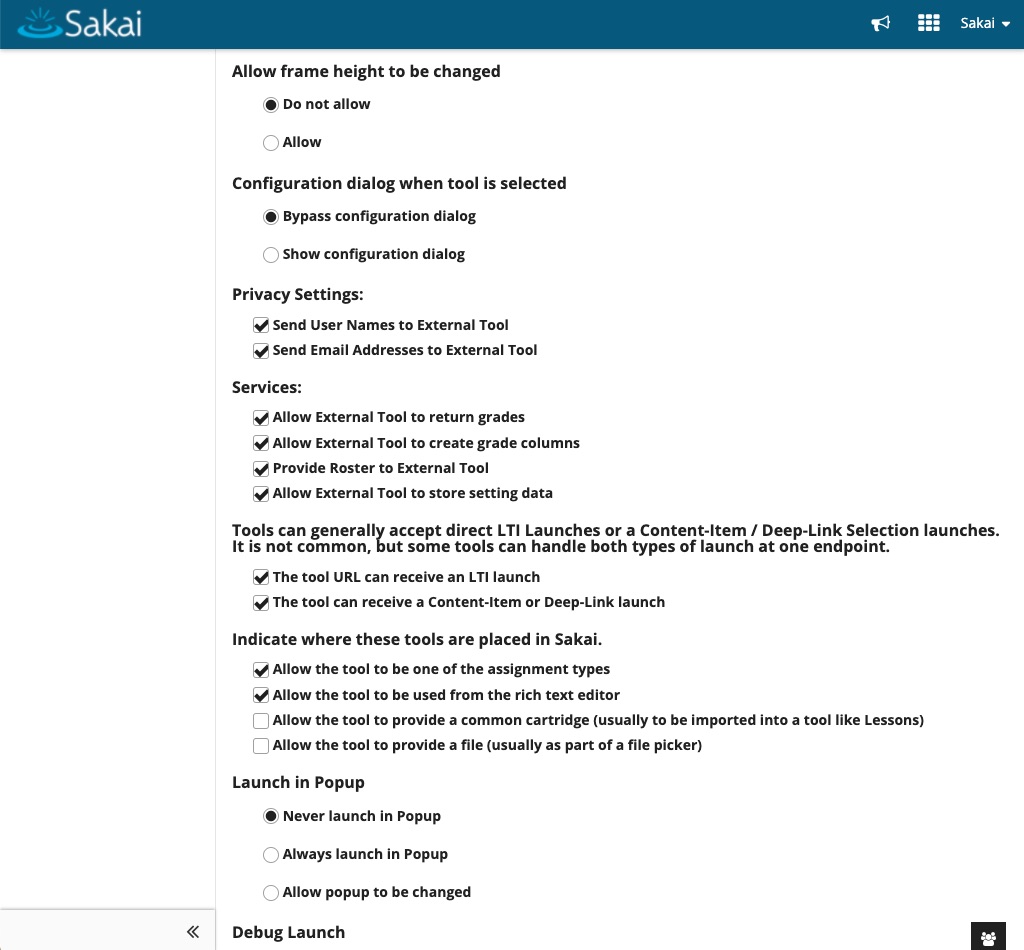
- Allow frame height to be changed = Do not allow
- Configuration dialog when tool is selected = Bypass configuration dialog
- Privacy settings = check both boxes
- Services = check the following:
- 'Allow External Tool to return grades,'
- 'Allow External tool to create grade colums,'
- 'Provide roster to external tool,'
- 'Allow External Tool to store settings data'
- Tools can generally accept direct LTI Launches or a Content-Item/Deep-Link Selection launches. It is not common, but some tools can handle both types of launch at one endpoint = check the following:
- 'The tool URL can recieve an LTI launch'
- 'The tool can recieve a Content-Item or Deep-Link launch'
- Indicate where these tools are placed in Sakai = Select the first two boxes:
- 'Allow the tool to be one of the assignment types'
- 'Allow the tool to be used from the rich text editor'
- Launch in Popup = Never launch in Popup
- Debug Launch = Never launch in debug mode
- Custom Parameters = leave blank
- Manually map Sakai roles to IMS roles. Example: maintain:Learner;access:Learner = leave blank
- LTI 1.3 Support = Tool does not support LTI 1.3
- lti13_settings = leave blank
- Splash Screen (If this is non-blank it is shown before the tool is launched) = leave blank
- If you select LTI 1.3 support while inserting a tool, after the tool is saved, you will be presented the Sakai configuration information to copy back to the tool. You can view this information in the tool view screen if you edit the tool information = 'Tool does not support LTI 1.3'
- LTI 1.3 Platform Issuer (provide to tool) = Import LTI 1.3 Configuration (Sakai-format)
- LTI 1.3 Client ID (provide to the tool)= leave blank
- LTI 1.3 Tool Keyset URL (provided by the tool)= leave blank
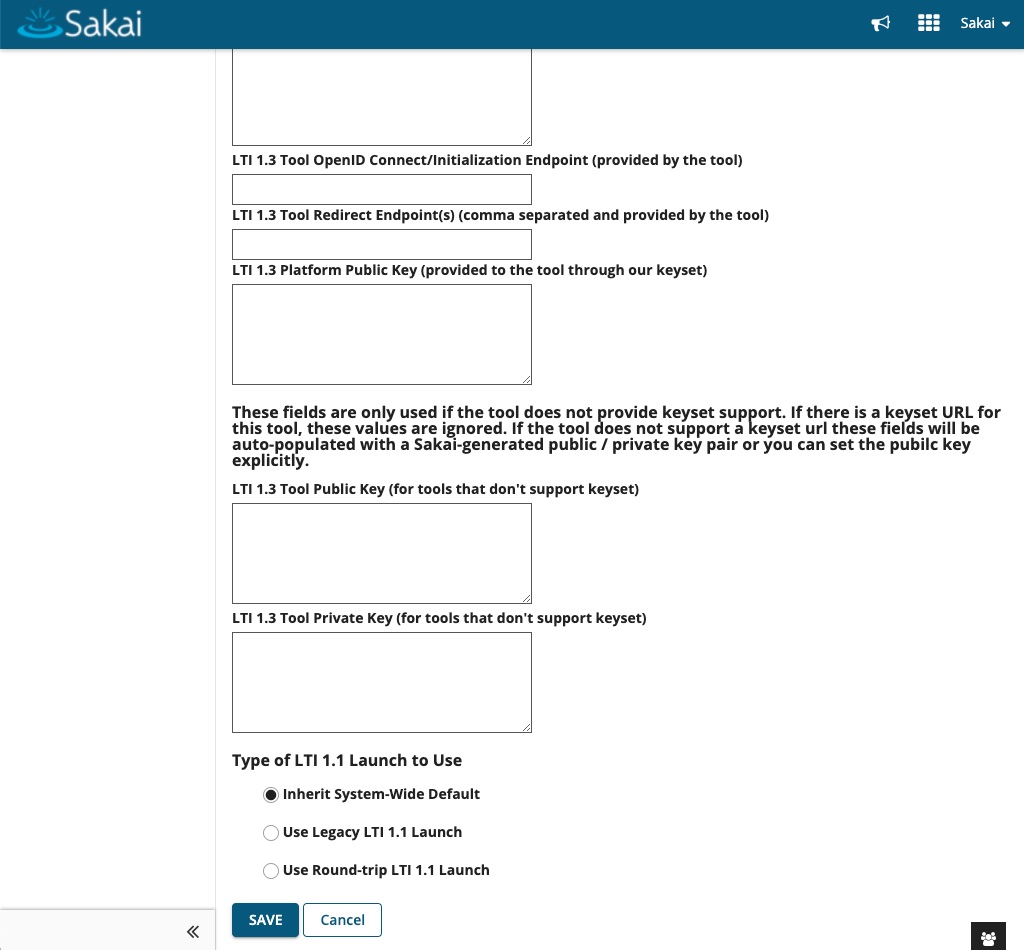
- LTI 1.3 Tool OpenID Connect/Initialization Endpoint (provided by the tool) = leave blank
- LTI 1.3 Tool Redirect Endpoint(s) (comma seperated and provided by the tool) = leave blank
- LTI 1.3 Platform Public Key (provided to the tool through our keyset) = leave blank
- LTI 1.3 Tool Public Key (for tools that don't support keyset) = leave blank
- LTI 1.3 Tool Private Key (for tools that don't support keyset) = leave blank
- Type of LTI 1.1 Launch to use = Inherit System-Wide Default
-
Hit "Save"


-
First remove the legacy Warpwire tool from the Tools menus of all courses that will use the new Warpwire Deep Linking plugin. Otherwise, you may end up with a reference to a non-existant course tool that cannot be easily removed.
-
Open the following file:
<sakai-installation-location>/webapps/library/editor/ckeditor.launch.jsRemove the references to Warpwire in the following sections:
sakai.editor.enableResourceSearch- the
extraPluginsvariable - the
addExternalplugin function - remove the
warpwireURLvariable and associated root directory
There should be 4 references to Warpwire. Remove them all.
-
Remove the directory:
<sakai-installation-location>/webapps/library/editor/ckextraplugins/warpwire -
Remove the file:
<sakai-installation-location>/webapps/portal/scripts/warpwire.js -
In the file:
<tomcat-installation-location>/sakai/portlets/IMSBLTIPortlet.xmlIf you have only one XML profile for the Warpwire tool, you may remove the
IMSBLTIPortlet.xmlcompletely. Otherwise, remove all of the XML configurations for the Warpwire tool identified assakai.warpwire -
In the file site.vm located either in:
<sakai-installation-location>/webapps/sakai-portal-render-engine-impl/vm/<skin>/site.vmor<sakai-installation-location>/webapps/portal-render/vm/<skin>/site.vm, where<skin>is the current skin in use for Sakai.Remove the string
<script type=“text/javascript” src=“/portal/scripts/warpwire.js”></script> -
Restart Sakai to remove the plugin