
The missing yet essential cross-platform dual-panel file manager for Visual Studio Code, heavily inspired by Far Manager, Dos Navigator, Volkov Commander, and of course Norton Commander. It runs as a terminal overlay: your shell stays alive underneath, and you toggle the file panel on and off with Ctrl+O.
Previously, a powerful editor was an extension to dual panel file manager. VSCommander is exactly the opposite paradigm that works well in the modern realities.
The goal of the project - to preserve the natural look and feel of File Manager while extending its functionality when plactical, and constantly keeping support of modern *nix and Windows-compatible operating systems.
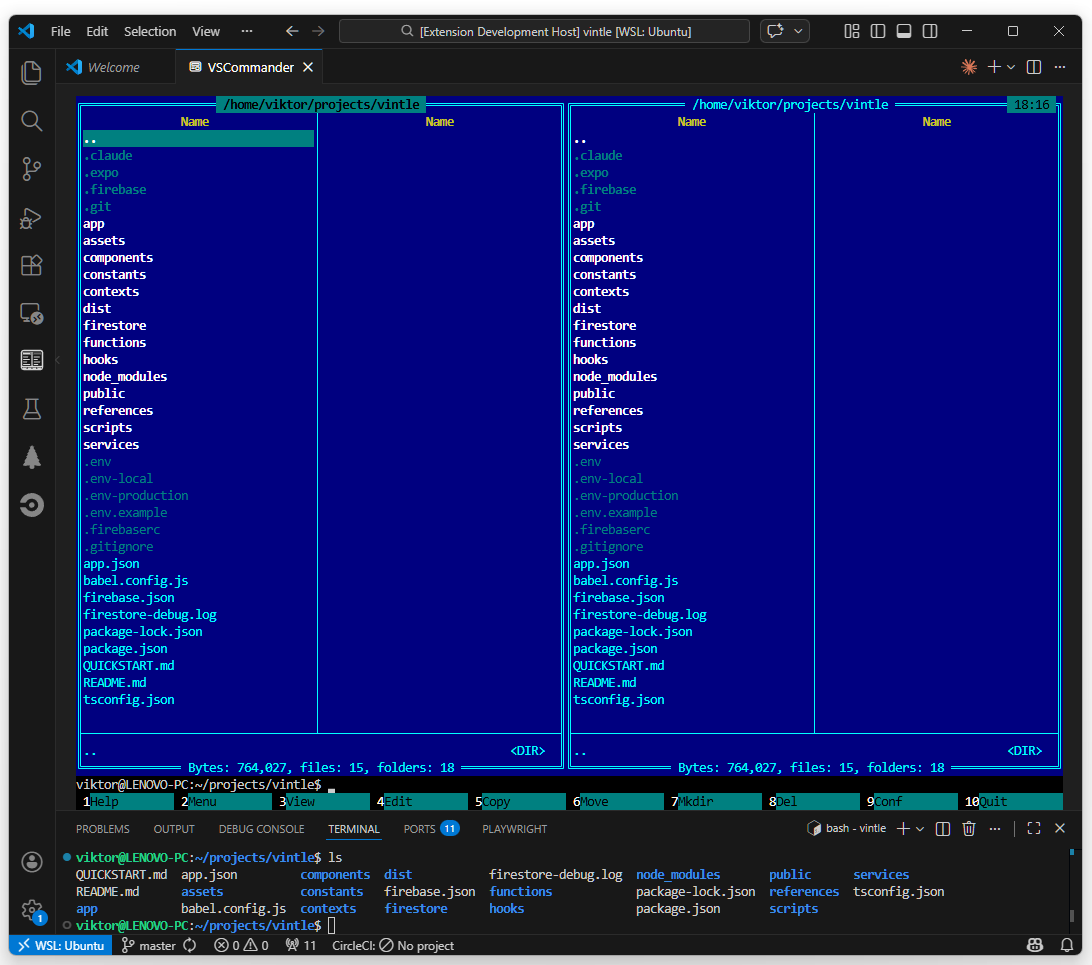
The project is a work in progress and not published to the marketplace yet.
- Dual-pane browsing: two independent directory panels side by side
- Real terminal underneath: not a webview; the shell session persists when the panel is hidden
- Quick search: press
Alt+ any letter to jump to matching files instantly - Drive / mount popup:
Alt+F1/Alt+F2to switch drives (Windows) or mounted filesystems (Linux, macOS, FreeBSD) - Quick View:
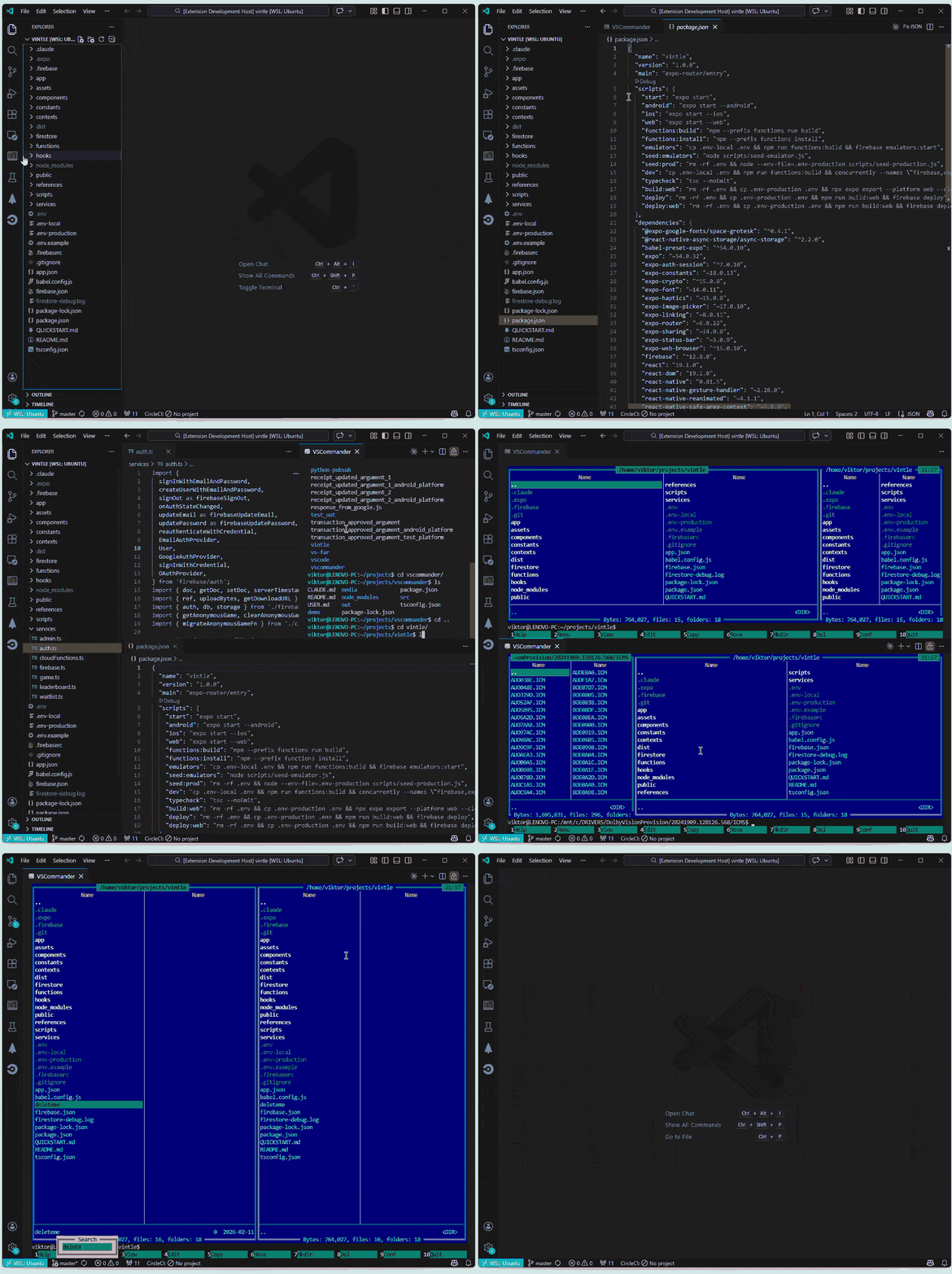
Ctrl+Qpreviews files in a VS Code split editor; shows directory info (sub-directory/file counts, total size) for directories - Half-panel mode:
Ctrl+Phides one pane to show color-rich terminal output alongside your files; commands run inline without hiding the panel - Multi-column layout: 1, 2, or 3 file columns per pane (configurable)
- Top menu bar: F9 opens a Far Manager-style menu with Left, Files, Commands, Options, Right menus for sorting, column layout, and all panel operations
- Sorting: Sort each pane independently by name, extension, size, date, or unsorted
- File operations: F5 Copy, F6 Move/Rename with overwrite handling and progress display
- File selection: Insert to toggle selection, batch operations on selected files
- Function key bar: F3 View, F4 Edit, F5 Copy, F6 Move, F7 Mkdir, F8 Delete, F9 Config, F10 Quit
- Mouse support: click to select files, switch panes, activate popup buttons, scroll with the wheel
- Color themes: classic Far Manager theme or auto-adapting VS Code theme; theme selection popup with live preview
- Interactive color editor: F9 > Options > Edit colors -- visual 16-color palette, hex input, live preview for all 39 theme elements
- In-memory settings: all changes are instant and in-memory; explicitly save or delete persisted settings via F9 > Options when ready
- Configurable key bindings: remap any panel action to a different key via settings
- Cross-platform: Linux, FreeBSD, macOS, and Windows
- Visual Studio Code 1.80 or later
- Node.js (for building from source)
git clone https://github.com/vmisoft/vscommander.git
cd vscommander
npm install
npm run compile
Then press F5 in VS Code to launch the Extension Development Host.
- Open the Command Palette (
Ctrl+Shift+P) and run VSCommander: Open Terminal - The dual-panel file manager appears in a terminal tab
- Press
Ctrl+Oto toggle the panel off and use the shell, then again to bring it back
| Key | Action |
|---|---|
Ctrl+O |
Toggle file manager panel on/off |
Tab |
Switch between left and right pane |
Enter |
Open directory / open file in editor |
Up / Down |
Navigate file list |
PgUp / PgDn |
Scroll by page |
Home / End |
Jump to first / last entry |
Alt+letter |
Quick search |
Alt+F1 / Alt+F2 |
Change drive popup (left / right pane) |
Ctrl+H |
Toggle dotfile visibility |
Ctrl+P |
Half-panel mode (show terminal in one pane) |
Ctrl+Q |
Quick View -- preview file in VS Code split editor |
Ctrl+Left / Ctrl+Right |
Resize panes |
F3 |
View -- highlight file in VS Code Explorer |
F4 |
Edit -- open file in VS Code editor |
F5 |
Copy files to other pane |
F6 |
Move / rename files |
F7 |
Make directory -- create directories or symbolic links |
F8 |
Delete selected file or directory |
F9 |
Open top menu bar (Left / Files / Commands / Options / Right) |
F10 |
Close panel and return to shell |
Alt+Enter |
Detach to fullscreen / reattach |
| Setting | Default | Description |
|---|---|---|
vscommander.theme |
"far" |
Color theme: far (classic) or vscode (matches active theme) |
vscommander.showDotfiles |
true |
Show hidden files (dotfiles) |
vscommander.clock |
true |
Show clock in the top-right corner |
vscommander.panelColumns |
2 |
File columns per pane (1, 2, or 3) |
vscommander.keyView |
F3 |
Key binding for View |
vscommander.keyEdit |
F4 |
Key binding for Edit |
vscommander.keyCopy |
F5 |
Key binding for Copy |
vscommander.keyMove |
F6 |
Key binding for Move/Rename |
vscommander.keyMkdir |
F7 |
Key binding for Mkdir |
vscommander.keyDelete |
F8 |
Key binding for Delete |
vscommander.keyMenu |
F9 |
Key binding for Menu |
vscommander.keyQuit |
F10 |
Key binding for Quit |
vscommander.keyQuickView |
Ctrl+Q |
Key binding for Quick View |
vscommander.key* |
-- | All panel actions are remappable (see USER.md) |
MIT