


A Facebook chatbot hosted on Hasura platform ,that fetches definitions/descriptions of the user search terms/inputs, in real time, using Wikipedia API.
GitHub Repo: https://github.com/utk1801/fb-messenger-WikiBot
This tutorial is a guide to run a Wikipedia bot on facebook messenger, which when given a searchTerm replies back with the Definition/Description for that term ,from the Wikipedia articles.
For the chat bot to function we'll need a server that will receive the messages sent by the Facebook users, process this message and respond back to the user. To send messages back to the server we will use the graph API provided by Facebook. For the Facebook servers to talk to our server, the endpoint URL of our server should be accessible to the Facebook server and should use a secure HTTPS URL. For this reason, running our server locally will not work and instead we need to host our server online. In this tutorial, we are going to deploy our server on Hasura which automatically provides SSL-enabled domains.
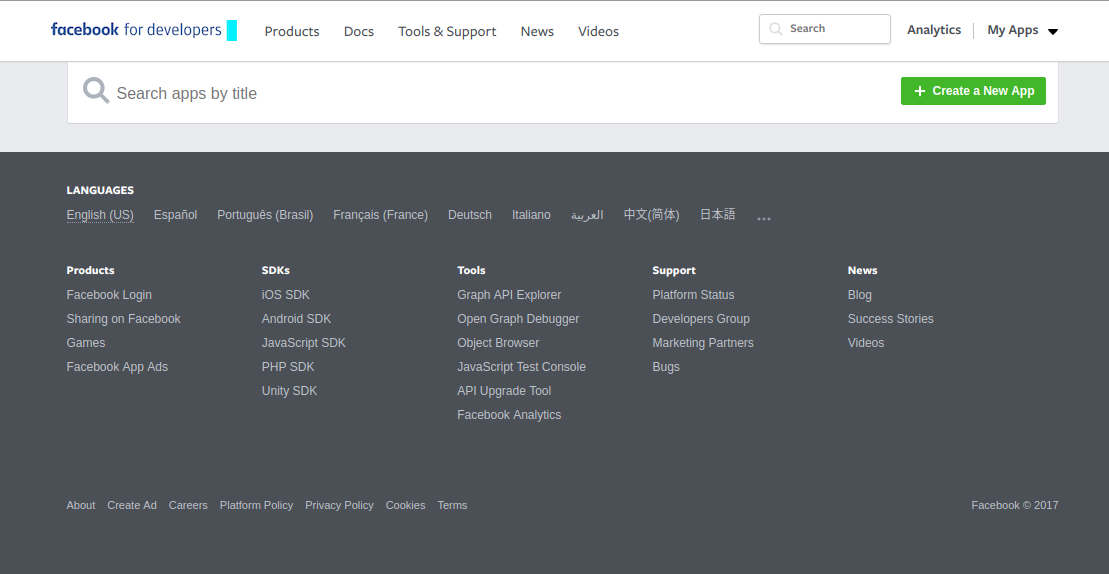
- Navigate to https://developers.facebook.com/apps/
- Click on '+ Create a new app’.
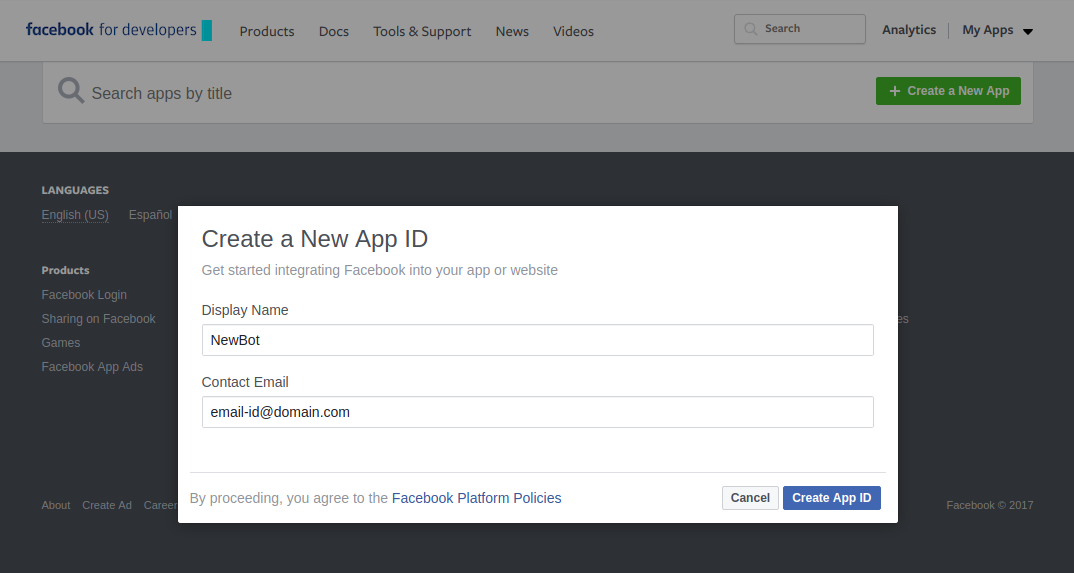
- Give a display name for your app and your contact email.
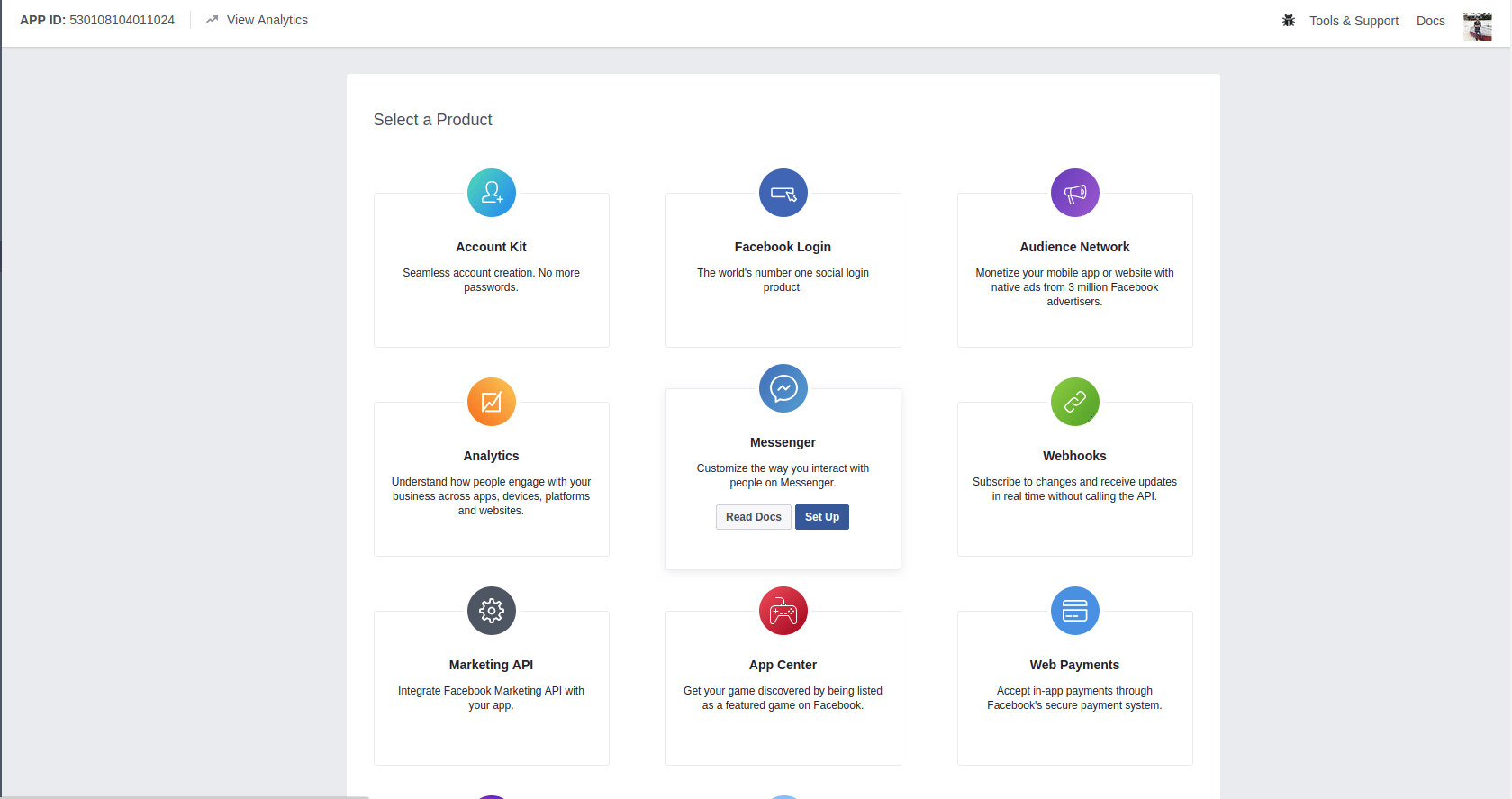
- In the select a product screen, hover over Messenger and click on Set Up
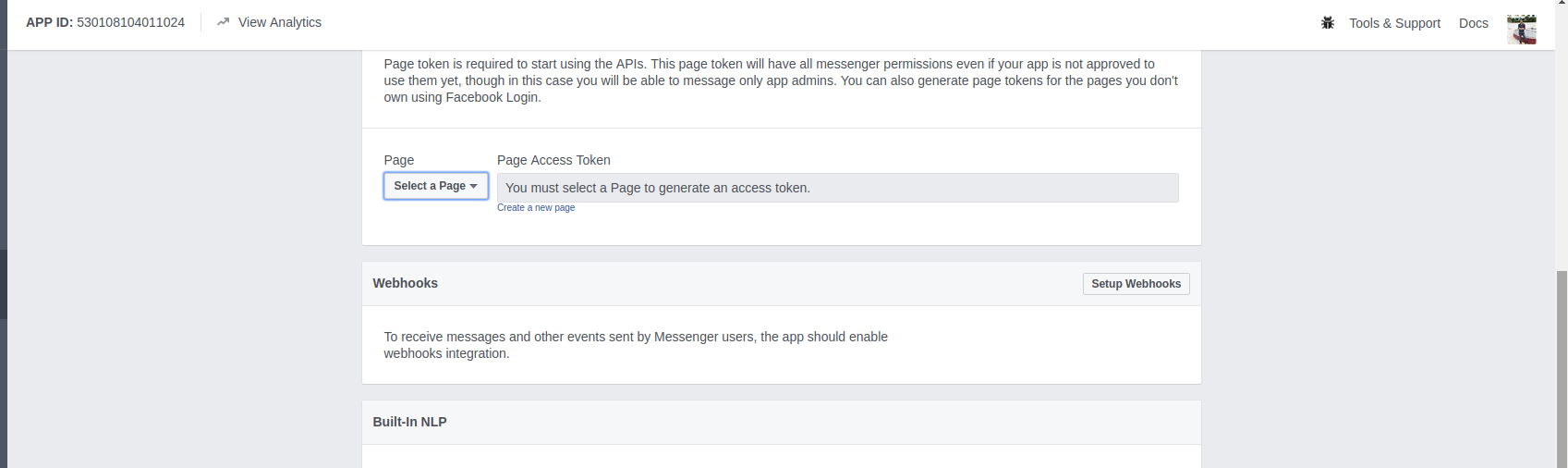
- To start using the bot, we need a facebook page to host our bot.
- Scroll over to the Token Generation section
- Choose a page from the dropdown (Incase you do not have a page, create one)
- Once you have selected a page, a Page Access Token will be generated for you.
- Save this token somewhere.
- Now, we need to trigger the facebook app to start sending us messages
- Switch back to the terminal
- Paste the following command:
# Replace <PAGE_ACCESS_TOKEN> with the page access token you just generated.
$ curl -X POST "https://graph.facebook.com/v2.6/me/subscribed_apps?access_token=<PAGE_ACCESS_TOKEN>"- In this project, we are using WIkipedia API hosted at https://www.mediawiki.org/wiki/API:Main_page to get the Description for the searched text. This is an open search API and hence,you need not obtain any API Key for this.
$ hasura quickstart utkarsh/fb-messenger-wiki-bot
$ cd fb-messenger-wiki-bot
# Add FACEBOOK_VERIFY_TOKEN to secrets. This is any pass phrase that you decide on, keep a note on what you are choosing as your verify token, we will be using it later while setting things up for your bot on the facebook developer page.
$ hasura secrets update bot.fb_verify_token.key <YOUR-VERIFY-TOKEN>
# Add FACEBOOK_PAGE_ACCESS_TOKEN to secrets
$ hasura secrets update bot.fb_page_token.key <YOUR-FB-PAGE-ACCESS-TOKEN>
# Deploy
$ git add . && git commit -m "Deployment commit"
$ git push hasura master
After the git push completes:
$ hasura microservice listYou will get an output like so:
INFO Getting microservices...
INFO Custom microservices:
USER MS NAME     STATUS      INTERNAL-URL       EXTERNAL-URL
bot              Running     bot.default:80     http://bot.aerial82.hasura-app.io

INFO Hasura microservices:
HASURA MS NAME     STATUS      INTERNAL-URL                  EXTERNAL-URL
session-redis      Running     session-redis.hasura:6379
gateway            Running
notify             Running     notify.hasura:80              http://notify.aerial82.hasura-app.io
le-agent           Running
data               Running     data.hasura:80                http://data.aerial82.hasura-app.io
platform-sync      Running
postgres           Running     postgres.hasura:5432
sshd               Running
auth               Running     auth.hasura:80                http://auth.aerial82.hasura-app.io
filestore          Running     filestore.hasura:80           http://filestore.aerial82.hasura-app.io
Find the EXTERNAL-URL for the service named bot(in this case -> https://bot.aerial82.hasura-app.io).
In your fb app page, scroll down until you find a card name Webhooks. Click on the setup webhooks button.
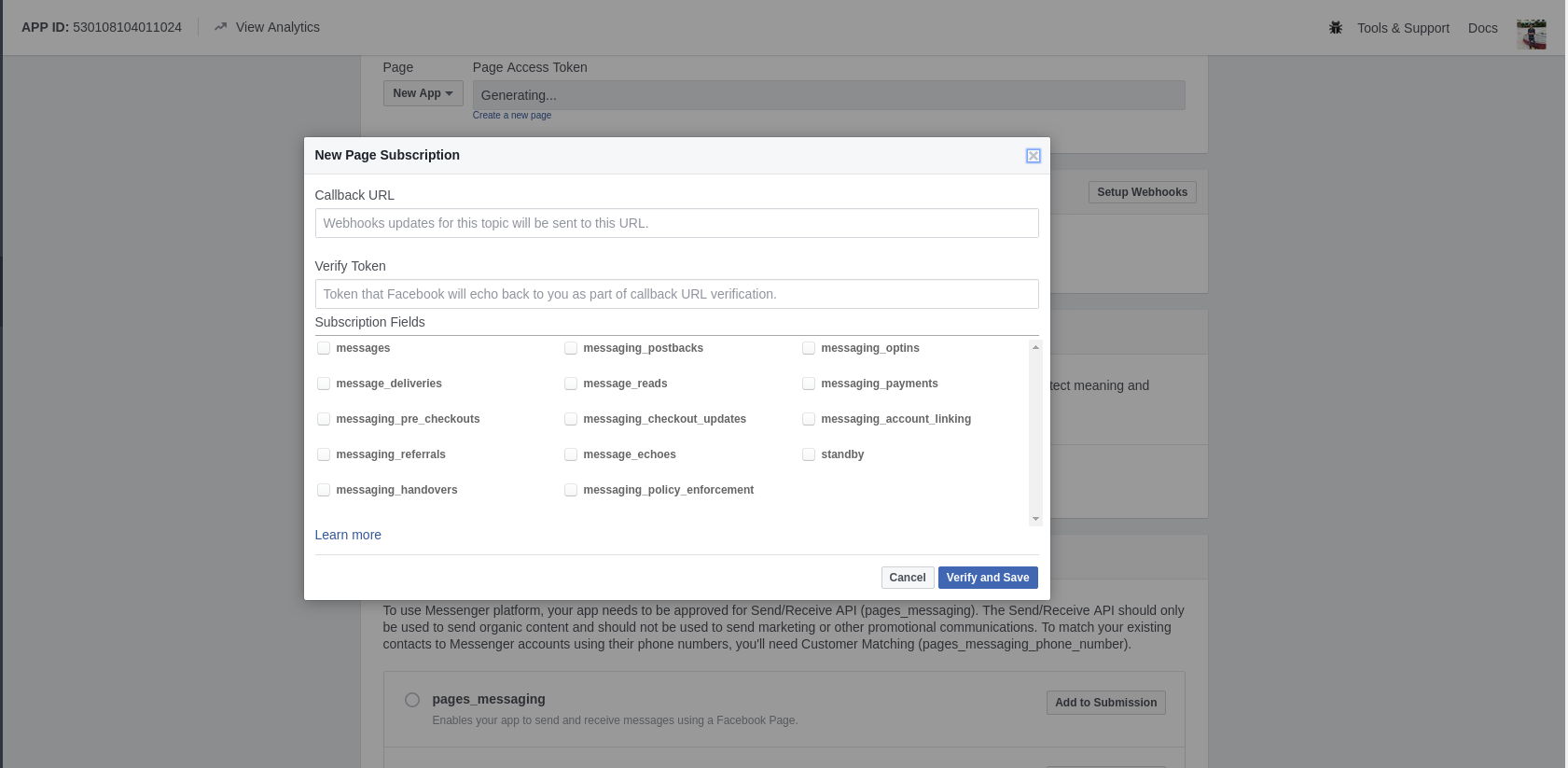
- The
callback URLis the URL that the facebook servers will hit to verify as well as forward the messages sent to our bot. The nodejs app in this project uses the/webhookpath as thecallback URL. Making thecallback URLhttps://bot.YOUR-CLUSTER-NAME.hasura-app.io/webhook (in this case -> https://bot.aerial82.hasura-app.io/webhook/) - The
verify tokenis the verify token that you set in your secrets above (in the command$ hasura secrets update bot.fb_verify_token.key <YOUR-VERIFY-TOKEN>) - After selecting all the
Subsciption Fields. Submit and save. - You will also see another section under
Webhooksthat saysSelect a page to subscribe your webhook to the page events, ensure that you select the respective facebook page here.
Next, open up your facebook page.
-
Hover over the Send Message button and click on Test Button.
-
Instead, if your button says + Add Button, click on it.

- Next, click on Use our messenger bot. Then, Get Started and finally Add Button.
- You will now see that the + Add button has now changed to Get Started. Hovering over this will show you a list with an item named Test this button. Click on it to start chatting with your bot.
- Send a message to your bot.
Test out your bot. On receiving a search term, it should reply back with the definition/description, straight from its Wiki Article page.
Here is the bot in action

Click here if the GIF doesn't load here.
If you happen to get stuck anywhere, feel free to raise an issue here