NextBase is a modern, production-ready Next.js SaaS boilerplate designed to help you launch your web application in hours, not weeks. It combines the latest web technologies with best practices for authentication, content management, and scalability.
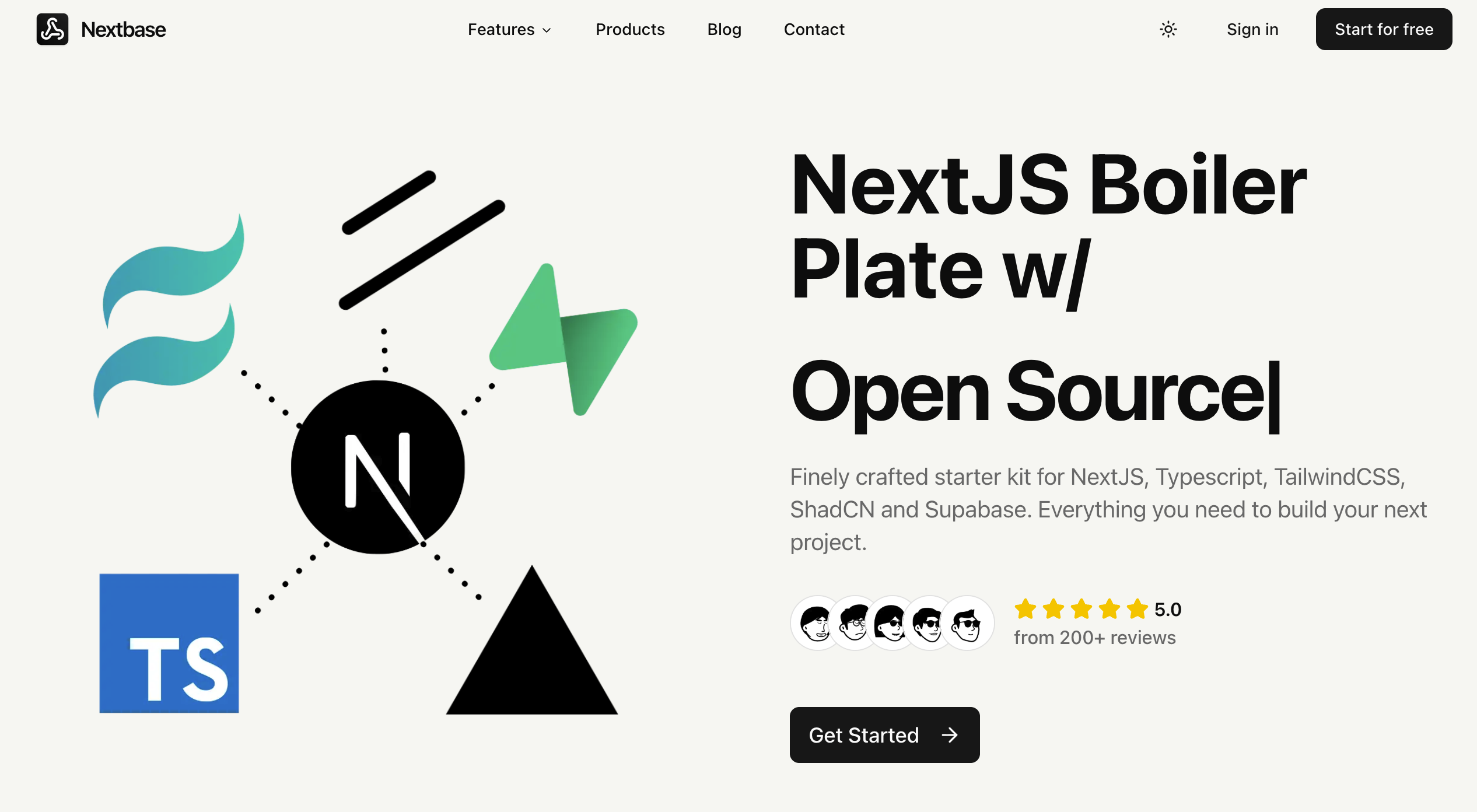
Live Demo: nextbasebp.vercel.app
Admin Credentials
User: demo@nextbasebp.vercel.app
Pass: Password123
Built on Next.js 15 with the App Router, NextBase provides everything you need to start building your product:
- Complete Authentication Flow - Secure email/password and OAuth (Google) authentication powered by Supabase Auth
- Role-Based Access Control - User roles (user, admin, editor) with Row Level Security (RLS) policies
- Full-Featured Blog/CMS - Content management system with categories, authors, full-text search, and SEO optimization
- File Storage - Secure image uploads with Supabase Storage (avatars, blog images)
- Beautiful UI - Modern design with Tailwind CSS 4, Radix UI components, and dark mode support
- SEO Optimized - Meta tags, OpenGraph, Twitter Cards, dynamic sitemaps, and robots.txt
- Type-Safe - End-to-end TypeScript with Supabase generated types
- Zero Configuration - All settings via environment variables, no hardcoded values
Whether you're building a SaaS product, a blog, a marketing site, or a full-stack application, NextBase gives you a solid foundation to build on.
- Next.js 15 - React framework with App Router, Server Components, and Server Actions
- React 19 - Latest React with concurrent features and improved performance
- TypeScript - Type safety across the entire stack
- Supabase - Backend-as-a-Service with PostgreSQL database
- Supabase Auth - Authentication with email, OAuth providers, and magic links
- Supabase Storage - File storage with CDN delivery
- PostgreSQL - Robust relational database with full-text search
- Tailwind CSS 4 - Utility-first CSS framework
- Radix UI - Unstyled, accessible component primitives
- shadcn/ui - Beautiful, customizable components built on Radix UI
- Lucide Icons - Modern, consistent icon set
- next-themes - Perfect dark mode support
- react-markdown - Markdown rendering with syntax highlighting
- rehype & remark - Content processing pipelines
- Next.js Metadata API - Dynamic SEO optimization
- Dynamic Sitemaps - Auto-generated XML sitemaps for search engines
- pnpm - Fast, disk space efficient package manager
- ESLint - Code quality and consistency
- Prettier - Code formatting (via ESLint config)
- Turbopack - Next-generation bundler (dev mode)
- Vercel - Optimized for Next.js deployment (recommended)
- Edge-Ready - Works on any platform supporting Next.js
NextBase comes with a complete, production-ready setup:
- ✅ Authentication System - Email/password + OAuth (Google)
- ✅ User Management - Profiles with role-based access (user, admin, editor)
- ✅ Blog System - Full-featured blog with categories, authors, search
- ✅ Storage - Avatar uploads and blog image management
- ✅ SEO Ready - Optimized metadata, sitemaps, and social sharing
- ✅ Dark Mode - Beautiful theme system with Tailwind CSS 4
- ✅ Zero Hardcoded Values - Everything configurable via environment variables
- Fork/clone this repository
- Create a Supabase project
- Run database migrations
- Configure environment variables
- Start developing!
Time estimate: 10-15 minutes
- Go to Supabase Dashboard
- Click "New Project"
- Fill in project details:
- Name: Your project name (e.g., "MyApp")
- Database Password: Strong password (save this!)
- Region: Choose closest to your users
- Pricing Plan: Free tier is fine to start
- Click "Create new project"
- Wait 2-3 minutes for setup to complete
Once your project is ready:
- Go to Project Settings (gear icon in sidebar)
- Click API in the left menu
- Copy these values (you'll need them soon):
- Project URL -
https://xxxxx.supabase.co - anon/public key - Long JWT token starting with
eyJ...
- Project URL -
💡 Tip: Keep this tab open - you'll reference it during setup
New in this setup: We've consolidated all migrations into a single, comprehensive migration file that creates your entire database schema in one go. No more running 9 separate migrations!
For new Supabase projects, this is the easiest method:
- Go to your Supabase Dashboard
- Click SQL Editor in the sidebar
- Click "New query"
- Copy the entire contents of
supabase/migrations/00000000000000_complete_schema.sql - Paste into the SQL editor
- Click "Run" or press
Cmd/Ctrl + Enter - Wait for success confirmation (should take 5-10 seconds)
✅ Done! Your entire database schema is set up.
Install Supabase CLI:
# macOS/Linux
brew install supabase/tap/supabase

# Windows (with Scoop)
scoop bucket add supabase https://github.com/supabase/scoop-bucket.git
scoop install supabase

# npm (all platforms)
npm install -g supabase
Run Migration:
# 1. Login to Supabase
supabase login

# 2. Link to your project (you'll be prompted to select it)
supabase link

# 3. Push the migration to your database
supabase db push
✅ Done! Your database is fully set up.
The migration sets up:
- ✅ Profiles table with user roles (user/admin/editor)
- ✅ Email verification audit for security monitoring
- ✅ Blog system (authors, categories, posts, relationships)
- ✅ Storage buckets (avatars, blog-images) with policies
- ✅ Helper functions for automation (new user handling, view counts, etc.)
- ✅ Triggers for automatic profile creation and timestamps
- ✅ RLS policies for secure, role-based access control
- ✅ Indexes for optimal query performance
- ✅ Sample categories to get started quickly
If you've been using the old multi-file migration system:
Option 1: Fresh Start (Recommended)
- Create a new Supabase project
- Run the consolidated migration above
- Export/import your data if needed
Option 2: Keep Existing Setup
- Keep using your existing migrations
- The old migrations still work fine
- The consolidated file is for new projects only
💡 Note: The consolidated migration (
00000000000000_complete_schema.sql) is designed for fresh Supabase projects. If you've already run the individual migrations, you don't need to run this one.
Supabase sends emails for signup confirmations and password resets. Customize them:
- Go to Authentication > Email Templates
- Customize these templates (optional but recommended):
- Confirm signup - Welcome message
- Reset password - Password reset instructions
- Magic Link - Passwordless login (if you want to enable it)
- Go to Authentication > URL Configuration
- Set Site URL:
http://localhost:3000(for development) - Add Redirect URLs:
http://localhost:3000/auth/confirm
http://localhost:3000/auth/callback
http://localhost:3000/**
📝 Note: When deploying to production, add your production URLs here too!
Want to enable "Sign in with Google"? Here's how:
- Go to Authentication > Providers
- Find Google and click Enable
- You'll need to create a Google OAuth app:
Get Google Credentials:
- Go to Google Cloud Console
- Create a new project or select existing
- Enable Google+ API
- Go to Credentials > Create Credentials > OAuth client ID
- Application type: Web application
- Add authorized redirect URIs:
(Replace
https://xxxxx.supabase.co/auth/v1/callbackxxxxxwith your project reference from Supabase URL) - Copy Client ID and Client Secret
Configure in Supabase:
- Paste Client ID and Client Secret into Supabase
- Click Save
✅ Google OAuth is now enabled!
In your project root, create .env.local:
cp .env.local.example .env.localOpen .env.local and fill in your values:
# ============================================
# SITE CONFIGURATION
# ============================================
# Your site's public URL (use http://localhost:3000 for development)
NEXT_PUBLIC_SITE_URL=http://localhost:3000

# Customize your site's branding
NEXT_PUBLIC_SITE_NAME=NextBase
NEXT_PUBLIC_SITE_DESCRIPTION=A modern Next.js starter template with best practices
NEXT_PUBLIC_CREATOR_NAME=Your Name

# ============================================
# SOCIAL MEDIA LINKS (Optional)
# ============================================
NEXT_PUBLIC_TWITTER_HANDLE=@yourhandle
NEXT_PUBLIC_GITHUB_URL=https://github.com/yourusername
NEXT_PUBLIC_LINKEDIN_URL=https://linkedin.com/in/yourprofile

# ============================================
# SUPABASE CONFIGURATION
# ============================================
# Get these from: https://app.supabase.com/project/YOUR_PROJECT/settings/api

# Your Supabase project URL
NEXT_PUBLIC_SUPABASE_URL=https://xxxxx.supabase.co

# Your Supabase anonymous/public key (safe for browser)
NEXT_PUBLIC_SUPABASE_ANON_KEY=eyJhbGciOiJIUzI1NiIsInR5cCI6IkpXVCJ9...NextBase automatically configures:
✅ Supabase Image Domains - Extracted from your NEXT_PUBLIC_SUPABASE_URL
✅ SEO Metadata - Uses your site name, description, and creator
✅ Social Media Links - Integrated throughout the UI
✅ Branding - Applied across all pages and components
No hardcoded values! Just set your .env.local and everything works.
pnpm installDon't have pnpm? Install it:
npm install -g pnpm
pnpm devYour app should now be running at http://localhost:3000 🎉
By default, the first user to sign up gets the admin role automatically. But if you need to manually set admin access:
- Sign up for an account on your app
- Go to Supabase Dashboard > SQL Editor
- Run this query (replace with your email):
UPDATE profiles
SET role = 'admin'
WHERE id = (
  SELECT id FROM auth.users
  WHERE email = 'your-email@example.com'
);Authentication Flow:
- ✅ Sign up with email/password
- ✅ Check email for confirmation link
- ✅ Confirm email and auto-login
- ✅ Sign out and sign in again
- ✅ Try "Forgot Password" flow
- ✅ Try Google OAuth (if enabled)
Admin Panel:
- Go to
/admin(you should see the admin panel) - Try creating a blog post
- Upload a featured image
- Publish the post
- View it at
/blog/your-post-slug
Blog System:
- ✅ View blog at
/blog - ✅ Browse categories at
/blog/technology,/blog/tutorial, etc. - ✅ Search for posts
- ✅ Filter by category
- Go to
/admin - Click "New Post"
- Fill in the details:
- Title, content, excerpt
- Select categories
- Upload featured image
- Set as "Published"
- Click "Save"
- Visit
/blogto see your post!
Problem: Can't connect to Supabase
Solution: Double-check your NEXT_PUBLIC_SUPABASE_URL in .env.local
Problem: Authentication not persisting Solution:
- Check that your Supabase URL and anon key are correct
- Clear browser cookies and try again
- Verify redirect URLs in Supabase Authentication settings
Problem: Blog images or avatars return 404 Solution:
- Check that storage buckets were created (run migrations again)
- Verify bucket policies in Supabase Dashboard > Storage
- Confirm
NEXT_PUBLIC_SUPABASE_URLis set correctly
Problem: Can't access admin panel Solution:
- Verify your user has
adminoreditorrole in theprofilestable - Run the admin SQL query from "Post-Setup Tasks" section
- Sign out and sign back in
Problem: Not receiving signup/reset emails Solution:
- Check Supabase Dashboard > Authentication > Email Templates
- Verify SMTP settings (default uses Supabase's built-in email)
- For production, configure custom SMTP in Supabase settings
Problem: Type errors in your IDE Solution:
# Regenerate Supabase types
pnpm supabase gen types typescript --local > lib/supabase/database.types.ts

# Or if linked to cloud project
pnpm supabase gen types typescript --linked > lib/supabase/database.types.tsProblem: pnpm build fails
Solution:
- Ensure all environment variables are set
- Run
pnpm lintto check for errors - Check that migrations ran successfully
- Clear
.nextfolder:rm -rf .nextand rebuild
Quick Deploy:
Click the button below to deploy your own copy of NextBase to Vercel:
This will:
- Clone the repository to your GitHub account
- Set up a new Vercel project
- Prompt you to configure required environment variables
- Deploy your application automatically
Manual Deployment:
- Push your code to GitHub
- Go to Vercel
- Import your repository
- Add environment variables from
.env.local - Deploy!
Update Supabase URLs:
- After deployment, go to Supabase Dashboard
- Update Site URL to your production domain
- Add production domain to Redirect URLs
NextBase works on any platform that supports Next.js:
Now that you're set up, explore these features:
- Customize UI: Edit components in
components/ - Add Pages: Create new routes in
app/ - Extend Database: Add new migrations in
supabase/migrations/ - Configure SEO: Update metadata in
lib/seo/constants.ts - Add Features: Build on top of the authentication and blog system
Happy Building! 🎉