Terminal-based adb frontend — view and control Android devices from your terminal using Kitty graphics protocol.
Each app runs in its own virtual display, so you can use multiple apps simultaneously in separate terminal windows.
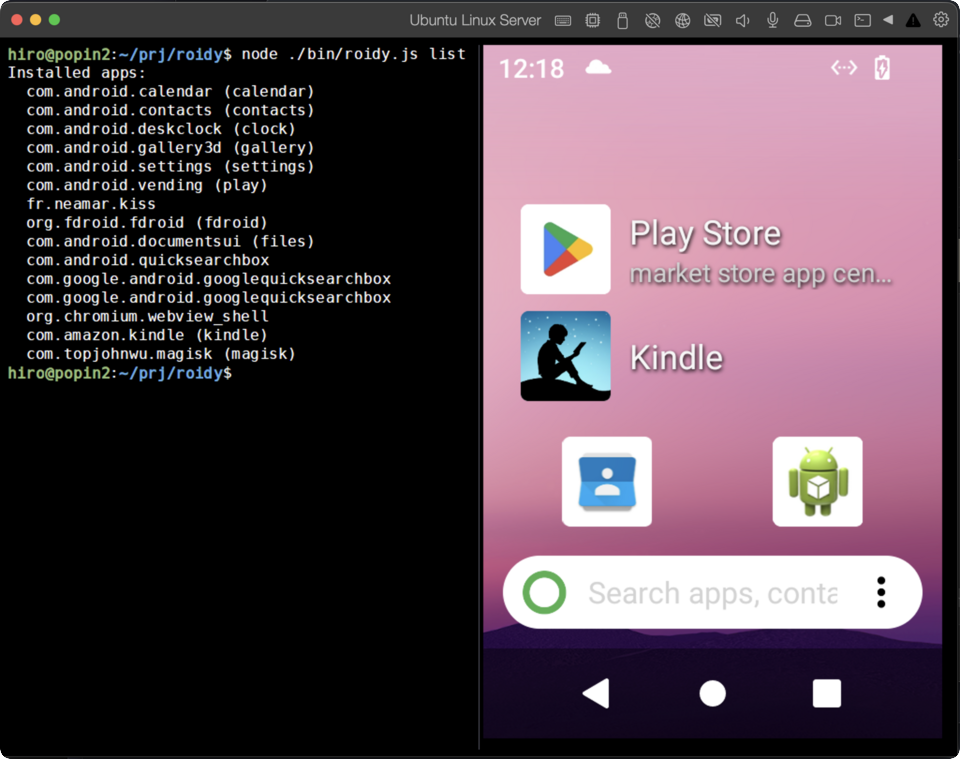
Mirror Android home screen — running on Linux console (no X11/Wayland)
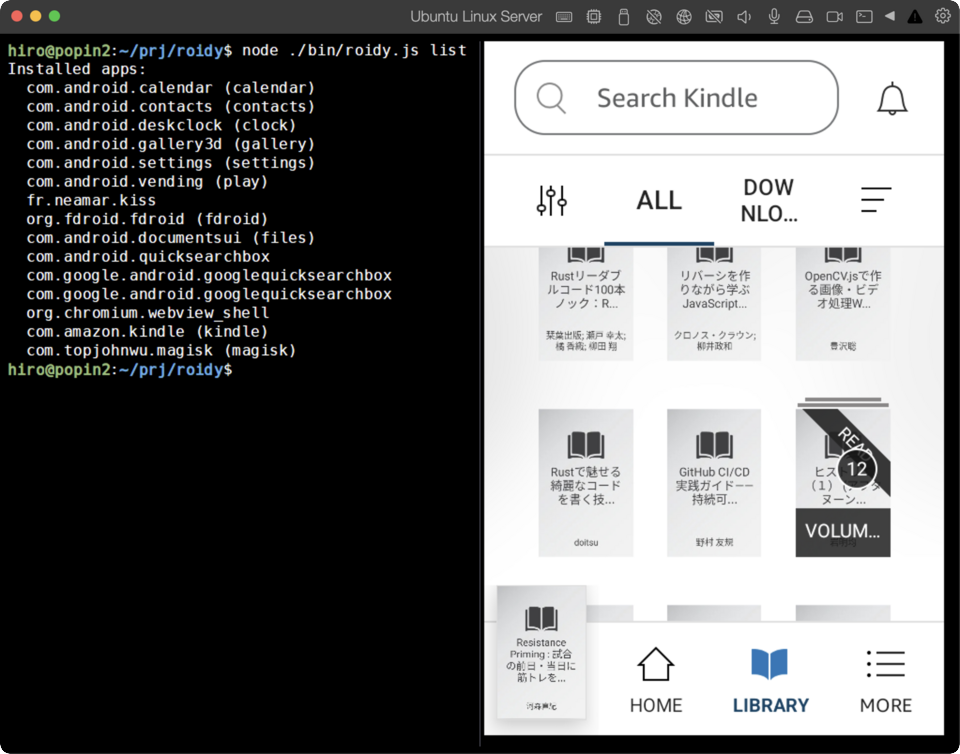
Launch apps in their own virtual display — roidy start kindle
Node.js 18 or later.
# macOS
brew install android-platform-tools

# Ubuntu / Debian
sudo apt install android-tools-adb

# Windows — download Android SDK Platform-Tools from developer.android.com
You need an Android environment accessible via adb. Any of the following will work:
- Physical device (USB connection)
- Android Studio Emulator (AVD)
- Genymotion or other third-party emulators
- Redroid (Docker-based headless Android)
For a fully headless setup, we recommend Redroid — that's what we use for development and testing. Note that Redroid depends on the Linux kernel's binder driver, so it's Linux only. See examples/redroid-setup-12 for our setup notes.
A terminal that supports the Kitty graphics protocol:
Required only for roidy cast (low-latency streaming via scrcpy).
# macOS
brew install ffmpeg

# Ubuntu / Debian
sudo apt install ffmpeg

# Windows (winget)
winget install Gyan.FFmpegnpm install -g @sanohiro/roidy# Mirror the entire Android screen
roidy
# Launch an app in its own virtual display
roidy start kindle
roidy start settings
# Low-latency streaming via scrcpy + ffmpeg
roidy cast
roidy cast kindle
# Specify host and port
roidy --host 192.168.1.100 --port 5555
# Change capture interval (ms)
roidy --interval 500roidy # Mirror Android screen (display 0)
roidy start <app> # Launch app in virtual display
roidy cast [app] # Low-latency streaming (scrcpy + ffmpeg)
roidy list # List installed apps
roidy search <query> # Search F-Droid for apps
roidy install <pkg|apk> # Install from F-Droid or local APK
roidy update # Update all apps via F-Droid
roidy uninstall <pkg> # Uninstall an app (-y to skip confirmation)
roidy info # Show device info
roidy screenshot [file] # Save screenshot (alias: ss)
roidy restart # Restart system UI (zygote)
roidy setup # Interactive device setupLaunches an app in its own virtual display. Multiple apps can run simultaneously in separate terminal windows.
# Use short aliases
roidy start kindle
roidy start settings

# Use full package names
roidy start com.amazon.kindle

# Partial match
roidy start amazon

# Fallback to main display (if virtual display doesn't work)
roidy start kindle --display 0Low-latency streaming via scrcpy-server + ffmpeg. Requires ffmpeg installed on the host. scrcpy-server is automatically downloaded on first use.
# Mirror display 0
roidy cast

# Launch app and stream
roidy cast kindle

# Set max fps
roidy cast --fps 15

# Force JPEG output (bcon only — requires file transfer mode)
roidy cast --format jpegInteractive setup for Android devices. Not required to use roidy, but recommended — configures timezone, locale, and other settings that make the device easier to use from a terminal.
# Interactive mode — walks you through each setting
roidy setup

# Non-interactive with flags
roidy setup -t Asia/Tokyo -l ja-JP --clock 24 --screen-timeout 0 --screen-lock off

# GApps: skip wizard and disable Play Protect
roidy setup --skip-wizard --disable-play-protect

# Skip app installation prompts
roidy setup -t Asia/Tokyo -l ja-JP --no-install
Setup options:
- GApps: setup wizard skip, Play Protect disable (auto-detected)
- Timezone, locale, clock format
- Screen timeout, screen lock
- Launcher (KISS Launcher, Discreet Launcher)
- F-Droid (open-source app store)
See docs/setup.md for details on each setting.
Manage apps via F-Droid without touching the screen.
# Search for apps
roidy search browser
roidy search keyboard

# Install from F-Droid
roidy install org.mozilla.fennec_fdroid

# Install local APK
roidy install ./app.apk

# Update all F-Droid apps
roidy update

# Uninstall
roidy uninstall fennec| Key | Action |
|---|---|
| Ctrl+Q | Quit |
| Escape | Android Back |
| Mouse click | Tap |
| Mouse long press | Long press (hold > 400ms) |
| Mouse drag | Swipe |
| Scroll wheel | Scroll |
| Arrow keys | D-pad |
| Text input | Text input (typed characters are sent to Android) |
Customize settings in ~/.roidy/config.json:
{
  "host": "localhost",
  "port": 5555,
  "interval": 1000
}
Key bindings can be customized in ~/.roidy/keys.json.
App aliases can be added in ~/.roidy/aliases.json:
{
  "twitter": "com.twitter.android",
  "slack": "com.Slack"
}
User aliases override built-in ones. Use with roidy start twitter, roidy install twitter, etc.
Built-in aliases:
| Alias | Package |
|---|---|
| kindle | com.amazon.kindle |
| play | com.android.vending |
| chrome | com.android.chrome |
| settings | com.android.settings |
| calendar | com.android.calendar |
| contacts | com.android.contacts |
| clock | com.android.deskclock |
| gallery | com.android.gallery3d |
| files | com.android.documentsui |
| fdroid | org.fdroid.fdroid |
| magisk | com.topjohnwu.magisk |
| gboard | com.google.android.inputmethod.latin |
| firefox | org.mozilla.firefox |
| fennec | org.mozilla.fennec_fdroid |
roidy works with any Android environment accessible via adb — physical devices, emulators, or containers. We use Redroid because we run on Linux without X11/Wayland, and Redroid is the only option that works in a fully headless (no GUI) environment.
Redroid requires the binder kernel module:
# Load the kernel module
sudo modprobe binder_linux

# Persist across reboots
echo "binder_linux" | sudo tee /etc/modules-load.d/redroid.conf

# Start Redroid container
docker run -d --name redroid --privileged --restart unless-stopped \
  -p 5555:5555 \
redroid/redroid:12.0.0_64only-latestIf you need apps that depend on Google Play Services (e.g. Kindle), use redroid-script to build a GApps-enabled image:
git clone https://github.com/ayasa520/redroid-script.git
cd redroid-script
python3 -m venv .venv && source .venv/bin/activate
pip install -r requirements.txt
python3 redroid.py -a 12.0.0_64only -mtg -m -c docker
Then start with the custom image:
docker run -d --name redroid --privileged --restart unless-stopped \
  -p 5555:5555 \
  redroid/redroid:12.0.0_64only_mindthegapps_magisk
For apps without Google Play dependencies, F-Droid is sufficient — install apps via roidy install without any screen interaction.
Note: Some apps set
FLAG_SECUREwhich makes screen capture return black frames. If you need these apps, a patch is available — see examples/redroid-setup-12 for details.
See examples/redroid-setup-12 for how we set up our environment — use as a reference.
MIT