This template is a starter kit for building React applications using the Redux state management library and TypeScript.
The template includes the following features:
- A basic file structure for organizing your code
- A preconfigured webpack setup for building and running the application
- A preconfigured ESLint and Prettier configuration for code linting and formatting
- Example code for setting up a basic Redux store and connecting it to a React component
- Typescript support throughout the entire application
This template provides a solid foundation for building scalable and maintainable React applications with Redux and TypeScript. It can be easily extended and customized to fit the specific needs of your project.
Additionally, it can also include tools like Jest and Enzyme for testing, and it can be integrated with a variety of other libraries and tools such as Material-UI, Formik, React Router, etc.
By using this template, you can save a lot of time and effort when starting a new project, as it provides a well-structured starting point that follows best practices and industry standards.
Finally, it provides you with a complete set up of a continuous delivery of a React app using tools like Docker and Github Actions. We will use an Ubuntu (18.04 LTS) droplet on DigitalOcean to host our app or Vercel.
Here are the prerequisites required.
- A Github account Github
- A Docker Droplet (Ubuntu 18.04 LTS) on DigitalOcean.
We are currently using the following libraries:
- class-transformer & class-validator: for validating classes
- react-router-dom: For Routing
- react-redux & @reduxjs/toolkit for State Management, API calls and caching
- @emotion/react, @emotion/styled & @mui/material for styling
- axios: for making API calls
- webpack: for bundling
- prettier: for code formatting
- eslint: for linting
- serve: for serving the app in production
Use the template provided here to create a single-page React application. It offers a modern build with webpack, redux, Typescript and @reduxjs/toolkit already setup with examples.
- Create a new repository using this template or clone it and start working on it.
git clone https://github.com/patrickwehbe/react-redux-typescript-template.git- Quick Start
npm install
npm run devAdd a Dockerfile to the project root:
FROM node:14-alpine

WORKDIR /usr/src/app
COPY package*.json ./
RUN yarn cache clean && yarn --update-checksums
COPY . ./
EXPOSE 3000
CMD ["yarn", "start"]

```> `yarn cache clean` running this command will clear the global cache.
> `yarn --update-checksums` lock lockfile if there's a mismatch between them and their package's checksum.

Let's build and tag our docker image

```bash
docker build -t my-app:dev .
Run the container once the build is done
docker run -it -p 3000:3000 my-app:devBoom 💥! Our app is running on http://localhost:3000
Let's create another Dockerfile.prod to the project root. You will use this file in production.
Dockerfile-prod:
FROM node:14-alpine as build

WORKDIR /usr/src/app
COPY package*.json ./
RUN yarn cache clean && yarn --update-checksums
COPY . ./
RUN yarn && yarn build

# Stage - Production
FROM nginx:1.17-alpine
COPY --from=build /usr/src/app/build /usr/share/nginx/html
EXPOSE 80
CMD ["nginx", "-g", "daemon off;"]
In this Dockerfile-prod we create a production build for our app and then copy the build file to nginx html directory.
Next, let's build and run our production image.
docker build -f Dockerfile-prod -t my-app:prod .docker run -itd -p 80:80 --rm my-app:prodOur app is now running on port 80. In the next segment, we will publish the image to Github Packages.
Github Packages gives you the option to publish and consume packages within your business or worldwide. To realize this, we will create a Github Action which will publish our package to the Github Packages Registry. Before we deploy our production image to the registry, we need to make sure that our code is production-ready.
Let's create our first deployment action in our project.
mkdir .github && cd .github && mkdir workflows && cd workflows && touch deploy.ymlThe command above creates a workflow folder and a
deploy.ymlfile. You can replaceyarnwithnpmin the code below.
name: build

on:
    push:
        branches:
            - master

jobs:
    build:
        runs-on: ubuntu-latest
        steps:
            - uses: actions/checkout@v1
            - name: Use Node.js 13.10
              uses: actions/setup-node@v1
              with:
                  node-version: "13.10"
            - name: Install yarn and run unittest
              run: |
                  yarn
                  yarn test
              env:
                  CI: true
            - name: Publish to Github Packages Registry
              uses: elgohr/Publish-Docker-Github-Action@master
              with:
                  name: my_github_username/my_repository_name/my_image_name
                  registry: docker.pkg.github.com
                  username: ${{ secrets.GITHUB_USERNAME }}
                  password: ${{ secrets.GITHUB_TOKEN }}
                  dockerfile: Dockerfile-prod
                  tags: latest
Note that Github Actions automatically provides you with GITHUB_TOKEN secrets.
Add repository secrets
What are Secrets? They are encrypted environment variables that you create in a repository for use with GitHub Actions.
Next, let's add our GITHUB_USERNAME to the secrets.
Remember that GITHUB provides you with
GITHUB_TOKENby default.
Push to master
Let's recap. We completed setting up our secrets, created our remote repository, and set remote origins to our local repository. We are now ready to go ahead and push our changes to our remote repository.
git add -A
git commit -m "Initial commit"
git push origin master
If you click on actions, you will notice the start of the deployment workflow. Wait and see your image being published on your Github Packages Registry.
You can find your published docker image in your repository on the package tab.
We successfully published our docker app image on the Github Package Registry. We are going to order a Docker Droplet on DigitalOcean and set up a flow to deploy and our app image on DigitalOcean.
For deployment, we are going to create a Docker Droplet on DigitalOcean.
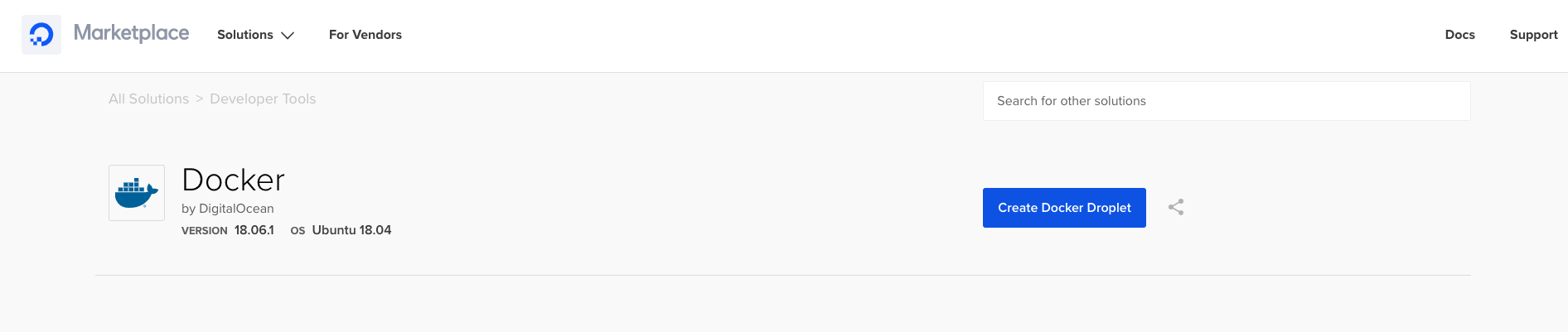
For this example, we access our droplet with a username and a password, please choose a one-time password over an SSH key.

After configuring and resetting your droplet password let's now add your droplet secrets to your repository.
- HOST: Droplet IP_ADDRESS
- PASSWORD: Droplet PASSWORD
- PORT: Droplet SSH port (22)
- USERNAME: Droplet USERNAME
You have succeeded in setting up your droplet secrets to your repository. You will now add another code block to deploy your package and run it in our droplet using ssh-action. It's GitHub Actions for executing remote ssh commands.
name: build

on:
    push:
        branches:
            - master

jobs:
    build:
        runs-on: ubuntu-latest
        steps:
            - uses: actions/checkout@v1
            - name: Use Node.js 13.10
              uses: actions/setup-node@v1
              with:
                  node-version: "13.10"
            - name: Install yarn and run unittest
              run: |
                  yarn
                  yarn test
              env:
                  CI: true
            - name: Publish to Github Packages Registry
              uses: elgohr/Publish-Docker-Github-Action@master
              with:
                  name: my_github_username/my_repository_name/my_image_name
                  registry: docker.pkg.github.com
                  username: ${{ secrets.GITHUB_USERNAME }}
                  password: ${{ secrets.GITHUB_TOKEN }}
                  dockerfile: Dockerfile-prod
                  tags: latest
            - name: Deploy package to digitalocean
              uses: appleboy/ssh-action@master
              env:
                  GITHUB_USERNAME: ${{ secrets.GITHUB_USERNAME }}
                  GITHUB_TOKEN: ${{ secrets.GITHUB_TOKEN }}
              with:
                  host: ${{ secrets.HOST }}
                  username: ${{ secrets.USERNAME }}
                  password: ${{ secrets.PASSWORD }}
                  port: ${{ secrets.PORT }}
                  envs: GITHUB_USERNAME, GITHUB_TOKEN
                  script: |
                      docker stop $(docker ps -a -q)
                      docker login docker.pkg.github.com -u $GITHUB_USERNAME -p $GITHUB_TOKEN
                      docker pull docker.pkg.github.com/{your-repo-url}:latest
                      docker run -dit -p 80:80 docker.pkg.github.com/my_github_username/my_repository_name/my_image_name:latest
We previously published the app image to the Github Package Registry by signing in with the Github Credentials (GITHUB_USERNAME and GITHUB_TOKEN ). To pull the image from the registry we must login to archive so.
Let's commit and push our changes to master.
git add -A
git commit -m "deploy to digitalocean"
git push origin master
We're using the ssh-action to remotely access our droplet from our repository.
docker stop $(docker ps -a -q)stops all the previous running containers.docker run -dit -p 80:80 my_github_username/my_repository_name/my_image_name:tagpull the lastest image and run it on port 80.
Congratulations 🎉! You can now access your react-app on your droplet IP_ADDRESS or DOMAIN_NAME.