Home

As shown in the above screenshot, this is the login page where the user can login to his or her chatrooms.
- Login Button
Clicking on the login button, the system validates the email and the password entered by the user in the edittext is right or wrong. If the validation is failed, an appropriate toast message is displayed to the user indicating that the validation is failed.
- Sign Up Button
New Users can click on the Signup button to signup for Chatroom app. This Signup button opens a new activity which is explained in the second section.
- Forgot Password Button
Clicking on Forgot Password Button, an email is sent to the user for resetting his or her password.
- User can login from this screen by clicking on the Login Button.
- Appropriate validations have been added for user email and password.
- Implemented Authentication using the Firebase email or password authentication.
- New users can click on the signup button and add their accounts.
- If the user forgets his/her password, clicking on the forgot password will help them in resetting the password.
-
For Login, the user requires to enter an email id that should be already registered(signup) with the App and a password. The app is using
Firebase Authenticationfor Checking the combination of email id and password. -
For forgot password, App requires an email id from the user. The App is using
Firebase Authenticationunder the hood.

As shown in the above screenshot, this is the Sign up page where the user can add or create his or her own account.
- Adding a Profile Picture
Users can add a profile picture to their account either by opening up the camera or from the gallery.
- Sign Up Button
Clicking on the signup button, the system first validates if there are any duplicate emails. If so then an appropriate toast message is displayed. Validations like passwords and repeat passwords should be the same and no empty information is allowed were also checked.
- User has to enter all the information asked on the screen to create an account.
- Appropriate validations have been added for all the fields and password check.
- Clicking on cancel will not create any user account.
- User can select their profile picture either opening up the camera and clicking the picture or from their gallery.
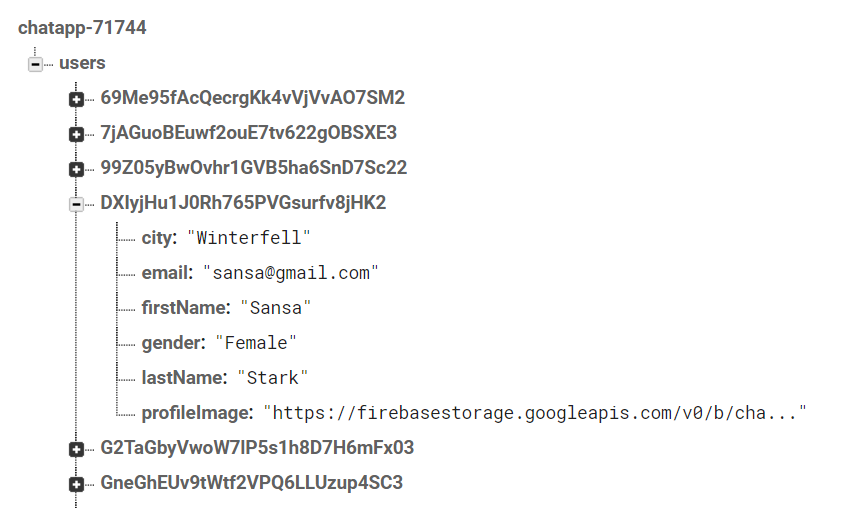
- Users' information have been stored in RealTime Database.
- on clicking the signup button app uses
Firebase Authenticationto add a new user with the combination of email-id and password and retrievesunique idfrom it. Now the app gets a bitmap from the user's selected profile image and stores it inFirebase Storagewith the path as /Image/unique id. We choose this formate to name to give each user's profile image a unique and personal name. Afterward, the app retrieves downloadable URL of the stored user profile image, which is then bundled with the user's other information. At last, the app setunique idas a key and value as the user's information bundle in theFirebase Realtime Database.
Note:- user password and image are not stored in the
Firebase Realtime Database.
- After signing-in or signing-up app will land on this page.
- This activity consists of 4 fragment container, the app will have 4 fragments in this container one at a time.
clicking on
 (top left corner) you will see sidebar containing all four fragment name, clicking on which user can navigate to
- chatroom (default loaded fragment in the sidebar)
- users
- my profile
- logout
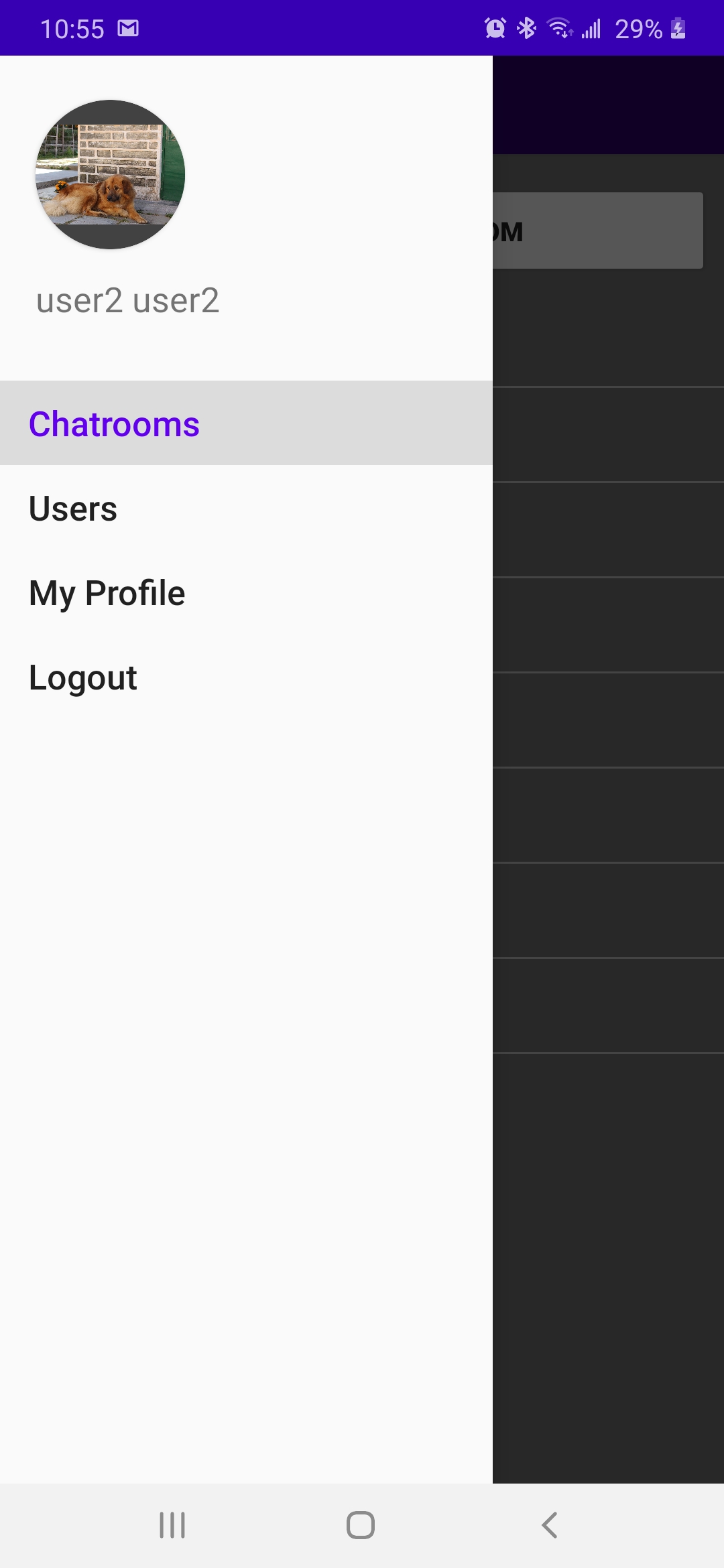
Note: -clicking on logout will log user out of the application and app will start from
Login Screen.

ChatRooms
As shown in the above screenshot link, there is a Create Chat Room Button and a Recycler view for the Chat Room List
- Create Chat Room Button
Create Chat Room Button opens a new activity "Create ChatRoom" as shown in the below screenshot link. Here the user can enter the name of the new chat room and click on create. Once the users click on the create it will validate if the same chatroom is present in the firebase. If the same chat room name present in the firebase then it will throw an alert box asking for the user to change the name and then create it.

- Recycler view for ChatRoom List
Displays the list of chatrooms available in the recycler view.
- Once the user logs in then the ChatRoom opens up.
- A logged-in user can see the list of the current chatrooms in the system in the recycler view.
- A user can able to join a chat room from this screen.
- A user can also create a new chatroom by clicking on the Create New Chat Room Button.
- When the user clicks on the chat room, it means that the user is online in that chatroom and the list of online users are displayed in the chatroom screen.
We have used Google Firestore as our Database. The name of our project in the Firestore is ChatApp.
Collection Name : ChatRoomList
Document : (ChatRoomName)
Once the user clicks on Create in the Chat Room Create Activity, the Chat Room Name gets saved as a document under the collection ChatRoomList. The below screenshot shows the details of the collection and the documents in the Firebase.

For Current Online Users
Collection : ChatRoomList
Document : (ChatRoomName)
Collection : CurrentViewers
Document : (User ID)
The current users will be saved in the above format. Once a user leaves the chat room the user information will be deleted from the CurrentViewers document. The below screenshot shows the details of the collection and the documents in the Firebase.

As shown in the above screenshot link, this section is for the users to see the messages, post a message, and see who is currently online and also like a message.
- Once the logged-in user clicks on a ChatRoom. The selected ChatRoom opens up and the user can do the following as listed below
- The user can read the messages posted by the other users
- All messages will have the profile picture, name of the user who posted the message, message posted time, a like button for the message by default.
- The user can like a message.
- The user can view how many people have liked the message.
- The user can post a new message
- The user can delete a message if it was posted by the user
- The user can go to the request ride activity by clicking on the car button.
- The user can view a list of online users in that chatroom as shown in the image below.
- The user can click on the live location to share his live location to other users.

We have used Google Firestore as our Database. The name of our project in the Firestore is ChatApp.
Collection : ChatRoomList
Document : (ChatRoomName)
Collection : Messages
Document : (userid + messagetime)
As mentioned above the messages are stored in the Messages collection with a document ID that comprises userid + messagetime. We have followed this approach because we need to track how many users have liked the message and update the field accordingly. ChatMessageDetails class is used for saving all the details related to the messages. The below screenshot displays the details of the collection and the documents and the fields associated with it.

Once the user presses the live location a message is sent to all the users in the chatroom. When any other user presses click to view my location then a new activity is opened up and the user can view the sent user location on the map. The screenshot below displays the shared location of the user.


As shown in the above screenshot link, this screen is for the users to request a ride.
- Once the user clicks on the car icon in the chatroom page the user will be directed to the request ride activity. Here
- The user can enter the from and to a location using the google autocomplete feature.
- Clicking on the send ride request will send a request to all the users(drivers) present in the chatroom activity.
- A listener is implemented for the collection Request Rides where the drivers in the chatroom are constantly listening.
- After 30 seconds the drivers who have accepted the request will be listed in the driver list activity.
- Once a user requests a ride a requested ride collection will be created as explained in the data design part and the ride status in the collection will be REQUESTED. The drivers in the chatroom activity will be listening for the REQUESTED status and they would be automatically redirected to the driver maps activity.

We have used Google Firestore as our Database. The name of our project in the Firestore is ChatApp.
Collection : ChatRoomList
Document : (ChatRoomName)
Collection : Requested Rides
Document : (requested user id)
As mentioned above the requested rides are stored in the Requested rides users collection with a document ID that comprises usersId. Each requested ride user will have the rider id, rider location, driver id, driver location, drivers list(who has accepted the riders request), drop off location (their lat and long values), pick up location(their lat and long values), ride status, riderName, toLocation, fromLocation


As shown in the above screenshot link, this screen is for the users to request a ride.
- This screen will be displayed for all the users present in the same chatroom as that of the riders.
- Driver can see his own location, rider location, and the drop location in the map.
- The name of the rider and the from and two location information are displayed in the screen.
- Driver can select yes to accept the ride. Once the driver selects yes he will be waiting for 30 seconds to get a response from the rider. If he gets a response then the ride will start. If no then the ride is rejected and the driver goes bact to the chatroom Activity.
- If the Driver selects no, the driver will get added to the list of cancelled drivers and he will no longer get the same request.
We have used Google Firestore as our Database. The name of our project in the Firestore is ChatApp.
Collection : ChatRoomList
Document : (ChatRoomName)
Collection : Requested Rides
Document : (requested user id)
As mentioned above the requested rides are stored in the Requested rides users collection with a document ID that comprises usersId. Each requested ride user will have the rider id, rider location, driver id, driver location, drivers list(who has accepted the riders request), drop off location (their lat and long values), pick up location(their lat and long values), ride status, riderName, toLocation, fromLocation

As shown in the above screenshot link, this screen is for the users when they are in riding.
- Once the rider and the driver are confirmed after getting the driver location the ride will start. Both the driver and the rider will be in this activity.
- The driver location is constantly updated on the map. Both the rider and the driver can see the driver's updated location.
- If the rider or driver presses the back button then the ride will get cancelled and it will get deleted from the firebase.
- If the ride is successfully completed then the ride is added to the previous rides and both the rider and the driver will be moved back to the chatroom.
We have used Google Firestore as our Database. The name of our project in the Firestore is ChatApp.
Collection : ChatRoomList
Document : (ChatRoomName)
Collection : Requested Rides
Document : (requested user id)
As mentioned above the requested rides are stored in the Requested rides users collection with a document ID that comprises usersId. Each requested ride user will have the rider id, rider location, driver id, driver location, drivers list(who has accepted the riders request), drop off location (their lat and long values), pick up location(their lat and long values), ride status, riderName, toLocation, fromLocation. The driver location are constantly updated here in the driver location field in the firebase.


As shown in the above screenshot link, this screen is for the users to request a ride.
- Once the ride is completed then the ride will be deleted from the Request Rides and it will be saved in the previous ride history in the firebase.
We have used Google Firestore as our Database. The name of our project in the Firestore is ChatApp.
Collection : ChatRoomList
Document : Users
Collection : (User Id)
Document : Previous Rides
Collection : (Rider Id)
Document : Ride Information
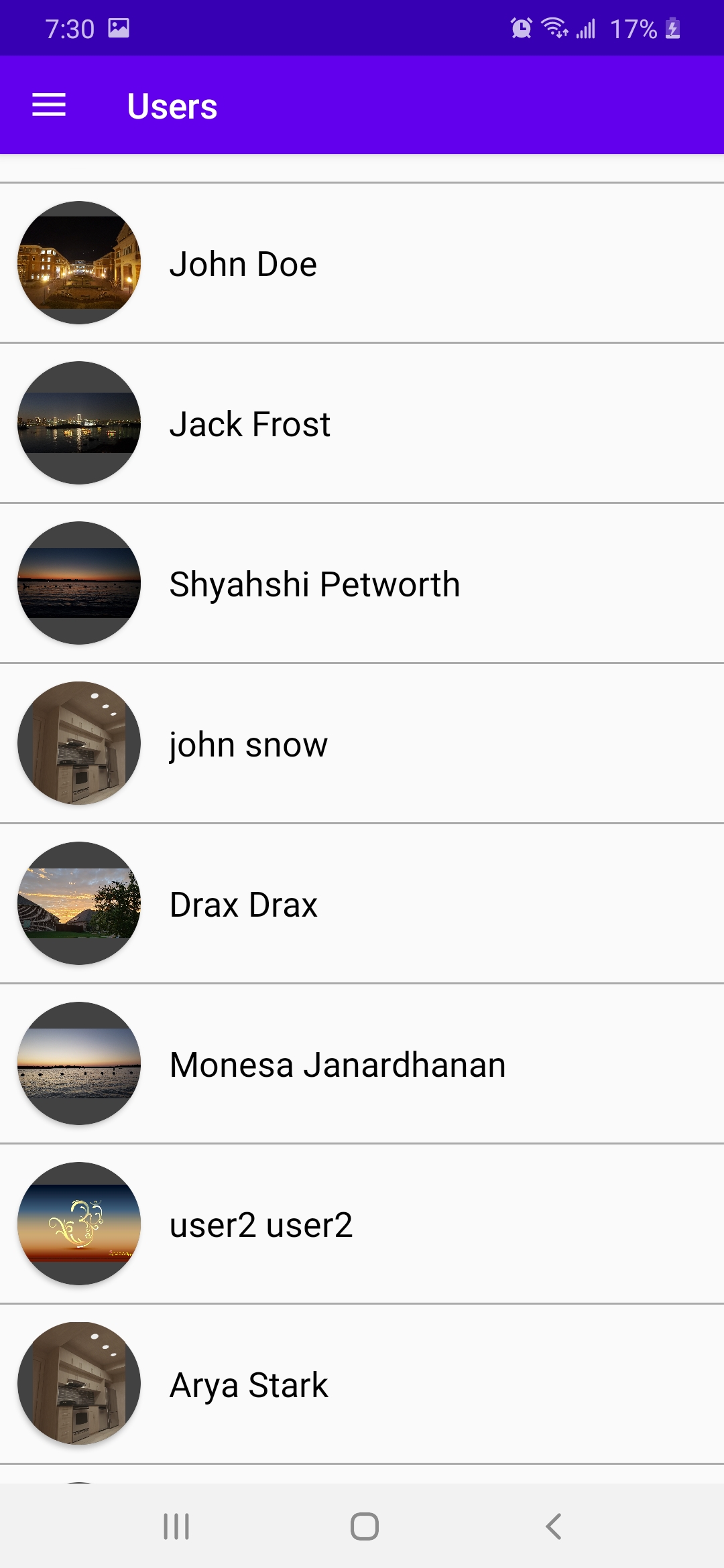 ===click on user name===>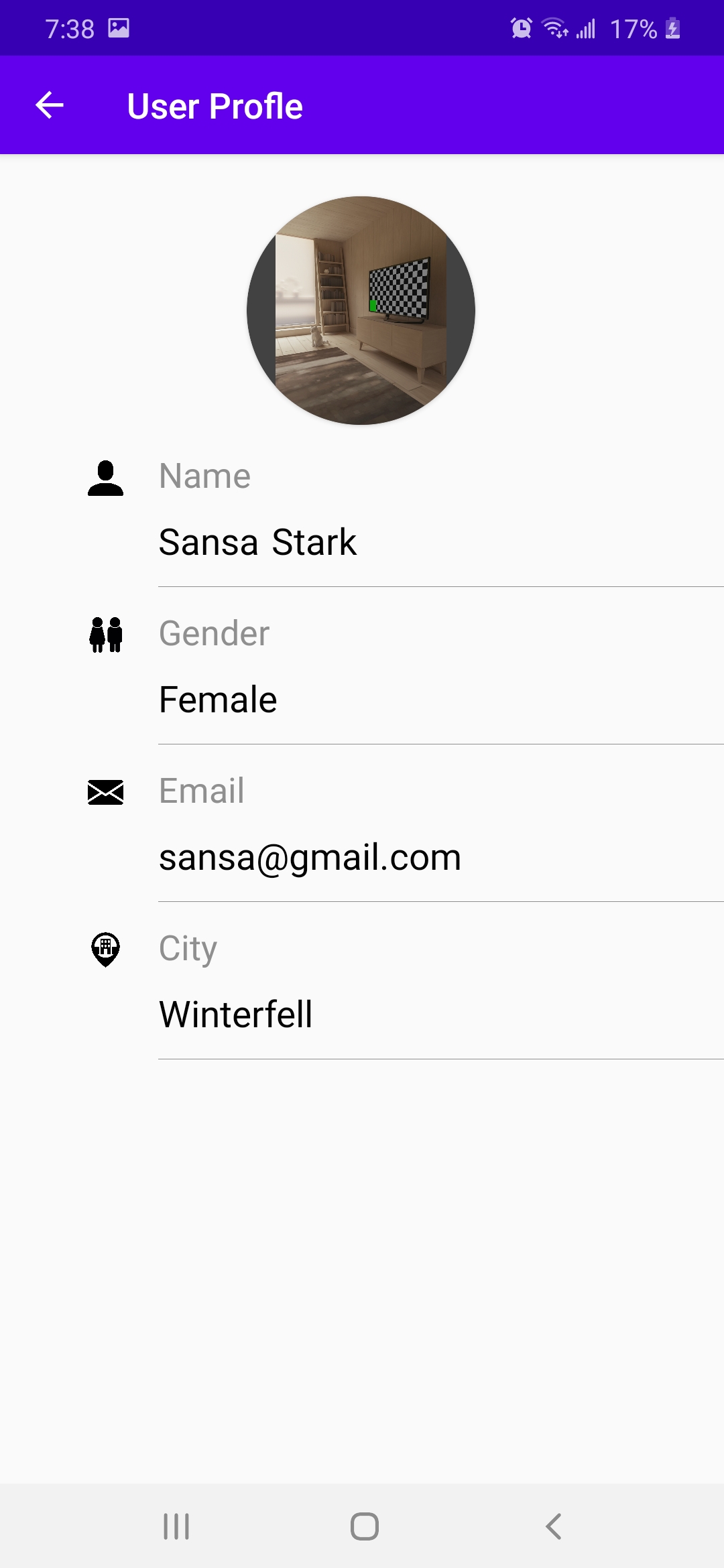
Users

- when a user lands on this
Userspage the app get information of every user registered with this app formFirebase Realtime Database. After getting the information app loads profile images and user names of users using recycler view in a fragment. - on clicking any of the user name app will show information of that user.
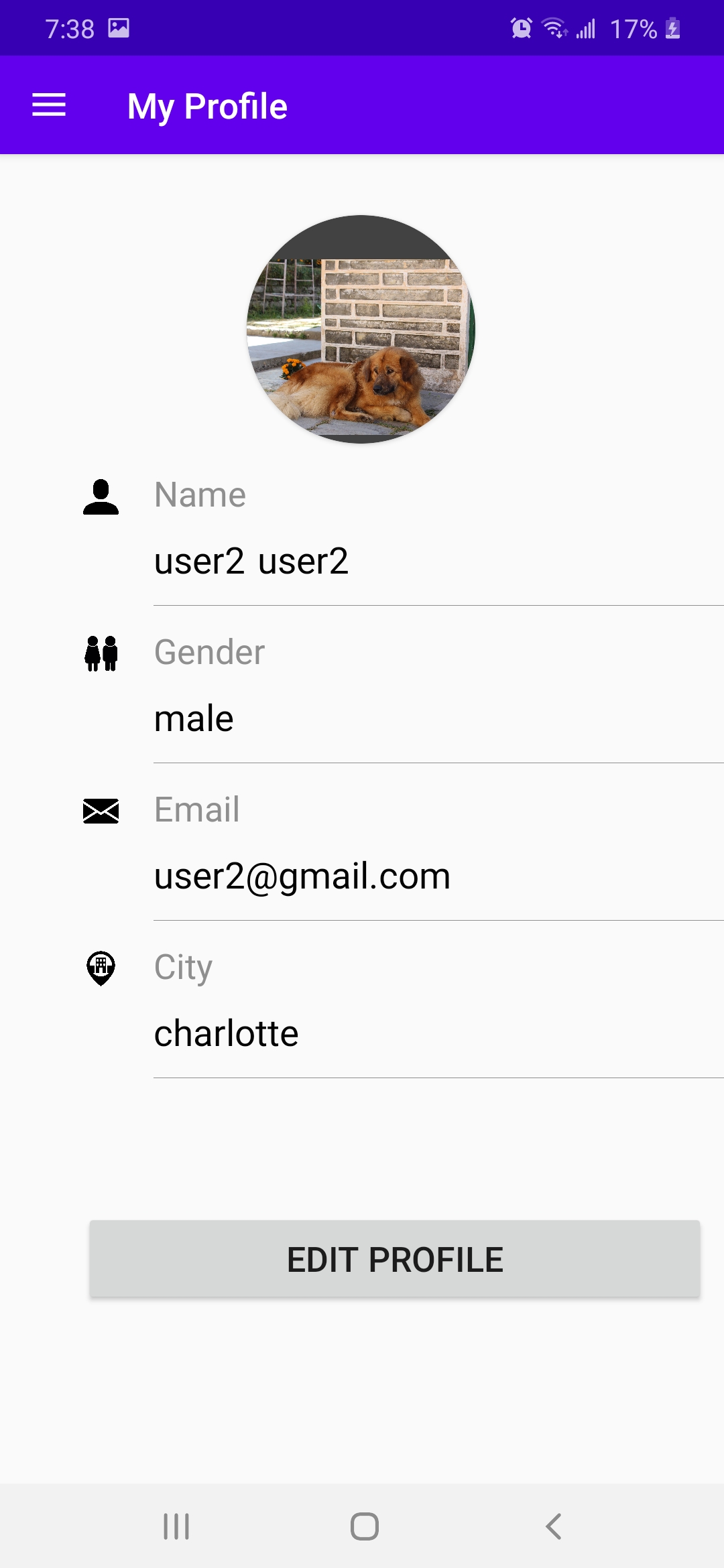 ==on clicking edit button=>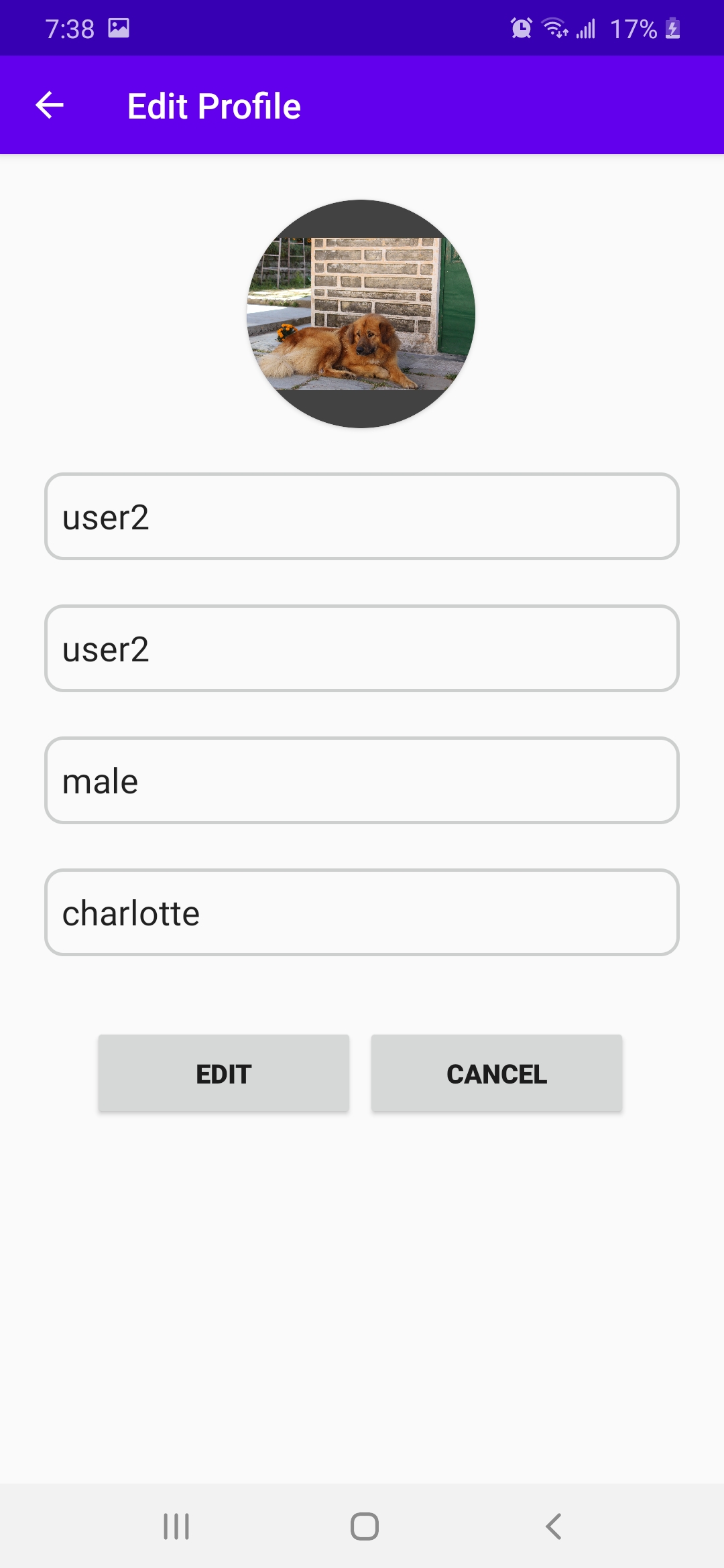
My Profile

- when a user lands on
My Profileuser can see his/her self provided information. - on clicking edit profile user will have the option to change:
- first name
- last name
- gender
- city
- profile Image
- on clicking edit profile the app will update values in
Firebase Realtime Database. - If a user also changes the profile image, the app will get the new bitmap of the profile image and store in
Firebase Storage. After storing the image the app will get a downloadable URL of that image and add it to theFirebase Realtime Database.
Source code https://github.com/monesa-git/RideChatApp/tree/master/ChatApp
Youtube Video https://youtu.be/LOwqqYGd73Q
User experience Design Link https://xd.adobe.com/view/aa2ef7ed-6074-43a7-aa6c-890f69f41fa0-ff7d/