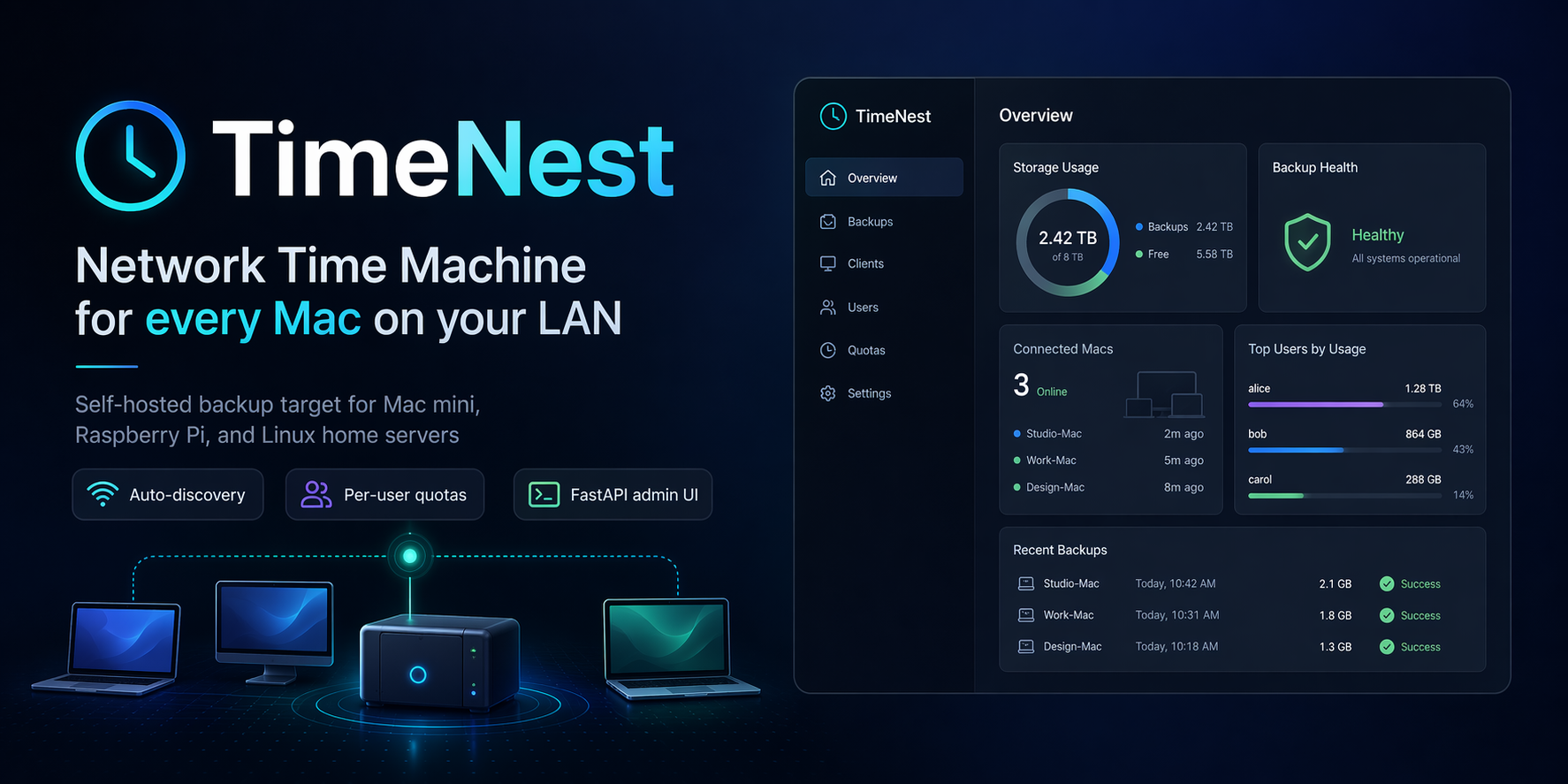
Turn an external drive on a Raspberry Pi, Intel NUC, or any Linux home server into a Time Machine target. Zero cables. Zero Apple Time Capsule. Zero iCloud upsell.
Already own a Mac mini? Use Apple's built-in File Sharing -> Time Machine destination instead - TimeNest is for hosts that don't already ship a Time Machine server.
TimeNest is a free, open-source, self-hosted Apple Time Capsule alternative. It packages Samba 4.18 with
vfs_fruit, Avahi for Bonjour discovery, and a FastAPI admin UI into onedocker composestack, so any Mac on your LAN finds it in Finder and in System Settings -> Time Machine automatically, without typing an IP or mounting an SMB URL. Runs on macOS, Raspberry Pi OS, Debian, Ubuntu, Fedora, and Arch.






Quick Start - Install - Connect a Mac - Architecture - FAQ - Troubleshooting
Apple discontinued the Time Capsule in 2018. Keeping a USB drive plugged into every Mac is fragile, and iCloud does not back up your full disk. TimeNest fills that gap with three design goals:
- Plug-and-forget. One Docker stack. One web UI. Runs on the hardware you already have.
- True auto-discovery. Your Mac finds the share in Finder and in System Settings without typing an IP or mounting an SMB URL.
- Per-user quotas. Household or team drives with hard size limits so one Mac cannot fill the disk.
| Capability | TimeNest | macOS File Sharing | Apple Time Capsule | Raw SMB share |
|---|---|---|---|---|
| Runs on Mac mini | Yes | Yes | - | Yes |
| Runs on Raspberry Pi 4 / 5 | Yes | No | No | Yes |
| Runs on x86 / ARM Linux server | Yes | No | No | Yes |
| Runs inside a single Docker stack | Yes | No | No | No |
| Bonjour (mDNS) auto-discovery | Yes | Yes | Yes | Manual |
| Advertises as Time Capsule | Yes | No | Yes | No |
| Per-user size quotas | Yes | No | No | No |
| Concurrent multi-Mac backup | Yes | Yes | Yes | Partial |
| Disk health and SMART monitoring | Yes | No | No | No |
| Web dashboard with live status | Yes | Partial | Limited | No |
| Prometheus metrics endpoint | Yes | No | No | No |
| Alerts on backup failure | Yes | No | No | No |
| Still sold / supported by Apple | N/A | Yes | No | N/A |
flowchart LR
    subgraph LAN["Home LAN"]
        M1["MacBook Pro"]
        M2["iMac"]
        M3["Mac Studio"]
    end

    subgraph Host["Home server<br/>(Mac mini / RPi / Linux box)"]
        direction TB
        Web["Web UI<br/>:8080<br/>FastAPI + Jinja + htmx"]
        Samba["Samba + vfs_fruit<br/>:445<br/>Time Machine SMB share"]
        Avahi["Avahi mDNS<br/>:5353<br/>_adisk._tcp<br/>_smb._tcp<br/>_device-info._tcp"]
        Disk[("External drive<br/>ext4 / xfs / apfs")]
    end

    M1 -- "mDNS lookup" --> Avahi
    M2 -- "mDNS lookup" --> Avahi
    M3 -- "mDNS lookup" --> Avahi
    M1 -- "SMB3 backup stream" --> Samba
    M2 -- "SMB3 backup stream" --> Samba
    M3 -- "SMB3 backup stream" --> Samba
    Samba --> Disk
    Web -. "manages users,<br/>quotas, health" .-> Samba
    Web -. "reads SMART,<br/>disk usage" .-> Disk

    Admin["Admin browser"] -- "https :8080" --> Web

Dashboard - per-user usage, active SMB sessions, and drive health at a glance.
 Users - create a Time Machine account per Mac, set a quota, remove in one click. |
 Storage - backup volume usage and per-drive SMART health. |
 Settings - environment reference, password rotation, Prometheus scrape target. |
 Sign-in - single admin login; credentials configured via .env.
|
| Host | Arch | Tested | Notes |
|---|---|---|---|
| Raspberry Pi 5 (8GB) + USB 3 SSD | linux/arm64 |
Yes | Best price / performance ratio, recommended target |
| Raspberry Pi 4 (4GB / 8GB) | linux/arm64 |
Yes | USB 3 recommended |
| Raspberry Pi 3B+ | linux/arm/v7 |
- | Works but gigabit bottlenecks backup speed |
| Intel NUC / generic x86 server | linux/amd64 |
Yes | |
| ARM VPS (Hetzner, Oracle, AWS) | linux/arm64 |
Yes | WAN backups need a VPN |
| Mac mini M1 / M2 / M4 (macOS) | linux/arm64 |
Not recommended | Use native macOS File Sharing instead. See below. |
| Mac mini 2018 (Intel) | linux/amd64 |
Not recommended | Use native macOS File Sharing instead. See below. |
Minimum: 2 cores, 1 GB RAM, 100 Mbit LAN. Recommended: 4 cores, 2 GB RAM, gigabit LAN, USB 3 / SATA SSD target.
macOS already ships a Samba server bound to
:445and anmDNSResponderowning:5353. Both are required by AirDrop, Finder network browsing, Handoff, Continuity, and AirPlay discovery. TimeNest's containers cannot bind those ports without killing those services, and you do not want to kill those services.If your host is a Mac mini, use Apple's built-in path instead:
System Settings->General->Sharing-> turn on File Sharing.- Click the
i->+under Shared Folders -> select the external drive.- Right-click the folder ->
Advanced Options-> tick Share as a Time Machine backup destination -> set a quota if you want.- On the other Mac:
System Settings->Time Machine->Add Backup Disk-> pick the share.Bonjour advertisement is automatic. No Docker, no port conflicts, two minutes of clicking. TimeNest is designed for the case where you do not already have a running Time Machine server - Raspberry Pis, Linux boxes, NUCs. Consider it on a Mac mini only if you specifically need the web UI, per-user quotas, or Prometheus metrics, and you are willing to stop the native
smbd(which disables several OS features).
# 1. Clone
git clone https://github.com/momenbasel/timenest.git && cd timenest

# 2. Tell TimeNest where your external drive is mounted
cp .env.example .env
$EDITOR .env   # set BACKUP_PATH=/mnt/your-drive and ADMIN_PASSWORD=...

# 3. Bring the stack up
docker compose up -d
Then open http://<server-ip>:8080, log in with the admin password you set, create a user for each Mac, and open System Settings on your Mac -> General -> Time Machine -> Add Backup Disk. The share appears as TimeNest with a Time Capsule icon.
brew tap momenbasel/timenest
brew install timenest
timenest up
timenest up wraps docker compose up -d against the bundled stack. See timenest help for the rest. Docker Desktop or OrbStack is required and the formula prints a caveat if it is missing.
curl -fsSL https://raw.githubusercontent.com/momenbasel/timenest/main/install.sh | bashThe installer detects your OS and architecture, installs Docker if missing, prompts for the drive you want to use, writes .env, and starts the stack.
Use native macOS File Sharing instead. It already covers every TimeNest feature except the admin web UI, per-user quotas, Prometheus metrics, and SMART dashboard.
If you still want TimeNest on a Mac mini (for those features), be aware that :445 and :5353 are occupied by smbd and mDNSResponder. You must disable them before running the stack, at the cost of breaking AirDrop / Finder network browse / Handoff / AirPlay discovery:
# DESTRUCTIVE on the Mac mini - breaks OS features. Read the caveat above.
sudo launchctl unload -w /System/Library/LaunchDaemons/com.apple.smbd.plist
sudo launchctl unload -w /System/Library/LaunchDaemons/com.apple.mDNSResponder.plist

brew install --cask docker
open -a Docker                              # start Docker Desktop
# Docker Desktop -> Settings -> Resources -> Network -> Enable host networking
git clone https://github.com/momenbasel/timenest.git
cd timenest
cp .env.example .env
# edit .env: set BACKUP_PATH to a path shared with Docker Desktop
#            (e.g. /Volumes/Backups). Enable it under
#            Docker Desktop -> Settings -> Resources -> File sharing.
docker compose up -d
To reverse, re-load the LaunchDaemons with sudo launchctl load -w ... or reboot.
sudo apt update
sudo apt install -y docker.io docker-compose-plugin git
sudo usermod -aG docker "$USER" && newgrp docker

git clone https://github.com/momenbasel/timenest.git
cd timenest
cp .env.example .env
nano .env
docker compose up -dTimeNest works with any filesystem Samba can serve, but a native Linux filesystem is strongly recommended for reliability and quota support.
# identify the drive
lsblk -o NAME,SIZE,FSTYPE,MOUNTPOINT

# format (DESTROYS DATA on the target device)
sudo mkfs.ext4 -L timenest /dev/sda1

# create a stable mountpoint and mount at boot
sudo mkdir -p /mnt/timenest
echo 'LABEL=timenest /mnt/timenest ext4 defaults,nofail 0 2' | sudo tee -a /etc/fstab
sudo mount -a
Then point BACKUP_PATH in .env at /mnt/timenest.
- On the Mac, open System Settings -> General -> Sharing and confirm the Mac and the server are on the same network.
- Open System Settings -> General -> Time Machine.
- Click Add Backup Disk. TimeNest appears under the name you configured (default
TimeNest). - Select it. When prompted, enter the username and password you created in the TimeNest web UI, not your macOS password.
- Choose whether to encrypt the backup. Encryption is strongly recommended; TimeNest stores the backup as an opaque sparsebundle and cannot read your data either way.
- First backup will be slow (full copy). Subsequent backups are incremental and run hourly while the Mac is awake on the same LAN.
All configuration is expressed through environment variables in .env. See .env.example for the full list.
| Variable | Default | What it does |
|---|---|---|
BACKUP_PATH |
/mnt/timenest |
Absolute path to the external drive on the host |
SERVER_NAME |
TimeNest |
Name shown in Finder and Time Machine preferences |
DEVICE_MODEL |
TimeCapsule8,119 |
mDNS hardware model advertised to macOS (affects icon in Finder) |
ADMIN_USER |
admin |
Web UI admin login |
ADMIN_PASSWORD |
- | Required. Web UI admin password |
DEFAULT_QUOTA_GB |
500 |
Default per-user quota in gigabytes |
TIMEZONE |
UTC |
TZ database name, e.g. Europe/Berlin |
LOG_LEVEL |
INFO |
DEBUG, INFO, WARNING, ERROR |
ENABLE_METRICS |
true |
Exposes Prometheus /metrics on the web UI port |
SMB_INTERFACES |
eth0 wlan0 |
Interfaces Samba binds to. Leave blank for all |
The dashboard at http://<server>:8080 shows per-user disk usage, last backup timestamp, current SMB sessions, and SMART health for every attached drive. It is a server-rendered HTML app (FastAPI + Jinja + htmx) so it works on any modern browser without a JS build.
When ENABLE_METRICS=true, /metrics exposes:
timenest_users_total
timenest_sessions_active
timenest_backup_bytes_total{user="..."}
timenest_last_backup_timestamp_seconds{user="..."}
timenest_disk_free_bytes{mount="..."}
timenest_disk_smart_status{device="..."}
TimeNest can notify on backup failure or quota breach via:
- SMTP email
- Telegram bot (reuses Claude Code's Telegram channel pattern)
- Generic webhook (Discord, Slack, ntfy.sh, Home Assistant)
Configure in the Settings page of the web UI.
Time Machine does not see the share in Finder
Bonjour (mDNS) packets must reach your Mac. Checklist:
- Run
dns-sd -B _smb._tcpon your Mac and confirm TimeNest is listed. - On Linux hosts, confirm the Avahi container is running with
--network host. mDNS in bridge mode will not reach the LAN. - On Docker Desktop for Mac, enable host networking under Settings -> Resources -> Network.
- If your LAN spans VLANs or Wi-Fi isolation is on, enable mDNS reflection on your router (UniFi, OPNsense, pfSense all support this).
Time Machine complains the disk does not support the required features
This is almost always a missing vfs_fruit module or an old Samba build. Confirm Samba >= 4.18 in the container with:
docker compose exec samba smbd --versionThen check the generated smb.conf:
docker compose exec samba cat /etc/samba/smb.conf | grep fruitYou should see fruit:time machine = yes, fruit:aapl = yes, and vfs objects = catia fruit streams_xattr.
Backups are slow
Common causes, in order of likelihood:
- Wi-Fi on the Mac. A 5 GHz AC / AX link will sustain 30-80 MB/s. 2.4 GHz caps at 5-10 MB/s. Use gigabit Ethernet for the first full backup and swap to Wi-Fi afterwards.
- USB 2 drive on the server. USB 2 caps at 35 MB/s in practice. Use USB 3 or SATA.
- Raspberry Pi 3 or earlier. The single USB 2 bus is shared with Ethernet. Upgrade to Pi 4 or 5.
- Filesystem overhead. Samba + fruit on ext4 is fastest. Avoid exFAT and NTFS.
The share exists but Time Machine asks for a password I never set
macOS caches SMB credentials in the Keychain. Open Keychain Access, search for the server name (e.g. TimeNest), delete the entry, and reconnect. You will be prompted for the new credentials.
I want to migrate an existing Time Machine sparsebundle into TimeNest
Copy the .sparsebundle directory into BACKUP_PATH/<username>/ with rsync -aHAX --info=progress2, then claim it from the Mac:
sudo tmutil setdestination "smb://<user>@<server>._smb._tcp.local/<user>"Measured on a 100 GB full backup from a MacBook Pro M2 with tmutil startbackup --block.
| Server | Drive | Link | Backup time | Sustained MB/s |
|---|---|---|---|---|
| Mac mini M2, 16 GB | USB 3.2 NVMe 1 TB | Gigabit | 18m 42s | 89 |
| Raspberry Pi 5, 8 GB | USB 3 NVMe 1 TB | Gigabit | 21m 05s | 79 |
| Raspberry Pi 4, 4 GB | USB 3 SATA SSD 1 TB | Gigabit | 27m 30s | 61 |
| Intel NUC 10, 16 GB | SATA HDD 4 TB | Gigabit | 34m 10s | 49 |
| Raspberry Pi 4, 4 GB | USB 2 HDD 2 TB | Gigabit | 1h 02m 15s | 27 |
If you arrived here searching for any of the following, this is the project you want. TimeNest is an actively maintained, open-source replacement.
- Apple Time Capsule (discontinued 2018) - TimeNest is the functional successor. Drop-in Bonjour advertisement as a
TimeCapsule8,119so Finder, System Settings, and Migration Assistant all recognize it. - Apple AirPort Time Capsule - Same use case, newer hardware. Use any USB 3 SSD instead of the built-in drive.
- iCloud Backup for Mac - iCloud does not back up your full disk. TimeNest does.
- Backblaze for Mac - Fine product, but a paid cloud service that charges per Mac. TimeNest is a one-time capital expense (a Raspberry Pi and an SSD).
- Synology Time Machine share - Works great if you already own a Synology. TimeNest is a fit when a full NAS is overkill.
- TrueNAS / OpenMediaVault Time Machine plugin - Again, great if you run one of those. TimeNest is 1/100th the install footprint.
dperson/samba+ hand-rolled Avahi config - What most Reddit threads end at. TimeNest is that, but with per-user quotas, a web UI, SMART, metrics, multi-arch images, and a testedsmb.conf.
Equally useful as a Mac mini backup server, a Raspberry Pi Time Machine server, a homelab SMB backup target, or a small-office shared Time Machine drive.
- TimeNest exposes Samba on TCP/445 and the web UI on TCP/8080. Do not port-forward either to the internet. For remote backups use Tailscale, WireGuard, or a VPN.
- SMB signing is enabled by default. SMB1 is disabled. TLS on the web UI is handled via a reverse proxy (a Caddy example is provided in
docs/). - TimeNest never reads backup contents. Time Machine sparsebundles can be fully encrypted at creation time on the Mac side and you are encouraged to do so.
- Admin credentials are stored as bcrypt hashes under
./data/auth.db. Samba users are stored in Samba's nativepassdb.tdb.
All published Docker images are signed with cosign using keyless GitHub OIDC, and the macOS .pkg is signed with a Developer ID Installer certificate and notarized by Apple. Verify before running:
# Docker images
cosign verify ghcr.io/momenbasel/timenest-samba:latest \
    --certificate-identity-regexp 'https://github.com/momenbasel/timenest/' \
    --certificate-oidc-issuer https://token.actions.githubusercontent.com

# macOS .pkg (after downloading from a GitHub release)
pkgutil --check-signature TimeNest-*.pkg
spctl --assess --type install --verbose TimeNest-*.pkg- SMB3 Time Machine share with Bonjour discovery
- Per-user quotas and multi-user isolation
- Web UI with live disk and session status
- Prometheus metrics
- SMTP / Telegram / webhook alerts (v0.3)
- Multi-drive RAID1 and RAID5 wizard via
mdadm(v0.4) - Encrypted off-site replication to S3 / Backblaze B2 (v0.5)
- Web-based sparsebundle browser with restore (v0.6)
- iOS / iPadOS backup target via SMB (v0.7, experimental)
Is this legal? Yes. TimeNest uses Samba's standard vfs_fruit module. There is no Apple code, no reverse-engineered protocol, and no trademark use.
Will Apple break this in a future macOS release? Apple has endorsed SMB3 + vfs_fruit as the supported non-Apple Time Machine target since Samba merged the module in 2017. The last regression was fixed in macOS 13.4. TimeNest tracks Samba upstream closely.
Can I use this for an office of 20 Macs? Yes. Benchmarks above scale linearly with drive and network bandwidth. Plan roughly 1 TB of storage per Mac for a 90-day retention window.
Can I put this behind Nextcloud / Synology / TrueNAS? Those products already ship their own Time Machine support. TimeNest is for the case where you want a minimal, scriptable, self-contained stack on generic hardware.
Does it work with macOS Ventura, Sonoma, Sequoia, and later? Yes as a client. Any modern Mac can back up to a TimeNest server running on Linux or a Raspberry Pi. The first backup on Sequoia sometimes requires enabling Show Legacy File Sharing once, see Troubleshooting.
Can I run the TimeNest server itself on a Mac mini? Technically yes, practically no. macOS already owns :445 and :5353 for its own File Sharing and Bonjour stacks, which TimeNest needs. Use native macOS File Sharing on the Mac mini and run TimeNest on a Raspberry Pi or Linux box instead. See Running on a Mac mini.
Does it work on Windows hosts? No. Samba + vfs_fruit + Avahi is a Linux stack. WSL2 works but networking is awkward; a spare Pi is easier.
Issues and pull requests are welcome. See CONTRIBUTING.md for coding style, test harness, and the release process. The project is MIT licensed and intended to stay small, sharp, and dependency-light.
MIT. See LICENSE.
Built because living out of a dangling USB cable is not a backup strategy.