-
Changes I have made to the base scenario:
-
Instead of working with VMs, which each are going to run one or some more processes, I have brought up a micro-service, containerized stack. now each of these containers will have their own networking(IP,Gateway,...) and will do only one thing(obviously since they are containers). So they are more, in terms of numbers than the VMs in the base scenario. The list of them will be given to you as you read along.
-
The above change made me work my way through automation using
dockerand a bunch ofshellscripts instead of usingvagrant. -
the client is also a container with no GUI but we do the work we want from it using a
test.shscript.
-
This the overview of how micro-services in the stack we're going to bring up, connect and interact with each other :
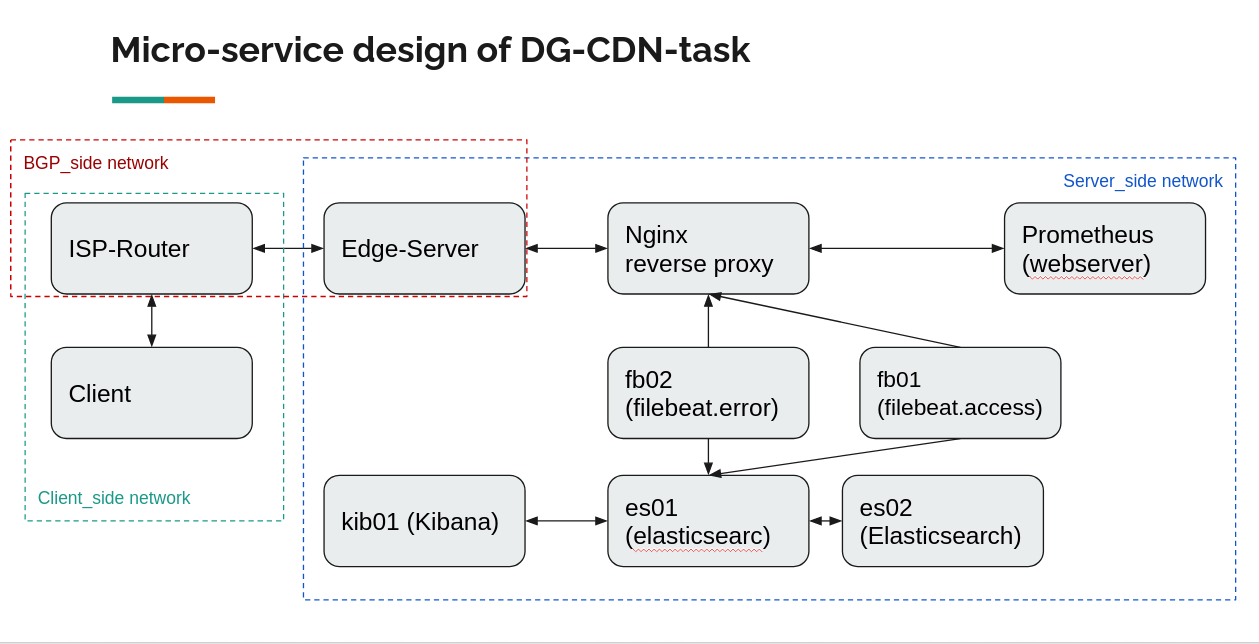
Subnet: 172.25.0.0/16
-
Between client and ISP router
- range:
172.25.0.0/24 - network name:
client_side
- range:
Hosts:
| Host | IP |
|---|---|
| ISP Router | 172.25.0.1 |
| Client | 172.25.0.2 |
-
Between the ISP router and Edge router
- range:
172.25.1.0/24 - network name:
bgp_side
- range:
Hosts:
| Host | IP |
|---|---|
| Edge Server | 172.25.1.1 |
| ISP Router | 172.25.1.2 |
-
Between the Edge router, webserver, and logger
- range:
172.25.2.0/24 - network name:
server_side
- range:
Hosts:
| Host | IP |
|---|---|
| Edge Server | 172.25.2.1 |
| nginx-reverse-proxy | 172.25.2.2 |
| es01(elasticsearch) | 172.25.2.3 |
| es02(elasticsearch) | 172.25.2.4 |
| kib01 (kibana) | 172.25.2.5 |
| prometheus | 172.25.2.6 |
| fb01 | 172.25.2.7 |
| fb02 | 172.25.2.8 |
This table explains how each service should be visible to the host and the client.
| Service | Visibility endpoint | Visibile to client | Visible to host |
|---|---|---|---|
| web server(behind reverse proxy) | 172.25.2.2:80 or localhost:80 | ✔️ | ✔️ |
| web server(NOT behind reverse proxy) | 172.25.2.6:9090 | ❌ no routes on the way back | ❌ not exposed on the host only to other containers in the same network |
| kibana | https://localhost | ❌ no routes on the way back | ✔️ |
| es01 | https://localhost:9200,9300 | ❌ no routes on the way back | ✔️ |
| es02 | inside the docker network on port 9200,9300 | ❌ no routes on the way back | ❌ not exposed on the host only to other containers in the same network |
-
The initial setup requires your environment to already have
docker engineinstalled. install docker for ubuntu -
Since this is a lab project, Please set this up with
rootaccess so you wouldn't face unexpected problems. -
The most resource-greedy part of this project is the
ELKstack. although for being more resource-frindly we're installing an older version of7.14.0. But it is still greedy! so it is recommended to have at least 4GB of RAM on your machine. -
Make sure you have a secure VPN connection since
ELKhas buckled up on all those sanctions. It is also recommended to have rundocker loginso you wouldn't face any issue during the image pulling process.
There's a script which will do all the setup work for you.
You just need to run the following commands with root:
cd /root/
git clone git@github.com:mohsenkamini/DG-CDN-task.git
cd ./DG-CDN-task/
./setup.sh
-
This script basically:
- Installs
docker-compsoeutility - Creates docker networks
- pulls docker images
- Runs docker containers and configure them if needed
- Installs
To test the functionality of the stack you can make use of test.sh script. This script runs tests against the stack and brings you back information and tells you what part of the document it's testing.
- quick overview of
test.sh:- check networks
- check web server from client (STEP 1 & 3)
- test bgp routes (STEP 2)
- http flood test (STEP 5)
- cache purge (STEP 5)
- You need to check ELK stack and its results from the GUI.(STEP 4)
Kibana is accessible from https://localhost:5601 and filebeat dashboards are all added to it.
for the login credentials you can run:
grep "elastic" /root/DG-CDN-task/elk/passwords | awk '{print $4,$5}'
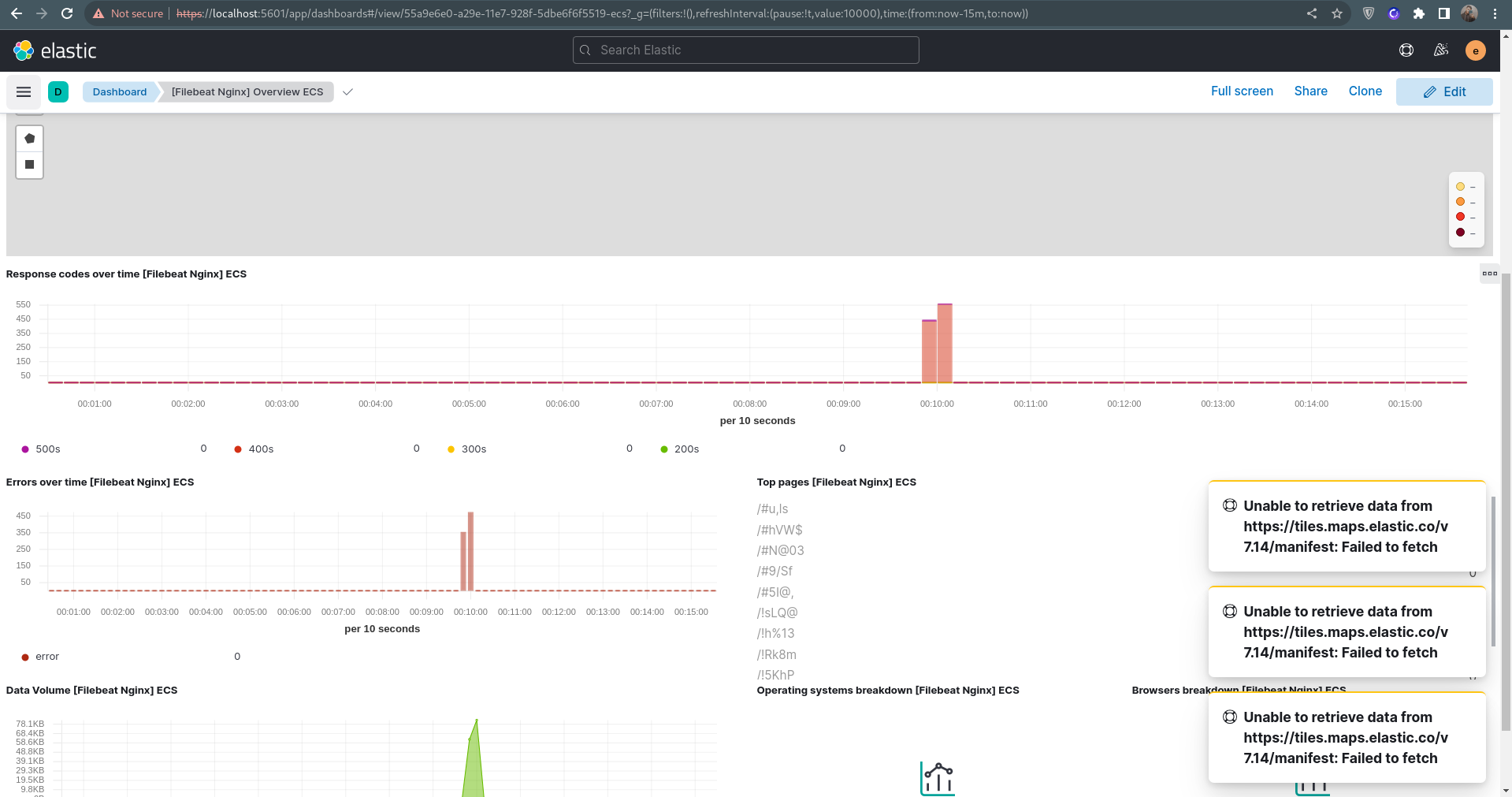
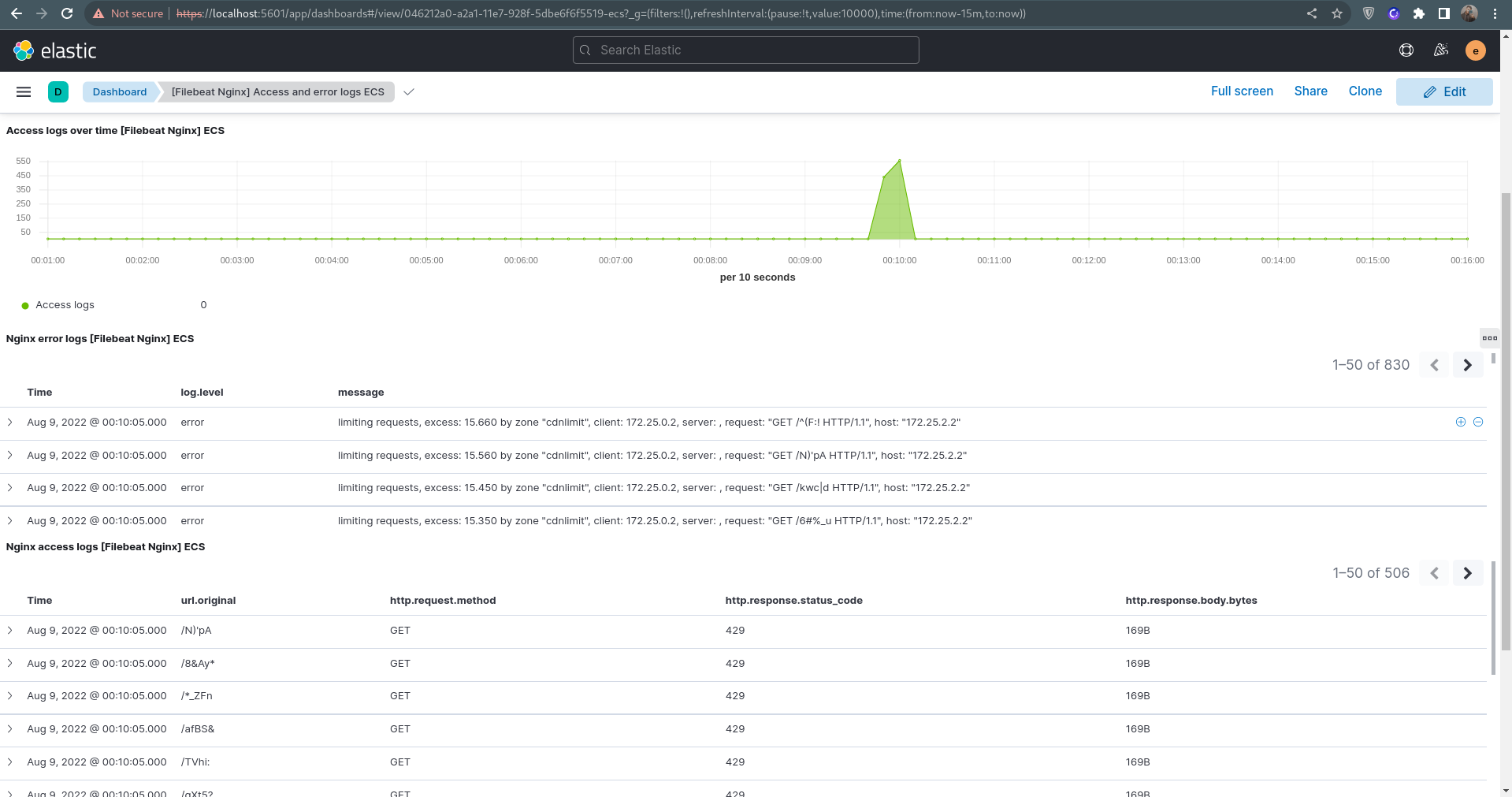
After you've run test.sh, there should be logs of both access and error from the reverse proxy since you have attacked it with http flood script.
check out the logs on Kibana :
[Filebeat Nginx] Overview ECS: https://localhost:5601/app/dashboards#/view/55a9e6e0-a29e-11e7-928f-5dbe6f6f5519-ecs?_g=(filters:!(),refreshInterval:(pause:!t,value:10000),time:(from:now-15m,to:now))
[Filebeat Nginx] Access and error logs ECS: https://localhost:5601/app/dashboards#/view/046212a0-a2a1-11e7-928f-5dbe6f6f5519-ecs?_g=(filters:!(),refreshInterval:(pause:!t,value:10000),time:(from:now-15m,to:now))
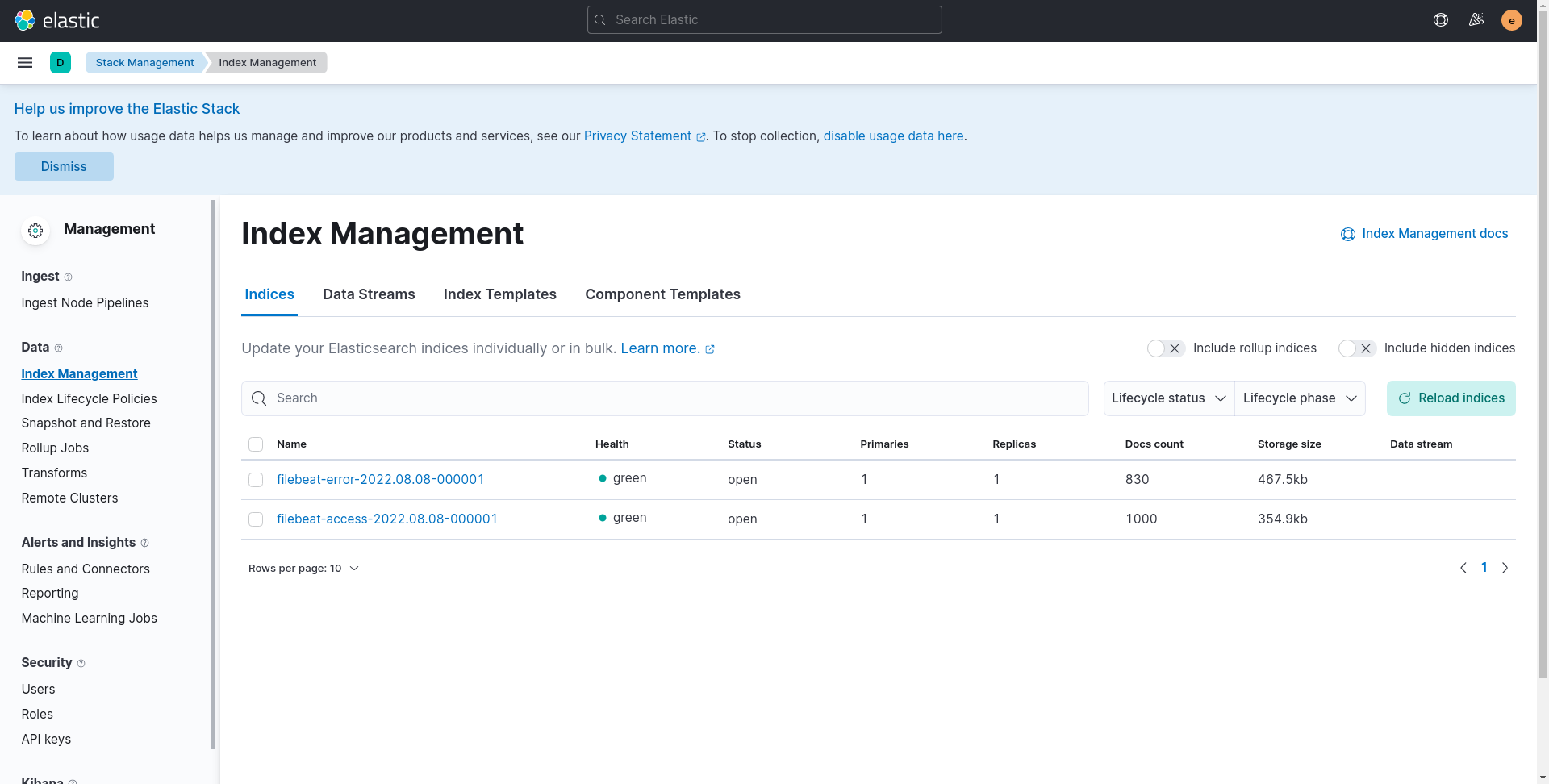
- STEP 4: check out Elastic different indicec:
https://localhost:5601/app/management/data/index_management/indices
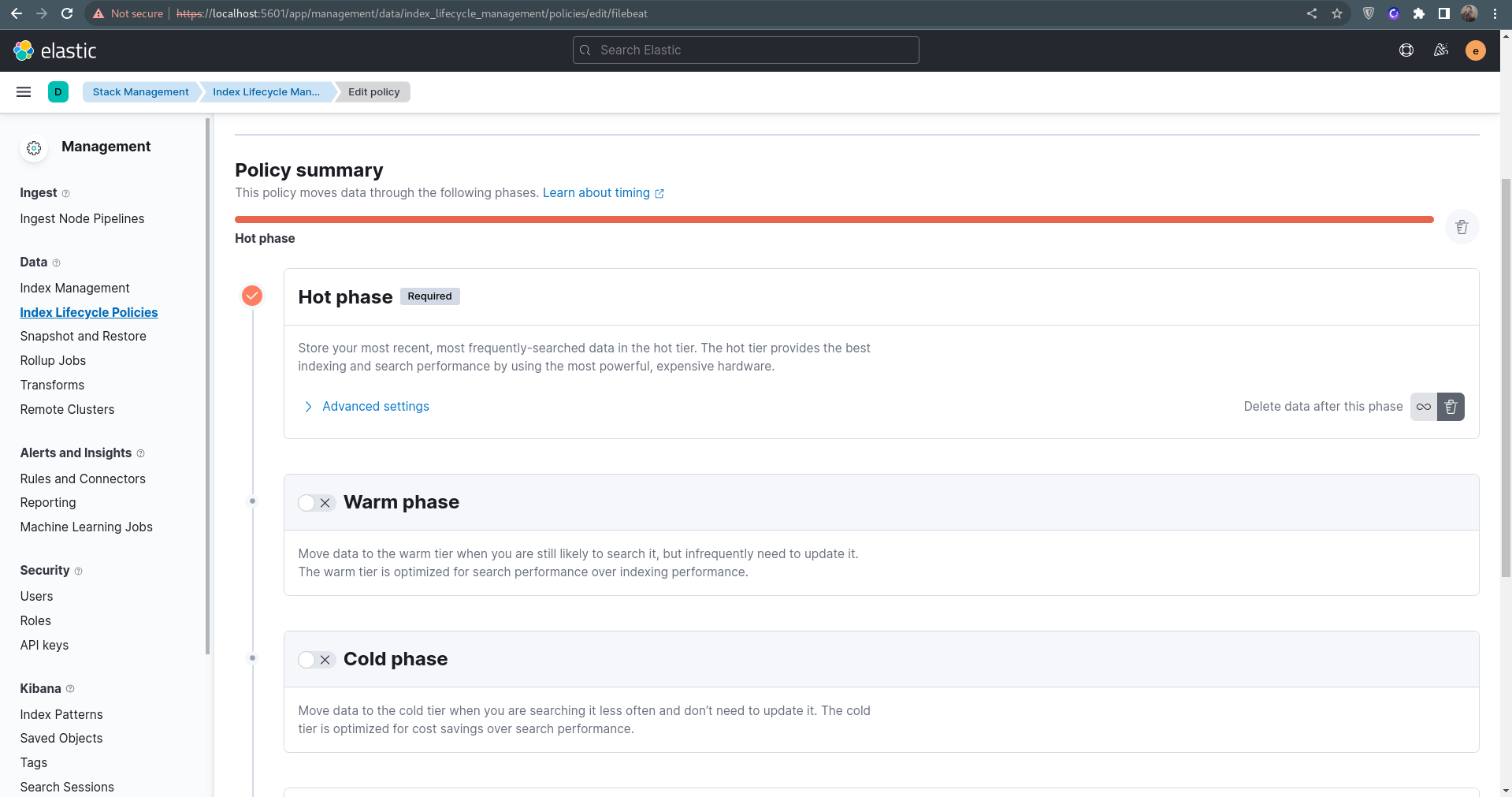
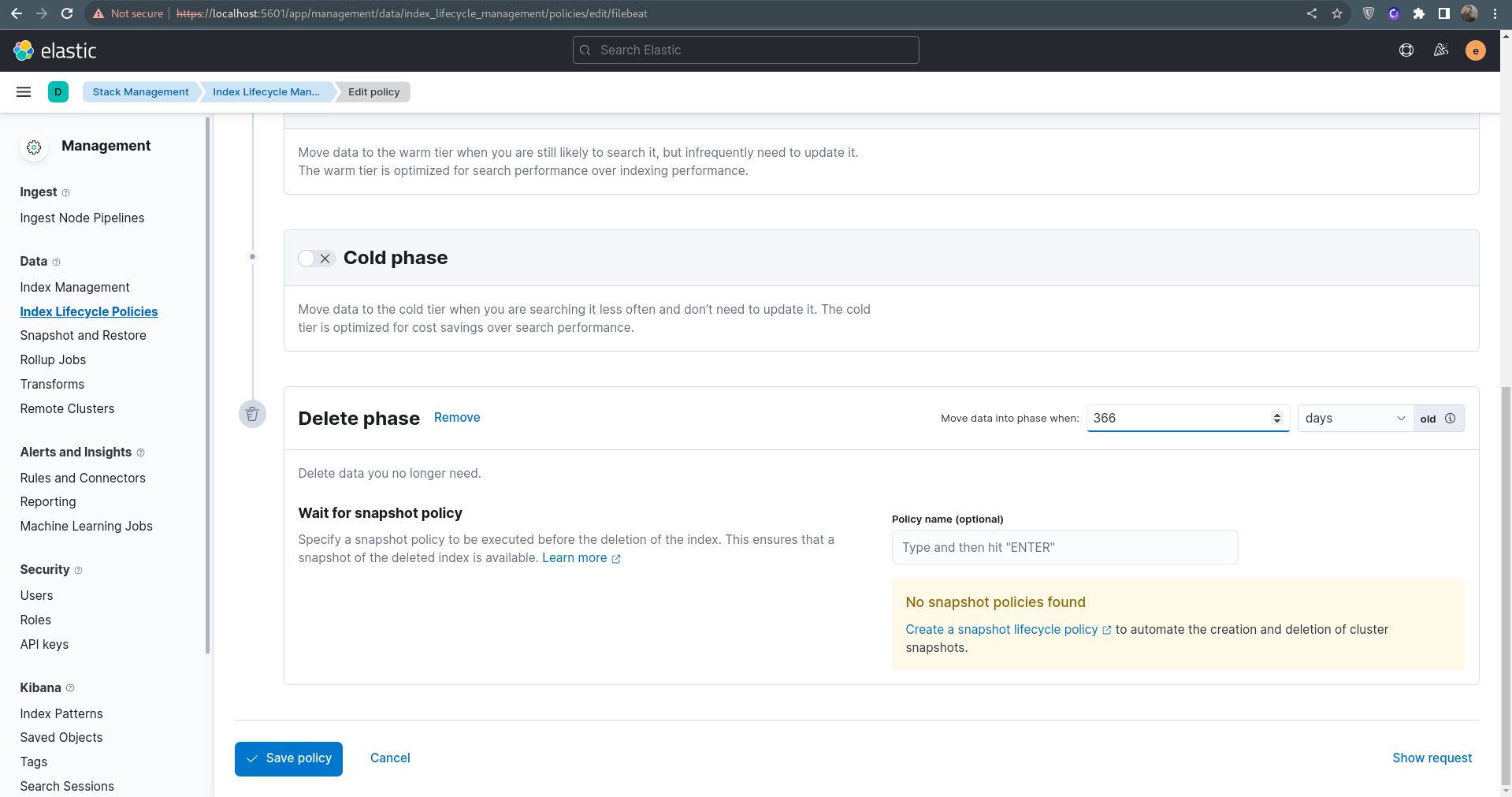
- STEP 5: On ELK side, create a retention mechanism to delete logs after X days/hours.
This should've been an automated process using API but I'm out of time :) so
click on the delete button
scroll down and set delete policy of your choice
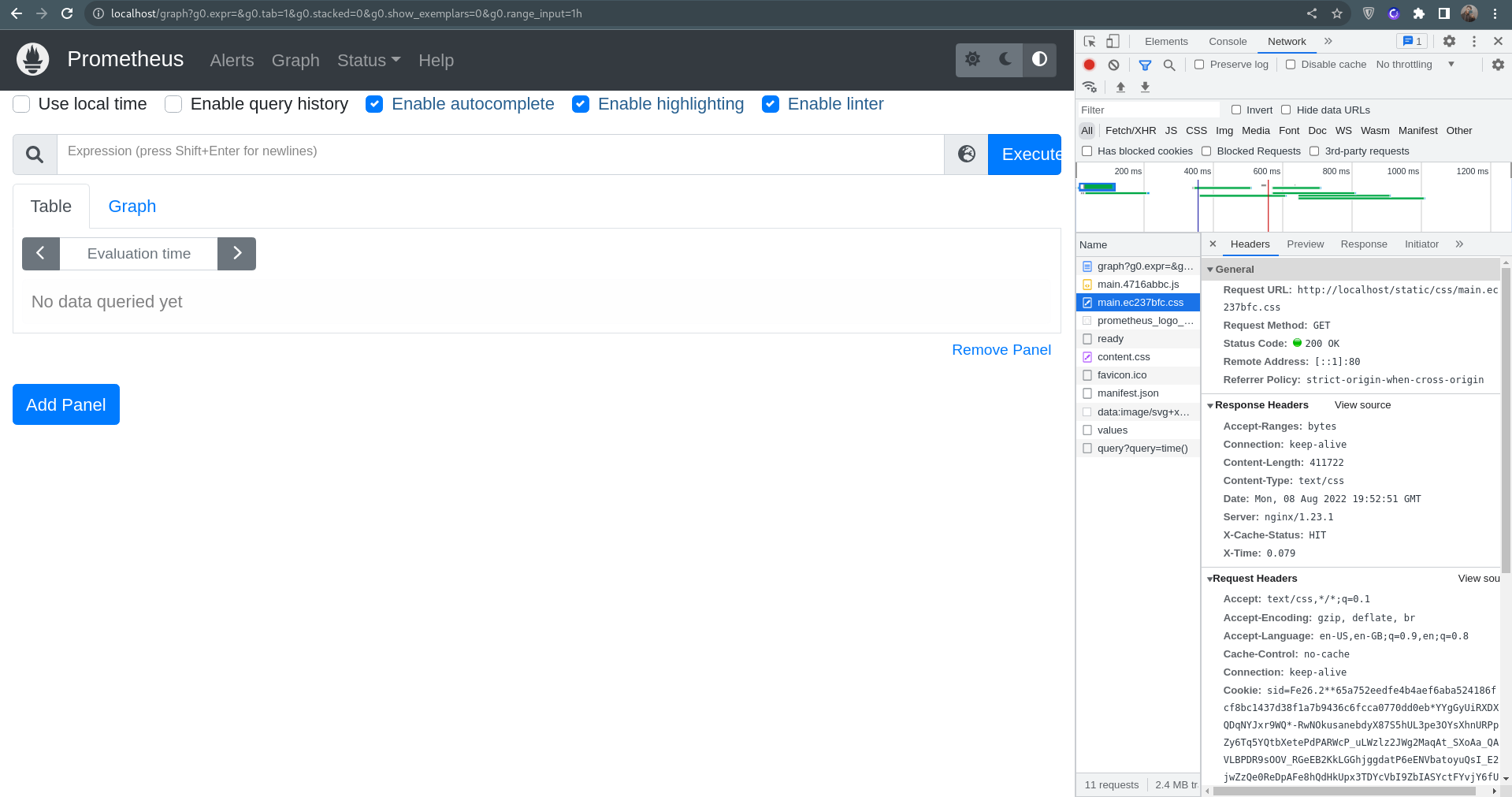
- You can also access the web server through nginx(on port 80 which is proxied to the exposed 9090 port on the container): http://localhost
as these two were specifically mentioned in the document here's how to make use of them :
- Cache Purge
docker exec -it nginx_reverse_proxy sh -c '/cache_purger.sh < file name or url > < cache address in the nginx container (/cache in this case) > '
- HTTP Flood
docker exec -it client python3 pyflooder.py 172.25.2.2 80 1000
- If you encounter the following error, you could just ignore it.
Error: Failed to download metadata for repo 'appstream': Cannot prepare internal mirrorlist: No URLs in mirrorlist
- If encountered a connection error while pulling images or installing packages, Please consider checking your conncetion or trying a different
VPNand just run thesetup.shscript again.
- There are some other
README.mdand documents in this repo which show a bit about what those directories are doing, but they are not entirely true because of the changes made in this repo and them not being updating after.
The only part of the Digikala CDN Team2020 –Ver 001Digikala Infrastructure -CDNTask Assignment document i didn't work on, is STEP 5: tuning tcp stack.
which is due to the lack of time :)
I would be happy to be working on it at a later time.
You can clean up your system with the clean_up.sh script. although you should notice that this will erase all your docker volumes, containers and images.
./clean_up