uv tool install "convoviz[viz]"
Convert your ChatGPT history into clean, readable Markdown (text files).
Perfect for archiving, local search, or use with note-taking apps like Obsidian.
Visualize your data with word clouds and usage graphs.




| Markdown Export | Clean, well-formatted Markdown with optional YAML headers |
| Inline Images | Media attachments rendered directly in your Markdown files |
| Citations | Web search results and source links accurately preserved |
| Word Clouds | Visual breakdowns of your most-used words and phrases |
| Usage Graphs | Bar plots and charts showing your conversation patterns |
| Canvas Support | OpenAI "Canvas" documents extracted as standalone files (.py, .html, etc.) |
| Custom Instructions | User/Model system messages exported to custom_instructions.json |
see word cloud examples in the
demo/folder!
- Sign in at chatgpt.com
- Navigate to: Profile Name (bottom left) → Settings → Data controls → Export
- Click Confirm export
- Wait for the email from OpenAI, then download the
.zipfile
Alternative: Use the Direct Export Script
If you want to grab recent conversations quickly or bypass the official export wait, use the direct export script.
- Follow the instructions in
js/HOW_TO_USE.mdto download your recent data as a.zipfile. - Run Convoviz normally.
- Smart Discovery: If you have a
convoviz_export.zipin yourDownloads, Convoviz will ask to merge it. - Additive & Smart: You can combine multiple runs into the same folder. Convoviz uses identity-based overwriting to update existing chats without creating duplicates!
Run one of the commands below to install everything you need automatically.
- Open
Terminal.- macOS: Press
Cmd + Space, type "Terminal", and hit Enter. - Linux: Press
Ctrl + Alt + T, or search "Terminal" in your app menu.
- macOS: Press
- Copy and paste this command:
curl -fsSL https://raw.githubusercontent.com/mohamed-chs/convoviz/main/install.sh | bash- Open
PowerShell.- Press the
Windowskey, type "PowerShell", and hit Enter.
- Press the
- Copy and paste this command:
irm https://raw.githubusercontent.com/mohamed-chs/convoviz/main/install.ps1 | iexAlternative: Install with pip
If you prefer using pip directly:
# Create a virtual environment (keeps your system Python clean)
python3 -m venv .venv

# Activate the virtual environment
source .venv/bin/activate  # On Windows: .venv\Scripts\activate

# Install convoviz with visualization extras
pip install "convoviz[viz]"The simplest way is to run this in your terminal and follow the interactive prompts:
convovizOr, provide arguments directly to skip the prompts:
convoviz --input path/to/your/export.zip --output path/to/output/folderCommand Line Options
By default, all outputs (Markdown, graphs, word clouds) are generated. Use --outputs to pick specific ones:
convoviz --input export.zip --outputs markdown --outputs graphsAvailable options: markdown, graphs, wordclouds
In interactive mode, you'll be prompted to choose which outputs to generate.
| Flag | Description |
|---|---|
--zip / -z |
Alias for --input (for convenience) |
--timestamp / -t |
Prepend conversation timestamp to the filename (e.g., 2024-03-21_15-30-05 - Title.md) |
--no-interactive |
Force non-interactive mode |
--flat |
Put all Markdown files in a single folder (instead of organizing by date) |
--config PATH |
Use a specific TOML config file (otherwise the user config is used if present) |
--verbose / -v |
Enable detailed logging (use -vv for debug logs) |
--log-file PATH |
Specify a custom log file location |
--quiet / -q |
Reduce console output (still logs to file) |
For a complete list of options:
convoviz --help⚙️ Configuration
Convoviz supports a TOML config file. Defaults are bundled with the package and can be copied into your user config directory.
Generate a user config file:
convoviz config initDefault user config locations:
- Linux:
~/.config/convoviz/config.toml - macOS:
~/Library/Application Support/convoviz/config.toml - Windows:
%APPDATA%\\convoviz\\config.toml
Use a custom config path:
convoviz --config path/to/config.tomlMarkdown flavor options in config:
standard(default)obsidian(collapsible callouts for reasoning content)
Markdown render order (config):
active(default, current branch)full(all DAG branches)
Markdown timestamps can be toggled with conversation.markdown.show_timestamp.
Word clouds can be limited to your messages by setting wordcloud.include_assistant_text = false.
Word cloud layouts are deterministic by default; set wordcloud.random_state = "" to disable.
YAML frontmatter titles are sanitized; the original title is preserved in aliases when it changes.
After running the script, head to your output folder (defaults to Documents/ChatGPT-Data if you didn't change it) to see:
- Neatly formatted Markdown files
- Visualizations and graphs
- Extracted Canvas documents (if any)
- User "Custom Instructions" (
custom_instructions.json)
If you've had a great experience, consider giving the project a ⭐ star! It keeps me motivated and helps others discover it!
Try convpdf to convert markdown files to PDFs.
Example:
# install with npm
npm -g install convpdf

# go to output dir (defaults to ~/Documents/ChatGPT-Data/)
cd ~/Documents/ChatGPT-Data

# run (add '-j 20' for faster conversion)
convpdf Markdown -o PDF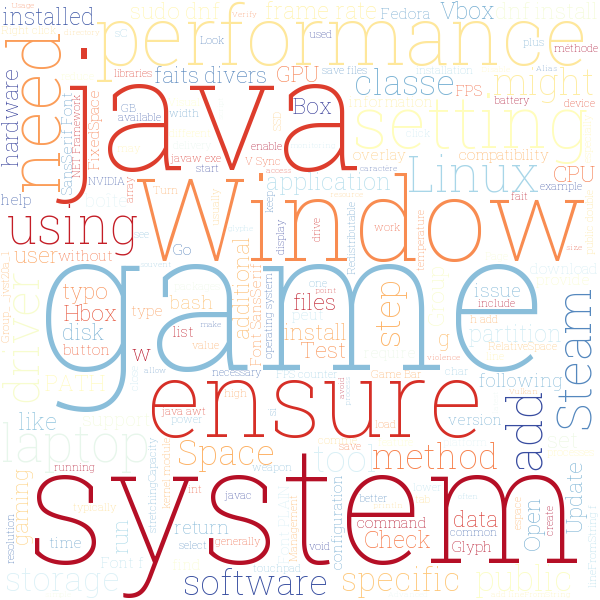
I hope you find this tool useful. I'm continuously looking to improve on this, but I need your help for that.
Whether you're a tech wizard or you're new to all this, I'd love to hear about your journey with the tool. Found a quirk? Have a suggestion? Or just want to send some good vibes? I'm all ears!
Interested in contributing? Check out the Contributing Guide for development setup, code style, and how to submit a pull request.
Offline
Word clouds use NLTK stopwords. If you're offline and NLTK data isn't installed yet, pre-download it:
python -c "import nltk; nltk.download('stopwords')"NOTE: The install script already handles this, so you can immediately go offline after running it.
About This Project
This is just a small thing I coded to help me see my convos in beautiful markdown. It was originally built with Obsidian (my go-to note-taking app) in mind, but the default output is standard Markdown.
I wasn't a fan of the clunky, and sometimes paid, browser extensions.
It was also a great opportunity to learn more about Python and type annotations. I had mypy, pyright, and ruff all on strict mode, 'twas fun.
Direct Export (Experimental)
There's also a JavaScript export flow under js/ for grabbing additional conversation data directly from the browser outside the official ZIP export. This is experimental.