
Run Claude Code, Copilot, and Codex from your phone.
HAL turns Telegram into a remote control for AI coding agents.
Point a bot at a local project, pick an engine, and HAL runs the CLI while streaming results back to chat. You keep the same local setup, config files, and tool permissions. HAL just gives you a better interface when you are away from the keyboard.
Telegram message
-> HAL
-> Claude / Copilot / Codex / Cursor / OpenCode / Antigravity CLI
-> streamed result back to Telegram
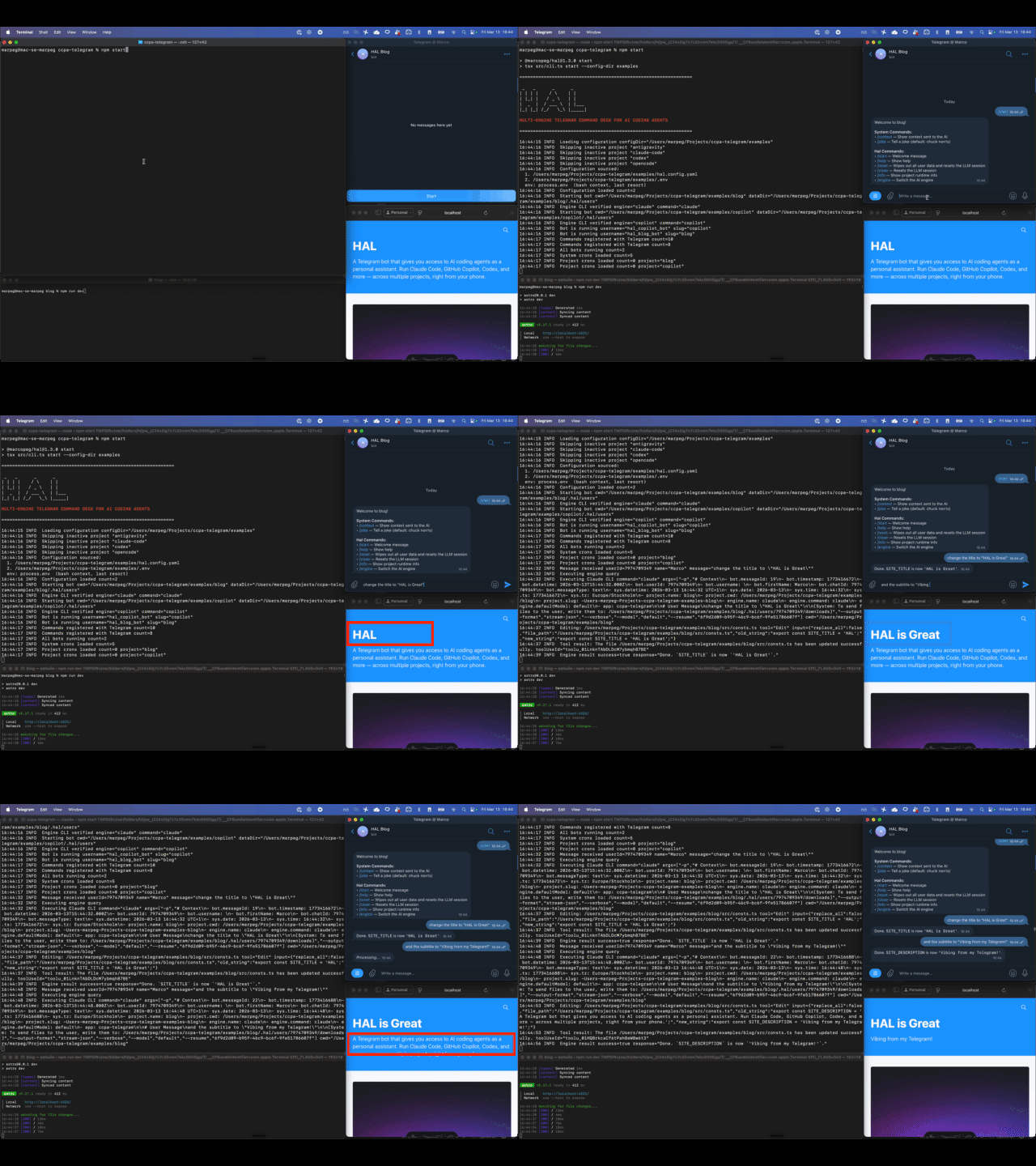
AI coding agents are useful, but they mostly live inside a terminal on your machine.
If you are away from your computer, checking progress, nudging a long-running task, or handling a quick fix becomes awkward or impossible. HAL keeps the agent local, but moves the control surface to Telegram so you can interact with it from anywhere.
- Developers already using AI coding agents in the terminal
- People managing multiple local projects with different engines
- Developers who want mobile access to their coding workflow
- Anyone who wants to trigger, monitor, or steer agent work without sitting at their desk
- Chat with your AI coding agent in Telegram; supports Claude Code, GitHub Copilot, Codex, OpenCode, Cursor, or Antigravity
- Send audio, images and documents for analysis. HAL can transcribe voice, run OCR, and return files from the engine
- Multi-Project — run multiple bots from a single config, each bound to a different directory and engine
- Context Injection — every message includes system metadata (timestamps, user info, custom values) and supports custom injections via config and per-project hooks (
.mjs) with hot-reload - Commands — add JavaScript commands (
.mjs) per project or globally; hot-reloaded so agents can create or update them at runtime - Skills —
.agents/skills/entries can be exposed as Telegram slash commands by addingtelegram: trueto their frontmatter - CRON Jobs & Scheduled prompts - generate planned and repetitive tasks straight from your bot
- Session Control - persistent conversation sessions per user (availability based on engine)
- Access Control - per-project access control, rate limiting, and logging
HAL runs one AI coding agent subprocess per project, each in its configured working directory. You can choose your favourite engine globally, or pick a different engine per project.
HAL does not replace the engine's native setup. It reads the same config files the CLI would, from the project directory.
That means the agent still sees the same instructions, skills, permissions, and MCP setup it would use if you launched it directly in the terminal:
AGENTS.md— Project-specific instructions for engines that support the.agentsconvention (Copilot, Codex, OpenCode, Cursor). Claude Code usesCLAUDE.mdinstead..agents/skills/— Custom skills for engines that support.agents. Claude Code uses.claude/skills/instead..claude/settings.json— Permissions and tool settings (Claude Code).mcp.json— MCP server configurations
You get the full power of your chosen AI coding agent — file access, code execution, configured MCP tools — all accessible through Telegram.
- Node.js 18+
- At least one supported AI coding CLI installed and authenticated — see engines
- A Telegram bot token per project (from @BotFather) — see Telegram
- ffmpeg (optional, required for voice messages) —
brew install ffmpegon macOS
Supported engines include:
Each engine has pros/cons and some limitations.
The table below summarizes key capabilities:
| Feature | OpenCode | Codex | Claude Code | Copilot | Cursor | Antigravity |
|---|---|---|---|---|---|---|
| Instruction file | AGENTS.md |
AGENTS.md |
CLAUDE.md |
AGENTS.md |
AGENTS.md |
GEMINI.md |
| Main skills folder | .agents/skills/ |
.agents/skills/ |
.claude/skills/ |
.agents/skills/ |
.agents/skills/ |
.agent/skills/ |
| Per-user session | ✗ | ✓ | ✓ | ✓ | ✗ | ✓ |
| Network access | — | ✓ | — | — | — | — |
| Full disk access | — | ✓ | — | — | — | — |
| YOLO mode | — | ✓ | — | — | — | ✓ |
| Streaming progress | ✗ | ✓ | ✓ | ✗ | ✗ | ✓ |
Read more in the engine docs.
The easiest way to get going is the interactive setup wizard. It creates or completes your config and can start the bot when done.
# Run the wizard (recommended): it will ask for project dir, bot token, user ID, engine, etc.
npx @marcopeg/hal wiz

# Or just run HAL: if no config exists (or it’s incomplete), HAL will suggest running the wizard
npx @marcopeg/hal
npx @marcopeg/hal --config ./workspace
You can pre-fill some values so the wizard only asks for the rest (see Setup wizard):
npx @marcopeg/hal wiz --engine cursor
npx @marcopeg/hal wiz --engine codex --model gpt-5.2-codex
Legacy: npx @marcopeg/hal init still creates a config from a template (non-interactive) but is deprecated in favour of wiz.
Before running HAL you need a Telegram bot token and your own Telegram user ID. Both are required to set up your first project.
- Register a bot — Get a bot token from BotFather and add it to your config.
- Find your user ID — Get your numeric user ID and add it to
allowedUserIds.
HAL is configured via a config file in the config directory (default: the current working directory, or --config when set).
Use the Setup wizard to create or complete your config interactively; you can run it directly with wiz, and HAL will suggest it if you run start with no or incomplete config. YAML is the recommended format; JSON and JSONC are also supported. See Configuration and Configuration alternatives for details. Full reference:
- Setup wizard — interactive config creation and completion, start-time suggestion, pre-fill flags
- Configuration — config files, reference.yaml (all keys), examples/hal.config.yaml, env vars,
globals,projects(map), dataDir, log files - Context — context injection (implicit keys, custom context, hooks)
- Commands — built-in command config (
/start,/help,/reset,/clear,/model,/engine,/git) - Engines — supported engines, engine config, model list, model defaults, per-engine setup
- Logging — log level, flow, persist, log file paths
- Rate limit — max messages per user per time window
Minimal config example (YAML)
Create a hal.config.yaml in your workspace (or use examples/hal.config.yaml). Use ${VAR_NAME} for secrets and set them in .env in the same directory where you run the HAL CLI. Keep that .env file out of git. See Env files for loading precedence and wizard selection rules. Full key reference: docs/config/reference.yaml.
globals:
  engine:
    name: claude
  logging:
    level: info
    flow: true
    persist: false
  rateLimit:
    max: 10
    windowMs: 60000
  access:
    allowedUserIds: [123456789]

projects:
  backend:
    cwd: ./backend
    telegram:
      botToken: "${BACKEND_BOT_TOKEN}"
    logging:
      persist: true
  frontend:
    cwd: ./frontend
    engine:
      name: copilot
      model: gpt-5-mini
    telegram:
      botToken: "${FRONTEND_BOT_TOKEN}"
JSON and JSONC
JSON and JSONC are also supported alongside YAML. For a minimal JSON/JSONC example and supported JSONC features (comments, trailing commas), see Configuration alternatives. Use the YAML reference or example and convert if needed.
HAL exposes a small set of built-in commands for session and help management.
| Command | Description |
|---|---|
/start |
Welcome message |
/help |
Show help information |
/reset |
Wipes out all user data and resets the LLM session |
/clear |
Resets the LLM session |
Add your own slash commands as .mjs files (project or global), or expose engine skill folders as commands. Custom commands can override a skill with the same name. Both are hot-reloaded.
- Custom commands — file locations, handler arguments (
args,ctx,gram,agent,projectCtx), examples. - Skills — SKILL.md format, per-engine directories, precedence.
Voice messages are transcribed locally with Whisper (no audio sent to external services). transcription.mode controls UX (confirm by default, or inline / silent). Voice messages — setup (ffmpeg, CMake, nodejs-whisper), model options, transcript UX modes.
The engine can send files back through Telegram. Each user has a downloads/ folder under their data directory. The engine is informed of this path in every prompt.
- The engine writes a file to the downloads folder
- The bot detects it after the engine's response completes
- The file is sent via Telegram (as a document)
- The file is deleted from the server after delivery
For local setup, running the bot, and releasing: Development — requirements, quick start (npm install, npm start), examples folder and .env, release scripts, and npm token setup for publish.
Important: Conversations with this bot are not end-to-end encrypted. Messages pass through Telegram's servers. Do not share:
- Passwords or API keys
- Personal identification numbers
- Financial information
- Confidential business data
This bot is intended for development assistance only. Treat all conversations as potentially visible to third parties.
MIT
This project is forked by the CCP at Telegram.