



Omni-CLI is a Dockerized SSH workspace that bundles multiple AI CLIs in one place. Connect once and use Gemini, Codex, Copilot, Claude, and OpenCode without installing anything on your laptop. Your tools and configs live in a single remote workspace, so you do not need to log in on every device.
Think of it as an all-in-one AI CLI cockpit you can reach from anywhere over SSH.
🚀 Clever API Redirection: Redirect API calls through your CLI to use your existing subscriptions while keeping your API keys secure in your local Docker container. Access your own AI API without exposing credentials to third parties.
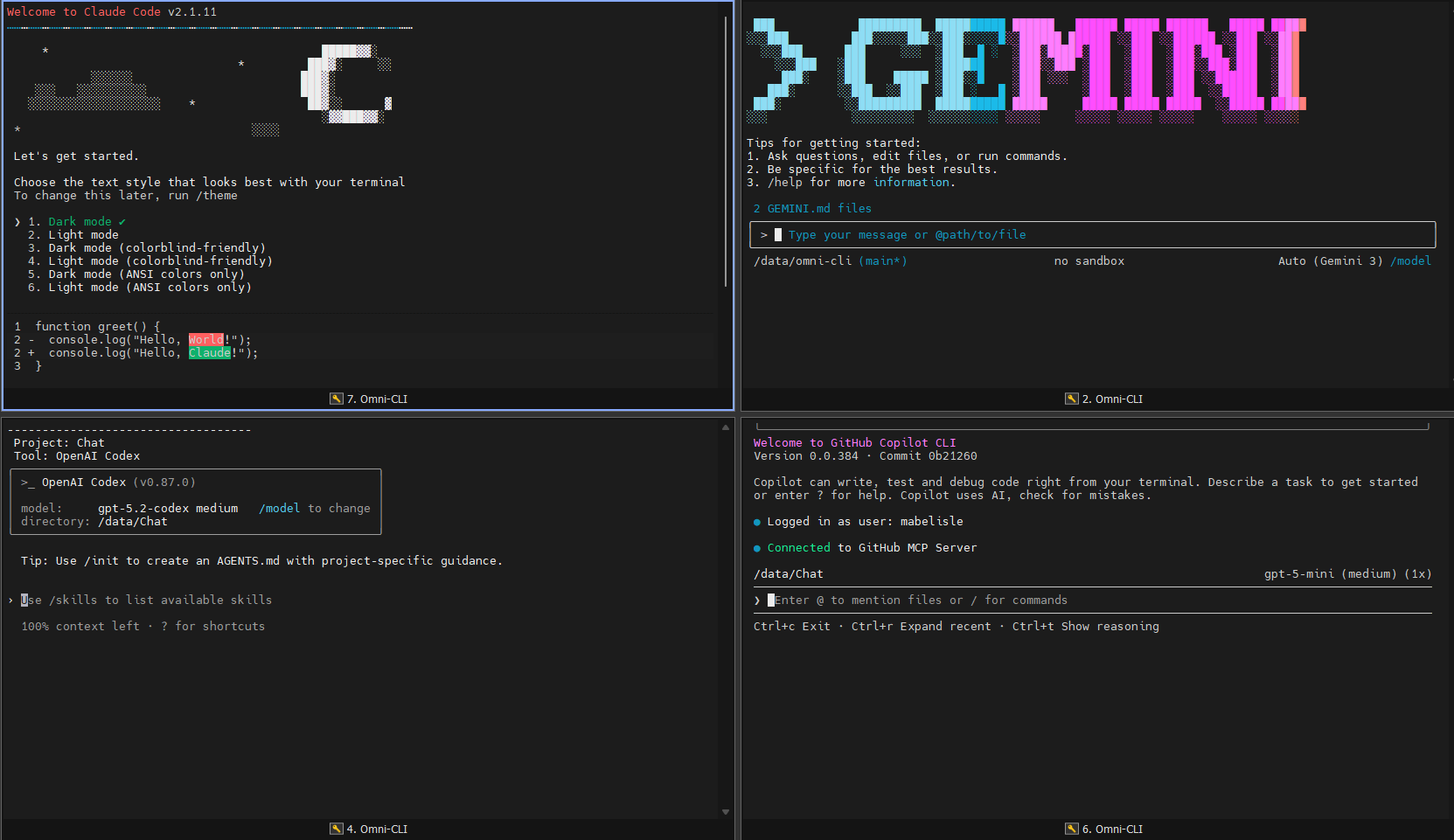
- 🔑 SSH-First Workflow: Connect remotely and launch AI CLIs immediately.
- 🤖 Preinstalled Agents: Gemini, Codex, Copilot, Claude, and OpenCode are ready out of the box.
- 💾 Persistent Workspace: Projects and auth/config live in Docker volumes, not on each device.
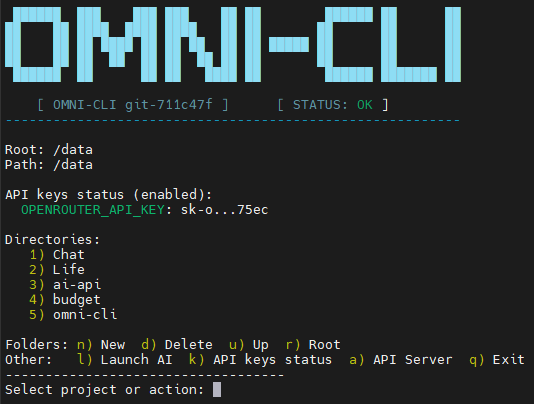
- 🧭 Unified Menu: The
omni-clidashboard navigates nested folders, shows breadcrumbs, and launches tools. - 🔒 Isolated Runtime: Everything runs in Docker, keeping your host clean.
- 🗝️ API Key Status: Quick status panel for configured API keys.
- 🔌 OpenAI-Style API: Local HTTP server that proxies chat completions to Codex or Gemini.
- 🔄 Clever API Redirection: Use your existing AI subscriptions through a single API endpoint without exposing your API keys to third parties.
- Docker Engine installed on your machine.
- Docker Compose (Optional, but recommended for easier management).
Get up and running in seconds.
Create a docker-compose.yml file (or clone the repo) and start the service:
# Start the container in the background
docker-compose up -d
Or pull the prebuilt image and run it directly:
docker pull ghcr.io/mabelisle/omni-cli:latest

docker run -d \
  --name omni-cli \
  -p 2222:22 \
  -v $(pwd)/omni-data:/data \
  -v $(pwd)/omni-config:/config \
  -e PUID=$(id -u) \
  -e PGID=$(id -g) \
ghcr.io/mabelisle/omni-cli:latestAccess the environment via SSH (Password: changeme):
ssh omni@localhost -p 2222🎉 You are now inside Omni-CLI. The AI menu launches automatically and tools are ready to use.
You can customize the environment by setting environment variables in your docker-compose.yml or docker run command.
| Variable | Default | Description |
|---|---|---|
PUID |
1000 |
User ID. Set this to your host user's UID (run id -u) to ensure you have write access to mounted volumes. |
PGID |
1000 |
Group ID. Set this to your host user's GID (run id -g). |
USER_PASS |
changeme |
SSH Password. The password for the omni user (only effective if set during build via --build-arg). |
TZ |
UTC |
Timezone. Set container timezone (e.g., America/New_York). |
CODEX_PASSTHROUGH_PORT |
8000 |
API Server Port. Port exposed by the Codex/Gemini passthrough server. |
CODEX_TIMEOUT_SECONDS |
300 |
API Timeout. Max runtime for Codex/Gemini requests. |
| Volume | Internal Path | Description |
|---|---|---|
data |
/data |
Workspace Storage. Maps to your local project directory. |
config |
/config |
Tool Configs. Persists npm caches, auth tokens, and CLI settings. |
Global npm installs are redirected to /config/npm so updates persist across container restarts.
/config/npm/bin is added to PATH for the omni user. To reset to image defaults, clear the
/config/npm contents or remove the mounted config volume.
Create a docker-compose.yml file:
version: '3.8'
services:
  omni-cli:
    build: .
    container_name: omni-cli
    environment:
      - PUID=1000 # Change to $(id -u)
      - PGID=1000 # Change to $(id -g)
      - TZ=UTC
    volumes:
      - ./omni-data:/data
      - ./omni-config:/config
    ports:
      - "2222:22"
restart: unless-stoppeddocker run -d \
--name omni-cli \
-p 2222:22 \
-v $(pwd)/omni-data:/data \
-v $(pwd)/omni-config:/config \
-e PUID=$(id -u) \
-e PGID=$(id -g) \
ghcr.io/mabelisle/omni-cli:latestdocker build -t omni-cli .
docker run -d \
--name omni-cli \
-p 2222:22 \
-v $(pwd)/omni-data:/data \
-v $(pwd)/omni-config:/config \
-e PUID=$(id -u) \
-e PGID=$(id -g) \
omni-cliThe entrypoint.sh script is the brain of the container initialization:
- Permission Fix: It checks the
PUIDandPGIDenv vars and modifies the internalomniuser to match them. - Key Gen: Generates SSH host keys if they are missing.
- Privilege Drop: While it runs as
rootto perform setup, it executes the final command (or starts the SSH daemon) as the unprivilegedomniuser (or drops privileges appropriately) to ensure security.
When you log in, omni-cli.sh is sourced. It provides an ASCII-art menu to:
- Navigate folders and subfolders in
/datawith breadcrumb paths. - Create/Delete folders.
- Launch context-aware AI sessions within those folders (Gemini, Codex, Copilot, Claude, OpenCode).
- View API key status.
Important: Omni-CLI provides the environment and tools, but you must provide the access.
Each AI CLI (Gemini, Codex, Copilot, Claude, OpenCode) is pre-installed software that requires its own authentication. When you launch a tool for the first time, you will typically be prompted to login or provide an API key.
There are plenty of ways to get free AI access using these tools! Since you have all of them at your fingertips:
- Start with your preferred agent.
- If you hit a rate limit or a free tier cap, simply switch to the next one in the menu.
- Cycle through Gemini, Codex, Copilot, Claude, and OpenCode to maximize your productivity without needing a paid subscription for every single service.
OpenCode can read provider credentials from environment variables. These are the variables documented at https://opencode.ai/docs/providers/.
| Provider | Environment Variables |
|---|---|
| SAP AI Core | AICORE_SERVICE_KEY, AICORE_DEPLOYMENT_ID, AICORE_RESOURCE_GROUP |
| Anthropic | ANTHROPIC_API_KEY |
| Amazon Bedrock | AWS_ACCESS_KEY_ID, AWS_SECRET_ACCESS_KEY, AWS_REGION, AWS_PROFILE, AWS_BEARER_TOKEN_BEDROCK, AWS_WEB_IDENTITY_TOKEN_FILE, AWS_ROLE_ARN |
| Azure OpenAI | AZURE_RESOURCE_NAME |
| Azure Cognitive Services | AZURE_COGNITIVE_SERVICES_RESOURCE_NAME |
| Cloudflare AI Gateway | CLOUDFLARE_ACCOUNT_ID, CLOUDFLARE_GATEWAY_ID, CLOUDFLARE_API_TOKEN |
| GitLab Duo | GITLAB_INSTANCE_URL, GITLAB_TOKEN, GITLAB_AI_GATEWAY_URL, GITLAB_OAUTH_CLIENT_ID |
| Google Vertex AI | GOOGLE_APPLICATION_CREDENTIALS, GOOGLE_CLOUD_PROJECT, VERTEX_LOCATION |
💡 The Clever Part: Redirect API Calls to Your CLI
Omni-CLI's most powerful feature is its ability to redirect API calls through your local CLI tools. This means you can:
- Use a normal subscription - Leverage your existing OpenAI, Anthropic, or other provider subscriptions
- Access your own API - Keep your API keys secure within your Docker container, never exposing them to third-party services
- Centralize access - Route all AI requests through one secure endpoint without sharing credentials
The API server acts as a secure translation layer:
- Receives OpenAI-formatted requests (
POST /v1/chat/completions) - Translates the request into CLI commands
- Executes the appropriate CLI tool (
codexorgemini) using your stored credentials - Returns an OpenAI-compatible response
Translation Flow:
OpenAI Request → api.js → CLI execution (using YOUR keys) → Response parsing → OpenAI Response
Why This is Clever:
- Your keys stay secure - API credentials are stored in your Docker container, not passed through third-party services
- Use any provider - Route requests through any AI CLI that supports your subscription
- No code changes needed - Existing OpenAI-compatible code works seamlessly
- Centralized billing - Track all usage through your CLI tools' native APIs
- Enterprise-ready - Perfect for teams who need to route through specific API endpoints while maintaining security
Key Features:
- Model Aliasing:
codex-defaultandgemini-defaultaliases - OpenRouter Integration: Automatically discovers and verifies OpenRouter models when
OPENROUTER_API_KEYis set - Smart Routing: Automatically routes to Codex or Gemini based on model name pattern
- Temporary Workspaces: Runs each request in isolated temporary directories
- Timeout Protection: Configurable timeout (default 300s) prevents hanging requests
- Secure Credential Management: All API keys remain in your local Docker container
| Endpoint | Method | Description |
|---|---|---|
/ |
GET | Health check |
/v1/models |
GET | Model catalog (list of available models) |
/v1/chat/completions |
POST | Chat completions (OpenAI-compatible) |
Map the default port 8000 (or the value of CODEX_PASSTHROUGH_PORT) when you run the container:
docker run -d \
  --name omni-cli \
  -p 2222:22 \
  -p 8000:8000 \
  -v $(pwd)/omni-data:/data \
  -v $(pwd)/omni-config:/config \
  -e PUID=$(id -u) \
  -e PGID=$(id -g) \
  ghcr.io/mabelisle/omni-cli:latest
Docker Compose:
ports:
  - "2222:22"
- "8000:8000"curl http://localhost:8000/v1/chat/completions \
-H "Content-Type: application/json" \
-d '{
"model": "codex-default",
"messages": [
{ "role": "user", "content": "Write a haiku about SSH." }
]
}'Response:
{
  "id": "chatcmpl-abc123",
  "object": "chat.completion",
  "created": 1234567890,
  "model": "codex-default",
  "choices": [
    {
      "index": 0,
      "message": {
        "role": "assistant",
        "content": "Secure shell flows,\nEncrypted tunnel connects,\nRemote access blooms."
      },
      "finish_reason": "stop"
    }
  ],
  "usage": {
    "prompt_tokens": 0,
    "completion_tokens": 0,
    "total_tokens": 0
  }
}curl http://localhost:8000/v1/chat/completions \
-H "Content-Type: application/json" \
-d '{
"model": "gemini-2.5-pro",
"messages": [
{ "role": "user", "content": "What is Docker?" },
{ "role": "assistant", "content": "Docker is a platform for developing, shipping, and running applications in containers." },
{ "role": "user", "content": "What is the difference between Docker and Kubernetes?" }
]
}'curl http://localhost:8000/v1/modelsResponse:
{
  "object": "list",
  "data": [
    {
      "id": "gpt-4o",
      "object": "model",
      "created": 1234567890,
      "owned_by": "codex"
    },
    {
      "id": "gemini-2.5-pro",
      "object": "model",
      "created": 1234567890,
      "owned_by": "gemini"
    }
  ]
}The API comes with pre-configured model IDs:
Codex Models:
gpt-5.2-codex,gpt-5.1-codex-max,gpt-5.1-codex-minigpt-5.2,gpt-3.5-turbo,gpt-4,gpt-4ocodex-default(alias for the best available Codex model)
Gemini Models:
gemini-3-pro-preview,gemini-3-flash-previewgemini-2.5-pro,gemini-2.5-flash,gemini-2.5-flash-litegemini-2.0-flash-exp,gemini-2.0-flashgemini-1.5-pro-latest,gemini-1.5-flash-latestgemini-default(alias for the best available Gemini model)
When you set OPENROUTER_API_KEY (or OR_API_KEY), the API will:
- Fetch the OpenRouter model catalog every 24 hours
- Verify each model by making a test request
- Add working models to the catalog
- Include OpenRouter models in
/v1/modelsresponse
Environment Variables:
OPENROUTER_API_KEY/OR_API_KEY: Your OpenRouter API keyOPENROUTER_MODELS_URL: Custom models endpoint (default:https://openrouter.ai/api/v1/models)OPENROUTER_REFRESH_MS: Refresh interval in milliseconds (default: 24 hours)OPENROUTER_VERIFY_TIMEOUT_MS: Verification timeout (default: 20000ms)OPENROUTER_VERIFY_CONCURRENCY: Concurrent verifications (default: 3)OPENROUTER_VERIFY_PROMPT: Test prompt (default: "Reply with OK.")
🔐 Secure Credential Management
The API server automatically uses the CLI tools' authentication stored in your Docker container. You don't need to set separate API keys for the passthrough server - your credentials never leave your local environment.
Key Security Benefits:
- No credential exposure - API keys stay within your Docker container
- Centralized management - One set of keys for both CLI and API access
- Enterprise compliance - Maintain control over where your API calls route through
- No third-party dependencies - Direct API routing without intermediate services
Supported Provider Environment Variables:
| Provider | Environment Variables |
|---|---|
| Anthropic | ANTHROPIC_API_KEY |
| OpenAI | OPENAI_API_KEY, OPENAI_API_BASE |
| Google Gemini | GEMINI_API_KEY, GOOGLE_API_KEY |
| Google VertexAI | VERTEXAI_PROJECT, VERTEXAI_LOCATION |
| OpenRouter | OPENROUTER_API_KEY, OR_API_KEY |
| Groq | GROQ_API_KEY |
| Cerebras | CEREBRAS_API_KEY |
| Huggingface | HF_TOKEN, HUGGINGFACE_API_KEY |
| AWS Bedrock | AWS_ACCESS_KEY_ID, AWS_SECRET_ACCESS_KEY, AWS_REGION, AWS_PROFILE, AWS_BEARER_TOKEN_BEDROCK |
| Azure OpenAI | AZURE_OPENAI_API_KEY, AZURE_OPENAI_API_ENDPOINT, AZURE_OPENAI_API_VERSION, AZURE_API_KEY, AZURE_API_BASE, AZURE_API_VERSION |
Setting Auth in Docker:
docker run -d \
  --name omni-cli \
  -p 2222:22 \
  -p 8000:8000 \
  -v $(pwd)/omni-data:/data \
  -v $(pwd)/omni-config:/config \
  -e PUID=$(id -u) \
  -e PGID=$(id -g) \
  -e OPENAI_API_KEY="sk-..." \
  -e GEMINI_API_KEY="AIza..." \
  -e OPENROUTER_API_KEY="sk-or-..." \
ghcr.io/mabelisle/omni-cli:latestThe API uses temporary workspaces for each request. You can specify a custom base directory:
node api.js -C /path/to/workspaceAdjust the maximum execution time for Codex/Gemini requests:
docker run -d \
  --name omni-cli \
  -e CODEX_TIMEOUT_SECONDS=600 \  # 10 minutes
ghcr.io/mabelisle/omni-cli:latestChange the API server port:
docker run -d \
  --name omni-cli \
  -e CODEX_PASSTHROUGH_PORT=9000 \
  -p 9000:9000 \
ghcr.io/mabelisle/omni-cli:latestSince the API is fully compatible with OpenAI's API structure, you can use it with any OpenAI-compatible client:
Python with openai library:
import openai

# Point to your Omni-CLI API (your credentials stay secure locally)
openai.api_base = "http://localhost:8000/v1"

# Make a request - will use your stored API keys securely
response = openai.ChatCompletion.create(
    model="codex-default",
    messages=[{"role": "user", "content": "Hello!"}]
)

print(response.choices[0].message.content)
curl with custom base URL:
curl http://localhost:8000/v1/chat/completions \
  -H "Content-Type: application/json" \
-d '{"model":"gemini-default","messages":[{"role":"user","content":"Hi"}]}'🎯 The Power of API Redirection
Instead of pointing your applications to OpenAI's API or Anthropic's API, you can redirect them to your Omni-CLI API server. This gives you:
- Use your existing subscription - No need for new API accounts
- Access your own API - Route through your CLI tools with your credentials
- Enhanced security - API keys remain in your Docker container
- Cost control - Track usage through your CLI tools' native APIs
- Flexibility - Switch between providers without changing application code
Example: Redirecting an Existing Application
# Instead of:
# OPENAI_API_BASE=https://api.openai.com/v1

# Use:
# OPENAI_API_BASE=http://localhost:8000/v1
Benefits:
- No code changes needed - Simply update the API base URL
- Multiple providers - Route through any supported CLI tool (Codex, Gemini, etc.)
- Centralized logging - All requests logged locally
- Enterprise ready - Route through internal APIs without exposing credentials
The API server logs are available at /tmp/omni-codex-server.log inside the container:
docker exec -it omni-cli cat /tmp/omni-codex-server.logFor real-time monitoring:
docker logs -f omni-cliThe API returns standard HTTP status codes:
200: Success400: Invalid request (bad JSON, missing messages)404: Endpoint not found500: CLI execution failed504: Request timeout
Error responses include a detail field with the error message:
{
  "detail": "Codex execution failed: API key not found"
}Contributions are welcome! Please feel free to submit a Pull Request.
- Fork the Project
- Create your Feature Branch (
git checkout -b feature/AmazingFeature) - Commit your Changes (
git commit -m 'Add some AmazingFeature') - Push to the Branch (
git push origin feature/AmazingFeature) - Open a Pull Request
This project stands on the shoulders of giants. A huge thank you to the teams behind these amazing tools:
- Gemini: google-gemini/gemini-cli
- Codex: openai/codex
- Copilot: github/copilot-cli
- Claude: anthropics/claude-code
- OpenCode: opencode.ai
Generated with ❤️ by Gemini