- Introduction
- History
- Installation
- File Status Lifecycle in Git
- Basic Git Commands
- Branching and Merging
- Working with Remote Repositories
- Advanced Git Commands
- GitHub-Specific Concepts
- Real World Scenarios
- Git Best Practices and Guidelines
- Writing Meaningful Commit Messages
- Structuring a Git Repository
- Using .gitignore Effectively
- Managing Large Repositories
- Efficient Branching Strategies
- Handling Merge Conflicts Efficiently
- Using .gitattributes for Better File Handling
- Using .gitmodules for Submodules
- Best Practices for Folder and File Naming
- Troubleshooting
- Books and Resources
- License
- Frequently Asked Questions (FAQs)
Git is a distributed version control system (VCS) designed to track changes in files, especially code, efficiently. It allows developers to maintain a local copy of their code, manage different versions of their project, and collaborate with other developers without relying on a central server. Git helps ensure that changes can be traced, reviewed, and merged systematically.
GitHub is a cloud-based hosting service for Git repositories. It builds on the capabilities of Git by providing a web-based interface, collaborative tools, and integration with additional services. With GitHub, developers can:
- Share their repositories online.
- Collaborate on projects with features like pull requests and issue tracking.
- Use automation tools like GitHub Actions for CI/CD workflows.
| Aspect | Git | GitHub |
|---|---|---|
| Purpose | Version control tool | Hosting and collaboration platform |
| Usage | Works locally on a developer’s system | Requires an internet connection |
| Hosting | Not applicable | Stores repositories in the cloud |
| Collaboration | Requires manual setup (e.g., SSH) | Built-in features for team collaboration |
- Offline Functionality: Perform version control operations locally without requiring an internet connection.
- Branching: Experiment with new features or bug fixes without affecting the main codebase.
- Version History: Easily access, review, and revert to previous versions of the code.
- Centralized Hosting: Share your repositories online and ensure they are backed up.
- Collaboration Tools: Work with team members seamlessly using pull requests and issue tracking.
- Community Engagement: Showcase projects and contribute to open-source initiatives.
- Automation: Use GitHub Actions to automate testing, deployment, and other tasks.
Imagine you're building a web application with a team of developers.
Using Git:
- Developers work on their own local repositories.
- Each member can create branches for new features and merge them back into the main branch after review.
Using GitHub:
- The team pushes their local repositories to a shared online repository.
- Pull requests facilitate peer code reviews and discussions before merging.
- Issues are used to track bugs and feature requests.
Git was developed in 2005 by Linus Torvalds, the creator of the Linux kernel. The motivation for its creation arose when the Linux kernel community lost access to BitKeeper, a proprietary version control system they had been using. Torvalds designed Git to address the following key requirements:
- Speed: Operations like commits, branches, and merges should be fast.
- Distributed Nature: Every developer should have a complete copy of the codebase, ensuring resilience and autonomy.
- Data Integrity: Ensures that changes cannot be corrupted or lost.
- 2005: Git's initial release revolutionized version control systems by introducing distributed workflows.
- 2006: Git 1.0 was released, marking its first stable version.
- 2007: Major improvements made Git more user-friendly with a simplified interface.
- 2010: GitHub gained traction, becoming the primary platform for Git repositories.
- 2016: Git 2.9 introduced advanced rebasing and diffing tools.
- 2020: GitHub integrated Actions, enabling seamless automation.
Founded in 2008 by Tom Preston-Werner, Chris Wanstrath, PJ Hyett, and Scott Chacon, GitHub provided a cloud-hosted interface for Git repositories. Key features include:
- Pull Requests: Streamlined code reviews and collaborative development.
- Issue Tracking: Organize, prioritize, and discuss tasks effectively.
- Community Engagement: Open-source collaboration on projects like Linux, React, and Kubernetes.
In 2018, GitHub was acquired by Microsoft, further solidifying its importance in the developer ecosystem.
- Git remains the cornerstone of version control for millions of developers globally.
- GitHub hosts over 100 million repositories, making it the largest platform for code collaboration.
- The combination of Git's powerful version control and GitHub's social coding capabilities continues to fuel innovation in software development.
The name Git was humorously chosen by Linus Torvalds. In British slang, "git" refers to an unpleasant or foolish person, a tongue-in-cheek reference by Torvalds to himself.
Git can be installed on various operating systems, including Windows, macOS, and Linux. Follow the steps below for your platform:
- Download the Git installer from the official website: git-scm.com.
- Run the installer and follow the on-screen instructions:
- Select the default editor (e.g., Vim, Nano, or another editor).
- Choose the environment for Git (e.g., Git Bash or Command Prompt).
- Set up optional features like credential caching.
- Verify installation by opening Command Prompt or Git Bash and running:
Example output:
git --version
git version 2.41.0.windows.1
- Open the Terminal.
- Install Git using Homebrew:
brew install git
- Verify installation:
Example output:
git --version
git version 2.41.0
For Debian/Ubuntu-based systems:
- Open the terminal and run:
sudo apt update
sudo apt install git
- Verify installation:
git --version
For Fedora-based systems:
- Run:
sudo dnf install git
- Verify installation:
git --version
After installation, it is important to configure your Git environment with your name and email. These details will be associated with your commits.
- Open your terminal or Git Bash.
- Set your username:
git config --global user.name "Your Name" - Set your email:
git config --global user.email "youremail@example.com" - Check your configuration:
Example output:
git config --list
user.name=Your Name
user.email=youremail@example.com
To ensure Git is working correctly, try the following commands:
- Cloning a Repository:
Example output:
git clone https://github.com/username/repository.git
Cloning into 'repository'... - Initializing a New Repository:
Example output:
mkdir my_project cd my_project git initInitialized empty Git repository in /path/to/my_project/.git/
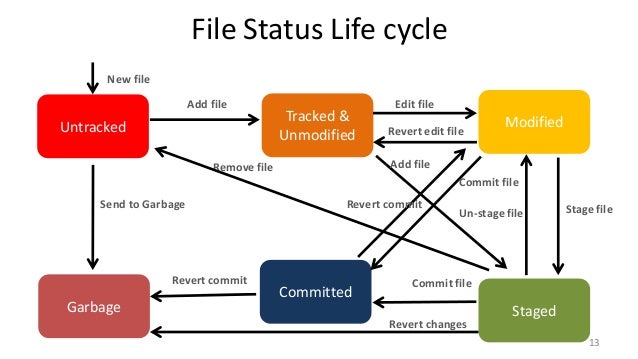
In Git, every file in a repository goes through different states during its lifecycle. Understanding these states helps in effectively managing code changes. The key states are:
- Untracked
- Tracked (Unmodified, Modified, and Staged)
- Committed
- Garbage (Unreachable Objects)
When a file is newly created in a Git repository but hasn't been added to version control, it is considered untracked.
- Git does not track changes in these files.
- They will not be included in commits unless explicitly staged.
echo "This is a new file" > newfile.txt
git status
Output:
Untracked files:
  (use "git add <file>..." to include in what will be committed)
        newfile.txt
git add newfile.txtOnce a file is added to Git, it becomes a tracked file. A tracked file can be in one of three states:
- A file that has been committed and hasn't changed since the last commit.
- Running
git statuswill show a clean working directory.
git statusOutput:
nothing to commit, working tree clean
A file is considered modified when changes have been made but not yet staged.
echo "New line added" >> existingfile.txt
git status
Output:
Changes not staged for commit:
   (use "git add <file>..." to update what will be committed)
            modified: existingfile.txt
A file is staged when changes have been added to Git’s index, but not yet committed.
git add existingfile.txt
git status
Output:
Changes to be committed:
   (use "git reset HEAD <file>..." to unstage)
            modified: existingfile.txt
A file is committed when changes have been recorded in the Git repository.
git commit -m "Updated existingfile.txt"nothing to commit, working tree clean
At this stage, changes are permanently stored in the Git history.
- Git does not delete data immediately. Even deleted branches, commits, and files remain in the repository until garbage collection runs.
- Unreachable commits, blobs, and objects are considered garbage.
- Use
git gcto clean up unnecessary files.
git fsck --unreachablegit gc| File State | Description |
|---|---|
| Untracked | New files not yet added to Git |
| Tracked - Unmodified | Files that haven’t changed since last commit |
| Tracked - Modified | Files with changes but not staged |
| Tracked - Staged | Files added to staging but not committed |
| Committed | Changes stored in the repository |
| Garbage | Unreachable objects pending cleanup |
To start tracking a project with Git:
git initThis command initializes a new Git repository in the current directory.
To create a local copy of a remote repository:
git clone <repository_url>This command downloads all files and commits from the specified repository.
To view the current state of the repository:
git statusThis command shows changes that have been staged, unstaged, or untracked.
To stage a specific file for commit:
git add <filename>To stage all changes:
git add .This prepares the files to be committed.
To save staged change using default edioter:
git commitTo configure default edioter:
git config --global core.editor <editor-name>To save staged changes with a message:
git commit -m "Commit message"To save staged changes with a message and description
git commit -m "My Subject" -m "My description..."This records the changes in the version history.
To see a list of previous commits:
git logThis displays commit history with details like author, date, and message.
To upload local commits to a remote repository:
git push origin <branch>This sends local changes to the remote server.
To fetch and merge changes from a remote repository:
git pull origin <branch>This keeps your local repository up-to-date.
A branch in Git is an independent line of development. It allows developers to work on new features without affecting the main codebase.
To create a new branch:
git branch <branch_name>This creates a separate branch for development.
To move to another branch:
git checkout <branch_name>This command switches the working directory to the specified branch.
To create and switch to a new branch in a single command:
git checkout -b <branch_name>To view all available branches:
git branchThe current branch will be marked with an asterisk (*).
To merge a branch into the current branch:
git merge <branch_name>This integrates changes from the specified branch.
Merge conflicts occur when changes from different branches affect the same part of a file. Git will prompt for manual resolution.
- Identify conflicting files using:
git status
- Open the files and manually resolve conflicts.
- Stage the resolved files:
git add <filename>
- Complete the merge with:
git commit
To link a local repository to a remote server:
git remote add origin <repository_url>To list remote repositories associated with the project:
git remote -vTo retrieve new changes from a remote repository:
git fetch originTo fetch and merge changes:
git pull origin <branch>To upload commits to a remote repository:
git push origin <branch>To undo unstaged changes:
git checkout -- <filename>To remove staged files before committing:
git reset HEAD <filename>To revert a commit:
git revert <commit_hash>To temporarily save uncommitted changes:
git stashTo reapply stashed changes:
git stash popGitHub is a web-based platform for hosting Git repositories. It provides tools for version control, collaboration, and project management. Some key features include:
- Pull Requests
- Issues and Milestones
- Actions for CI/CD
- GitHub Pages for hosting static websites
Pull requests allow developers to propose changes, review code, and merge updates into a branch.
- Push your changes to a feature branch:
git push origin <feature-branch>
- Go to the repository on GitHub and click on the Pull Requests tab.
- Click New Pull Request and select the base branch and the compare branch.
- Add a title and description, then click Create Pull Request.
- Navigate to the Pull Requests tab.
- Open the pull request to review changes, add comments, or approve.
GitHub Issues are used to track tasks, bugs, and feature requests.
- Go to the repository and click on the Issues tab.
- Click New Issue, provide a descriptive title, and fill in the details.
- Optionally, assign labels, milestones, and collaborators.
Labels categorize issues, such as bug, enhancement, or help wanted.
Forking creates a personal copy of a repository, enabling you to experiment without affecting the original project.
- Click the Fork button on the repository page.
- Clone the forked repository:
git clone <forked-repo-url>
- Make changes and push them to your fork:
git push origin <branch>
- Create a pull request from your fork to the original repository.
GitHub Actions automates workflows like testing or deploying applications.
-
Create a
.github/workflowsdirectory in your repository. -
Add a YAML file (e.g.,
ci.yml) with the workflow definition:name: CI on: [push, pull_request] jobs: build: runs-on: ubuntu-latest steps: - uses: actions/checkout@v3 - name: Run Tests run: npm test
-
Commit and push the file. GitHub will automatically run the workflow on the specified events.
GitHub Pages lets you host static websites directly from your repository.
- Go to the repository's Settings.
- Scroll to the Pages section and select the branch and folder for the site.
- Click Save, and GitHub will publish the website.
- Feature branches enable multiple developers to work on different features simultaneously without affecting the main branch.
- Example:
- Create a feature branch:
git checkout -b feature/new-login
- Push the branch to the remote repository:
git push origin feature/new-login
- Open a pull request to merge the feature branch into the main branch.
- Create a feature branch:
- Encourage teams to review pull requests for quality assurance and knowledge sharing.
- Example Workflow:
- Submit a pull request for review.
- Reviewers leave comments or request changes.
- Once approved, the pull request is merged into the main branch.
- Use sparse checkouts to work with specific parts of a repository:
git sparse-checkout init
git sparse-checkout set <directory>
- Archive old branches to keep the repository manageable:
git branch -d old-branch
- Always pull the latest changes before starting work:
git pull origin main
- Communicate with the team to avoid working on the same files.
- Use visual merge tools like
git mergetoolfor resolving conflicts:git mergetool
- Document resolved conflicts to prevent future issues.
Clear commit messages improve collaboration and project history readability.
| Type | Description |
|---|---|
| feat | Introduce a new feature to the codebase |
| fix | Fix a bug in the codebase |
| docs | Create/update documentation |
| style | Feature and updates related to styling |
| refactor | Refactor a specific section of the codebase |
| test | Add or update code related to testing |
| chore | Regular code maintenance |
- Use present tense (e.g., "Fix bug" instead of "Fixed bug").
- Keep messages concise but descriptive.
- Use the format:
Example:
<type>(<optional scope>): <short description> <longer explanation, if necessary>git commit -m "fix: resolve login issue causing authentication failure"
You can visit this website for more details on best practices.
You can also read this cheatsheet for the conventional commits
Organizing repositories properly improves maintainability and collaboration.
project-root/
│── src/                # Source code
│── docs/               # Documentation
│── tests/              # Unit tests
│── .gitignore          # Ignore unnecessary files
│── README.md           # Project overview
│── LICENSE             # License file
The .gitignore file prevents unnecessary files from being tracked.
# Ignore system files
.DS_Store
Thumbs.db

# Ignore logs and dependencies
node_modules/
*.log
Example:
echo "node_modules/" >> .gitignoreOptimizing Git performance for large projects.
- Use shallow clones to limit history depth:
git clone --depth=1 <repo-url>
- Remove large files from history:
git filter-branch --force --index-filter 'git rm --cached --ignore-unmatch <large-file>' --prune-empty --tag-name-filter cat -- --all
Using structured branching strategies enhances collaboration.
main– Stable production branch.develop– Integration branch for new features.feature/*– Feature branches for new developments.hotfix/*– Quick fixes for production issues.
Example:
git checkout -b feature/new-uiMerge conflicts occur when changes from different branches overlap.
- Identify conflicts:
git status
- Open conflicted files and manually resolve changes.
- Mark resolved files:
git add <filename>
- Complete the merge:
git commit
The .gitattributes file defines settings for handling files in Git.
- Setting line endings:
*.sh text eol=lf - Handling large files with Git LFS:
*.psd filter=lfs diff=lfs merge=lfs -text - Exporting archives without unwanted files:
docs/* export-ignore
Example:
echo "*.sh text eol=lf" >> .gitattributesSubmodules allow including external repositories inside a project.
git submodule add <repository_url> <path>git submodule update --init --recursiveConsistent naming improves clarity and usability.
- Use lowercase with hyphens or underscores (
my-feature/). - Keep names meaningful and descriptive (
authentication-service/). - Avoid special characters and spaces.
Even experienced developers encounter Git issues. Here are some common problems and how to resolve them.
This happens when Git commands are run outside a Git-tracked directory.
Solution: Make sure you're in the correct project folder or initialize a new repository:
git initOccurs when adding a remote that already exists.
Solution: Check the existing remote and update it:
git remote -v
git remote set-url origin <new-repository-url>Happens when the local branch is outdated compared to the remote.
Solution: Pull the latest changes first:
git pull origin <branch> --rebase
git push origin <branch>Git detects conflicting changes in the same file.
Solution:
- Open the conflicting file and manually resolve the conflicts.
- Stage the resolved file:
git add <filename>
- Commit the changes:
git commit
Check what actions were performed:
git reflogIf something goes wrong, reset the repository:
git reset --hard <commit_hash>If a branch was deleted accidentally:
git reflog
git checkout -b <branch_name> <commit_hash>To deepen your knowledge of Git and GitHub, refer to these valuable resources.
This repository is licensed under the MIT License. You are free to use, modify, and distribute the code, provided that the original copyright notice and license text are included in all copies or substantial portions of the Software.
- Git is a distributed version control system for tracking changes in code.
- GitHub is a cloud-based platform that hosts Git repositories and facilitates collaboration.
If the commit is local and hasn't been pushed yet:
git reset --soft HEAD~1If the commit has been pushed:
git revert HEADTo delete a local branch:
git branch -d <branch_name>To delete a remote branch:
git push origin --delete <branch_name>git branch -m <new_branch_name>- Identify conflicting files using:
git status
- Open the files and manually edit the conflicts.
- Stage the resolved files:
git add <filename>
- Complete the merge with:
git commit
To discard unstaged changes:
git checkout -- <filename>To remove staged changes before committing:
git reset HEAD <filename>Go to Table of Contents.