





🎉 January 2026 — Major Update! This project has been completely refactored to unify NotebookLM-MCP and NotebookLM-CLI into a single, powerful package. One install gives you both the CLI (
nlm) and MCP server (notebooklm-mcp). See the CLI Guide and MCP Guide for full documentation.
Programmatic access to Google NotebookLM — via command-line interface (CLI) or Model Context Protocol (MCP) server.
Note: Tested with Pro/free tier accounts. May work with NotebookLM Enterprise accounts but has not been tested.
📺 Watch the Demos
| General Overview | Claude Desktop | Perplexity Desktop | MCP Super Assistant |
|---|---|---|---|
 |
 |
 |
 |
| CLI Overview | CLI, MCP & Skills Deep Dive | Latest: Setup, Doctor & One-Click Install |
|---|---|---|
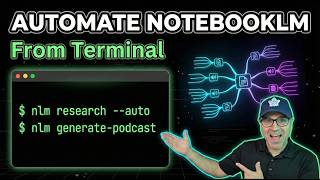 |
 |
 |
Use nlm directly in your terminal for scripting, automation, or interactive use:
nlm notebook list                              # List all notebooks
nlm notebook create "Research Project"         # Create a notebook
nlm source add <notebook> --url "https://..."  # Add sources
nlm audio create <notebook> --confirm          # Generate podcast
nlm download audio <notebook> <artifact-id>    # Download audio file
nlm share public <notebook>                    # Enable public link
Run nlm --ai for comprehensive AI-assistant documentation.
Connect AI assistants (Claude, Gemini, Cursor, etc.) to NotebookLM:
# Automatic setup — picks the right config for each tool
nlm setup add claude-code
nlm setup add gemini
nlm setup add cursor
nlm setup add cline
nlm setup add antigravity

# Generate JSON config for any other tool
nlm setup add json
Then use natural language: "Create a notebook about quantum computing and generate a podcast"
| Capability | CLI Command | MCP Tool |
|---|---|---|
| List notebooks | nlm notebook list |
notebook_list |
| Create notebook | nlm notebook create |
notebook_create |
| Add Sources (URL, Text, Drive, File) | nlm source add |
source_add |
| Query notebook (AI chat) | nlm notebook query |
notebook_query |
| Create Studio Content (Audio, Video, etc.) | nlm studio create |
studio_create |
| Revise slide decks | nlm slides revise |
studio_revise |
| Download artifacts | nlm download <type> |
download_artifact |
| Web/Drive research | nlm research start |
research_start |
| Share notebook | nlm share public/invite |
notebook_share_* |
| Sync Drive sources | nlm source sync |
source_sync_drive |
| Configure AI tools | nlm setup add/remove/list |
— |
| Install AI Skills | nlm skill install/update |
— |
| Diagnose issues | nlm doctor |
— |
📚 More Documentation:
- CLI Guide — Complete command reference
- MCP Guide — All 30 MCP tools with examples
- Authentication — Setup and troubleshooting
- API Reference — Internal API docs for contributors
This MCP and CLI use internal APIs that:
- Are undocumented and may change without notice
- Require cookie extraction from your browser (I have a tool for that!)
Use at your own risk for personal/experimental purposes.
🆕 Claude Desktop users: Download the extension (
.mcpbfile) → double-click → done! One-click install, no config needed.
Install from PyPI. This single package includes both the CLI and MCP server:
uv tool install notebooklm-mcp-cliuvx --from notebooklm-mcp-cli nlm --help
uvx --from notebooklm-mcp-cli notebooklm-mcppip install notebooklm-mcp-clipipx install notebooklm-mcp-cliAfter installation, you get:
nlm— Command-line interfacenotebooklm-mcp— MCP server for AI assistants
Alternative: Install from Source
# Clone the repository
git clone https://github.com/jacob-bd/notebooklm-mcp-cli.git
cd notebooklm-mcp

# Install with uv
uv tool install .# Using uv
uv tool upgrade notebooklm-mcp-cli
# Using pip
pip install --upgrade notebooklm-mcp-cli
# Using pipx
pipx upgrade notebooklm-mcp-cliAfter upgrading, restart your AI tool to reconnect to the updated MCP server:
- Claude Code: Restart the application, or use
/mcpto reconnect - Cursor: Restart the application
- Gemini CLI: Restart the CLI session
If you previously installed the separate CLI and MCP packages, you need to migrate to the unified package.
uv tool list | grep notebooklmLegacy packages to remove:
| Package | What it was |
|---|---|
notebooklm-cli |
Old CLI-only package |
notebooklm-mcp-server |
Old MCP-only package |
# Remove old CLI package (if installed)
uv tool uninstall notebooklm-cli

# Remove old MCP package (if installed)
uv tool uninstall notebooklm-mcp-serverAfter removing legacy packages, reinstall to fix symlinks:
uv tool install --force notebooklm-mcp-cliWhy
--force? When multiple packages provide the same executable,uvcan leave broken symlinks after uninstalling. The--forceflag ensures clean symlinks.
uv tool list | grep notebooklmYou should see only:
notebooklm-mcp-cli v0.2.0
- nlm
- notebooklm-mcp
Your existing cookies should still work, but if you encounter auth issues:
nlm loginNote: MCP server configuration (in Claude Code, Cursor, etc.) does not need to change — the executable name
notebooklm-mcpis the same.
To completely remove the MCP:
# Using uv
uv tool uninstall notebooklm-mcp-cli

# Using pip
pip uninstall notebooklm-mcp-cli

# Using pipx
pipx uninstall notebooklm-mcp-cli

# Remove cached auth tokens and data (optional)
rm -rf ~/.notebooklm-mcp-cli
Also remove from your AI tools:
nlm setup remove claude-code
nlm setup remove cursor
# ... or any configured toolBefore using the CLI or MCP, you need to authenticate with NotebookLM:
# Auto mode: launches your browser, you log in, cookies extracted automatically
nlm login

# Check if already authenticated
nlm login --check

# Use a named profile (for multiple Google accounts)
nlm login --profile work
nlm login --profile personal

# Manual mode: import cookies from a file
nlm login --manual --file cookies.txt

# External CDP provider (e.g., OpenClaw-managed browser)
nlm login --provider openclaw --cdp-url http://127.0.0.1:18800
Profile management:
nlm login --check                    # Show current auth status
nlm login switch <profile>           # Switch the default profile
nlm login profile list               # List all profiles with email addresses
nlm login profile delete <profile>   # Delete a profile
nlm login profile rename <old> <new> # Rename a profile
Each profile gets its own isolated browser session, so you can be logged into multiple Google accounts simultaneously.
If you only need the MCP server (not the CLI):
nlm login              # Auto mode (launches browser)
nlm login --manual     # Manual file mode
How it works: Auto mode launches a dedicated browser profile (supports Chrome, Arc, Brave, Edge, Chromium, and more), you log in to Google, and cookies are extracted automatically. Your login persists for future auth refreshes.
Prefer a specific browser? Set it with nlm config set auth.browser brave (or arc, edge, chromium, etc.). Falls back to auto-detection if the preferred browser is not found.
For detailed instructions and troubleshooting, see docs/AUTHENTICATION.md.
⚠️ Context Window Warning: This MCP provides 29 tools. Disable it when not using NotebookLM to preserve context. In Claude Code:@notebooklm-mcpto toggle.
Use nlm setup to automatically configure the MCP server for your AI tools — no manual JSON editing required:
# Add to any supported tool
nlm setup add claude-code
nlm setup add claude-desktop
nlm setup add gemini
nlm setup add cursor
nlm setup add windsurf

# Generate JSON config for any other tool
nlm setup add json

# Check which tools are configured
nlm setup list

# Diagnose installation & auth issues
nlm doctor
Install the NotebookLM expert guide for your AI assistant to help it use the tools effectively. Supported for Cline, Antigravity, OpenClaw, Codex, OpenCode, Claude Code, and Gemini CLI.
# Install skill files
nlm skill install cline
nlm skill install openclaw
nlm skill install codex
nlm skill install antigravity

# Update skills
nlm skill updatenlm setup remove claude-codeIf you don't want to install the package, you can use uvx to run on-the-fly:
# Run CLI commands directly
uvx --from notebooklm-mcp-cli nlm setup add cursor
uvx --from notebooklm-mcp-cli nlm login
For tools that use JSON config, point them to uvx:
{
  "mcpServers": {
    "notebooklm-mcp": {
      "command": "uvx",
      "args": ["--from", "notebooklm-mcp-cli", "notebooklm-mcp"]
    }
  }
}
Manual Setup (if you prefer)
Tip: Run
nlm setup add jsonfor an interactive wizard that generates the right JSON snippet for your tool.
Claude Code / Gemini CLI support adding MCP servers via their own CLI:
claude mcp add --scope user notebooklm-mcp notebooklm-mcp
gemini mcp add --scope user notebooklm-mcp notebooklm-mcp
Cursor / Windsurf resolve commands from your PATH, so the command name is enough:
{
  "mcpServers": {
    "notebooklm-mcp": {
      "command": "notebooklm-mcp"
    }
  }
}| Tool | Config Location |
|---|---|
| Cursor | ~/.cursor/mcp.json |
| Windsurf | ~/.codeium/windsurf/mcp_config.json |
Claude Desktop / VS Code may not resolve PATH — use the full path to the binary:
{
  "mcpServers": {
    "notebooklm-mcp": {
      "command": "/full/path/to/notebooklm-mcp"
    }
  }
}
Find your path with: which notebooklm-mcp
| Tool | Config Location |
|---|---|
| Claude Desktop | ~/Library/Application Support/Claude/claude_desktop_config.json |
| VS Code | ~/.vscode/mcp.json |
📚 Full configuration details: MCP Guide — Server options, environment variables, HTTP transport, multi-user setup, and context window management.
Simply chat with your AI tool (Claude Code, Cursor, Gemini CLI) using natural language. Here are some examples:
- "List all my NotebookLM notebooks"
- "Create a new notebook called 'AI Strategy Research'"
- "Start web research on 'enterprise AI ROI metrics' and show me what sources it finds"
- "Do a deep research on 'cloud marketplace trends' and import the top 10 sources"
- "Search my Google Drive for documents about 'product roadmap' and create a notebook"
- "Add this URL to my notebook: https://example.com/article"
- "Add this YouTube video about Kubernetes to the notebook"
- "Add my meeting notes as a text source to this notebook"
- "Import this Google Doc into my research notebook"
- "What are the key findings in this notebook?"
- "Summarize the main arguments across all these sources"
- "What does this source say about security best practices?"
- "Get an AI summary of what this notebook is about"
- "Configure the chat to use a learning guide style with longer responses"
- "Create an audio podcast overview of this notebook in deep dive format"
- "Generate a video explainer with classic visual style"
- "Make a briefing doc from these sources"
- "Create flashcards for studying, medium difficulty"
- "Generate an infographic in landscape orientation with professional style"
- "Build a mind map from my research sources"
- "Create a slide deck presentation from this notebook"
- "Check which Google Drive sources are out of date and sync them"
- "Show me all the sources in this notebook with their freshness status"
- "Delete this source from the notebook"
- "Check the status of my audio overview generation"
- "Show me the sharing settings for this notebook"
- "Make this notebook public so anyone with the link can view it"
- "Disable public access to this notebook"
- "Invite user@example.com as an editor to this notebook"
- "Add a viewer to my research notebook"
Pro tip: After creating studio content (audio, video, reports, etc.), poll the status to get download URLs when generation completes.
| Component | Duration | Refresh |
|---|---|---|
| Cookies | ~2-4 weeks | Auto-refresh via headless browser (if profile saved) |
| CSRF Token | ~minutes | Auto-refreshed on every request failure |
| Session ID | Per MCP session | Auto-extracted on MCP start |
v0.1.9+: The server now automatically handles token expiration:
- Refreshes CSRF tokens immediately when expired
- Reloads cookies from disk if updated externally
- Runs headless browser auth if profile has saved login
You can also call refresh_auth() to explicitly reload tokens.
If automatic refresh fails (Google login fully expired), run nlm login again.
Symptoms:
- Running
uv tool upgrade notebooklm-mcp-cliinstalls an older version (e.g., 0.1.5 instead of 0.1.9) uv cache cleandoesn't fix the issue
Why this happens: uv tool upgrade respects version constraints from your original installation. If you initially installed an older version or with a constraint, upgrade stays within those bounds by design.
Fix — Force reinstall:
uv tool install --force notebooklm-mcp-cliThis bypasses any cached constraints and installs the absolute latest version from PyPI.
Verify:
uv tool list | grep notebooklm
# Should show: notebooklm-mcp-cli v0.1.9 (or latest)- Rate limits: Free tier has ~50 queries/day
- No official support: API may change without notice
- Cookie expiration: Need to re-extract cookies every few weeks
See CLAUDE.md for detailed API documentation and how to add new features.
Full transparency: this project was built by a non-developer using AI coding assistants. If you're an experienced Python developer, you might look at this codebase and wince. That's okay.
The goal here was to scratch an itch - programmatic access to NotebookLM - and learn along the way. The code works, but it's likely missing patterns, optimizations, or elegance that only years of experience can provide.
This is where you come in. If you see something that makes you cringe, please consider contributing rather than just closing the tab. This is open source specifically because human expertise is irreplaceable. Whether it's refactoring, better error handling, type hints, or architectural guidance - PRs and issues are welcome.
Think of it as a chance to mentor an AI-assisted developer through code review. We all benefit when experienced developers share their knowledge.
Special thanks to:
- Le Anh Tuan (@latuannetnam) for contributing the HTTP transport, debug logging system, and performance optimizations.
- David Szabo-Pele (@davidszp) for the
source_get_contenttool and Linux auth fixes. - saitrogen (@saitrogen) for the research polling query fallback fix.
- devnull03 (@devnull03) for multi-browser CDP authentication support (Arc, Brave, Edge, Chromium, Vivaldi, Opera).
- VooDisss (@VooDisss) for multi-browser authentication improvements.
- codepiano (@codepiano) for the configurable DevTools timeout for the auth CLI.
- Tony Hansmann (@997unix) for contributing the
nlm setupandnlm doctorcommands and CLI Guide documentation.


