How can you make shell scripts portable and run faster? That are the questions these test cases aim to answer.
Table of Contents
- 1.0 SHELL SCRIPT PERFORMANCE AND PORTABILITY
- 3.0 ABOUT PERFORMANCE
- 4.0 PORTABILITY
- 5.0 RANDOM NOTES
- 6.0 FURTHER READING
- COPYRIGHT
- LICENSE
The tests reflect results under Linux using GNU utilities. The focus is on the features found in Bash and POSIX.1-2024 compliant shells. The term compliant is used here to mean "most POSIX compliant," as there is not, and never has been, a shell that is fully POSIX compliant. If you are interested in creating highly portable shell scripts, POSIX provides the necessary foundation for scripts that function reliably across a broad spectrum of Unix-like operating systems. Learn more about POSIX on Wikipedia.
Please note that
shhere refers to modern, best-effort POSIX-compatible, minimal shells like dash, posh, mksh, ash etc. See section PORTABILITY, SHELLS AND POSIX.
About variables in functions: The keyword
localisn't defined in the POSIX standard, but it is 99% supported by all the best-effort POSIX-compatibleshshells. Thelocalkeyword is "portable enough" to be used in modern shell scripts. See section 4.3 on how to add local keyword support to shell scripts in a way that ensures cross-platform compatibility, even with BSD and UNIX systems where/bin/shmight be a symbolic link toksh, which doesn't natively support thelocalkeyword.
About Z shell. From a shell scripting and portability point of view, zsh is less relevant than POSIX sh or Bash. The vast majority of servers are Linux-based, where Bash and sh are the de facto default shells. While Zsh is popular for interactive use on macOS, it is not generally used when writing scripts intended for wide portability across different servers and Linux distributions. In this document zsh is not considered for shell shell scripting.
In Linux-like systems, for well-rounded shell scripting, Bash is the sensible choice for data manipulation in memory, offering regular arrays, associative arrays, and strings with an extended set of parameter expansions, regular expressions (including extracting regex matches), and utilization of functions.
On the other hand, In BSD and lecacy UNIX
systems, the choice for shell scripting
would be Korn Shell family; like
ksh93. For plain /bin/sh it is
typically mksh or ash; which are
similar to Debian dash. By the way,
mksh is the default shell on Android.
Shell scripting is about combining redirections, pipes, and calls to external utilities, gluing them all together. Shell scripts are also quite portable by default, requiring no additional installation. Perl, Python, or Ruby excel in their respective fields where the requirements differ from those of the shell.
Certain features in Bash are slow, but
knowing the bottlenecks and using faster
alternatives helps. On the other hand,
small POSIX sh scripts, are much faster
at calling external processes and
functions. More about this in section
SHELLS AND PERFORMANCE.
The results presented here provide only
some highlights from the test cases
listed in RESULTS. Consider the raw
time (see Bash reserved words)
results only as guidance, as they
reflect only the system used at the
time of testing. Instead, compare the
relative order in which each test
case produced the fastest results.
- RESULTS
- RESULTS-BRIEF
- RESULTS-PORTABILITY
- The test cases and code in bin/
- USAGE
- CONTRIBUTING
- SHELL SCRIPT CODING STYLE
    bin/            The tests
    doc/            Results by "make doc"
    COPYING         License (GNU GPL)
    INSTALL         Install instructions
    USAGE.md        How to run the tests
    CONTRIBUTING.md Writing test cases
-
Homepage: https://github.com/jaalto/project--shell-script-performance-and-portability
-
To report bugs: see homepage.
-
Source repository: see homepage.
-
Depends: Bash, GNU coreutils, file
/usr/share/dict/words(Debian package: wamerican). -
Optional depends: GNU make. For some tests: GNU parallel.
Regardless of the shell you use for scripting (sh, bash, ksh), consider the following factors:
-
If you run scripts on many small files, set up a RAM disk and copy the files to it. This can lead to significant speed gains. In Linux, see tmpfs, which allows you to set a size limit, unlike the memory-hogging ramfs, which can fill all available memory and potentially halt your server.
-
If you know the files beforehand, preload them into memory. This can also lead to substantial speed gains. In Linux, see vmtouch.
-
If you have tasks that can be run concurrently, use Perl based GNU parallel for dramatic gains in performance. See also how to use semaphores (tutorial) to wait for all concurrent tasks to finish before continuing with the rest of the tasks in the pipeline. In some cases, even parallelizing work with GNU xargs with
--max-procs=0can help. -
Use GNU utilities. According to benchmarks, like StackOverflow, the GNU grep is considerably faster and more optimized than the operating system's default (macOS, BSD). For shell scripting, the utilities consist mainly of GNU coreutils, GNU grep and GNU awk. If needed, arrange
PATHto prefer GNU utilities. -
Minimize extra processes as much as possible. In most cases, a single GNU awk can handle all of sed, cut, grep etc. chains. The awk program is very fast and more efficient than Perl, Python or Ruby scripts where startup time and higher memory consumption is a factor. Note: If you need to process large files, use a lot of regular expressions, manipulate or work on data extensively, there is probably nothing that can replace the speed and compactness of Perl unless you go even lower-level languages like
C. But then again, we assume that you know how to choose your tools in those cases.
    cmd | awk '{...}'

    # Single awk could probably
    # replace all of these

    cmd | head ... | cut ...
    cmd | grep ... | sed ...
cmd | grep ... | grep -v ... | cut ...-
Note: if you have hordes of RAM, no shortage of cores, and large files, then utilize pipelines
<cmd> | ...as much as possible because the Linux Kernel will optimize things in memory better. In more powerful systems, many latency and performance issues are not as relevant. -
Use Shell built-ins (see Bash built-ins) and not external binaries:
    echo     # not /usr/bin/echo
    printf   # not /usr/bin/printf
[ ... ] # not /usr/bin/testRegarding shell performance, looking at the test cases in this project, the order is quite clear:
- sh is the fastest, as any minimalistic shell like dash tends to be.
- ksh93 is also fast and close to dash in many cases.
- bash is slower by many factors.
It all comes down to two major things typically found in shell scripts:
- Calling external processes, e.g., external
commands or functions using process
substitution:
result=$(<process or function>) - Looping
Both of these are considerably slower in Bash. From pure metrics, ksh93 looks like a winner for shell scripts, offering both speed and many programming features. The trouble is that it cannot be considered for portable scripts, however. Linux (dash, bash) significantly dominates BSD (ksh) in market share across servers, while BSD holds a much smaller niche, somewhere under 1% in general desktop and server stats.
The sh and bash are portable, can be found
everywhere, whereas ksh isn't.
Conclusion: POSIX sh is fast but often
the features provided in bash may make it more
suitable for complex shell scripts.
The following is a personal observation. I ran a CI testing pipeline consisting of SQL files that needed to be tested both statically and under SQLite for compliance. The server used for my personal project was a modest old HP laptop with a 2012 Intel i5-3427U (4 cores), 12 Gigabytes of RAM, and a Samsung EVO 860 SSD (1 TB). An old reliable workhorse running Debian/GNU Linux 13.
Input:
- 1300 files.
- 510 000 lines
- 15 Megabytes of data.
The process consisted of:
- GNU Makefile: 2,000 lines of code
- Battery of shell scripts: about 50
The shell scripts had:
- 11,000 lines of code
- 500 functions
- 100 process substitution calls
$(...). - 200 loops (
while,for)
It took about 10 minutes to process all files.
The optimizations:
- All files were moved to a Linux RAM disk tmpfs for processing. Total time dropped to 5 minutes.
- All Bash scripts were converted to use GNU parallel as much as possible. Total time dropped to 2 minutes.
- All Bash scripts that could, were converted to POSIX dash shell scripts About 3 of the 50 scripts remained in Bash. Total time dropped to 1 minute.
- Further optimizations were considered. The shell scripts that processed or heavily examined file contents could have been converted to faster Perl, potentially achieving a total time drop to 40 seconds. However, at this point, it was decided that even the text-processing-heavy shell scripts were "fast enough."
If we analyze the performance gains:
| Optimization | secs | percent |
|---|---|---|
| ...none... | 600 | 0% |
| Running in RAM | 300 | -50% |
| GNU parallel | 120 | -80% |
| Bash to sh | 60 | -90% |
| sh to Perl | 40 | -93% |
Most of the performance gains came from factors other than the shell itself. In the end, rewriting Bash to POSIX shell scripts did gain additional 10% performance. This proved to be valuable in debugging situations: having to wait 2 minutes versus 1 minute (50% speed up) for a finished job made the iterations to add features faster. However, the time that would have been required to convert some of the scripts into higher-level, speedier text processing languages like Perl or Python didn't justify the effort. The code base was all shell scripts, and introducing a new language to the mix did not seem relevant enough for the whole.
Conclusion: Interestingly, the shell scripts were quite capable even in a context like a CI testing pipeline. Going from Bash to POSIX shell scripts provided a little extra performance boost at the end.
- In Bash, It is at least 60 times faster
to perform regular expression string
matching using the binary operator
=~rather than to calling external POSIX utilities expr or grep. code
    str="abcdef"
    re="b.*e"

    # Bash, Ksh
    [[ $str =~ $re ]]

    # POSIX
    # In Bash, at least 60x slower
    expr "$str" : ".*$re"

    # In Bash, at least 100x slower
    echo "$str" | grep -E "$re"

    # ----------------------------
    # Different shells compared.
    # ----------------------------

    ./run.sh --shell dash,ksh93,bash t-string-match-regexp.sh

    Run shell: dash
    # t1  <skip>       [[ =~ ]]
    # t2  real 0.117s  expr
    # t3  real 0.188s  grep
    Run shell: ksh93
    # t1  real 0.001s [[ =~ ]]
    # t2  real 0.139s expr
    # t3  real 0.262s grep
    Run shell: bash
    # t1  real 0.003s [[ =~ ]]
    # t2  real 0.200s expr
# t3 real 0.348s grep- In Bash, it is about 50 times faster to
do string manipulation in memory, than
calling external utilities. Seeing the
measurements just how expensive it is,
reminds us to utilize the possibilities
of
#,##,%and%%POSIX parameter expansions. More extended set is available in Bash parameter expansions. See code.
    str="/tmp/filename.txt.gz"

    # (1) Almost instantaneous
    # Delete up till first "."

    ext=${str#*.}

    # (2) In Bash, over 50x slower
    #
    # NOTE: identical in speed
    # and execution to:
    # cut -d "." -f 2,3 <<< "$str"

    ext=$(echo "$str" | cut -d "." -f 2,3)

    # (3) In Bash, over 70x slower

    ext=$(echo "$str" | sed 's/^[^.]\+//')

    # ----------------------------
    # Different shells compared.
    # ----------------------------

    ./run.sh --shell dash,ksh93,bash t-string-file-path-components.sh

    Run shell: dash
    # t3aExt real 0.001s (1) param
    # t3cExt real 0.250s (2) cut
    # t3eExt real 0.337s (3) sed
    Run shell: ksh93
    # t3aExt real 0.003s (1) param
    # t3cExt real 0.222s (2) cut
    # t3eExt real 0.309s (3) sed
    Run shell: bash
    # t3aExt real 0.004s (1) param
    # t3cExt real 0.358s (2) cut
# t3eExt real 0.431s (3) sed- In Bash, it is about 50 times
faster to use
double bracket expression
[[...]]for pattern matching compared to POSIXcase..esac. See code.
    string="abcdef"
    pattern="*cd*"

    # (t1) Bash, Ksh
    if [[ $string == $pattern ]]; then
        ...
    fi

    # (t2) POSIX
    case $string in
        $pattern)
            # true
            ;;
        *)
            # false
            ;;
    esac

    # (t3) regexp
    echo "$str" | grep -E RE

    # ----------------------------
    # Different shells compared.
    # ----------------------------

    ./run.sh --shell dash,ksh93,bash t-string-match-regexp.sh

    Run shell: dash
    # t1  <skip>      [[ == ]]
    # t2  real 0.143  case..esac
    # t3  real 0.213  echo | grep
    Run shell: ksh93
    # t1  real 0.004  [[ == ]]
    # t2  real 0.182  case..esac
    # t3  real 0.264  echo | grep
    Run shell: bash
    # t1  real 0.003  [[ == ]]
    # t2  real 0.235  case..esac
# t3 real 0.286 echo | grep- In Bash, it is about 10 times faster
to read a file into memory as a
string and use pattern matching
or regular expressions binary
operator
=~on string. In-memory handling is much more efficient than calling the grep command in Bash on a file, especially if multiple matches are needed. See code.
    # POSIX sh
    # ... str=$(cat file)
    # is much slower in Bash
    #
    # Bash, Ksh syntax
    str=$(< file)

    if [[ $str =~ $re1 ]]; then
        ...
    elif [[ $str =~ $re2 ]]; then
        ...
    fi

    # ----------------------------
    # Different shells compared.
    # ----------------------------

    (1) read once + case..end
    (2) loop do.. grep file ..done
    (3) loop do.. case..end ..done

    ./run.sh --shell dash,ksh93,bash t-file-grep-vs-match-in-memory.sh

    Run shell: dash
    # t1b real 0.018s (1) once
    # t2  real 0.139s (2) grep
    # t3  real 0.323s (3) case
    Run shell: ksh93
    # t1b real 0.333s (1) once
    # t2  real 0.208s (2) grep
    # t3  real 0.453s (3) case
    Run shell: bash
    # t1b real 0.048s (1) once
    # t2  real 0.277s (2) grep
# t3 real 0.415s (3) case- In Bash, it is about 10 times faster,
to use
nameref
to return a value. In Bash, the
ret=$(cmd)is inefficient to call functions. On the other hand, in POSIXshshells, like dash, there is considerable gain in usingevalover the$(cmd). The surprise is how fast ksh is with$(cmd). See code.
    NamerefPosix ()
    {
        local retref=$1
        shift
        local arg=$1

        eval "$retref=\$arg"
    }

    NamerefBash ()
    {
        local -n retref=$1
        shift
        local arg=$1

        retref=$arg
    }

    # Return value set to
    # variable 'ret'

    NamerefPosix ret "arg"
    NamerefBash ret "arg"

    # ----------------------------
    # Different shells compared.
    # ----------------------------

    ./run.sh --shell dash,ksh93,bash t-function-return-value-nameref.sh

    Run shell: dash
    # t1  <skip>      NamerefBash
    # t2  real 0.006s NamerefPosix
    # t3  real 0.042s ret=$(fn)
    Run shell: ksh93
    # t1  <skip>      NamerefBash
    # t2  real 0.004s NamerefPosix
    # t3  real 0.005s ret=$(fn)
    Run shell: bash
    # t1  real 0.006s NamerefBash
    # t2  real 0.006s NamerefPosix
# t3 real 0.094s ret=$(fn)- In Bash, it is about 2 times faster for line-by-line handling to read the file into an array and then loop through the array. The built-in readarray is synonym for mapfile. See code.
    # (t1) Bash
    readarray < file

    for line in "${MAPFILE[@]}"
    do
        ...
    done

    # (t3) POSIX. In Bash, slower
    while read -r line
    do
        ...
    done < file

    # ----------------------------
    # Different shells compared.
    # ----------------------------

    ./run.sh --shell dash,ksh93,bash t-file-read-content-loop.sh

    Run shell: dash
    # t1  <skip>      readarray
    # t3  real 0.067  POSIX
    Run shell: ksh93
    # t1  <skip>      readarray
    # t3  real 0.021  POSIX
    Run shell: bash
    # t1  real 0.045  readarray
# t3 real 0.108 POSIX- In Bash, it is about 2 times faster to
prefilter with grep to process only
certain lines, instead of reading the
whole file in a loop and then selecting
those lines. Process substitution
is more general because variables
persist after the loop. With
sh, such as dash, external grep and in-loop prefiltering are equally fast. Overall,sh, like dash, is magnitudes faster than Bash. See code.
    # (t1a) POSIX
    # Problem: while runs in
    # a separate environment
    grep "$re" file |
    while read -r line
    do
        # vars not visible after loop
        ...
    done

    # (t1b) Bash, Ksh
    # grep prefilter
    while read -r line
    do
        # variables persist after loop
    done < <(grep "$re" file)

    # POSIX
    # NOTE: extra calls
    # required for tmpfile
    grep "$re" file > tmpfile
    while read -r line
    do
        # vars persist after loop
        ...
    done < tmpfile
    rm tmpfile

    # (t2a) POSIX
    # in-loop prefilter
    while read -r line
    do
        case $line in
           $glob) || continue
        esac
        ...
        # vars persist after loop
        ...
    done < file

    # (t2b) Bash. Slowest,
    # in-loop prefilter
    while read -r line
    do
        [[ $line =~ $re ]] || continue
        ...
        # vars persist after loop
        ...
    done < file

    # ----------------------------
    # Different shells compared.
    # ----------------------------

    ./run.sh --shell dash,ksh93,bash --loop-max 10 t-file-read-match-lines-loop-vs-grep.sh

    Run shell: dash
    # t1a real 0.211s grep
    # t1b real <skip> < <(grep)
    # t2a real 0.580s in loop
    # t2b real <skip> [[ $line =~ RE ]]
    Run shell: ksh93
    # t1a real 0.302s grep
    # t1b real 0.335s < <(grep)
    # t2a real 0.186s in loop
    # t2b real 0.190s [[ $line =~ RE ]]
    Run shell: bash
    # t1a real 0.511s grep
    # t1b real 0.533s < <(grep)
    # t2a real 1.290s in loop
# t2b real 1.246s [[ $line =~ RE ]]- In Bash, it is about 9 times faster to
split a string into an array using
list rather than here-string. This is
because HERE STRING in Bash
<<<uses a pipe or temporary file, whereas list operates entirely in memory. The pipe buffer behavor was introduced in Bash 5.1 section c. Warning: Please note that using the(list)statement will undergo pathname expansion so globbing characters like*,?, etc. in string would be a problem. The pathname expansion can be disabled. See code.
    str="1:2:3"

    # (t1b) Bash, fastest.
    # NOTE: no arrays in POSIX sh
    IFS=":" eval 'array=($str)'

    # Bash. The same, if you need
    # to do it in a function.
    fn ()
    {
        local str=${1:?ERROR: no arg}

        # Make 'set' local
        local -

        # Disable pathname
        # expansion
        set -o noglob

        local -a array

        IFS=":" eval 'array=($str)'
        ...
    }

    # (t2) Bash. Same speed.
    # Ksh: fastest
    saved="$IFS"
    IFS=":"
    array=($str)
    IFS="$saved"

    # (t3) Bash. 9x slower than eval
    IFS=":" read -ra array <<< "$str"

    # In Linux, see what Bash uses
    # for HERE STRING: pipe or
    # temporary file
    bash -c 'ls -l --dereference /proc/self/fd/0 <<< hello'

    # ----------------------------
    # Different shells compared.
    # ----------------------------

    ./run.sh --shell dash,ksh93,bash t-variable-array-split-string.sh

    Run shell: dash
    # ..  <skip all>  arrays
    Run shell: ksh93
    # t1  real 0.008  IFS=: eval
    # t2  real 0.002  IFS..saved
    # t3  real 0.003  IFS <<<
    Run shell: bash
    # t1  real 0.010  IFS=: eval
    # t2  real 0.008  IFS..saved
# t3 real 0.090 IFS <<<- It is about 2 times faster to read
file into a string using Bash
command substitution
$(< file). Note: In POSIXsh, like dash, the$(cat file)is also extremely fast. See code.
    # Bash
    str=$(< file)

    # In Bash: 1.8x slower
    # Read max 100 KiB
    read -r -N $((100 * 1024)) str < file

    # In Bash: POSIX, 2.3x slower
    str=$(cat file)

    # ----------------------------
    # Different shells compared.
    # ----------------------------

    ./run.sh --shell dash,ksh93,bash t-file-read-into-string.sh

    Run shell: dash
    # t1  <skip>      $(< ...)
    # t2  <skip>      read -N
    # t3  real 0.306s $(cat ...)
    Run shell: ksh93
    # t1  real 0.088s $(< ...)
    # t2  real 0.095s read -N
    # t3  real 0.267s $(cat ...)
    Run shell: bash
    # t1  real 0.139s $(< ...)
    # t2  real 0.254s read -N
# t3 real 0.372s $(cat ...)According to the results, none of these offer practical benefits.
- The Bash
brace expansion
{N..M}offers a neglible advantage. However it may be impractical becauseN..Mcannot be parameterized. Surprisingly, the simple$(seq N M)is fast, even though command substitution uses a subshell. The POSIXwhileloop was also ok. See code.
    N=1
    M=1000

    # Bash. Ksh
    for i in {1..1000}
    do
        ...
    done

    # POSIX
    for i in $(seq $N $M)
    do
        ...
    done

    # Bash, Ksh
    for ((i=$N; i <= $M; i++))
    do
        ...
    done

    # POSIX
    i=$N
    while [ "$i" -le "$M" ]
    do
        i=$((i + 1))
    done

    # ----------------------------
    # Different shells compared.
    # ----------------------------

    # The --loop-max cannot be
    # changed because {1..1000}
    # cannot be parametrisized in
    # test case t1

    ./run.sh --shell dash,ksh93,bash --loop-max 1000 t-statement-arithmetic-for-loop.sh

    Run shell: dash
    # t1  <skip>     {N..M}
    # t2  real 0.004 POSIX seq
    # t3  <skip>     ((...))
    # t4  real 0.006 POSIX while
    Run shell: ksh93
    # t1  real 0.024 {N..M}
    # t2  real 0.004 POSIX seq
    # t3  real 0.004 ((...))
    # t4  real 0.005 POSIX while
    Run shell: bash
    # t1  real 0.006 {N..M}
    # t2  real 0.010 POSIX seq
    # t3  real 0.006 ((...))
# t4 real 0.012 POSIX while- One might think that choosing
optimized grep options would make a
difference. In practice, for typical
file sizes (below few Megabytes),
performance is nearly identical even
with the ignore case option included.
Nonetheless, there may be cases where
selecting
LANG=C, using--fixed-strings, and avoiding--ignore-casemight improve performance, at least according to StackOverflow discussions with large files. See code.
    # The same performance. Regexp
    # engine does not seem to be
    # the bottleneck

    LANG=C grep --fixed-strings ...
    LANG=C grep --extended-regexp ...
    LANG=C grep --perl-regexp ...
    LANG=C grep --ignore-case ...

    # ----------------------------
    # Different shells compared.
    # ----------------------------

    # Using 10k random dictionary file
    # Using LANG=C
    ./run.sh --shell dash,ksh93,bash t-command-grep.sh

    Run shell: dash
    # t1langc    real 0.190 --fixed-strings
    # t1utf8     real 0.160 --fixed-strings (LANG=C.UTF-8)
    # t1extended real 0.147 --extended-regexp
    # t1perl     real 0.167 --perl-regexp
    # t2icasef   real 0.193 --ignore-case --fixed-strings
    # t2icasee   real 0.205 --ignore-case --extended-regexp
    Run shell: ksh93
    # t1langc    real 0.133
    # t1utf8     real 0.308
    # t1extended real 0.217
    # t1perl     real 0.253
    # t2icasef   real 0.245
    # t2icasee   real 0.270
    Run shell: bash
    # t1langc    real 0.205
    # t1utf8     real 0.320
    # t1extended real 0.254
    # t1perl     real 0.293
    # t2icasef   real 0.243
# t2icasee real 0.405None of these offer any advantages to speed up shell scripts.
- The Bash-specific expression
double bracket expression
[[...]]offers minuscule advantage but only in unrealistic loops of 10,000 iterations. Unless the safeguards and other features (e.g. pattern and regular expression matching) provided by[[...]]are important, the standard POSIX[...]will do fine. See code.
    [ "$var" = "1" ] # POSIX
    [[ $var = 1 ]]   # Bash

    [ ! "$var" ]     # POSIX
    [ -z "$var" ]    # POSIX archaic
    [[ ! $var ]]     # Bash

    # ----------------------------
    # Different shells compared.
    # ----------------------------

    # TODO: check results

    ./run.sh --shell dash,ksh93,bash t-statement-conditional-if-test-posix-vs-bash-double-bracket.sh

    Run shell: dash
    # t1  real 0.005
    # t2  real 0.006
    # t3  real 0.006
    # t4  real 0.005
    Run shell: ksh93
    # t1  real 0.013
    # t2  real 0.026
    # t3  real 0.029
    # t4  real 0.043
    Run shell: bash
    # t1  real 0.039
    # t2  real 0.051
    # t3  real 0.049
    # t4  real 0.061
t-statement-arithmetic-increment.sh
- There are no practical differences
between these. The POSIX
arithmetic expansion
$((...))compound command will do fine. Note that the null command:utilizes the command's side effect to "do nothing, but evaluate elements" and therefore may not be the most readable option. See code.
    i=$((i + 1))     # POSIX, preferred
    : $((i = i + 1)) # POSIX, Uhm
    : $((i++))       # POSIX, Uhm
    ((i++))          # Bash, Ksh
    let i++          # Bash, Ksh; Uhm

    # ----------------------------
    # Different shells compared.
    # ----------------------------

    # Do not read much into the
    # results, as this is an
    # artificial test involving
    # 10,000 rounds of iteration
    # and increment.

    ./run.sh --shell dash,ksh93,bash --loop-max 10000 t-statement-arithmetic-increment.sh

    Run shell: dash
    # t1  real 0.014 $((i + 1))
    # t2a real 0.014 : $((i + 1))
    # t2b <skip>     : $((i++))
    # t3  <skip>     ((i++))
    # t4  <skip>     let i++
    Run shell: ksh93
    # t1  real 0.029 $((i + 1))
    # t2a real 0.044 : $((i + 1))
    # t2b real 0.044 : $((i++))
    # t3  real 0.014 ((i++))
    # t4  real 0.034 let i++
    Run shell: bash
    # t1  real 0.045 $((i + 1))
    # t2a real 0.072 : $((i + 1))
    # t2b real 0.063 : $((i++))
    # t3  real 0.039 ((i++))
    # t4  real 0.053 let i++
- In Bash, there is no practical
performance difference between a
regular while loop and a
process substitution loop. However,
the latter is more general, as any
variable set during the loop will
persist after and there is no need to
clean up temporary files like in POSIX
(1) solution. The POSIX loop is
marginally faster, but the speed gain
is lost by the extra
rmcommand call (Note: the added time is not included in the test results). See code.
    # Bash, Ksh
    while read -r ...
    do
        ...
    done < <(command)

    # (1) POSIX
    # Same, but with
    # temporary file
    command > file
    while read -r ...
    do
        ...
    done < file
    rm file

    # (2) POSIX
    # while is being run in
    # separate environment
    # due to pipe(|)
    command |
    while read -r ...
    do
        ...
    done

    # ----------------------------
    # Different shells compared.
    # ----------------------------

    ./run.sh --shell dash,ksh93,bash t-command-output-vs-process-substitution.sh

    Run shell: dash
    # t1  real 0.360  (1) POSIX tmpfile
    # t2  <skip>      <(..)
    # t3  real 0.332  (2) POSIX pipe
    Run shell: ksh93
    # t1  real 0.242  (1) POSIX tmpfile
    # t2  real 0.473  <(..)
    # t3  real 0.390  (2) POSIX pipe
    Run shell: bash
    # t1  real 0.529  (1) POSIX tmpfile
    # t2  real 0.601  <(..)
# t3 real 0.610 (2) POSIX pipe-
In Bash, there is no practical performance difference between a regular nested if cases vs logical short circuit if cases.
if [...]; then if [...]; then if [...]; then # do something fi fi fi
if [...] && [...] && [...]; then # do something fi./run.sh --shell dash,ksh,bash --loop-max 1000 ./t-statement-conditional-if-short-circuit-vs-nested.sh
Run shell: dash
Run shell: ksh
Run shell: bash
-
With GNU grep, the use of GNU parallel, a Perl program, makes things notably slower for typical file sizes. The idea of splitting a file into chunks of lines and running the search in parallel is intriguing, but the overhead of starting Perl interpreter with GNU parallel is orders of magnitude more expensive compared to running already optimized grep only once. Usually the limiting factor when grepping a file is the disk's I/O speed. Otherwise,
parallelis excellent for making full use of multiple cores. Based on StackOverflow discussions, if file sizes are in the several hundreds of megabytes or larger, GNU parallel can help speed things up. See code.
    # Possibly add: --block -1
parallel --pipepart --arg-file "$largefile" grep "$re"In typical cases, the legacy sh
(or ancient Bourne Shell)
is not a relevant target for shell
scripting. The Linux and and modern
UNIX operating systems have long
provided an sh that is
POSIX-compliant enough. Nowadays sh
is usually a symbolic link to dash (on
Linux since 2006), ksh (on some BSDs),
or it may point to bash (on macOS).
Examples of pre-2000 shell scripting practises:
    # Test if variable's lenght is non-zero
    if [ -n "$a" ] ...

    # Test of variable's lenght is zero
    if [ -z "$a" ] ...

    # Deprecated in next POSIX
    # version. Operands are
    # not portable.
    # -o (OR)
    # -a (AND)

    if [ "$a" = "1" -o "$b" = "2" ] ...

    # POSIX allows leading
    # opening "(" paren
    case $var in
        (a*) true
             ;;
        (*)  false
             ;;
    esac
Modern equivalents:
    # Variable has something
    if [ "$a" ] ...

    # Variable does not have something,
    # that is: variable is empty
    if [ ! "$a" ] ...

    # Logical OR between statements
    if [ "$a" = "y" ] || [ "$b" = "y" ] ...

    # Logical AND between statements
    if [ "$a" = "y" ] && [ "$b" = "y" ] ...

    # Without leading "(" paren
    # The "true" is same as built-in ":"
    case $var in
         a*) true
             ;;
         *)  false
             ;;
    esac
Writing shell scripts inherently involves considering several factors.
-
Personal scripts. When writing scripts for personal use, the choice of shell is unimportant. On Linux, the obvious choice is Bash. On BSD systems, it would be Ksh. On macOS, Zsh might be handy.
-
Portable scripts. If you intend to use the scripts across some operating systems — from Linux to Windows (Git Bash, Cygwin, MSYS2 [*] [**]) — the obvious choice would be Bash. Between macOS and Linux, writing scripts in Bash is generally more portable than writing them in Zsh because Linux doesn't have Zsh installed by default. With macOS however, the choice of Bash is a bit more involved (see next).
-
POSIX-compliant scripts. If you intend to use the scripts across a variety of operating systems — from Linux, BSD, and macOS to various Windows Linux-like environments — the issues become quite complex. You are probably better off writing
shPOSIX-compliant scripts and testing them with dash, since relying on Bash can lead to unexpected issues — different systems have different Bash versions, and there’s no guarantee that a script written on Linux will run without problems on older Bash versions, such as the outdated 3.2 version in/bin/bashon macOS. Requiring users to install a newer version on macOS is not trivial because/bin/bashis not replaceable.
[*] "Git Bash" is available with the
popular native Windows installation of
Git for Windows
Under the hood, the installation is based on
MSYS2, which in turn is based on
Cygwin. The common denominator of
all native Windows Linux-like
environments is the Cygwin
base which, in all
practical terms, provides the usual
command-line utilities,
including Bash. For curious readers,
Windows software
MobaXterm,
offers X server, terminals
and other connectivity features, but also
comes with Cygwin-based
Bash shell with its own
Debian-style
apt package manager which allows installing
additional Linux utilities.
[**] In Windows, there is also the
Windows Subsystem for Linux (WSL),
where you can install Linux distributions
like Debian, Ubuntu, OpenSUSE and
Oracle Linux. Bash is the obvious
choice for shell scripts in the WSL
environment. See the command wsl --list --onlline.
As this document is more focused on
Linux, macOS, and BSD compatibility,
and less on legacy UNIX operating
systems, for all practical purposes,
there is no need to attempt to write
pure POSIX shell scripts. Stricter
measures are required only if you
target legacy UNIX operating systems
whose sh may not have changed in 30
years. For Legacy systems your best guide
probably is the wealth of knowledge
collected by the GNU autoconf project;
see
"11 Portable Shell Programming".
For more discussion, see
4.6 MISCELLANEUS NOTES.
Let's first consider the typical sh
shells in order of their strictness to
POSIX:
-
posh. Minimal
sh. Policy-compliant Ordinary SHell, Very close to POSIX. Stricter than dash. Supportslocalkeyword to define function local variables. The keywordlocalis not defined in POSIX. -
dash. Minimal
sh, The Debian Almquish Shell. Close to POSIX. Supportslocalkeyword. The shell aims to meet the requirements of the Debian Linux distribution. -
busybox ash shell is based on dash with some more features added. Supports
localkeyword. See ServerFault "What's the Busybox default shell?"
Let's also consider what the /bin/sh
might be in different Operating
Systems. For more about the history of
the sh shell, see the well-rounded
discussion on StackExchange.
What does it mean to be "sh compatible"?
Picture
"Bourne Family Shells" by
tangentsoft.com

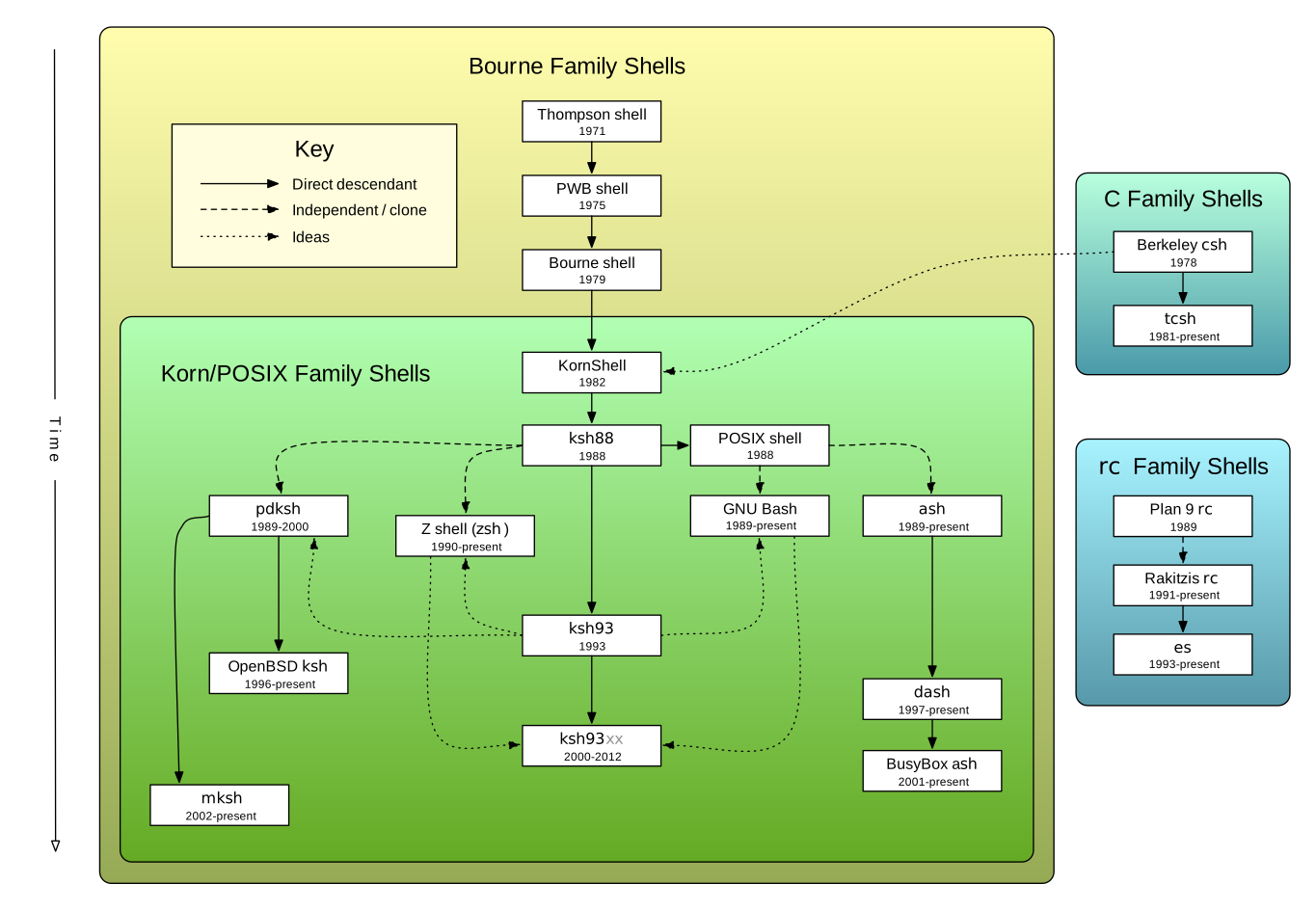
-
On Linux, most distributions already use, or are moving towards using,
shas a symlink to dash. Older Linux versions (Red Hat, Fedora, CentOS) used to haveshto be a symlink tobash. -
On the most conservative NetBSD, it is
ash, the old Almquist shell. On FreeBSD,shis alsoash. On OpenBSD, sh is ksh93 from the Korn Shell family. -
On many commercial and conservative UNIX systems, the default
/bin/shshell is highly capable, often implemented as a modern KornShell ksh93. The key compatibility challenge withkshis that it uses the keywordtypesetfor defining function-local variables, rather than thelocalkeyword available in most other common shell derivatives. If you want to ensure wider cross-platform compatibility, use thelocalkeyword. To make scripts function correctly even whenkshis used as/bin/sh, include the following compatibility code at the beginning of your script:
    IsCommand ()
    {
        command -v "${1:-}" > /dev/null 2>&1
    }

    # Check if 'local' is supported
    if ! IsCommand local; then
        # Check if we are in ksh
        if IsCommand typeset; then
            # Use 'eval' to hide it
            # from other shells.
            # This ensures that
            # defining a function
            # with local variables
            # does not generate an
            # error and exit the
            # program.

            eval 'local () { typeset "$@"; }'
        fi
    fi

    PortableLocal ()
    {
        # Portable use of local:
        # - Declaraton on its own line
        # - Assignment on its own line

        local var
        var="value"
}- On macOS,
shpoints tobash --posix, where the Bash version is indefinitely stuck at version 3.2.x (GNU Bash from 2006) due to Apple avoiding the GPL-3 license in later Bash versions. If you write/bin/shscripts in macOS, it is good idea to check them for portability with:
    # Check better /bin/sh
    # compliance

    dash -nx script.sh
    posh -nx script.sh
In practical terms, if you plan to aim for POSIX-compliant shell scripts, the best shells for testing your scripts would be dash and posh. You can also extend testing with BSD Korn shells and other shells. See FURTHER READING for external utilities to check and improve shell scripts even more.
    # Save in a shell startup file
    # like ~/.bashrc

    IsCommand ()
    {
        command -v "${1:-}" > /dev/null 2>&1
    }

    shelltest ()
    {
        local script name shell

        for script in "$@"
        do
            for shell in \
                posh \
                dash \
                "busybox ash" \
                mksh \
                ksh \
                bash \
                zsh
            do
                # "busybox ash" => busybox
                name=${shell%% *}

                if IsCommand "$name"; then
                    echo "-- shell: $shell"
                    $shell -nx "$script"
                fi
            done
        done
    }

    # To test accross shells:
    shelltest script.sh

    # See Google. External utility
    shellcheck script.sh

    # See Google. External utility
checkbashisms script.shNote that POSIX does not define the shebang — the traditional first line that indicates which interpreter to use. See POSIX C language's section "exec family of functions". From RATIONALE:
(...) Another way that some historical implementations handle shell scripts is by recognizing the first two bytes of the file as the character string "#!" and using the remainder of the first line of the file as the name of the command interpreter to execute.
The first bytes of a script typically
contain two special ASCII codes, a
special comment #! if you wish, which
is read by the kernel. Note that this
is a de facto convention, universally
supported even though it is not defined
by POSIX.
#! <interpreter> [word]
#
# 1. whitespace is allowed in
#    "#!" for readability.
#
# 2. The <interpreter> must be
#     full path name. Not like:
#
#    #! sh
#
# 3. ONE word can be added
#    after the <interpreter>.
#    Any more than that may not
#    be portable accross Linux
#    and some BSD Kernels.
#
#    #! /bin/sh -eu
#    #! /usr/bin/awk -f
#    #! /usr/bin/env bash
#    #! /usr/bin/env python3
Note that on Apple macOS, /bin/bash is
hard-coded to Bash version 3.2.x (from 2006)
where lastest Bash is
5.x.
You cannot uninstall it, even with root
access, without disabling System
Integrity Protection. If you install a
newer Bash version with brew install bash, it will be located in
/usr/local/bin/bash.
On macOS, to use the latest Bash, the
user must arrange /usr/local/bin
first in
PATH.
If the script starts with #! /bin/bash, the user cannot arrange it
to run under different Bash version
without modifying the script itself, or
after modifying PATH, run it
inconveniently with bash <script>.
... portable

#! /usr/bin/env bash

... traditional

#! /bin/bash
There was a disruptive change from
Python 2.x to Python 3.x in 2008. The
older programs did not run without
changes with the new version. In Python
programs, the shebang should specify
the Python version explicitly, either
with python (2.x) or python3.
... The de facto interpreters

#! /usr/bin/python
#! /usr/bin/python3

.... not portable

#! /usr/bin/python2
#! /usr/bin/python3.13.2
But this is not all. Python is one of those languages which might require multiple virtual environments based on projects. It is typical to manage these environments with tools like uv or older virtualenv, pyenv etc. For even better portability, the following would allow user to use his active Python environment:
... portable

#! /usr/bin/env python3
The env utility is defined as a standard POSIX command, but its exact path is not mandated by the POSIX specification.
However, in nearly all operational
environments, the de facto standard and
highly portable location for this
utility is /usr/bin/env. It is
currently considered a safe and robust
assumption that virtually all modern
systems provide env utility at this
specific path.
Compatibility and Legacy Caveat: While
/usr/bin/env is the universal
expectation, it is important to note
that some legacy UNIX systems may still
place the env utility in an alternative
location. This scenario is exceedingly
rare in current practice.
It's not just about choosing to write
in POSIX sh; the utilities
called from the script also has to be
considered. Those of echo, cut,
tail make big part of of the scripts.
If you want to ensure portability,
check options defined in POSIX.
See top left menu "Shell & Utilities"
followed by bottom left menu
"4. Utilities"
Notable observations:
- Use POSIX
command -vto check if command exists. Note that POSIX also defines type, as intype <command>without any options. POSIX also defines utility hash, as inhash <command>. Problem withtypeis that the semantics, return codes, support or output are not necessarily uniform. Problem withhashare similar. Neithertypenorhashis supported by posh shell; see table RESULTS-PORTABILITY. Note: Thewhich <command>is neither in POSIX nor portable. For more information aboutwhich, see shellcheck SC2230, BashFAQ 081, StackOverflow discussion "How can I check if a program exists from a Bash script?", and Debian project plan about deprecating the command in LWN article "Debian's which hunt".
    REQUIRE="sqlite3 curl"

    IsCommand ()
    {
        command -v "${1:-}" > /dev/null 2>&1
    }

    Require ()
    {
        local cmd

        for cmd in "$@"
        do
            if IsCommand "$cmd"; then
                echo "ERROR: not in PATH: $cmd" >&2
                return 1
            fi
        done
    }

    # Before program starts
    Require $REQUIRE || exit $?
...- Use plain
echo
without any options for simple
printing. Use
printf when more functionality is needed.
Relying solely on
printfmay not be ideal. In POSIX-compliantshshells,printfis not always a built-in command (e.g. nor in posh or mksh) which can lead to performance overhead due to the need to invoke an external process.
    # POSIX
    echo "line"            # (1)
    echo "line"
    printf "no newline"    # (2)

    # Not POSIX
    echo -e "line\nline"   # (1)
    echo -n "no newline"   # (2)
-
Use grep with option
-E. In 2001 POSIX removedegrep. -
read POSIX comand requires a VARIABLE, so always supply one. In Bash, the command would default to variable
REPLYif omitted. You should also always use option-rwhich is eplained in shellcheck SC2162, BashFAQ 001, POSIX IFS and BashWiki IFS. In Bash manual, see in depth details how thereadcommand does not reads characters and not lines in StackExchange discussion Understanding "IFS= read -r line".
   # POSIX
   REPLY=$(cat file)

   # Bash, Ksh
   # Read max 100 KiB to $REPLY
   read -rN $((100 * 1024)) < file

   case $REPLY in
        *pattern*)
            # match
            ;;
esac set -- 1
# POSIX
# shift all positional args
shift $#
# WARNNG: Any greater number
# terminates the whole program
# in: dash, posh, mksh, ksh93
# etc.
shift 2As a case study, the Linux GNU sed and
its options differ or are incompatible in
basic sed found in macOS and BSD. The
GNU sed has option --in-place for
replacing file content which cannot be
used in macOS and BSD. Additionally, in
macOS and BSD, you will find GNU programs
under a g-prefix, such as gsed,
etc. See StackOverflow
"sed command with -i option failing on Mac, but works on Linux". For more
discussions about the topic, see
StackOverflow 1,
StackOverflow 2,
StackOverflow 3.
# Linux (works)
#
# GNU sed(1). Replace 'this'
# with 'that' in file.

sed -i 's/this/that/g' file

# macOS (does not work)
#
# This does not work. The '-i'
# option has different syntax
# and semantics. There is no
# workaround to make the '-i'
# option work across all
# operating systems.

sed -i 's/this/that/g' file

# Maybe portable
#
# In many cases Perl might be
# available although it is not
# part of the POSIX utilities.

perl -i -pe 's/this/that/g' file

# Portable
#
# Avoid -i option.

tmp=$(mktemp)
sed 's/this/that/g' file > "$tmp" &&
mv "$tmp" file &&
rm -f "$tmp"
POSIX awk does not support the
GNU option -v option to define
variables. You can use assignments
after the program instead.
# POSIX
awk '{print var}' var=1 file

# GNU awk
awk -v var=1 '{print var}' file
However, don't forget that such
assignments are not evaluated until
they are encountered, that is, after
any BEGIN action. To use awk for
operands without any files:
# POSIX
var=1 awk 'BEGIN {print ENVIRON["var"] + 1}' < /dev/null

# GNU awk
awk -v var=1 'BEGIN {print var + 1; exit}'
- The shell's null command
:might be slightly preferrable than utlity true. But's that's mostly due to tradition. According to GNU autoconf's manual "11.14 Limitations of Shell Builtins" which states that "(...) the portable shell community tends to prefer using:".
    while :
    do
        break
    done

    # Create an empty file
: > file- Prefer POSIX
$(cmd)command substitution instead of leagacy POSIX backtics as in `cmd`. For more information, see BashFaq 098 and shellcheck SC2006. For 20 years all the modernshshells have supported$(...). Including UNIX like AIX, HP-UX and conservative Oracle Solaris 10 (2005) whose support ends in 2026 (see Solaris version history).
        # Easily nested
        lastdir=$(basename $(pwd))

        # Readabilty problems
lastdir=`basename \`pwd\``See the Bash manual how to use
time
reserved word with TIMEFORMAT
variable to display results in
different formats. The use of time
as a reserved word permits the
timing of shell builtins, shell
functions, and pipelines.
TIMEFORMAT='real: %R' # '%R %U %S'
You could also drop kernel cache before testing:
echo 3 > /proc/sys/vm/drop_caches
- Bash manual
- Greg's Bash Wiki and FAQ https://mywiki.wooledge.org/BashGuide
- List of which features were added to specific releases of Bash https://mywiki.wooledge.org/BashFAQ/061
- Bash Manual. Appendix B. Major Differences From The Bourne Shell https://www.gnu.org/savannah-checkouts/gnu/bash/manual/bash.html#Major-Differences-From-The-Bourne-Shell
- GNU autoconf's manual section "11 Portable Shell Programming" Note: This presents information intended to overcome operating system portability issues dating back to the 1970s. Consider some tips with a grain of salt, given the capabilities of more modern POSIX-compliant shells.
- For cross platform operating system detection, see useful files to check: http://linuxmafia.com/faq/Admin/release-files.html
shellcheck(Haskell) can help to improve and write portable POSIX scripts. It can statically Lint scripts for potential mistakes. There is also a web interface where you can upload the script at https://www.shellcheck.net. In Debian, see package "shellcheck". The manual page is at https://manpages.debian.org/testing/shellcheck/shellcheck.1.en.htmlcheckbashismscan help to improve and write portable POSIX scripts. In Debian, the command is available in package "devscripts". The manual page is at https://manpages.debian.org/testing/devscripts/checkbashisms.1.en.html
Relevant POSIX links from 2000 onward:
- https://en.wikipedia.org/wiki/POSIX
- POSIX.1-2024 IEEE Std 1003.1-2024 https://pubs.opengroup.org/onlinepubs/9799919799
- POSIX.1-2018 IEEE Std 1003.1-2018 https://pubs.opengroup.org/onlinepubs/9699919799 https://pubs.opengroup.org/onlinepubs/9699919799.2018edition/
- POSIX.1-2008 IEEE Std 1003.1-2008 https://pubs.opengroup.org/onlinepubs/9699919799.2008edition/
- POSIX.1-2004 (2001-2004) IEEE Std 1003.1-2004 https://pubs.opengroup.org/onlinepubs/009695399
Relevant UNIX standardization links. Single UNIX Specification (SUSv4) documents are derived from POSIX standards. For an operating system to become UNIX certified, it must meet all specified requirements—a process that is both costly and arduous. The only "Linux-based" system that has undergone full certification is Apple's macOS 10.5 Leopard in 2007. Read the story shared by Apple’s project lead, Terry Lambert, in a Quora's discussion forum "What goes into making an OS to be Unix compliant certified?"
- The Single UNIX Specification, Version 4 https://unix.org/version4/
- See discussion at StackExchange about "Difference between POSIX, Single UNIX Specification, and Open Group Base Specifications?".
- Everything you ever wanted to know about shebang. Extensive research by Sven Mascheck. https://www.in-ulm.de/%7Emascheck/various/shebang/
- A comprehensive history of
ash. "Ash (Almquist Shell) Variants" by Sven Mascheck https://www.in-ulm.de/~mascheck/various/ash/ - Late Jörg Shillings's
schilitools
contains
pboshshell that can be used for POSIX-sh-like testing. See discussion of preserving the project and some history at Reddit. - Super simple
scommand interpreter to write shell-like scripts (security oriented): https://github.com/rain-1/s
Copyright (C) 2024-2025 Jari Aalto
These programs are free software; you can redistribute it and/or modify them under the terms of the GNU General Public License as published by the Free Software Foundation; either version 2 of the License, or (at your option) any later version.
These programs are distributed in the hope that it will be useful, but WITHOUT ANY WARRANTY; without even the implied warranty of MERCHANTABILITY or FITNESS FOR A PARTICULAR PURPOSE. See the GNU General Public License for more details.
You should have received a copy of the GNU General Public License along with these programs. If not, see http://www.gnu.org/licenses/.
License-tag: GPL-2.0-or-later
See https://spdx.org/licenses
Keywords: shell, sh, POSIX, bash, ksh, ksh93, programming, optimizing, performance, profiling, portability