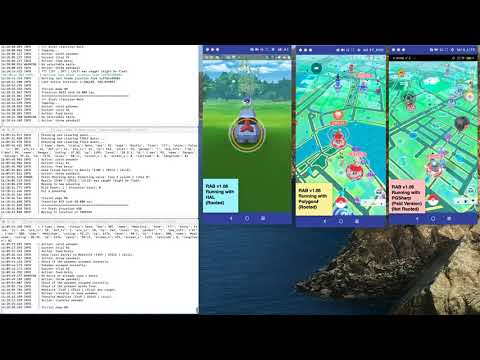
- Added Pokemon Inventory Mangement. RAB will now auto keep or release pokemon in your bag when it is full
- New options for Pokemon Inventory Mangement are
enable_poke_management,manage_poke_on_start,inventory_ivandstop_check_at. Please check config.example.yaml and update your exising config accordingly. keep_strong_shadowandkeep_legendaryoptions added under catch
Join our Discord Channel
- Auto Catch
- Auto Keep or Transfer base on IV (100 or PvP)
- Auto Select Berries
- Auto Select Balls
- Auto Clear Quests
- Auto Hatch
- Auto Item management
- (NEW) Auto Pokemon Bag management
- Auto Team Rocket Battle (HAL & Polygon# Only)
- Catch Shiny that 3rd Party App Found (Polygon# Only)
- Integration with Telegram feed to allow PvP/100IV Snipe (Not Live Yet)
- Integration with Telegram feed to allow Shiny Checking (Not Live Yet)
- Non rooted support with PGSharp Free or Paid version (NO NOT USE IT ON MAIN ACCOUNT)
- Rooted (Optional)
- Your phone must be able to run Pokemon Go if it's rooted
- USB Debugging Enabled (Under Developer Options)
- Recommended phone with Screen Resolution 1080 x 1920 and above
- Recommended 4GB RAM and above
- Recommended Snapdragon 625 and above
- Launch the Settings application on your phone.
- Tap the About Phone option generally near the bottom of the list.
- Then tap the Build Number option 7 times to enable Developer Mode. You will see a toast message when it is done.
- Now go back to the main Settings screen and you should see a new Developer Options menu you can access.
- Go in there and enable the USB Debugging mode option. Some Phones will have Install via USB option and USB debugging (Security settings) options or any options that's related simulating input, enable them too.
- (Optional) Install Pokemod or HAL or Polygon# or PGSharp Please set the correct client settings in config file
- (Pokemod, HAL and Polygon# Only) GPS Joystick, unlock version. Download from their official website
- (Pokemod, HAL Only) Create/download a GPX Route and run it in background. Make sure joystick are hidden from view.
- (PGSharp Paid Only) Create/download a GPX Route and run it. Do not hide PGSharp. Move joystick away from location that will block text.
- (Polygon#) Just spoof to a location with lot's of pokestops. RAB will handle the rest.
- (Pokemod and HAL Only) Recommended Speed 7km per hour or less
- (Optional, if your phone's resolution is more than 1920 x 1080) Go to playstore and download Easy DPI Changer (or https://www.apkmirror.com/apk/chornerman_studio/easy-dpi-changer-root/), resize your phone to 1080 x 1920, reset it when you are not running the script. (Update: The bot now auto change your phone size. However, it's handy to have this app installed in case the bot is unable to reset back your phone to orginal screen resolution.)
- Your Pokemon Go Game MUST BE English
- When running the scripts at your computer, the following app/services must be running on your phone
- GPS Joystick (Not needed for PGSharp)
- (optional) Pokemod, HAL, Polygon# or PGSharp
- Pokemon Go
- (Pokemod) IV Display format --> Toast | (HAL) Enable Toasts
- (Pokemod) IV Display Information --> verbose | (HAL) Toast verbosity --> Informative
- Toast Location/Position --> Top
- Enable Prefect Throw
- Enable Skip Encounter Intro
- Enable Show Encounter IV (Enable Toasts in Settings)
- Replace Names with IVs in Encounters
- Disable Replace Names with IVs in Encounters
- Disable Block Non-Shiny Encounters
- Disable Mass Transfer any Pokémon (To prevent accident transfer of your fav lengenary Pokemon)
- Team Rocket Blastoff (HAL Only)
- Instant Spin
- Instant Catch and Transfer on Catch (HAL Only) (When Transfer on Catch is enabled, the bot will not be able to prevent PvP eligible Pokemon from being transfered)
Enable or disable the modules in config.yaml accordingly
- Instant catch is not recommended to be disabled for Polygon#, settings related to keeping Pokemon in config will not apply to Polygon#
- Note that RAB will attempt to gather a few information from Polygon# first before starting to catch Pokemon. As such you might see RAB attempt to spin pokestops continously for a few mintues before catching. It is normal.
- Enable
Send data to custom backend - Set backend IP Address to the IP of the machine that you are running RAB
- How to find your machine's IP Guide Windows | Mac
- Enter a port number that you set in config. Default 5120. If you are using more than one device, each device must have their own config and with their own port number set.
- Encounter nameplates format
{default} LVL{lvl}\nIV{prc0}% {ivs} - Pokemon panel nameplate format
{default}
- Spoofing Enabled
- Hide PGSharp Enabled
- Enhanced Throw on Excellent and Curved
- Tap to
TeleportEnabled. By default this option is tap to walk, it will not work for free version. Please change to Tap to Teleport - Set a location with the Map or enter coordinates
- Spoofing Enabled
- Hide PGSharp Disabled, move joystick to somewhere that wont block the screen
- Enhanced Throw on Excellent and Curved throw is preferred for faster catching
- Tap to
WalkorTeleportDisabled. Inventory IVEnabledEncounter IVEnabledQuick CatchOptional. Settransfer on catchto true in RAB config if you set this option to true.- The rest of options are optional
- Then click on PGSharp's icon and choose either auto walk or GPX route (this option is in map)
Enable or disable the modules in config.yaml accordingly
- Install via Homebrew (https://brew.sh/)
/bin/bash -c "$(curl -fsSL https://raw.githubusercontent.com/Homebrew/install/master/install.sh)"
- Install Tesseract
brew install tesseract (install homebrew if you have not)
sudo apt-get install tesseract-ocr
- Install from tesseract
- Full Installation Instructions
- Note down your installation path. Example
c:\Program Files\Tesseract-OCR\ - On your Windows search bar type
env, click on Edit the system environment variables - Under Advance click Environment Variables, select path, click edit, click new and enter the Tesseract installation path that you note down in pervious step.
- Restart your windows
- After restart, run
tesseract -vin PowerShell or Command Prompt. The bot will not work if this step is not done correctly.
To test if you have successfully install Tesseract, run "tesseract -v" at your OS's terminal/command prompt/power shell. The bot will only works if Tesseract is installed correctly
- Using Terminal, install homebrew if you do not have it
/bin/bash -c "$(curl -fsSL https://raw.githubusercontent.com/Homebrew/install/master/install.sh)"
- Install adb
brew cask install android-platform-tools
- Connect your device to your mac and run the following to see if it can detect your device
adb devices
Follow this Guide, follow the instructions for Windows/Linux
Then set your ADB to PATH system variable, follow this guide
Follow the 2 links below to install Git and Build Tools
- Install Git
- Install C++ Build Tools
- (Windows Only) Start --> Windows Powershell (expand the folder) --> Right click, run as Administrator. Type
cd c:\- 1.1 (Ubuntu/Linux) Open terminal and type:
cd ~/
- 1.1 (Ubuntu/Linux) Open terminal and type:
- (Windows Only) Type
python3in Powershell, this will bring up Window store and will install Python 3 to your system - (Windows Only)
Set-ExecutionPolicy RemoteSignedEnter Y to allow execution of scripts - (Mac and Linux) Install Python 3.7 or later (https://www.python.org/downloads/)
git clone --recursive https://github.com/MerlionRock/RealAndroidBot.gitpython3 -m venv RealAndroidBot- (Mac and Linux)
source RealAndroidBot/bin/activate(Windows)RealAndroidBot\Scripts\activate cd RealAndroidBot- Copy config.example.yaml to rab/config.yaml and configure it.
pip install -r requirements.txtcd rab- Setup your phone according to app requirements as instructed above and run all required apps on phone
- Make sure your Pokemon Go is at map page and zoomed out to the max.
- Make sure your device are connected to your machine, run this command
python run.py - Allow installation of automator on your Phone
- To run multiple devices, first run adb devices to get all your device ID connected to your computer
- Then run each command on their own terminal/shell console
python run.py --device-id YOUR_DEVICE_ID - To use a different config file (good for multiple devices setup) run
python run.py --device-id YOUR_DEVICE_ID --config-filename YOUR_CONFIG_FILE_NAME - Ctrl + C to terminate the program (you might have to do it more than once)
- Whenever you want to run the scripts again, remember to run Step 7 first follow by (mac/linux)
cd RealAndroidBot/rabor (Windows)cd RealAndroidBot\rab - To update your files from github repo, type
git pull
©2016 Niantic, Inc. ©2016 Pokémon. ©1995–2016 Nintendo / Creatures Inc. / GAME FREAK inc. © 2016 Pokémon/Nintendo Pokémon and Pokémon character names are trademarks of Nintendo. Other trademarks are the property of their respective owners. Privacy Policy
RealAndroidBot is intended for academic purposes and should not be used to play the game PokemonGo as it is unfair to the community. Use the bot at your own risk.