How to start Example app
For Mobile Messaging Plugin we've provided an Example app, which can be easily setup and started with your credentials.
As the first step, you will need to have a Mobile Messaging application profile set up in Infobip Portal for your account. If you already have it, then you can skip this section, otherwise:
- Create new application on Infobip portal.
- Navigate to your Application where you will get the
application code.
-
Prepare your Firebase Cloud Messaging to get
google-services.jsonfile and Private Key JSON file. -
Mark the "Available on Android" checkbox in your application profile.
-
Upload previously obtained Google Private Key JSON file.

-
Prepare your App ID, provisioning profiles and APNs certificate (APNs Certificate Guide).
-
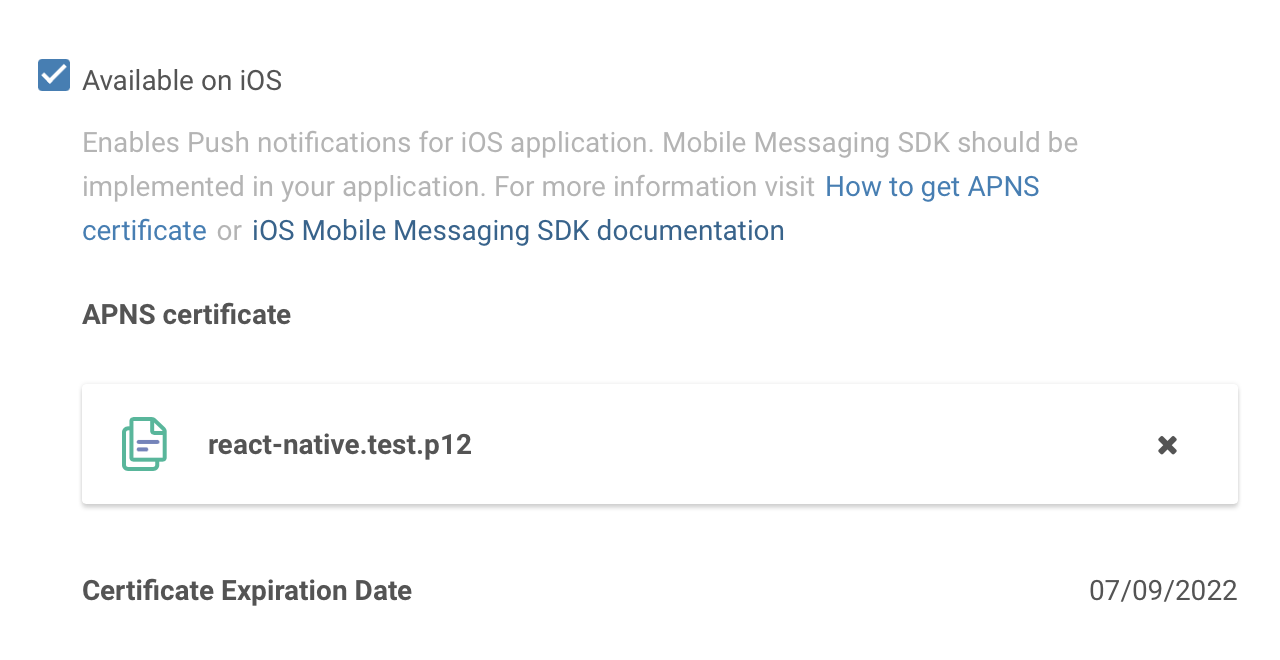
Mark the "Available on iOS" checkbox in your application profile.
-
Click on "UPLOAD" under "APNS Certificates" and locate the .p12 certificate you exported from your Keychain earlier.
- Provide your
application codein/Example/App.jsand/Example/ios/NotificationExtension/NotificationService.swiftfiles:
  configuration = {
    applicationCode: 'Your application code',
    ...
  };
(iOS only)
MobileMessagingNotificationServiceExtension.startWithApplicationCode( <# Your Application Code #> )- Add
google-services.jsonyou obtained in previous step to theExample/android/appfolder as described inFirebase documentation. - Run
npm installfrom the Example app folder to install dependencies. - Run
npx react-native run-androidfrom the Example app folder to run example application.
Warning The
google-services.jsonfile must match the application ID configured inExample/android/app/build.gradle(theapplicationIdfield). If you change the application ID, you need to download a newgoogle-services.jsonfrom the Firebase Console that matches the updated package name.
- Run
npm installfrom the Example app folder to install dependencies. - Install CocoaPods dependencies — run
cd Example/ios&pod install. - Open Xcode and select your development team for signing the app for both the
ExampleandMobileMessagingNotificationServiceExtensiontargets.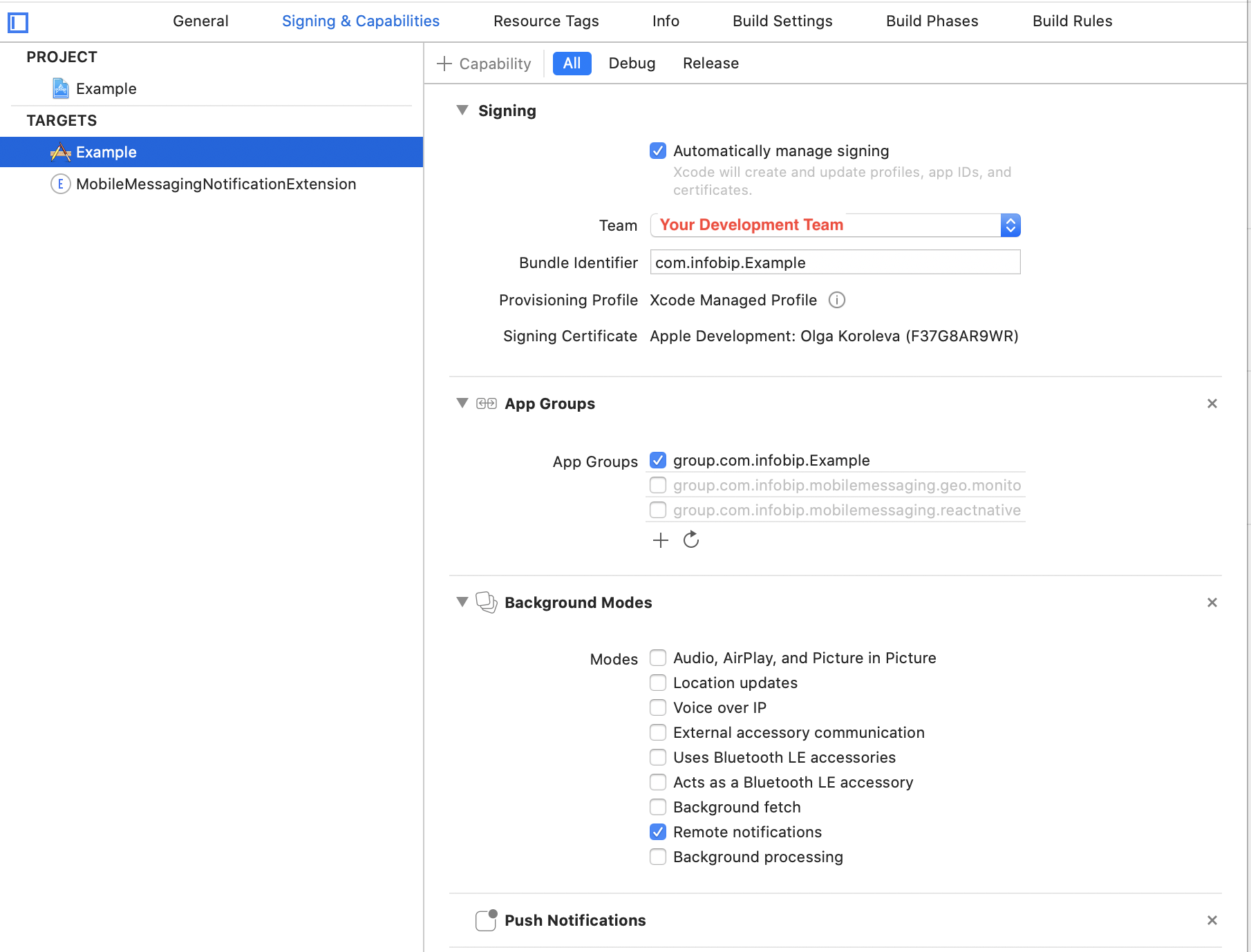
Warning Before running the example app on iOS, make sure:
- The bundle ID (set under
PRODUCT_BUNDLE_IDENTIFIERin Xcode build settings) matches the one registered in your Apple Developer Portal and is associated with your signing certificate and provisioning profile.- The App Group ID (configured in entitlements and
Info.plistunder thecom.mobilemessaging.app_groupkey) is registered in the Apple Developer Portal and is added to both your main app's App ID and the Notification Service Extension's App ID.- Your provisioning profiles include the App Group capability for both targets.
If any of these are misaligned, the build, signing, or message delivery will fail.
Within the example application we offer chat for testing all available In-app chat features first-hand, and for comparing its source code with yours, in case you are facing any issue in your implementation.
In order to test the In-app chat in example application follow instructions in In-app chat Intro.
Our In-app chat has different list of options, from the basic ways of presenting the In-app chat, to not forgetting the change of language for the UI, multiple threads feature, etc. We invite you to play with it and discover everything Livechat has to offer.
Within the example application we offer chat with calls for testing all calls features first-hand, and for comparing its source code with yours, in case you are facing any issue in your implementation.
In order to test the In-app chat with calls in example application follow instructions in WebRTC Calls and UI section.
Our calls UI has different list of options: ability to capture video through both, front and back camera, option to mute and use the speaker, ability to capture and share the screen of your mobile device, option to minimise the call UI in a picture-in-picture mode, and more. We invite you to play with it and discover everything Livechat calls have to offer.