This is a Notepad++ syntax highlighter for Trainz config files, based on a comprehensive list of config.txt tags and constants. As of creating the first version, I've researched an additional 235 items in addition to the index disclosed on Trainz Wiki. Still you may run into unrecognized items. In this case, feel free to either open an issue, or edit the XML file yourself, and submit your changes.
Colors the contents of Trainz config.txt according to their purposes or meaning.

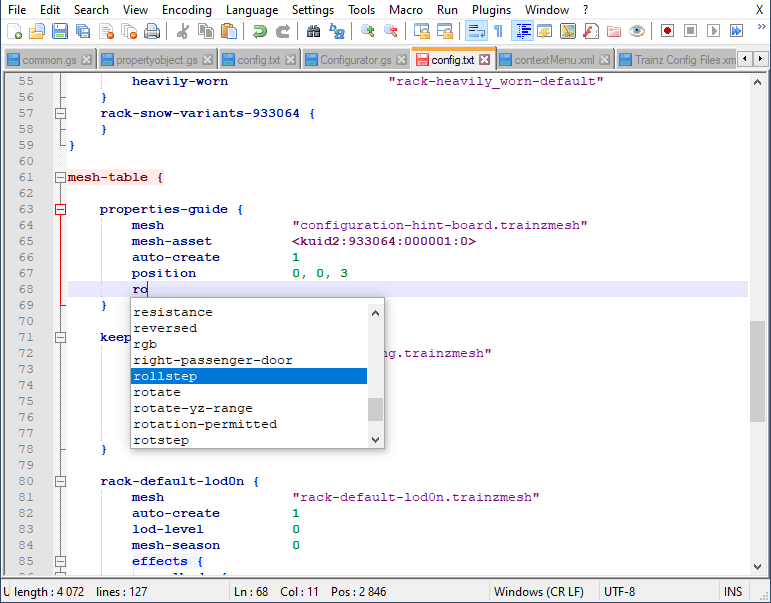
Notepad++ will display a pop-up list of keywords matching the characters you typed. This makes it easier for you to find keywords you don't remember exactly.
Once you typed or selected a supported keyword, type a bracket to display a so-called calltip, which will show a short summary of the keyword, the type of data to supply and, in some cases, will show a link to the Trainz Wiki for more information.
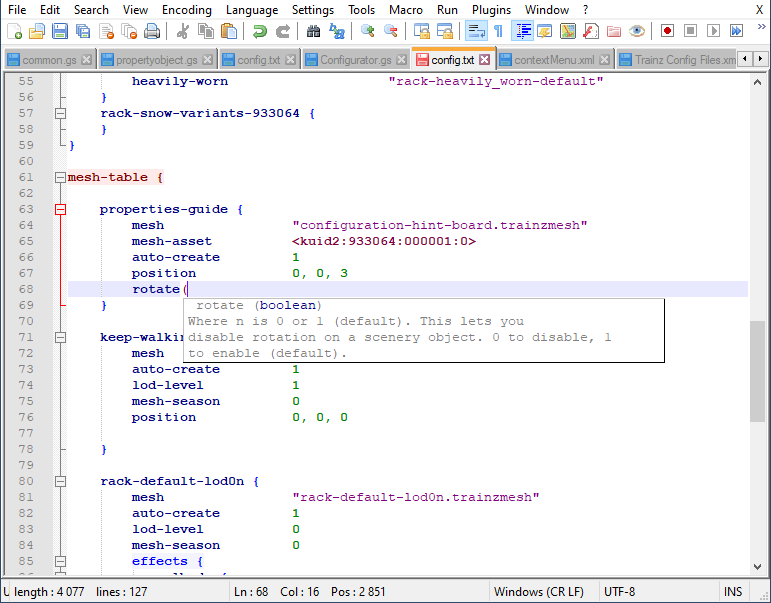
Be aware of the multipart-keyword issue, for which you won't currently receive calltips for keywords containing one or more dashes (such as category-keyword), or wrong calltip is displayed.
The syntax highlighter recognizes not only config.txt files, but files with .trainz-acs extension, too to let you create config.txt templates under different names. Since Notepad++ only considers the last extension part of files with multipart extensions, it cannot employ the highlighter for files with a name pattern of something.config.txt. To circumvent this, I added this extension, and you only need to add this extension to your config.txt templates.
Pretty simple:
- Grab the latest release from this page.
- If you download an XML file, save it to a location you remember.
- If you download a ZIP file, extract
Trainz Config Syntax.xmlandTrainz Config Files.xmlfrom the archive, and save it to a location you remember.
- Copy
Trainz Config Syntax.xmlto%APPDATA%\Notepad++\userDefineLangs\ - Copy
Trainz Config Files.xmlto<Notepad++ Installation Folder>\autoCompletion\. That is, if Notepad++ is installed toc:\Program Files (x86)\Notepad++, copy the file toc:\Program Files (x86)\Notepad++\autoCompletion. - Restart Notepad++ for the changes to take effect.
If you don't want Notepad++ to offer keywords, delete Trainz Config Files.xml and restart Nodepad++.
Installation is successful if you open a config.txt file or a file with .trainz-acs extension, and the text is colored. If it is not, first check if you can see Trainz Config Files in the Language menu. If you can, you are okay. If you cannot, open an issue.
After installation, you may need to restart Notepad++ for the changes to take effect. If it still does not work, open an issue here and we'll see if we can do anything.
Yes.
- By default it is turned on for config.txt and *.config.txt files. It means if you have config templates and name them like
my-superb-template.config.txt, they will automatically be recognized. - If you want to turn it on for other filename extensions or patterns, click Language > User Defined Language > Define your language and add your extensions in Ext. Make sure you use space as the separator.
Well, I'm not sure. AFAIK, this special solution for syntax highlighting is specific to Notepad++. However if you use Visual Studio Code or any other editor that supports the TextMate Grammar, you should definitely check out Dangoo's Trainz Config project.
Notepad++ uses its own mechanism for syntax highlighting. You can learn more about it by clicking Language > User Defined Language > Define your language in Notepad++, and you'll get a link to its help.
The following rules are in place:
- Level 1 containers are dark red and have a highlight so that you can find them quickly. You can expand/collapse these containers.
- Level 1 tags (those which only have a single value) have the same color, but no highlight.
- Level 2+ containers are blue and have a highlight so that you can find them quickly. You can expand/collapse these containers.
- Level 2+ tags (those which only have a single value) are dark blue, and no highlight.
This lets you easily recognize top-level and lower-level items, as well as if you used a tag at the proper level. If you see a blue tag outside of a container, you probably made a mistake, for example.
Furthermore:
- KUIDs have a dark purple color to make them outstanding. They are usually important. :)
- Numbers and vectors (of numbers) are green.
- Strings are purple.
- Obsolete tags show up in gray.
And, you can expand and collapse containers so that you can overview the important parts of your large config files more easily.
This project uses the MIT license.
If you think something is missing from this documentation, open an issue and tell me what it is.