Multiplot is a very easy to use, single-header C++ tool for plotting auto-scaling curves / scatter plots.
Multiplot homepage: http://www.andre-krause.de/multiplot
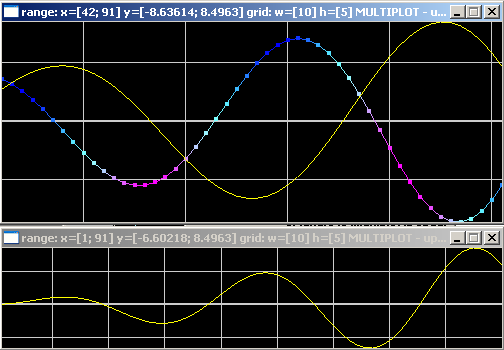
With MultiPlot, you can easily plot simple graphs like line- and scatter plots in C++. It is a single - header library with zero dependencies under win32.
For other platforms, the small, lightweight and statically linkable FLTK toolkit (www.FLTK.org) is used to create an OpenGL Window.
It uses www.opengl.org for plotting.
Simply include multiplot.h and start plotting. Add points with their coordinates (x,y) and optionally their colors (r,g,b) and MULTIPLOT does the rest for you. It scales automatically such that the whole graph fits to the window.
#include "multiplot.h"
using namespace multiplot;

void main()
{
	// create a multiplot Window at position (x,y)=(50,50) and width=640, height=480
	Multiplot m(50, 50, 640, 480);

	for (int x = 0; x<200; x++)
	{
		m.plot(x, sin(0.1 * x)); // plot an animated sine wave
		m.redraw();		// redraw the curve
		m.sleep(20); 	// sleep for 20 ms
	}
}under linux, Multiplot uses the Fast Light Toolkit ( https://www.fltk.org/ ) to create an OpenGL context.
sudo dnf install fltk-develsudo apt-get install libglu1-mesa-dev mesa-common-dev
sudo apt-get install libfltk1.3-devg++ -std=c++14 test_multiplot.cpp -lfltk -lfltk_gl -lGLCreate a new plotting window at position (x,y) and with size (width, height):
int x = 150, y = 50;
int w = 640, h = 480;
Multiplot m(x,y,w,h);You can add individual points to a graph:
for(int x = 0; x<100; x++)
{
	m.plot( x, sin(0.1*x) );
	m.redraw();
}
redraw() refreshes the graph and draws it to the window. You can consider speeding up the process by e.g. redrawing only every tenth or hundreth frame: if(x % 100){m.redraw();}. Or you can slow down the process by sleeping for a specified amount of milliseconds: m.sleep(100) sleeps for 100ms.
To keep a plot window open and to keep that window responsive to events like changing the window size, you need to keep the events flowing by repeatedly calling m.check():
while(m.check())
{
	m.redraw();
	m.sleep(100);
}
If ESC is pressed, the while loop will exit.
auto vy = vector<float>{0, 1, -1, 2, -2, 3, -3};
m.plot(vy);
m.redraw();
x-values run from 0 .. size(vy)-1. You can also store x and y values in two separate vectors and plot those values:
vector<float> vx, vy;
vx.resize(100); vy.resize(100);
for(int i = 0; i<100; i++)
{
	vx[i] = sin(0.1*i);
	vy[i] = sin(0.3*i);
}
m.plot(vx, vy);
m.redraw();set the rgb color of new data-points to be added to a trace using:
m.trace(0);
m.color3f(1, 1, 0);
you change the color for each new datapoint by setting color3d(r,g,b) before each plot(x,y). This results in a multicolored trace.
alternative syntax to set the color of trace 0:
m[0].color3f(1, 1, 0);set the linewidth with m.linewidth(). Setting linewidth to zero disables drawing of lines between datapoints. Thus, setting the m.pointsize() to e.g. 4.0, while setting linewidth() to zero creates a scatter plot.
Scrolling: If you have a continous inflow of datapoints you wish to visualize (e.g. some sensor data), you can use scrolling(int max_points_to_plot). Internally, this implements a ringbuffer. New datapoints will appear at the end of the trace, while old data-points disappear at the beginning of the trace.
m.scrolling(100);
for (int x = 0; x<500; x++)
{
	m.plot(x, sin(0.1*x));
	m.redraw();
	m.sleep(20);
}you can remove previously drawn traces either by completely resetting a plot window with clear_all() or by individually clearing traces with clear(int trace_number);
m.clear_all(); // clear all traces
m.clear(2); // clear trace no. 2