


Run coding agents across multiple repos and worktrees




Install: open the Extensions sidebar (
Cmd/Ctrl+Shift+X), search Deck, click Install. Then open Deck from the secondary sidebar.
Deck adds a Repositories & Worktrees tree to VS Code's secondary sidebar and gives every worktree its own persistent terminals. Run your coding agents in them across as many worktrees as you like — the terminals keep your agents alive through window reloads and reboots, and Deck shows each agent's status and notifies the moment one needs you.
Deck closes two gaps VS Code has — working across multiple repos and worktrees, and terminals that persist instead of dying on every reload.
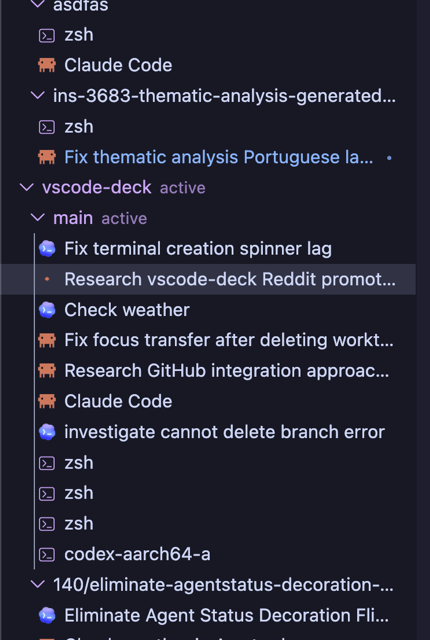
A unified Repositories & Worktrees tree lives in the secondary sidebar — register your repo and every worktree will show up automatically. Click a worktree to open it in this window, or open it in a new window to work on several at the same time.
Each worktree gets its own terminals, opened as editor tabs (not in the bottom panel) so you can Ctrl+Tab, Ctrl+@, Ctrl+Shift+T them like any other tab. A terminal is durable like a file - a dedicated tmux server keeps them alive in the background.
- Close the tab — the terminal keeps running; reopen its row anytime.
- Open it in two windows at once — both are live views of the same terminal; type in one and it shows in the other.
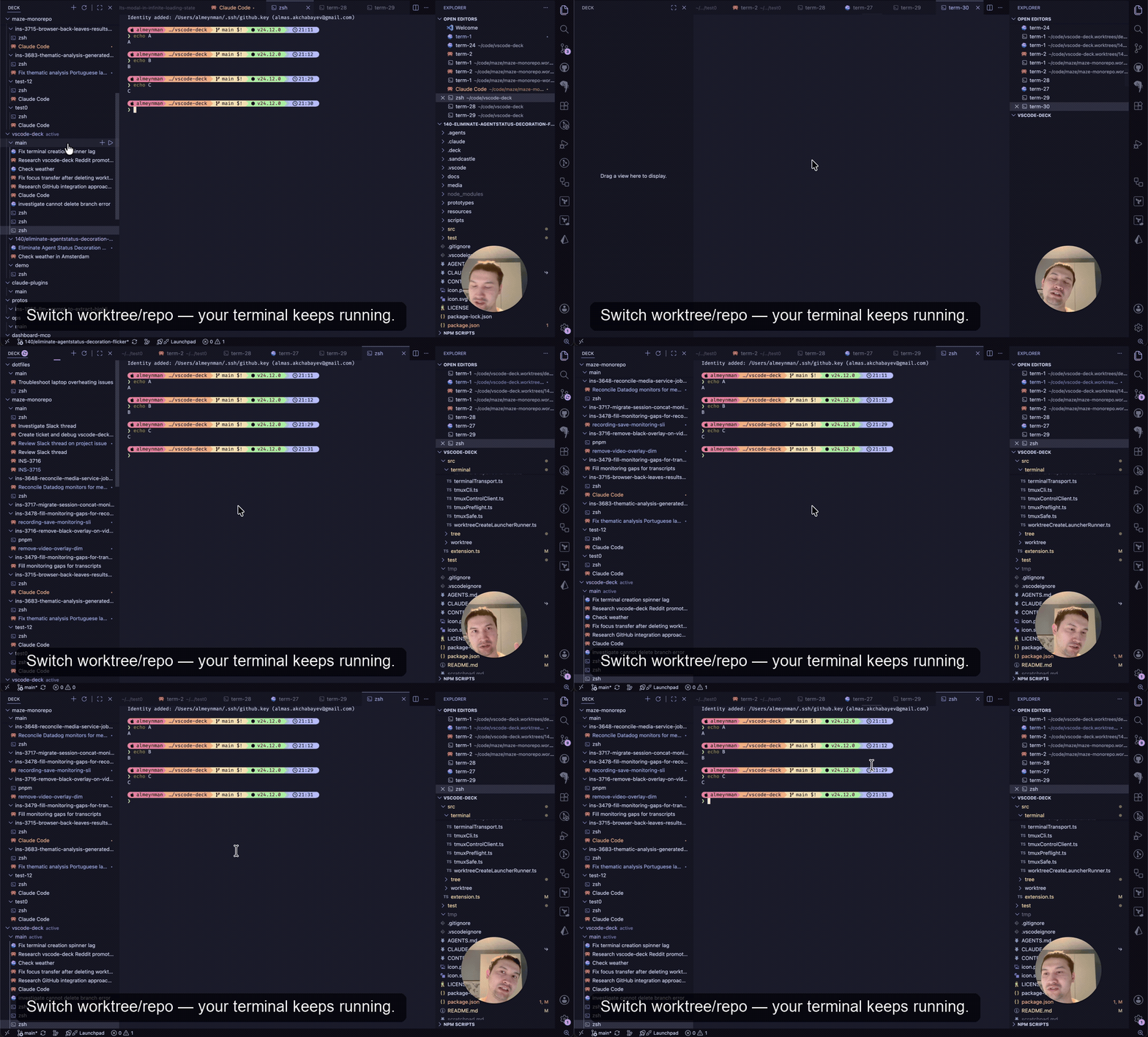
- Switch worktree or reload the window — terminals reattach with whatever's running still running, untouched.
- Reboot, crash, or
kill-server— terminals come back at their working directory with scrollback, and your coding agent sessions resume automatically.
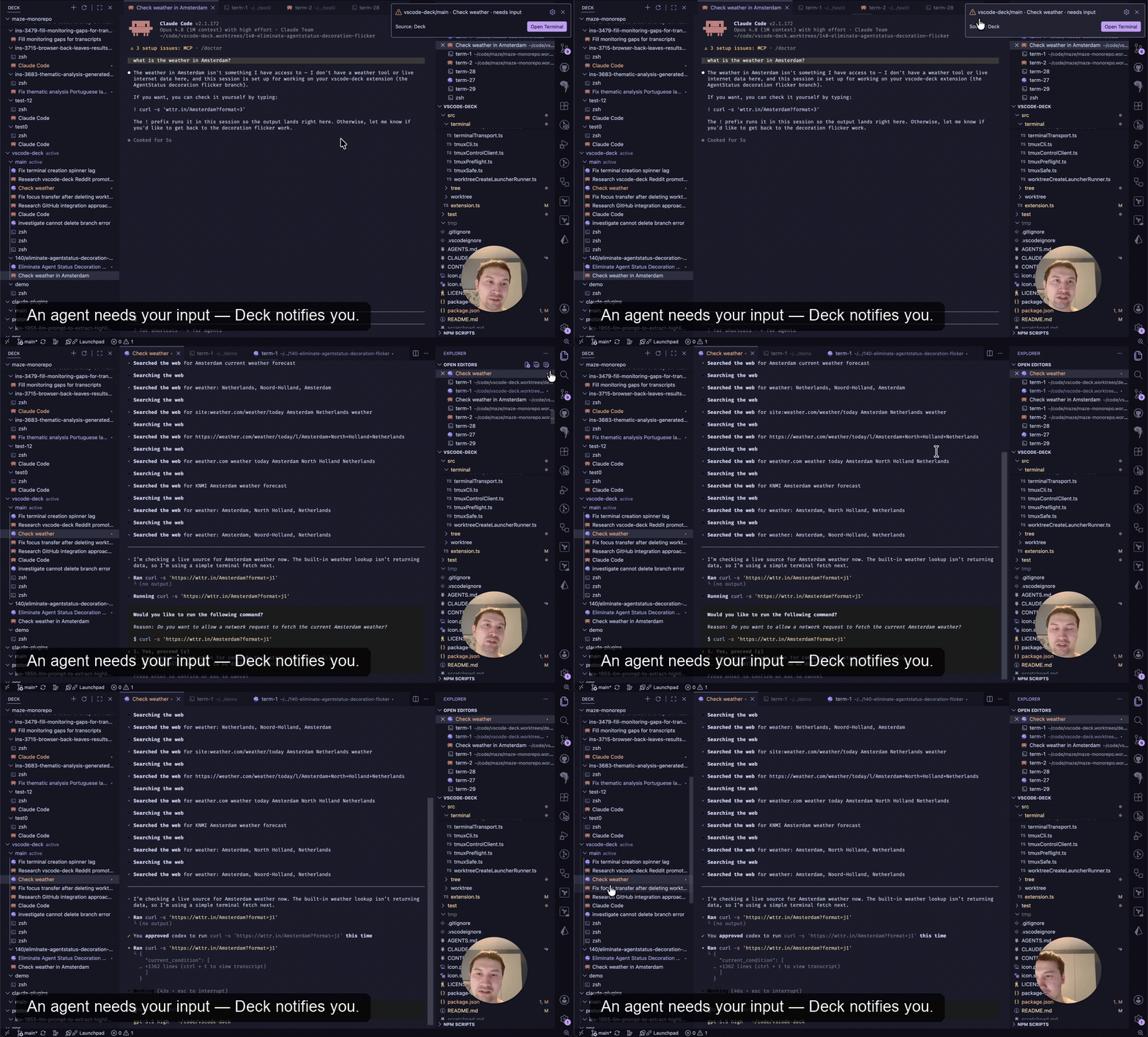
Run a coding agent in a worktree's terminal and Deck reads its status straight from the agent — working, needs input, done, or failed — and shows it on the tree row, labeled with what that agent is working on (pulled from the agent's own task summary) so a dozen concurrent agents stay distinguishable at a glance. Run several at once and only step in when one actually needs you: optional notifications fire when an agent asks a question or finishes a turn, and stay quiet while you're already looking at that terminal's tab. Deck only observes — you start and drive the agents; it gives them a durable home and a status light. (The agent status and notification are shown in the demo at the top.)
Save a command as a launcher — your agent with its usual flags, or a project bootstrap — and start a terminal running it in one click. Define launchers per user (global), shared with your team (committed to <worktree>/.deck/launchers.json), or personal to one repo. Flip run on worktree create and Deck fires them automatically when you add a worktree through it, so a fresh worktree can bootstrap itself and kick off an agent without you typing a thing.
Configuring launchers. Each launcher is { "command": …, "label"?: …, "runOnWorktreeCreate"?: true } — only command is required (label defaults to it; sequence commands with &&). The launch button on a worktree row opens a Quick Pick listing of all three sources, in this order:
1. Shared, per repo — committed to the repo at <worktree>/.deck/launchers.json (a bare array):
2. Personal, per repo — in your user settings.json, keyed by any path inside the repo (matched by git common dir, so it applies to every worktree):
"deck.repositoryLaunchers": [
{
"repository": "~/code/myapp",
"launchers": [
{ "label": "Claude", "command": "claude --dangerously-skip-permissions", "runOnWorktreeCreate": true },
{ "label": "Open PR", "command": "gh pr view --web && exit" }
]
}
]3. All repos — in your user settings.json:
"deck.terminalLaunchers": [
{ "label": "Claude", "command": "claude --dangerously-skip-permissions" },
{ "label": "Codex", "command": "codex --dangerously-bypass-approvals-and-sandbox" }
]A launcher with "runOnWorktreeCreate": true runs when you create a worktree through Deck — only for Deck-created worktrees, not ones it discovers from the CLI.
- Install Deck and open it from the secondary sidebar.
- Add Repository → pick a folder that contains git worktrees.
- Click a worktree to switch the active folder to it.
- Click + on a worktree to open a terminal; start your agent in it.
- VS Code 1.110+
- tmux ≥ 3.1 on your
PATH— required for the persistent terminals only. Deck drives an isolated tmux server of its own (separate from your personal tmux) entirely for you; you never run a tmux command. Without tmux, worktree switching still works and the terminal UI is hidden.
| Setting | Default | Description |
|---|---|---|
deck.confirmTerminalDelete |
true |
Ask for confirmation before deleting a terminal. |
deck.notifyOnNeedsInput |
true |
Notify when an agent needs input (suppressed while you're viewing that terminal). |
deck.notifyOnCompleted |
true |
Notify when an agent completes a turn (suppressed while you're viewing that terminal). |
deck.agentResumeTemplates.claude |
— | Claude Code command template Deck uses to resume a session. Include {id} for the session id. |
deck.agentResumeTemplates.codex |
— | Codex command template Deck uses to resume a session. Include {id} for the session id. |
deck.tmux.automaticRenameFormat |
— | tmux automatic-rename format for Deck terminals. |
deck.terminalLaunchers |
[] |
Launchers available in every repo — see terminal launchers. |
deck.repositoryLaunchers |
[] |
Per-repo launchers kept in user settings — see terminal launchers. |
Is it free / open source? Yes — MIT licensed. Source: github.com/a9a4k/vscode-deck.
Which agents work with Deck? The terminals run any command or agent. Status, notifications, and session resume currently support Claude Code and Codex only — wired up via hooks Deck installs in each agent's config. Using a different agent? Open an issue and we'll look at adding support.
Do I have to use AI agents? No. The worktree tree and persistent terminals are useful on their own; agent status is just a bonus when you do run agents in them.
Does switching worktrees reload the window? Yes, briefly (~1–3s) — but nothing is lost. Your terminals and the agents in them live outside VS Code on tmux, and VS Code restores that worktree's own tabs, unsaved edits, and layout automatically.
Does it send telemetry? No.
Where does agent status get stored? In disposable files under ~/.local/share/deck/status/ (with read markers in the sibling status-reads/). Delete both directories to fully reset agent status; Deck prunes orphan markers on the next reload.
git clone https://github.com/a9a4k/vscode-deck
cd vscode-deck
npm install
npm run build
# Press F5 in VS Code (uses .vscode/launch.json) to launch a dev host.More for contributors:
- AGENTS.md — agent / contributor working principles
- CONTEXT.md — domain glossary and component map
- docs/references.md — reference repos under
references/ - docs/adr/ — architectural decisions
[
  { "label": "Bootstrap", "command": "pnpm install", "runOnWorktreeCreate": true },
  { "label": "Dev server", "command": "pnpm dev" }
]