📡 DropSend – Quickly and easily send files and texts over your local network.
With DropSend, you can transfer files, texts, or images between any devices connected to the same Wi-Fi or LAN – completely without the Internet or cloud! Just open the link in your browser and start exchanging files.
- 🌐 Device connection over local network (Wi-Fi/LAN)
- 🔒 No internet transmission – 100% local
- 📁 Supports all file types (PDFs, images, ZIPs, etc.)
- 📲 Compatible with smartphone, tablet, PC, Mac, and more
- 🖼️ Drag & drop upload
- 📤 Upload files from any device in the same network
- 📥 Instantly download all uploaded files in the browser
- 🔐 Access protected by 6-digit security code
- 📦 QR codes for upload & download links
- ❌ Option to delete uploaded files
DropSend is now available not only for local use (via Wi-Fi/LAN), but also as an online version for broader accessibility!
🔗 Try the Online Demo here: 👉 https://dropsend.onrender.com
⚠️ Note: This version does not use your local network – it is intended for testing or online file sharing.

🚀 Check out the latest version! Watch the updated demo with all improvements:
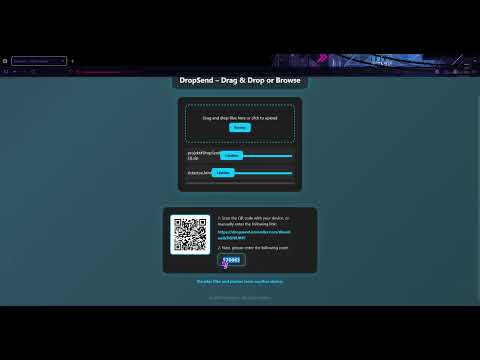
⚠️ Note: The old demo is still available.
Works on all devices with a web browser:
| Device | Supported |
|---|---|
| Windows PC | ✅ |
| Mac | ✅ |
| Linux | ✅ |
| iPhone/iPad | ✅ |
| Android | ✅ |
| Smart TVs (with browser) |
All devices must be on the same local network (e.g. via Wi-Fi).
- Git (to clone the repository)
- Python 3.8 or higher
- Pip packages:
flaskqrcode
git clone https://github.com/CodeProTech/DropSendcd DropSendpip install -r requirements.txtpip install flask qrcodepython main.py✅ A browser window will open automatically with your private upload link.
- Make sure your device is on the same Wi-Fi network as your PC.
- Upload one or more files using the file browser or drag & drop.
- Scan the QR code or open the link on your other device (e.g.
http://192.168.178.45:5000/abc123xyz). - Enter the 6-digit code shown on your PC.
✅ Now download the uploaded files on your other device.
- Make sure your device is on the same Wi-Fi network as your PC.
- Open the link with the text "transfer files and photos from another device."
- Scan the QR code or open the link on your other device (e.g.
http://192.168.178.45:5000/abc123xyz). - Upload one or more files using the file browser or drag & drop.
- Scan the QR code or open the link again if needed.
- Enter the 6-digit code shown on your device.
✅ Now download the uploaded files on your other device.
- DropSend is not accessible via the Internet – only in the local network.
- Upload/download links are protected by random codes (e.g.
abc123xyz). - The upload folder is automatically cleared at startup.
- Expiration time for links
- Enhanced security
- Direct file sending between devices in the network
⭐️ If you like DropSend, feel free to leave a star on GitHub! It really helps the project grow. Thanks a lot!
Stefanos Koufogazos Loukianov
Email: stefanoskoufogazos@outlook.com
MIT License