

Turn a simple Google Sheet into a powerful, automated AI research assistant. This Google Apps Script uses a multi-phase approach with Google's Gemini models to perform in-depth research on any topic you provide, delivering a comprehensive report in a Google Doc.
Instead of just asking a single AI to answer a complex question, this script acts as a manager for a specialized AI team. It employs a structured "Divide and Conquer" strategy to ensure high-quality, in-depth results.
The process is broken down into three distinct phases:
- Phase 1: The Strategist (Plan): A powerful AI model analyzes your main query and breaks it down into a logical plan of smaller, essential sub-questions.
- Phase 2: The Researcher (Execute): A fast, efficient AI model takes each sub-question and uses targeted Google searches to find factual, concise answers.
- Phase 3: The Editor (Synthesize): The strategist AI returns to act as an editor, weaving all the collected research and data into a single, cohesive, and well-written final report.
This diagram illustrates the journey of a single query from the Google Sheet to the final Google Doc report.
graph TD
    %% Define simple styles for clarity
    classDef io fill:#e8f5e9,stroke:#388e3c,stroke-width:2px,color:#000
    classDef process fill:#e3f2fd,stroke:#1565c0,stroke-width:2px,color:#000

    %% The Workflow
    A[Start: User Query in Sheet]:::io
    B[<b>Phase 1: Plan</b><br><i>Break down the main query into smaller sub-questions.</i>]:::process
    C[<b>Phase 2: Execute & Research</b><br><i>Answer each sub-question using targeted searches.</i>]:::process
    D[<b>Phase 3: Synthesize</b><br><i>Combine all research into a final, coherent report.</i>]:::process
    E[End: Final Report in Google Doc]:::io

    %% Connect the steps
    A --> B
    B -- Plan with Sub-questions --> C
    C -- Collected Data --> D
    D -- Final Report Text --> E
See how to set up and use the AI Research Assistant in just a few minutes.
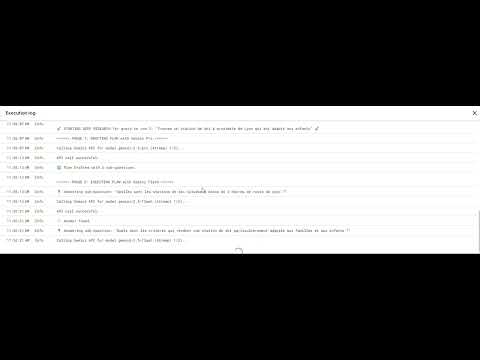
(Click the image to watch the video)
Follow these steps to get your AI Research Assistant running.
- A Google Account (e.g., Gmail).
- Go to Google AI Studio.
- Click "Create API key".
- Copy the generated key and save it somewhere safe. You'll need it in the next step.
- Go to script.google.com and click "New project".
- Delete the placeholder code in the
Code.gsfile. - Copy the entire code from the
Code.gsfile in this repository and paste it into the script editor. - Find the
const apiKey = "YOUR_API_KEY";line and paste your Gemini API key between the quotes.
For the script to create Google Docs, you must enable the Drive API service.
- In the Apps Script editor, look at the left-hand menu.
- Next to Services, click the
+icon. - Find Google Drive API in the list, select it, and click Add.
- The
Driveservice will now appear in your services list. Save the project (Ctrl + S or Cmd + S).
The first time you run the script, it will create the Google Sheet for you.
- Ensure the
const SHEET_ID = "";line is empty. - Select the
performDeepResearchfunction from the dropdown menu at the top. - Click Run.
- A popup will ask for authorization. Grant the script the necessary permissions.
- Another popup will appear with the ID of your new Google Sheet. Copy this ID.
- Go back to your script and paste the new Sheet ID into the
const SHEET_ID = "PASTE_YOUR_ID_HERE";variable. Save the project. - Open the newly created Google Sheet.
- Enter your research topics in the first column (
User Search Query), starting from cell A2. - Go back to the Apps Script editor and click Run again.
The script will now process each query, and the links to the final Google Doc reports will appear in the second column.
For a deeper dive into the architecture, philosophy, and advanced usage of this tool, check out our detailed Medium article.
➡️ Read the full article on Medium
This project is licensed under the MIT License - see the LICENSE.md file for details.