All available in-game resources that are permitted for modification and alteration. (This applies to 17.4 and the new NET Online version during development. The repository may be out of date by the time of release.)
-
Download the repository using any convenient method:
Code → Download ZIP,Releases → Download, or download an individual file via theDownload Raw Fileoption. -
Create a
datafolder in the root directory of the game. -
Inside it, create the required folder depending on what you want to edit (e.g.
textures).
data
├── configs
│   └── ui
├── fonts
├── levels
├── sounds
├── textures
│   ├── ui
│   ├── crosshair
│   ├── wpn
│   └── act
└── particles.xr
- Place your modified file according to the template structure from the repository.
For example, if you edited
crosshair_1pn93x1.dds, which is located attextures\crosshairin the repository,
the final file path should be:
*Game*\data\textures\crosshair\crosshair_1pn93x1.dds
- ✅ Done!
Your file has been added and will not be checked by anti-cheat or multiplayer resource protection.
Enjoy the game! 🎮
| Mistake | Explanation | Correct approach |
|---|---|---|
| Wrong folder name | Using Data (capital D) or texture (singular) instead of data and textures. |
Folder names are case-sensitive and must exactly match the original directory structure. Always use data and textures. |
| Incorrect nesting | Placing files directly into data without the proper subfolder (e.g. data\crosshair_1pn93x1.dds). |
Recreate the exact folder path from the repository. Check the directory tree above for reference. |
| Using the wrong file format | Renaming a .png to .dds without proper conversion. |
Convert textures to the correct .dds format (DXT1/DXT5 depending on the original) using tools like GIMP or NVIDIA Texture Tools. |
| File not being read | Modifying a file but not placing it in the game's data folder, or placing it in the repository folder by mistake. |
The data folder must be inside your game installation directory, not inside the downloaded repository. |
| Anti-cheat still triggers | Placing files in the wrong location or modifying protected archives (.db/.pak files) directly. |
Only loose files placed in the correct data subfolders will bypass integrity checks. Do not unpack game archives. |
| Directory structure mismatch | Creating extra folders that don't exist in the repository (e.g. data\textures\weapons instead of data\textures\wpn). |
Stick strictly to the folder names and structure shown in the repository's directory tree. |
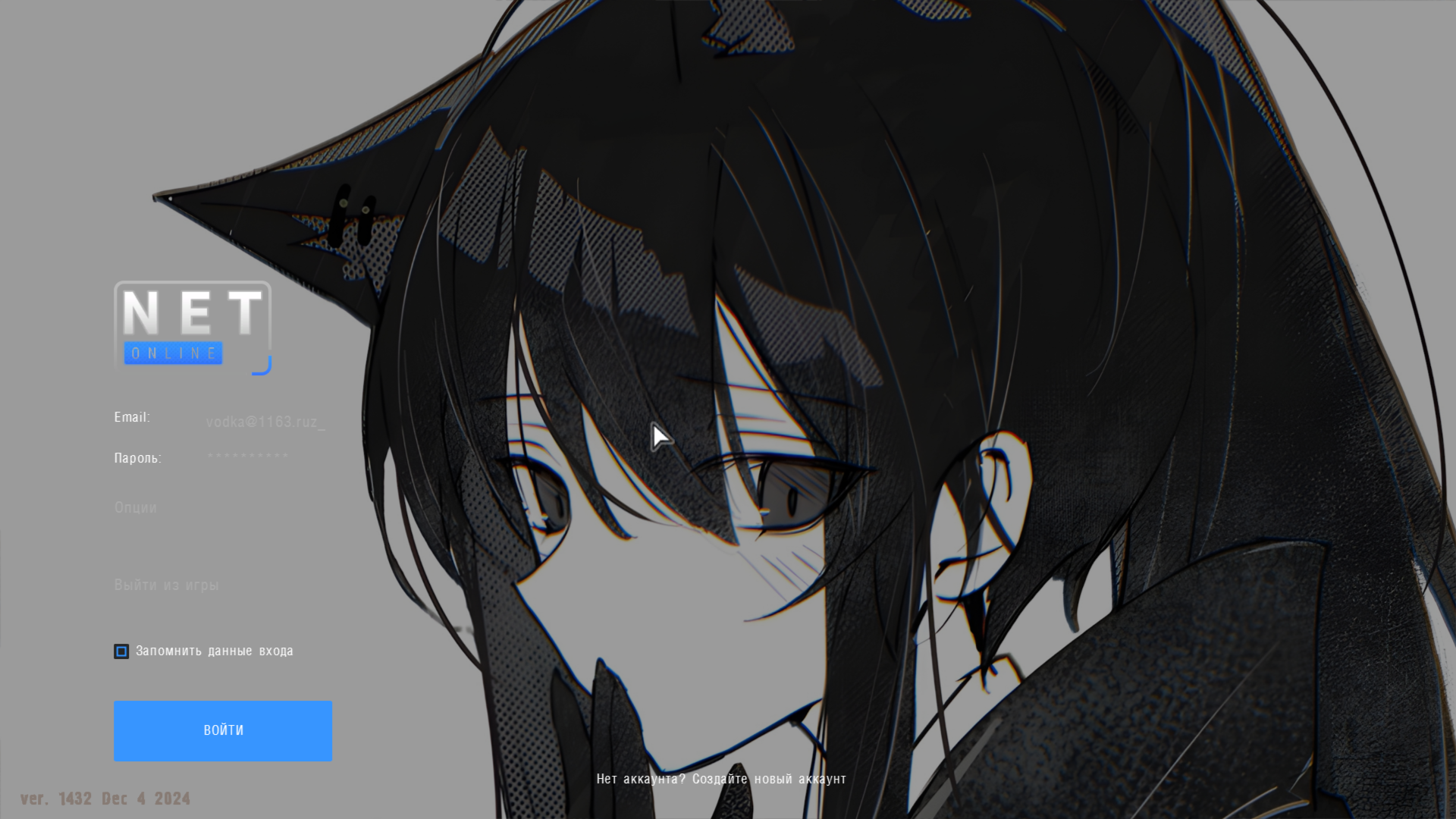
- Pick an image matching your screen resolution in
.jpgor.pngformat. - Edit it to fit your monitor size; if you want a higher DPI, multiply the resolution (e.g., 1920×1080 → 2560×1440).
- Place the image into the
userfolder and rename it touser_back. - Done! Now you can show off your fishing photos in the main menu! 🎣