




The PdfFrame crops PDF files with PyMuPDF.
PdfFrame is a desktop tool to crop or frame PDF pages with visual selection, margin trimming, and reusable margin presets.
Quick Start | Feature Highlights | Acknowledgments
🚧 DRAFT:Preliminary Version 📝 - Work in Progress 🏗️ 🚧
- Toolbar actions
Trim Margins,Save Margins, andGo!use dedicated bundled icons for consistent appearance. Save Marginsis placed next toTrim Margins, andGo!is placed at the far right of the toolbar.Extra operations on the final PDFincludesDelete annotations fields(enabled by default).- Conversion
ModesupportsFrame(keep original page size) andCrop(shrink page size to the selected area). - Only one trim/selection area is supported at a time; grid values above one area are reduced to one area.
Trim settingsandPresetsare available in the Basic tab, andSave Marginsstores reusable presets.
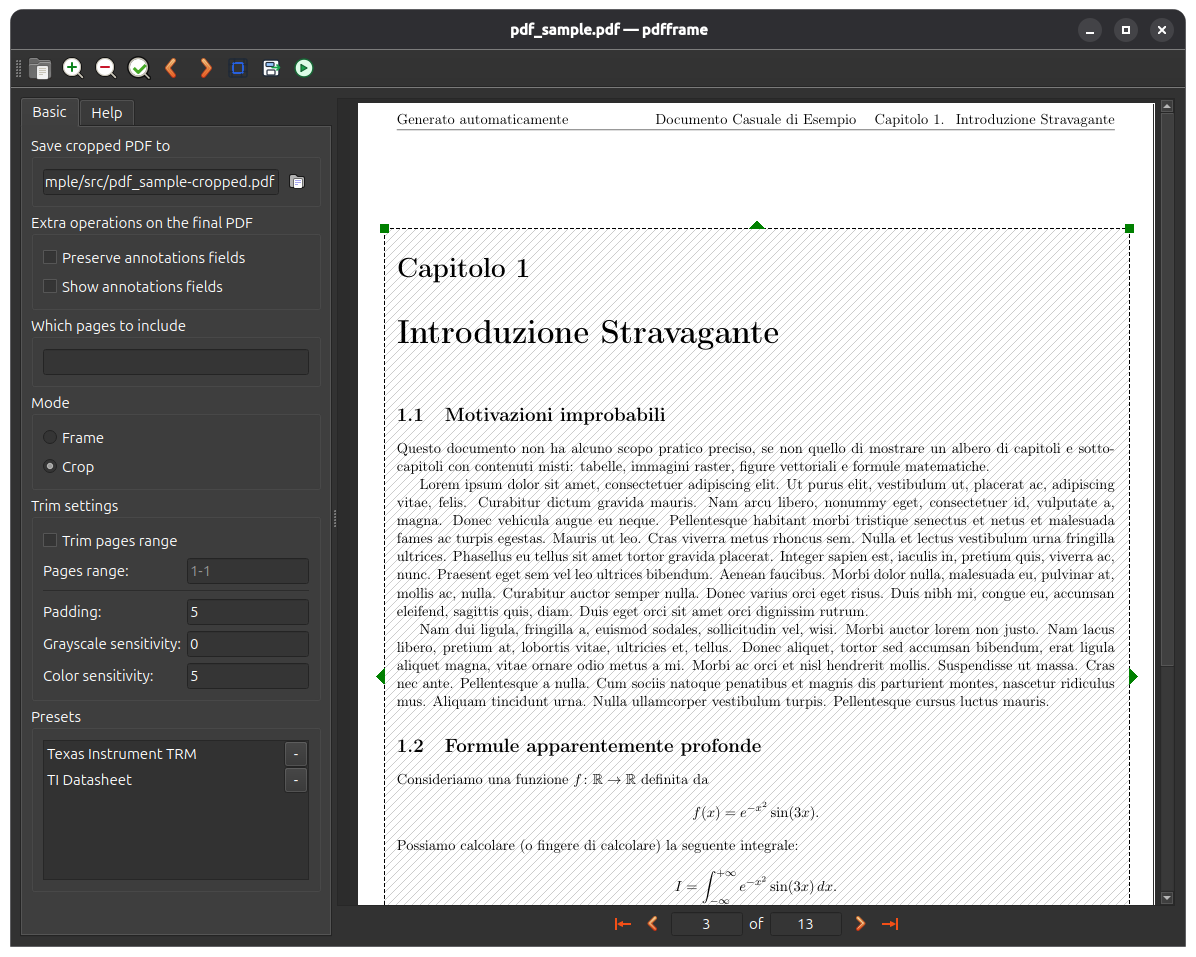
- Open a PDF file.
- Use
Trim Marginsto auto-trim the current page/selected range. - Select
Mode:Frame: keep the original page size and crop visible content.Crop: resize each output page to the selected area.
- (Optional) In
Extra operations on the final PDF, uncheckDelete annotations fieldsif you want to keep annotations/widgets. - Use
Save Marginsto store the current crop/frame setup as a preset. - Click
Go!to generate the output PDF.
pdfframe [file] [options]-o, --output: output PDF path.--whichpages: one page range to process (N,N-,-N,N-M).--mode {frame,crop}: conversion mode.--grid: initial selection grid; only one selection area is kept.--initialpage: page opened initially (1-based).--go: run conversion immediately without opening the GUI window.
--verbose: enable console progress output.--debug: enable extra crop debug output (effective with--verbose).--use-qt5: force PyQt5 (default is PyQt6 when available).--use-pymupdf: use PyMuPDF rendering (default).--use-poppler: use Poppler rendering (PyQt5 only).--use-pikepdf,--use-pypdf,--use-pypdf2: legacy compatibility flags (no crop backend effect).
PdfFrame stores runtime options and trim presets in ~/.pdfframe/config.json.
The file is auto-created on first run and normalized to this shape:
{
  "config": {
    "PDF/DeleteAnnots": true,
    "PDF/Mode": "frame",
    "Trim/Padding": "0",
    "Trim/GrayscaleSensitivity": "0",
    "Trim/Sensitivity": "5",
    "Trim/PagesRangeEnabled": false,
    "Trim/PagesRange": "1-1"
  },
  "presets": []
}uv tool install pdfframe --force --from git+https://github.com/Ogekuri/PdfFrame.gituv tool uninstall pdfframeRun PdfFrame directly from the current repository checkout without prior installation:
uvx --from git+https://github.com/Ogekuri/PdfFrame.git pdfframeYou can pass CLI options as usual, for example:
uvx --from git+https://github.com/Ogekuri/PdfFrame.git pdfframe input.pdf -o output.pdf --go- Thanks to Prof. Armin Straub for developing Krop.