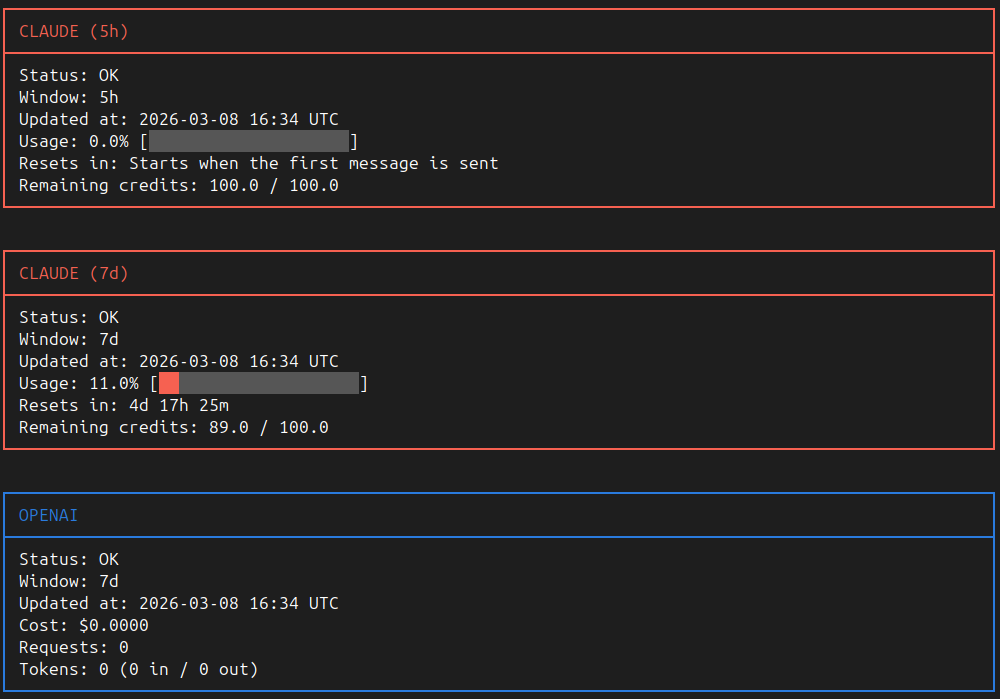
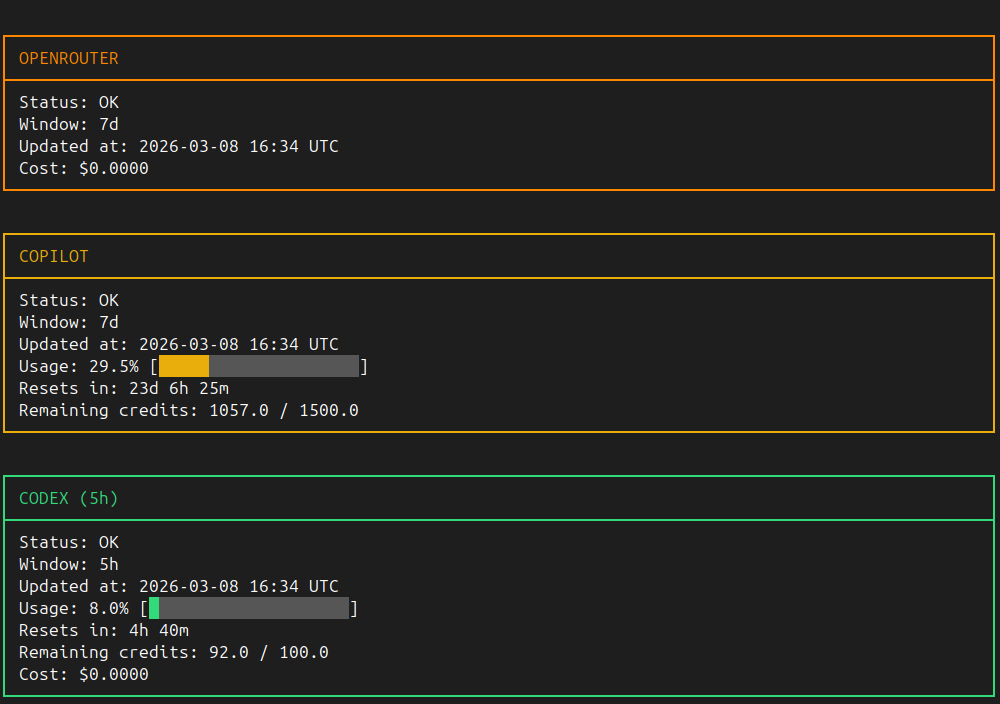
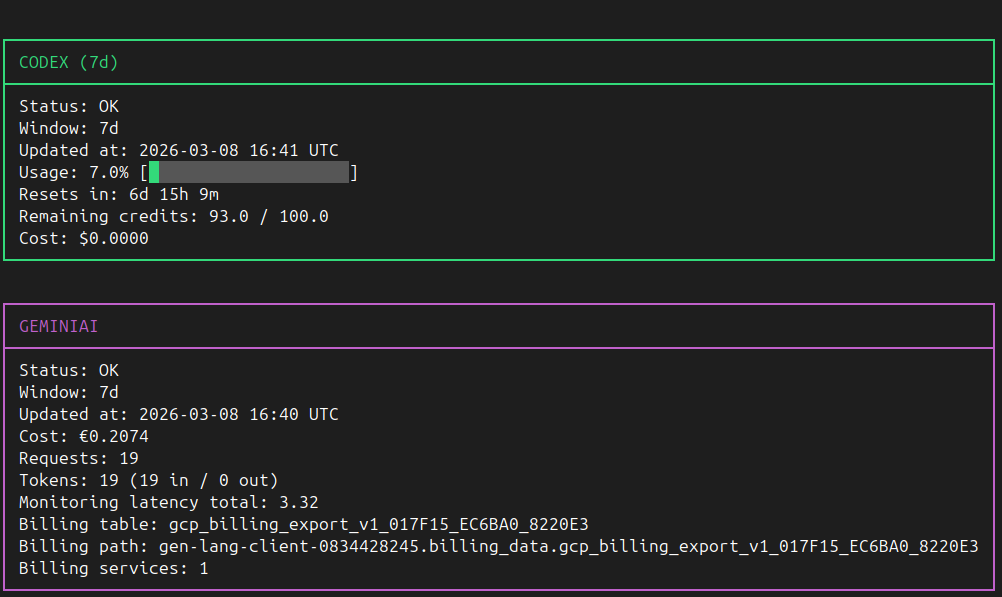
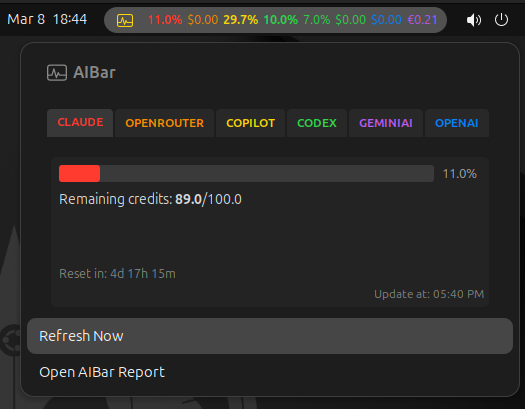
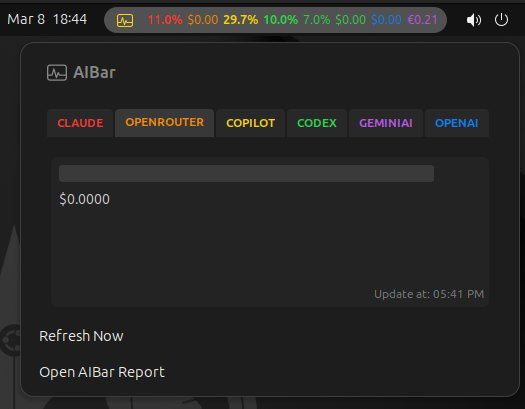
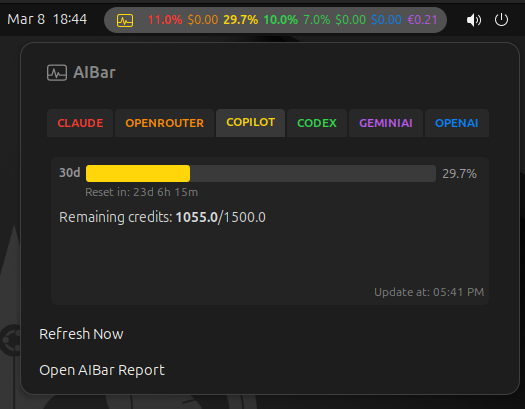
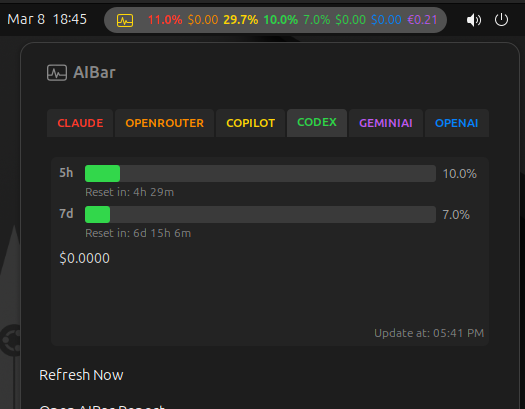
Monitor AI usage and quota in one CLI.
AIBar aggregates usage metrics for Claude, OpenAI, OpenRouter, GitHub Copilot, Codex, and GeminiAI, with terminal output and a GNOME panel extension.
Quick Start | Requirements (uv) | Installation (uv) | Feature Highlights | Usage | Acknowledgments
🚧 DRAFT: 👾 Alpha Development 👾 - Work in Progress 🏗️ 🚧
- Unified
showcommand for multiple providers (claude,openai,openrouter,copilot,codex,geminiai). - Text output and machine output (
show --json) with stable top-level sections (payload,status,idle_time,freshness,extension). - Per-run refresh override with
show --force(bypasses idle-time gating for that execution). - Interactive setup (
setup) for runtime controls, credentials, GeminiAI OAuth, provider currency symbols, and logging flags. - Built-in lifecycle and observability flags:
--version|--ver,--upgrade,--uninstall,--enable-log,--disable-log,--enable-debug,--disable-debug. - GNOME Shell extension support via
gnome-install/gnome-uninstallplus JSON-driven auto-refresh metadata.

# 1) From the repository root, run the repository launcher
scripts/aibar.sh --help

# 2) Configure credentials and runtime settings
scripts/aibar.sh setup

# 3) Verify provider configuration and connectivity
scripts/aibar.sh doctor

# 4) Show usage
scripts/aibar.sh show
scripts/aibar.sh show --jsonAIBar requires Astral uv for all local launcher/runtime workflows. Do not create or manage external virtual environments for repository execution.
uv is the recommended tool for installing and running AIBar.
uv tool install aibar --force --from git+https://github.com/Ogekuri/AIBar.gitAfter installation the aibar command is available system-wide:
aibar --help
aibar setup
aibar showRun AIBar directly from the repository without a local clone using uvx:
uvx --from "git+https://github.com/Ogekuri/AIBar.git" aibar --help
uvx --from "git+https://github.com/Ogekuri/AIBar.git" aibar show --json
uvx --from "git+https://github.com/Ogekuri/AIBar.git" aibar doctoruv export --format requirements-txt > requirements.txtuv tool uninstall aibar# Show all configured providers
# (default flow renders dual windows for claude/codex when --window is not set)
aibar show
# Provider selection
# allowed values: claude, openai, openrouter, copilot, codex, geminiai, all
aibar show --provider claude --window 5h
# JSON output for scripts/integrations
aibar show --json
# Force refresh for current execution (ignore idle-time gate)
aibar show --force
# Diagnostics and configuration
aibar doctor
aibar env
aibar setup
# Provider login helpers
aibar login --provider claude
aibar login --provider copilot
aibar login --provider geminiai
# GNOME extension lifecycle
aibar gnome-install
aibar gnome-uninstall# Version
# aibar --version and aibar --ver are equivalent
aibar --version
# Package lifecycle helpers (Linux: executed directly; non-Linux: prints manual command)
aibar --upgrade
aibar --uninstall
# Runtime logging flags
# execution log path: ~/.cache/aibar/aibar.log
aibar --enable-log
aibar --disable-log
aibar --enable-debug
aibar --disable-debug- Allowed windows:
5h,7d,30d. claudeandcodexsupport dual-window rendering (5hand7d) in default text output.- For
copilot,openrouter,openai, andgeminiai, the effective window is fixed to30deven if another--windowis provided.
# Repository launcher (delegates to uv run --project ... python -m aibar.cli)
scripts/aibar.sh --help

# Claude token refresh helper
scripts/claude_token_refresh.sh {start|stop|status|once|loop}

# GNOME nested-shell test helper
# runs gnome-install, then starts a nested Wayland GNOME Shell (1280x720)
scripts/test-gnome-extension.shTo enable GeminiAI features, configure Google Cloud before running aibar setup:
- Create Desktop Client OAuth 2.0 credentials in the target Google Cloud project.
- In
aibar setup, configure GeminiAI OAuth client JSON (fileorpaste) and authorize requested scopes:https://www.googleapis.com/auth/bigquery.readonlyhttps://www.googleapis.com/auth/monitoring.readhttps://www.googleapis.com/auth/cloud-platform
- Configure the Gemini project id in setup (
geminiai project id) or viaGEMINIAI_PROJECT_ID. - Set setup field
billing_datato the BigQuery dataset containing billing export tables (gcp_billing_export_v1_*, default dataset name:billing_data). - Ensure required Google APIs are enabled for the project used by OAuth credentials:
- Cloud Monitoring API
- BigQuery API
- Thanks to Shobhit Narayanan for creating GnomeCodexBar.
- This program is licensed under the terms in
LICENSE. - This project includes modified files from GnomeCodexBar; those files are covered by the license provided in
LICENSE_GnomeCodexBar, as required by the original license terms.