Server Application
When you wish to add a new application to the server, use the Tools menu to select "Add New Application" This will bring you to the following form:
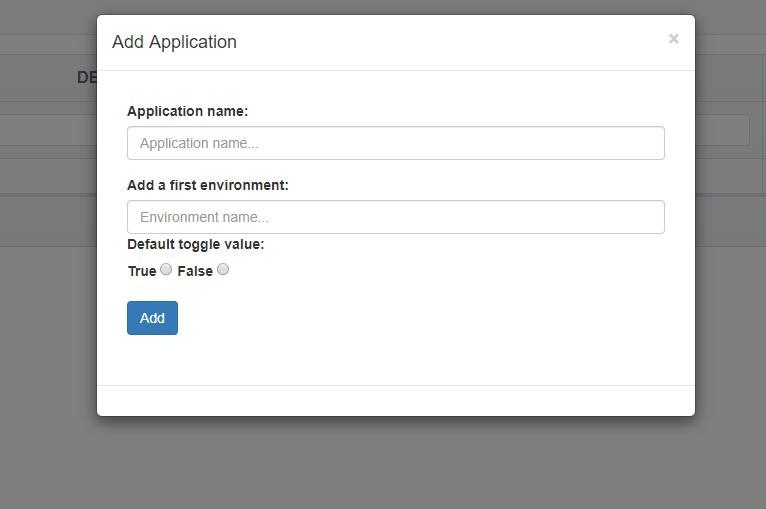
Application name: Enter a value that references the application. This value will be used when setting up the Client as well. The value can be anything, such as a nick-name or project name.
Add a first environment: Enter the value for your first environment, such as "Dev" or "Development"
Default toggle value: (false) Select the default value you wish a new Feature Toggle to have in this environment. For example, you may want all new features on Dev to be true (developer is working on them), but in Production to be false (you want to control the release of the feature)
When you have added your application, close the modal window and refresh the application (TODO: improve UX)
Your application should now look like this (using "MyApp" and "Dev" as inputs)
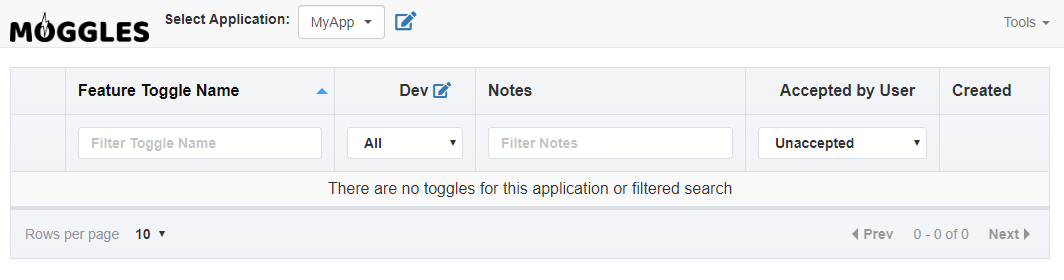
If you have additional environments, you can add them or skip to adding your Feature Toggles
If you wish to modify the name or delete the application, then click the "pencil" icon next to the name in the dropdown for "Select Application", only the selected application will be editing. If you change the name, you MUST update any client configuration as well. Deleting the Application will delete all Environments and Feature Toggles associates with that Application, this can NOT be undone.
A single server can support multiple applications. To change applications, simply use the dropdown in the upper left of the UI near "Select Application". Select the new application, and the grid will refresh. Your most recently used Application will be selected the next time visit the page.