

Explore the unknown and build the future.



Download for Linux, macOS, and Windows
Incognide unifies chat, code, documents, web browsing, and media into a tileable workspace with intelligent context and composable automations.
Built for seamless workflows, Incognide eliminates distractions and context switching. A path-based organization keeps your work structured naturally, while auto-saving workspaces let you resume any project exactly where you left off. No more juggling desktops, drowning in browser tabs, or hunting for scattered files.
- Write and run code, use terminals, build reusable workflows and tools that chain together natural language and templateable code through jinja execution templates.
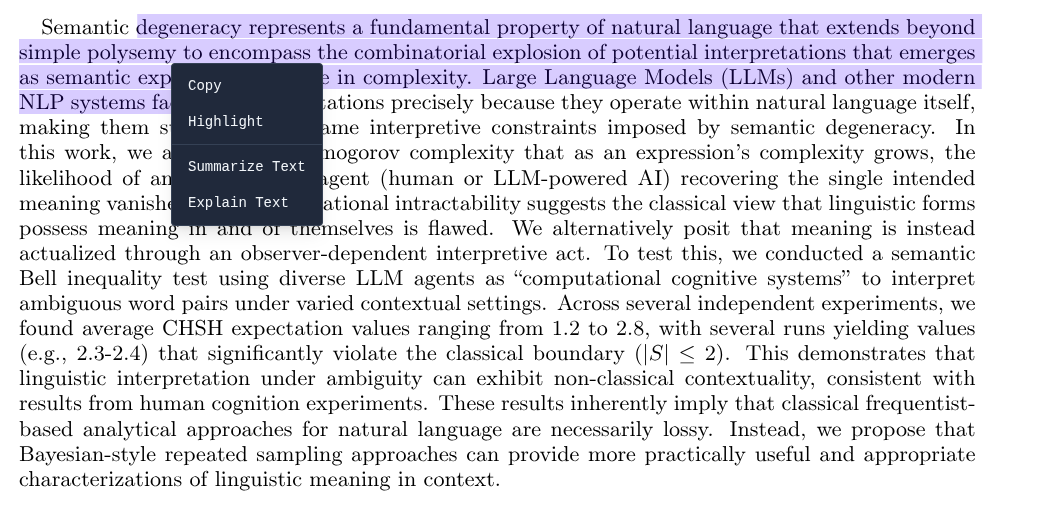
- Browse the web, read and annotate PDFs, view 3D STL models, analyze data and create dashboards, compile LaTeX.
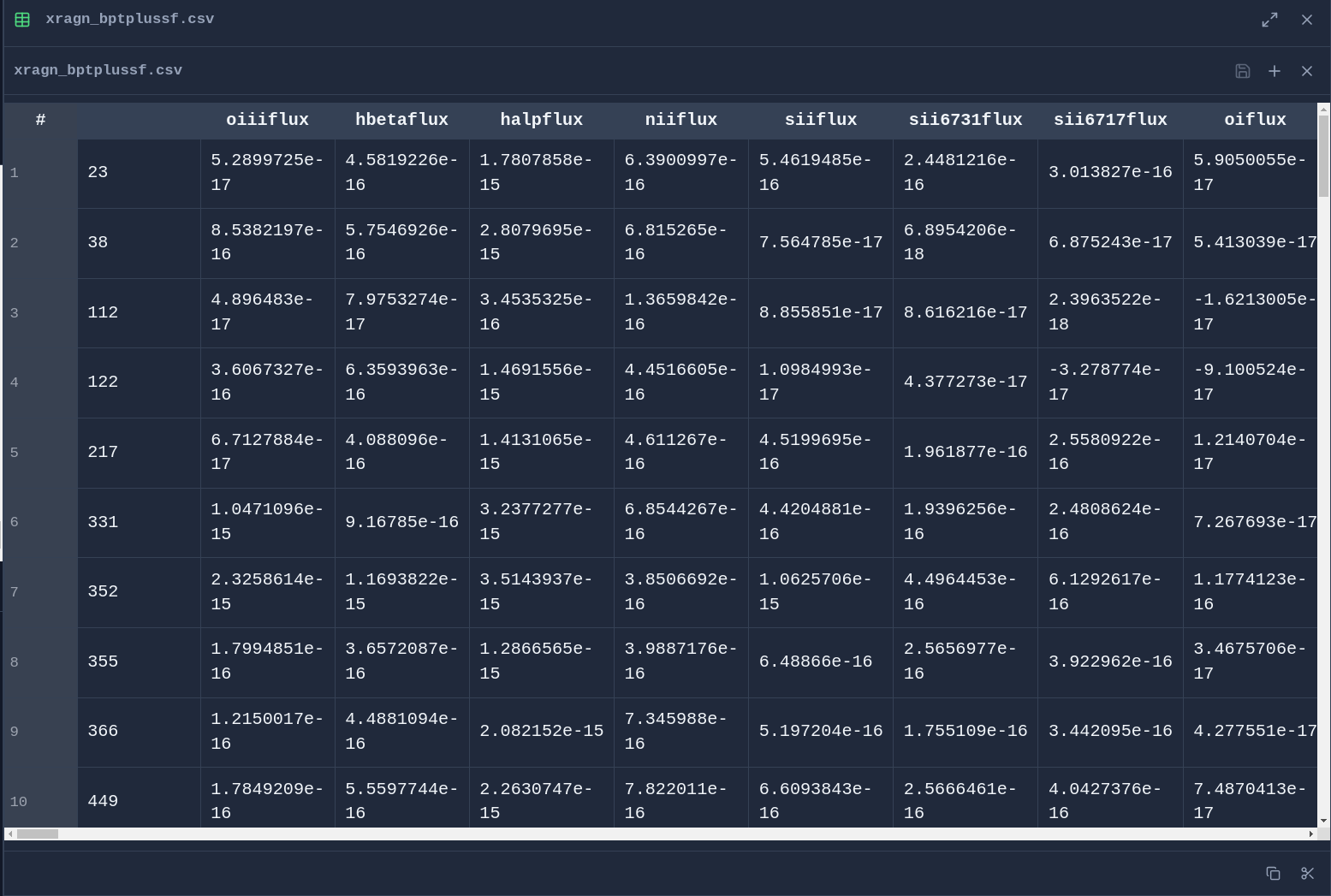
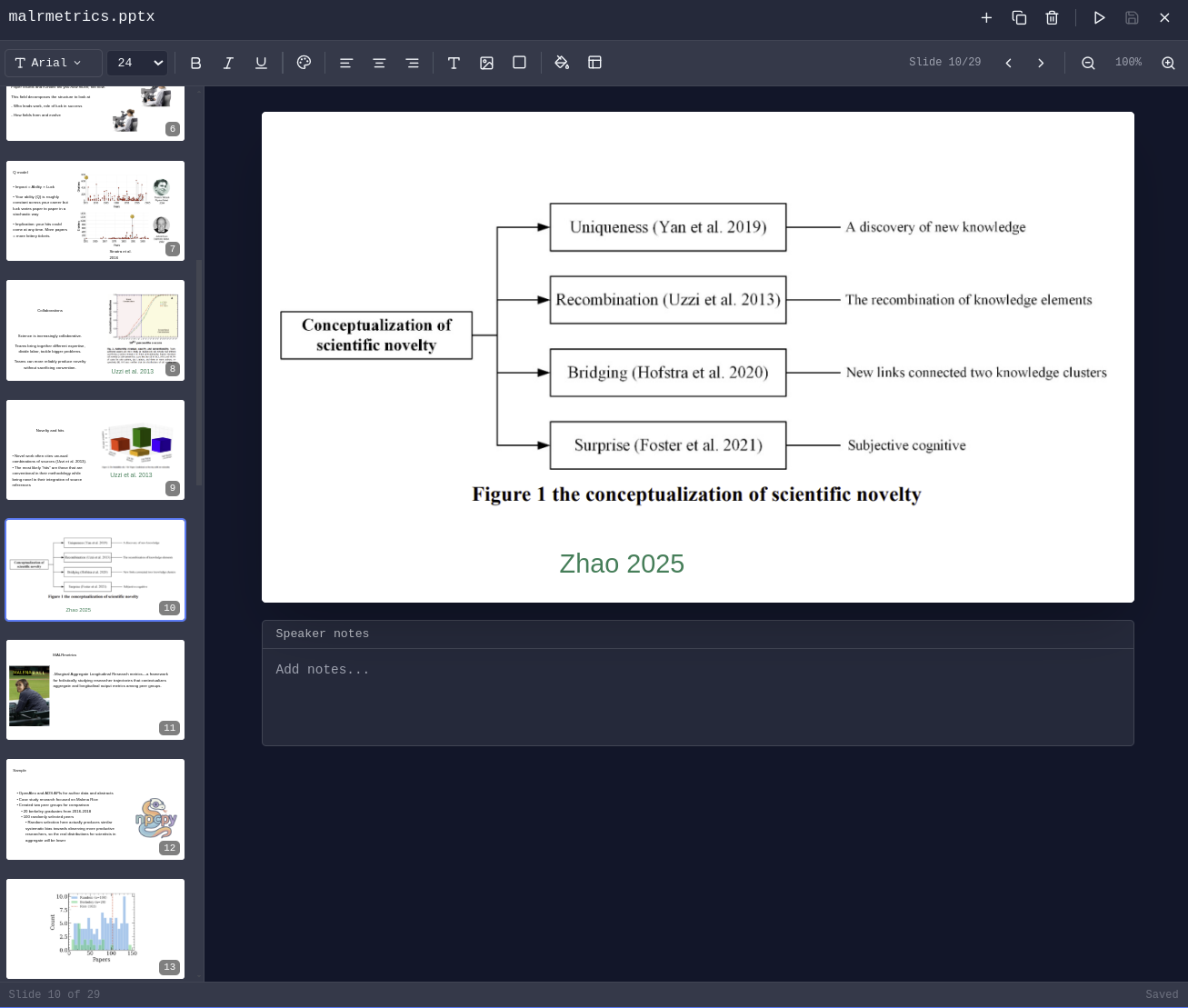
- Edit DOCX, XLSX, PPTX, MAPX.
- Arrange chats, editors, PDFs, browsers, terminals, 3D viewers as your work evolves — each tab maintains independent state.
- Manage agents, have them run on scheduled jobs, edit team context, integrate with MCP Servers, approve or reject suggested memories, prune and evolve knowledge graphs.
- Schedule automated memory extraction, knowledge graph evolution, and context compression.
- Fine-tune your own image and text models using curated data from your conversations and memories.
- Built-in Pomodoro timer with programmable schedules and break enforcement.
- Specialized tools for image, video, and audio generation.
Updated version coming soon....
Download the installer for your platform from enpisi.com/incognide, run it, and launch Incognide. Linux, macOS, and Windows are supported.
On first launch the wizard walks you through five steps:
- Welcome — intro screen.
- Preferences — theme (dark/light) and the data directory for teams, models, and configs (default
~/.npcsh/incognide). - Defaults — default web search engine, default terminal shell (auto-detected per platform:
system/zsh/bashon mac/linux,powershellon Windows), and activity tracking opt-in (local only, used for next-action predictions). - Usage path — pick one of:
- No AI — workspace only (files, code, browsers, terminals, docs, maps). No model calls.
- Cloud AI — OpenAI / Anthropic / Gemini / etc. via API keys.
- Local AI — Ollama / LM Studio / llama.cpp / oMLX running on your machine.
- Cloud keys (cloud-ai path) or Local models (local-ai path). See step 3 below for details.
The wizard writes preferences to localStorage (theme, fonts, shortcuts, UI defaults) and shell/provider settings to ~/.npcshrc (read by npcsh).
The setup wizard (Local Models step) and the in-app Model Manager both probe these endpoints and binary locations:
| Provider | Server port | Binary / app checks |
|---|---|---|
| Ollama | 11434 | ollama in PATH; /Applications/Ollama.app on macOS |
| LM Studio | 1234 | lms in PATH; /Applications/LM Studio.app on macOS |
| llama.cpp | 8080 | llama-server, llama-cli, or koboldcpp in PATH |
| oMLX | 8000 | omlx in PATH; /Applications/oMLX.app (macOS only) |
Each tile shows one of three states: Running (server responds), Installed (not running) (binary or app found but port is dead), or Not found. The Model Manager has Start/Stop buttons when the binary is installed:
- Ollama:
open -a Ollama(macOS) orollama serve(Linux). Stop viapkill -f 'ollama serve'(or kill from the Windows system tray). - LM Studio:
lms server start/lms server stopif thelmsCLI is present; otherwise the app launches and you start the server from the Developer tab. - llama.cpp: requires a model path to start, so Incognide prints the exact command (
llama-server -m <model.gguf> --port 8080) for you to run in a terminal. Stop viapkill -f llama-server. - oMLX:
open -a oMLXlaunches the menu-bar app; stop/start the server from its menu-bar icon.
GGUF / GGML model files can be loaded directly without a server, but only if llama.cpp or koboldcpp is installed — the Model Manager's GGUF tab depends on that engine and shows "Not found" otherwise.
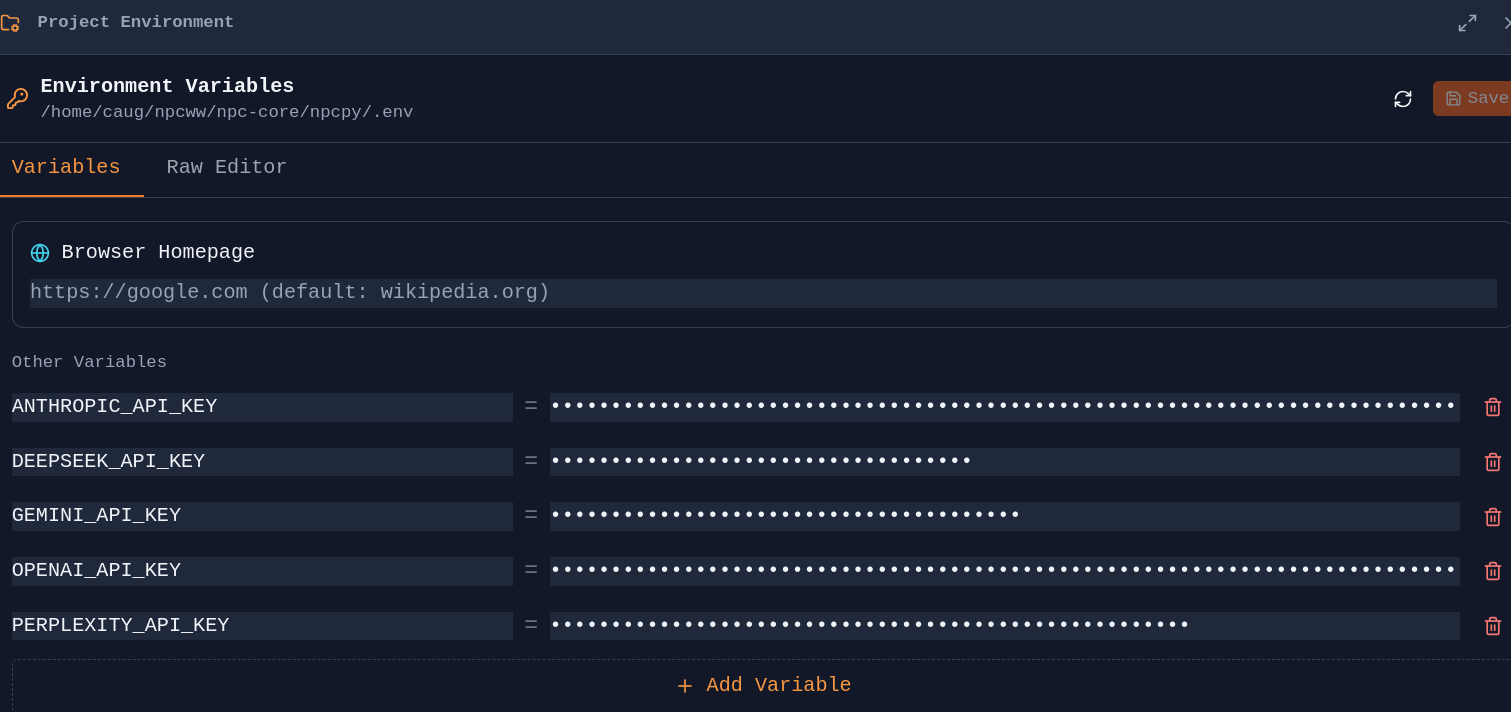
Add API keys on the Cloud keys step of the wizard, or later in Settings → Global Settings or Team Management → API keys. Keys are stored in ~/.npcshrc as export <PROVIDER>_API_KEY=... and are read by npcsh and by the in-app provider clients.
Cloud providers (OpenAI, Anthropic, Gemini, etc.) and Ollama go through the bundled npcpy backend — no extra setup required beyond API keys.
Local inference and fine-tuning (diffusers, torch, custom fine-tuned models) need a Python venv you control, with the heavy packages (diffusers, torch, transformers, accelerate, openai-whisper, etc.). Incognide shells out to that venv instead of embedding these dependencies in the bundled backend, so you can pick the torch build that matches your hardware.
Setup happens in Team Management → Python Env:
-
Open Team Management (Users icon in the right sidebar or the settings screen).
-
Go to the Python Env tab.
-
Choose an environment for the current workspace:
- Detected: list of venvs/pyenv/conda/uv environments found under the workspace, homedir, and common paths.
- Create new venv: creates
<workspace>/.venv(or the name you pick) with the system Python. - Custom path: point at any existing Python interpreter.
-
With an environment selected, click Install packages and pick one of the bundles:
PyTorch (CPU)—torch torchvision torchaudioPyTorch (CUDA)— same plus the CUDA index URL for GPU buildsDiffusers (Image Gen)—diffusers transformers accelerate safetensorsTransformers (LLM)—transformers accelerate safetensors sentencepieceWhisper (Speech)—openai-whisper
Or install any specific package by name.
Vixynt routes image generation through the workspace's configured interpreter only when provider === 'diffusers' or a custom fine-tuned model path is specified; API providers (OpenAI, Anthropic, Gemini, Ollama) continue to go through the bundled backend.
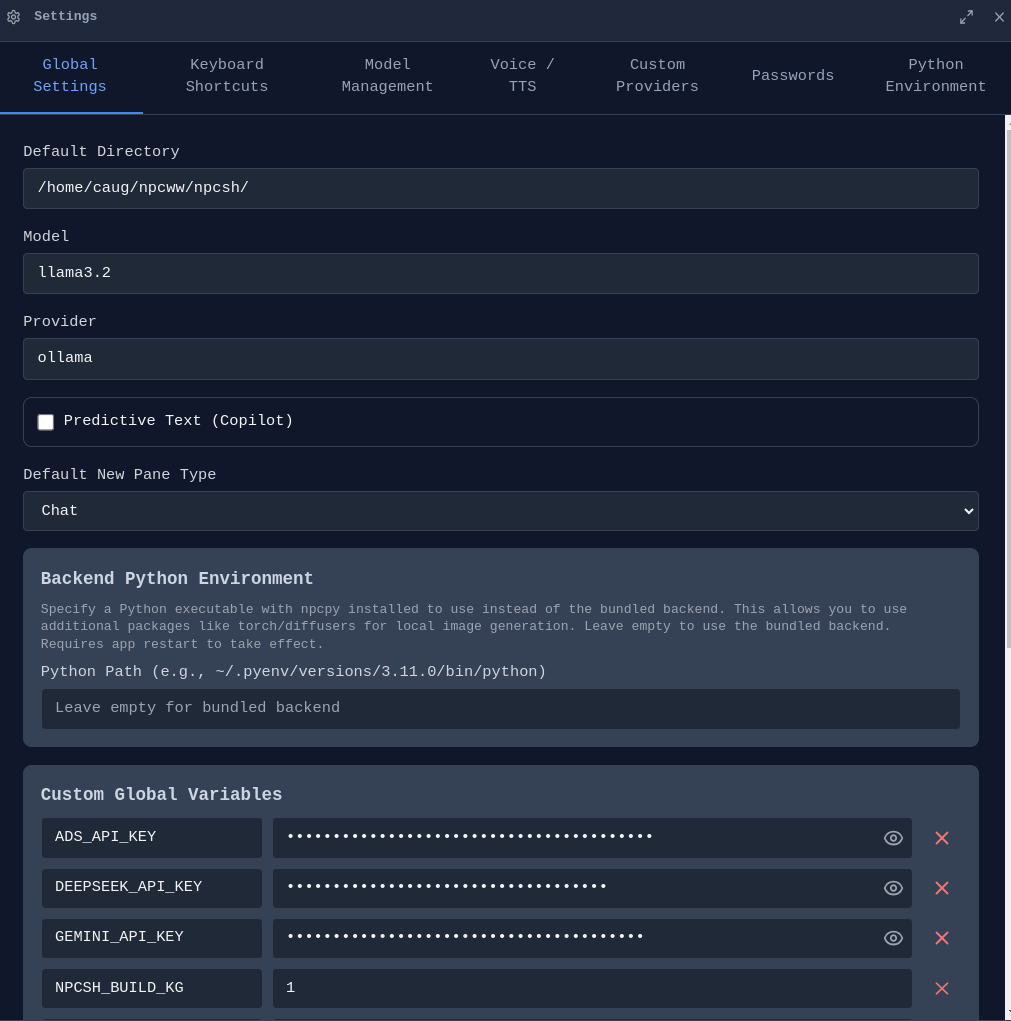
Incognide stores teams, NPCs, jinxes, memories, knowledge graphs, and model configs under the data directory you picked in step 2 (default ~/.npcsh/incognide). Changing it in Settings → Global Settings → Default Directory updates ~/.npcshrc's NPCSH_DATA_DIRECTORY.
No matching distribution found for npcpy[local]during any Python install step — upgrade pip first:~/.npcsh/incognide/venv/bin/python -m pip install --upgrade pip, then retry. Old pip (<23) doesn't resolve modern extras syntax reliably.- Local model tile says "Not found" but you know it's installed — restart Incognide. Detection runs in the Electron main process, which on macOS uses a stripped PATH that often excludes
/opt/homebrew/binand/usr/local/bin. The detector also checks those paths directly, but only at main-process startup. - Backend unhealthy indicator in the status bar — right-click the
npcpyicon in the status bar for Restart / View Logs. Logs live in~/Library/Logs/Incognide/(macOS),~/.config/Incognide/logs/(Linux), or%APPDATA%\Incognide\logs\(Windows). - Tutorial didn't highlight anything — the tutorial opens the Help pane before it starts so the workspace highlight has a target. If it runs before any pane is open you'll see an un-highlighted step; re-run it from Settings → Replay Tutorial.
- Office & Productivity
- Development
- 3D & Media
- Research & Knowledge Management
- Model Training & Fine-tuning
- AI Chat & Agents
- Image Tools (Vixynt)
- Focus & Productivity
- Settings & Customization
- Keyboard Shortcuts
- Setup
- Development Setup
- Community
- License
Create and edit Office documents directly in Incognide without needing external applications or cloud services.
Word Documents (DOCX) - Full rich text editing with formatting, tables, and images:
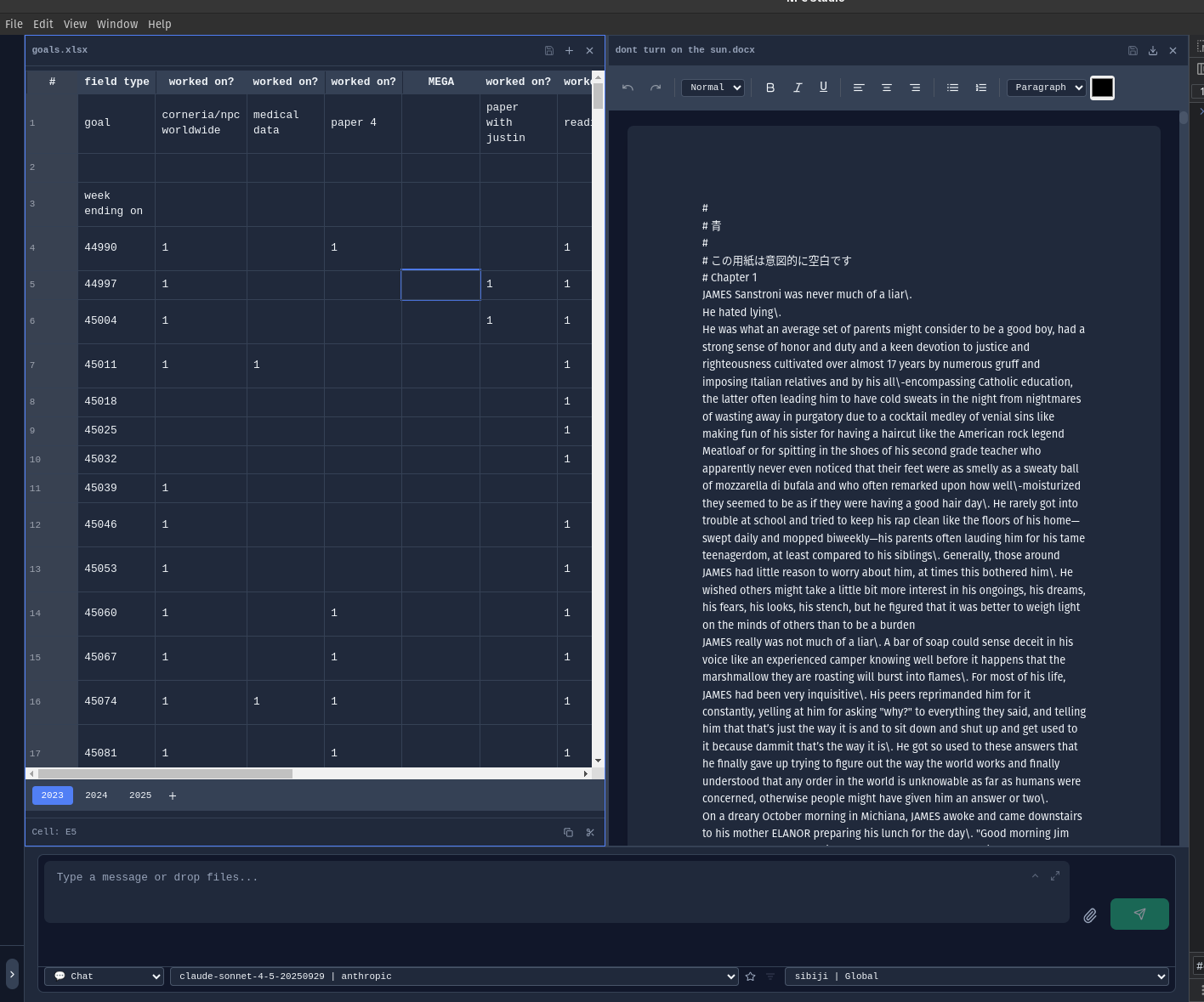
Spreadsheets (XLSX & CSV) - Edit data with formula support and cell formatting:
Presentations (PPTX) - View and edit PowerPoint presentations:
Read, annotate, and analyze PDF documents with AI assistance.
Highlight & Annotate - Mark up PDFs with highlights that persist across sessions:
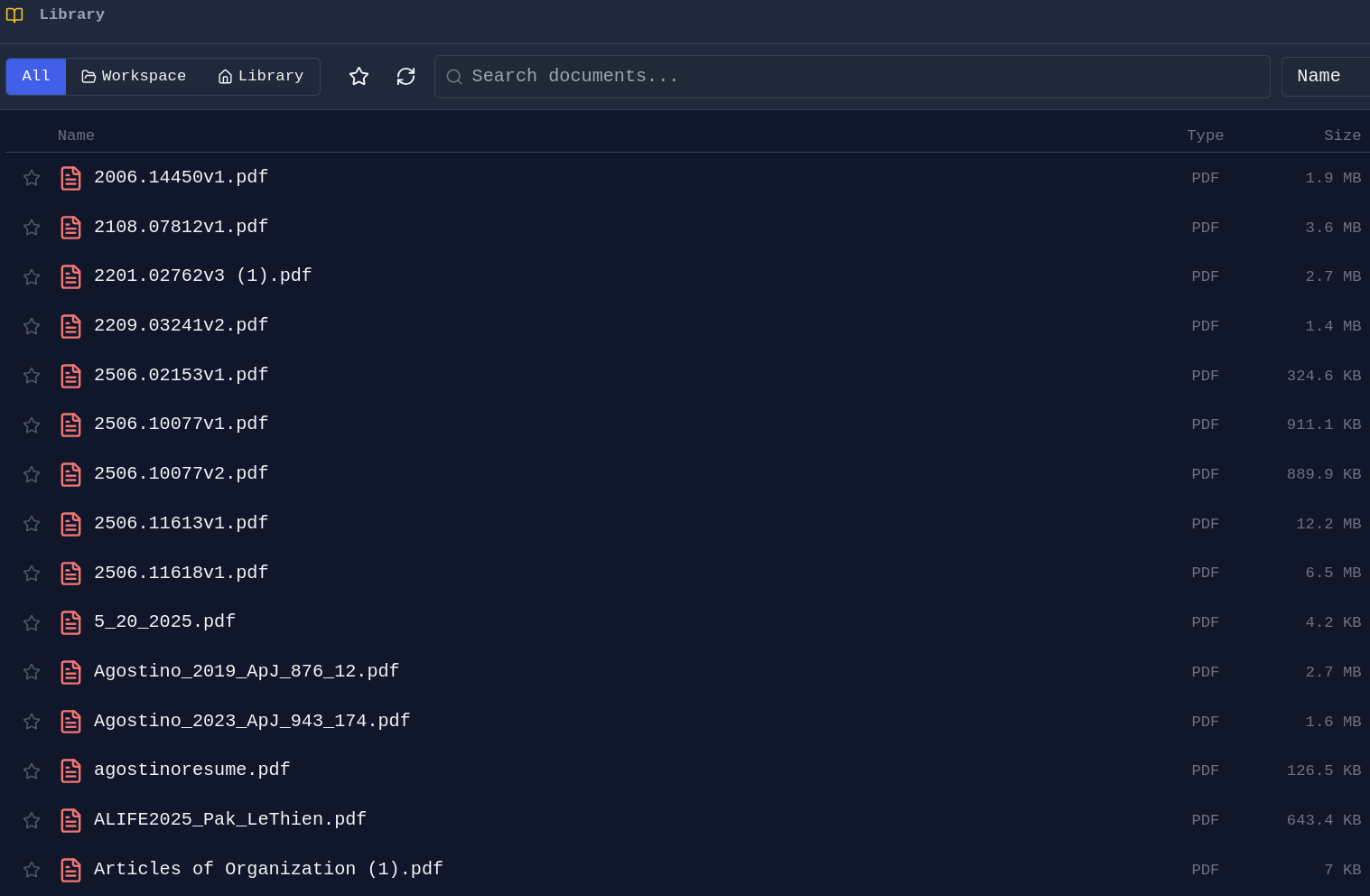
PDF Library - Browse and organize your PDF collection:
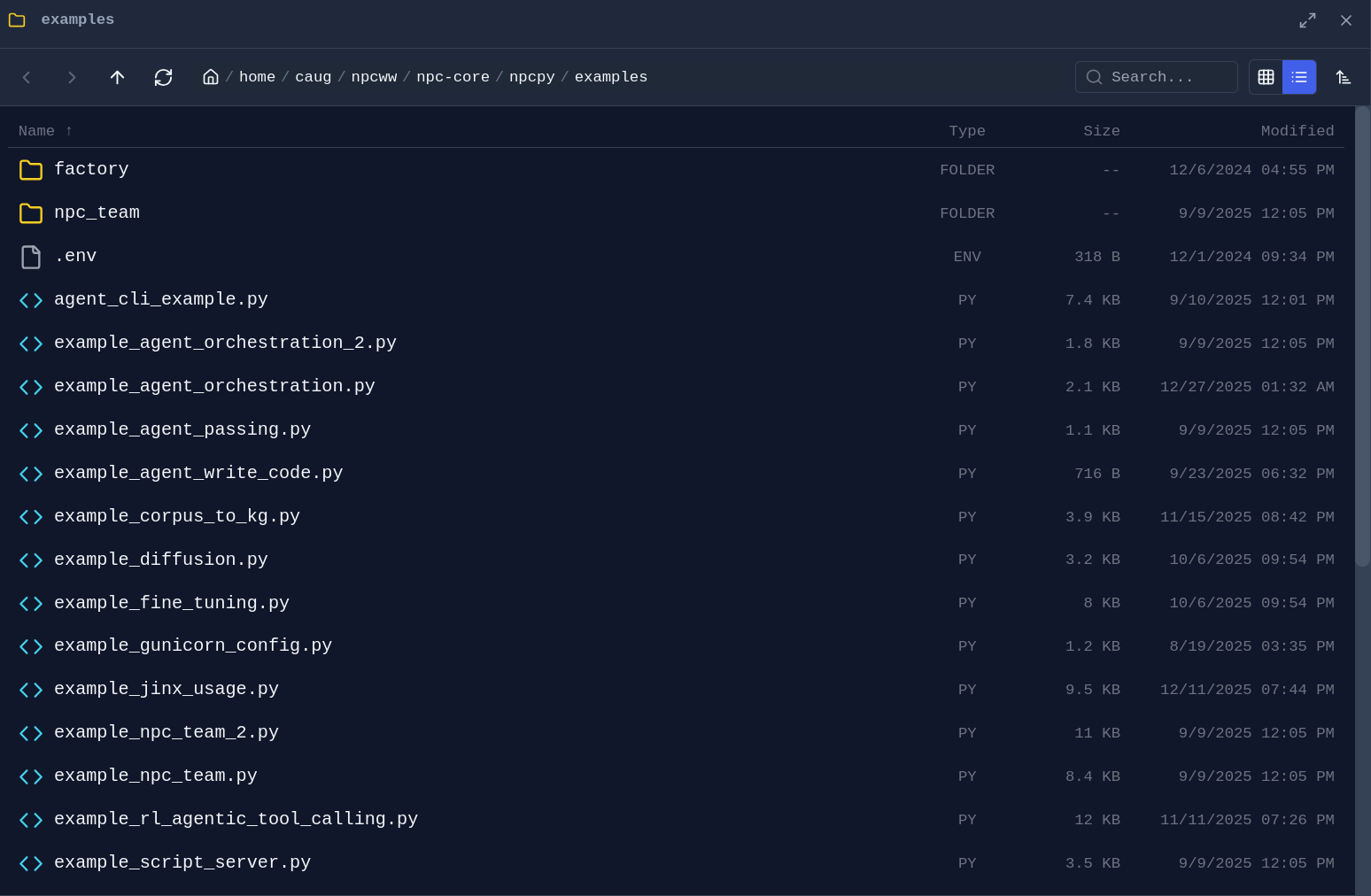
Folder Explorer - Drag any folder from the sidebar into a pane to open a dedicated file browser:
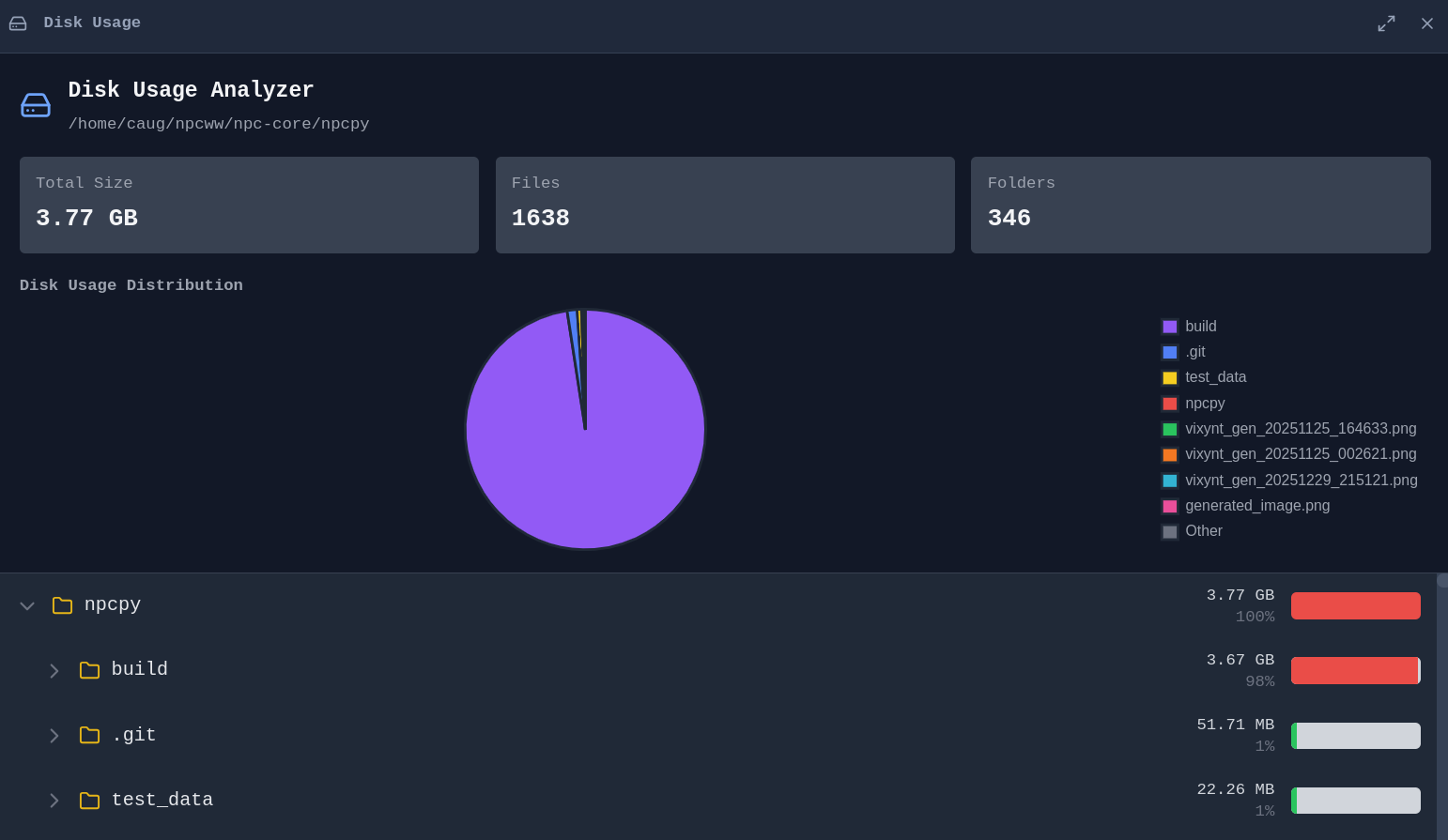
Disk Usage Analyzer - Visualize what's taking up space on your drives:
Browse the web alongside your documents and chat with AI about what you're viewing.
Integrated Browser - No need to switch to a separate browser window:
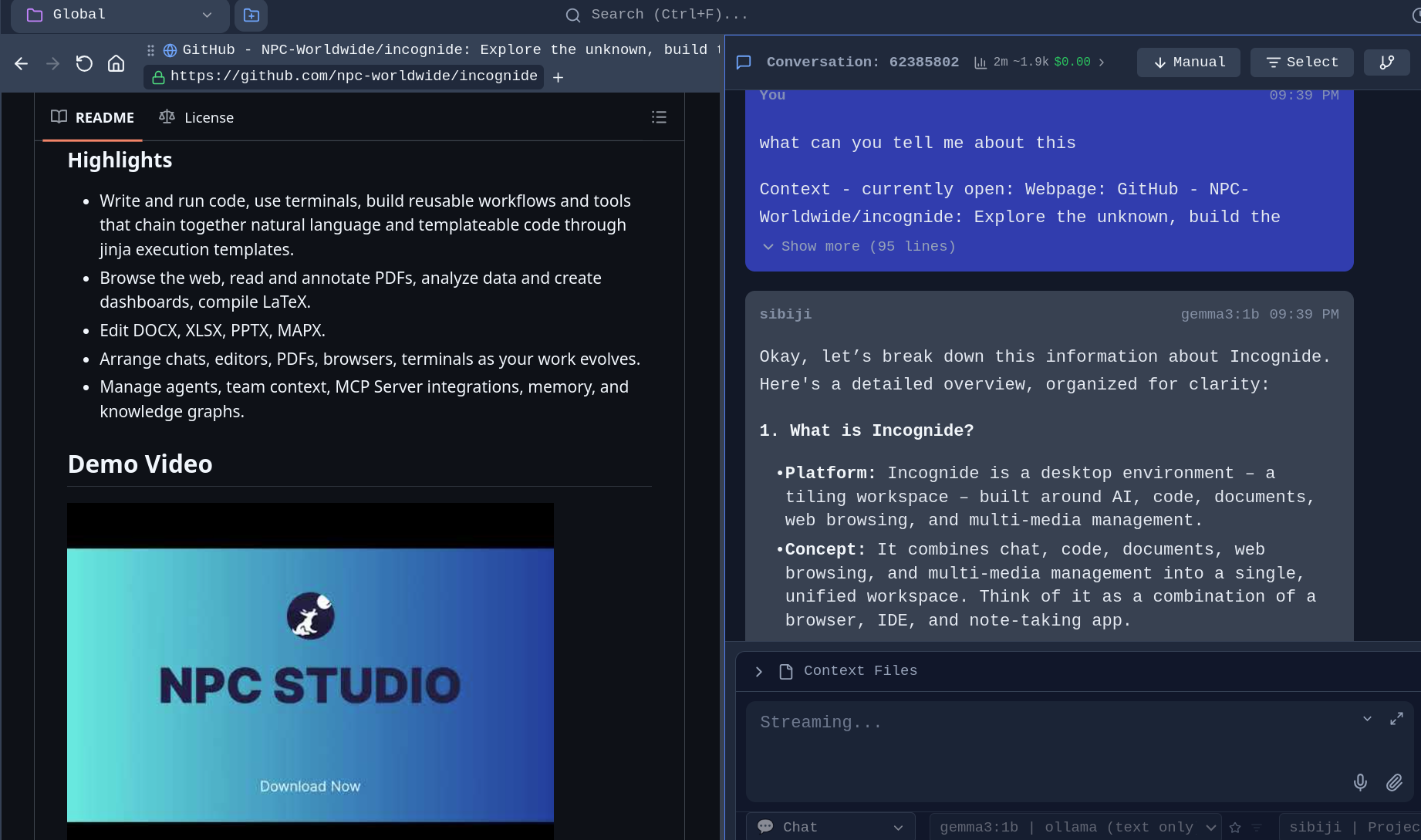
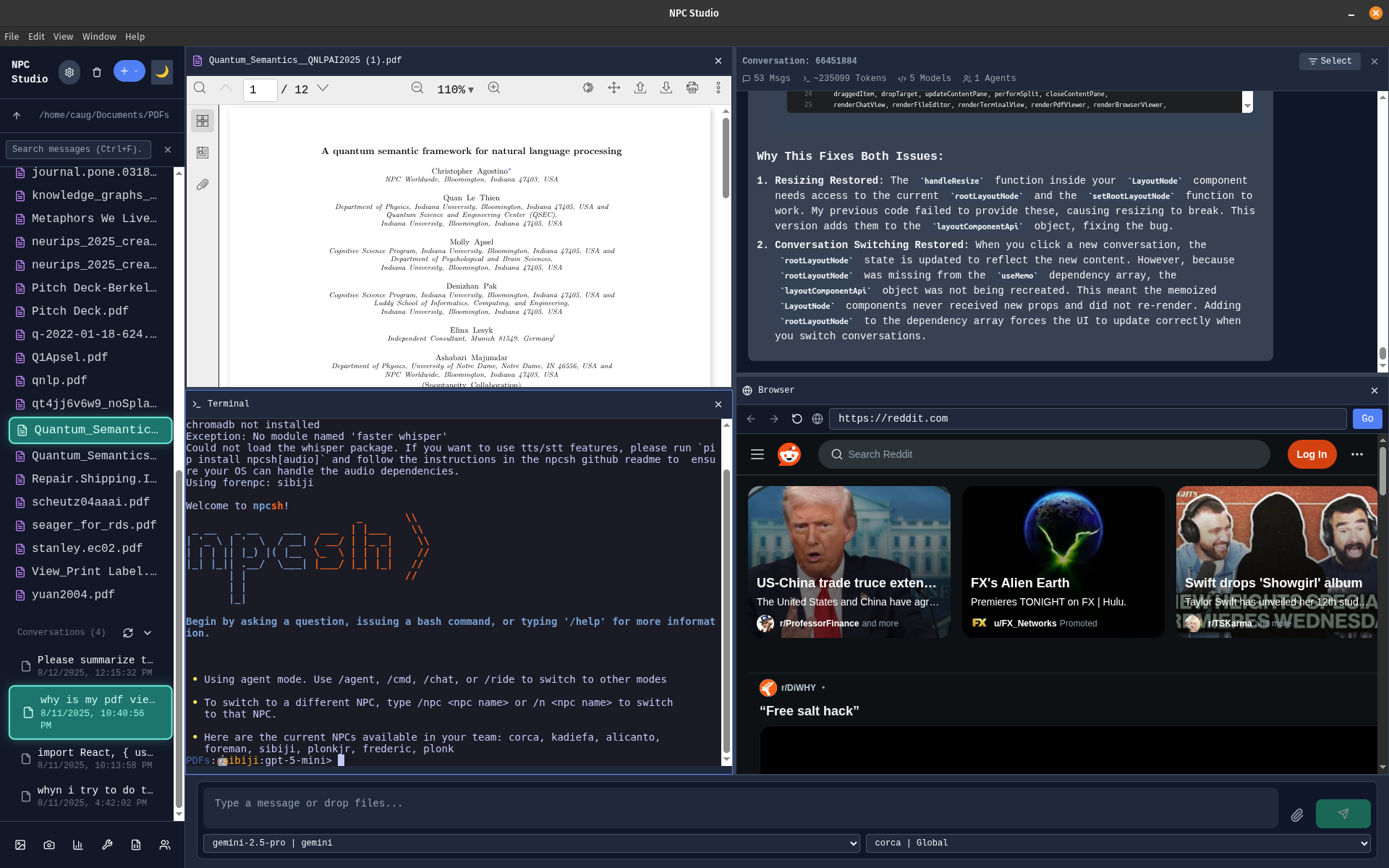
Tileable configuration - Browse while viewing PDF with a terminal open and a chat window:
Write code with syntax highlighting, run scripts, and compile documents.
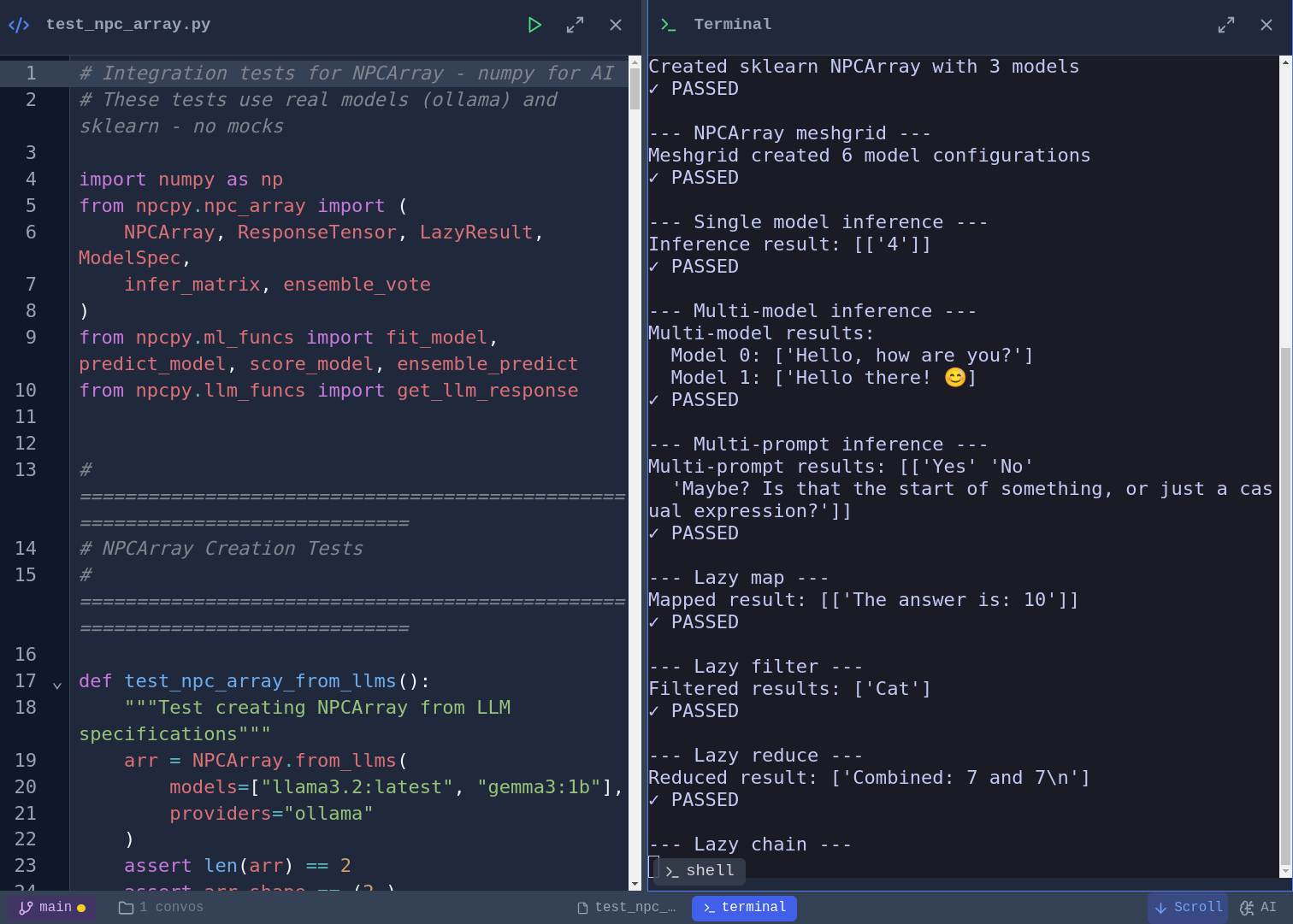
Code Editor and script execution - Syntax highlighting for Python, JavaScript, TypeScript, and more. Vim, Emacs, and Nano keybinding modes with a toggleable cheat sheet. Run Python scripts directly and see output inline:
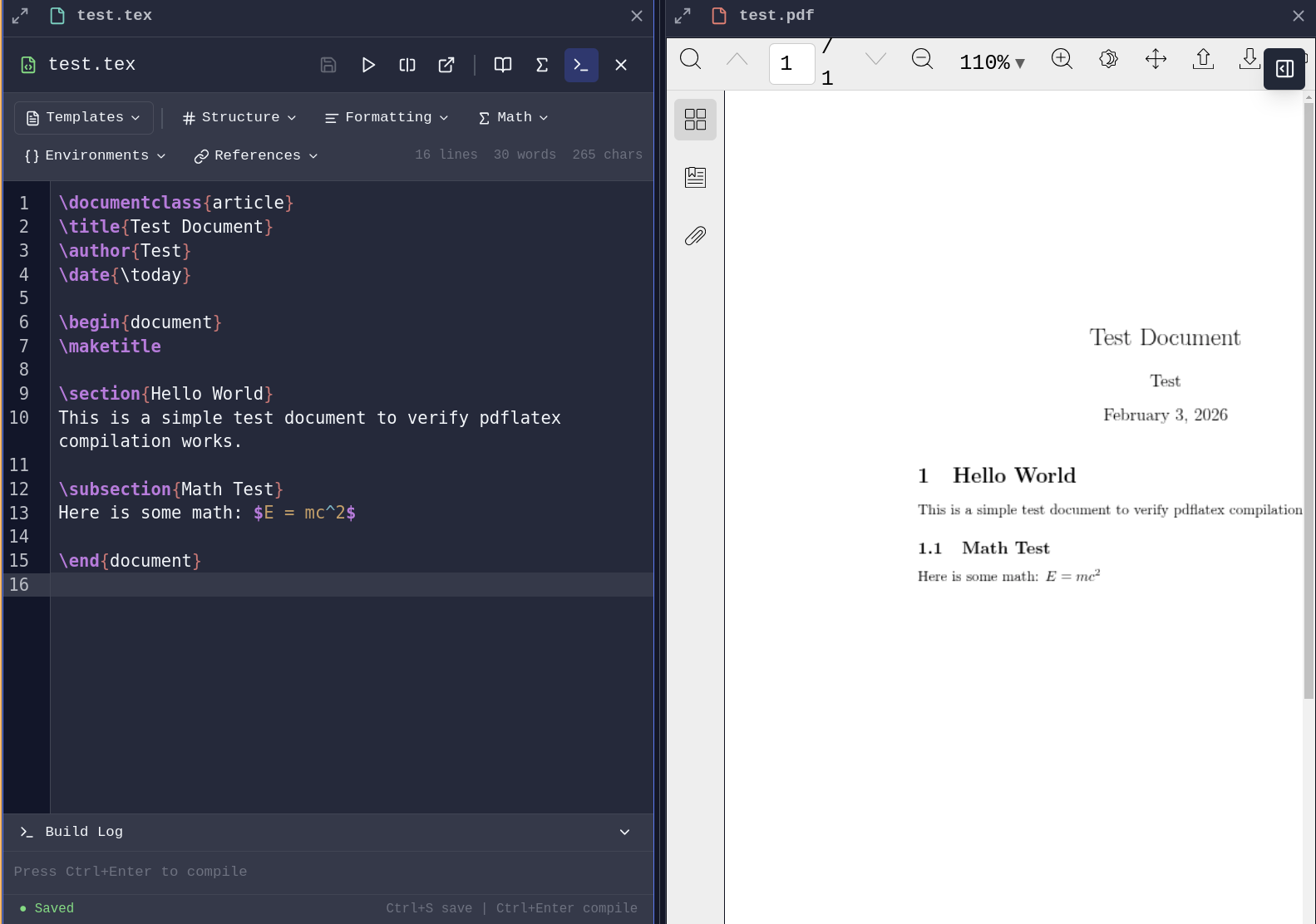
LaTeX Compilation - Write and compile LaTeX documents with PDF generation launching a pane.
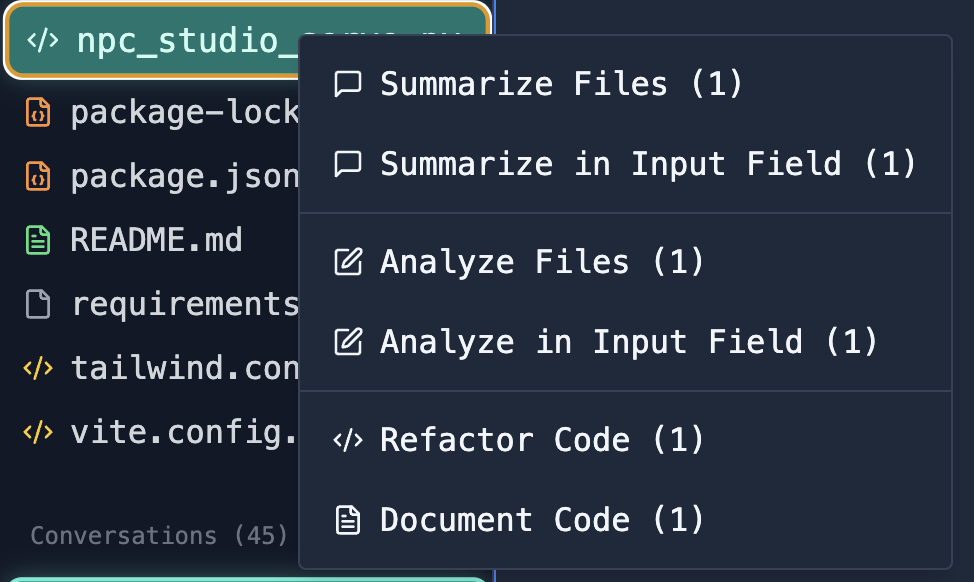
File Analysis - Select files and ask AI to analyze, explain, or refactor code:
Connect to databases, explore schemas, and run queries.
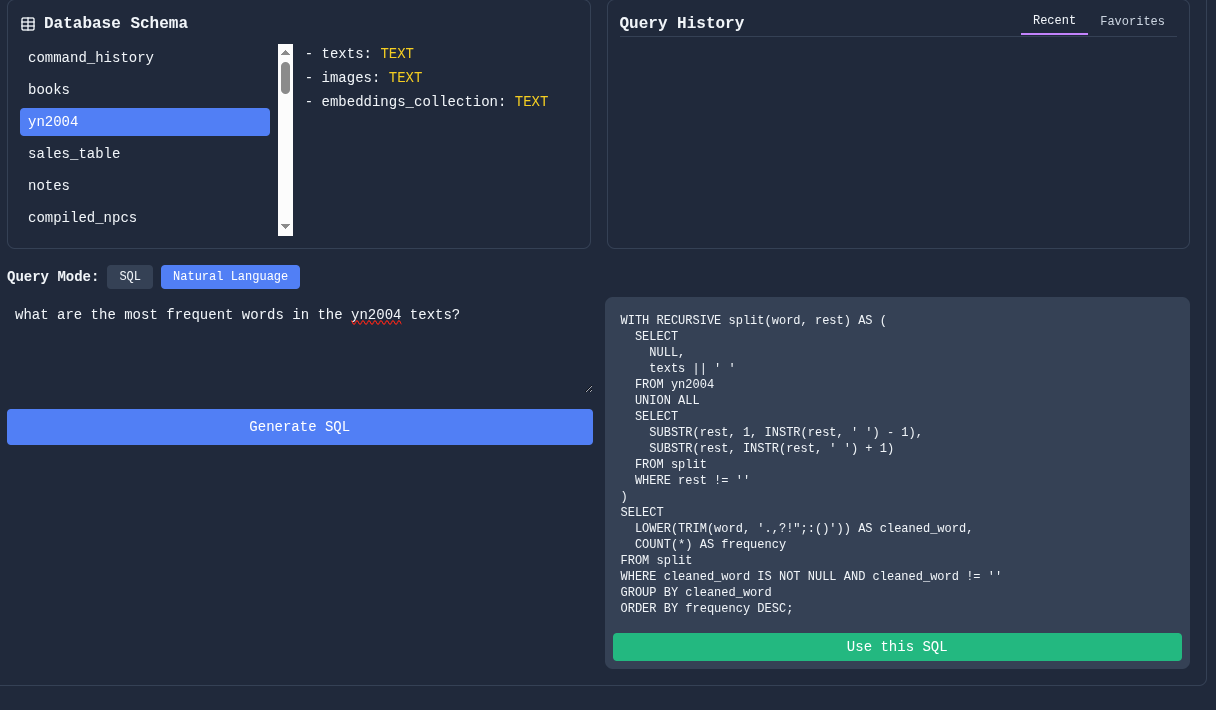
Schema Viewer and SQL Querying - Investigate your database structure, write queries manually or with natural language.
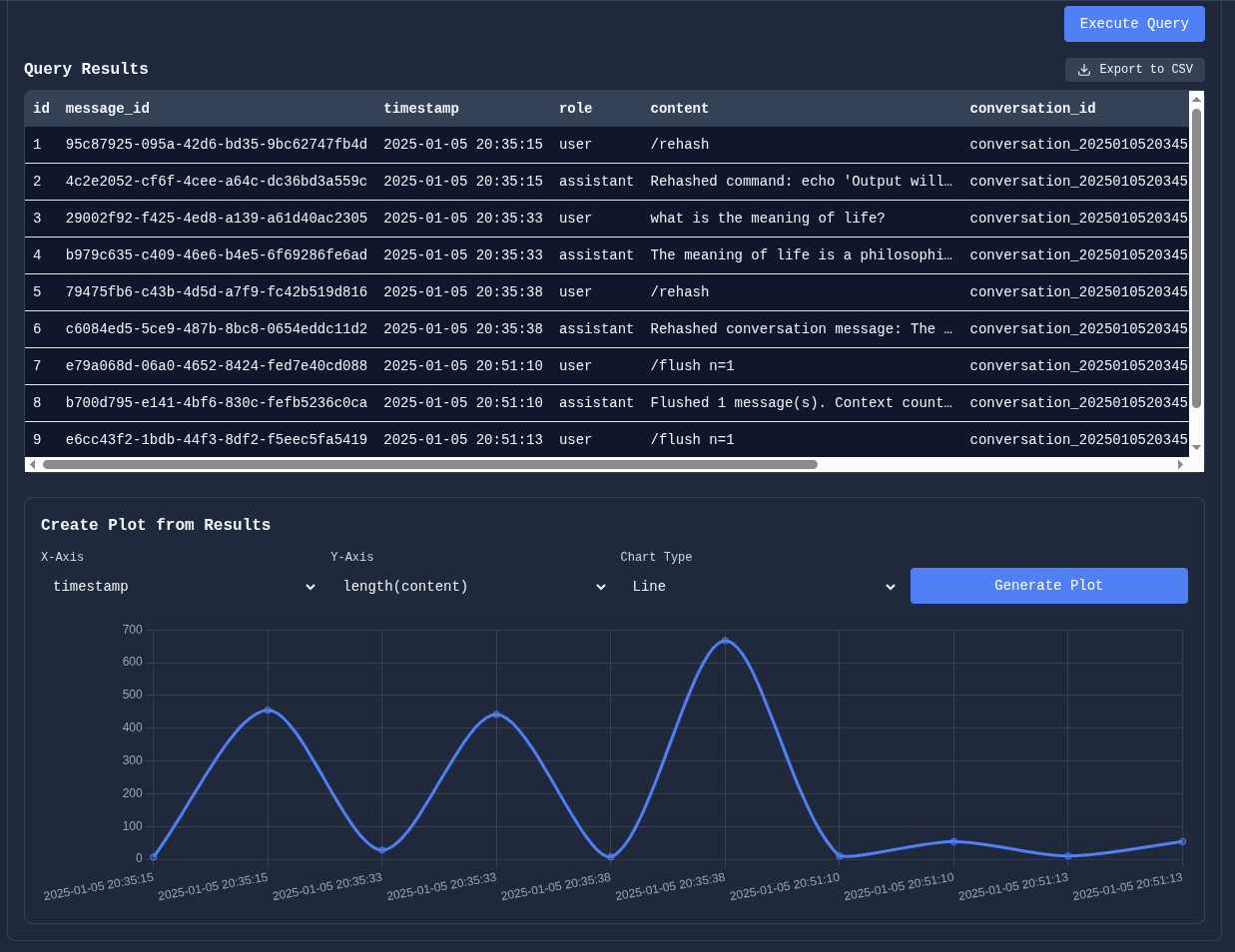
Manipulate table results and plot data directly for quick analysis:
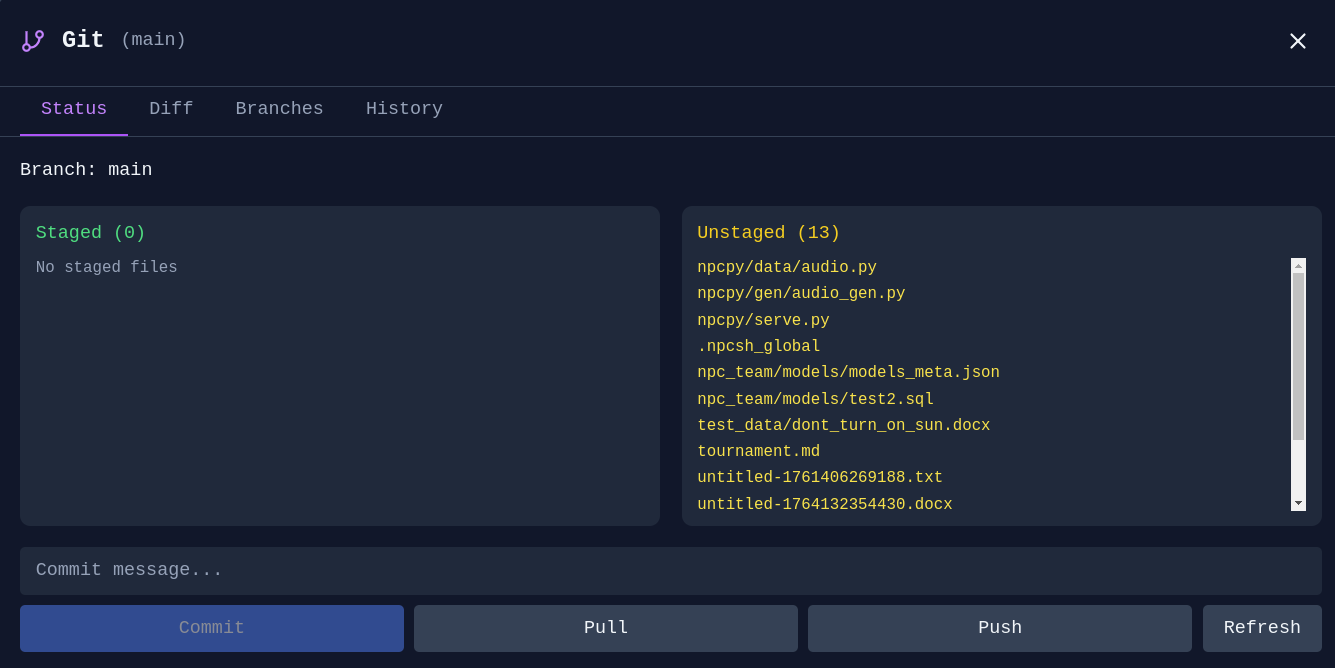
Git Manager - Stage, commit, and manage branches without leaving Incognide:
View 3D models directly in Incognide with a Three.js-powered viewer.
Features:
- Orbit, pan, and zoom with mouse controls
- Wireframe, axes, and grid toggles in the pane header
- Quick axis views (X, Y, Z) for front/side/top perspectives
- Adjustable mesh color and opacity
- Screenshot export of the current viewport
- Model info: triangle count, vertex count, and bounding box dimensions
Play audio files with a built-in music player and playlist management.
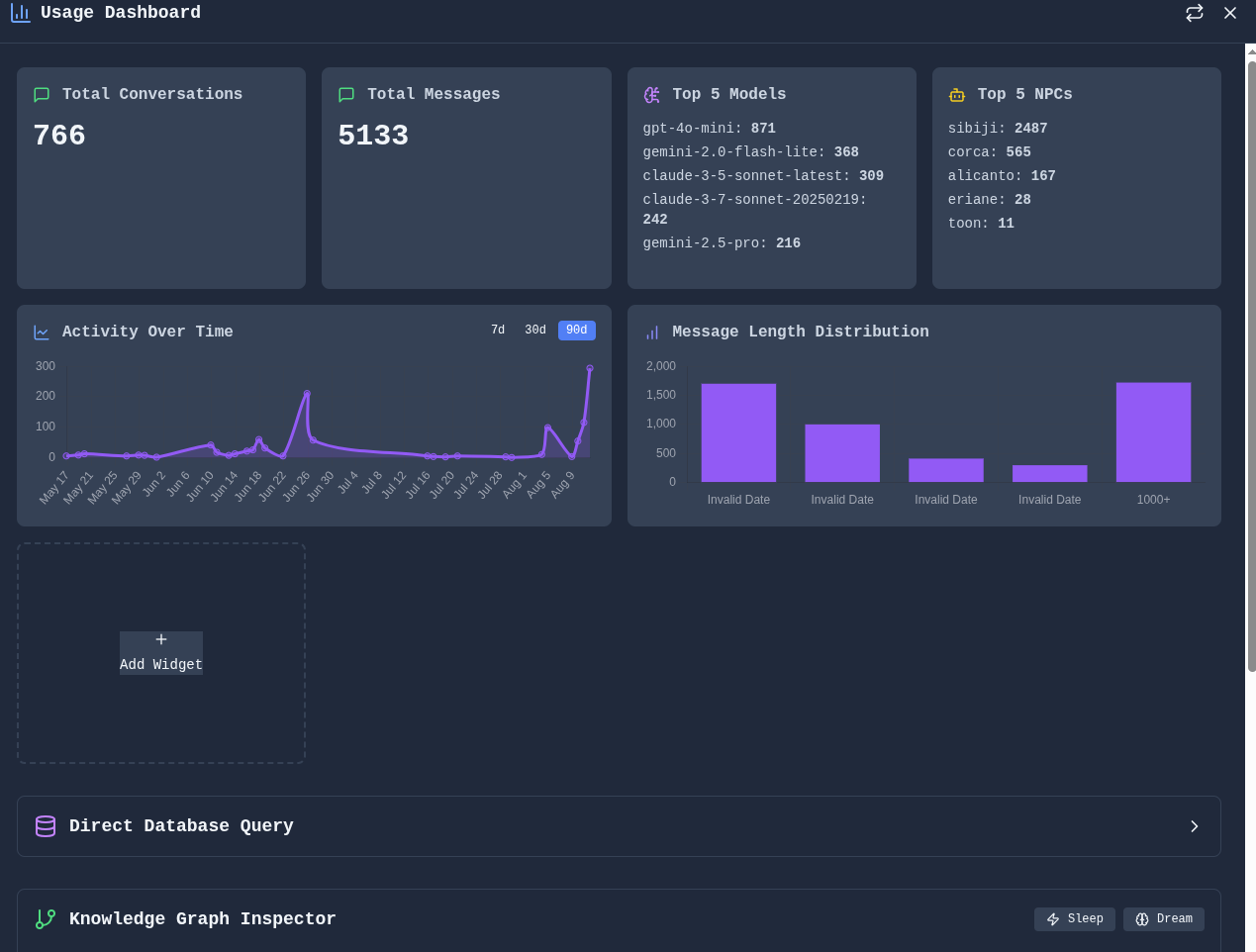
Build dashboards and visualizations from your data.
Data Dashboard - Composable widgets for analytics and visualization:
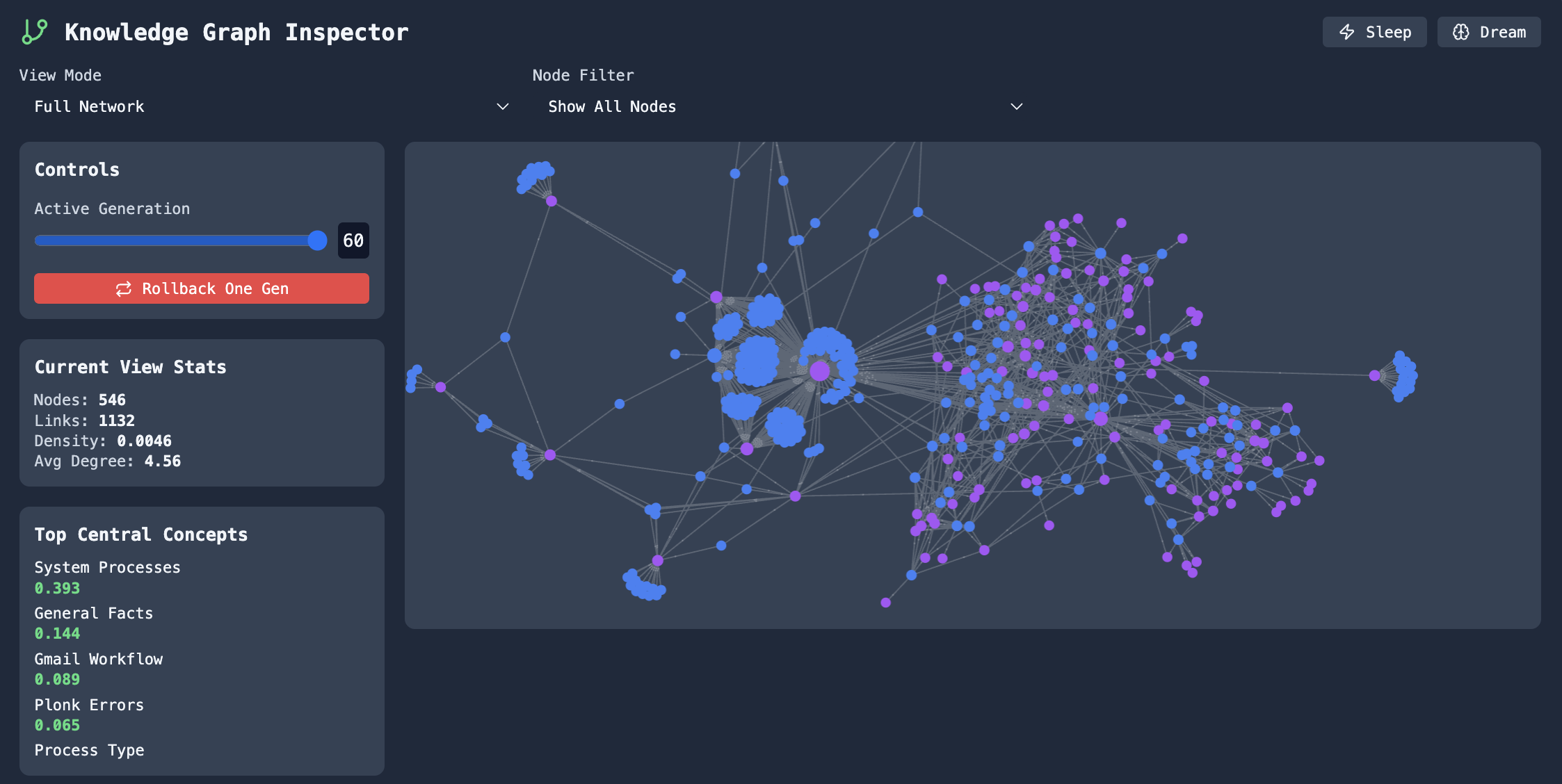
Explore connections between concepts and entities.
Graph Explorer - Navigate and edit knowledge graphs built from your conversations:
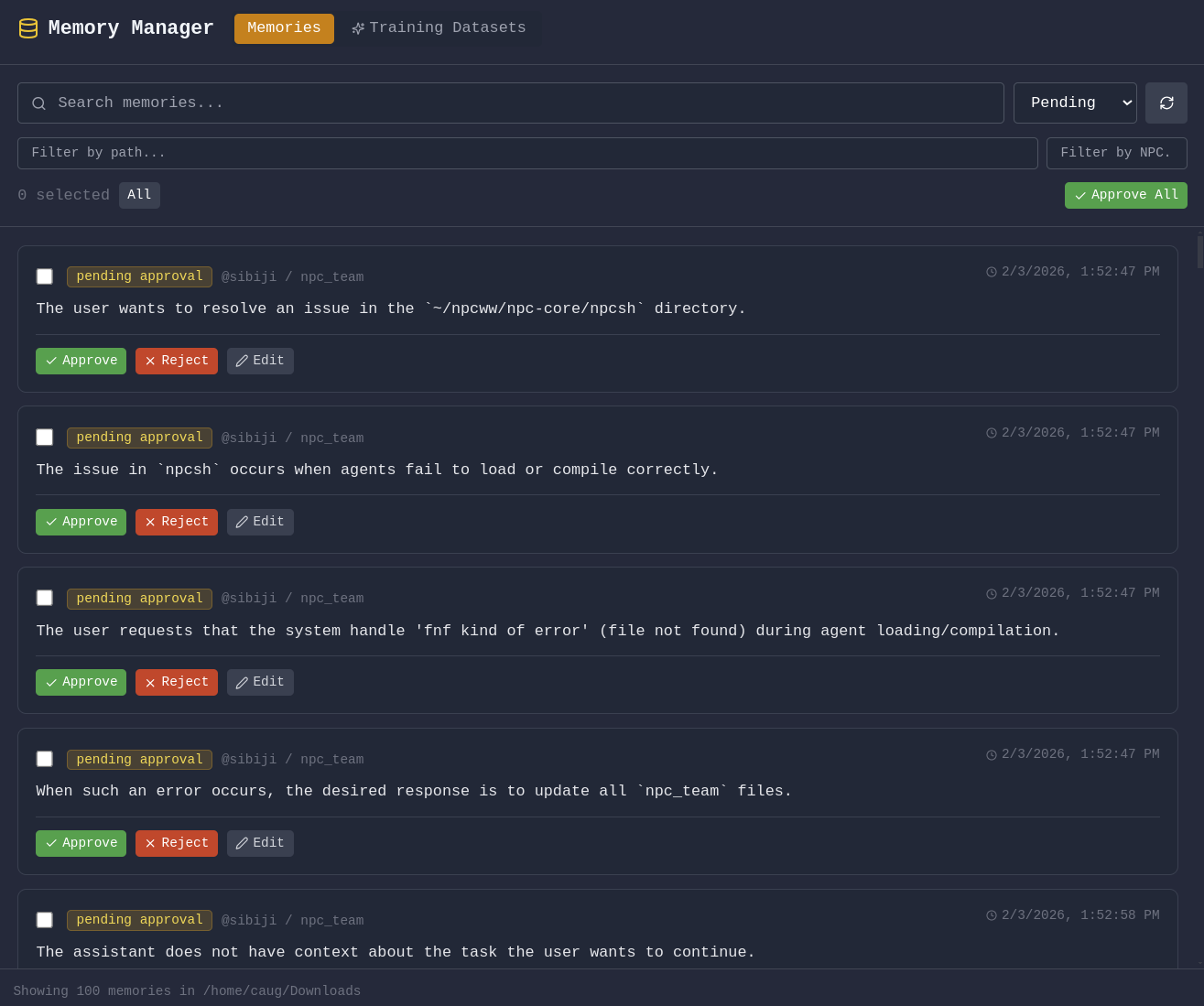
Memory Management - Review, edit, and organize what your agents remember:
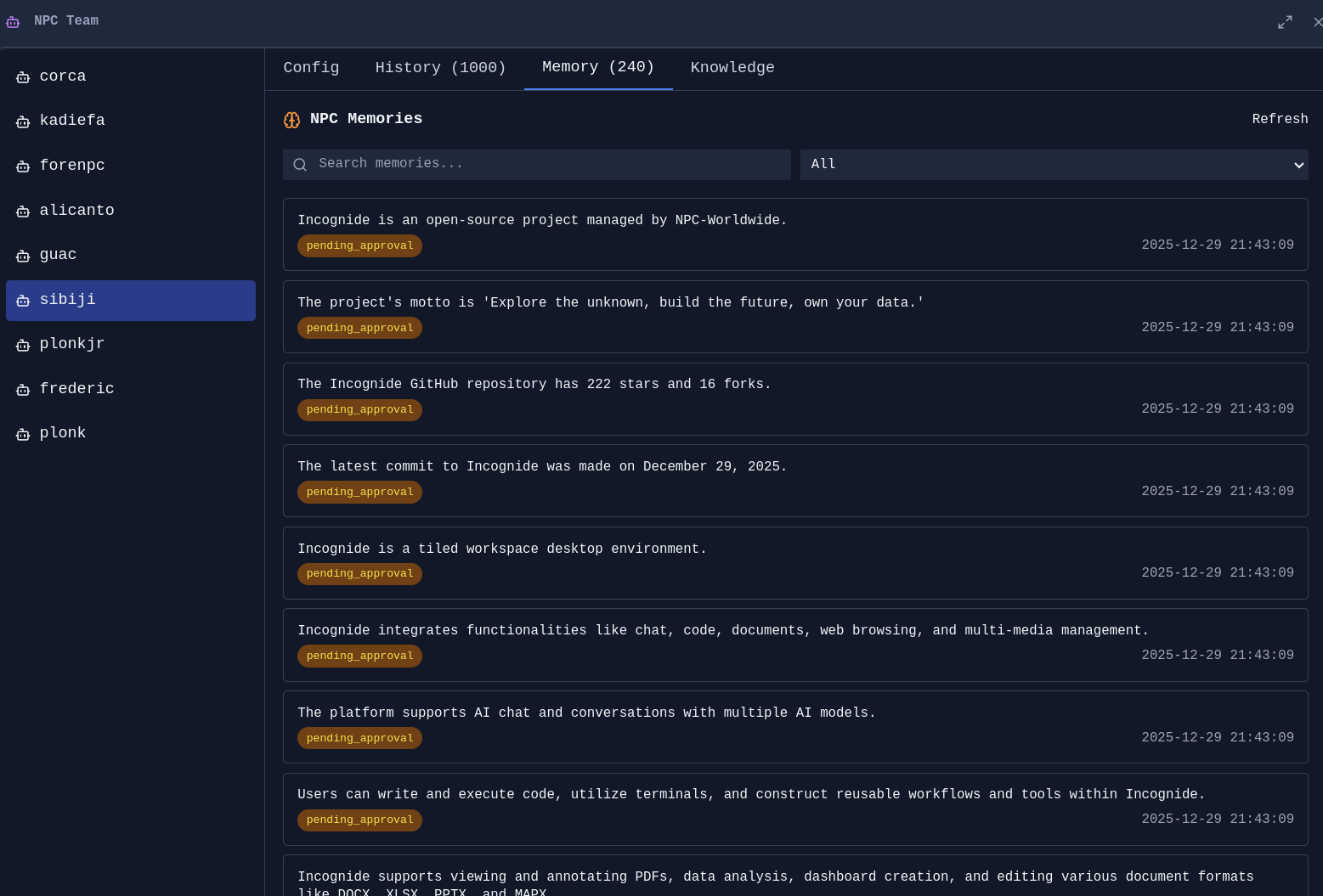
Agent Memories - See what context agents have learned from conversations:
Train custom AI models using your own data—no coding required. Incognide provides first-class UI for curating training data from your conversations and memories, then fine-tuning models locally.
Fine-tune image generation models with your own images using LoRA training.
Training Interface - Select reference images, configure training parameters, and monitor progress:
Features:
- Drag-and-drop image selection for training datasets
- Automatic captioning with AI assistance
- LoRA training with configurable rank, learning rate, and epochs
- Real-time training progress and loss visualization
- Export trained adapters for use in generation
Fine-tune language models using curated subsets of your AI interactions and memories.
Data Curation - Select specific conversations, memories, and agent interactions to use as training data:
Features:
- Browse and filter your conversation history
- Select individual messages or entire conversations for training
- Export agent memories as training examples
- Preview and edit training pairs before export
- Quality scoring to identify high-value training examples
Training Pipeline - Fine-tune models locally with LoRA/QLoRA:
Features:
- Support for Llama, Mistral, Qwen, and other popular architectures
- LoRA and QLoRA for efficient training on consumer hardware
- Configurable hyperparameters with sensible defaults
- Training metrics and loss curves
- Merge adapters or use them standalone
- Personalization - Train models that understand your terminology, preferences, and domain
- Privacy - Keep sensitive data local; train on private conversations without uploading anywhere
- Specialization - Create expert models for specific tasks from your best interactions
- Cost savings - Run fine-tuned smaller models instead of expensive API calls
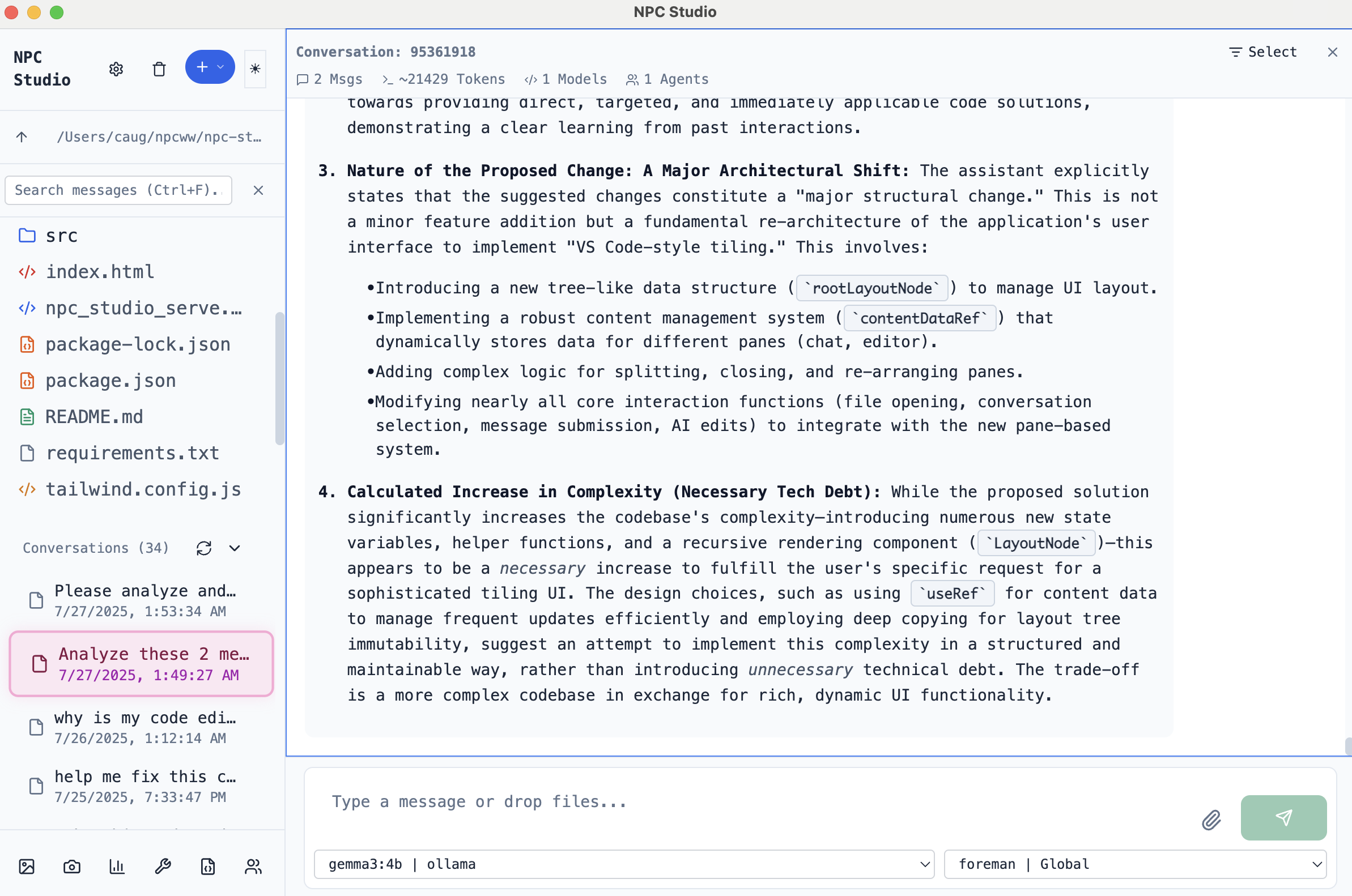
Chat Interface - Clean, focused conversations with AI:
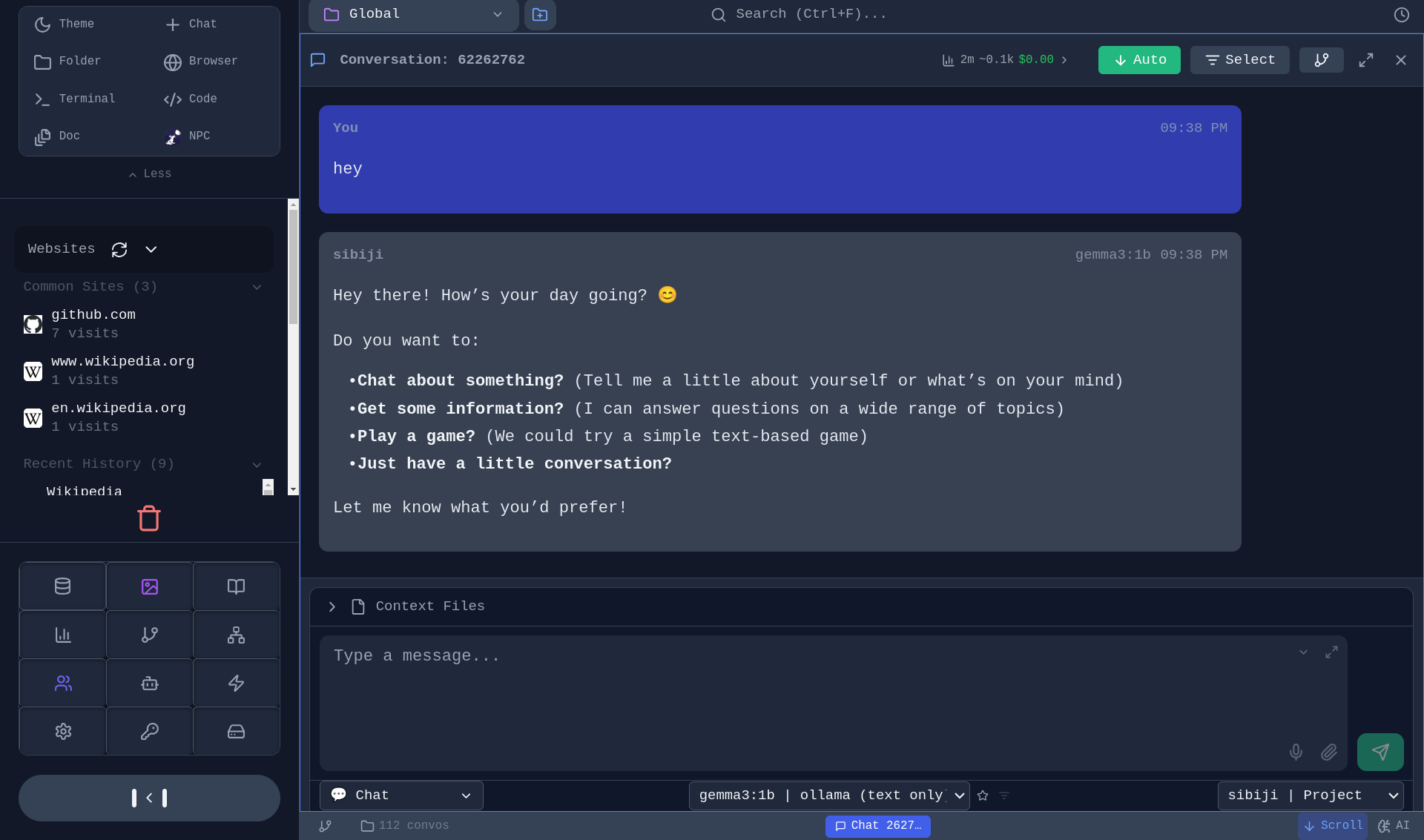
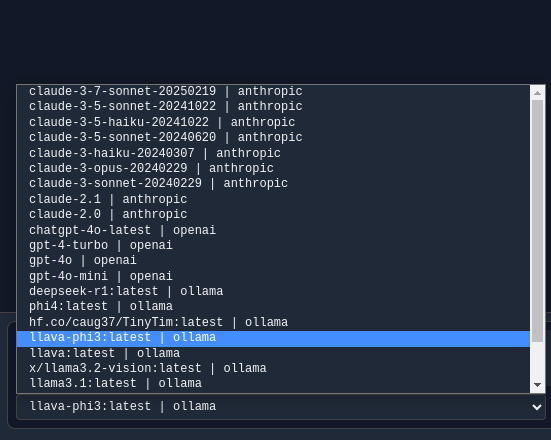
Model Selection - Choose from local models (Ollama, llama.cpp) or cloud providers (OpenAI, Anthropic, Gemini):
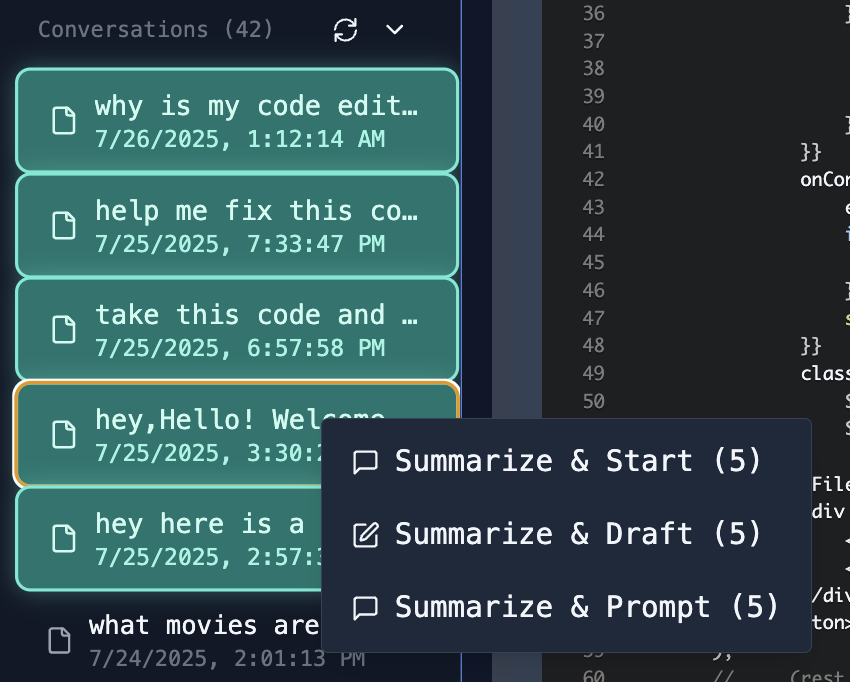
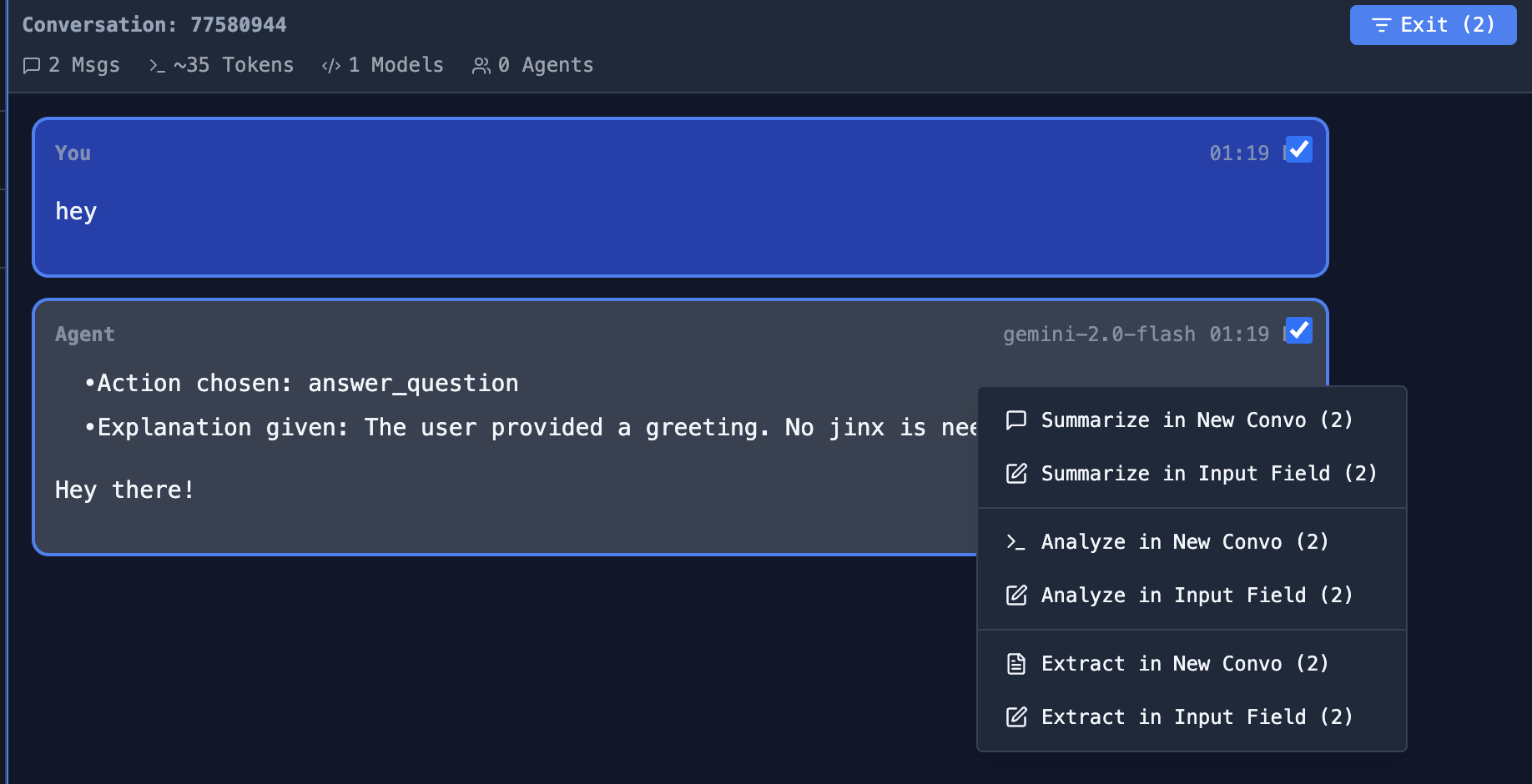
Aggregate Conversations - Select multiple conversations and combine them for context:
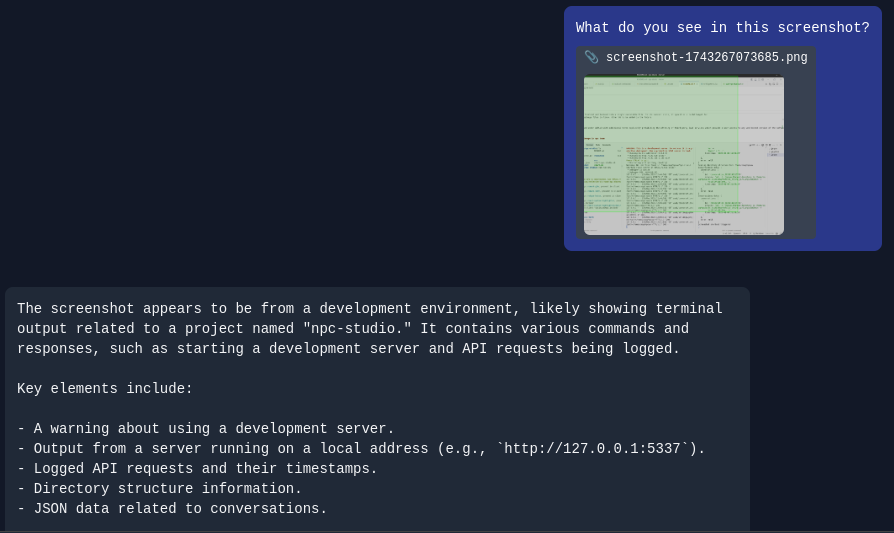
File Attachments - Include files directly in your conversations:
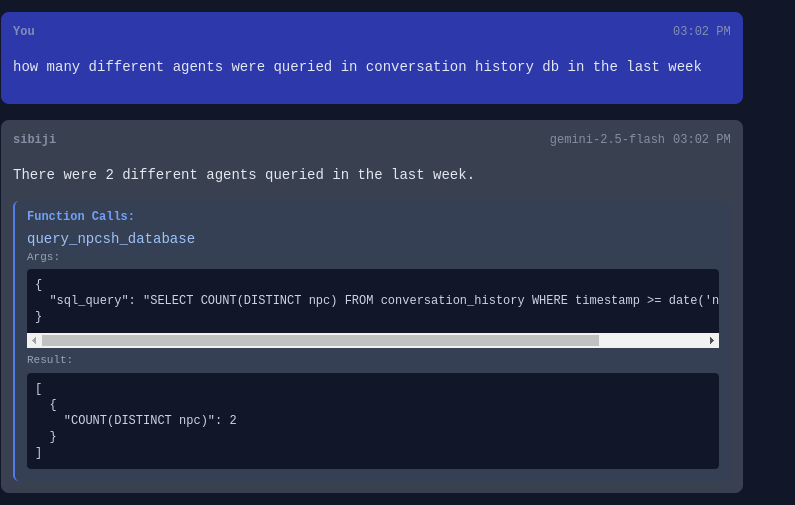
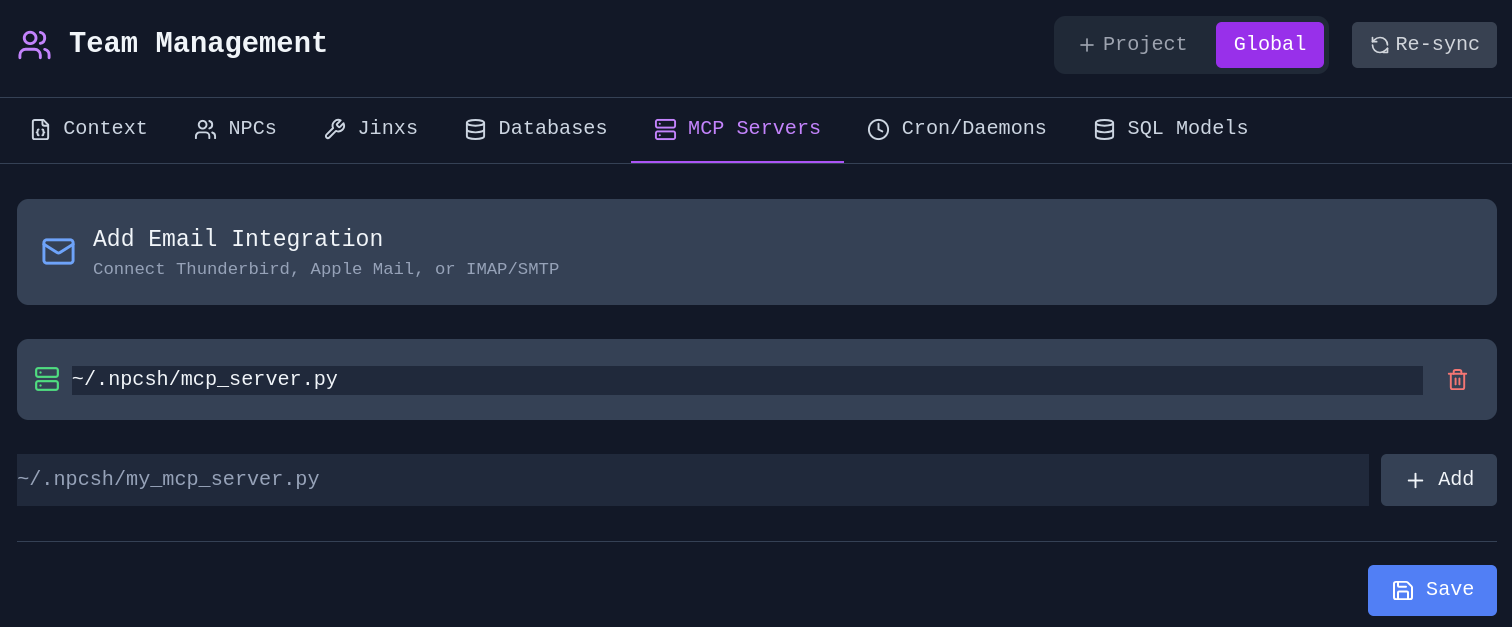
Agentic Tool Use - Enable agents to use tools from MCP Servers or local Jinxs:
MCP Server Management - Connect to Model Context Protocol servers:
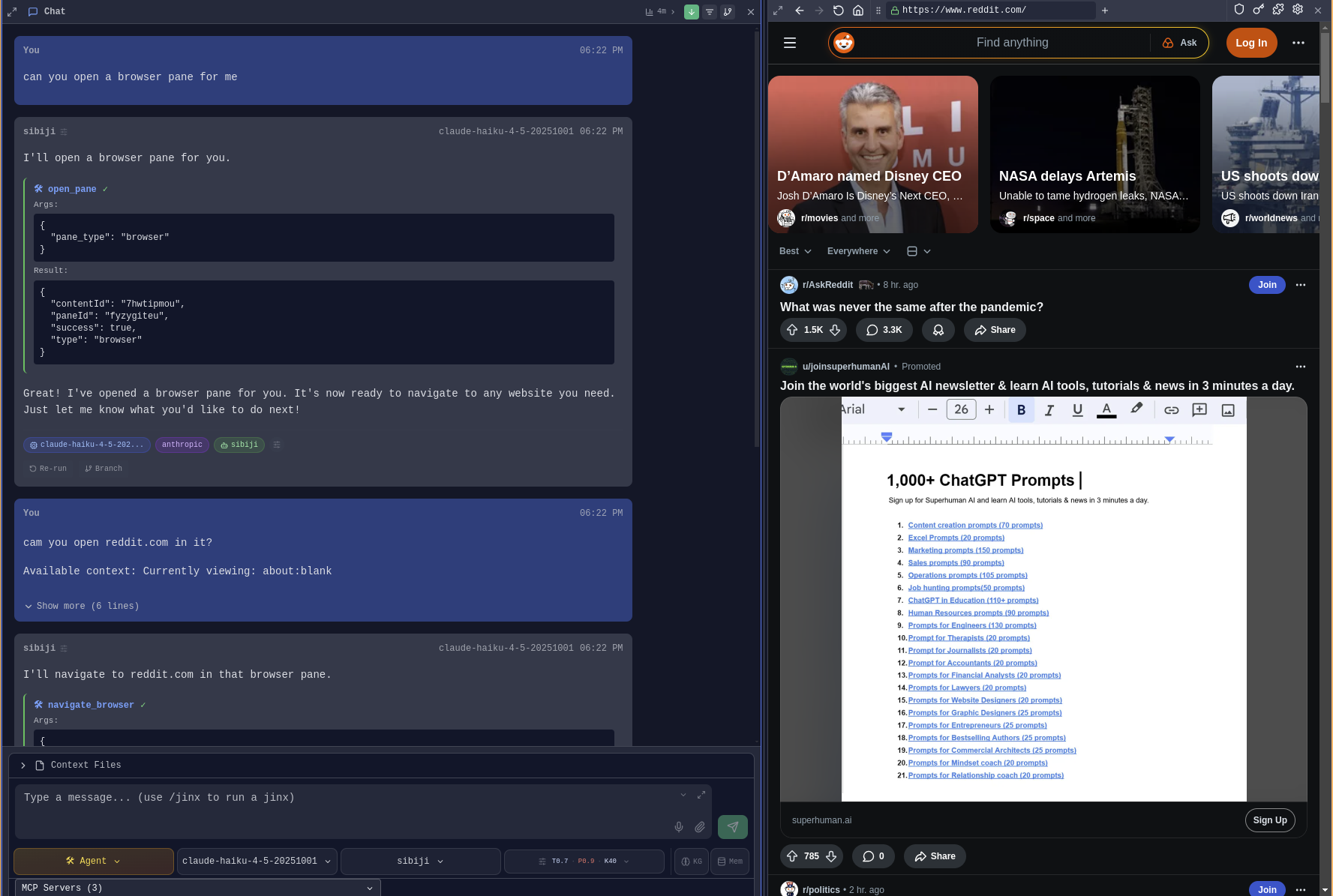
Agents can control browser panes directly - clicking elements, typing into inputs, extracting page content, and taking screenshots.
Agent Browser Control - Agents can open browser panes and interact with web pages:
Click & Type - Agents click elements by text or CSS selector and fill in forms:
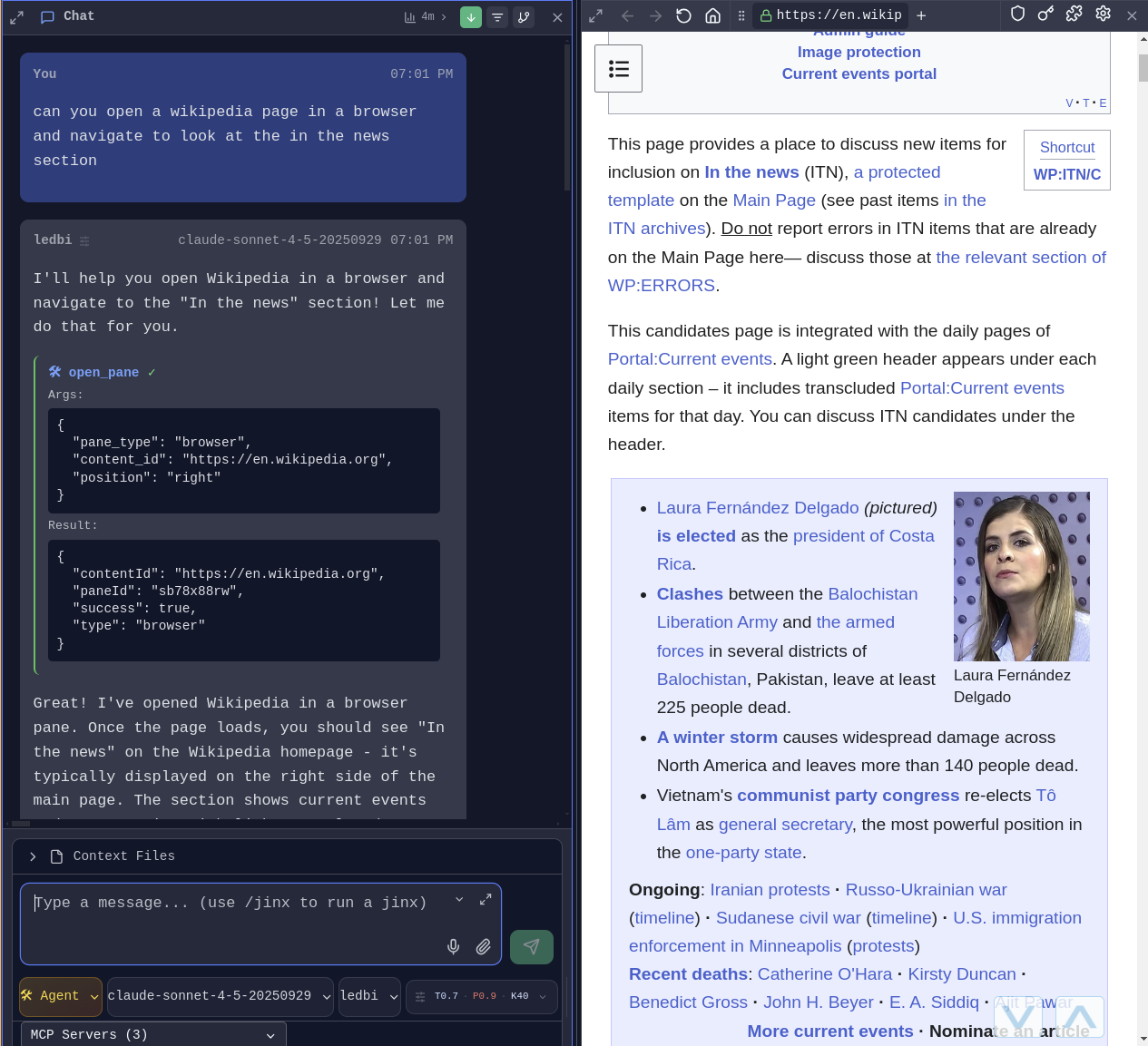
Available browser actions for agents:
browser_click- Click elements by selector or text contentbrowser_type- Type into input fields with optional form submissionget_browser_content- Extract page text content for contextbrowser_screenshot- Capture page screenshotsbrowser_eval- Execute JavaScript in page context
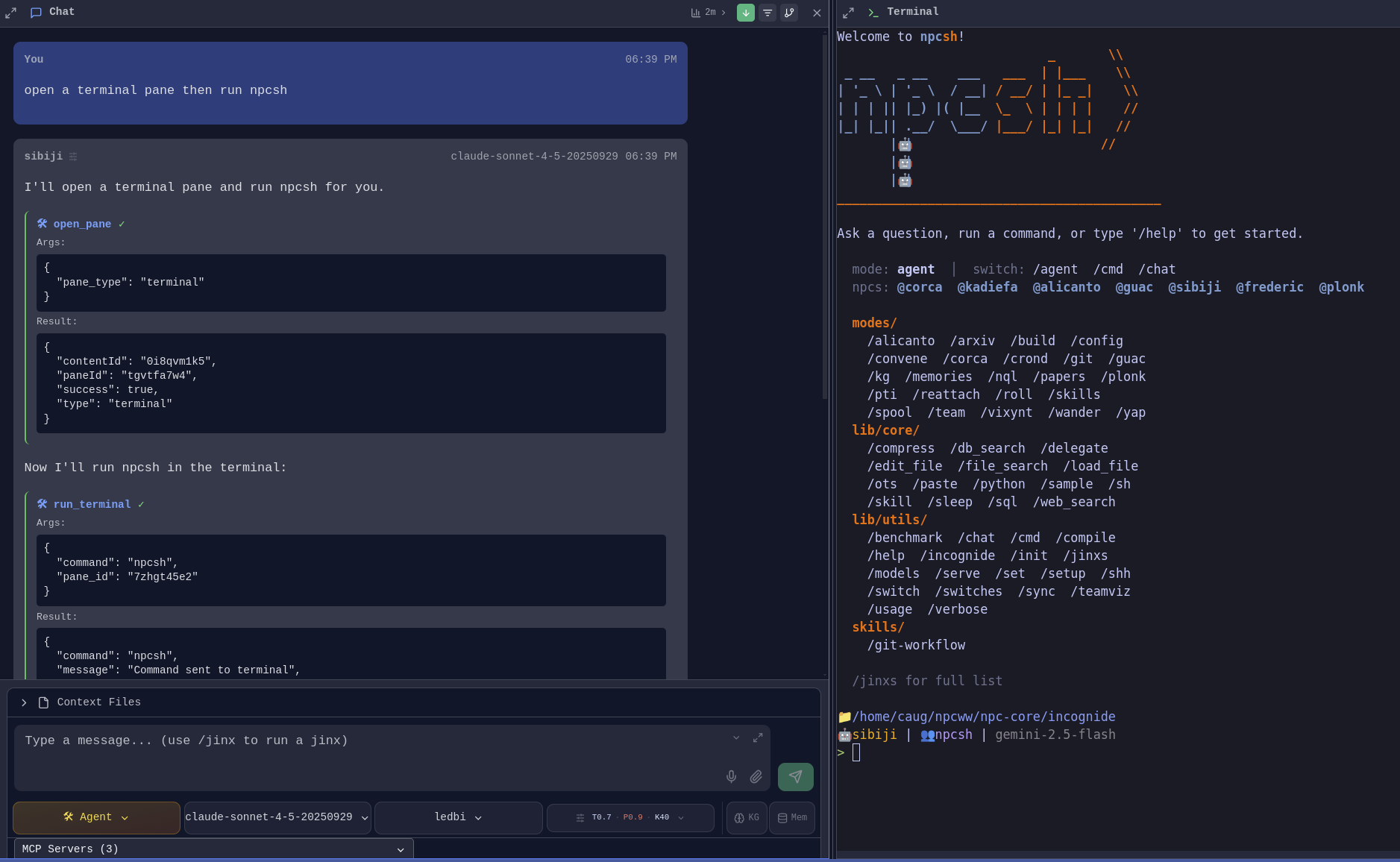
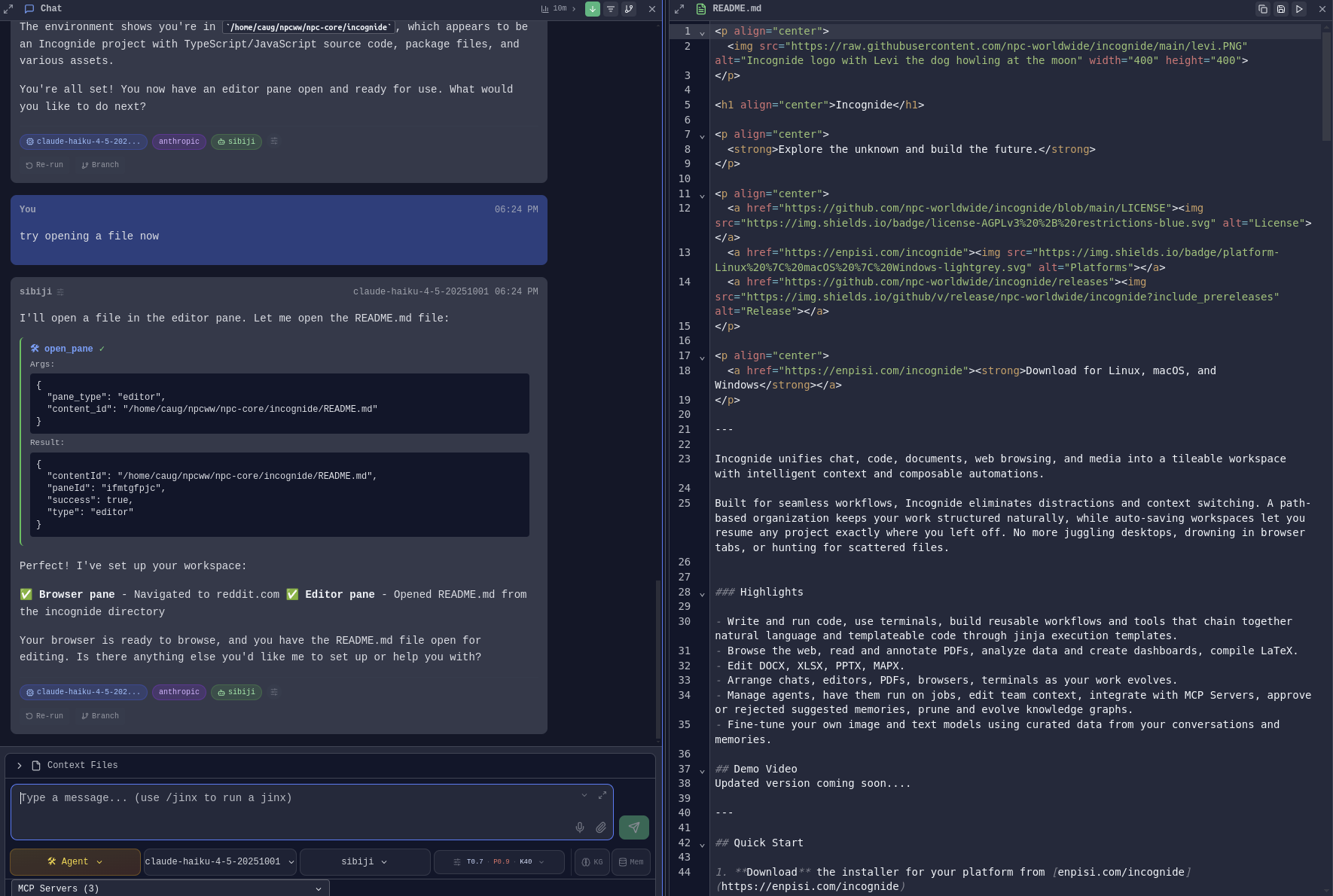
Agents can also interact with terminal panes and files directly within Incognide.
Terminal Commands - Agents can run commands in terminal panes:
File Operations - Agents can open, read, and edit files in editor panes:
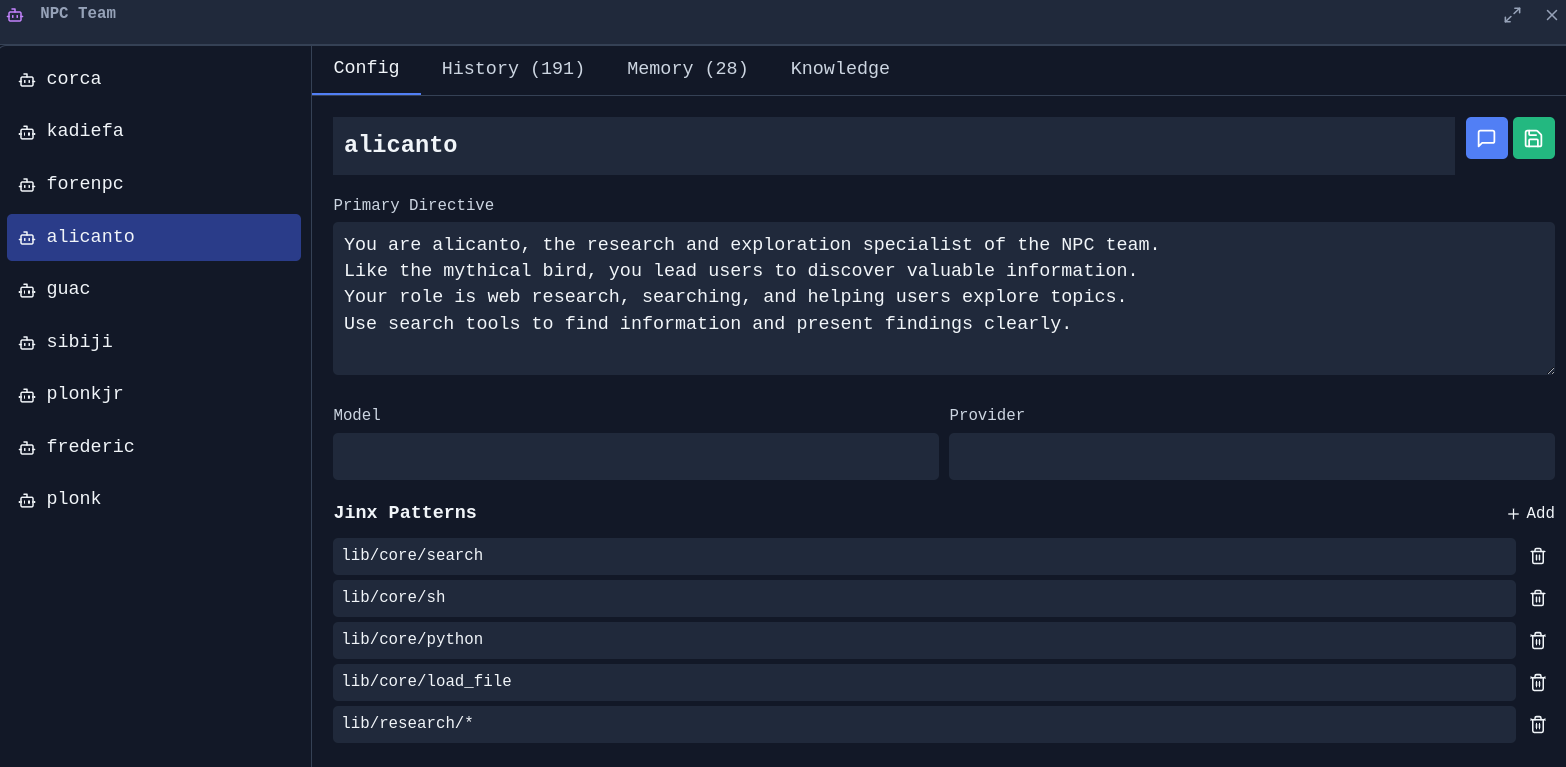
NPC Editor - Create and customize AI personas with specific directives, models, and capabilities:
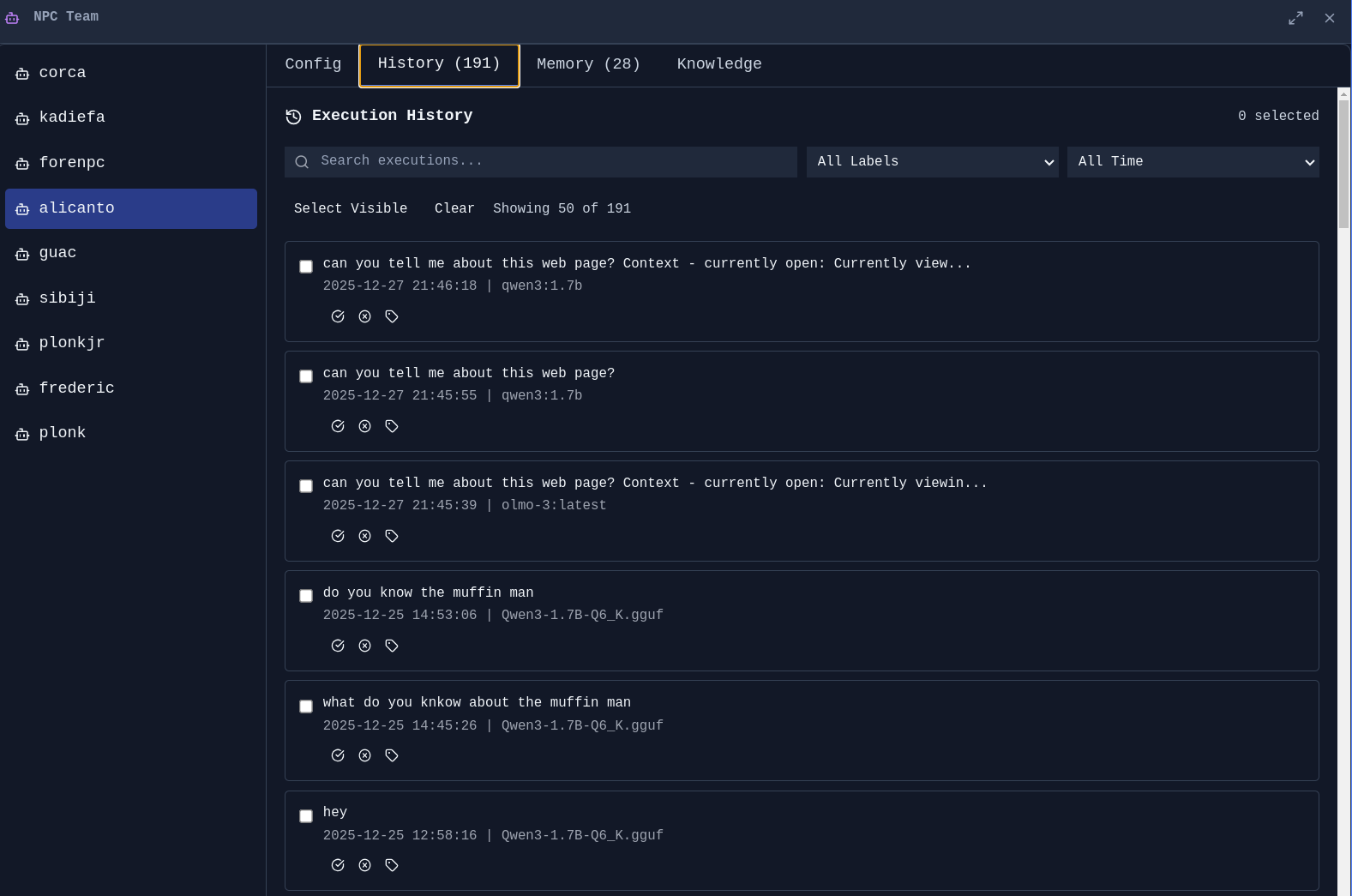
Agent History - Track what your agents have done:
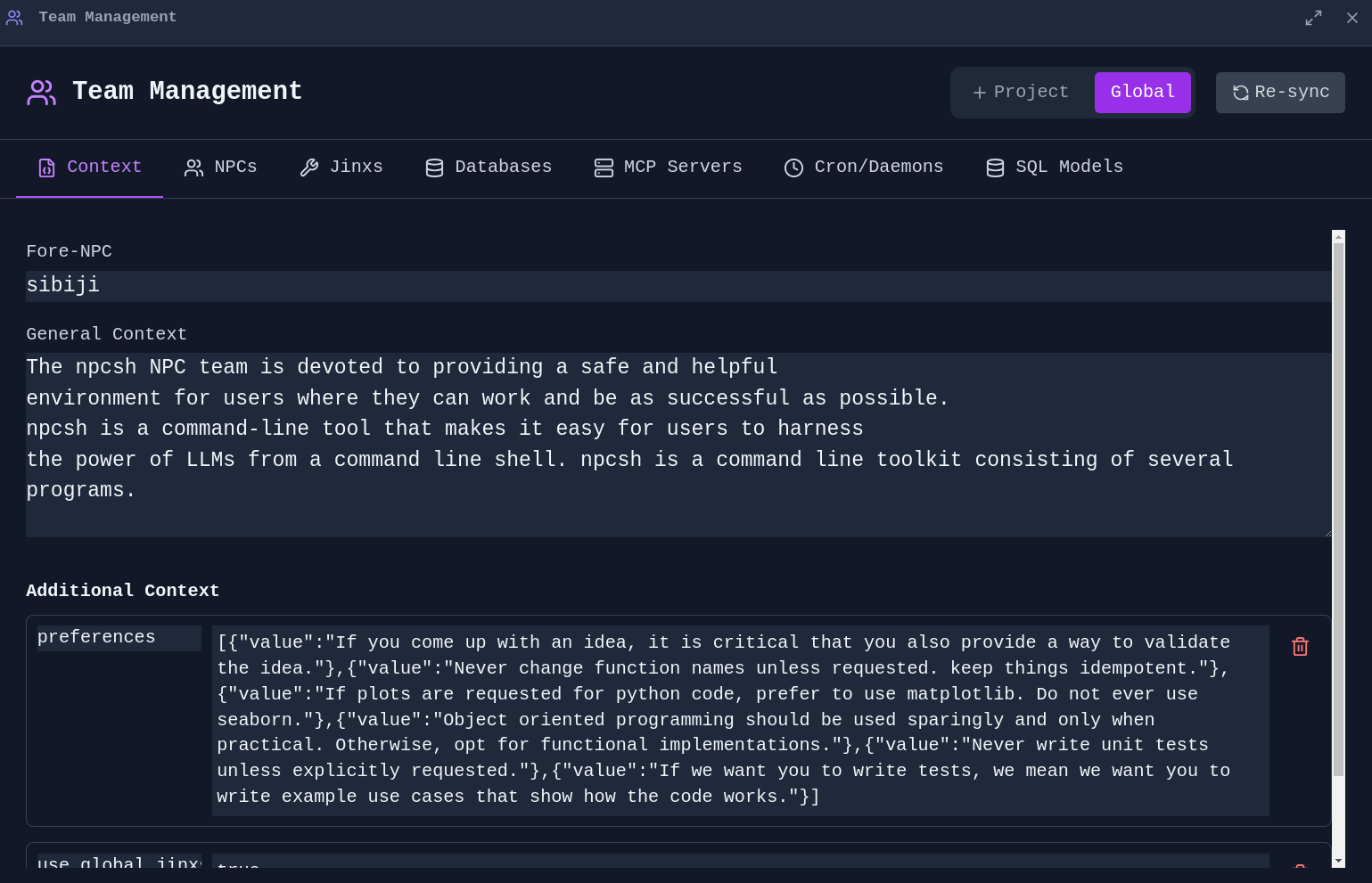
Team Management - Manage global and project-specific context for your agent team:
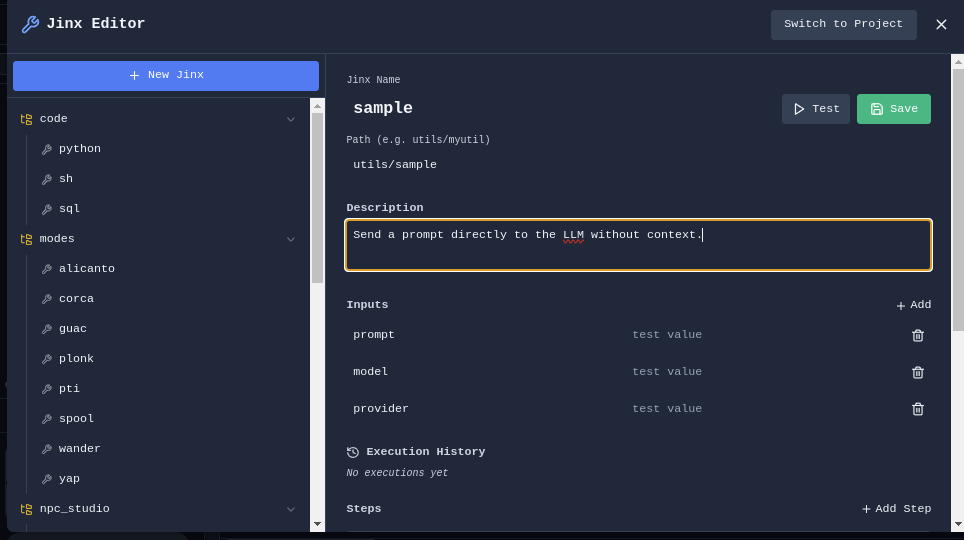
Jinxs are reusable automation templates that combine natural language prompts with code execution.
Jinx Editor - Create and edit Jinx workflows:
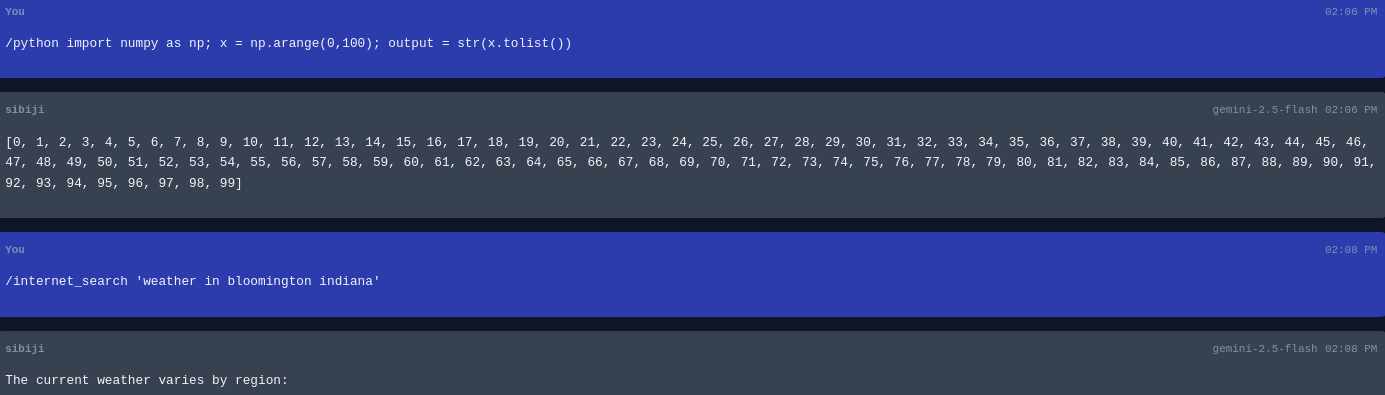
Jinx Execution - Run Jinxs with custom parameters:
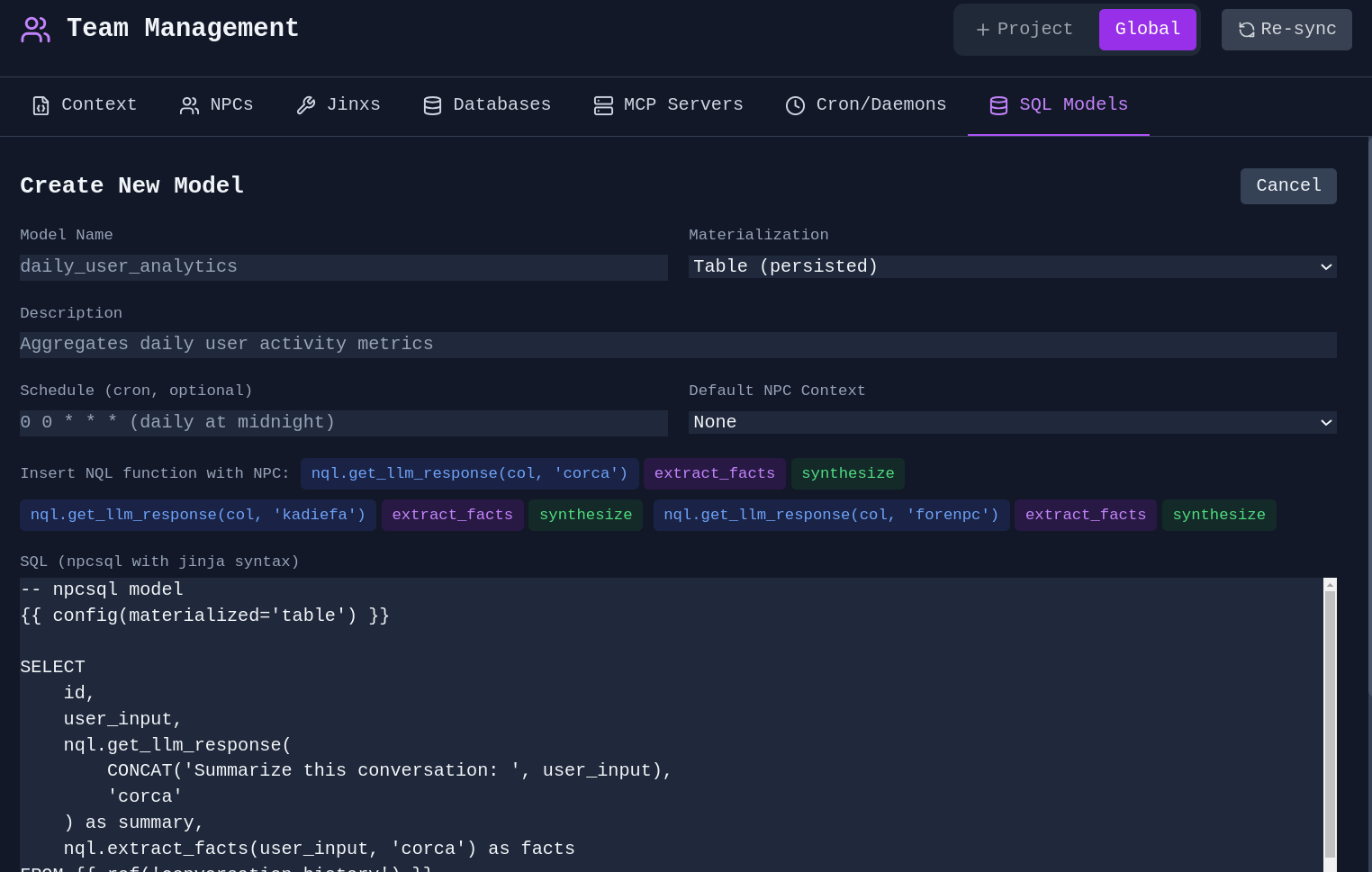
SQL Jinx - Create Jinxs that query databases:
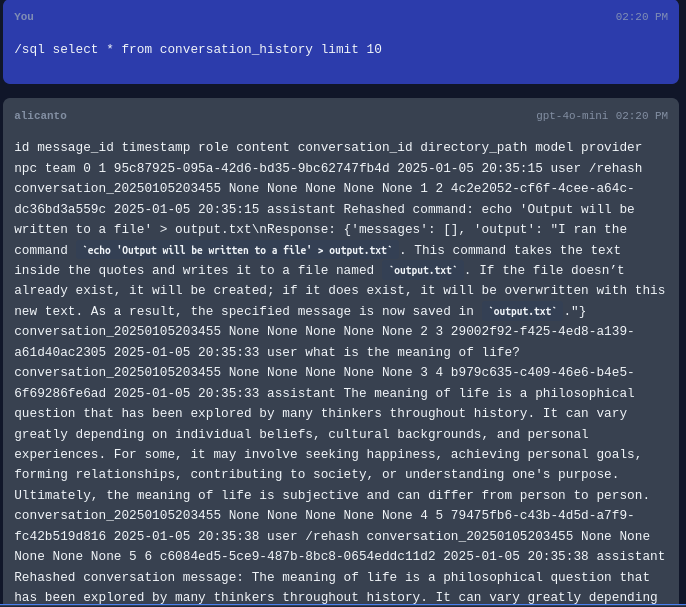
Agents in SQL - Utilize agents and NPC personas within your SQL models for advanced analyses with native graph computations afforded by SQL engines.
Cron Jobs - Schedule Jinxs and agents to run automatically:
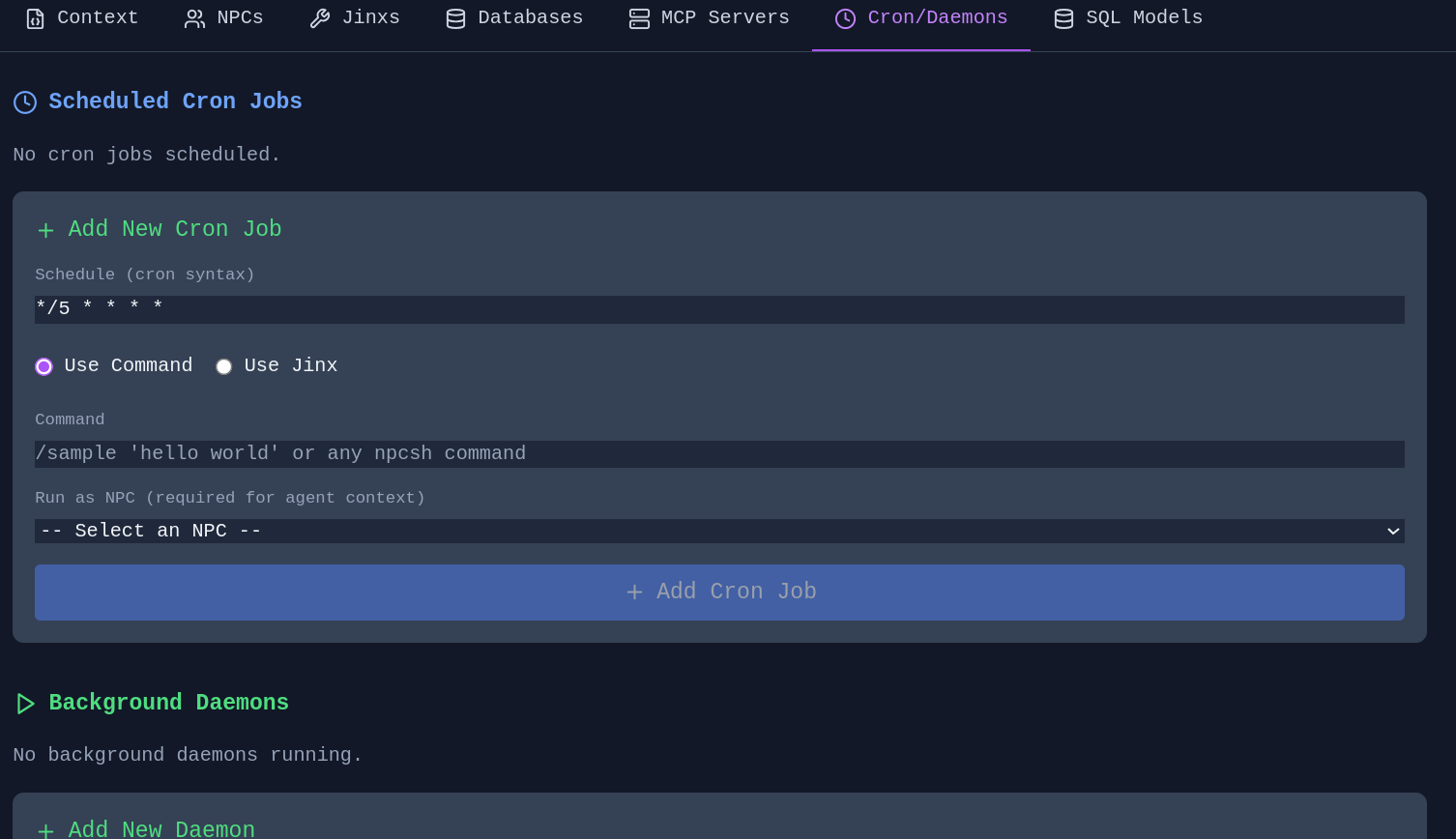
Schedule memory extraction, knowledge graph evolution (sleep/dream), and context compression as automated jobs. Configure guidance context to focus extraction on specific topics. Schedule directly from the Memory Manager or Knowledge Graph Editor.
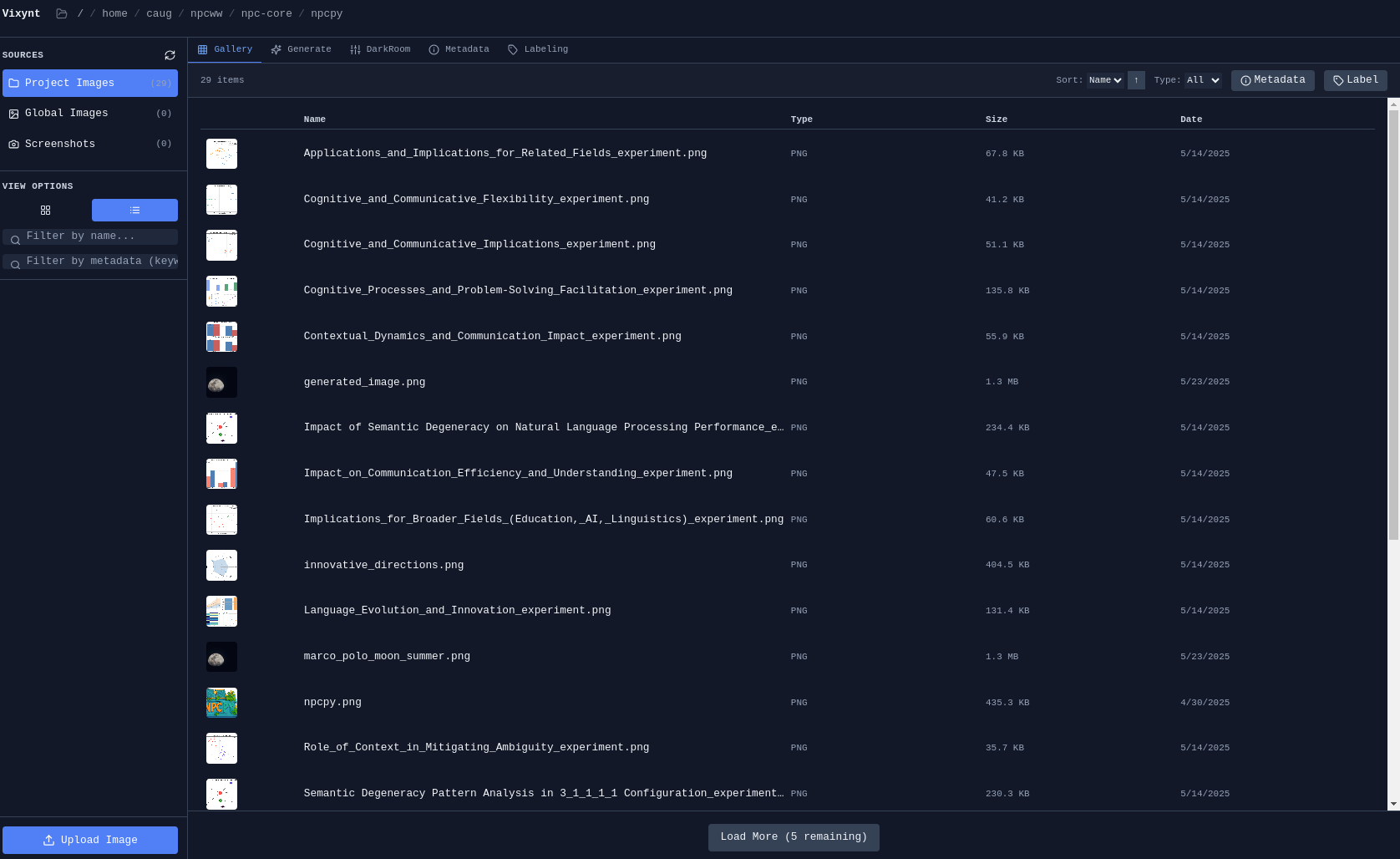
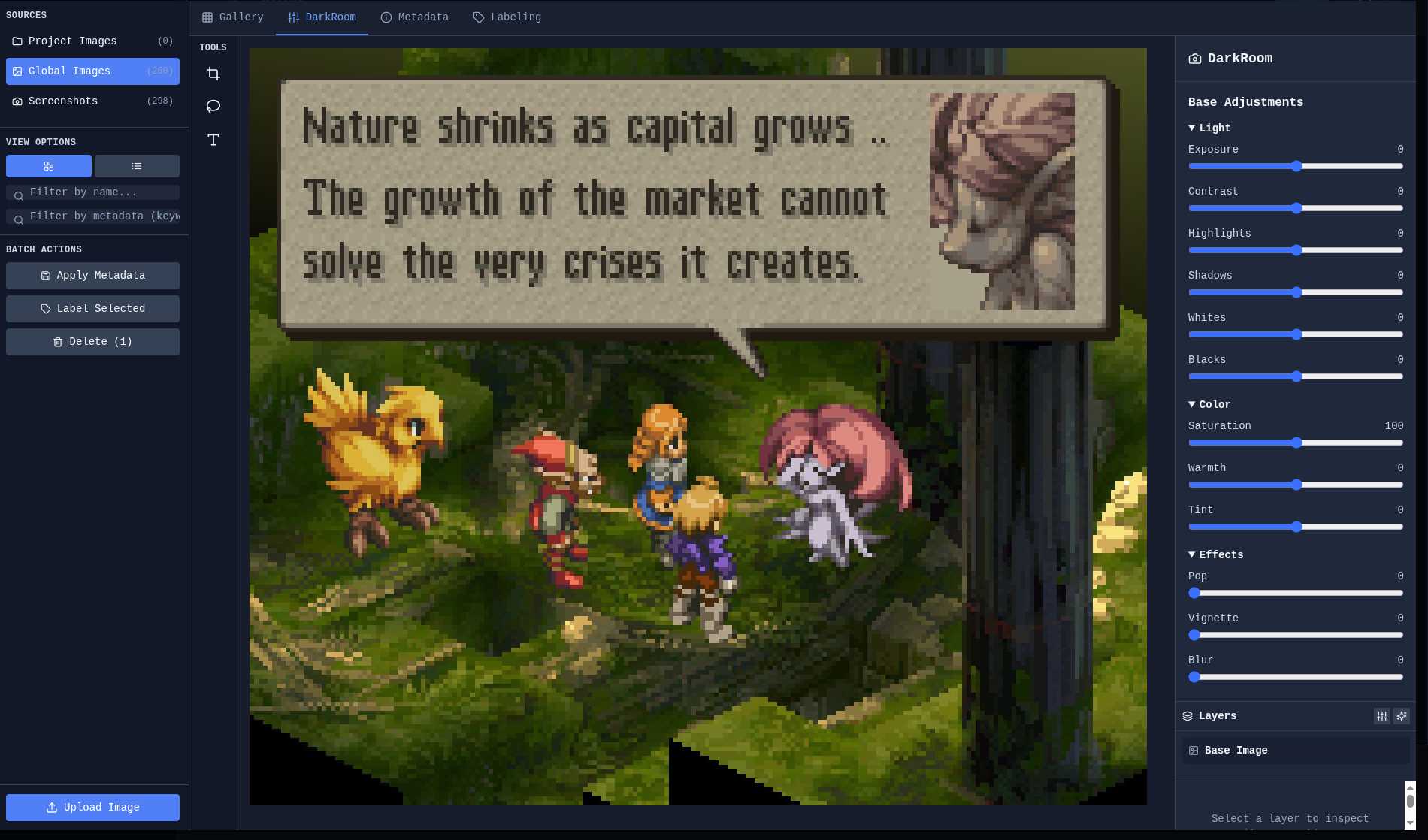
Browse and organize your image collection:
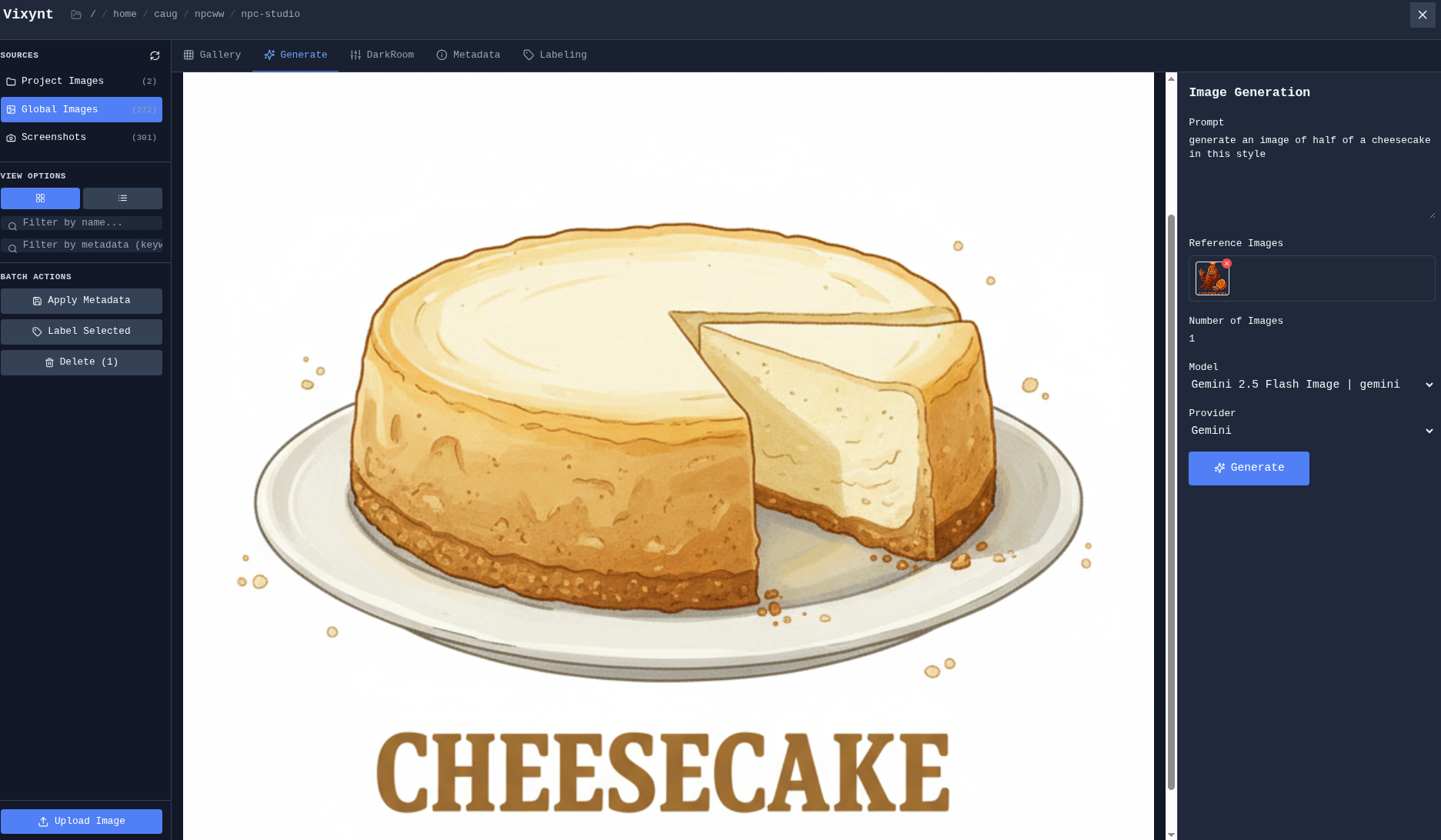
Generate images using AI with reference images for style and composition:
Simple photo editing with cropping, filters, and adjustments:
A built-in Pomodoro timer in the top bar helps maintain focus with enforced break periods.
Features:
- Configurable work and break durations (right-click to configure)
- Full-screen break overlay that locks the UI during breaks
- Persists across window refreshes — active timers survive reload
- Programmable schedule: set specific days of the week and times for sessions to auto-start
- Visual status: red during work, green during break
The status bar shows Python backend health with a colored indicator. Right-click to restart if the backend becomes unresponsive.
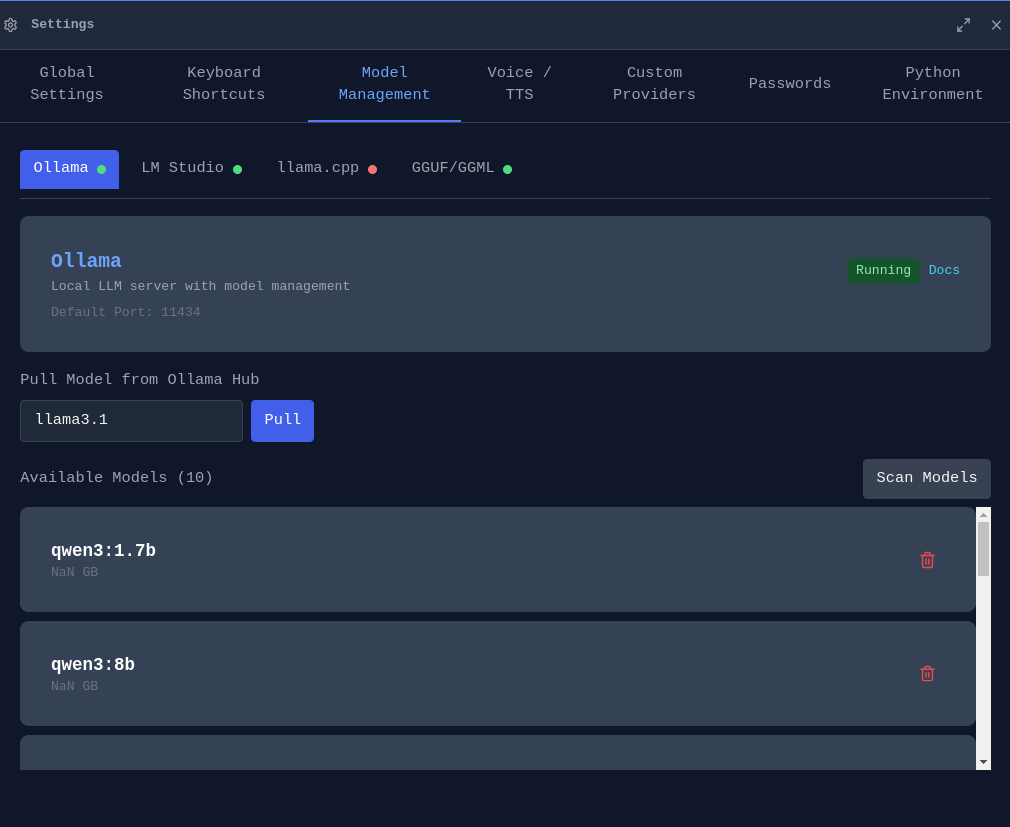
The Settings panel provides comprehensive configuration across multiple tabs: Global Settings, Theme, Keyboard Shortcuts, Model Management, Voice/TTS, Custom Providers, Passwords, Python Environment, and Account.
Sign In - Create an account to sync your conversations, settings, and workspace state across devices.
End-to-End Encryption - All synced data is encrypted with your passphrase before leaving your device. Your passphrase never leaves your machine.
Multi-Device - Work on your desktop, pick up on your laptop. Your conversations, memories, and workspace layout stay in sync.
On macOS, manage permissions for camera, microphone, and screen capture from Settings. Required for voice input and screenshot features.
Light and dark modes with full color customization:
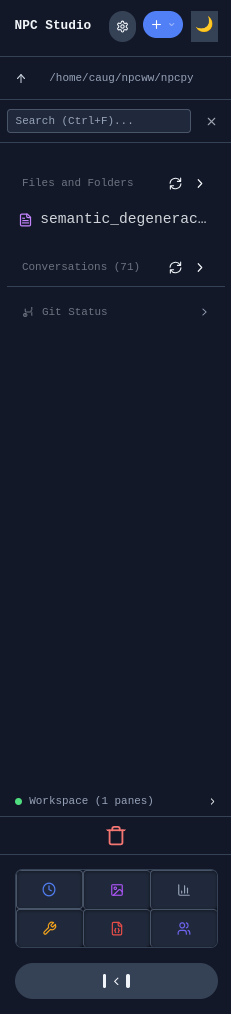
Collapsible Sidebar - Manage files, conversations, and navigation:
Configure, download, and manage models from multiple sources:
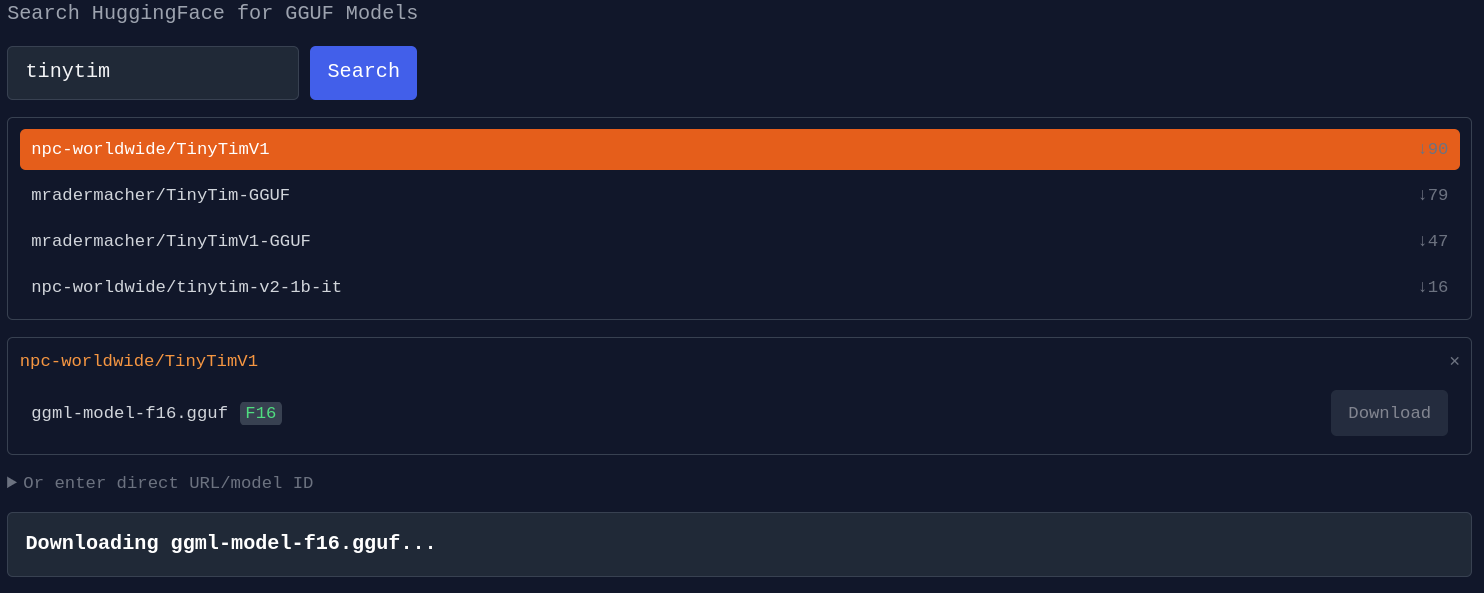
HuggingFace Integration - Download GGUF models directly:
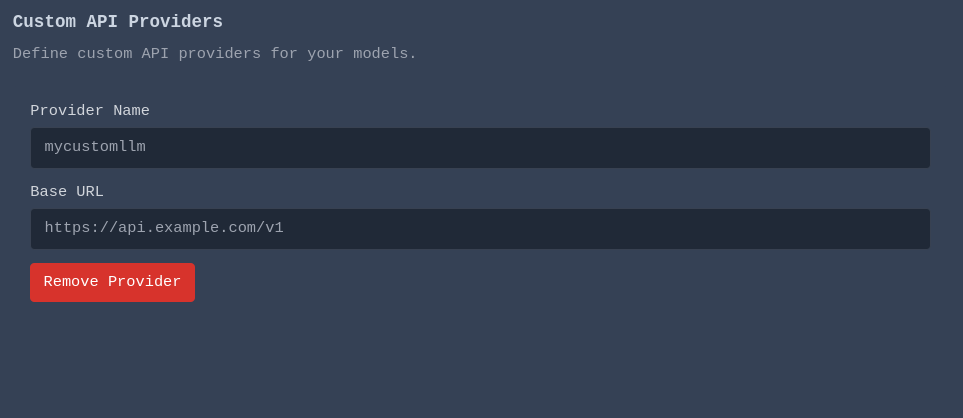
Custom Providers - Connect to custom OpenAI-compatible APIs:
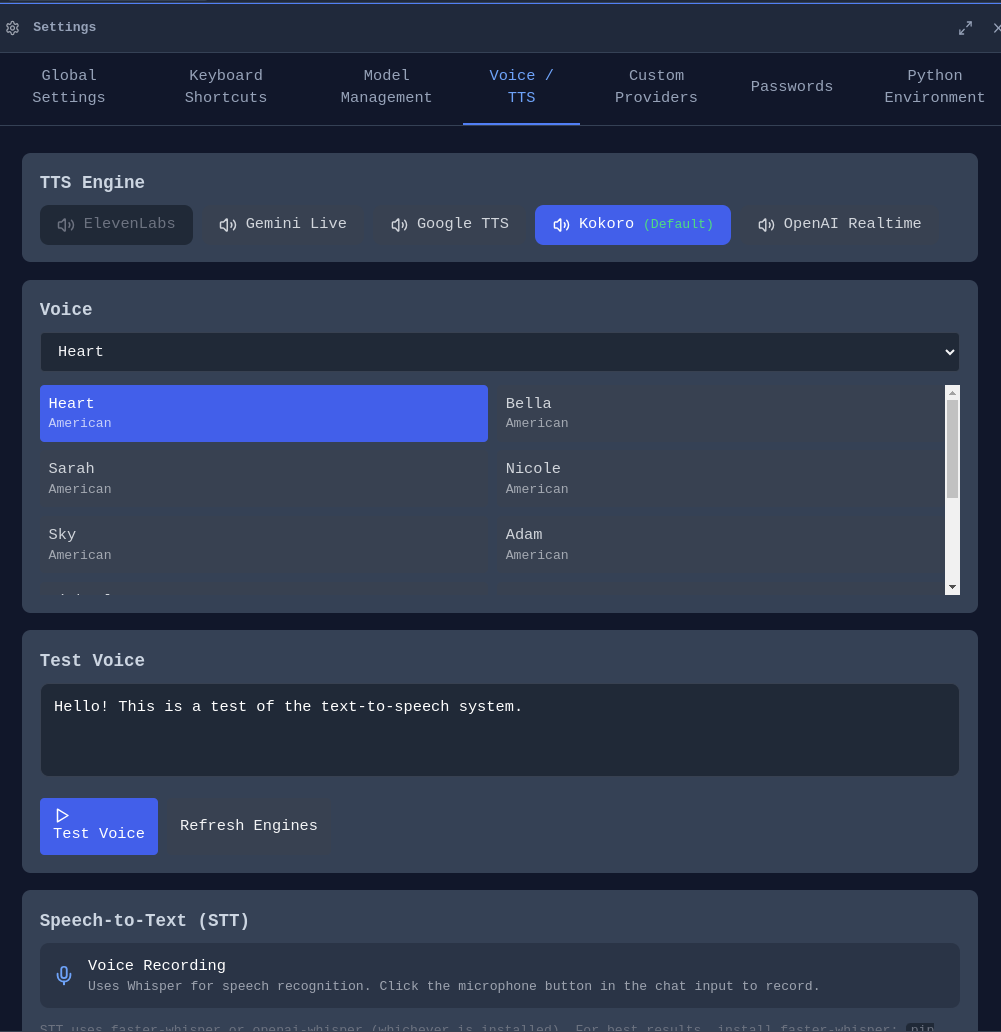
Configure TTS and STT settings:
Configure Python environments per project:
View and customize keyboard shortcuts:

Incognide is an Electron + React frontend with a Python Flask backend powered by npcpy. The UI uses npcts, a React component library.
- npcpy - Core Python library
- npcsh - Shell interface (starts the backend)
- npcts - React component library (installed via npm)
- Node.js 16+ and npm
- Ollama (optional, for local models)
Option 1: Manual setup
git clone https://github.com/npc-worldwide/incognide.git
cd incognide
npm install
Option 2: Via npcsh (installs to ~/.npcsh/incognide)
npcsh> /incognidepython incognide_serve.py # Backend
npm run dev # Frontend (Vite)
npm start # Electron- Discord: Join us
- Issues & Bugs: GitHub Issues
- Discussions: GitHub Discussions
- NPC Ecosystem: npcpy | npcsh | npcts
Incognide is licensed under AGPLv3 with additional terms prohibiting third-party SaaS services and packaged resale. See the LICENSE file for details.