This document aims to serve as a guideline of how to collect data for the WearableML research project. Specifically, it will help you
-
Record audio and sensor data, where you need a Samsung watch
-
Retrieve the recorded audio and sensor data from the watch, where you need a computer and working Internet
If you have any technical questions, please do not hesitate to reach out to us: Kevin (kevin.song@utah.edu) and Qianlang (qianlangchen@gmail.com).
This section explains how to record the data needed for our research.
-
You need a Samsung watch running the Tizen OS version 5.5 or above.
-
Download the WearableML Sensor app from the Galaxy Store. (You need the Internet for this part, but the actual recording process will not require the Internet.)
a. Connect the watch to a Wi-Fi via Settings >> Connections >> Wi-Fi >> Wi-Fi networks.
b. Log into a Samsung account via Settings >> Account and backup >> Samsung account.
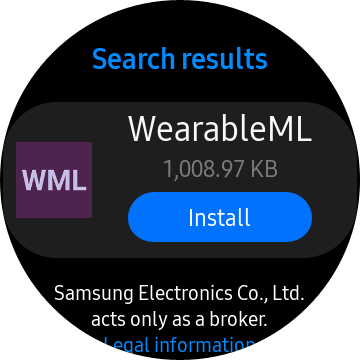
c. Launch the Galaxy Store app, search for "WearableML", and install the app with "WML" in the logo:
-
Launch the downloaded WearableML Sensor app and accept all three permission prompts (for microphone, sensor, and storage).
-
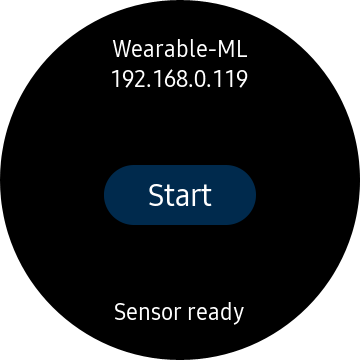
Press Start to start the recording:
-
The recorded data includes microphone audio, heart rate, accelerometer, and gyroscope readings.
-
Feel free to lock the watch's screen while recording.
-
Be aware of the app's power and storage usage. A 30-minute recording consumes about 25% battery level and 60 MB of disk space. (A new watch provides about 2 GB of free space.)
-
-
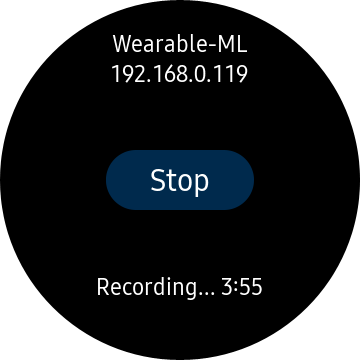
Press Stop to stop the recording:
This section explains how to collect the recorded data from the watch.
-
You need a computer running Windows or macOS and a watch to retrieve data from. Connect both the computer and the watch to the same Wi-Fi network.
-
Download the data retriever tool onto the computer. Launch the downloaded tool.
-
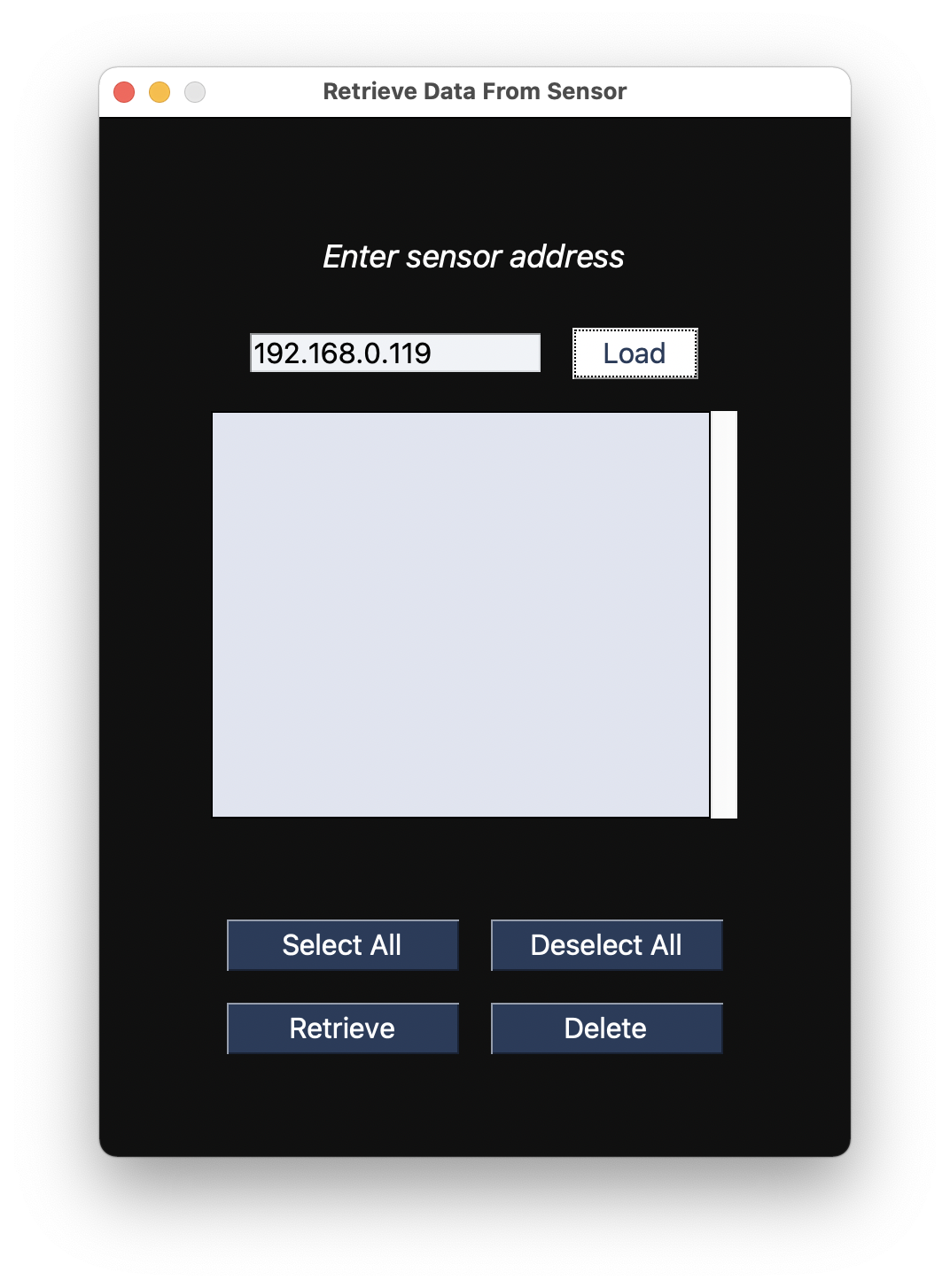
Launch the WearableML Sensor app on the watch. Enter the IP address displayed under the text "Wearable-ML" into the retriever tool and click Load:
-
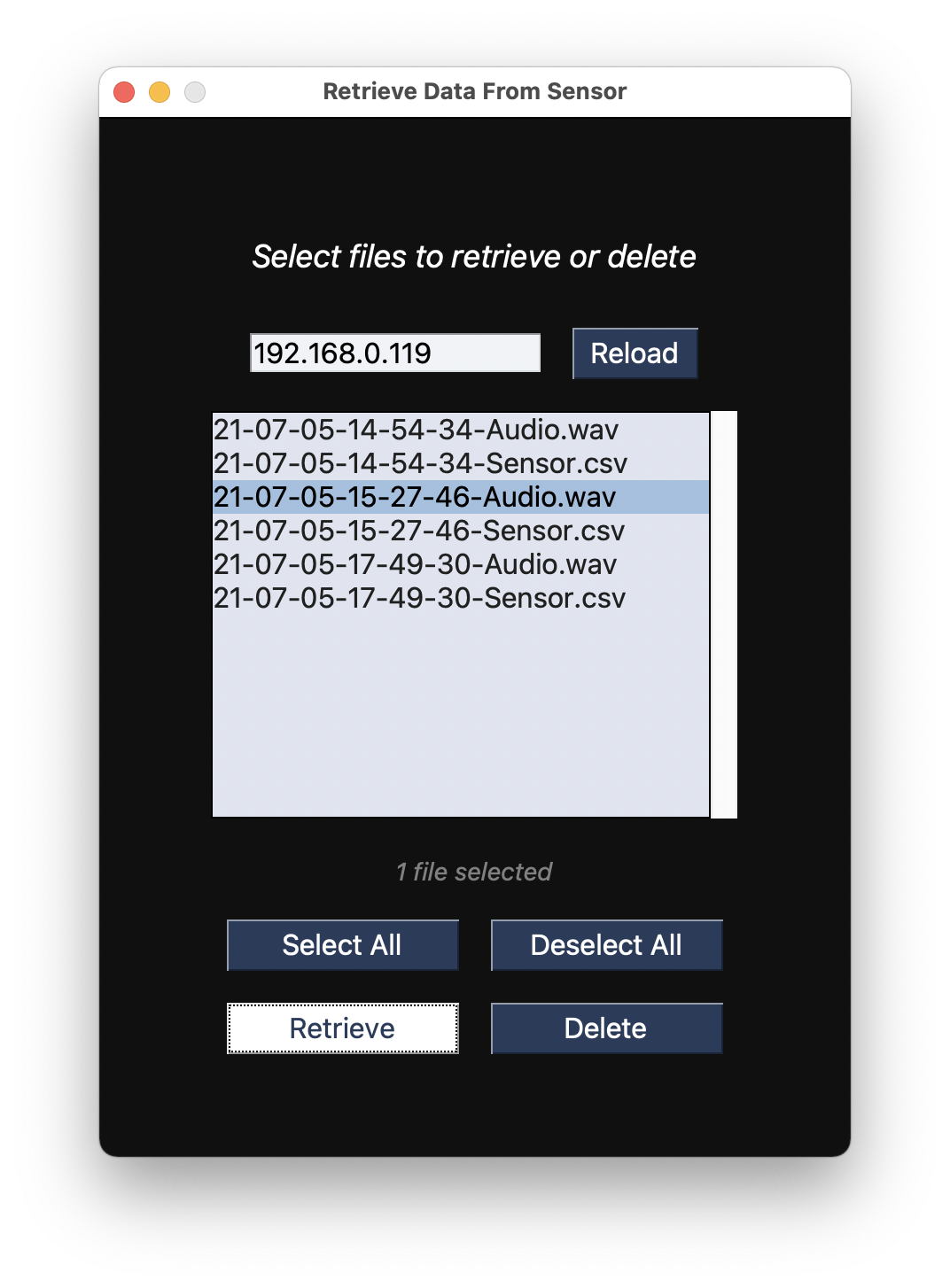
Once the list of files are loaded in the retriever tool, select the files you want to retrieve:
-
Each recording consists of two files: a WAV file containing the microphone audio, paired with a CSV file containing the sensor readings.
-
The file names are the timestamps of when each recording started. For example, the highlighted file in the above image has the audio data recorded on July 5th at 3:27 PM.
-
-
Click Retrieve in the retriever tool. In the prompt, select a folder to store the retrieved files.
-
Wait for the retrieving process to complete.
- Try to prevent the watch from locking its screen as it may then disconnect from Wi-Fi.
-
You may then optionally click Delete to delete the selected files from the watch and free up the watch's storage.
This section explains how you may use our tool to access the Google Cloud Platform and transcribe a recorded audio file into a text file.
-
You need a computer running Windows or macOS and connected to the Internet. You also need a JSON file known as the private key of a Google Cloud Platform's service account. Feel free to contact us if you do not have one.
-
Download and launch the transcriber tool.
-
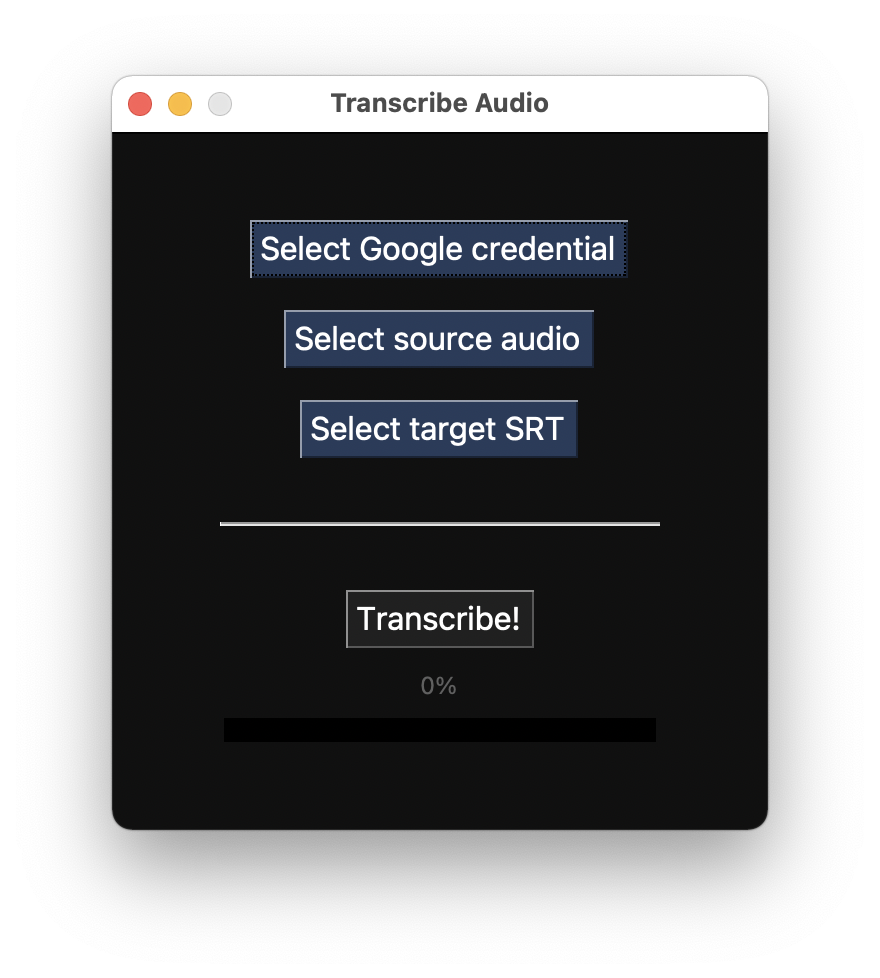
Click the three buttons to upload the private key JSON, the source audio file (in WAV format), and a target location to store the transcription text file:
-
Click Transcribe and wait for the process to complete:
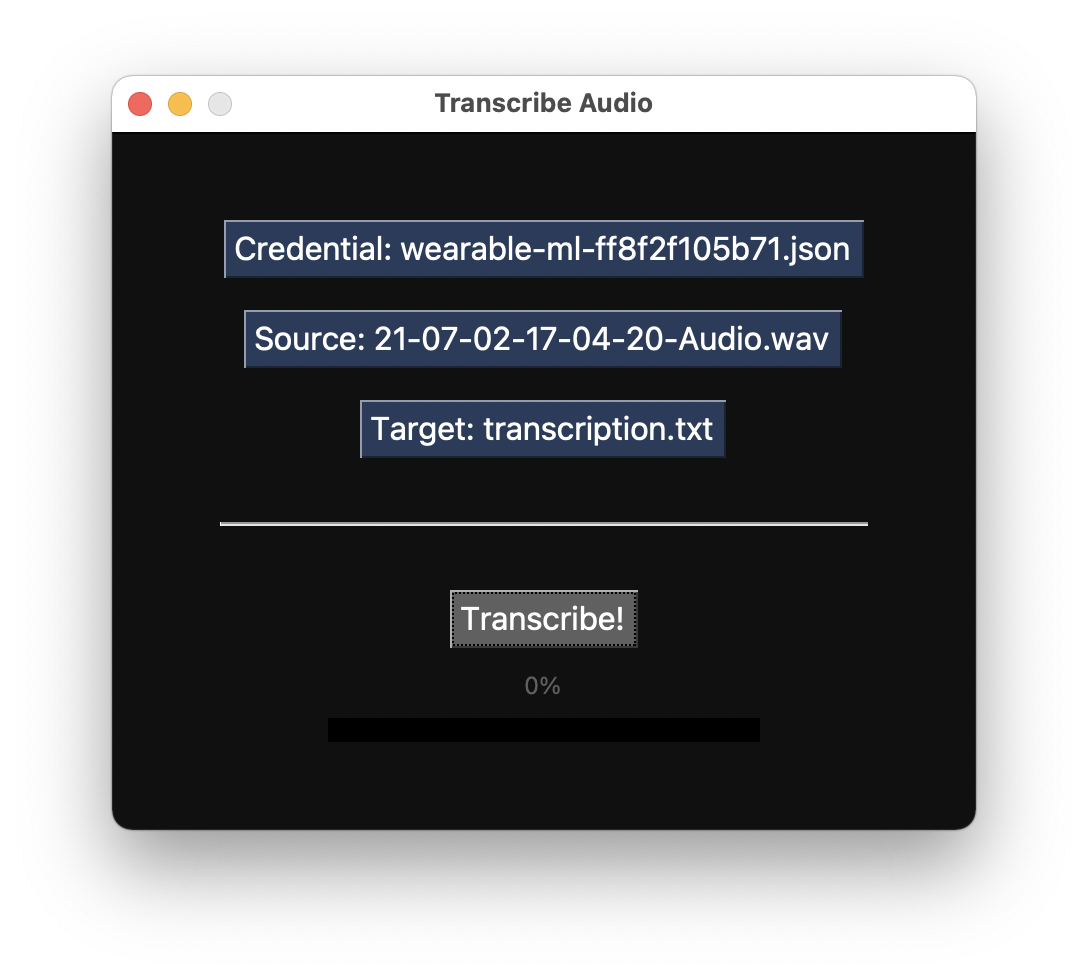
- The uploading speed depends on your Internet, but the transcribing process should take about 8 minutes for a 30-minute audio.