7. Event Action List
| Category | Event Action | Description |
|---|---|---|
| General | Mission Management | Modify various mission parameters such as round counter, pause/unpause threat or end the mission |
| Change Mission Info | Changes the mission information | |
| Change Objective | Changes the objective | |
| Modify Variable(s) | Manipulates various variables and triggers (set value, increase value, decrease value) | |
| Modify Threat | Increases or decreases threat | |
| Activate Event Group | Activates an event group | |
| Dialogs | Text Box | Displays a simple text message |
| Question Prompt | Displays a question prompt with editable answers | |
| Input Prompt | Displays a prompt where players can freely enter numbers | |
| Deployment | Enemy Deployment | Deploys an enemy group and sets its parameters |
| Ally Deployment | Deploys an ally group and sets its parameters | |
| Optional Deployment | Performs an optional deployment | |
| Random Deployment | Performs a random deployment with a specific threat limit | |
| Add Group(s) to Deployment Hand | Adds groups to the Deployment Hand | |
| Custom Deployment | DEPRECATED - only used for legacy compatibility. Use the Character Designer instead. | |
| Group Manipulation | Change Group Instructions | Allows for customized instructions for all groups or a specific group |
| Change Priority Target | Changes the target that the AI attacks | |
| Ready / Exhaust a Group | Readies / exhausts a group | |
| Reposition Group | Changes the Reposition instructions | |
| Reset Group Defaults | Completely resets a specific group / all groups to the default settings | |
| Remove Group | Removes an ally or enemy group from the mission without defeating it | |
| Query Group | Checks to see if a certain group is in play. | |
| Map and Tokens | Map Management | Activates or deactivates map sections |
| Modify Map Entity | Activates or deactivates a map entity (such as tokens) and changes its descriptions and interactions |
General event actions allow you to modify general mission parameters.
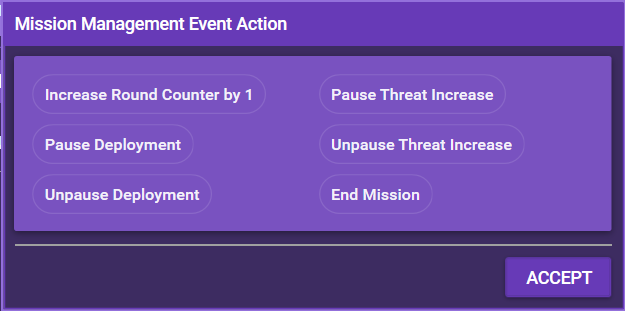
Mission Management allows you to perform various general actions:
- Increase Round Counter: The round counter is increased by 1.
- Pause Deployment: No more groups are being deployed by the app. Threat is still accumulated.
- Unpause Deployment: Groups will be deployed again.
- Pause Threat Increase: Threat is no longer increased at the end of the round. The app will still try to deploy groups as long as there is threat.
- Unpause Threat Increase: Threat will increase again.
- End Mission: Ends the mission.
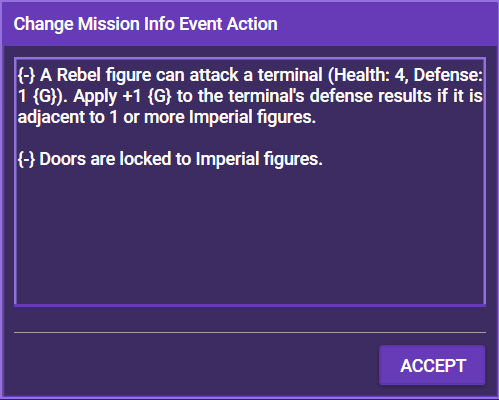
This changes the mission information that is displayed when the Mission Info button is clicked. Use this for general information about the mission that should be readily available for the players.
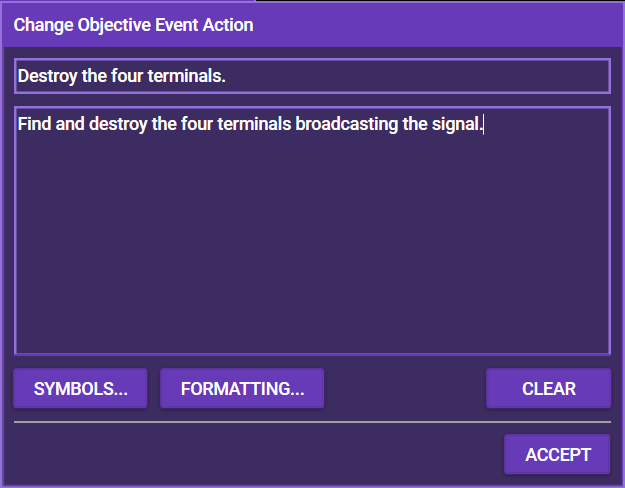
This changes the Objective that is displayed at the top of the screen as a reminder of the heroes' goals in the mission.
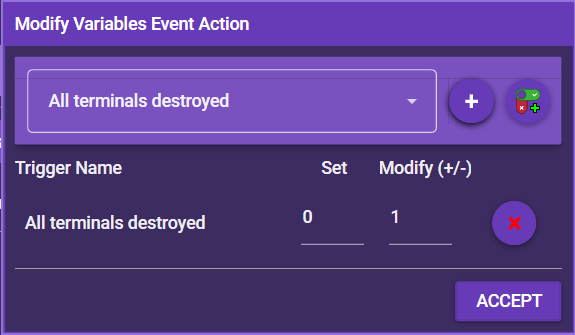
This modifies triggers / variables. Simply select a variable from the dropdown menu and add it with the + button. You can also create a new trigger / variable. In the lower half of the screen, you can choose whether to set the variable to a specific value or modify it by a certain value. Use plus/minus and the number to modify the variable, e.g. +1 or -1.
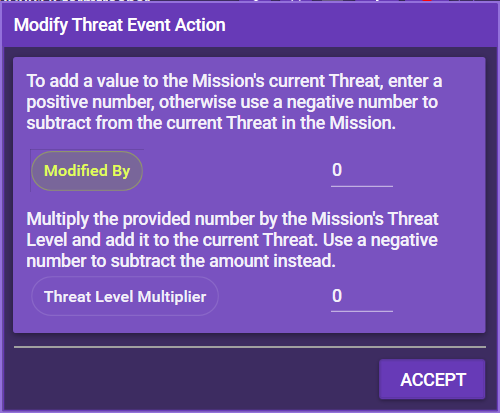
This simply modifies the current amount of threat. You can add or remove threat by either a fixed value or a modifier of the threat level (for example twice the threat level) using plus/minus.
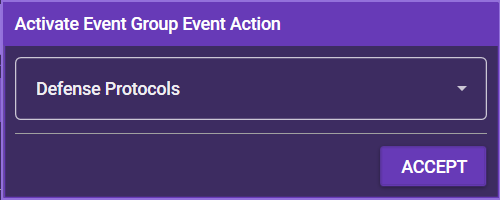
This event action activates an event group, prompting the app to randomly select one associated event. Simply select the event group to activate. See Event Groups for more details.
Dialog event actions display various interactive messages.
This displays a simple text message.
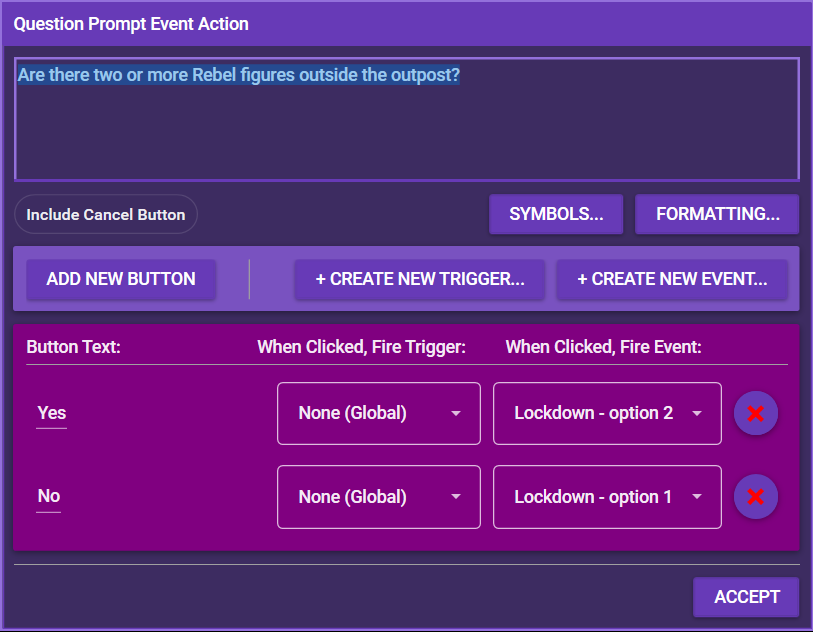
This displays a window with a question and various clickable buttons. You can add the question and multiple buttons and link the buttons to existing triggers or events (or create new ones). When the button is clicked, the linked trigger or event is fired. You can also toggle whether or not the question prompt shows a "Cancel" button, allowing the players to skip the question without answering it.
Note: If the text box for the question is left empty, the input cannot be processed. Always enter text into the text box for the question.
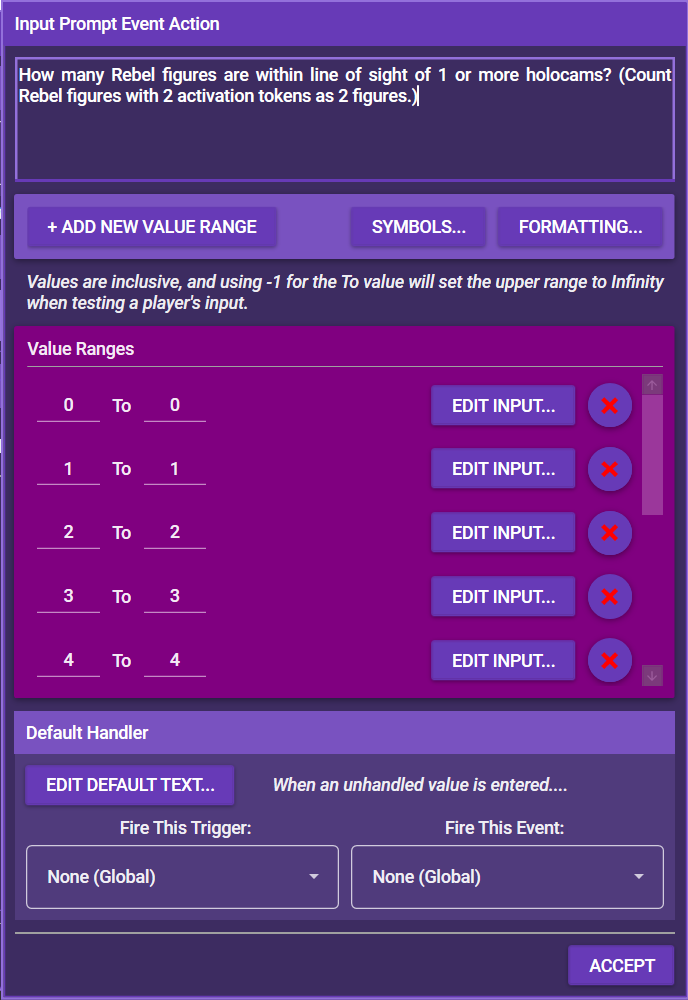
Input Prompt displays a window with a question (and other text) and a field where players can input any number. Each number can be assigned its own reaction, for example a trigger or an event. This can be used, for example, to count successes in attribute tests or for any other situation where the app needs to know a specific number.
- + Add value range: This adds a new value range which can be assigned a reaction. Value ranges are inclusive, "0 To 1", for example, will catch both 0 and 1. Put in -1 for "infinite. So, for example, "6 To -1" will catch numbers 6 and up.
- Edit input: Each value range can have its own input. Input can be a simple text window (for example "You fail to slice the terminal"), a trigger, or an event.
- Default Handler: The "Default Handler" catches all numbers that are not added in a value range. For example, if only the value range "0 To 1" is added, the Default Handler triggers at all numbers 2 and up.
Deployment event actions consist of all event actions that deploy groups.
Note: If you choose to deploy any group to a Specific Deployment Point and then select None, the group is deployed without any indication of where. Use this for events like "Deploy a group within 3 spaces of the door."
This event action deploys a specific selected group.
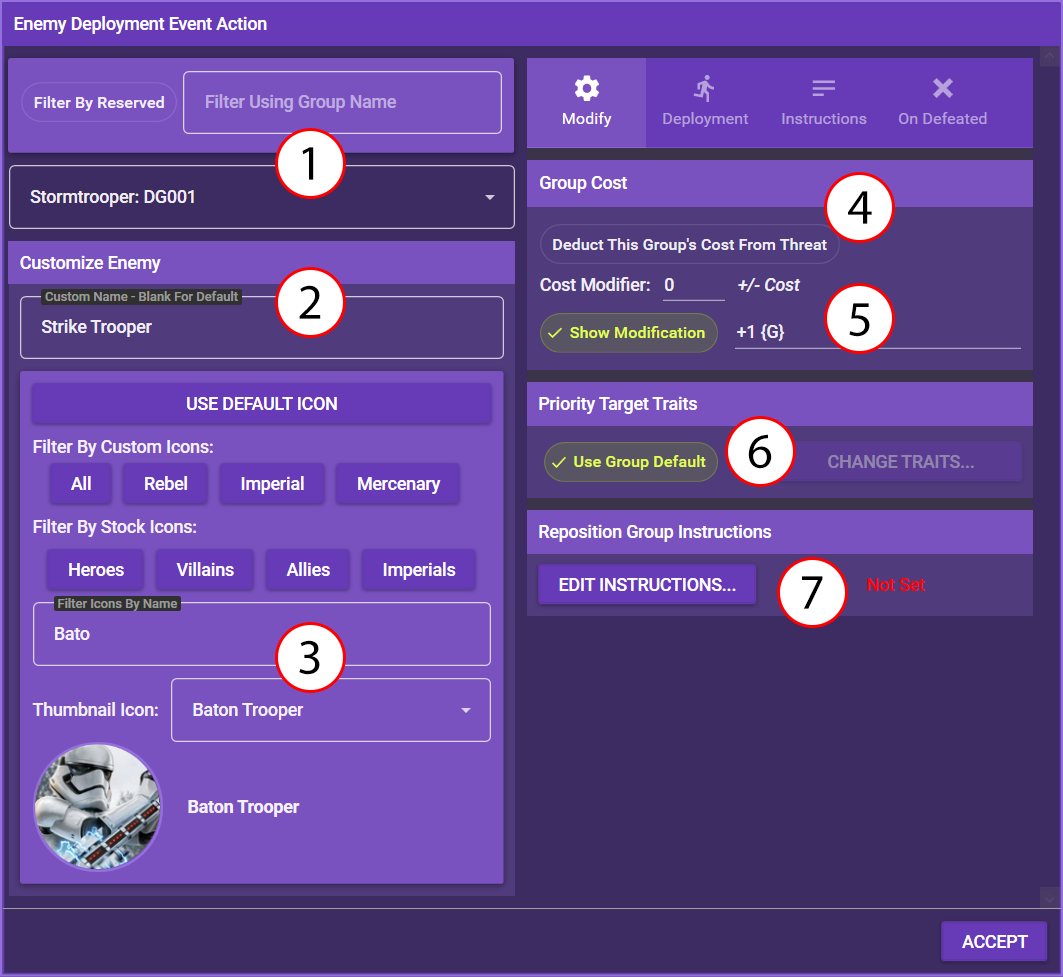
| No. | Description |
|---|---|
| (1) | Select the group you want to deploy from the dropdown menu. |
| (2) | You can give the group a specific name that is displayed in place of its default name. |
| (3) | If you want to display a different icon for the group, you can select it here. |
| (4) | Click this if deploying this group is supposed to cost threat. You can also set a modifier to the threat cost, such as -2. |
| (5) | If the group has any special modifications, such as an extra automatic block symbol, put it here. The modification is displayed on the group's thumbnail. |
| (6) | By default, enemy figures target a random healthy Rebel. Click here if you want to assign different priority targets. |
| (7) | If you want the group to have custom reposition instructions, set them here |
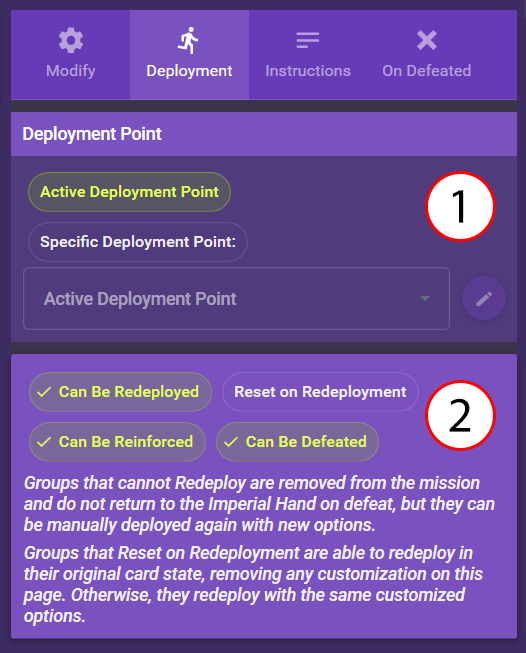
| No. | Description |
|---|---|
| (1) | Select the deployment point the group should be deployed to. You can set individual deployment points for each figure in the group by clicking the 🖉 icon. If you set a Specific Deployment Point to None, no deployment point will be given by the app. |
| (2) | You can decide whether this group can be reinforced, redeployed and/or defeated and whether all customizations should be reset on defeat. |
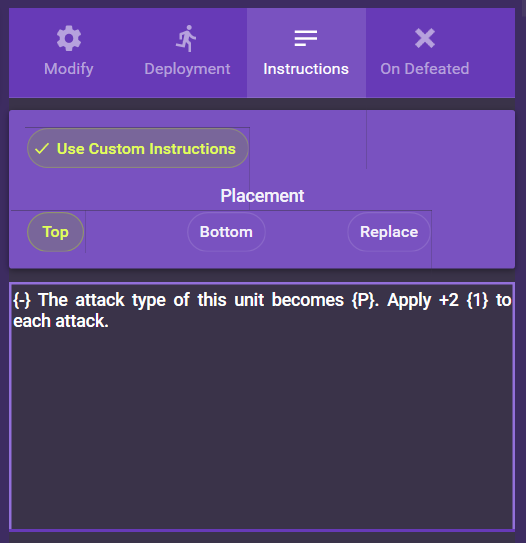
You can set custom instructions for this group. See here for details.
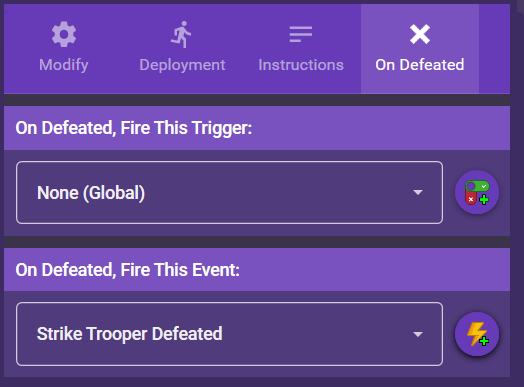
Select an existing trigger / event to fire when this group is defeated.
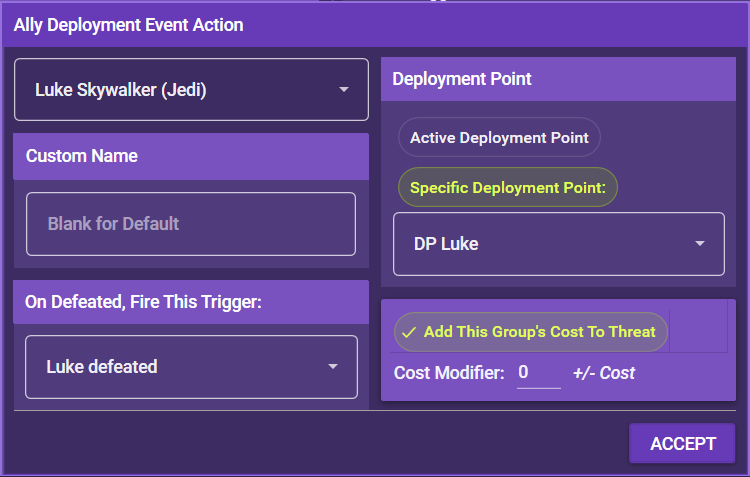
This works exactly as Enemy Deployment, just with fewer options. Allies cannot be given specific mission instructions since they are controlled by the players.
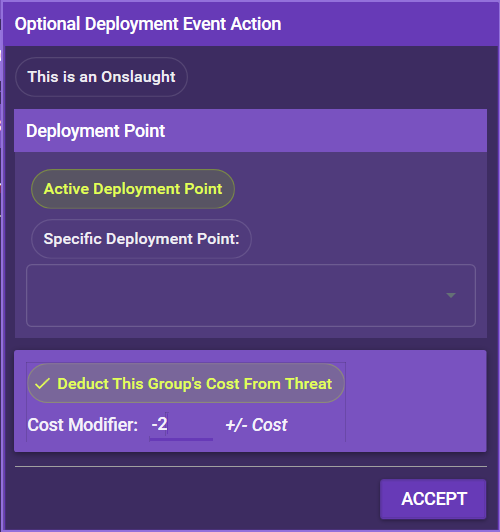
This performs an optional deployment. Use this action whenever a mission calls for an optional deployment. When an optional deployment is performed, the app deploys up to two groups from the Deployment Hand.
You should always activate Deduct This Group's Cost From Threat, since optional deployments usually cost threat. You can also add a modifier to the threat cost.
Additionally, you can activate This is an Onslaught. Onslaughts are special deployments in Imperial Commander where threat is increased and as many groups as possible are deployed at a discount. Use this if you want to deploy a big wave of enemies at once instead of just two groups. See the Imperial Commander documentation for details.
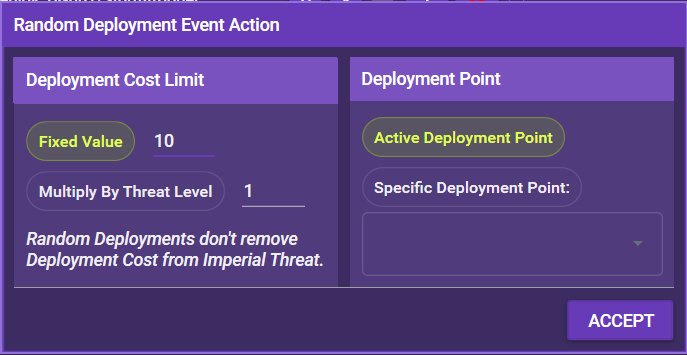
Random deployment allows you to deploy a number of random groups up to a specific threat limit. These groups are not selected from the deployment hand, but from all available groups. Random deployments to not reduce threat. If you want Random Deployments to have a threat cost, combine it with a Modify Threat event action.
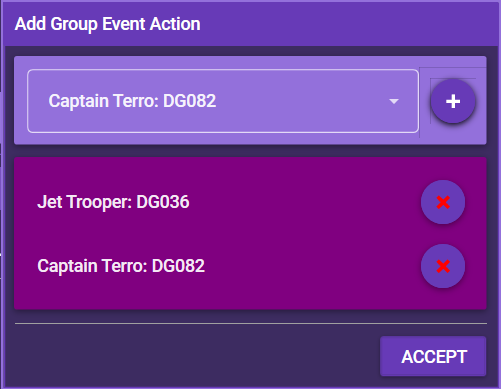
This simply adds specific groups to the Deployment Hand.
WARNING: This is a deprecated feature, only left in for legacy compatibility reasons. Custom groups are given a unique ID and are not associated with any real, existing card in the game. They cannot be referenced by event actions or used anywhere else in the mission editor aside from being deployed by this event action. It is recommended to use the Character Designer instead.
This event action allows you to deploy a fully custom ally or enemy and set the respective parameters.
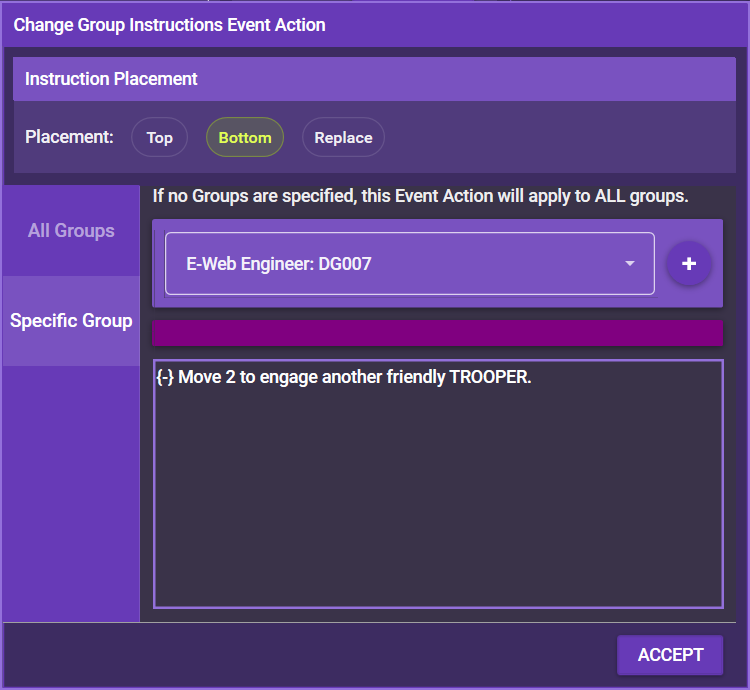
Some missions require some adjustments to group instructions. This can even be used to replace the default instructions completely. A full replacement usually only makes sense for specific groups, but it can be applied to all groups.
- Decide whether you want the instructions to apply to All Groups or a Specific Group. If it's a specific group, select it from the dropdown menu.
- Decide whether the custom instructions should be added to the Top or Bottom of the list or Replace the default instructions altogether.
- Enter the new instructions. Use text formatting to enter special symbols.
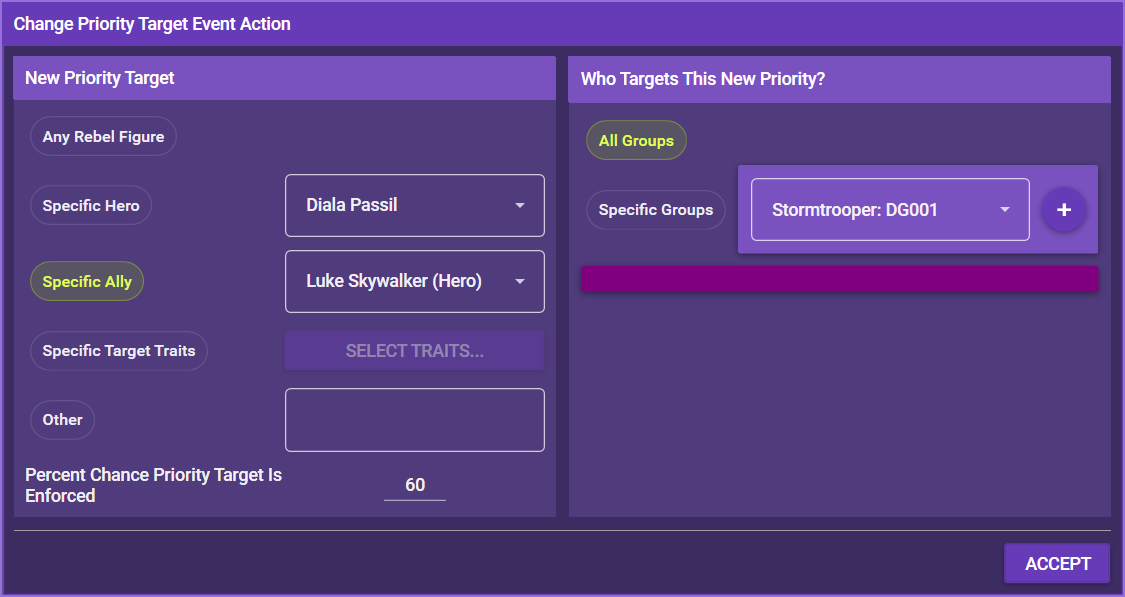
By default, the app randomly targets any healthy Rebel figure. With this event action, you can change the target for either all groups or a specific group. You can select specific heroes / allies or simply enter a text string, such as the closest weak point.
Note: Assigning a priority target does not mean that it will be targeted in every instruction. You can set a percentage chance to determine how likely it is that the assigned priority target is chosen.
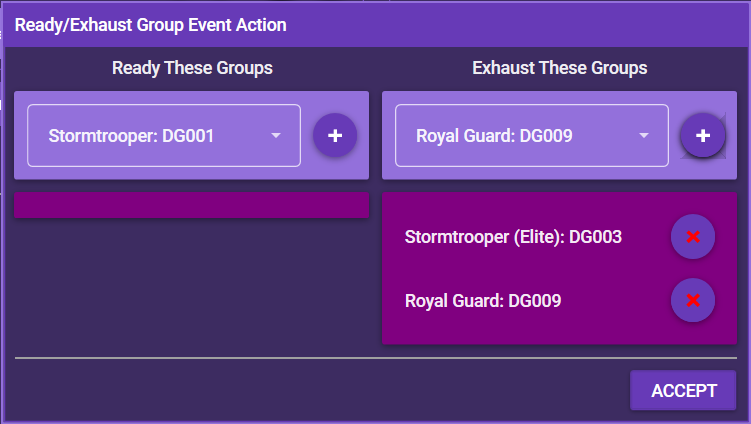
This simply readies or exhausts specific groups when the event action is carried out.
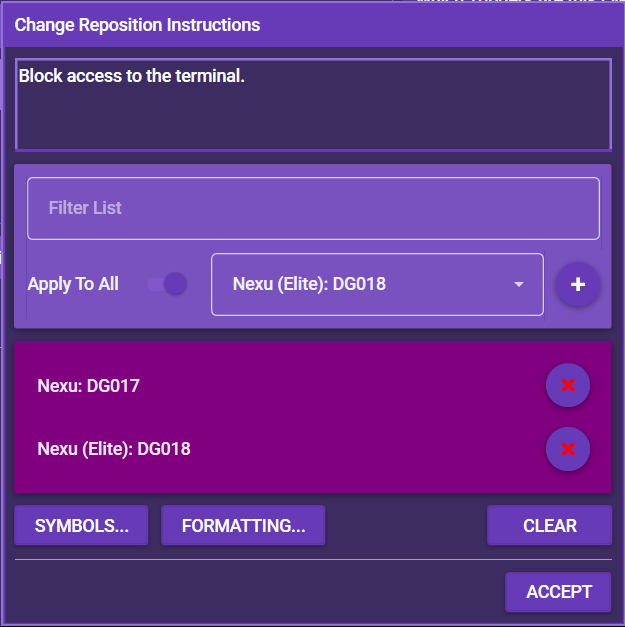
With this event action, you can change the reposition instructions that are displayed in the instruction window. You can add specific groups or simply set the toggle to Apply To All to have the change affect all groups.
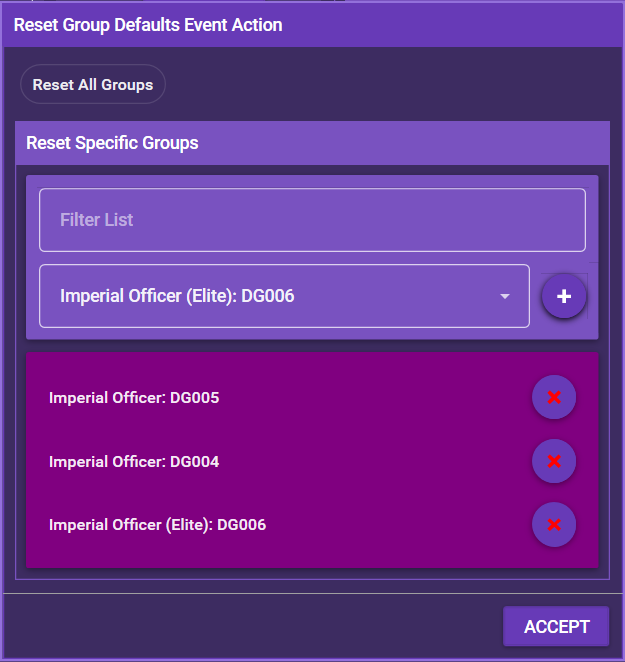
With this event action, you can restore a group's default settings. That means you remove any name changes, special instructions and anything else you might have altered. Either add specific groups you want to reset, or simply check Reset All Groups.
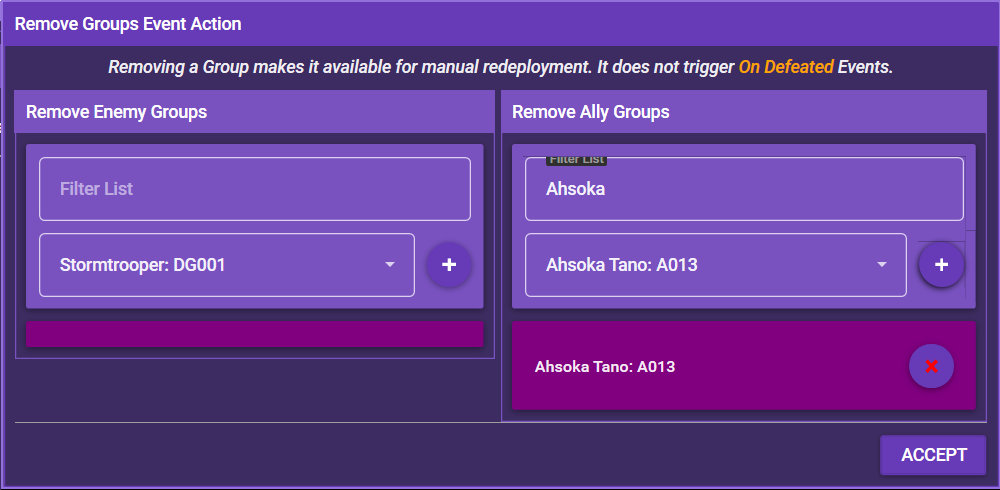
With this event action, you can remove a deployed group (enemy or ally) from the mission. Removing a group this way does not trigger any events or triggers that rely on the group being defeated. A group removed in this manner can still be redeployed by a Deployment event action.
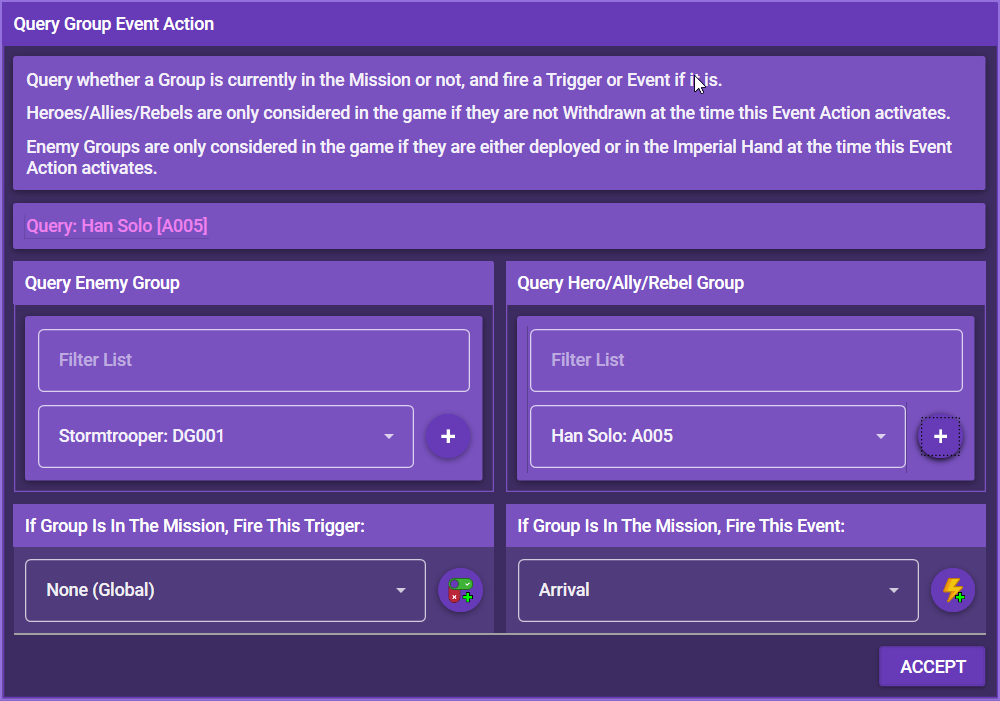
With this event action, you can make the app check if a certain group (hero, ally, enemy or villain) is currently in the mission, and fire a trigger or an event if this is the case.
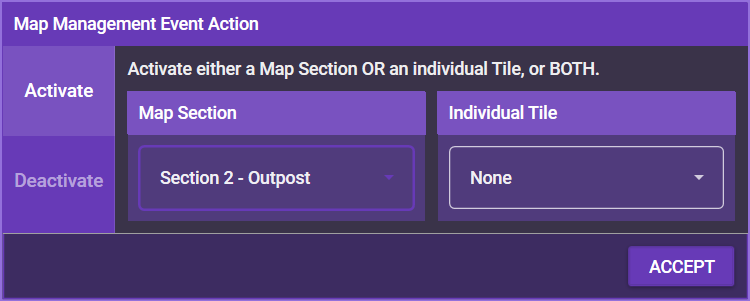
Map Management allows you to reveal or hide map sections and individual tiles. If you want to reveal sections or tiles, choose Activate, if you want to hide them, choose Deactivate.
Especially when hiding / revealing individual tiles, it's advisable to give them a unique name in the map editor to easily identify them.
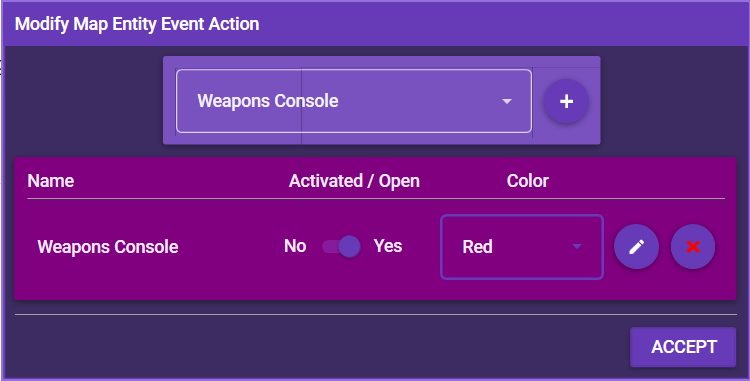
This event action allows you to activate or deactivate a map entity (for example tokens, deployment points or space highlights) and change their color and properties (such as description and interactions). Simply select the entity from the dropdown list and click the + symbol.
- Activate / Deactive: Toggle between Activate or Deactivate. Tokens will only be visible when active, otherwise they will be hidden.
- Change Color: Select the new color from the dropdown list.
- Edit properties: Click the 🖉 icon to open the entity's properties.
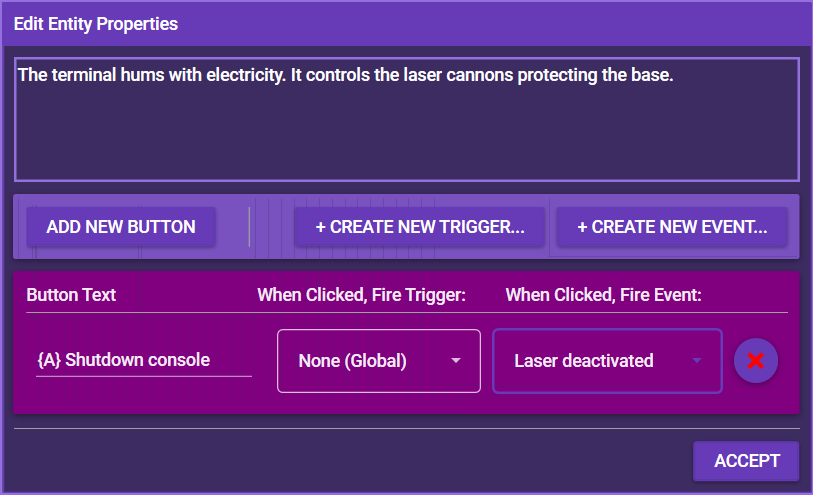
Here you can edit an entity's description and interactions, for example the available buttons and what triggers are fired when they are clicked. See Creating Maps and Map Entities for details.
Deployment points have no description or interactions.