- Install node.js and npm
- https://nodejs.org/en/
- LTS version (16.15.1) would be fine
npm install
npm install -g firebase-tools
-
Access https://firebase.google.com
- Sign in with your google account
-
Create new project
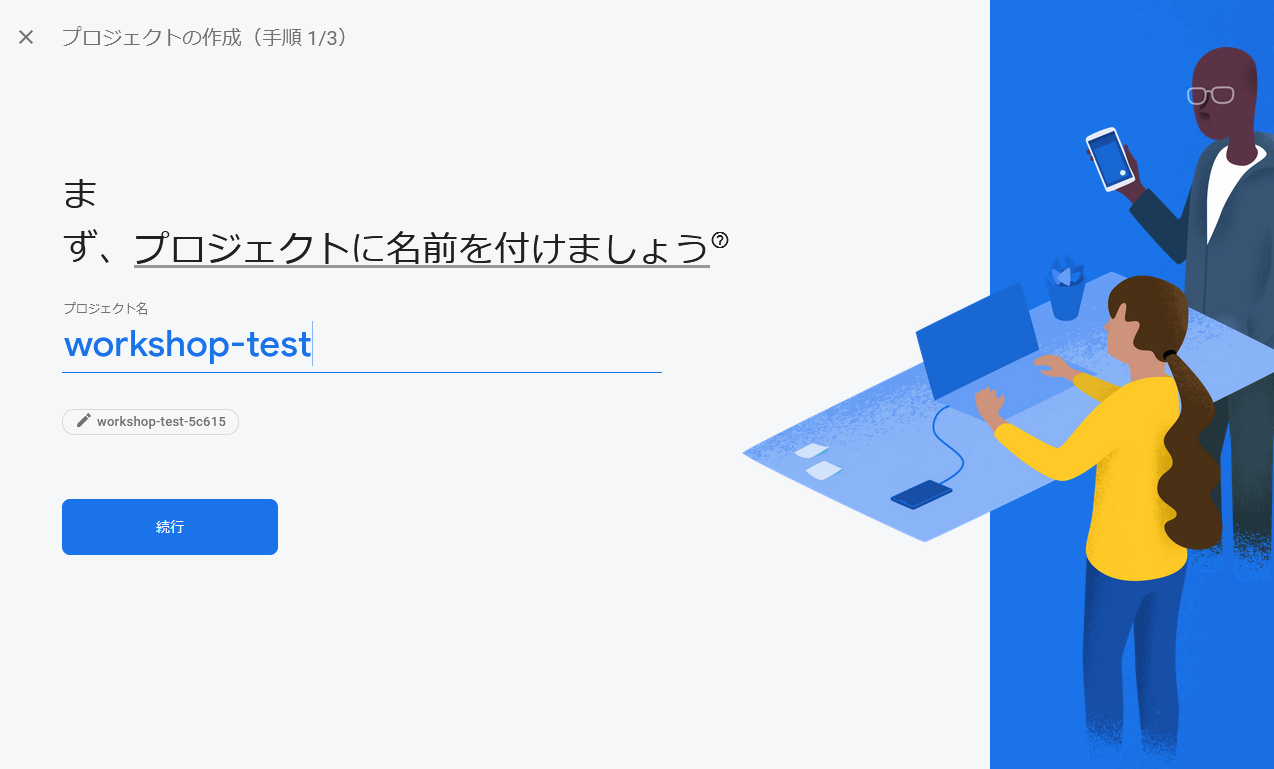
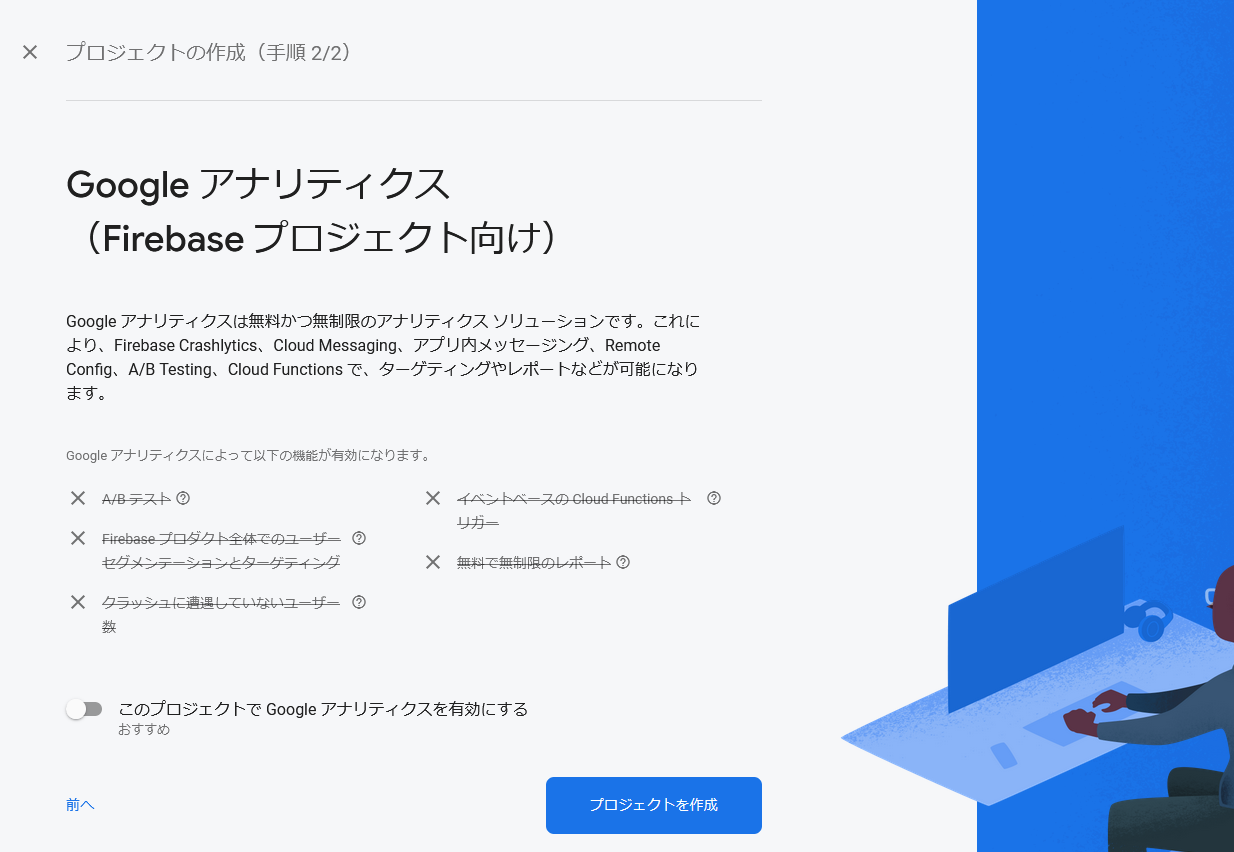
- GA is not needed
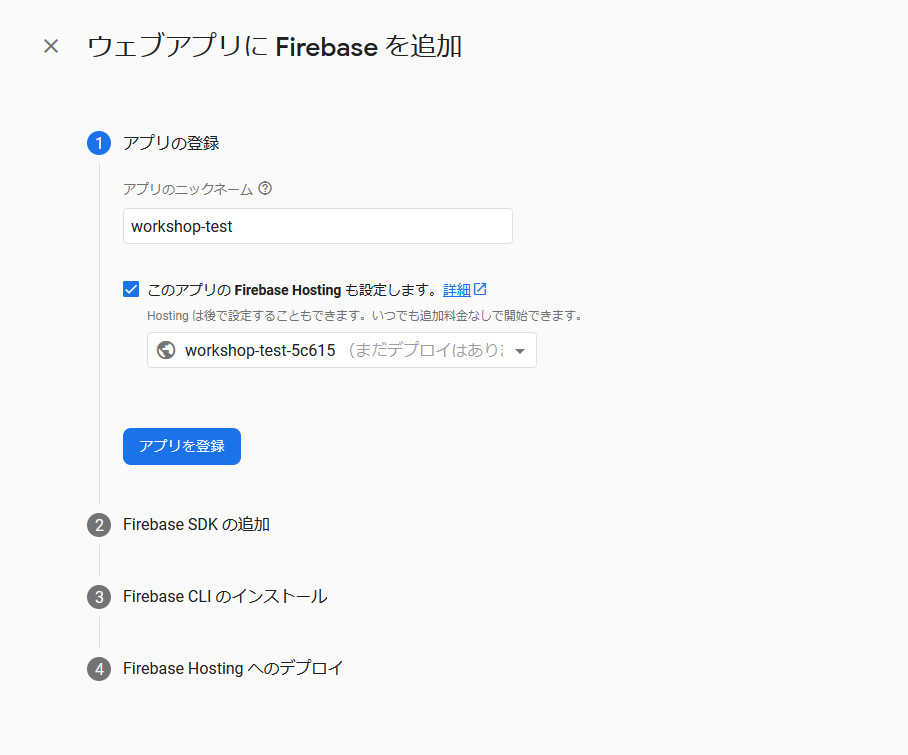
- Click 'Web' button

- Set app nickname and Check Firebase Hosting and click 'Register App'
- You don't have to follow the step 2 ~ 4. But Just copy the app config

(You can also see this config information in the 'project setting' menu)

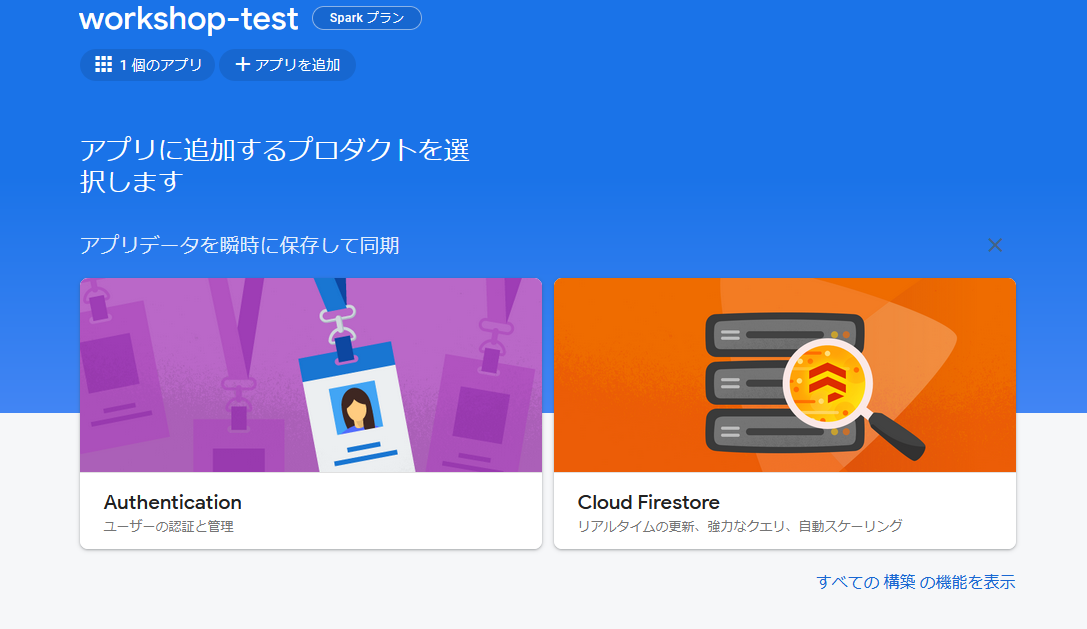
- In the console, choose 'Cloud Firestore' and create new database
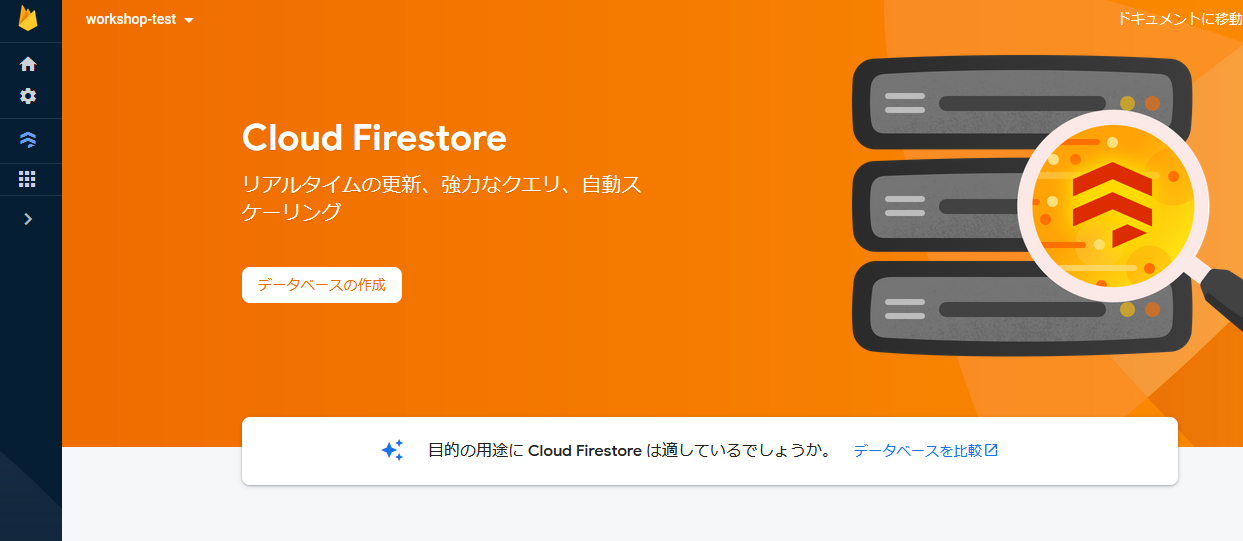
- TestMode would be fine

- Choose your favorite region and create database.

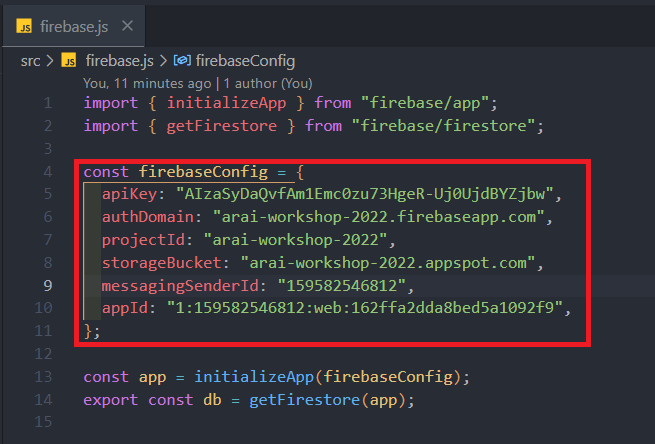
- Open 'firebase.js' file and rewrite the firebaseConfig
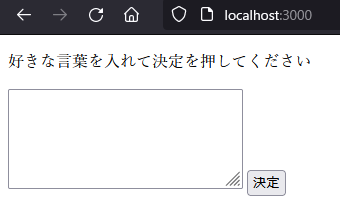
- You can see the app in http://localhost:3000 by run this command
npm run start
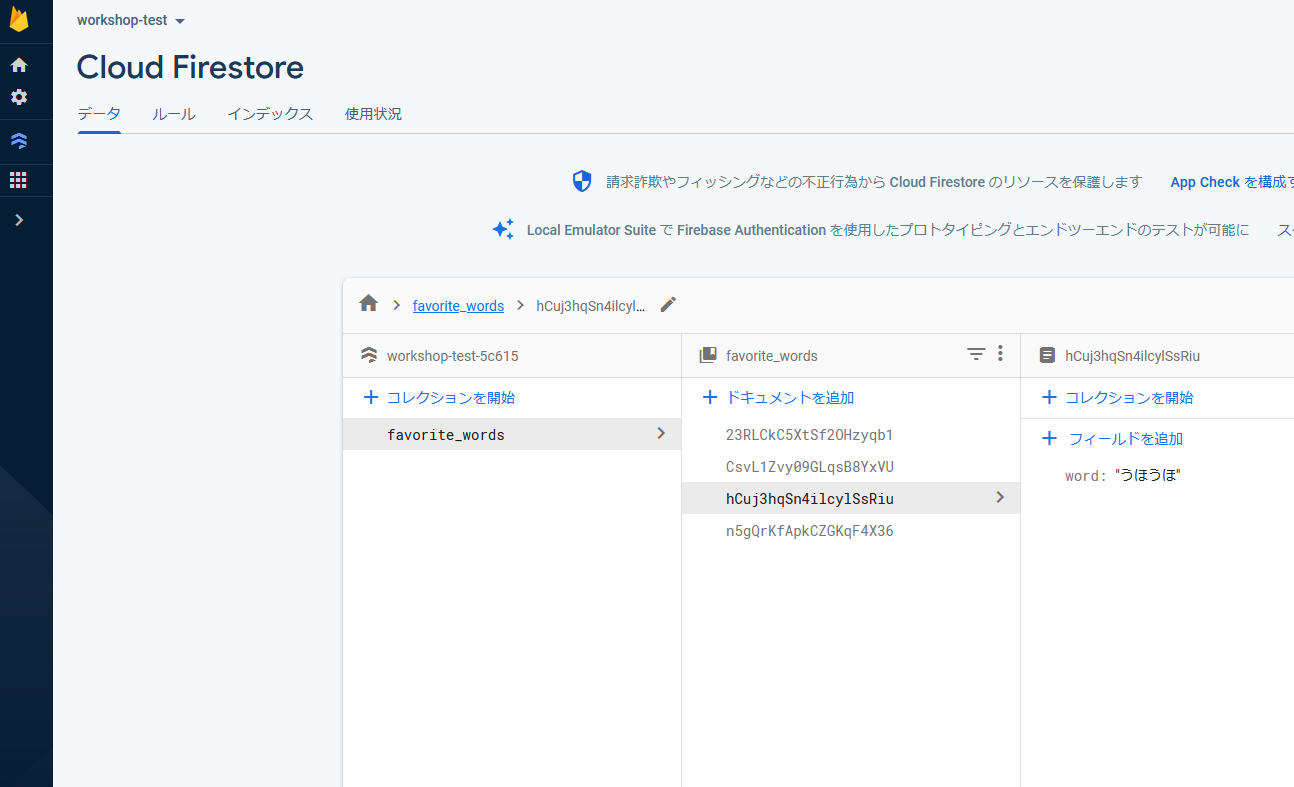
- You have to see that the app is correctly connected to the database by looking the Firestore console.
- Open '.firebaserc' file and rewrite "arai-workshop-2022" to your firebase project ID (not project name).

- Login via firebase-tools and authenticate your account
- This command will open your default browser
firebase login
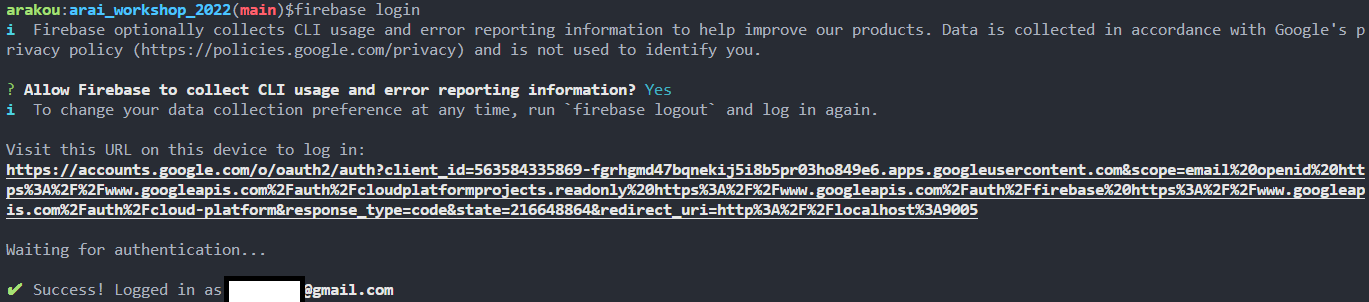
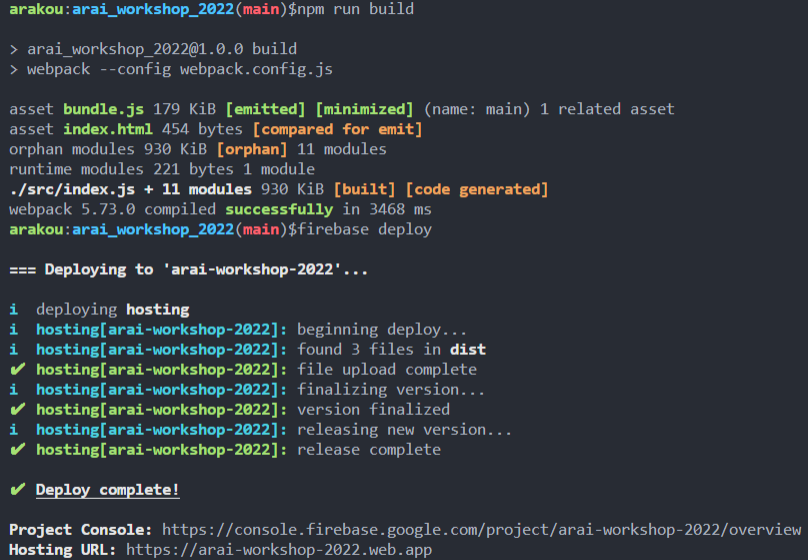
- You can deploy your project by running these commands
- If succeeded, you can see your app in the 'Hosting URL'
npm run build
firebase deploy
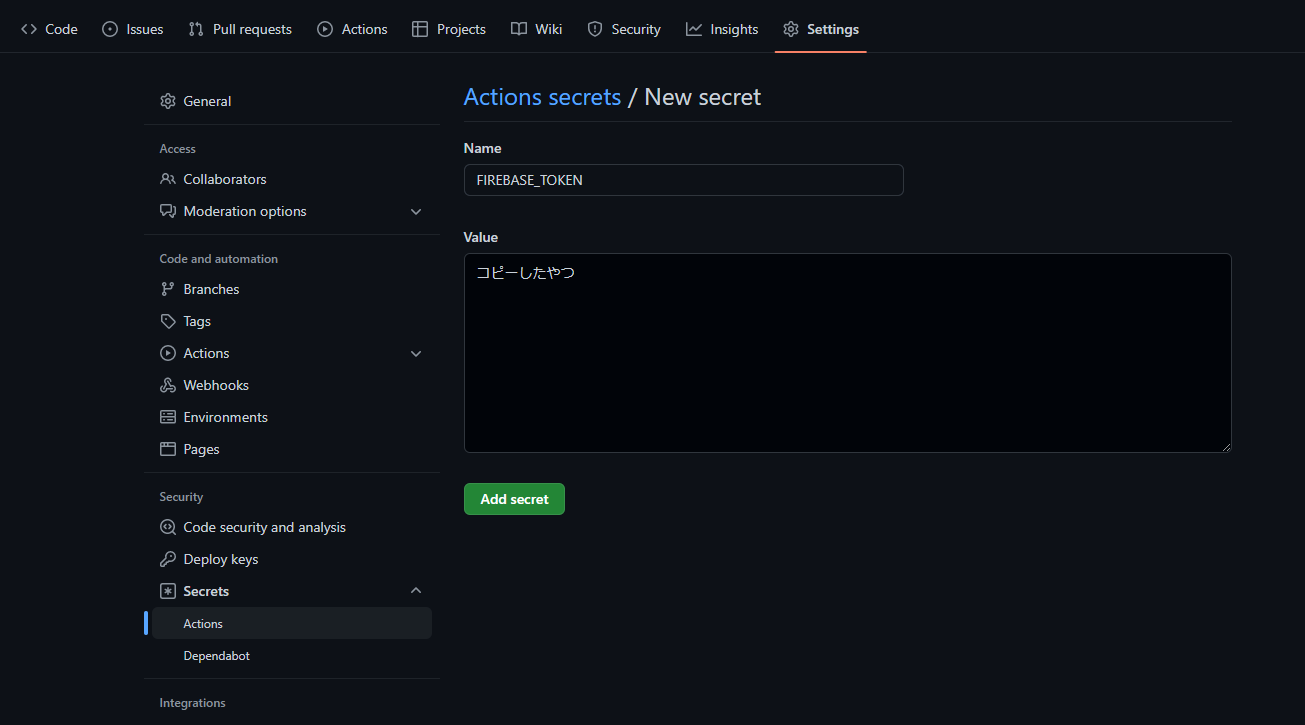
- Get Tokens for CI by running this command and copy
firebase login:ci

- Open Action Secrets settings in the github and add the secret called 'FIREBASE_TOKEN'
- Go to Actions setting and enable github actions
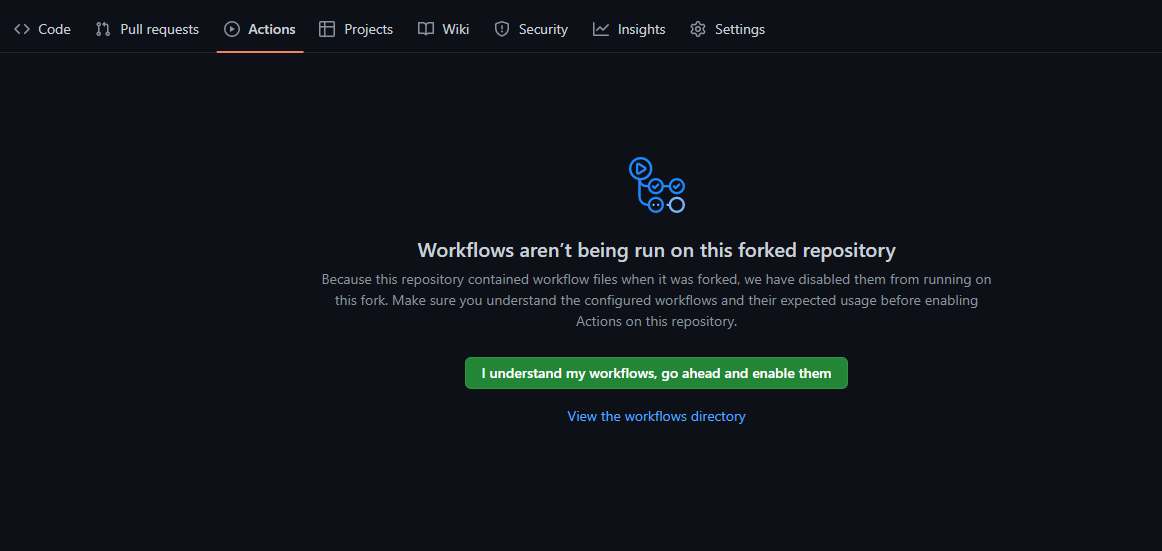
- Then the project will automatically deployed when there is a push to 'main' branch
- You can see the yml file in '.github/workflows/main.yml'
git add .
git commit -m "test commit"
git push origin main
- The main source code is 'src/index.js' so you can customize your app by editing this file