FIJI plugin that reads folders with single-channel tif files and outputs an identical file system with PNGs and JPEGs in HPA-Style.
So this plugin ...
- ... reads a directory containing directories with single-channel .tif files (one directory per multi-channel image (slice)), e.g., coming from the plugin creating .ome.tif files out of OPERA files or from the plugin creating memento-ready .tif files out of .lif files.
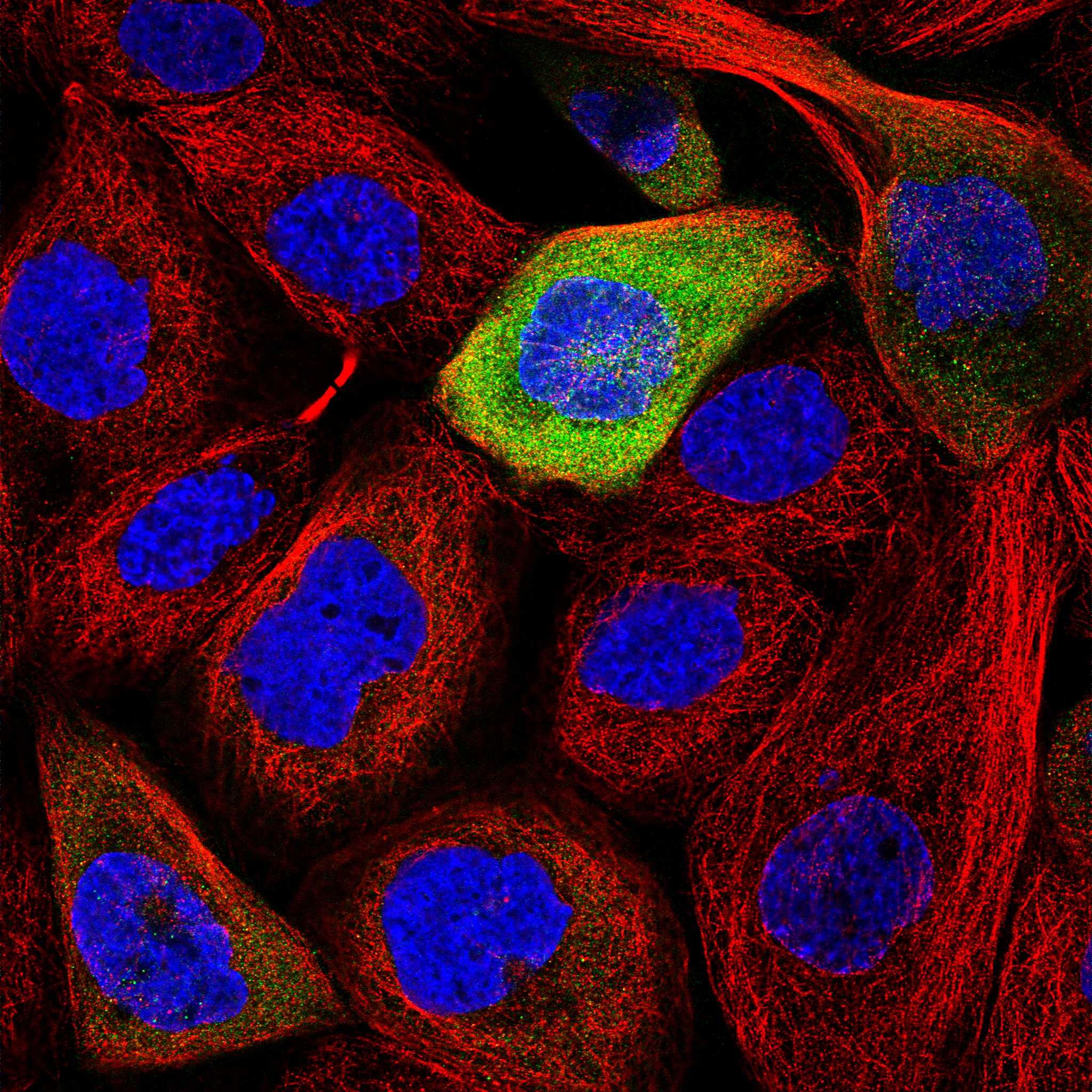
- ... outputs jpeg (or png) files of single channels or merged channels as downloadable from the HPA, such as:
- ... allows to use an un-build intensity-scaling function to provide best conversion from 16-bit depth to 8-bit range independently for each channel. This function - under default settings - works as follows:
- The 0.001% and the 99.999 % percentile of all pixel intensities in an image are determined
- Intensities are rescaled so that the 0.001% percentile represents the lowest displayed intensity value (= intensity 0 in the Jpeg or PNG file) and the 99.999% percentile represents the highest displayed intensity value (= an intensity of 255 in the Jpeg or PNG file)
- If the 99.999 % percentile is smaller than 10,000.0: Intensities are rescaled so that the highest displayed intensity value is 10,000.0 (instead of using the 99.999 % percentile)
- All these values (percentile of 99.999% and minimum value of 10,000.0) can be customized using the settings dialog of the plugin.
- The plugin allows to determine and apply these "adjustment values" jointly for a set of images.
(c) 2023-2025, Jan N. Hansen
Contact: jan.hansen (at) scilifelab.se
The plugin and the source code are published under the GNU General Public License v3.0 contained in this repository.
The code and software releases of this software are archived in zenodo at the repository https://zenodo.org/records/15778558
Specific versions can be cited through finding the version sepcific zenodo entry, e.g.,
- Version v0.0.6:
- Version v0.0.7:
- For more versions, browse the zenodo records.



To generally cite the plugin version independent, you can refer to the general DOI including all versions:

This software is a plugin for ImageJ or FIJI (an extended version of the open-source image-analysis software ImageJ, including the BioFormats library from OME). Thus to use the plugin, you need to first have ImageJ or FIJI downloaded to your computer. Imagej/FIJI is freely available for download here.
The plugin can be installed as follows:
- Download the .jar file from the latest release at the release section.

- Launch FIJI and install the plugin by drag and drop into the FIJI status bar (red marked region in the screenshot below)

- Confirm the installations by pressing save in the upcoming dialog(s).

-
Next, ImageJ requires to be restarted (close it and start it again)
-
You can now verify that the plugin is installed by launching it through the menu entry: Plugins > CellProfiling >

Launch the plugin via Plugins>ELL-Plugins>TifChannels to HPA-PNG-JPEG (v0.0.4). A dialog will pop up allowing you to select options for processing.

Now set the settings as explained here:
- Insert the path to the input folder system with subfolders containing single-channel .tiff images. File systems may, e.g., come from the plugin creating .ome.tif files out of OPERA files or from the plugin creating memento-ready .tif files out of .lif files.

- Insert the path to the output folder, where the same subfolder system shall be created but with .jpeg or .png files instead of .tiff files.

- Decide what output format you would prefer (.jpeg images load faster than .png images in memento).

- Decide whether you simply want to create all kinds of image display (any channel alone plus any channel with other channels combined). If you do not want that, select the following option:
 . In turn, a dialog will appear after this dialog and allow you to customize overlays that you want to have created.
- Note, that in the appearing dialog you can also include a white channel into overlays (see orange marks in screenshot below), but this requires that you have a white channel and select accordingly the file name (see point 6 below).
- If you do not have a white channel or do not want to use it, do not select the options including a white channel.
- Info: A white channel can e.g. be a bright-field image, or a transillumination image ("TI") from a confocal image.

- Decide whether you want to adjust the display range ("Brightness / Contrast") of all channel images (this should always be used with 16-bit input images since otherwise these may appear black or dark in the jpeg or png files).
- If you selected this option, you can customize the way that images will be adjusted (e.g., each image individually or jointly adjusting multiple images for best comparability). Also you can set the way that min and max display value are determined (based on intensity percentiles). The settings dialog provides additional instructions for these settings. Note that in chapter "Example adjustment file", additional information on the adjustment files (if selected) are presented.

- Denote what the end of the filename is for each channel color.
- You will only need to make sure the file name for the white channel is correct if you have a white channel and if you include it into overlays (see point 4 above)!
- If you do not have a white channel, just ignore the field here and leave it to default.
- By default, the file name endings in the settings dialog are corresponding to classic filename endings in a folder system created with the plugin creating tif files out ouf .lif files (e.g., channel images are called "C0.tif", "C1.tif", ... . When you process a folder system coming from the plugin creating .ome.tif files out of OPERA files you will need to change the entered filename endings to "C00.ome.tif", "C01.ome.tif", ... .

- Press OK!
Now the plugin processes and it tells you when it has processed and created all files.
The adjustment file needs to be a comma-delimited csv file with two columns, where in the first column describes a well identifier and the second column describes an adjustment group that should be the same for all well identifiers to be adjusted together.
When applying this plugin to tif files created out ouf .lif files with this plugin, folders summarizing image folders will have a certain name given by the csv that you input into the Sp8-Lif_To_Memento plugin.
- If this table looked, e.g., like this:
Antibody,Protein,Plate,Well
HPA000427,CSTF2,MyPlate1,A1
HPA000593,MECP2,MyPlate1,B1
HPA000704,MTHFD1,MyPlate1,C1

...
- Your adjustment file could look like this (if you want to adjust all images in one well / folder together):
FolderID,AdjustmentGroup
HPA000427_CSTF2,1
HPA000593_MECP2,2
HPA000704_MTHFD1,3

...
When applying this plugin to .ome.tif files created out of OPERA files with this plugin, folders summarizing image folders will be named by the well coordinate (e.g., 'A1' or 'D6').
- Accordingly, your adjustment file could look like this if you want to adjust all images in one well together:
FolderID,AdjustmentGroup
A1,1
A2,2
A3,3
A4,4
A5,5

...

B1,13
B2,14

...

H12,96
- Or like this, if you want to adjust all images in a row together:
FolderID,AdjustmentGroup
A1,1
A2,1
A3,1
A4,1
A5,1

...

B1,2
B2,2

...

H12,8
- Or like this, if you want to adjust all images in a column together:
FolderID,AdjustmentGroup
A1,1
A2,2
A3,3
A4,4
A5,5

...

B1,1
B2,2

...

H12,12
Download the new version's .jar file from the release page. Make sure FIJI is closed - if still open, close it. Next, locate the FIJI software file / folder on your computer and go on below depending on your OS.
In Windows or Linux, FIJI is a directory called FIJI.app. Enter this directory and navigate to the "plugins" folder and enter it. Find the old version of the TifChannels_to_HPA_PNG_JPEG_Main_JNH-X.X.X-SNAPSHOT.jar file and delete it. Then place the new plugin version in the "plugins" folder. Exit the FIJI.app folder. Start FIJI.
In Mac OS, FIJI is just a software file (FIJI.app). Right click on the FIJI icon (or hold option and do normal click on it), then select "Show Package Content". A folder will open, which contains the contents of the FIJI.app. Navigate to the "plugins" folder folder and enter it. Find the old version of the TifChannels_to_HPA_PNG_JPEG_Main_JNH-X.X.X-SNAPSHOT.jar file and delete it. Then place the new plugin version in the "plugins" folder . Exit the FIJI.app folder. Start FIJI.
(c) 2023-2025 J.N. Hansen, Cell Profiling group