Authorization and registration of the user, as well as the selection and reservation of available seats.
The company has shared workplaces. An employee can choose what he needs for work (mouse, keyboard, monitor, additional monitor, desktop (if the place is without a desktop, then it comes with his laptop), etc.). The employee can enter the date when he wants to work. An employee sees a list of available jobs and can reserve one for himself. The administrator can add or remove jobs. He can also change their gear. Each user will have a specific role, now these are the roles of an employee and an administrator, but the list of roles should be extensible.
Let's move on to the implementation:
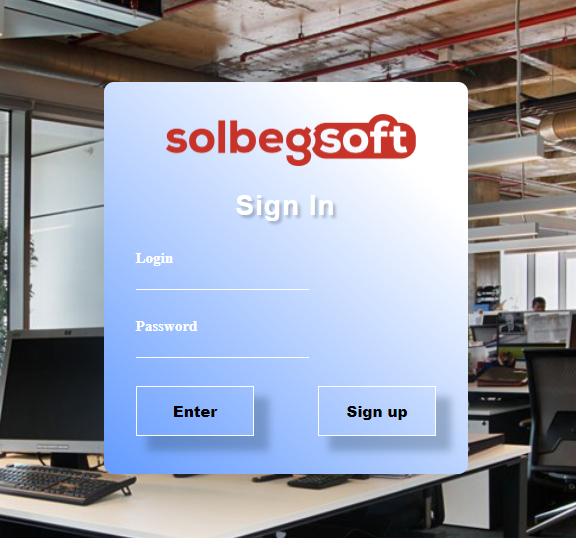
The first place where we are transferred from any site is the place of user authorization. Here, the user must enter the correct Username and Password to continue working with the site.
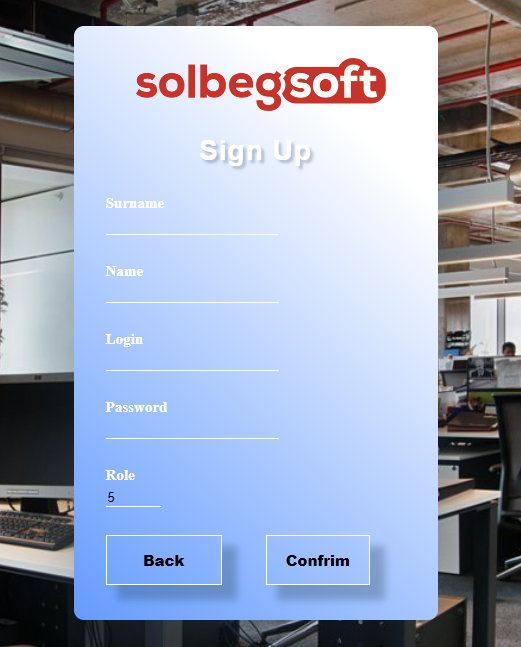
If an ordinary user wants to visit the site, but nothing works out for him, he can use the usual user registration. When registering, the user must enter only in Latin. After correct input, his data is entered into the database and he goes to the authorization panel
If the username and password are specified correctly, you will be able to go to the site and see all the functionality.
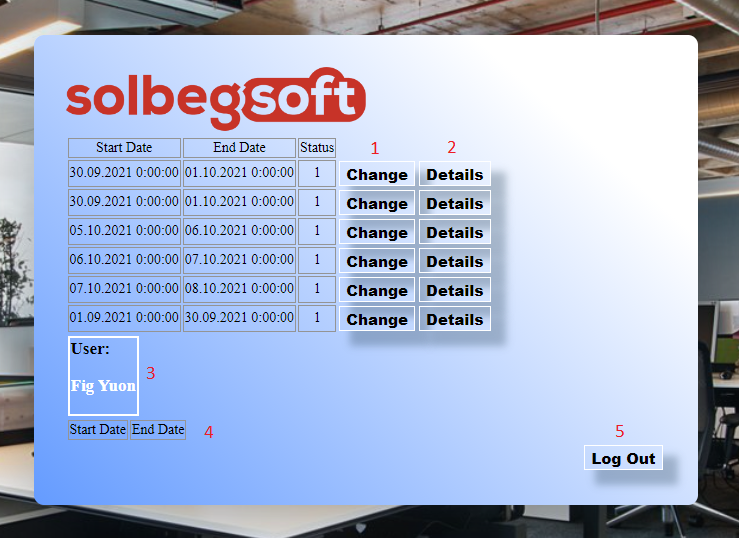
At the sight of all this, you can get a little lost, but in fact everything is very simple here. Let's figure it out.
-
Reservation or reservation status change buttons
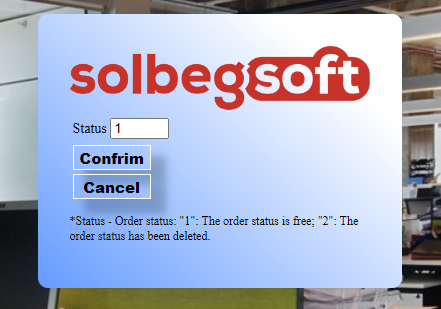
- The change button is used to change the booking status. Status 1 means that this place is free to order, and status 2 means that the order has been deleted and booked.
-
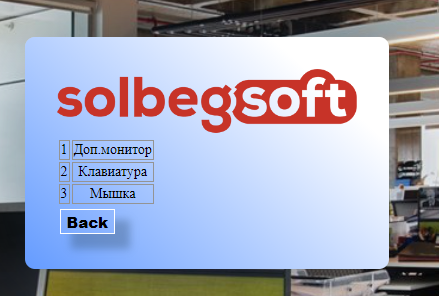
Details Button
- This button allows you to see what is in this free space, or rather what devices or equipment is available in this place.
-
About the user
- Here the data about the user is displayed, or rather the First and last name under which he entered.
-
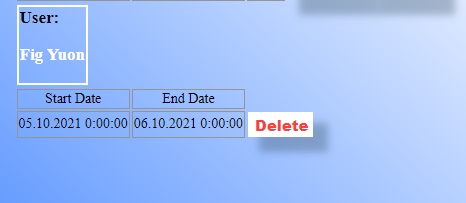
Reserved seats
- A sign with your reserved seats is displayed here. If you need to delete your reserved seat, you can simply click the Delete button next to the reservation place.
-
Exit button
- When you click this button, you will be able to log out from under this user and return to the authorization panel.
Now that we have seen the user rights, let's see what the administrator can do.
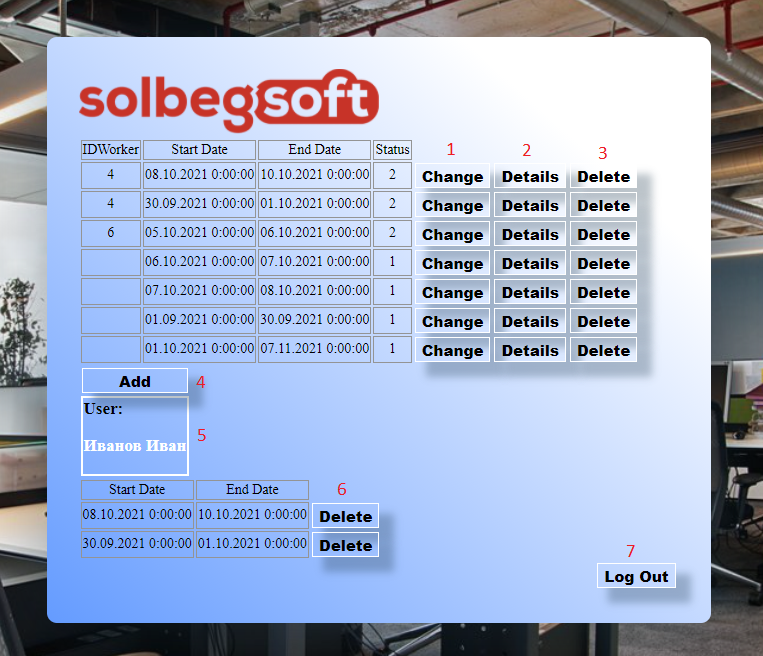
The administrator also has similar buttons, but they already have more functionality.
- Reservation or reservation status change buttons
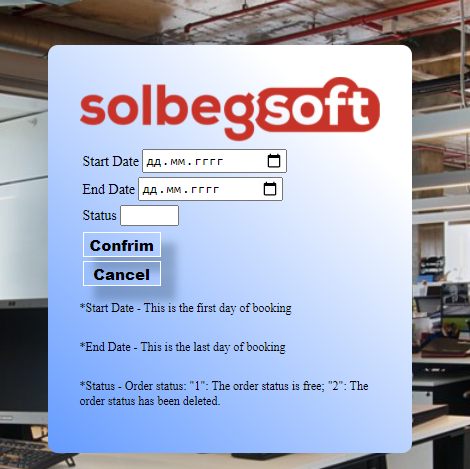
- The change button is used to change the booking status. Status 1 means that this place is free to order, and status 2 means that the order has been deleted and booked. You can also change the date for booking, but you can't do it for yesterday.
-
Details Button
- This button allows you to see what equipment is in this workplace. With administrator rights, we can have much more functionality, in particular, we can add equipment, change equipment and delete.
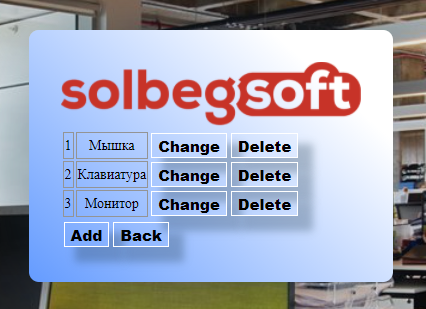
-
Workplace deletion button
- You can delete a workplace with its working data (equipment) at any time.
-
Adding a workplace
- By clicking this button, you can add a workplace that will be initially free and accessible to everyone. The date can be specified starting from today and in the correct interval format.
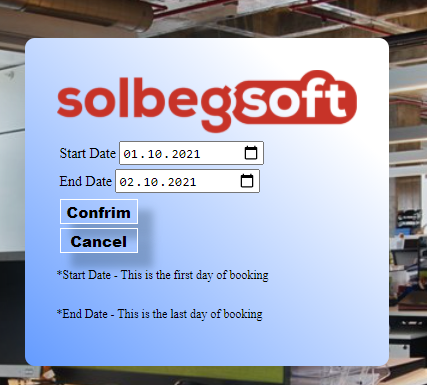
-
About the user
- Here the data about the user is displayed, or rather the First and last name under which he entered.
-
Reserved seats
- A sign with your reserved seats is displayed here. If you need to delete your reserved seat, you can simply click the Delete button next to the reservation place.
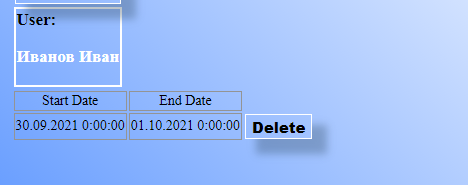
-
Exit button
- When you click this button, you will be able to log out from under this user and return to the authorization panel.