Using the BHoM in VBA
This feature is currently in development and can be found in this PR.
It is therefore not recommended to use it on critical project as its general interface is still subject to change.
- In your Visual Basic Editor, open the
Referencedialog. You can open it in theToolssection of the menu as shown below:
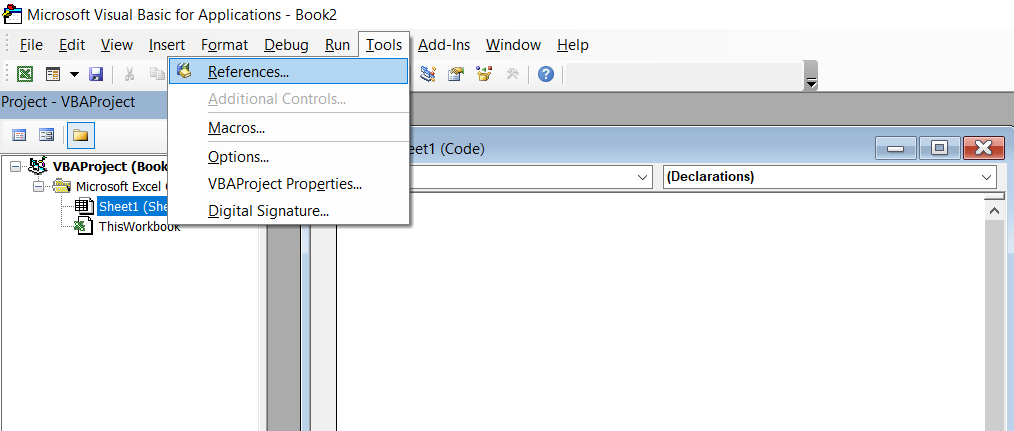
- Click the
Browsebutton and select theExcel_UI.tlbfile from theC:\ProgramData\BHoM\Assembliesfolder:
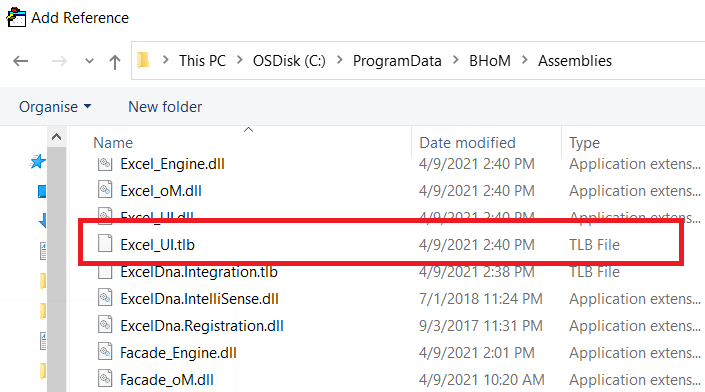
- Close the
Referencedialog by clicking theOKbutton.
All BHoM objects are created through the same process:
- Create a new
Excel_UI.Object - Set its type by calling its
SetType(typeName)and giving it the full name of the type you wish to create (i.e. namespace + name) - Set each of its properties by calling its
SetProperty(key, value)method and giving it the name and value of that property.
If you don't set a property, it will just keep its default value.
Here's an example of creating a Point this way:
Dim point As New Excel_UI.Object
Call point.SetType("BH.oM.Geometry.Point")
Call point.SetProperty("X", Range("B2").Value)
Call point.SetProperty("Y", Range("C2").Value)
Call point.SetProperty("Z", Range("D2").Value)
You might be wondering why we don't just create a Point object instead of an Excel_UI.Object with its type set to BH.oM.Geometry.Point. The main reason is because the BHoM can only be exposed to VBA via COM and COM has a much more restrictive type support than C#. For example generics are not supported (e.g. List<T>).
Note that you can also create a new object by calling the CreateObject method of the BHoM COM server:
Dim bhom As New Excel_UI.Server
bhom.CreateObject("BH.oM.Geometry.Point")
Creating a collection (i.e. a list of objects) is a fairly similar process to the creation of an object:
- Create a new
Excel_UI.Collection - For each object you want to add to the collection
- Create the object following the procedure above
- Add it to the collection calling the collection's
Add(item)and passing it the new object
Here's an example on how to create a collection of Points:
Dim data As New Excel_UI.Collection

Dim rowIndex As Integer
For rowIndex = firstRow To lastRow

    Dim point As New Excel_UI.Object
    Call point.SetType("BH.oM.Geometry.Point")
    Call point.SetProperty("X", Cells(rowIndex, colIndex).Value)
    Call point.SetProperty("Y", Cells(rowIndex, colIndex+1).Value)
    Call point.SetProperty("Z", Cells(rowIndex, colIndex+2).Value)

    Call data.Add(point)

NextThe same process applies to creating an enum:
- Create a new
Excel_UI.Enum - Set its type by calling its
SetType(typeName)and giving it the full name of the type you wish to create (i.e. namespace + name) - Set its value by calling its
SetValue(value)method and giving it a string that matches one of the possible values of that enum.
Here's an example in VBA:
Dim frequency As New Excel_UI.Enum
Call frequency.SetType("BH.oM.Acoustic.Frequency")
Call frequency.SetValue("Hz250")
Same as before, you can also create an Enum through the Server:
Dim bhom As New Excel_UI.Server
Dim frequency As New Excel_UI.Enum
Set frequency = bhom.CreateEnum("BH.oM.Acoustic.Frequency", "Hz500")
Finally, not that you don't have to create an enum if you just need to assign it as a property of another object. In that case you can just use a string instead:
Dim obj As New Excel_UI.Object
Call obj.SetType("BH.oM.Acoustic.Rasti")
Call obj.SetProperty("Frequency", "BH.oM.Acoustic.Frequency.Hz125")If a spreadsheet already contains BHoM objects, you can access those objects using the GetObject method from the BHoM server.
Here's an example for both collecting an Object and a Collection:
Dim bhom As New Excel_UI.Server

Dim obj As Excel_UI.Object
Set obj = bhom.GetObject(Range("D1").Value)

Dim col As Excel_UI.Collection
Set col = bhom.GetObject(Range("D4").Value)You can call a BHoM method by following this procedure:
- Create all the inputs you need to provide to that method and add them to a
Collection - Create an instance of
Excel_UI.Serverif you don't already have one - Call its
CallMethodmethod by providing the method name (Full namespace and method name) and theCollectioncreated above
Here's an example:
Dim bhom As New Excel_UI.Server

Dim vector As New Excel_UI.Object
Call vector.SetType("BH.oM.Geometry.Vector")
Call vector.SetProperty("X", 3)
Call vector.SetProperty("Y", 4)

Dim parameters As New Excel_UI.Collection
Call parameters.Add(vector)

Dim result As Variant
result = bhom.CallMethod("BH.Engine.Geometry.Query.Length", parameters)
Creating an adapter works in a similar way to calling a method:
- Create all the inputs you need to provide to the constructor of that adapter and add them to a
Collection - Create an instance of
Excel_UI.Serverif you don't already have one - Call its
CreateAdaptermethod by providing the adapter name (Full namespace and adapter name) and theCollectioncreated above
Let's say we want to create a FileAdapter. Its component's interface in Grasshopper looks like this:

So the code to create it in VBA will look something like this:
Dim bhom As New Excel_UI.Server

Dim adapterParams As New Excel_UI.Collection
adapterParams.Add(fileName)

Dim adapter As Excel_UI.adapter
Set adapter = bhom.CreateAdapter("BH.Adapter.File.FileAdapter", adapterParams)Let's start with a simple Push without any configuration. The procedure is then fairly simple:
- Create the objects you want to push and add them to a
Collection - Create the adapter as it was done in the last section
- Push the objects calling the
Pushmethod of the adapter
Here's an example using the FileAdapter created above:
Dim dataset As New Excel_UI.Object
Set dataset = ReadDataset()  'Dataset created in a separate function

Dim objects As New Excel_UI.Collection
Call objects.Add(dataset)

Dim adapter As Excel_UI.adapter
Set adapter = CreateAdapter(fileName)  'Adapter created in a separate function
Call adapter.Push(objects)If you need more control over the way your data is pushed, you can use the optional parameters for PushType and actionConfig. PushTypeis an enum. Its possible values will be provided by intellisense when you write the call to the Push method so don't worry about it too much for now 😄. If you need more informations about the adapter actions in general, you can check this part of the wiki.
Here's the same example as above but with PushType and actionConfig provided as inputs:
Dim dataset As New Excel_UI.Object
Set dataset = ReadDataset()  'Dataset created in a separate function

Dim objects As New Excel_UI.Collection
Call objects.Add(dataset)

Dim pushConfig As New Excel_UI.Object
Call pushConfig.SetType("BH.oM.Adapters.File.PushConfig")
Call pushConfig.SetProperty("UseDatasetSerialization", True)
Call pushConfig.SetProperty("BeautifyJson", False)

Dim adapter As Excel_UI.adapter
Set adapter = CreateAdapter(fileName)  'Adapter created in a separate function
Call adapter.Push(objects, "", PushType_AdapterDefault, pushConfig)The pull is very similar to a push int the way it operates:
- Create the adapter
- Pull the objects calling the
Pullmethod of the adapter and store them in aCollection
Here's an example for the file adapter used above:
Dim adapter As Excel_UI.adapter
Set adapter = CreateAdapter(fileName)  'Adapter created in a separate function

Dim result As Excel_UI.Collection
Set result = adapter.Pull()Similarly to the Push, you can provide optional inputs to the Pull method to better control the way the Pull is done.
Here's an example using the SQL adapter with a request to collect data from a specific table:
Dim adapter As Excel_UI.adapter
Set adapter = CreateAdapter() 'Adapter created in a separate function

Dim request As New Excel_UI.Object
Call request.SetType("BH.oM.Adapters.SQL.TableRequest")
Call request.SetProperty("Table", tableName)

Dim result As Excel_UI.Collection
Set result = adapter.Pull(request)