User Related Checks
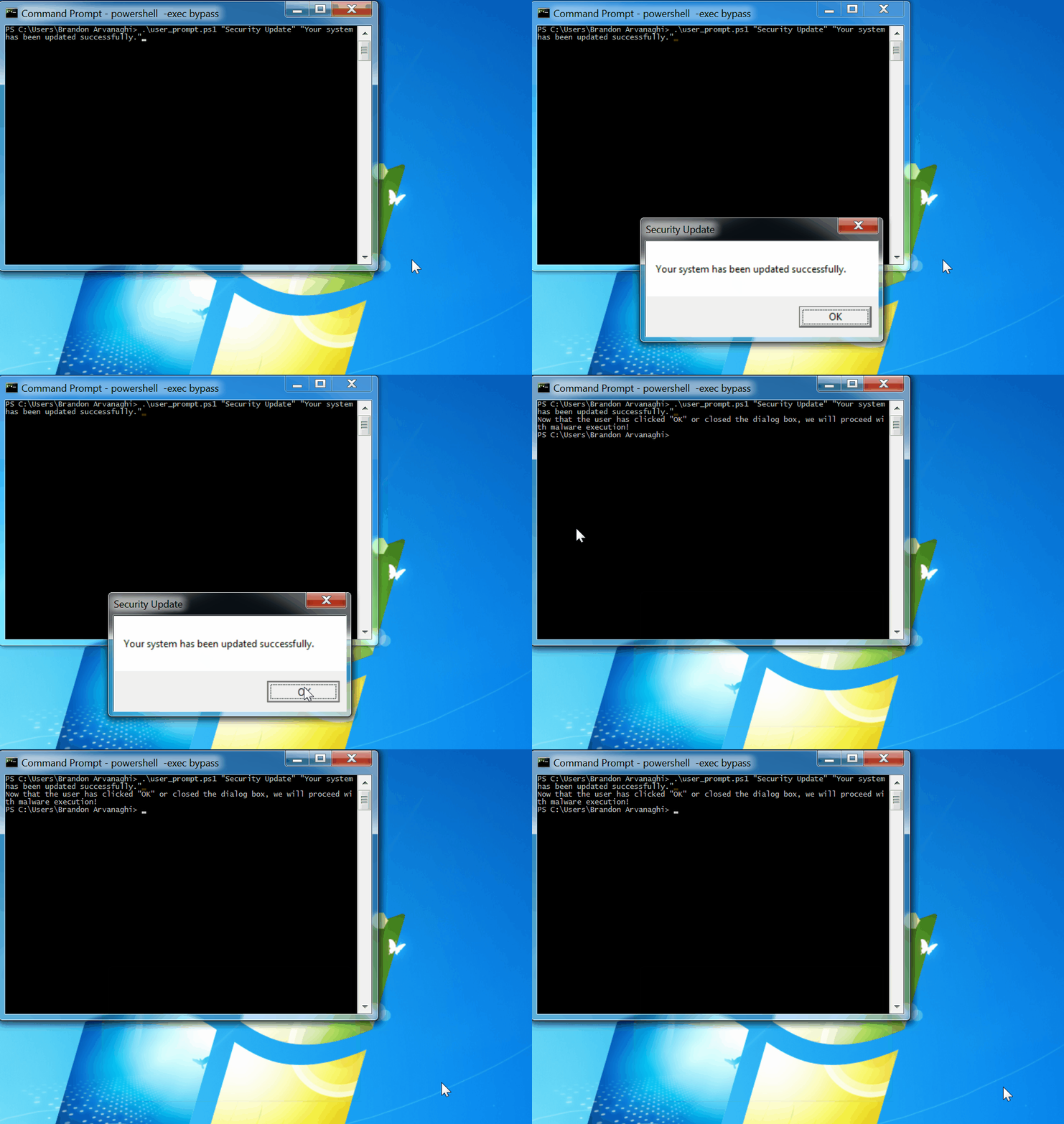
Prompting a user to click on a pop-up dialog box can be a good way to ensure a user both exists and is active on the target system. This check uses user32.dll's MessageBoxW function, which allows you to customize the content of the pop-up box, the number of options (e.g. Yes, No, Cancel), and if an icon should appear.
Customize the title and the message of the dialog box to present by passing the title first and the message second.
Example: Present a dialog box with title "Security Update" and message "Your system has updated successfully."
.\user_prompt.ps1 "Security Update" "Your system has been updated successfully."
A sandbox or idle user may have a cursor in the same position on the screen after several seconds, minutes, or hours. Get the cursor coordinates, wait a specified number of seconds, and then check the coordinates again. If the coordinates are the same, the payload will not execute.
Example: Check for a new cursor position after 3 seconds (impractically low number of seconds for purposes of the .gif)
.\cursor_position.ps1 3

An active user will be clicking his or her mouse often. Waiting for a minimum number of mouse clicks to occur can serve as an indicator that a user is present on the system. Note that many sandboxes now simulate mouse clicks.
Example: Execute the payload after 8 mouse clicks.
.\mouse_clicks.ps1 8
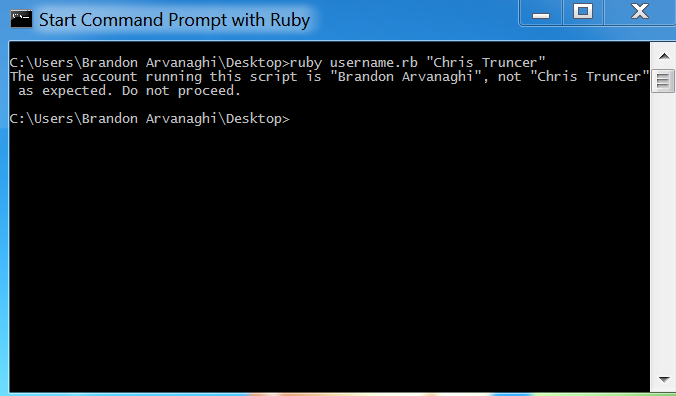
Ensure the user running your payload is the one you expect.
Example: Only execute if the user is "Chris Truncer"
ruby username.rb "Chris Truncer"
Seldom used systems and perhaps sandbox environments will not have custom dictionary entries (from "Add to Dictionary") in Microsoft Word. Check for a minimum number of entries in the custom dictionary.
Example: Require at least one word to have been added to Microsoft Word's custom dictionary.
.\msword_custom_dict_size.ps1 1