A focused music player inside VS Code for people who keep their music on Navidrome or another Subsonic-compatible server.




The extension is published on Open VSX:
https://open-vsx.org/extension/alanhuang/subsonic-player
If your editor uses Open VSX, search for Music Player for VS Code or
alanhuang.subsonic-player in the Extensions view.
If you use Microsoft VS Code and do not have Open VSX configured as your extension gallery, download the VSIX from the Open VSX page and install it with:
code --install-extension path/to/alanhuang.subsonic-player-*.vsixYou can also install a downloaded VSIX from the Extensions view:
... -> Install from VSIX....
This extension is for listening without leaving the editor. It keeps the surface small: browse your library, open an album or playlist, build a queue, favorite tracks, and keep synced lyrics nearby while you work.
It supports:
- Navidrome and Subsonic-compatible servers
- Multiple saved servers with passwords stored in VS Code SecretStorage
- Library browsing by favorite songs, recent albums, random albums, most played, and artists
- Album and playlist detail views
- Queue actions: play now, play next, add to queue, reorder, remove, clear
- Favorites for albums and tracks
- Synced lyrics with click-to-seek
- Keyboard shortcuts for play/pause, next, and previous
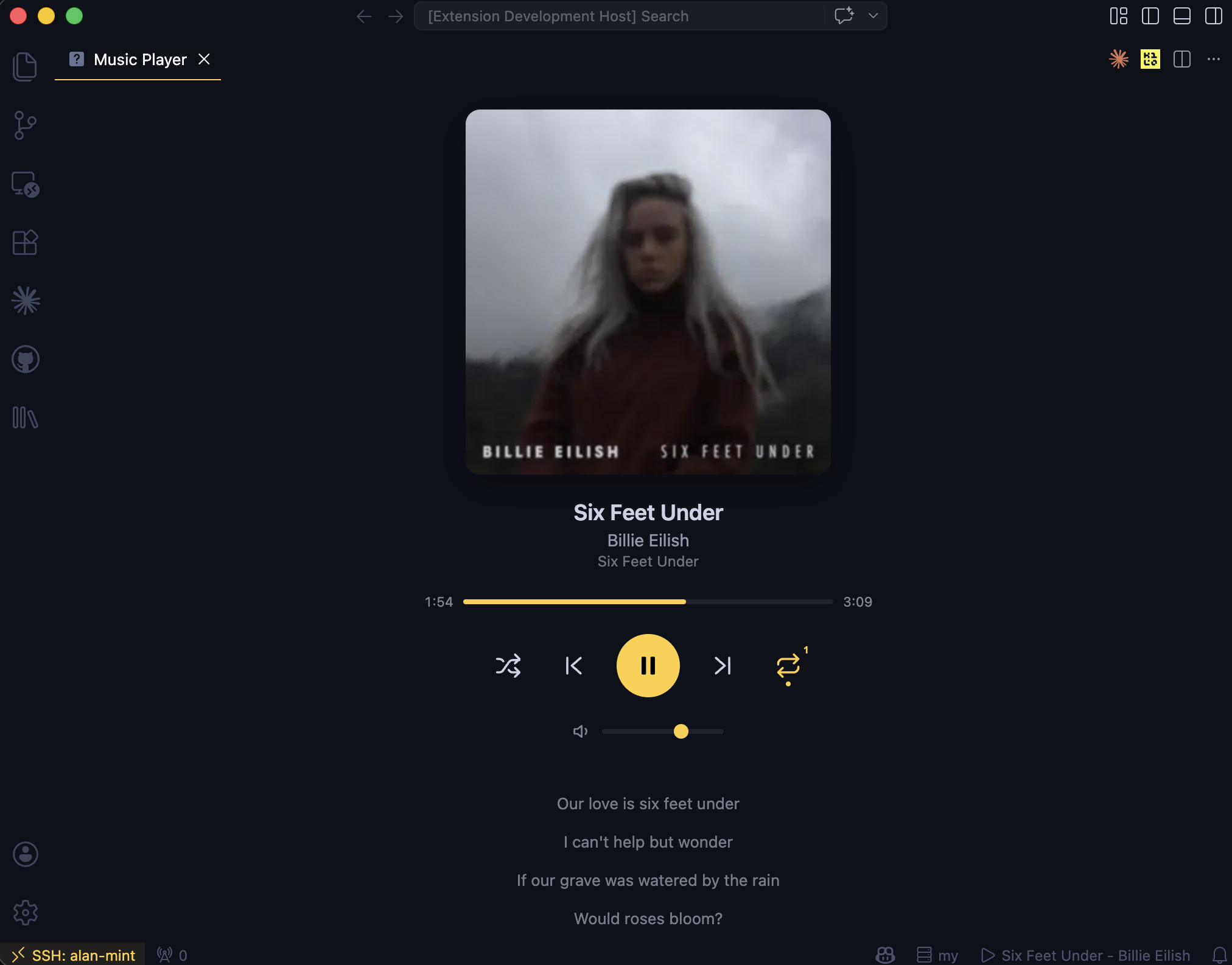
Open Subsonic Player: Open Music Player to show the player panel. The panel shows artwork, transport controls, volume, progress, repeat/shuffle, and synced lyrics when your server provides them.
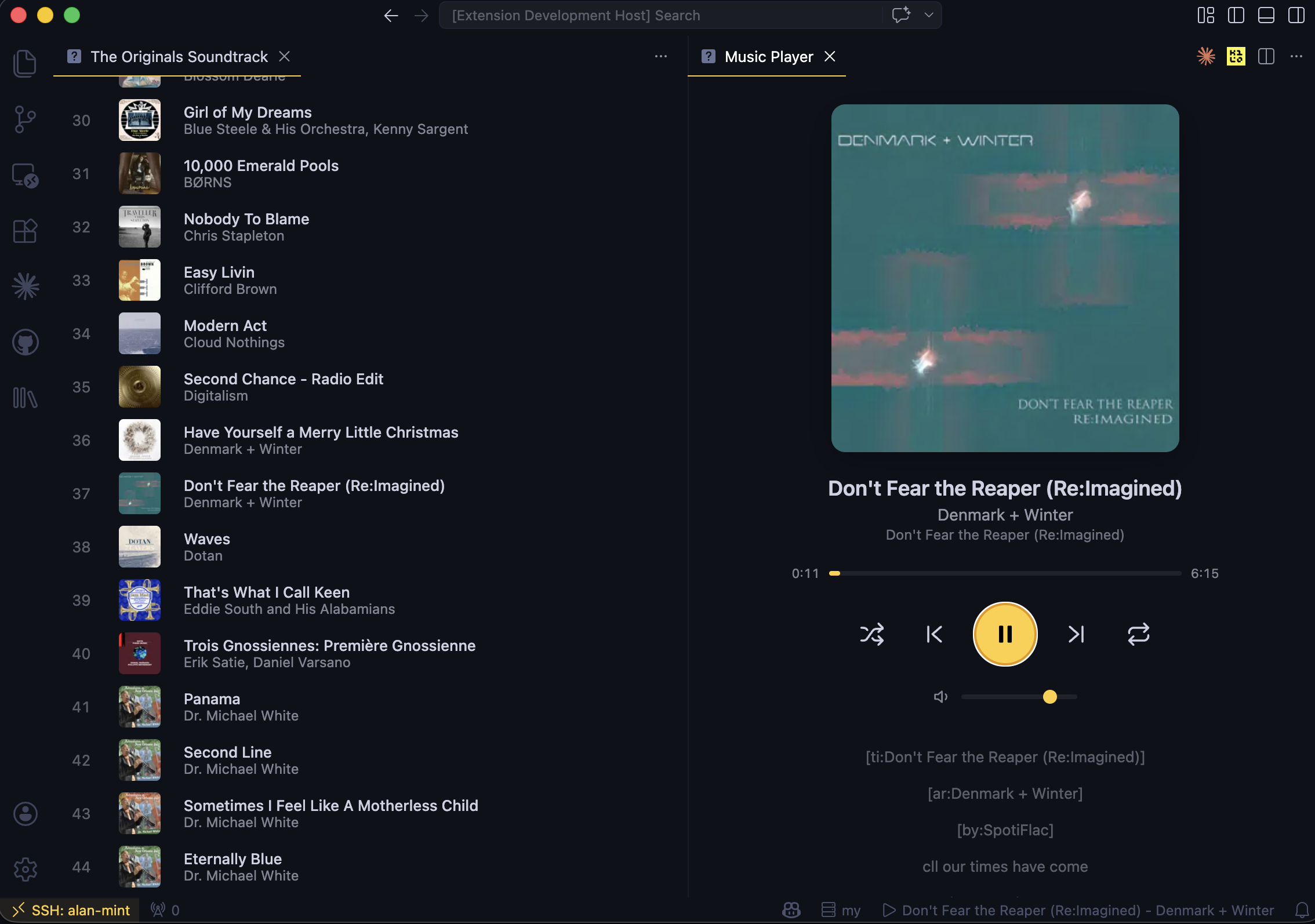
Open a playlist to inspect the tracks before replacing your queue. Each row has quick actions for play next, add to queue, and favorite. The playlist header can play the whole playlist now, queue it next, or append it to the end.
Add a server:
- Run Subsonic Player: Add Server.
- Enter your server URL, username, and password.
- Open the Music activity bar view.
Play an album:
- Expand Library.
- Open Recent Albums, Random Albums, Most Played, or an artist.
- Click an album to open the album detail view.
- Choose Play All, Play Next, or Add to Queue.
Build a queue:
- Right-click albums, playlists, playlist tracks, songs, or queue items.
- Choose Play Next or Add to Queue.
- Reorder or remove tracks from the Queue view.
Use favorites:
- Favorite albums or tracks from context menus or detail views.
- Open Library -> Favorite Songs to find starred tracks.
- Use Library -> Now Playing to favorite the active track without opening the player.
Search:
- Run Subsonic Player: Search Library.
- Pick a song or album.
- Choose Play Now, Play Next, or Add to Queue.
Switch servers:
- Run Subsonic Player: Switch Server.
- Pick another saved server, add a new server, or remove an old one.
Ctrl+Alt+P/Cmd+Alt+P: play or pauseCtrl+Alt+Right/Cmd+Alt+Right: next trackCtrl+Alt+Left/Cmd+Alt+Left: previous track
Most commands are available from the Command Palette under Subsonic Player:
- Add Server
- Switch Server
- Remove Server
- Open Music Player
- Play / Pause
- Next Track
- Previous Track
- Search Library
- Play Random Songs
- Refresh Library
- Clear Queue
Context menus provide the more specific actions, such as opening albums, favoriting tracks, moving queue items, and adding individual songs to the queue.
Recommended server:
Also supported:
- Servers implementing the Subsonic API v1.16.1 or newer
Navidrome has the best experience because the extension can also use Navidrome's native playlist API for smart playlists.
- Server passwords are stored in VS Code's encrypted SecretStorage.
- Legacy plain-text password settings are migrated automatically when possible.
- The player streams audio directly from your configured server.
- Webviews use Content Security Policy headers and nonce-based scripts.
npm ci
npm run compile
npm run lint
npm audit
Package a local VSIX:
npm run packageRun the extension locally:
- Open this repository in VS Code.
- Press
F5. - Test in the Extension Development Host window.
Release notes:
- Releases are triggered by pushing a
v*tag. - The workflow creates a GitHub Release and publishes to Open VSX.
- The extension is not published to the VS Code Marketplace.