Artgine is a 2D/3D content engine and an integrated development environment built with Electron and web technologies. It combines web‑based graphics rendering with the convenience of a desktop app, so you can build interactive content and games without complex setup.
Language 한국어
3D
Water : Water
ModularVillage : Village
Voxel : Voxel
2D
Village : Village
Maze : Maze
More examples
ArtgineTutorial : A guided tutorial on how to use Artgine.
CollusionTest: Collision testing.
3DLight: 3D lights and shadows.
Map: Track 3D objects from a 2D map.
BoxShow : Box visual viewer
Shooting : Shooting
Up : Up
Skybox : Skybox
- Run
start.bat(Windows) orstart.sh(Linux).
💡 You may see an “Unknown publisher” warning. - Or run the following in your console:
git clone https://github.com/06fs4dix/Artgine.git
cd Artgine
npm install
npm start
To run only the server, use npm run start_web instead of npm start.
├── README.md
├── LICENSE.txt
├── NOTICE.txt
├── package.json
├── start.bat       (Windows launch script)
├── start.sh        (Linux launch script)
├── tsconfig.json
├── App/            (Electron files)
├── artgine/        (Engine files)
├── db/             (Database storage path)
├── plugin/
└── proj/           (Project files)
🚫 Do not place your project folder above the working directory.
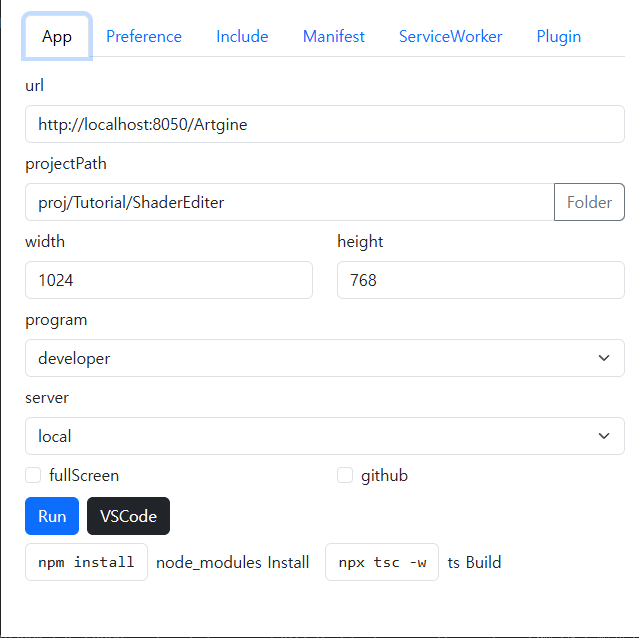
Tabs
- App: Application run settings
- Preference: Project configuration
- Include: Project include file settings
- Manifest: PWA configuration
- ServiceWorker: Cache settings
- Plugin: External libraries for Artgine
App Tab
- url: The web server address to run
- Example:
http://localhost:8050/Artgine
- Example:
- projectPath: Project to launch
- Example:
proj/Tutorial/ShaderEditer
- Example:
- Use the Folder button to browse and select a project directory.
- width, height: Initial window size
- Example:
1024 x 768 - Note: Preserved only when running as an
.exe.
- Example:
Program Modes
- program: App role
developer: Developer mode (do not distribute; server and client are applied together)client: Client modeserver: Web server mode
Server Configuration
- server: Server operation mode
local: File‑based local runremote: Connect to an external serverwebserver: Host a web server (allow external access)
Display Options
- fullScreen: Fullscreen mode
- github: Run using the GitHub library
- Creates a local Chrome launcher (.bat) in the project
Actions
- Run: Launch the application
- VSCode: Open in Visual Studio Code
- In projectPath, click Folder and select a folder under
proj. - Click Run (F9) or use the shortcut to load the project.
When running as an Electron app:
💡 Note: If you’re working manually, you’re free to edit your code.
🚫 The following files are auto‑generated and managed based on [Project Name]. Edit with care:
- [Project Name] HTML files
- [Project Name] TypeScript files
- [Project Name] JSON files
- [Project Name] Web Manifest files
📝 What you can safely edit
Only edit code after the EntryPoint. Example:
// The content above this line is automatically set by the program. Do not modify. ⬆✋🚫⬆☠️💥🔥
// EntryPoint
// You can edit from here.
Avoid modifying auto‑generated code.
Artgine BOT: Ask questions in real time using the pre‑trained Artgine GPT bot.