December 27, 2021 ( ͡👁️ ͜ʖ ͡👁️)
You can follow me in Twitter to see more updates and notes about bioinformatics tools (https://twitter.com/H3nRasouli).
“We cannot solve problems with the kind of thinking we employed when we came up with them.” -Albert Einstein
Let's go to learn new things there :)
Here, I listed some websites that you can learn bash scripting from them. You should work with bash frequently to learn it in detail because all of your works in linux can be simply finalized using bash scripting:
- https://ryanstutorials.net/bash-scripting-tutorial/bash-script.php
- https://www.tutorialspoint.com/unix/shell_scripting.htm
- https://www.youtube.com/watch?v=zWVV31NYi1U
- https://www.javatpoint.com/bash
Bash is a command language interpreter. It is widely available on various operating systems and is a default command interpreter on most GNU/Linux systems. The name is an acronym for the ‘Bourne-Again SHell’.
Note that the first command you type in your linux terminal is your firts bash code. In bash, everthing will written in linux terminal and you can simply see the results. The terminal is the heart of your linux OS so that you had to learn anything about it regarding the project you want to do. So, unlike Win OS you don't need to play with folders and paths and using bash scripting you are able to facilitate your computational analysis. There are many tutorials in the internet regarding bash scripting so that you are able to learn it in less than a month. The major benefit of bash scripting is that you can automate your linux-based jobs without spending more time to sophisticated processes. Bash scripts are used by Systems Administrators, Programmers, Network Engineers, Scientists and just about anyone else who uses a Linux/ Unix system regularly. No matter what you do or what your general level of computer proficiency is, you can generally find a way to use Bash scripting to make your life easier. Bash is a command line language. The name stands for Bourne Again SHell. It is an open source version of the Bourne Shell and was first released in 1989. BASH is the default shell on most Linux distributions and Apple's macOS (formerly OS X). Recently, a version has also been made available for Windows 10.((https://gitforwindows.org/)). Scripting allows for an automatic commands execution that would otherwise be executed interactively one-by-one.
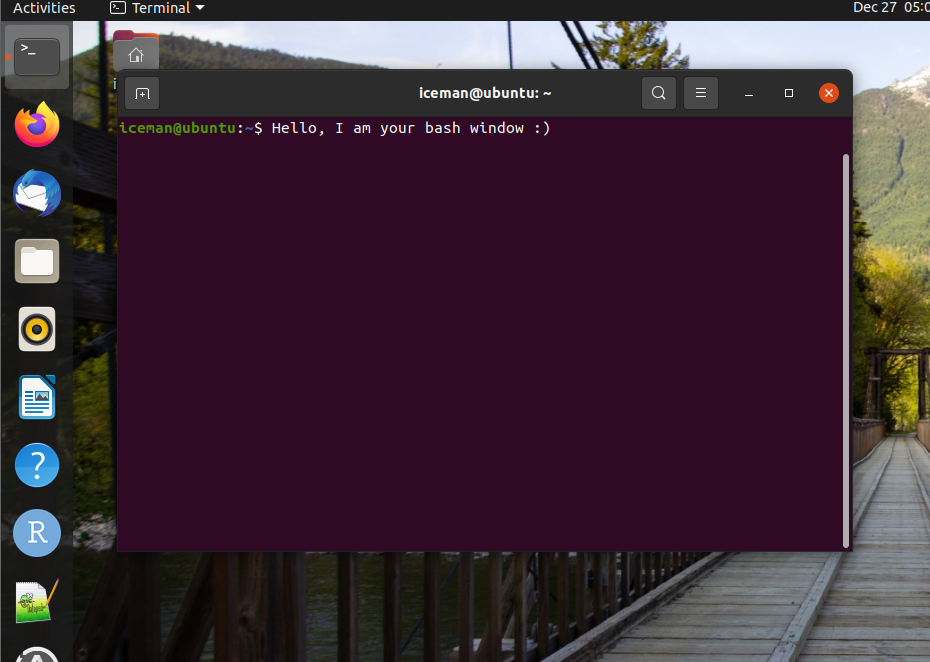
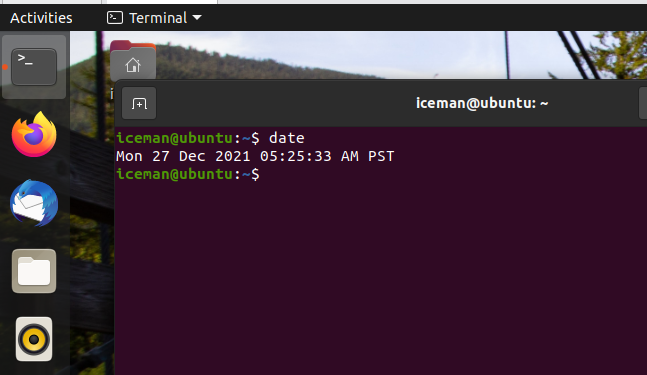
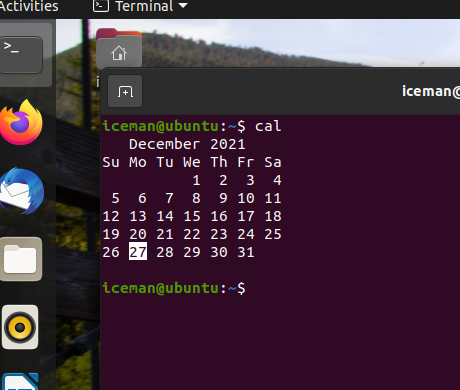
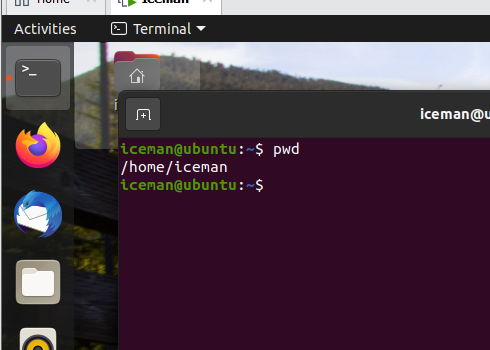
Try it now! Use your keyboard and type some commands such as date, cal, pwd or ls followed by the ENTER key. The results are looking like the following images for your entered commands:
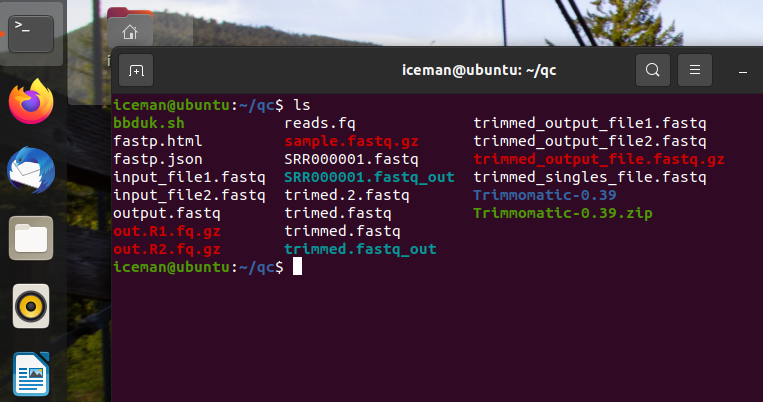
Using this command you can see all content of a directory or folder without opening it. This helps you to manage your files and paths critically while you are working on linux terminal
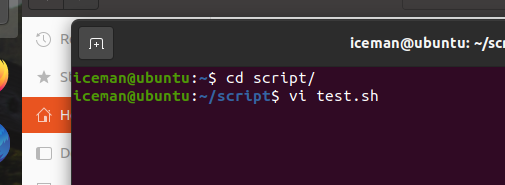
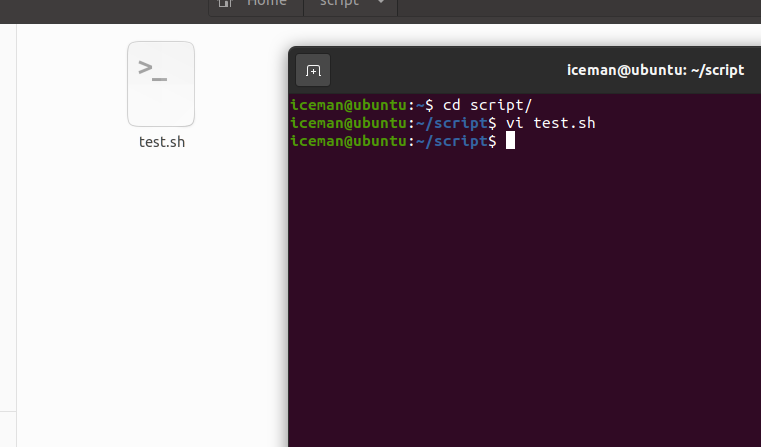
In linux this is a simple way to create a bash script file anywhere using a simple command. To do this, you will need only type vi and the name of your target file test.sh in the terminal. Then, a script will be created in your current directory. Before doing this, you should install vi using the following command:
sudo apt-get install vim
In linux, this command can create a new script file for you. After installation of vim, follow the below steps to create your first script
- Open the terminal
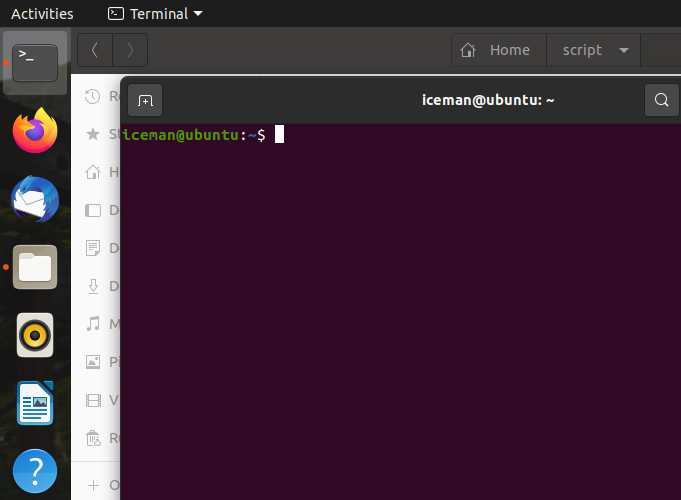
- Create a workfolder named
scriptsinhomepath
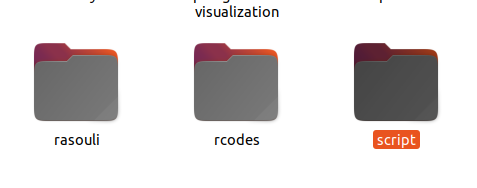
- Using
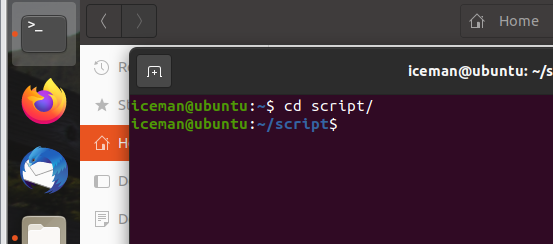
cdcommand navigate your terminal path to where the working folder is.
cd scripts/
- Now, type
vi test.shin your terminal
vi test.sh
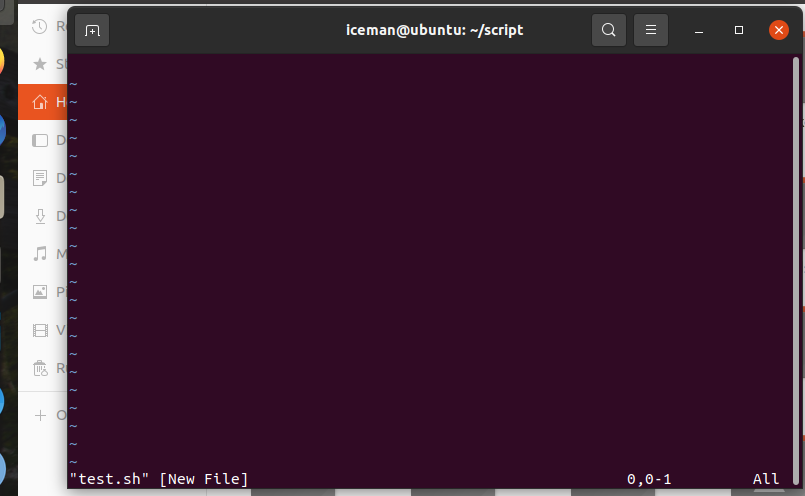
It will open a new script file for you in the linux terminal as shown in the following image:
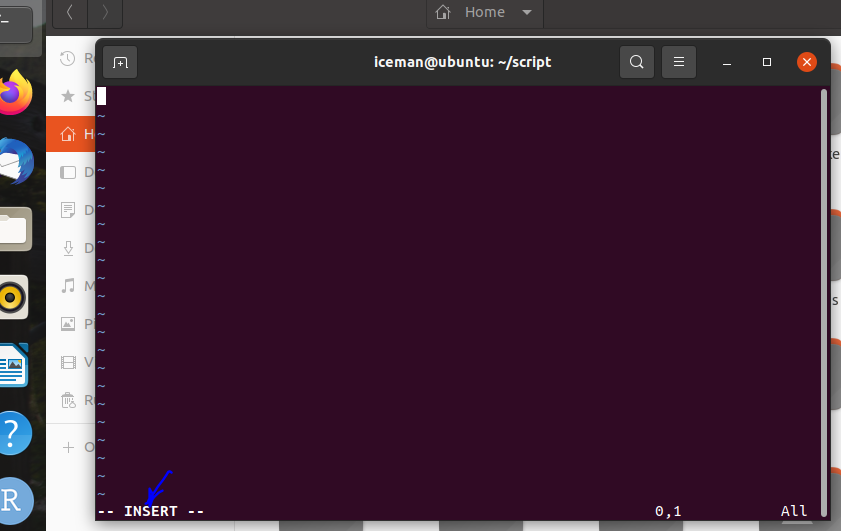
Now, press insert key on your keyboard. For your laptop, it seems the 0-key or ins is the insert key of your keyboard. After pressing it, insert mode will be activated in the create script in the linux terminal. Then, the insert mode will be activated on the terminal and you can see it in the end of your script as shown:
Now, you can type cal, date, pwd and ls commands in this script to automate running of all commands you formerly run separately.
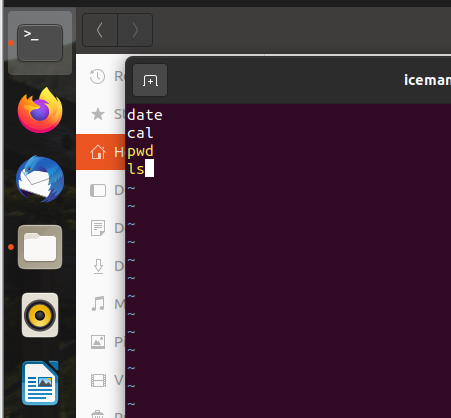
Next, press the ESC key on your keyboard to close the script. While you did it, you should type :x to save the script that created using vi command and then press the enter to go back the first line of terminal:
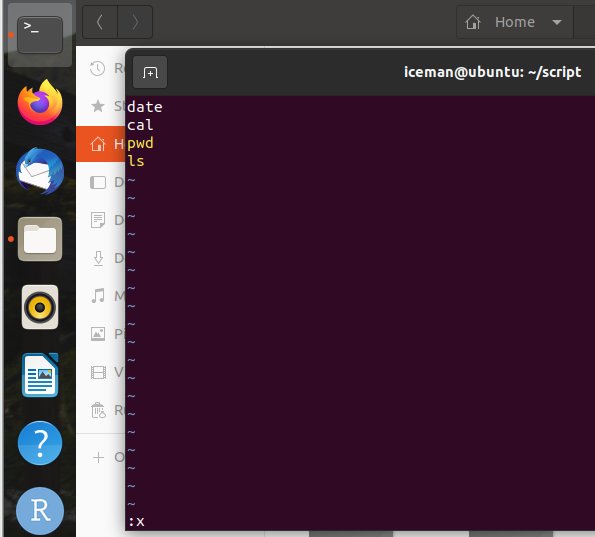
Note that after saving your script, a copy of its source will be saved in your working folder:
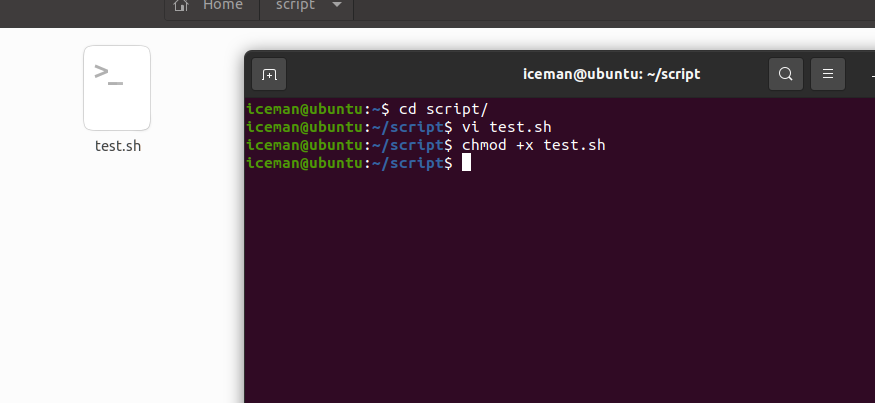
Now, you should activate your script using chmod +x test.sh command:
chmod +x test.sh
Now, your script is ready to run. To do this, just type ./test.sh in your terminal
./test.sh
After pressing Enter key all commands will be run on your terminal and you made the first automated script in your system. It will show the output of 4 commands for you without needing to enter all of them separately. This step helps you to save your time while working in linux and doing your jobs. Note that this is a simple automation process and in the next courses you will learn more about scripting in linux
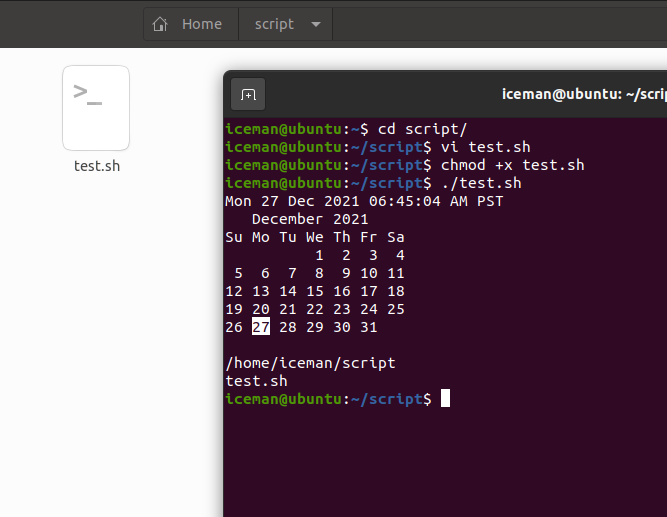
As you can see, all outputs have shown after pressing the enter for your written script.
This is why I love linux and doing my all taks there. I will keep you posted for more updates and courses in this term of learning.
Good Luck