KiWay Extract Pins is a powerful KiCAD plugin designed to automate documentation and signal analysis. It allows you to extract pin data, trace signal flows, and generate diagrams directly from your PCB layout.
| Feature | Description |
|---|---|
| Data Extraction | Export pinouts to CSV, Markdown, or JSON. Filter by reference, value, or connector type. |
| Signal Flow | Trace signals from Source to Destination (e.g., Connector → IC). |
| IC Charts | Generate complete pin maps for ICs, showing where every pin connects. |
| Visual Diagrams | NEW! Generate self-contained SVG block diagrams and flowcharts. |
| Automation | NEW! Full CLI support for scripting and CI/CD integration. |
- Open KiCAD 9.0+.
- Go to Plugin and Content Manager.
- Click Manage Repositories -> (+) Add.
- URL:
https://raw.githubusercontent.com/wayri/KiWay/main/pcm/repo.json - Click Save, then select "KiWay Plugins" from the repository dropdown.
- Install KiWay Extract Pins.
Download the latest release zip and extract the extract_pins_plugin folder to:
- Windows:
Documents\KiCad\9.0\scripting\plugins\ - Linux:
~/.local/share/kicad/9.0/scripting/plugins/
The GUI is designed for interactive exploration.
- Open PCB Editor: Launch your board layout.
- Launch Plugin: Click the toolbar icon or go to
Tools -> External Plugins -> Extract Component Pins. - Select Components: You can select components on the PCB before or during the plugin session.
- Auto-Refresh: Enable this checkbox to have the list update automatically as you click components on the board.

- Extract Pins: The main table view. Configure filters and export pin lists.
- Signal Flow: Define a "Source" (e.g.,
J1) and "Destination" (e.g.,U1). The plugin will find all nets connecting them. - IC Chart: Pick an IC (
Uxx) to see a report of all its connections. - Diagrams: Generate visual block diagrams.
You can use KiWay without opening the KiCAD GUI. This is perfect for generating documentation automatically.
Note: You must run these commands using KiCAD's bundled Python environment.
Export pin data for components.
# Export all connectors starting with J to CSV
kiway-python -m extract_pins_plugin extract --refs "J*" --format csv board.kicad_pcb
Options:
--refs "J*,P*": Select components by reference patterns.--net-filter "SPI_*": Only show pins connected to nets matching the pattern.--ignore-power: Exclude GND/VCC pins.
Trace signals between two sets of components.
# Trace signals from Connector J1 to Microcontroller U1
kiway-python -m extract_pins_plugin signal-flow --source "J1" --dest "U1" --format md board.kicad_pcb
Output Example (Markdown):
| Source | Pin | Net | Dest | Pin |
|---|---|---|---|---|
| J1 | 1 | SPI_MOSI | U1 | 14 |
| J1 | 2 | SPI_MISO | U1 | 15 |
Generate vector graphics of your components.
# Create a block diagram for U1 and U2
kiway-python -m extract_pins_plugin diagram --refs "U1,U2" -o schematic.svg board.kicad_pcbFind specific signal paths designated by max hops.
# How does signal get from TP1 to U1?
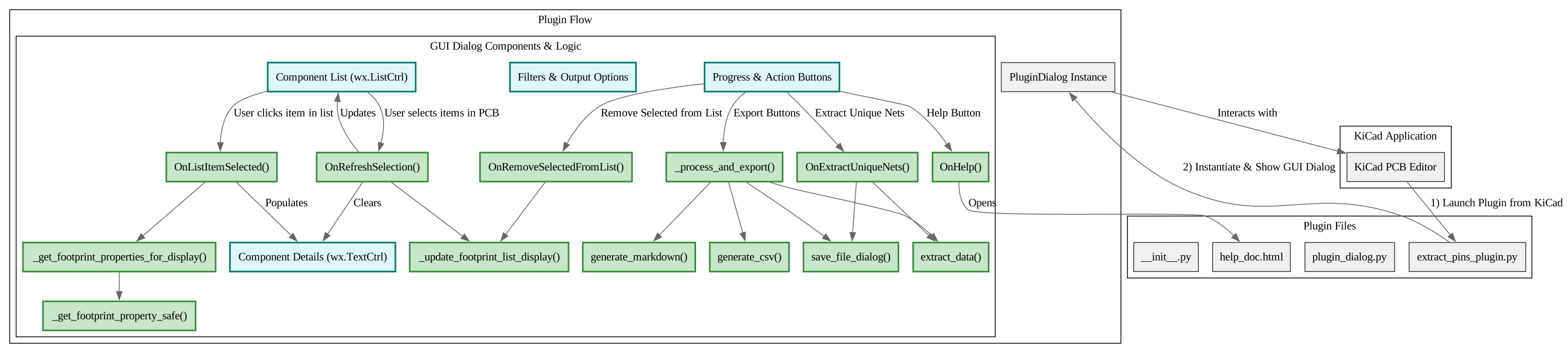
kiway-python -m extract_pins_plugin find-path --start "TP1" --end "U1" --max-hops 5 board.kicad_pcbFor contributors who want to understand the codebase structure.
Q: Can I run this on KiCAD 8?
A: The metadata targets KiCAD 9.0+, but it may work on KiCAD 8 if you manually edit the metadata.json version requirement, though it is untested.
Q: Where are the SVG diagrams saved? A: By default, they are saved in the same directory as the PCB file.