This document describes how changes can be made to various areas of the Homepage.
- Edit the file specific to the area you want to change (see below) in the correct branch and commit your change.
The correct branch to use is
user-admin-manageIf you are using Github to edit, then your screen should look like this: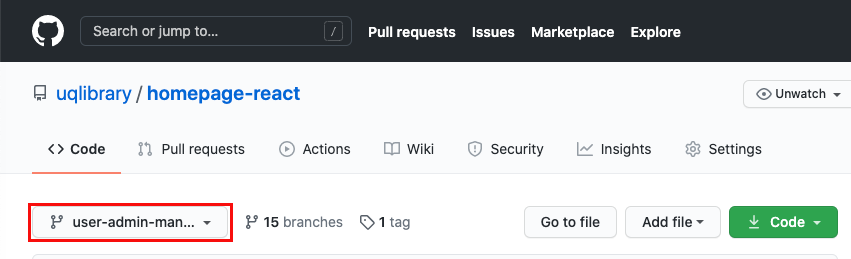
- Check the build passes on Amazon by checking the
System - Deploymentschannel on Teams (if you have access, you can also check it on Amazon) - Preview the change at http://homepage-development.library.uq.edu.au/user-admin-manage/#/
- Let devs know that you have a change to be merged in
- If it does not pass on first go and you do not have permissions to view the error in AWS, it is suggested you immediately get a dev to fix it for you as they can fix code layout errors very simply. Worry about getting the words right :)
Notes:
- html on this page must be Really Tidy, or the build will not pass.
- Indent everything by exactly 4 spaces
- each HTML item gets its own line
Visit the Reusable Webcomponents instructions
Visit the Reusable Webcomponents instructions
Need to add or remove a user? Ask Work Station Support to add or remove the "SpotlightAdmins" AD group for the user (the one group covers Spotlights and Alerts). Include the username in the request (eg uqjtilse).
You can edit the Alerts locale.