4. Learning ROS through Simulation

Author: Brandon Rice
The full, original tutorial can be found here.
Videos for each part of the workshop can be found here and here.
Preface: Robots are expensive, and it's difficult to test code when the bot is in the lab and you're at home...
I wrote this tutorial (or rather adapted an existing tutorial) on July 31, 2021. COVID-19 had physically removed our team from using our lab for over one full year. One full year of trying to figure out how a team could write software for a robot that was locked away in an nearly inaccessible room. No more "let's meet next week and test the code (physically on the rover)."
As SDRC's software team lead, one leadership role was particularly tricky: how can I get new members up to speed and teach them ROS (already a difficult task under normal circumstances) without actually running code on a physical device?
It was a problem I didn't know how to solve. Instead of gaining new members interested in software throughout the 2020-21 academic year, we lost nearly our entire team. Such an avoidable mistake if only I or anyone else on our team had experience in simulation-based software development and testing, what I now know and what you too can learn from this tutorial. Don't let working remotely halt your productivity!
No!!! Everything* software related can be virtually simulated on your computer.
I put an asterisk (*) on "everything" because simulations are not real, meaning:
- No simulation is 100% accurate because of how complex and random the universe is,
- A realistically modeled (i.e. correct dimensions, material properties, and joints) CAD model of the assembly you are wanting to simulate is needed for accurate results, and
- You'll want to eventually test your code on a physical robot to confirm that your code works, the simulation is close, and you can celebrate a job well done!
Luckily, in this tutorial, everything (including the model of the robot) is provided in the install of the software package we will use!
We will use a model of a robot called Turtlebot and a prebuilt simulator called Gazebo that ships with the Desktop-Full Install of ROS.
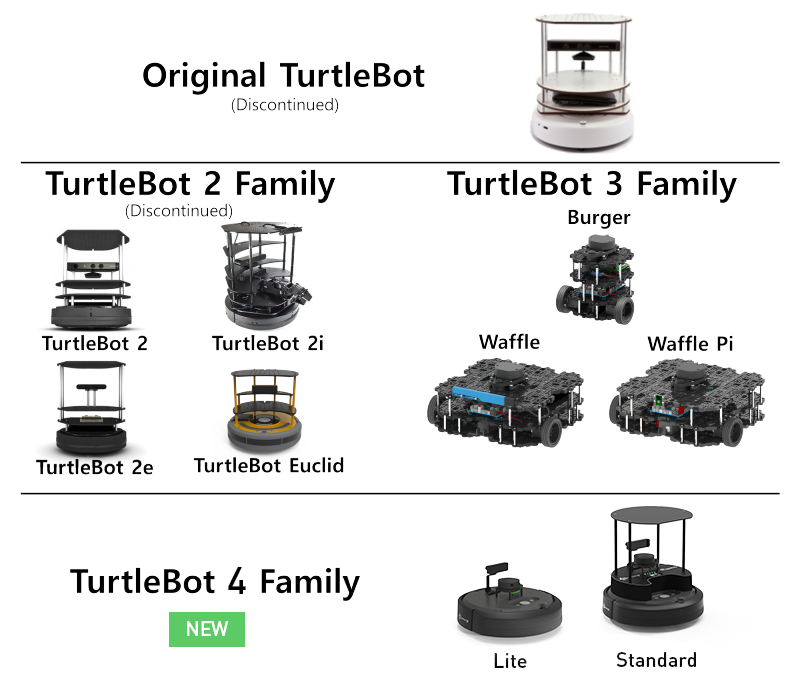
The (real) Turtlebot family.
The Turtlebot2 and Turtlebot3 models released with a full ROS library, including the properly defined 3D models of the robots. Because we are using ROS Melodic Morenia, we will use Turtlebot3.
A video tutorial can be found at: https://youtu.be/EOYPQzH6Vvc
First we need to install the core dependencies of TurtleBot, which can be done by executing the following command in a terminal:
sudo apt install ros-melodic-joy ros-melodic-teleop-twist-joy \
  ros-melodic-teleop-twist-keyboard ros-melodic-laser-proc \
  ros-melodic-rgbd-launch ros-melodic-depthimage-to-laserscan \
  ros-melodic-rosserial-arduino ros-melodic-rosserial-python \
  ros-melodic-rosserial-server ros-melodic-rosserial-client \
  ros-melodic-rosserial-msgs ros-melodic-amcl ros-melodic-map-server \
  ros-melodic-move-base ros-melodic-urdf ros-melodic-xacro \
  ros-melodic-compressed-image-transport ros-melodic-rqt* \
  ros-melodic-gmapping ros-melodic-navigation ros-melodic-interactive-markers \
  ros-melodic-gazebo-ros-pkgs
We also need to install the following package for the servo actuators (motors) used on TurtleBot:
sudo apt install ros-melodic-dynamixel-sdkNext, install this package that defines the messages that TurtleBot uses to communicate with ROS:
sudo apt install ros-melodic-turtlebot3-msgsAdditionally, we need to install the main TurtleBot3 package:
sudo apt install ros-melodic-turtlebot3Once the main installation is complete, we need to install the TurtleBot3 Simulations package from source, by cloning it with Git into our Catkin Workspace:
cd ~/catkin_ws/src/
git clone -b melodic-devel https://github.com/ROBOTIS-GIT/turtlebot3_simulations.git
Finally, we need to navigate back to the root of the Catkin Workspace to run a catkin_make:
cd ~/catkin_ws && catkin_makeThese next commands are to edit your .bashrc file so every time you open a new terminal, the terminal will have the right variables pre-defined. This command adds sourcing the devel/setup.bash file so new packages installed through apt are recognized by Catkin and your terminal:
echo "source ~/catkin_ws/devel/setup.bash" >> ~/.bashrcNext, this line defines the default model used in our TurtleBot simulation to be the Burger model. You can also choose the Waffle model instead:
echo "export TURTLEBOT3_MODEL=burger" >> ~/.bashrcOnce these commands are executed (which wrote what's in the quotation marks into the .bashrc file), we need to source the .bashrc file for these things to take effect:
source ~/.bashrcWe can launch the TurtleBot in an empty Gazebo world with:
roslaunch turtlebot3_gazebo turtlebot3_empty_world.launch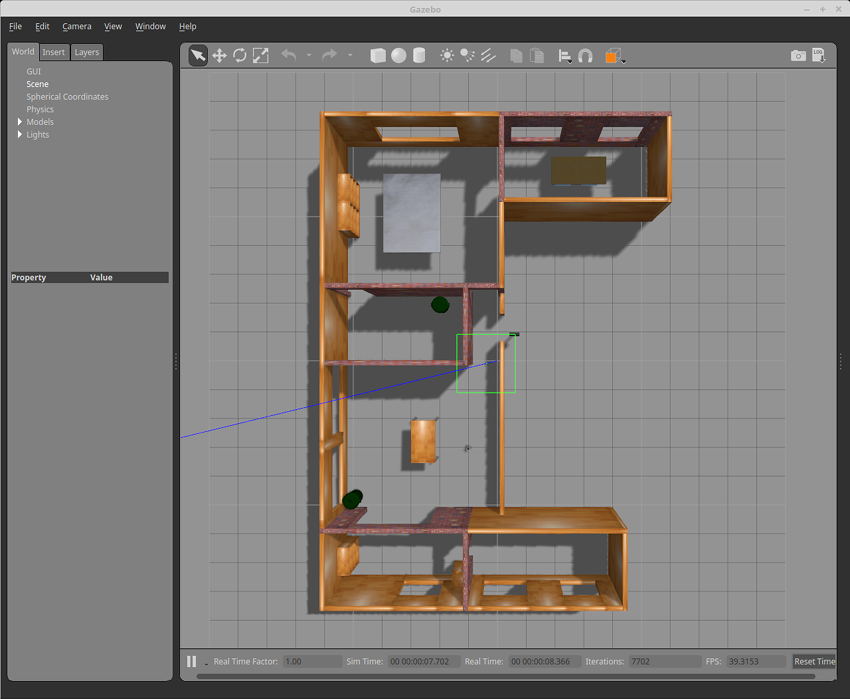
The empty world is a bit boring, so let's launch a more complex world - the House world:
roslaunch turtlebot3_gazebo turtlebot3_house.launchTo drive the TurtleBot around, we need to launch the TurtleBot Teleop node:
roslaunch turtlebot3_teleop turtlebot3_teleop_key.launchWe can drive the TurtleBot by typing W to drive forward, A and D to turn, X to drive backward, and S to stop all motors while having the terminal running the Teleop node selected.
Here is a list of commands to launch other pre-made Gazebo worlds:
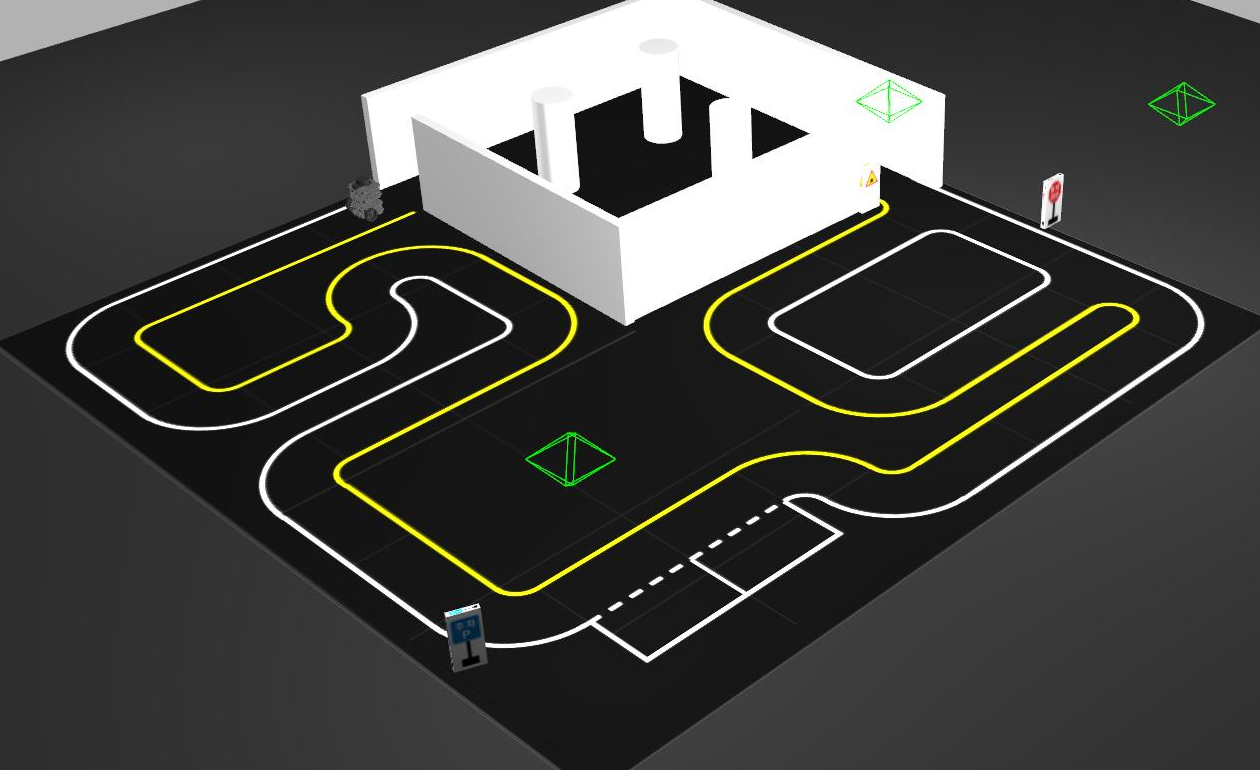
More information can be found at: https://emanual.robotis.com/docs/en/platform/turtlebot3/autonomous_driving_autorace/
roslaunch turtlebot3_autorace_2020.launchOr
roslaunch turtlebot3_autorace.launchroslaunch turtlebot3_gazebo turtlebot3_empty_world.launch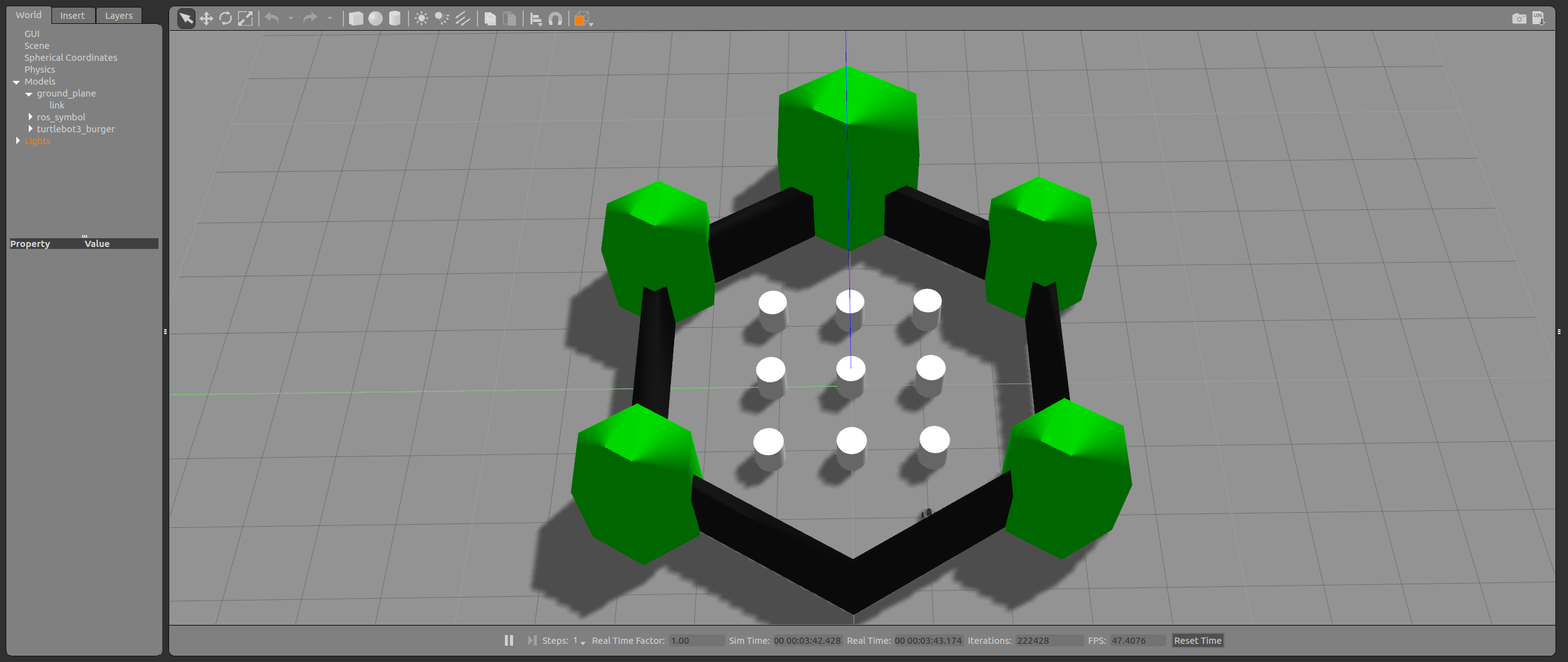
roslaunch turtlebot3_gazebo turtlebot3_world.launchroslaunch turtlebot3_gazebo turtlebot3_stage_1.launchroslaunch turtlebot3_gazebo turtlebot3_stage_2.launchroslaunch turtlebot3_gazebo turtlebot3_stage_3.launchroslaunch turtlebot3_gazebo turtlebot3_stage_4.launchAdditional worlds for TurtleBot can be found on GitHub and elsewhere: