Since the GitHub API only allows a limited number of requests per hour, my https://github-stats-extended.vercel.app/api could possibly hit the rate limiter. If you deploy it yourself via GitHub Actions or your own hosted instance, then you do not have to worry about anything. Also, if you don't want to give my GitHub-Stats-Extended instance access to your private contributions but still want to include these contributions in your stats, you can simply host your own instance.
GitHub Actions is the simplest setup with static SVGs stored in your repo but less frequent updates, while self-hosting takes more work and can serve fresher stats (with caching).
GitHub Actions generates static SVGs and avoids per-request API calls. By default it uses GITHUB_TOKEN (public stats only), for private stats, set a PAT as a secret and pass it to the action instead.
Create /.github/workflows/grs.yml in your profile repo (USERNAME/USERNAME):
name: Update README cards

on:
  schedule:
    - cron: "0 3 * * *"
  workflow_dispatch:

jobs:
  build:
    runs-on: ubuntu-latest
    steps:
      - uses: actions/checkout@v4

      - name: Generate stats card
        uses: readme-tools/github-readme-stats-action@v1
        with:
          card: stats
          options: username=${{ github.repository_owner }}&show_icons=true
          path: profile/stats.svg
          token: ${{ secrets.GITHUB_TOKEN }}

      - name: Commit cards
        run: |
          git config user.name "github-actions"
          git config user.email "github-actions@users.noreply.github.com"
          git add profile/*.svg
          git commit -m "Update README cards" || exit 0
          git push
Then embed from your profile README:
See more options and examples in the GitHub Readme Stats Action README.
Running your own instance avoids public rate limits and gives you full control over caching, tokens, and private stats.
For deploying your own instance of GitHub Stats Extended, you will need to create a GitHub Personal Access Token (PAT). Below are the steps to create one and the scopes you need to select for both classic and fine-grained tokens.
Selecting the right scopes for your token is important in case you want to display private contributions on your cards.
- Go to Account -> Settings -> Developer Settings -> Personal access tokens -> Tokens (classic).
- Click on
Generate new token -> Generate new token (classic). - Scopes to select:
- repo
- read:user
- Click on
Generate tokenand copy it.
- Click on
Warning
This limits the scope of commits to public repositories only.
- Go to Account -> Settings -> Developer Settings -> Personal access tokens -> Fine-grained tokens.
- Click on
Generate new token -> Generate new token. - Enter a token name
- Select an expiration date
- Select
All repositories - Scopes to select under
Permissions:- Commit statuses: read-only
- Contents: read-only
- Issues: read-only
- Metadata: read-only (added automatically when selecting above scopes)
- Pull requests: read-only
- Click on
Generate tokenand copy it.
- Click on
📽️ Check Out Step By Step Video Tutorial By @codeSTACKr
Click on the deploy button to get started!
🛠️ Recommended: Step-by-step guide on setting up your own Vercel instance
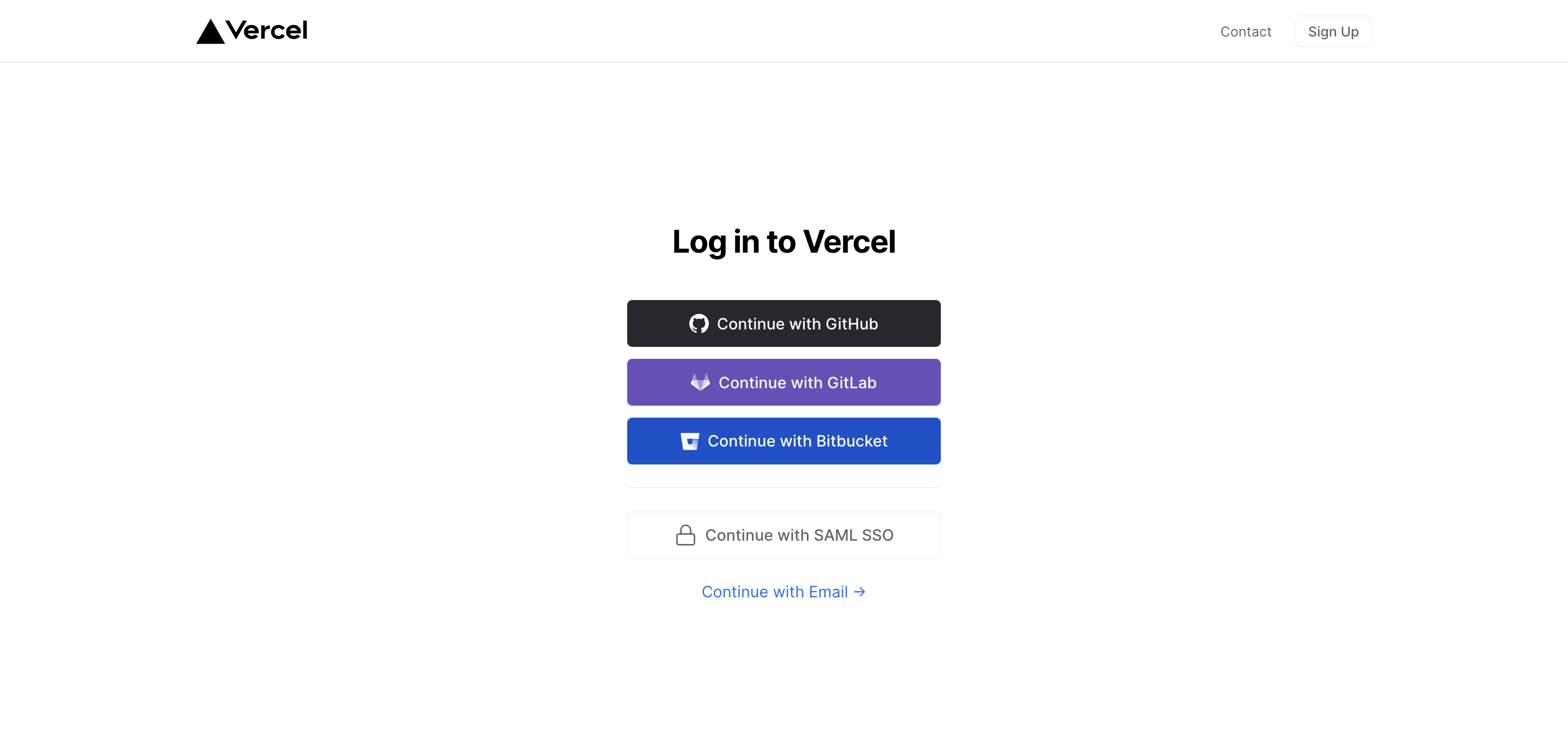
- Go to vercel.com.
- Click on
Log in. - Sign in with GitHub by pressing
Continue with GitHub. - Sign in to GitHub and allow access to all repositories if prompted.
- Fork this repo.
- Go back to your Vercel dashboard.
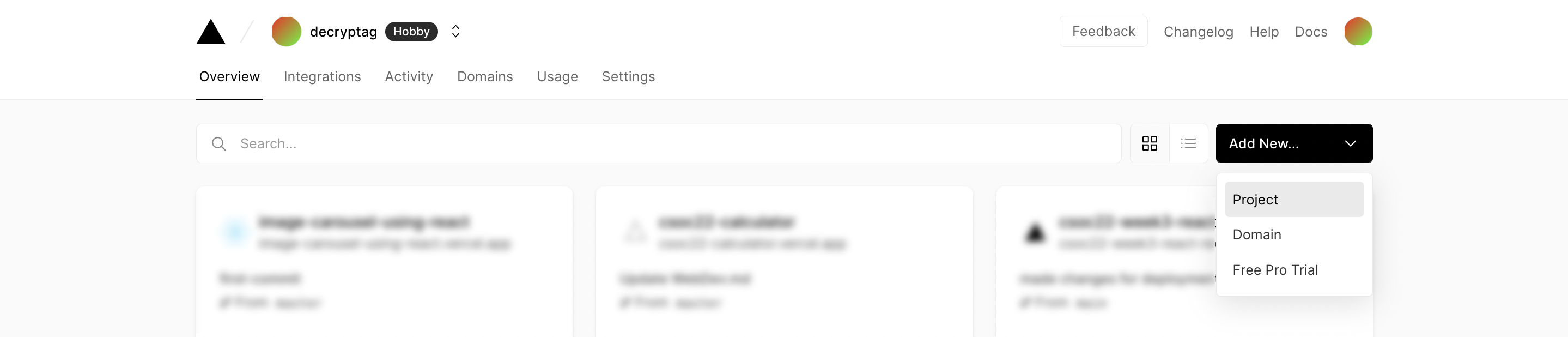
- To import a project, click the
Add New...button and select theProjectoption. - Search for the forked Git Repository and import it by clicking the
Importbutton. - Create a Personal Access Token (PAT) as described in the previous section.
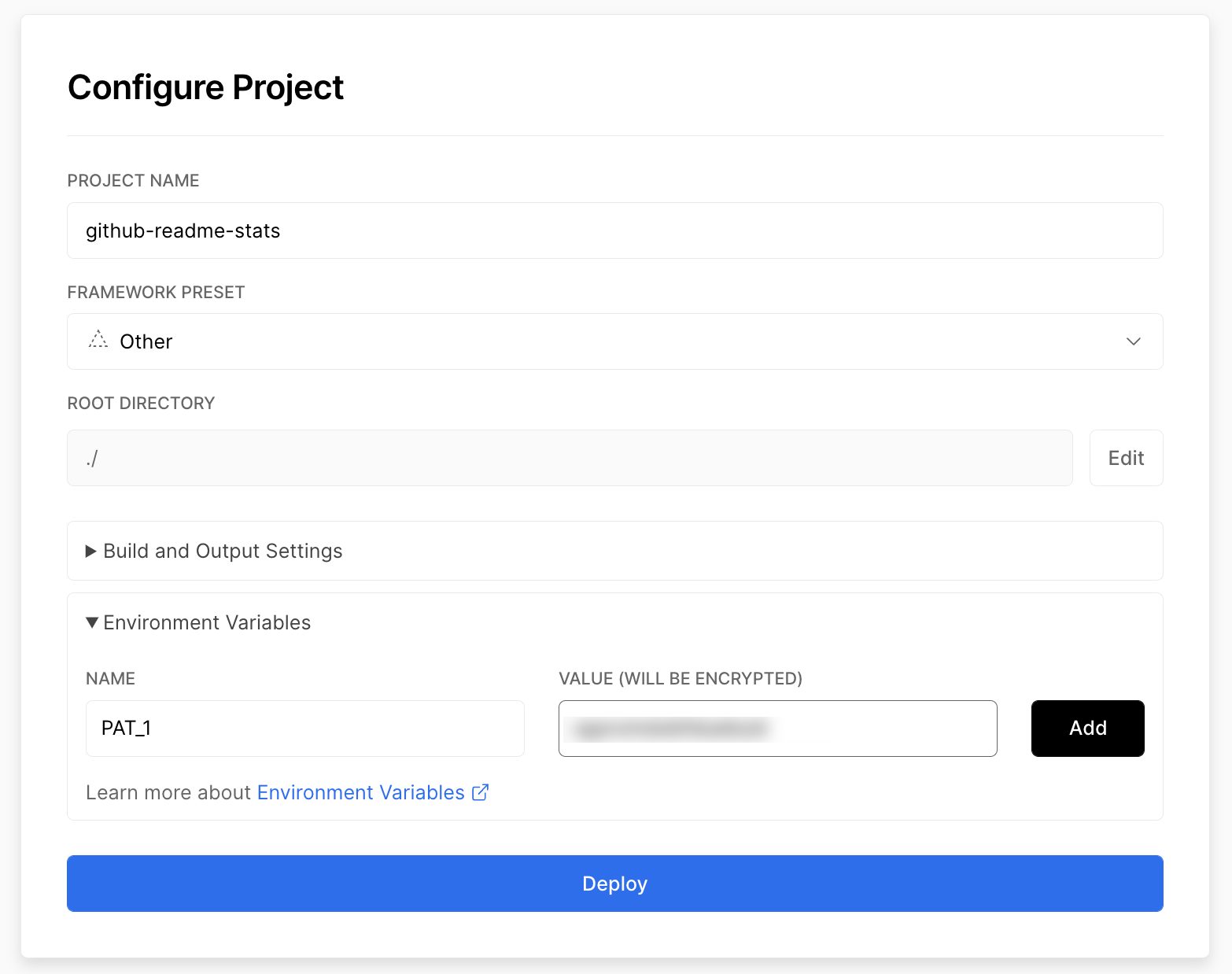
- Add the PAT as an environment variable named
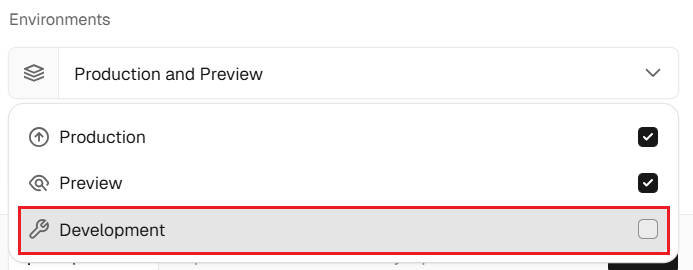
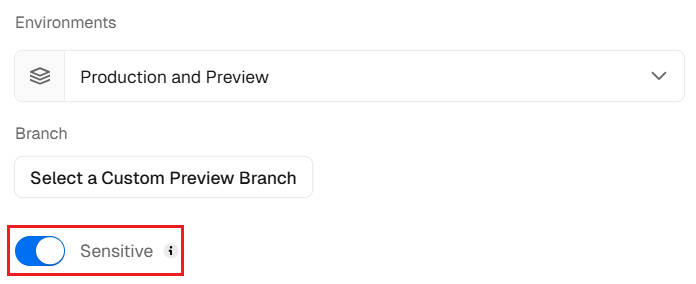
PAT_1(as shown).Note: For enhanced security, you can add a variable as a sensitive variable. To do this:
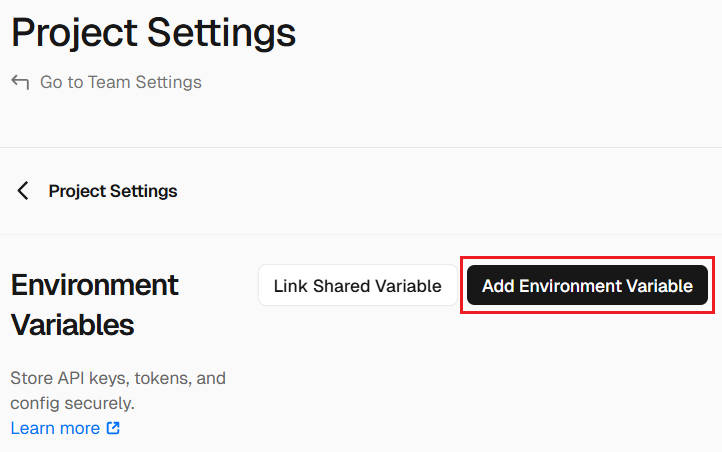
- Go to
Environment VariablesinProject Settings, then chooseAdd Environment Variable. - Uncheck
DeploymentfromEnvironments - Now you can make the variable
Sensitiveby checking the checkbox.
- Go to
- As
Root directoryselect theapps/backendfolder. - Click deploy, and you're good to go. See your domains to use the API!
- optional: add an SQL database; by using e.g. the "Nile" integration or by manually setting the environment variable
POSTGRES_URL - optional: create your own OAuth App and set environment variables
OAUTH_REDIRECT_URI,OAUTH_CLIENT_IDandOAUTH_CLIENT_SECRETon Vercel accordingly - optional: in addition to the Vercel project based on the
apps/backendfolder, create a second project based on theapps/frontendfolder. No environment variables needed. - optional: set the environment variable
TURBO_PLATFORM_ENV_DISABLEDtotrueto disable the build-time warning from turbo about environment variables missing from "turbo.json" - This warning is not relevant in our project.

Warning
This way of using GitHub-Stats-Extended is not officially supported and was added to cater to some particular use cases where Vercel could not be used (e.g. #2341). The support for this method, therefore, is limited.
🛠️ Step-by-step guide for deploying on other platforms
- Fork or clone this repo as per your needs
- Move
expressfrom the devDependencies to the dependencies section ofpackage.jsonhttps://github.com/anuraghazra/github-readme-stats/blob/ba7c2f8b55eac8452e479c8bd38b044d204d0424/package.json#L54-L61 3. Runnpm iif needed (initial setup) 4. Runnode express.jsto start the server, or set the entry point toexpress.jsinpackage.jsonif you're deploying on a managed service https://github.com/anuraghazra/github-readme-stats/blob/ba7c2f8b55eac8452e479c8bd38b044d204d0424/package.json#L11 5. You're done 🎉
GitHub Stats Extended provides several environment variables that can be used to customize the behavior of your self-hosted instance. These include:
| Name | Description | Supported values |
|---|---|---|
CACHE_SECONDS |
Sets the cache duration in seconds for the generated cards. This variable takes precedence over the default cache timings for the public instance. If this variable is not set, the default cache duration is 24 hours (86,400 seconds). | Any positive integer or 0 to disable caching |
UPDATE_AFTER_HOURS |
Sets the duration in hours after which the server proactively regenerates a previously requested card. Defaults to 11 hours. | Any int or float |
DELETE_AFTER_HOURS |
Sets the duration in hours after which the server stops proactively regenerating a previously requested card if it hasn't been requested again in the meantime. Defaults to 8 days, i.e. 192 hours. | Any int or float |
WHITELIST |
A comma-separated list of GitHub usernames that are allowed to access your instance. If this variable is not set, all usernames are allowed. | Comma-separated GitHub usernames |
GIST_WHITELIST |
A comma-separated list of GitHub Gist IDs that are allowed to be accessed on your instance. If this variable is not set, all Gist IDs are allowed. | Comma-separated GitHub Gist IDs |
EXCLUDE_REPO |
A comma-separated list of repositories that will be excluded from stats and top languages cards on your instance. This allows repository exclusion without exposing repository names in public URLs. This enhances privacy for self-hosted instances that include private repositories in stats cards. | Comma-separated repository names |
FETCH_MULTI_PAGE_STARS |
Enables fetching all starred repositories for accurate star counts, especially for users with more than 100 repositories. This may increase response times and API points usage, so it is limited to 10 fetches - i.e. 1000 repos - on the public instance. | true or false or a maximum number of fetches |
See the Vercel documentation on adding these environment variables to your Vercel instance.
Warning
Please remember to redeploy your instance after making any changes to the environment variables so that the updates take effect. The changes will not be applied to the previous deployments.
You can keep your fork, and thus your private Vercel instance up to date with the upstream using GitHub's Sync Fork button. You can also use the pull package created by @wei to automate this process.
As a prerequisite, GitHub has to know that your personal GitHub-Stats-Extended repo is a fork of https://github.com/stats-organization/github-stats-extended. This only works if you follow the "Step-by-step guide on setting up your own Vercel instance" above, instead of clicking the Vercel "Deploy" button above.